Building a web service with Node.js in Visual Studio Part 11: PUT and DELETE operations

Introduction

In the previous post we tested the GET operations in our demo web service through the C# console tester application. In this post we’ll look at two other HTTP verbs in action. We’ll insert and test a PUT endpoint to update a customer. In particular we’ll add new orders to an existing customer. In addition we’ll remove a customer through a DELETE endpoint. This post will also finish up the series on Node.js.

We’ll extend the CustomerOrdersApi demo application so have it ready in Visual Studio.

Updating a customer

Let’s start with the repository and work our way up to the controller. Add the following method to customerRepository.js:

module.exports.addOrders = function (customerId, newOrders, next) {
    databaseAccess.getDbHandle(function (err, db) {
        if (err) {
            next(err, null);
        }
        else {
            var collection = db.collection("customers");
            var mongoDb = require('mongodb');
            var BSON = mongoDb.BSONPure;
            var objectId = new BSON.ObjectID(customerId);
            collection.find({ '_id': objectId }).count(function (err, count) {
                if (count == 0) {
                    err = "No matching customer";
                    next(err, null);
                }
                else {
                    collection.update({ '_id': objectId }, { $addToSet: { orders: { $each: newOrders } } }, function (err, result) {
                        if (err) {
                            next(err, null);
                        }
                        else {
                            next(null, result);
                        }
                    });
                }
            });
        }
    });
};

Most of this code should look familiar from the previous posts on this topic. We check whether a customer with the incoming customer ID exists. If not then we return an exception in the “next” callback. Otherwise we update the customer. The newOrders parameter will hold the orders to be added in an array. The update statement may look strange at first but the MongoDb addToSet operator coupled with the “each” operator enables us to push all elements in an array into an existing one. If we simply use the push operator then it will add the newOrders array into the orders array of the customer, i.e. we’ll end up with an array within an array which is not what we want. The each operator will go through the elements in newOrders and add them into the orders array. If the update function goes well then MongoDb will return the number of elements updated which will be assigned to the “result” parameter. We’re expecting it to be 1 as there’s only one customer with a given ID.

Let’s extend customerService.js:

module.exports.addOrders = function (customerId, orderItems, next) {
    if (!customerId) {
        var err = "Missing customer id property";
        next(err, null);
    }
    else {
        customerRepository.addOrders(customerId, orderItems, function (err, res) {
            if (err) {
                next(err, null);
            }
            else {
                next(null, res);
            }
        });
    }
};

Here comes the new function in index.js within the services folder:

module.exports.addOrders = function (customerId, orderItems, next) {
    customerService.addOrders(customerId, orderItems, function (err, res) {
        if (err) {
            next(err, null);
        }
        else {
            next(null, res);
        }
    });
};

…and finally we can build the PUT endpoint in customersController.js:

app.put("/customers", function (req, res) {
        var orders = req.body.orders;
        var customerId = req.body.customerId;
        customerService.addOrders(customerId, orders, function (err, itemCount) {
            if (err) {
                res.status(400).send(err);
            }
            else {
                res.set('Content-Type', 'text/plain');
                res.status(200).send(itemCount.toString());
            }
        });
    });

We read the “orders” and “customerId” parameters from the request body like when we inserted a new customer. We return HTTP 200, i.e. “OK” in case the operation was successful. We also respond with the number of updated items in a plain text format.

Let’s test this from our little tester console application. Add the following method to ApiTesterService.cs:

public int TestUpdateFunction(String customerId, List<Order> newOrders)
{
	HttpRequestMessage putRequest = new HttpRequestMessage(HttpMethod.Put, new Uri("http://localhost:1337/customers/"));
	putRequest.Headers.ExpectContinue = false;
	AddOrdersToCustomerRequest req = new AddOrdersToCustomerRequest() { CustomerId = customerId, NewOrders = newOrders };
	string jsonBody = JsonConvert.SerializeObject(req);
	putRequest.Content = new StringContent(jsonBody, Encoding.UTF8, "application/json");
	HttpClient httpClient = new HttpClient();
	httpClient.Timeout = new TimeSpan(0, 10, 0);
	Task<HttpResponseMessage> httpRequest = httpClient.SendAsync(putRequest,
			HttpCompletionOption.ResponseContentRead, CancellationToken.None);
	HttpResponseMessage httpResponse = httpRequest.Result;
	HttpStatusCode statusCode = httpResponse.StatusCode;

	HttpContent responseContent = httpResponse.Content;
	if (responseContent != null)
	{
		Task<String> stringContentsTask = responseContent.ReadAsStringAsync();
		String stringContents = stringContentsTask.Result;
		if (statusCode == HttpStatusCode.OK)
		{
			return Convert.ToInt32(stringContents);
		}
		else
		{
			throw new Exception(string.Format("No customer updated: {0}", stringContents));
		}
	}
	throw new Exception("No customer updated");
}

…where AddOrdersToCustomerRequest looks as follows:

public class AddOrdersToCustomerRequest
{
	[JsonProperty(PropertyName="customerId")]
	public String CustomerId { get; set; }
	[JsonProperty(PropertyName="orders")]
	public List<Order> NewOrders { get; set; }
}

We set the JSON property names according to the expected values we set in the controller. We send the JSON payload to the PUT endpoint and convert the response into an integer. We can call this method from Program.cs as follows:

private static void TestCustomerUpdate()
{
	Console.WriteLine("Testing item update.");
	Console.WriteLine("=================================");
	try
	{
		ApiTesterService service = new ApiTesterService();
		List<Customer> allCustomers = service.GetAllCustomers();
		Customer customer = SelectRandom(allCustomers);
		List<Order> newOrders = new List<Order>()
		{
			new Order(){Item = "Food", Price = 2, Quantity = 3}
			, new Order(){Item = "Drink", Price = 3, Quantity = 4}
			, new Order(){Item = "Taxi", Price = 10, Quantity = 1}
		};
		int updatedItemsCount = service.TestUpdateFunction(customer.Id, newOrders);
		Console.WriteLine("Updated customer {0} ", customer.Name);
		Console.WriteLine("Updated items count: {0}", updatedItemsCount);
	}
	catch (Exception ex)
	{
		Console.WriteLine("Exception caught while testing PUT: {0}", ex.Message);
	}
	Console.WriteLine("=================================");
	Console.WriteLine("End of PUT operation test.");
}

We first extract all customers, then select one at random using the SelectRandom method we saw in the previous post. We then build an arbitrary orders list and call the TestUpdateFunction of the service. If all goes well then we print the name of the updated customer and the number of updated items which we expect to be 1. Otherwise we print the exception message. Call this method from Main:

static void Main(string[] args)
{
	TestCustomerUpdate();

	Console.WriteLine("Main done...");
	Console.ReadKey();
}

Start the application with F5. As the Node.js project is set as the startup project you’ll see it start in a browser as before. Do the following to start the tester console app:

  • Right-click it in Solution Explorer
  • Select Debug
  • Select Start new instance

You should see output similar to the following:
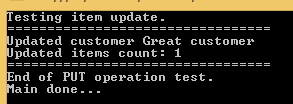
Testing PUT operation through tester application

If you then navigate to /customers in the appropriate browser window then you should see the new order items. In my case the JSON output looks as follows:

[{"_id":"544cb61fda8014d9145c85e6","name":"Great customer","orders":[{"item":"Food","quantity":3,"itemPrice":2},{"item":"Drink","quantity":4,"itemPrice":3},{"item":"Taxi","quantity":1,"itemPrice":10}]},{"_id":"546b56f1b8fd6abc122cc8ff","name":"hello","orders":[]}]

This was one application of PUT. You can use the same endpoint to update other parts of your domain, e.g. the customer name.

Deleting a customer

We’ll create a DELETE endpoint to remove a customer. We cannot attach a request body to a DELETE request so we’ll instead send the ID of the customer to be deleted in the URL. We saw an example of that when we retrieved a single customer based on the ID.

Here’s the remove function in customerRepository.js:

module.exports.remove = function (customerId, next) {
    databaseAccess.getDbHandle(function (err, db) {
        if (err) {
            next(err, null);
        }
        else {
            var collection = db.collection("customers");
            var mongoDb = require('mongodb');
            var BSON = mongoDb.BSONPure;
            var objectId = new BSON.ObjectID(customerId);
            collection.remove({ '_id': objectId }, function (err, result) {
                if (err) {
                    next(err, null);
                }
                else {
                    next(null, result);
                }
            });
        }
    });
};

Like in the case of UPDATE, MongoDb will return the number of deleted elements in the “result” parameter. Let’s extend customerService.js:

module.exports.deleteCustomer = function (customerId, next) {
    if (!customerId) {
        var err = "Missing customer id property";
        next(err, null);
    }
    else {
        customerRepository.remove(customerId, function (err, res) {
            if (err) {
                next(err, null);
            }
            else {
                next(null, res);
            }
        });
    }
};

…and index.js in the services folder:

module.exports.deleteCustomer = function (customerId, next) {
    customerService.deleteCustomer(customerId, function (err, res) {
        if (err) {
            next(err, null);
        }
        else {
            next(null, res);
        }
    });
};

Finally let’s add the DELETE endpoint to customersController:

app.delete("/customers/:id", function (req, res) {
        var customerId = req.params.id;
        customerService.deleteCustomer(customerId, function (err, itemCount) {
            if (err) {
                res.status(400).send(err);
            }
            else {
                res.set('Content-Type', 'text/plain');
                res.status(200).send(itemCount.toString());
            }
        });
    });

Like above, we return HTTP 200 and the number of deleted items if the operation has gone well.

Back in the tester app let’s add the following test method to ApiTesterService:

public int TestDeleteFunction(string customerId)
{
	HttpRequestMessage getRequest = new HttpRequestMessage(HttpMethod.Delete, new Uri("http://localhost:1337/customers/" + customerId));
	getRequest.Headers.ExpectContinue = false;
	HttpClient httpClient = new HttpClient();
	httpClient.Timeout = new TimeSpan(0, 10, 0);
	Task<HttpResponseMessage> httpRequest = httpClient.SendAsync(getRequest,
			HttpCompletionOption.ResponseContentRead, CancellationToken.None);
	HttpResponseMessage httpResponse = httpRequest.Result;
	HttpStatusCode statusCode = httpResponse.StatusCode;
	HttpContent responseContent = httpResponse.Content;
	if (responseContent != null)
	{
		Task<String> stringContentsTask = responseContent.ReadAsStringAsync();
		String stringContents = stringContentsTask.Result;
		if (statusCode == HttpStatusCode.OK)
		{
			return Convert.ToInt32(stringContents);
		}
		else
		{
			throw new Exception(string.Format("No customer deleted: {0}", stringContents));
		}
	}
	throw new Exception("No customer deleted");
}

This method is very similar to its update counterpart. We send our request to the DELETE endpoint and wait for the response. If all goes well then we return the number of deleted items to the caller. The caller can look like this in Program.cs:

private static void TestCustomerDeletion()
{
	Console.WriteLine("Testing item deletion.");
	Console.WriteLine("=================================");
	try
	{
		ApiTesterService service = new ApiTesterService();
		List<Customer> allCustomers = service.GetAllCustomers();
		Customer customer = SelectRandom(allCustomers);

		int deletedItemsCount = service.TestDeleteFunction(customer.Id);
		Console.WriteLine("Deleted customer {0} ", customer.Name);
		Console.WriteLine("Deleted items count: {0}", deletedItemsCount);
	}
	catch (Exception ex)
	{
		Console.WriteLine("Exception caught while testing DELETE: {0}", ex.Message);
	}

	Console.WriteLine("=================================");
	Console.WriteLine("End of DELETE operation test.");
}

Like above, we retrieve all existing customers and select one at random for deletion.

Call the above method from Main:

static void Main(string[] args)
{			
	TestCustomerDeletion();

	Console.WriteLine("Main done...");
	Console.ReadKey();
}

Start both the web and the console application like we did above. You should see output similar to the following:
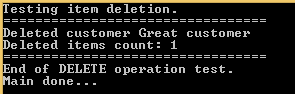
Testing DELETE through tester application

There you have it. We’ve built a starter Node.js application with the 4 basic web operations: GET, POST, PUT and DELETE. Hopefully this will be enough for you to start building your own Node.js project.

View all posts related to Node here.
Architecture of a Big Data messaging and aggregation system using Amazon Web Services part 2

Introduction

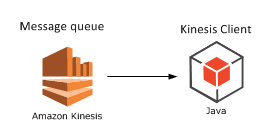
In the previous post of this series we outlined the system we’d like to build. We also decided to go for Amazon Kinesis as the message queue handler and that we’ll need an application which will consume messages from the Kinesis message stream.

In this post we’ll continue to build our design diagram and discuss where to store the raw data coming from Kinesis.

Storing the raw messages: Amazon S3

So now our Kinesis application, whether it’s Java, Python, .NET or anything else, is continuously receiving messages from the stream. It will probably perform all or some of the following tasks:

  • Validate all incoming messages
  • Filter out the invalid ones: they can be ignored completely or logged in a special way for visual inspection
  • Perform some kind of sorting or grouping based on some message parameter: customer ID, UTC date or something similar
  • Finally store the raw data in some data store

This “some data store” needs to provide fast, cheap, durable and scalable storage. We assume that the data store will need to handle a lot of constant write operations but read operations may not be as frequent. The raw data will be extracted later on during the analysis phase which occurs periodically, say every 15-30 minutes, but not all the time. Aggregating and analysing raw data every 15 minutes will suit many “real time” scenarios.

However, we might need to go in an find particular raw data points at a later stage. We possibly need to debug the system and check visually what the data points look like. Also, some aggregated data may look suspicious in some way so that we have to verify its consistency.

One possible solution that fits all these requirements is Amazon S3. It’s a blob storage where you can store any type of file in buckets: images, text, HTML pages, multimedia files, anything. All files are stored by a key which is typically the full file name.

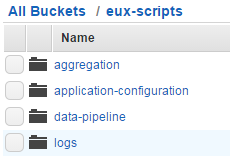
The files can be organised in buckets. Each bucket can have one or more subfolders which in turn can have their own subfolders and so on. Note that these folders are not the same type of folder you’d have on Windows but rather just a visual way to organise your files. Here’s an example where the top bucket is called “eux-scripts” which has 4 subfolders:

S3 bucket subfolder example

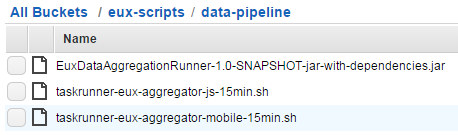
Here comes an example of .jar and .sh files stored in S3:

S3 files example

Keep in mind that S3 is not used for updates though. Once you’ve uploaded a file to S3 then it cannot be updated in a one-step operation. Even if you want to edit a text file there’s no editor for it. You’ll need to delete the old file and upload a new one instead.

Storing our raw data

So how can S3 be used to store our raw data? Suppose that we receive the raw data formatted as JSON:

{
    "CustomerId": "abc123",
    "DateUnixMs": 1416603010000,
    "Activity": "buy",
    "DurationMs": 43253
}

You can store the raw data in text files in S3 in the format you wish. The format will most likely depend on the mechanism that will eventually pull data from S3. Amazon data storage and analysis solutions such as RedShift or Elastic MapReduce (EMR) have been designed to read data from S3 efficiently – we’ll discuss both in this series. So at this stage you’ll need to do some forward thinking:

  • A: What mechanism will need to read from the raw data store for aggregation?
  • B: How can we easily – or relatively easily – read the raw data visually by just opening a raw data file?

For B you might want to store the raw data as it is, i.e. as JSON. E.g. you can have a text file in S3 called “raw-data-customer-abc123-2014-11-10.txt” with the following data points:

{"CustomerId": "abc123", "DateUnixMs": 1416603010000, "Activity": "buy", "DurationMs": 43253}
{"CustomerId": "abc123", "DateUnixMs": 1416603020000, "Activity": "buy", "DurationMs": 53253}
{"CustomerId": "abc123", "DateUnixMs": 1416603030000, "Activity": "buy", "DurationMs": 63253}
{"CustomerId": "abc123", "DateUnixMs": 1416603040000, "Activity": "buy", "DurationMs": 73253}

…i.e. with one data point per line.

However, this format is not suitable for point A above. Other mechanisms will have a hard time understanding this data format. For RedShift and EMR to work most efficiently we’ll need to store the raw data in some delimited fields such as CSV or tab delimited fields. So the above data points can then be stored as follows in a CSV file:

abc123,1416603010000,buy,43253
abc123,1416603020000,buy,53253
abc123,1416603030000,buy,63253
abc123,1416603040000,buy,73253

This is probably OK for point B above as well. It’s not too hard on your eyes to understand this data structure so we’ll settle for that.

File organisation refinements

We now know a little about S3 and have decided to go for a delimited storage format. The next question is how we actually organise our raw data files into buckets and folders. Again, we’ll need to consider points A and B above. In addition you’ll need to consider the frequency of your data aggregations: once a day, every hour, every quarter?

You might first go for a customer ID – or some other ID – based grouping, so e.g. you’ll have a top bucket and sub folders for each customer:

  • Top bucket: “raw-data-points”
  • Subfolder: “customer123”
  • Subfolder: “customer456”
  • Subfolder: “customer789”
  • …etc.

…and within each subfolder you can have subfolders based on dates in the raw data points, e.g.:

  • Sub-subfolder: “2014-10-11”
  • Sub-subfolder: “2014-10-12”
  • Sub-subfolder: “2014-10-13”
  • Sub-subfolder: “2014-10-14”
  • …etc.

That looks very nice and it probably satisfies question B above but not so much regarding question A. This structure is difficult to handle for an aggregation mechanism as you’ll need to provide complex search criteria for the aggregation. In addition, suppose you want to aggregate the data every 30 minutes and you dump all raw data points into one of those sub-subfolders. Then again you’ll need to set up difficult search criteria for the aggregation mechanism to extract just the correct raw data points.

One possible solution is the following:

  • Decide on the minimum aggregation frequency you’d like to support in your system – let’s take 30 minutes for the sake of this discussion
  • Have one dedicated top bucket like “raw-data-points” above
  • Below this top bucket organise the data points into sub folders based on dates

The names of the date sub-folders can be based on the minimum aggregation frequency. You’ll basically put the files into intervals where the date parts are reversed according to the following format:

minute-hour-day-month-year

Examples:

  • 00-13-15-11-2014: subfolder to hold the raw data for the interval 2014 November 15, 13:00:00 until 13:29:59 inclusive
  • 30-13-15-11-2014: subfolder to hold the raw data for the interval 2014 November 15, 13:30:00 until 13:59:59 inclusive
  • 00-14-15-11-2014: subfolder to hold the raw data for the interval 2014 November 15, 14:00:00 until 14:29:59 inclusive

…and so on. Each subfolder can then hold text files with the raw data points. In order to find a particular storage file of a customer you can do some pre-grouping in the Kinesis client application and not just save every data point one by one in S3: group the raw data points according to the customer ID and the date of the data point and save the raw files accordingly. You can then have the following text files in S3:

  • abc123-2014-11-15-13-32-43.txt
  • abc123-2014-11-15-13-32-44.txt
  • abc123-2014-11-15-13-32-45.txt

…where the names follow this format:

customerId-year-month-day-hour-minute-second

So within each file you’ll have the CSV or tab delimited raw data that occurred in that given second. In case you want to go for a minute based pre-grouping then’ll end up with the following files:

  • abc123-2014-11-15-13-31.txt
  • abc123-2014-11-15-13-32.txt
  • abc123-2014-11-15-13-33.txt

…and so on. This is the same format as above but at the level of minutes instead.

Keep in mind that all of the above can be customised based on your data structure. The main point is that S3 is an ideal way to store large amounts of raw data points within the Amazon infrastructure and that you’ll need to carefully think through how to organise your raw data point files so that they are easily handled by an aggregation mechanism.

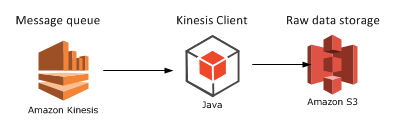
Finally let’s extend our diagram:

Step 3 Kinesis with KCL and S3

We’ll look at a potential aggregation mechanism in the next post: Elastic MapReduce.

View all posts related to Amazon Web Services here.

Architecture of a Big Data messaging and aggregation system using Amazon Web Services part 1

Introduction

Amazon has a very wide range of cloud-based services. At the time of writing this post Amazon offered the following services:

Amazon web services offerings

It feels like Amazon is building a solution to any software architecture problem one can think of. I have been exposed to a limited number of them professionally and most of them will figure in this series: S3, DynamoDb, Data Pipeline, Elastic Beanstalk, Elastic MapReduce and RedShift. Note that we’ll not see any detailed code examples as that could fill an entire book. Here we only talk about an overall architecture where we build up the data flow step by step. I’m planning to post about how to use these components programmatically using .NET and Java during 2015 anyway.

Here’s a short description of the system we’d like to build:

  • A large amount of incoming messages needs to be analysed – by “large amount” we mean thousands per second
  • Each message contains a data point with some observation important to your business: sales data, response times, price changes, etc.
  • Every message needs to be processed and stored so that they can be analysed – the individual data points may need to be retrieved to control the quality of the analysis
  • The stored messages need to be analysed automatically and periodically – or at random with manual intervention
  • The result of the analysis must be stored in a database where you can view it and possibly draw conclusions

The above scenario is quite generic in Big Data analysis where a large amount of possibly unstructured messages needs to be analysed. The result of the analysis must be meaningful for your business in some way. Maybe they will help you in your decision making process. Also, they can provide useful aggregation data that you can sell to your customers.

There are a number of different product offerings and possible solutions to manage such a system nowadays. We’ll go through one of them in this series.

The raw data

What kind of raw data are we talking about? Any type of textual data you can think of. It’s of course an advantage if you can give some structure to the raw data in the form of JSON, XML, CSV or other delimited data.

On the one hand you can have well-formatted JSON data that hits the entry point of your system:

{
    "CustomerId": "abc123",
    "DateUnixMs": 1416603010000,
    "Activity": "buy",
    "DurationMs": 43253
}

Alternatively the same data can arrive in other forms, such as CSV:

abc123,1416603010000,buy,43253

…or as some arbitrary textual input:

Customer id: abc123
Unix date (ms): 1416603010000
Activity: buy
Duration (ms): 43253

It is perfectly feasible that the raw data messages won’t all follow the same input format. Message 1 may be JSON, message 2 may be XML, message 3 may be formatted like this last example above.

The message handler: Kinesis

Amazon Kinesis is a highly scalable message handler that can easily “swallow” large amounts of raw messages. The home page contains a lot of marketing stuff but there’s a load of documentation available for developers, starting here.

In a nutshell:

  • A Kinesis “channel” is called a stream. A stream has a name that clients can send their messages to and that consumers of the stream can read from
  • Each stream is divided into shards. You can specify the read and write throughput of your Kinesis stream when you set it up in the AWS console
  • A single message can not exceed 50 KB
  • A message is stored in the stream for 24 hours before it’s deleted

You can read more about the limits, such as max number of shards and max throughput here. Kinesis is relatively cheap and it’s an ideal out-of-the-box entry point for big data analysis.

So let’s place the first item on our architecture diagram:

Step 1 Kinesis

The Kinesis consumer

Kinesis stores the messages for only 24 hours and you cannot instruct it to do anything specific with the message. There are no options like “store the message in a database” or “calculate the average value” for a Kinesis stream. The message is loaded into the stream and waits until it is either auto-deleted or pulled by a consumer.

What do we mean by a Kinesis consumer? It is a listener application that pulls the messages out of the stream in batches. The listener is a worker process that continuously monitors the stream. Amazon has SDKs in a large number of languages listed here: Java, Python, .NET etc.

It’s basically any application that processes messages from a given Kinesis stream. If you’re a Java developer then there’s an out-of-the-box starting point on GitHub available here. Here’s the official Amazon documentation of the Kinesis Client Library.

On a general note: most documentation and resources regarding Amazon Web Services will be available in Java. I would recommend that, if you have the choice, then Java should be option #1 for your development purposes.

Let’s extend our diagram where I picked Java as the development platform but in practice it could be any from the available SDKs:

Step 2 Kinesis and KCL

How can this application be deployed? It depends on the technology you’ve selected, but for Java Amazon Beanstalk is a straightforward option. This post gives you details on how to do it.

We’ll continue building our system with a potential raw message store mechanism in the next post: Amazon S3.

View all posts related to Amazon Web Services here.

Finding all href values in a HTML string with C# .NET

Say you’d like to collect all link URLs in a HTML text. E.g.:

<html>
   <p>
     <a href=\"http://www.fantasticsite.com\">Visit fantasticsite!</a>
   </p>
   <div>
     <a href=\"http://www.cnn.com\">Read the news</a>
   </div>
</html>

The goal is to find “http://www.fantasticsite.com&#8221; and “http://www.cnn.com&#8221;. Using an XML parser could be a solution if the HTML code is well formatted XML. This is of course not always the case so the dreaded regular expressions provide a viable alternative.

The following code uses a Regex to find those sections in the input text that match a regular expression:

static void Main(string[] args)
{
	string input = "<html><p><a href=\"http://www.fantasticsite.com\">Visit fantasticsite!</a></p><div><a href=\"http://www.cnn.com\">Read the news</a></div></html>";
	FindHrefs(input);
	Console.WriteLine("Main done...");
	Console.ReadKey();
}

private static void FindHrefs(string input)
{
	Regex regex = new Regex("href\\s*=\\s*(?:\"(?<1>[^\"]*)\"|(?<1>\\S+))", RegexOptions.IgnoreCase);
	Match match;
	for (match = regex.Match(input); match.Success; match = match.NextMatch())
	{
		Console.WriteLine("Found a href. Groups: ");
		foreach (Group group in match.Groups)
		{
			Console.WriteLine("Group value: {0}", group);
		}				
	}

}

This gives the following output:

FindHrefs Regexp in action

View all posts related to string and text operations here.

Building a web service with Node.js in Visual Studio Part 10: testing GET actions

Introduction

In the previous post of this series we tested the insertion of new customers through a simple C# console application.

In this post we’ll extend our demo C# tester application to test GET actions.

We’ll be working on our demo application CustomerOrdersApi so have it ready in Visual Studio and let’s get to it.

Testing GET

We created our domain objects in the previous post with JSON-related attributes: Customer and Order. We’ll now use these objects to test the GET operations of the web service. We created a class called ApiTesterService to run the tests for us. Open that file and add the following two methods:

public List<Customer> GetAllCustomers()
{
	HttpRequestMessage getRequest = new HttpRequestMessage(HttpMethod.Get, new Uri("http://localhost:1337/customers"));
	getRequest.Headers.ExpectContinue = false;
	HttpClient httpClient = new HttpClient();
	httpClient.Timeout = new TimeSpan(0, 10, 0);
	Task<HttpResponseMessage> httpRequest = httpClient.SendAsync(getRequest,
			HttpCompletionOption.ResponseContentRead, CancellationToken.None);
	HttpResponseMessage httpResponse = httpRequest.Result;
	HttpStatusCode statusCode = httpResponse.StatusCode;
	HttpContent responseContent = httpResponse.Content;
	if (responseContent != null)
	{
		Task<String> stringContentsTask = responseContent.ReadAsStringAsync();
		String stringContents = stringContentsTask.Result;
		List<Customer> allCustomers = JsonConvert.DeserializeObject<List<Customer>>(stringContents);
		return allCustomers;
	}

	throw new IOException("Exception when retrieving all customers");
}

public Customer GetSpecificCustomer(String id)
{
	HttpRequestMessage getRequest = new HttpRequestMessage(HttpMethod.Get, new Uri("http://localhost:1337/customers/" + id));
	getRequest.Headers.ExpectContinue = false;
	HttpClient httpClient = new HttpClient();
	httpClient.Timeout = new TimeSpan(0, 10, 0);
	Task<HttpResponseMessage> httpRequest = httpClient.SendAsync(getRequest,
			HttpCompletionOption.ResponseContentRead, CancellationToken.None);
	HttpResponseMessage httpResponse = httpRequest.Result;
	HttpStatusCode statusCode = httpResponse.StatusCode;
	HttpContent responseContent = httpResponse.Content;
	if (responseContent != null)
	{
		Task<String> stringContentsTask = responseContent.ReadAsStringAsync();
		String stringContents = stringContentsTask.Result;
		List<Customer> customers = JsonConvert.DeserializeObject<List<Customer>>(stringContents);
		return customers[0];
	}
	throw new IOException("Exception when retrieving single customer.");
}

I know this is a lot of duplication but this will suffice for demo purposes. GetAllCustomers(), like the name implies will retrieve all customers from the Node.js web service. GetSpecificCustomer(string id) will retrieve a single customer by its ID. You may be wondering why we get a list of customers in GetSpecificCustomer. MongoDb will return all matching documents in an array. So if there’s only one matching document then it will be put into an array as well. Therefore we extract the first and only element from that list and return it from the function. We saw something similar in the previous post where we tested the POST operation: MongoDb responded with an array which included a single element, i.e. the one that was inserted.

So we’re testing the two GET endpoints of our Node.js service:

app.get("/customers" ...
app.get("/customers/:id" ...

We can call these methods from Program.cs through the following helper method:

private static void TestCustomerRetrieval()
{
	Console.WriteLine("Testing item retrieval.");
	Console.WriteLine("Retrieving all customers:");
	Console.WriteLine("=================================");
	ApiTesterService service = new ApiTesterService();
	try
	{
		List<Customer> allCustomers = service.GetAllCustomers();
		Console.WriteLine("Found {0} customers: ", allCustomers.Count);
		foreach (Customer c in allCustomers)
		{
			Console.WriteLine("Id: {0}, name: {1}, has {2} order(s).", c.Id, c.Name, c.Orders.Count);
			foreach (Order o in c.Orders)
			{
				Console.WriteLine("Item: {0}, price: {1}, quantity: {2}", o.Item, o.Price, o.Quantity);
			}
		}

		Console.WriteLine();
		Customer customer = SelectRandom(allCustomers);
		Console.WriteLine("Retrieving single customer with ID {0}.", customer.Id);
		Customer getById = service.GetSpecificCustomer(customer.Id);

		Console.WriteLine("Id: {0}, name: {1}, has {2} order(s).", getById.Id, getById.Name, getById.Orders.Count);
		foreach (Order o in getById.Orders)
		{
			Console.WriteLine("Item: {0}, prigetByIde: {1}, quantity: {2}", o.Item, o.Price, o.Quantity);
		}
	}
	catch (Exception ex)
	{
		Console.WriteLine("Exception caught while testing GET: {0}", ex.Message);
	}

	Console.WriteLine("=================================");
	Console.WriteLine("End of item retrieval tests.");
}

The above method first retrieves all customers from the service and prints some information about them: their IDs and orders. Then a customer is selected at random and we test the “get by id” functionality. Here’s the SelectRandom method:

private static Customer SelectRandom(List<Customer> allCustomers)
{
	Random random = new Random();
	int i = random.Next(0, allCustomers.Count);
	return allCustomers[i];
}

Call TestCustomerRetrieval from Main:

static void Main(string[] args)
{			
	TestCustomerUp();

	Console.WriteLine("Main done...");
	Console.ReadKey();
}

Start the application with F5. As the Node.js project is set as the startup project you’ll see it start in a browser as before. Do the following to start the tester console app:

  • Right-click it in Solution Explorer
  • Select Debug
  • Select Start new instance

If all goes well then you’ll see some customer information in the command window depending on what you’ve entered into the customers collection before:

testing GET through tester application

The web service responds with JSON similar to the following in the case of “get all customers”:

[{"_id":"544cbaf1da8014d9145c85e7","name":"Donald Duck","orders":[]},{"_id":"544cb61fda8014d9145c85e6","name":"Great customer","orders":[{"item":"Book","quantity":2,"itemPrice":10},{"item":"Car","quantity":1,"itemPrice":2000}]},{"_id":"546b56f1b8fd6abc122cc8ff","name":"hello","orders":[]}]

…and here’s the raw response body of “get by id”:

[{"_id":"544cbaf1da8014d9145c85e7","name":"Donald Duck","orders":[]}]

Note that this JSON is also an array even so we’ll need to read the first element from the customers list in the GetSpecificCustomer function as noted above.

In the next post, which will finish this series, we’ll take a look at updates and deletions, i.e. the PUT and DELETE operations.

View all posts related to Node here.
Getting notified by a Windows process change in C# .NET

In this post we saw an example of using the ManagementEventWatcher object and and EventQuery query. The SQL-like query was used to subscribe to a WMI – Windows Management Instrumentation – level event, namely a change in the status of a Windows service. I won’t repeat the explanation here again concerning the techniques used. So if this is new to you then consult that post, the code is very similar.

In this post we’ll see how to get notified by the creation of a new Windows process. This can be as simple as starting up Notepad. A Windows process is represented by the Win32_Process WMI class which will be used in the query. We’ll take a slightly different approach and use the WqlEventQuery object which derives from EventQuery.

Consider the following code:

private static void RunManagementEventWatcherForWindowsProcess()
{
	WqlEventQuery processQuery = new WqlEventQuery("__InstanceCreationEvent", new TimeSpan(0, 0, 2), "targetinstance isa 'Win32_Process'");
	ManagementEventWatcher processWatcher = new ManagementEventWatcher(processQuery);
	processWatcher.Options.Timeout = new TimeSpan(0, 1, 0);
	Console.WriteLine("Open an application to trigger the event watcher.");
	ManagementBaseObject nextEvent = processWatcher.WaitForNextEvent();
	ManagementBaseObject targetInstance = ((ManagementBaseObject)nextEvent["targetinstance"]);
	PropertyDataCollection props = targetInstance.Properties;
	foreach (PropertyData prop in props)
	{
		Console.WriteLine("Property name: {0}, property value: {1}", prop.Name, prop.Value);
	}
	processWatcher.Stop();
}

In the Windows service example we used the following query:

SELECT * FROM __InstanceModificationEvent within 2 WHERE targetinstance isa ‘Win32_Service’

The WqlEventQuery constructor builds up a very similar statement. The TimeSpan refers to “within 2”, i.e. we want to be notified 2 seconds after the creation event. “targetinstance isa ‘Win32_Process'” corresponds to “WHERE targetinstance isa ‘Win32_Service'” of EventQuery.

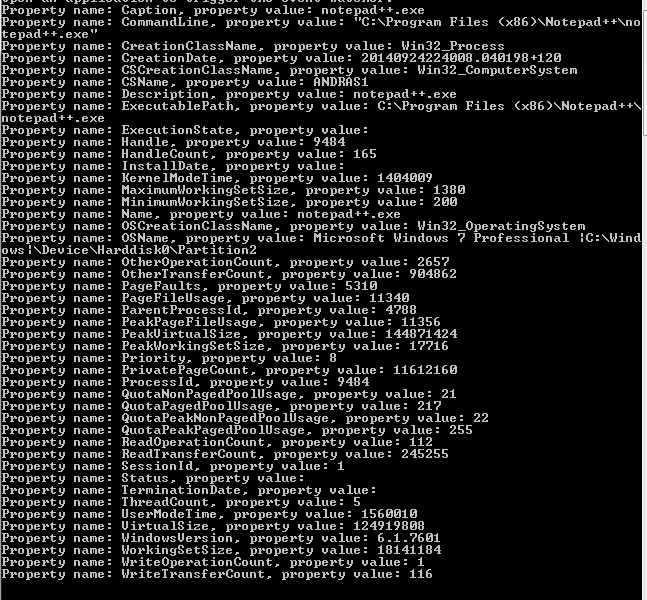
Run this code and open an application. I got the following output for Notepad++:

NotepadPlusPlus process created

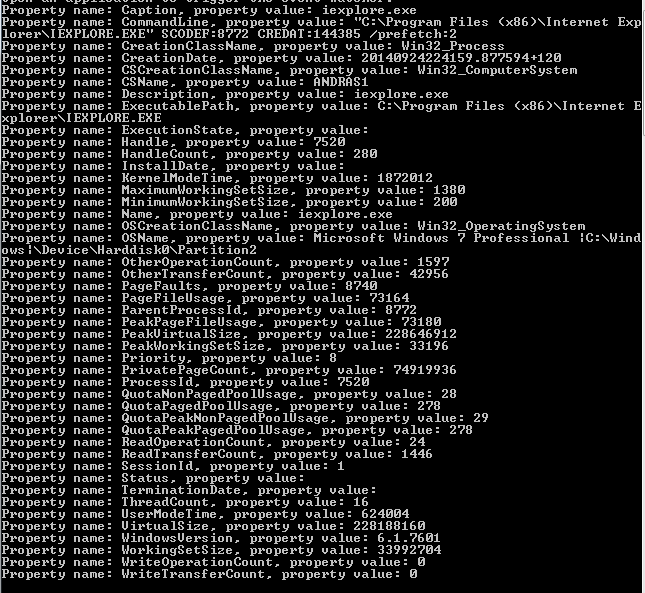
…and this for IE:

IE process created

You can view all posts related to Diagnostics here.

Getting notified by a Windows Service status change in C# .NET

The ManagementEventWatcher object in the System.Management namespace makes it possible to subscribe to events within the WMI – Windows Management Instrumentation – context. A change in the status of a Windows service is such an event and it’s possible to get notified when that happens.

We saw examples of WMI queries on this blog before – check the link below – and the ManagementEventWatcher object also requires an SQL-like query string. Consider the following function:

private static void RunManagementEventWatcherForWindowsServices()
{
	EventQuery eventQuery = new EventQuery();
	eventQuery.QueryString = "SELECT * FROM __InstanceModificationEvent within 2 WHERE targetinstance isa 'Win32_Service'";	
	ManagementEventWatcher demoWatcher = new ManagementEventWatcher(eventQuery);
	demoWatcher.Options.Timeout = new TimeSpan(1, 0, 0);
	Console.WriteLine("Perform the appropriate change in a Windows service according to your query");
	ManagementBaseObject nextEvent = demoWatcher.WaitForNextEvent();			
	ManagementBaseObject targetInstance = ((ManagementBaseObject)nextEvent["targetinstance"]);
	PropertyDataCollection props = targetInstance.Properties;
	foreach (PropertyData prop in props)
	{
		Console.WriteLine("Property name: {0}, property value: {1}", prop.Name, prop.Value);
	}

	demoWatcher.Stop();
}

We declare the query within an EventQuery object. Windows services are of type “Win32_Service” hence the “where targetinstance isa ‘Win32_Service'” clause. “within 2” means that we want to be notified 2 seconds after the status change has been detected. A change event is represented by the __InstanceModificationEvent class. There are many similar WMI system classes. A creation event corresponds to the __InstanceCreationEvent class. So the query is simply saying that we want to know of any status change in any Windows service 2 seconds after the change.

The timeout option means that the ManagementEventWatcher object will wait for the specified amount of time for the event to occur. After this a timeout exception will be thrown so you’ll need to handle that.

In order to read the properties of the Windows service we need to go a level down to “targetinstance” and read the properties of that ManagementBaseObject. Otherwise the “nextEvent” object properties are not too informative.

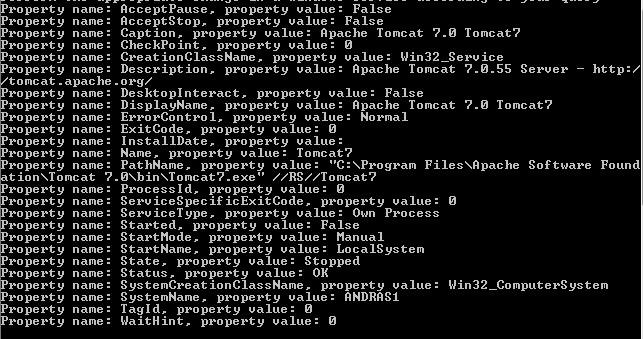
Run this code, open the Windows services window and stop or pause any Windows service. I stopped the Tomcat7 service running on my PC and got the following Console output:

Stopping any service caught by event watcher

You can of course refine your query using the property names of the target instance. You can always check the property names on MSDN. E.g. if you open the above link to the Win32_Service object then you’ll see that it has a “state” and a “name” property. So in case you’ll want to know that a service name “Tomcat7” was stopped then you can have the following query:

eventQuery.QueryString = "SELECT * FROM __InstanceModificationEvent within 2 WHERE targetinstance isa 'Win32_Service' and targetinstance.state = 'Stopped' and targetinstance.name = 'Tomcat7'";

In this case starting Tomcat7 won’t trigger the watcher. Neither will stopping any other Windows service. The event watcher will only react if a service names “Tomcat7” was stopped, i.e. the “Status” property of the target instance was set to “Stopped”.

You can view all posts related to Diagnostics here.

Building a web service with Node.js in Visual Studio Part 9: testing POST actions

Introduction

In the previous post we extended the service and repository to handle GET requests. We also managed to connect to the local MongoDb database. We can read all customers from the customers collection and we can also search by ID.

In this post we’ll set up a little test application that will call the Node.js service. We’ll also see how to insert a new customer in the database.

POST operations

Inserting a new resource is generally performed either via PUT or POST operations. Here we’ll adapt the following convention:

  • POST: insert a new resource
  • PUT: update an existing resource

We’ll build up the insertion logic from the bottom up, i.e. we’ll start with the repository. Open the CustomerOrdersApi demo application and locate customerRepository.js. Add the following module.exports statement to expose the insertion function:

module.exports.insertBrandNew = function (customerName, next) {
    databaseAccess.getDbHandle(function (err, db) {
        if (err) {
            next(err, null);
        }
        else {
            //check for existence of customer name
            var collection = db.collection("customers");
            collection.find({ 'name': customerName }).count(function (err, count) {
                if (err) {
                    next(err, null);
                }
                else {
                    if (count > 0) {
                        err = "Customer with this name already exists";
                        next(err, null);
                    }
                    else {
                        //insert new customer with empty orders array
                        var newCustomer = {
                            name : customerName
                            , orders : []
                        };
                        collection.insert(newCustomer, function (err, result) {
                            if (err) {
                                next(err, null);
                            }
                            else {
                                next(null, result);
                            }
                        });                        
                    }
                }
            });
        }
    });

Let’s go through this function step by step. The function accepts the “next” callback which we’re familiar with by now. It also accepts a parameter to hold the name of the new customer. The idea is that we’ll enter a new customer with an empty orders array so there’s no parameter for the orders.

You’ll recognise the top section of the function body, i.e. where we get hold of the database. If that process generates an error then we return it. Otherwise we continue with checking if there’s a customer with that name. We don’t want to enter duplicates so we check for the existence of the customer name first. The “count” function which also accepts a callback will populate the “count” parameter with the number of customers found by customerName. If “count” is larger than 0 then we return an error. Otherwise we construct a new customer object and insert it into the customers collection. The “insert” function accepts the customer object in JSON format and of course a callback with any error and result parameters. The “result” parameter in this case will hold the new customer we inserted into the database in case there were no exceptions. We return that object to the caller using the “next” callback.

customerService.js will also be extended accordingly. Add the following function to that file:

module.exports.insertNewCustomer = function (customerName, next) {
    if (!customerName) {
        var err = "Missing customer name property";
        next(err, null);
    }
    else {
        customerRepository.insertBrandNew(customerName, function (err, res) {
            if (err) {
                next(err, null);
            }
            else {
                next(null, res);
            }
        });
    }
};

We check if customerName is null. If not then we call upon the repository. index.js in the services folder will be extended as well with a new function:

module.exports.insertNewCustomer = function (customerName, next) {
    customerService.insertNewCustomer(customerName, function (err, res) {
        if (err) {
            next(err, null);
        }
        else {
            next(null, res);
        }
    });
};

Finally, we need to add a new route to the customersController.js:

app.post("/customers", function(req, res) {
        var customerName = req.body.customerName;
        customerService.insertNewCustomer(customerName, function (err, newCustomer) {
            if (err) {
                res.status(400).send(err);
            }
            else {
                res.set('Content-Type', 'application/json');
                res.status(201).send(newCustomer);
            }
        });

    });

POST actions are handled through the “post” method, just like GET actions are handled by “get”. We’ll need to POST to the “/customers” endpoint and send in the customer name in the request body. The request body can be retrieved using the “body” property of the request object. If the request body is JSON formatted then the individual JSON properties can be extracted like shown in the example. We then call upon the appropriate function in customerService. In case the customer was inserted we respond with HTTP 201, i.e. “Created” and return the new object in the response.

There’s one more thing we need to do. If we tested this code like it is now then req.body would be void or “undefined”. We need to add another middleware from npm to make the request body readable. Right-click “npm” and insert the following node.js middleware called “body-parser”:

body-parser middleware in NPM

We’ll need to reference this package in server.js as follows:

var http = require('http');
var express = require('express');
var controllers = require('./controllers');
var bodyParser = require('body-parser')

var app = express();
app.use(bodyParser.urlencoded({ extended: false }))
app.use(bodyParser.json())

controllers.start(app);

var port = process.env.port || 1337;
http.createServer(app).listen(port);

Testing with code

Let’s test what we have so far from a simple .NET application. Add a new C# Console application to the solution and call it ApiTester. Add references to the following libraries:

  • System.Net
  • System.Net.Http

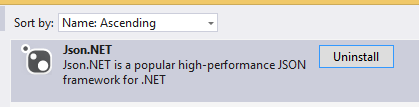
These are necessary to make HTTP calls to the Node.js web service. We’ll be communicating a lot using JSON strings so add the following JSON package through NuGet:

json.net nuget

Next we’ll insert two C# classes that represent our thin domain layer, Customer and Order:

public class Customer
{
	[JsonProperty(PropertyName = "_id")]
	public String Id { get; set; }
	[JsonProperty(PropertyName="name")]
	public String Name { get; set; }
	[JsonProperty(PropertyName="orders")]
	public List<Order> Orders { get; set; }
}
public class Order
{
	[JsonProperty(PropertyName = "item")]
	public string Item { get; set; }
	[JsonProperty(PropertyName = "quantity")]
	public int Quantity { get; set; }
	[JsonProperty(PropertyName = "itemPrice")]
	public decimal Price { get; set; }
}

The JsonProperty attributes indicate the name of the JSON property that will be mapped against the C# object property. This mapping is necessary otherwise when we read the Customer objects from the service then properties in the JSON response must be translated into the properties of our domain objects.

Next add a new class called ApiTestService to the console app. Insert the following method to it that will call the Node.js web service to insert a new customer:

public Customer TestCustomerCreation(String customerName)
{
	HttpRequestMessage postRequest = new HttpRequestMessage(HttpMethod.Post, new Uri("http://localhost:1337/customers/"));
	postRequest.Headers.ExpectContinue = false;
	InsertCustomerRequest req = new InsertCustomerRequest() { CustomerName = customerName };
        string jsonBody = JsonConvert.SerializeObject(req);
	postRequest.Content = new StringContent(jsonBody, Encoding.UTF8, "application/json");
	HttpClient httpClient = new HttpClient();
	httpClient.Timeout = new TimeSpan(0, 10, 0);
	Task<HttpResponseMessage> httpRequest = httpClient.SendAsync(postRequest,
			HttpCompletionOption.ResponseContentRead, CancellationToken.None);
	HttpResponseMessage httpResponse = httpRequest.Result;
	HttpStatusCode statusCode = httpResponse.StatusCode;

	HttpContent responseContent = httpResponse.Content;
	if (responseContent != null)
	{
		Task<String> stringContentsTask = responseContent.ReadAsStringAsync();
		String stringContents = stringContentsTask.Result;
		if (statusCode == HttpStatusCode.Created)
		{
			List<Customer> customers = JsonConvert.DeserializeObject<List<Customer>>(stringContents);
			return customers[0];
		}
		else
		{
			throw new Exception(string.Format("No customer created: {0}", stringContents));
		}
	}
	throw new Exception("No customer created");
}

Note that you may need to change the port number in the URI if you have something different. We call the web service and send in our customer creation request as JSON in the request body. We then check the response message. If the response code is 201, i.e. Created then we translate the JSON string into a list of customers – MongoDb will respond with an array and it will include a single element. We extract the first and only element from the list and return it from the function. Otherwise we throw an exception. InsertCustomerRequest is just a data transfer object to convey our message:

public class InsertCustomerRequest
{
	[JsonProperty(PropertyName="customerName")]
	public String CustomerName { get; set; }
}

We set the JSON property name to “customerName” so that the web service will find it through req.body.customerService as we saw above.

Insert the following method to Program.cs:

private static void TestCustomerInsertion()
{
	Console.Write("Customer name: ");
	string customerName = Console.ReadLine();
	ApiTesterService service = new ApiTesterService();
	try
	{
		Customer customer = service.TestCustomerCreation(customerName);
		if (customer != null)
		{
			Console.WriteLine("New customer id: {0}", customer.Id);
		}
	}
	catch (Exception ex)
	{
		Console.WriteLine(ex.Message);
	}
}

This is very basic: we enter a customer name and print out the ID of the new customer or the exception that was thrown. Call this method from Main:

static void Main(string[] args)
{			
	TestCustomerInsertion();
	Console.WriteLine("Main done...");
	Console.ReadKey();
}

Start the application with F5. As the Node.js project is set as the startup project you’ll see it start in a browser as before. Do the following to start the tester console app:

  • Right-click it in Solution Explorer
  • Select Debug
  • Select Start new instance

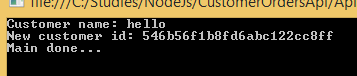
Enter a customer name when prompted. If all goes well then you’ll get the ID of the new customer in MongoDb:

New customer added Id output from MongoDb

Test again with the same name, it should fail:

No customer created error message from nodejs

In the next post we’ll extend our test application to call the GET endpoints of the web service.

View all posts related to Node here.
Creating an Amazon Beanstalk wrapper around a Kinesis application in Java

Introduction

Suppose that you have a Java Amazon Kinesis application which handles messages from the Amazon message queue handler Kinesis. This means that you have a method that starts a Worker object in the com.amazonaws.services.kinesis.clientlibrary.lib.worker library.

If you are developing an application that is meant to process messages from Amazon Kinesis and you don’t know what I mean by a Kinesis app then check out the Amazon documentation on the Kinesis Client Library (KCL) here.

The starting point for this post is that you have a KCL application and want to host it somewhere. One possibility is to deploy it on Amazon Elastic Beanstalk. You cannot simply deploy a KCL application as it is. You’ll need to wrap it within a special Kinesis Beanstalk worker wrapper.

The Beanstalk wrapper application

The wrapper is a very thin Java Maven web application which can be deployed as a .war file. If you’ve done any web-based Java development then the .war file extension will be familiar to you. It’s really like a .zip file that contains the project – you can even rename a .war file to a .zip file and unpack it like you would do with any compressed .zip file.

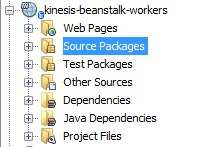
The wrapper can be cloned from GitHub. Once you have cloned it onto your computer you can open with a Java IDE such as NetBeans or Eclipse. I personally use NetBeans so the snapshots will show that environment. You’ll see the following folders after opening the project:

Beanstalk wrapper in NetBeans

NetBeans will load the dependencies in the POM file automatically. If you’re using something else or prefer to run Maven from the command prompt then here’s the mvn command to execute:

mvn clean compile war:war

The .war file will be placed in the “target” folder as expected. The wrapper will have all the basic dependencies to run an Amazon app such as the AWS SDK, Jackson, various Apache packages etc. In case your KCL app has some external dependencies on its own then those will need to be part of the wrapper app as well. Example: in my case one dependency of my KCL app was commons-collections4-4.0.jar. As this particular Apache dependency wasn’t by default available in the Beanstalk KCL wrapper I had to add it to its POM file. Do that for any such dependency.

The Source Packages folder includes a single Java file called KinesisWorkerServletInitiator.java. It is very short and has the following characteristics:

  • The overridden contextInitialized method will be executed automatically upon application start
  • It will look for a value in a query parameter called “PARAM1”
  • PARAM1 is supposed to be a fully qualified class name
  • The class name refers to a class in the Kinesis application that includes a public parameterless method called “run”
  • KinesisWorkerServletInitiator.java will look for this method and execute it through Reflection

We’ll come back to PARAM1 shortly.

So you’ll need to have a public method called “run” in the KCL app that the wrapper can call upon. Note that you of course change the body of the Kinesis wrapper as you wish. In my case I had to pass in a string parameter to the “run” method so I modified the Reflection code to look for a “run” method which accept a single string argument:

final Class consumerClass = (Class) Class.forName(consumerClassName);
final Method runMethod = consumerClass.getMethod("run", String.class);
runMethod.setAccessible(true);
final Object consumer = consumerClass.newInstance();

.
.
.

@Override
public void run()
{
         try
         {
               m.invoke(o, messageType);
         } catch (Exception e)
         {
               e.printStackTrace();
               LOG.error(e);
         }
}

You can put the run method anywhere – or even change its name and the wrapper app implementation will need to follow. I’ve put mine in the same place as the main method – the “run” method is really nothing else than the KCL application entry point from the Beanstalk wrapper’s point of view. When you test the KCL app locally then the main method will be executed first. When you run it from Beanstalk “run” will be executed first. Therefore the easiest implementation is simply to call “run” from “main” but you may have different needs for local execution. Anyway, you probably get the idea with the “run” method: it will start a Worker which in turn will process the Kinesis messages as you implemented the IRecordProcessor.processRecords method.

Take note of the full name of the class that has the run method. Open the containing class and check the package name, say “com.company.kinesismessageprocessor”. Then check the class name such as KinesisApplication so the full name will be com.company.kinesismessageprocessor.KinesisApplication. You can even put this as a default consumer class name in the Beanstalk wrapper in case PARAM1 is not available:

@Override
public void contextInitialized(ServletContextEvent arg0)
{
        String consumerClassName = System.getProperty(param);
        if (consumerClassName == null) 
        {
            consumerClassName = defaultConsumingClass;
        }
.
.
.
}

…where defaultConsumingClass is a private String holding the above mentioned class name.

The actual wrapping

Now we need to put the KCL application into the wrapper. Compile the KCL app into a JAR file. Copy the JAR file into the following directory of the Beanstalk wrapper web app:

drive:\directory-to-wrapper\src\main\WebContent\WEB-INF\lib

The JAR file should be visible in the project. In my case it looks as follows:

Drop KCL app into Beanstalk wrapper

Compile the wrapper app and the .war file should be ready for upload

Upload

While creating a new application in Beanstalk you will be able to upload the .war file. You’ll be able to upload a new version through the UI of the application:

Beanstalk deployment UI

You’ll be able to configure the Beanstalk app using the Configuration link on the left hand panel:

Configuration link for a Beanstalk app

This is where you can set the value for PARAM1:

Software configuration link in Beanstalk

Define PARAM1 for Beanstalk app

You’ll be able to enter the fully qualified name of the consumer class with the method “run” in the above table. If you don’t like the name “PARAM1” you can add your own parameters in the bottom of the screen and modify the name in code as well.

Troubleshooting

You can always look at the logs:

Request logs from Beanstalk app

You can then search for “exception” or “error” in the log file to check if e.g. an unhandled exception occurred in the application which stops it from functioning correctly.

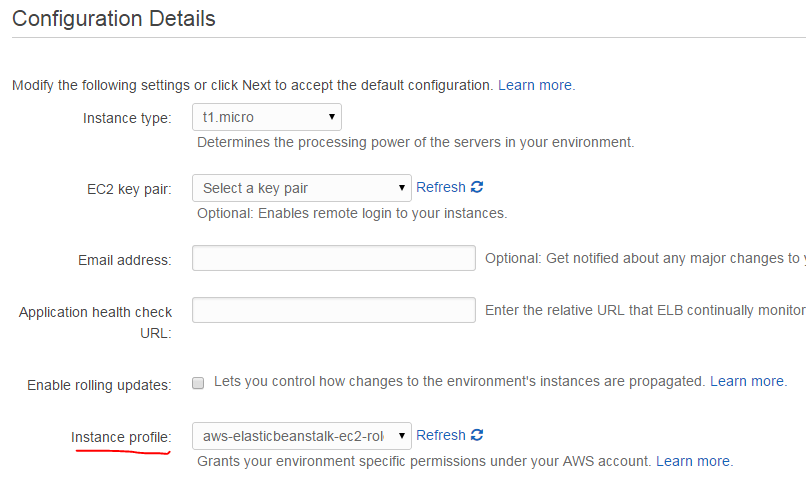
A common issue is related to roles. When you created the Beanstalk app you have to select a specific IAM role here:

Select IAM role in Beanstalk app

The Beanstalk app will run under the selected role. If the KCL app needs to access other Amazon services, such as S3 or DynamoDb then the selected role must have access to those resources at the level defined by the KCL app. E.g. if the KCL app needs to put a record into a DynamoDb table then the Beanstalk role must have “dynamodb:PutItem” defined. You can edit this in the IAM console available here. Select the appropriate role and extend the role JSON under “Manage policy”:

Modify role in IAM console

View all posts related to Amazon Web Services here.

Finding all Windows Services using WMI in C# .NET

In this post we saw how to retrieve all logical drives using Windows Management Instrumentation – WMI -, and here how to find all network adapters.

Say you’d like to get a list of all Windows Services and their properties running on the local – “root” – machine, i.e. read the services listed here:

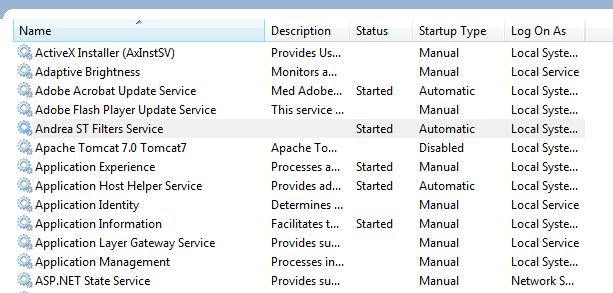
Services window

The following code will find all non-null properties of all Windows services found:

private static void ListAllWindowsServices()
{
	ManagementObjectSearcher windowsServicesSearcher = new ManagementObjectSearcher("root\\cimv2", "select * from Win32_Service");
	ManagementObjectCollection objectCollection = windowsServicesSearcher.Get();

	Console.WriteLine("There are {0} Windows services: ", objectCollection.Count);

	foreach (ManagementObject windowsService in objectCollection)
	{
		PropertyDataCollection serviceProperties = windowsService.Properties;
		foreach (PropertyData serviceProperty in serviceProperties)
		{
			if (serviceProperty.Value != null)
			{
				Console.WriteLine("Windows service property name: {0}", serviceProperty.Name);
				Console.WriteLine("Windows service property value: {0}", serviceProperty.Value);
			}
		}
		Console.WriteLine("---------------------------------------");
	}
}

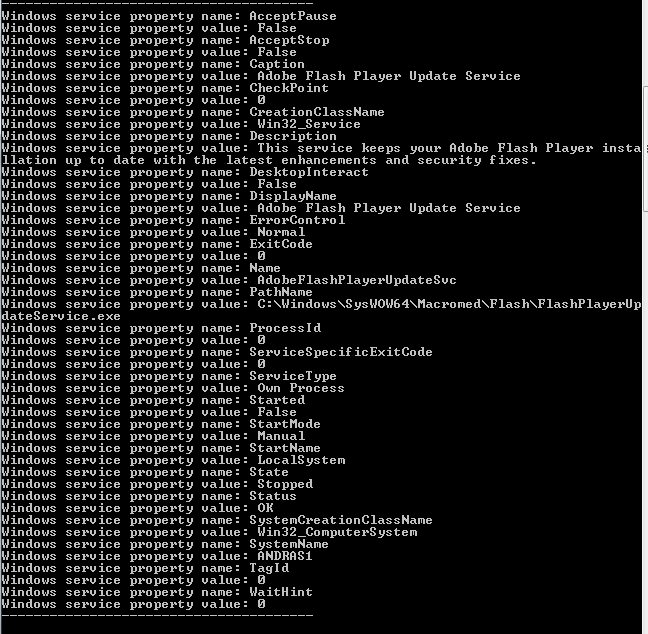
At the time of writing this post I had 196 services running on my PC. Here’s an example of the output for the Adobe Flash Player Update service:

Adobe Flash Player service properties

Once you know the property names of the WMI class then you can extend the SQL query. E.g. here’s how to find all non-running services:

ManagementObjectSearcher windowsServicesSearcher = new ManagementObjectSearcher("root\\cimv2", "select * from Win32_Service where Started = FALSE");

You can view all posts related to Diagnostics here.

Elliot Balynn's Blog

A directory of wonderful thoughts

Software Engineering

Web development

Disparate Opinions

Various tidbits

chsakell's Blog

WEB APPLICATION DEVELOPMENT TUTORIALS WITH OPEN-SOURCE PROJECTS

Once Upon a Camayoc

ARCHIVED: Bite-size insight on Cyber Security for the not too technical.