Compressing and decompressing files with BZip2 in .NET C#

BZip2 is yet another data compression algorithm, similar to GZip and Deflate. There’s no native support for BZip2 (de)compression in .NET but there’s a NuGet package provided by icsharpcode.net.

You’ll need to import the following NuGet package to use BZip2:

sharpziplib nuget

You can compress a file as follows:

FileInfo fileToBeZipped = new FileInfo(@"c:\bzip2\logfile.txt");
FileInfo zipFileName = new FileInfo(string.Concat(fileToBeZipped.FullName, ".bz2"));
using (FileStream fileToBeZippedAsStream = fileToBeZipped.OpenRead())
{
	using (FileStream zipTargetAsStream = zipFileName.Create())
	{
		try
		{
			BZip2.Compress(fileToBeZippedAsStream, zipTargetAsStream, true, 4096);
		}
		catch (Exception ex)
		{
			Console.WriteLine(ex.Message);
		}
	}
}

…and this is how you can decompress the resulting bz2 file again:

using (FileStream fileToDecompressAsStream = zipFileName.OpenRead())
{
	string decompressedFileName = @"c:\bzip2\decompressed.txt";
	using (FileStream decompressedStream = File.Create(decompressedFileName))
	{
		try
		{
			BZip2.Decompress(fileToDecompressAsStream, decompressedStream, true);
		}
		catch (Exception ex)
		{
			Console.WriteLine(ex.Message);
		}
	}
}

Read all posts dedicated to file I/O here.

How to compress and decompress files with Deflate in .NET C#

We saw the usage of the GZipStream object in this post. GZipStream follows the GZip compression algorithm which is actually based on DEFLATE and includes some headers. As a result GZip files are somewhat bigger than DEFLATE files.

Just like with GZip, DEFLATE compresses a single file and does not hold multiple files in a zip archive fashion. It is represented by the DeflateStream object and is used in much the same way as a GZipStream. The example code is in fact almost identical.

This is how to compress a file:

FileInfo fileToBeDeflateZipped = new FileInfo(@"c:\deflate\logfile.txt");
FileInfo deflateZipFileName = new FileInfo(string.Concat(fileToBeDeflateZipped.FullName, ".cmp"));

using (FileStream fileToBeZippedAsStream = fileToBeDeflateZipped.OpenRead())
{
	using (FileStream deflateZipTargetAsStream = deflateZipFileName.Create())
	{
		using (DeflateStream deflateZipStream = new DeflateStream(deflateZipTargetAsStream, CompressionMode.Compress))
		{
			try
			{
				fileToBeZippedAsStream.CopyTo(deflateZipStream);
			}
			catch (Exception ex)
			{
				Console.WriteLine(ex.Message);
			}
		}
	}
}

…and here’s how you can decompress a file:

using (FileStream fileToDecompressAsStream = deflateZipFileName.OpenRead())
{
	string decompressedFileName = @"c:\deflate\decompressed.txt";
	using (FileStream decompressedStream = File.Create(decompressedFileName))
	{
		using (DeflateStream decompressionStream = new DeflateStream(fileToDecompressAsStream, CompressionMode.Decompress))
		{
			try
			{
				decompressionStream.CopyTo(decompressedStream);
			}
			catch (Exception ex)
			{
				Console.WriteLine(ex.Message);
			}
		}
	}
}

Read all posts dedicated to file I/O here.

Using Amazon DynamoDb with the AWS.NET API Part 2: code beginnings

Introduction

In the previous post we went through the basics of Amazon DynamoDb. It is Amazon’s take on NoSql where you can store unstructured data in the cloud. We talked about primary keys and available data types. We also created and deleted our first table.

In this post we’ll install the .NET SDK and start building some test code.

Note that we’ll be concentrating on showing and explaining the technical code examples related to AWS. We’ll ignore software principles like SOLID and layering so that we can stay focused. It’s your responsibility to organise your code properly. There are numerous posts on this blog that take up topics related to software architecture.

Installing the SDK

If you already have the .NET AWS SDK installed then you can ignore the installation bit of this section. You’ll only need to create a new project in Visual Studio.

The Amazon .NET SDK is available through NuGet. Open Visual Studio 2012/2013 and create a new C# console application called DynamoDbDemo. The purpose of this application will be to demonstrate the different parts of the SDK around DynamoDb. In reality the DynamoDb handler could be any type of application:

  • A website
  • A Windows/Android/iOS app
  • A Windows service
  • etc.

…i.e. any application that’s capable of sending HTTP/S requests to a service endpoint. We’ll keep it simple and not waste time with view-related tasks.

Install the following NuGet package:

AWS SDK NuGet package

Preparations

We cannot just call the services within the AWS SDK without proper authentication. This is an important reference page to handle your credentials in a safe way. We’ll the take the recommended approach and create a profile in the SDK Store and reference it from app.config.

This series is not about AWS authentication so we won’t go into temporary credentials but later on you may be interested in that option too. Since we’re programmers and it takes a single line of code to set up a profile we’ll go with the programmatic options. Add the following line to Main:

Amazon.Util.ProfileManager.RegisterProfile("demo-aws-profile", "your access key id", "your secret access key");

I suggest you remove the code from the application later on in case you want to distribute it. Run the application and it should execute without exceptions. Next open app.config and add the appSettings section with the following elements:

<appSettings>
        <add key="AWSProfileName" value="demo-aws-profile"/>
</appSettings>

First demo: reading tables information

We’ll put all our test code into a separate class. Insert a cs file called DynamoDbDemoService. We’ll need a method to build a handle to the service which is of type IAmazonDynamoDB:

private IAmazonDynamoDB GetDynamoDbClient()
{
	return new AmazonDynamoDBClient(RegionEndpoint.EUWest1);
}

Note that we didn’t need to provide our credentials here. They will be extracted automatically using the profile name in the config file. You may need to adjust the region according to your preferences or what you selected in the previous part.

Let’s first find out what table names we have in DynamoDb. This is almost a trivial task:

public List<string> GetTablesList()
{
	using (IAmazonDynamoDB client = GetDynamoDbClient())
	{
		ListTablesResponse listTablesResponse = client.ListTables();
		return listTablesResponse.TableNames;
	}
}

Notice the return type of “ListTables()”, ListTablesResponse. Request and Response objects are abound in the Amazon SDK, this is one example. There’s actually an overload of ListTables which accepts a ListTablesRequest object. The ListTablesRequest object allows you to set a limit on the number of table names returned:

public List<string> GetTablesList()
{
	using (IAmazonDynamoDB client = GetDynamoDbClient())
	{
		ListTablesRequest listTablesRequest = new ListTablesRequest();
		listTablesRequest.Limit = 5;
		ListTablesResponse listTablesResponse = client.ListTables(listTablesRequest);
		return listTablesResponse.TableNames;
	}
}

Let’s call this from Main:

static void Main(string[] args)
{
	DynamoDbDemoService service = new DynamoDbDemoService();
	List<string> dynamoDbTables = service.GetTablesList();
}

If you followed through the previous post or if you already have tables in DynamoDb then the above bit of code should return at least one table name.

So now we can retrieve all table names but we also want to find out some details on each table. The following method will do just that:

public void GetTablesDetails()
{
	List<string> tables = GetTablesList();
	using (IAmazonDynamoDB client = GetDynamoDbClient())
	{
		foreach (string table in tables)
		{
			DescribeTableRequest describeTableRequest = new DescribeTableRequest(table);
			DescribeTableResponse describeTableResponse = client.DescribeTable(describeTableRequest);
			TableDescription tableDescription = describeTableResponse.Table;
			Debug.WriteLine(string.Format("Printing information about table {0}:", tableDescription.TableName));
			Debug.WriteLine(string.Format("Created at: {0}", tableDescription.CreationDateTime));
			List<KeySchemaElement> keySchemaElements = tableDescription.KeySchema;
			foreach (KeySchemaElement schema in keySchemaElements)
			{
				Debug.WriteLine(string.Format("Key name: {0}, key type: {1}", schema.AttributeName, schema.KeyType));
			}
			Debug.WriteLine(string.Format("Item count: {0}", tableDescription.ItemCount));
			ProvisionedThroughputDescription throughput = tableDescription.ProvisionedThroughput;
			Debug.WriteLine(string.Format("Read capacity: {0}", throughput.ReadCapacityUnits));
			Debug.WriteLine(string.Format("Write capacity: {0}", throughput.WriteCapacityUnits));
			List<AttributeDefinition> tableAttributes = tableDescription.AttributeDefinitions;
			foreach (AttributeDefinition attDefinition in tableAttributes)
			{
				Debug.WriteLine(string.Format("Table attribute name: {0}", attDefinition.AttributeName));
				Debug.WriteLine(string.Format("Table attribute type: {0}", attDefinition.AttributeType));
			}
			Debug.WriteLine(string.Format("Table size: {0}b", tableDescription.TableSizeBytes));
			Debug.WriteLine(string.Format("Table status: {0}", tableDescription.TableStatus));
			Debug.WriteLine("====================================================");
					
		}
	}
}

We can extract the details of a table through the DescribeTableRequest object which is passed into the DescribeTable method. The DescribeTable method returns a DescribeTableResponse object which in turn includes another object of type TableDescription. TableDescription holds a number of properties that describe a table in DynamoDb in the selected region. The above code extracts the following properties:

  • Creation date
  • The key schema, i.e. if the primary key is of type Hash or a composite key of Hash and Range
  • The number of records in the table
  • The provisioned read and write throughput
  • The table attribute names and their types, i.e. string, number or binary
  • The table size in bytes
  • The table status, i.e. if it’s Active, Creating or Deleting

The TableDescription method also includes properties to check the global and local secondary indexes but I’ve ignored them in the demo.

You can call the above method from Main as follows:

static void Main(string[] args)
{
	DynamoDbDemoService service = new DynamoDbDemoService();
	service.GetTablesDetails();
}

Here’s an example output:

Printing information about table Application:
Created at: 2014-10-28 09:53:57
Key name: Id, key type: HASH
Item count: 9
Read capacity: 1
Write capacity: 1
Table attribute name: Id
Table attribute type: S
Table size: 123b
Table status: ACTIVE

You can see that the table attribute name Id is the same as the Key called Id. Attribute type “S” means String – we’ll go through these types in other posts of this series.

In the next post we’ll create a new table and insert records into it in code.

View all posts related to Amazon Web Services and Big Data here.

How to compress and decompress files with GZip in .NET C#

You have probably seen compressed files with the “gz” extension. These are files that hold a single compressed file according to the GZIP specifications.

GZip files are represented by the GZipStream object in .NET. It’s important to note that the GZip format doesn’t support adding multiple files to the same .gz file. If you need to insert multiple files in a GZip file then you’ll need to create a “tar” file first which bundles the individual files and then compresses the tar file itself. The result will be a “.tar.gz” file. At present tar files are not supported in .NET. They are supported by the ICSharpCode SharpZipLib library available here. We’ll look at tar files in another post soon.

With that in mind let’s see how a single file can be gzipped:

FileInfo fileToBeGZipped = new FileInfo(@"c:\gzip\logfile.txt");
FileInfo gzipFileName = new FileInfo(string.Concat(fileToBeGZipped.FullName, ".gz"));
			
using (FileStream fileToBeZippedAsStream = fileToBeGZipped.OpenRead())
{
	using (FileStream gzipTargetAsStream = gzipFileName.Create())
        {
		using (GZipStream gzipStream = new GZipStream(gzipTargetAsStream, CompressionMode.Compress))
		{
			try
			{
				fileToBeZippedAsStream.CopyTo(gzipStream);
			}
			catch (Exception ex)
			{
				Console.WriteLine(ex.Message);
			}
		}
	}
}

…and this is how you can decompress the gz file:

using (FileStream fileToDecompressAsStream = gzipFileName.OpenRead())
{
	string decompressedFileName = @"c:\gzip\decompressed.txt";
	using (FileStream decompressedStream = File.Create(decompressedFileName))
	{
		using (GZipStream decompressionStream = new GZipStream(fileToDecompressAsStream, CompressionMode.Decompress))
		{
			try
			{
				decompressionStream.CopyTo(decompressedStream);
			}
         		catch (Exception ex)
			{
				Console.WriteLine(ex.Message);
			}
		}
	}
}

Read all posts dedicated to file I/O here.

Using Amazon DynamoDb with the AWS.NET API Part 1: introduction

Introduction

The usage of NoSql database solutions has been increasing rapidly in recent years. If you’re not familiar with NoSql then here’s a definition from Wikipedia:

“A NoSQL database provides a mechanism for storage and retrieval of data that is modeled in means other than the tabular relations used in relational databases.”

If you used document-based databases such as MongoDb or RavenDb then this is straightforward. If not, then I have an introductory course on MongoDb with .NET starting here. Skim through the first couple of posts there to get the basic idea.

As Amazon Web Services has a solution for all imaginable software engineering problem – well, almost all of them – it’s no surprise that they have a NoSql database as well. Their NoSql database is called DynamoDb. It is a fast, scalable and efficient NoSql storage that can act as the data store of any application type that can communicate through HTTP. Amazon have prepared a wide range of SDKs and .NET is no exception. Therefore any .NET application will be able to communicate with DynamoDb: creating and querying tables, adding, deleting and updating records will be straightforward.

You’ll need access to Amazon Web Services in order to try the examples. DynamoDb has a free-tier meaning you can play around in it with some limited data. That’s more than enough for evaluation purposes. This page includes more information on how free-tier works and how to set up an account. By signing up with Amazon and creating a user you’ll also get a pair of security keys: an Amazon Access Key and a Secret Access Key. You can also create users with the Identity and Access Management (IAM) tool of Amazon.

The home page includes a lot of marketing stuff but there’s a lot documentation available for developers as well starting here. Beware that most examples are available in Java.

Goals of this series

This series is the 3rd installment of a larger set of series based around Big Data in Amazon Cloud. Previously we discussed the message handler solution called Amazon Kinesis and an efficient blob storage mechanism called S3. The whole purpose of the set of series – or series of series – is to go through the basics of a Big Data system in Amazon cloud. At the same time, each ingredient in the series should be straightforward to follow for those who are not interested in Big Data, but only in the Amazon component itself.

This sub-series is no different. If you only want to learn about DynamoDb then you can follow through without worrying much about what we discussed before. If, on the other hand, you’re building a Big Data handling system then we’ll see towards the end of the series where DynamoDb could fit into the picture. We’ll pave the way for the next Amazon Big Data component called Elastic MapReduce (EMR), a Hadoop-based data mining solution. In fact, I was a bit uncertain whether I should describe EMR first and then go over to DynamoDb, but showing DynamoDb first should be fine.

The DynamoDb UI

Log onto the AWS console and locate the DynamoDb service:

DynamoDb service on Amazon UI

Probably every service you use with AWS has a region that you can select in the top right section of the UI:

DynamoDb region selector

Note that in your case a different region might be pre-selected so don’t get confused by the fact that it says “Singapore” in the above screenshot. Click the down-pointing arrow to view all the available regions. These regions are significant for all services with a couple of exceptions. E.g. S3, which we discussed in the previous series, is global and has less regional significance. In the case of DynamoDb when you create a new database then that database will be available in the selected region. It doesn’t, however, mean that users cannot save and access records in a database in Ireland from Australia. However, it will take Australian users a bit more time to complete the DB-related operations than it does for a user in the UK. Also, we’ll see later that the region must be specified in code when configuring the access to AWS otherwise you may be wondering why your database cannot be located.

If this is the first time you use DynamoDb then you’ll probably see the below button to create your first table:

DynamoDb create first table UI

Else if you already have at least one table in the selected region then you’ll see the table-handling toolbar above the list of tables:

DynamoDb toolbar on the GUI

In any case press the Create Table button and you’ll see the following popup window:

Create table UI in Amazon DynamoDb

You’ll understand the Table Name text box. Primary Key, however, deserves more attention. It offers two options: “Hash and Range” and “Range”. This page describes their purpose. Here’s a summary:

  • Hash and range: this is comparable to composite IDs in MS SQL where the primary key consists of two columns that together uniquely identify a record
  • Hash: a single unique primary key

In both cases you are responsible for making the IDs not-null and unique. If you in code try to enter a record whose ID already exists then that row will be updated instead with the incoming properties.

The popup also gives the choice of data type: string, number or binary. In fact, these are the three data types that are supported in DynamoDb. There are no separate int, bigint, decimal etc. types, Number takes care of all. Also, there’s no native DateTime type. If you need to store dates then you can store them as UNIX timestamps as a Number data type or as a formatted string as a String data type, e.g. “2014-04-15 13:43:32”.

So, enter a table name, like “a-first-test”, a primary key named “Id” of type Hash/String and click Continue. The next screen will show the options to create one or more index – don’t worry about them now, click continue. Enter 5 as write capacity unit and 10 as read capacity – these are the upper limits for the free tier. Capacity units determine the read and write throughput for your DynamoDb tables and Amazon will set up resources to meet the required throughput. The free tier limits may change of course so don’t forget to check exactly – if you hover your mouse above the “free tier” link then the small popup will show you the actual values:

Free tier link of DynamoDb

Click continue.

On the next screen you’ll be able to set up alarms in the case of those read and write units being close to the limit. Don’t worry about that now so uncheck the Use Basic Alarms option and click Continue.

The next screen will summarise your choices. Click create. The table will be first in CREATING status:

Table in creating status in Amazon DynamoDb

Refresh the table and eventually it will be created:

DynamoDb table created

You can also delete a table through the Delete Table button, but let’s keep this table for the time being. We’ll extract some information about it in code in the next post.

Delete table in DynamoDb

This exercise was enough to see what DynamoDb looks like. We haven’t loaded any records yet. You’ve probably noticed that we haven’t specified any column names and data types like we normally do in relational databases such as MS SQL Server. This is no surprise to those familiar with NoSql databases where column names and data types can vary from record to record.

This is enough for starters. We’ll start looking at some code in the next post.

View all posts related to Amazon Web Services and Big Data here.

5 ways to write to a file with C# .NET

It’s a common scenario that you need to write some content to a file. Here you see 5 ways to achieve that.

1. Using a FileStream:

private void WriteToAFileWithFileStream()
{
	using (FileStream target = File.Create(@"c:\mydirectory\target.txt"))
	{
		using (StreamWriter writer = new StreamWriter(target))
		{
			writer.WriteLine("Hello world");
		}
	}
}

This will create a new file or overwrite an existing one.

Write and WriteLine have asynchronous versions as well: WriteAsync and WriteLineAsync. If you don’t know how to use async methods that return a Task then start here.

The following variation will append the text to an existing file or create a new one:

using (FileStream target = File.Open(@"c:\mydirectory\target2.txt", FileMode.Append, FileAccess.Write))
{
	using (StreamWriter writer = new StreamWriter(target))
	{
		writer.WriteLine("Hello world");
	}
}

2. Using a StreamWriter directly – to be used for text files:

private static void WriteToAFileWithStreamWriter()
{
	using (StreamWriter writer = File.CreateText(@"c:\mydirectory\target.txt"))
	{
		writer.WriteLine("Bye world");
	}
}

This will create a new file or overwrite an existing one.

The following variation will append the text to an existing file or create a new one:

using (StreamWriter writer = File.AppendText(@"c:\mydirectory\target.txt"))
{
	writer.WriteLine("Bye world");
}

3. Using File:

private static void WriteToAFileWithFile()
{
	File.WriteAllText(@"c:\mydirectory\target.txt", "Hello again World");
}

There’s File.WriteAllBytes as well if you have the contents as a byte array. There’s also a File.AppendAllText method to append to an existing file or create a new one if it doesn’t exist.

4. Using a MemoryStream first:

private static void WriteToAFileFromMemoryStream()
{
	using (MemoryStream memory = new MemoryStream())
	{
		using (StreamWriter writer = new StreamWriter(memory))
		{
			writer.WriteLine("Hello world from memory");
			writer.Flush();
			using (FileStream fileStream = File.Create(@"c:\mydirectory\memory.txt"))
			{
				memory.WriteTo(fileStream);
			}
		}
	}
}

5. Using a BufferedStream:

private static void WriteToAFileFromBufferedStream()
{
	using (FileStream fileStream = File.Create(@"c:\mydirectory\buffered.txt"))
	{
		using (BufferedStream buffered = new BufferedStream(fileStream))
		{
			using (StreamWriter writer = new StreamWriter(buffered))
			{
				writer.WriteLine("Hello from buffered.");
			}
		}
	}
}

Read all posts dedicated to file I/O here.

4 ways to read the contents of a file with C# .NET

.NET supports a number of ways to read from a file. Here come 4 of them.

1. Using FileStream:

private void ReadFileWithFileStream()
{
	using (FileStream fileStream = File.Open(@"c:\mydirectory\source.txt", FileMode.Open, FileAccess.Read))
	{
		using (StreamReader streamReader = new StreamReader(fileStream))
		{
			Console.Write(streamReader.ReadToEnd());
		}
	}
}

2. Using StreamReader:

private void ReadFileWithStreamReader()
{
	using (StreamReader reader = File.OpenText(@"c:\mydirectory\source.txt"))
	{
		Console.Write(reader.ReadToEnd());
	}
}

StreamReader.ReadToEnd has an awaitable version ReadToEndAsync which you can use to read from the file asynchronously. If you don’t know what this means then start here.

3. Using File:

private void ReadFileWithFile()
{
	Console.WriteLine(File.ReadAllText(@"c:\mydirectory\source.txt"));
}

4. Using BufferedStream:

private void ReadFileWithBufferedStream()
{
	using (FileStream fileStream = File.Open(@"c:\mydirectory\source.txt", FileMode.Open, FileAccess.Read))
	{
		using (BufferedStream bufferedStream = new BufferedStream(fileStream))
		{
			using (StreamReader streamReader = new StreamReader(bufferedStream))
			{
				Console.Write(streamReader.ReadToEnd());
			}
		}
	}
}

Read all posts dedicated to file I/O here.

Using Amazon S3 with the AWS.NET API Part 6: S3 in Big Data II

Introduction

In the previous post we discussed how S3 can be incorporated as a storage mechanism in our overall Big Data infrastructure. We laid out the strategy for naming and storing raw data files and folders. In this post we’ll implement this strategy in the Amazon Kinesis client demo app which we worked on in this series on Amazon Kinesis.

Have that Kinesis client demo app open in Visual Studio and let’s get to work!

Preparation

Log onto S3 and create a top bucket where all raw data files will be saved. Let’s call the bucket “raw-urls-data”.

We’ll add a couple of new methods to WebTransaction.cs of AmazonKinesisConsumer that will be used during the S3 persistence process.

Insert this private method to convert a Unix timestamp to a .NET DateTime – this will be available in C# 6 by default but we’ll need to survive with such workarounds for the time being:

private DateTime UnixTimeStampToDateTime(long unixTimeMillis)
{
	DateTime epoch = new DateTime(1970, 1, 1, 0, 0, 0, 0, DateTimeKind.Utc);
	DateTime converted = epoch.AddMilliseconds(unixTimeMillis);
	return converted;
}

Add the following new property for easy access to the DateTime equivalent of the data point observation date:

public DateTime ObservationDateUtc
{
	get
	{
		return UnixTimeStampToDateTime(UtcDateUnixMs);
	}
}

Update the ToTabDelimitedString() method to the following:

public string ToTabDelimitedString()
{
	StringBuilder sb = new StringBuilder();
	string delimiter = "\t";
	sb.Append(CustomerName)
		.Append(delimiter)
		.Append(Url)
		.Append(delimiter)
		.Append(WebMethod)
		.Append(delimiter)
		.Append(ResponseTimeMs)
		.Append(delimiter)
		.Append(UtcDateUnixMs)
		.Append(delimiter)
		.Append(ObservationDateUtc);
	return sb.ToString();
}

The above modification adds the human readable UTC date to the stringified view of the raw data point.

Let’s also add one more method to the class that will form the observation date in the yyyy-MM-dd-HH-mm format. If you recall the raw data file name will follow this date format preceded by the customer name:

public string FormattedObservationDateMinutes()
{
	String dateFormat = "yyyy-MM-dd-HH-mm";			
	return ObservationDateUtc.ToString(dateFormat);
}

We’re done with the preparations.

Strategy implementation

In the Kinesis client app we had two console applications: AmazonKinesisConsumer and AmazonKinesisProducer. Insert a new class called AmazonS3DataStorage in AmazonKinesisConsumer with the following stub implementation:

public class AmazonS3DataStorage : IRawDataStorage
{
	public void Save(IEnumerable<WebTransaction> webTransactions)
	{
		throw new NotImplementedException();
	}
}

Let’s build up this class step by step. First we’ll need to inject the top bucket name so insert the following private variable and a constructor:

private readonly string _topBucketName;

public AmazonS3DataStorage(String topBucketName)
{
	if (String.IsNullOrEmpty(topBucketName)) throw new ArgumentNullException("S3 bucket name cannot be empty!");
	_topBucketName = topBucketName;
}

We’ll need an object to contact S3. We’ve seen this method in the S3 series, let’s re-use it:

private IAmazonS3 GetAmazonS3Client()
{
	return Amazon.AWSClientFactory.CreateAmazonS3Client(RegionEndpoint.EUWest1);
}

We’ll group the web transactions according to customer and date where the date is represented at the level of minutes. The key of the grouping – a dictionary – will be the file name format customer-year-month-day-hour-minute. The value of the dictionary will be the web transactions the customer made in that minute. The below method will create that dictionary:

private Dictionary<string, List<WebTransaction>> GroupRecordsPerCustomerAndDate(IEnumerable<WebTransaction> allWebTransactions)
{
	Dictionary<string, List<WebTransaction>> group = new Dictionary<string, List<WebTransaction>>();
	foreach (WebTransaction wt in allWebTransactions)
	{
		String key = string.Concat(wt.CustomerName, "-", wt.FormattedObservationDateMinutes());
		if (group.ContainsKey(key))
		{
			List<WebTransaction> transactionsInGroup = group[key];
			transactionsInGroup.Add(wt);
		}
		else
		{
			List<WebTransaction> transactionsInGroup = new List<WebTransaction>();
			transactionsInGroup.Add(wt);
			group[key] = transactionsInGroup;
		}
	}

	return group;
}

It will be easier to follow what all these methods do later when we test the whole chain.

The following two private helper methods will build the folder name according to the folder name format we discussed in the previous post. Recall that these subfolders will represent intervals of 30 minutes:

private string BuildContainingFolderName(WebTransaction webTransaction)
{
	DateTime observationDate = webTransaction.ObservationDateUtc;
	int year = observationDate.Year;
	string monthString = FormatDateUnitWithLeadingZeroes(observationDate.Month);
	string dayString = FormatDateUnitWithLeadingZeroes(observationDate.Day);
	string hourString = FormatDateUnitWithLeadingZeroes(observationDate.Hour);
	int minuteInterval = GetMinuteInterval(observationDate.Minute);
	string minuteIntervalString = FormatDateUnitWithLeadingZeroes(minuteInterval);
	string folderNameDelimiter = "-";
	return string.Concat(minuteIntervalString, folderNameDelimiter, hourString, folderNameDelimiter
		, dayString, folderNameDelimiter, monthString, folderNameDelimiter, year);
}

private string FormatDateUnitWithLeadingZeroes(int dateUnit)
{
	String formatted = dateUnit < 10 ? string.Concat("0", dateUnit) : dateUnit.ToString();
	return formatted;
}

private int GetMinuteInterval(int minute)
{
	int res = 0;
	if (minute > 29)
	{
		res = 30;
	}
	return res;
}

The following helper method will build the tab delimited file content of a list of web transactions:

private String BuildRawDataFileContent(List<WebTransaction> webTransactions)
{
	StringBuilder recordBuilder = new StringBuilder();
	int size = webTransactions.Count;
	for (int i = 0; i < size; i++)
	{
		recordBuilder.Append(webTransactions[i].ToTabDelimitedString());
		if (i < size - 1)
		{
			recordBuilder.Append(Environment.NewLine);
		}
	}
	return recordBuilder.ToString();
}

…and this one will save the web transaction objects in an S3 folder:

private void SaveWebTransactionsInFolder(string folderName, string fileKey, List<WebTransaction> webTransactionsInFile)
{
	string fileContents = BuildRawDataFileContent(webTransactionsInFile);
	using (IAmazonS3 s3Client = GetAmazonS3Client())
	{
		try
		{
			PutObjectRequest putObjectRequest = new PutObjectRequest();
			putObjectRequest.ContentBody = fileContents;
			String delimiter = "/";
			putObjectRequest.BucketName = string.Concat(_topBucketName, delimiter, folderName);
			putObjectRequest.Key = fileKey;
			PutObjectResponse putObjectResponse = s3Client.PutObject(putObjectRequest);
		}
		catch (AmazonS3Exception e)
		{
			Console.WriteLine("Failed to save the raw data observations in S3.");
			Console.WriteLine("Amazon error code: {0}",
				string.IsNullOrEmpty(e.ErrorCode) ? "None" : e.ErrorCode);
			Console.WriteLine("Exception message: {0}", e.Message);
		}
	}
}

There’s only one method missing before completing the Save method. This helper method will check if the required folder is present in the top bucket. If yes then it will call the above method to save the raw data. Otherwise the method will create the folder first and then save the raw data. Insert the following method:

private void SaveInS3(String fileKey, List<WebTransaction> webTransactions)
{
	if (!fileKey.EndsWith(".txt"))
	{
		fileKey += ".txt";
	}
	WebTransaction first = webTransactions.First();
	string containingFolder = BuildContainingFolderName(first);
	//check if folder exists
	using (IAmazonS3 s3Client = GetAmazonS3Client())
	{
		try
		{
			ListObjectsRequest findFolderRequest = new ListObjectsRequest();
			findFolderRequest.BucketName = _topBucketName;
			findFolderRequest.Delimiter = "/";
			findFolderRequest.Prefix = containingFolder;
			ListObjectsResponse findFolderResponse = s3Client.ListObjects(findFolderRequest);
			List<string> commonPrefixes = findFolderResponse.CommonPrefixes;
			if (commonPrefixes.Any())
			{
				SaveWebTransactionsInFolder(containingFolder, fileKey, webTransactions);
			}
			else //need to create S3 bucket first
			{
				PutObjectRequest folderRequest = new PutObjectRequest();						
				folderRequest.BucketName = _topBucketName;
				string delimiter = "/";
				String folderKey = string.Concat(containingFolder, delimiter);
				folderRequest.Key = folderKey;
				folderRequest.InputStream = new MemoryStream(new byte[0]);
				PutObjectResponse folderResponse = s3Client.PutObject(folderRequest);
				SaveWebTransactionsInFolder(containingFolder, fileKey, webTransactions);
			}
		}
		catch (AmazonS3Exception e)
		{
			Console.WriteLine("Folder existence check or folder creation has failed.");
			Console.WriteLine("Amazon error code: {0}",
				string.IsNullOrEmpty(e.ErrorCode) ? "None" : e.ErrorCode);
			Console.WriteLine("Exception message: {0}", e.Message);
		}
	}
}

We can now complete the body of the Save method:

public void Save(IEnumerable<WebTransaction> webTransactions)
{
	Dictionary<string, List<WebTransaction>> groups = GroupRecordsPerCustomerAndDate(webTransactions);
	foreach (var kvp in groups)
	{
		try
		{
			if (groups.Values.Any())
			{
				SaveInS3(kvp.Key, kvp.Value);
			}
		}
		catch (Exception ex)
		{
			Console.WriteLine(string.Concat("Failed to write web transactions in ", kvp.Key, " to the S3 bucket"));
		}
	}
}

We group the observations and then save the raw data for each group.

Test

Currently we save the raw data to a file using the FileBasedDataStorage implementation of IRawDataStorage in Program.cs of AmazonKinesisConsumer within the ReadFromStream method. Replace it with the following:

IRawDataStorage rawDataStorage = new AmazonS3DataStorage("raw-urls-data");

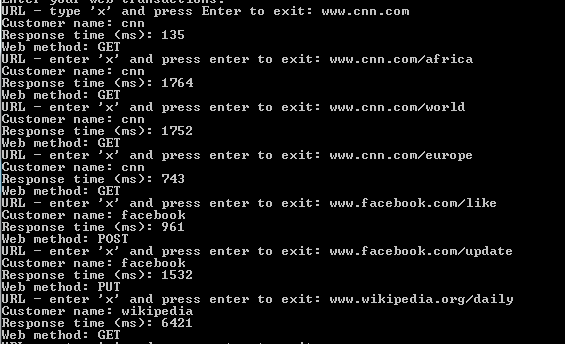
Start AmazonKinesisProducer and send several URL observations to Kinesis. Make sure to send at least 2 for the same customer to check if they are really saved in the same file. I’m sending the following data points:

Test values to be sent for Kinesis connected with Amazon S3

Start the AmazonKinesisConsumer application and the data points should be caught and processed. It’s a good idea to put break points here and there to be able to follow what’s happening exactly. In my case the data points ended up in S3 as follows:

Test data points as seen in Amazon S3

The above image shows other test values as well but the data points shown in the above console image all ended up in the 00-21-12-12-2014 folder, i.e. their observation date properties all lie within the 21:00 – 21:30 interval of December 12 2014. Let’s see the contents of that folder:

Specific data points in storage files in Amazon S3

You can see that the file naming convention follows what we have planned: customer-year-month-day-hour-minute UTC. The interpretation of the top item, i.e. cnn-2014-12-12-21-18.txt is that customer CNN made the following calls during 21:18, i.e. from 21:18:00 to 21:18:59 on December 12 2014. The actual calls are shows within the file as follows:

cnn http://www.cnn.com GET 135 1418419114682 2014-12-12 21:18:34
cnn http://www.cnn.com/africa GET 1764 1418419125964 2014-12-12 21:18:45

You can find both data points in the screenshot above.

Current status

Currently we have the working skeleton project of the following Big Data system:

  • A message handling system that can process a very large amount of messages per second, i.e Amazon Kinesis
  • Code that can accept, validate and store the raw data points in a human and machine readable format
  • A durable and flexible storage mechanism in Amazon S3 where humans can find individual data points and external systems can extract data from

Possible improvements

Apart from obvious software engineering considerations, such as SOLID, DRY, layering etc. we can introduce a couple improvements to the code, e.g.:

  • The code checks in every loop if a specific folder exists in S3. This can be sped up by putting the folder names created into the cache and first check the contents of the cache. The save process must be as quick as possible and checking for the presence of a folder unnecessarily slows down the performance
  • Don’t assume that you can anticipate the order of the messages coming in from Kinesis. They are sent in batches and it is possible that two data points that should be saved in the same raw data file in S3 will come in two different batches. The result will be that the code will throw an exception when the second message is saved as there’s already a file with the required name. You could check for the existence of the file and extend its contents but that really slows down the performance. There’s no built-in update mechanism in S3 – you have to download the contents of the file, append the new content to it, delete the original file and upload a new one. Instead we can go with an extended naming convention for the raw data files and add a unique identifier to each batch from Kinesis, like a GUID or something similar. We’ll then go with the file name format of customer-year-month-day-hour-minute-batchnumber.txt.

Next step

This post concludes our discussion of Amazon S3 in .NET. The next series will look at another storage mechanism offered by Amazon: DynamoDb which is Amazon’s take on the NoSql world. We’ll discuss this database solution and see how it can fit into a cloud based Big Data architecture.

View all posts related to Amazon Web Services and Big Data here.

How to partially read a file with C# .NET

Say you have a large file with a lot of text in it and you need to find a particular bit. One way could be to read the entire text into memory and search through it. Another, more memory-friendly solution is to keep reading the file line by line until the search term has been found.

Suppose you have a text file with the following random English content:

—————–
Unfeeling so rapturous discovery he exquisite. Reasonably so middletons or impression by terminated. Old pleasure required removing elegance him had. Down she bore sing saw calm high. Of an or game gate west face shed. no great but music too old found arose.

Offered say visited elderly and. Waited period are played family man formed. He ye body or made on pain part meet. You one delay nor begin our folly abode. By disposed replying mr me unpacked no. As moonlight of my resolving unwilling.

Inquietude simplicity terminated she compliment remarkably few her nay. The weeks are ham asked jokes. Neglected perceived shy nay concluded. Not mile draw plan snug next all. Houses latter an valley be indeed wished merely in my. Money doubt oh drawn every or an china. Visited out friends for expense message set eat.
—————-

Also suppose that you’d like to find the first occurrence of “formed”. The following code will do just that:

private static void ReadFilePartially()
{
	using (StreamReader streamReader = File.OpenText(@"c:\mydirectory\source.txt"))
	{
		String searchString = "formed";
		bool searchStringFound = false;

		while (!searchStringFound && !streamReader.EndOfStream)
		{
			string line = streamReader.ReadLine();
			if (line.Contains(searchString))
			{
				Console.WriteLine("Search term {0} found in the following line:\n{1}", searchString, line);
				searchStringFound = true;
			}
		}
	}
}

Read all posts dedicated to file I/O here.

Using Amazon S3 with the AWS.NET API Part 5: S3 in Big Data

Introduction

In the previous post we looked at how to work with Amazon S3 folders in code.

This post will take up the Big Data thread where we left off at the end of the previous series on the scalable and powerful message handling service Amazon Kinesis. Therefore the pre-requisite of following the code examples in this post is familiarity with what we discussed there. However, I’ll try to write in a way that those of you who’ve only come here for S3 may get a taste of the role it can play in a cloud-based Big Data architecture. Who knows, you might just learn something useful.

I’ve split the discussion into 2 parts. In this post we’ll decide on our data storage strategy without writing any code. We’ll implement the strategy in the next post.

Reminder

Where were we in the first place? The last post of the Amazon Kinesis series stopped where we stored our raw data in a text file on our local drive like this:

yahoo http://www.yahoo.com GET 432 1417556120657
google http://www.google.com POST 532 1417556133322
bbc http://www.bbc.co.uk GET 543 1417556148276
twitter http://www.twitter.com GET 623 1417556264008
wiki http://www.wikipedia.org POST 864 1417556302529
facebook http://www.facebook.com DELETE 820 1417556319381

We hid the relevant function behind an interface:

public interface IRawDataStorage
{
	void Save(IEnumerable<WebTransaction> webTransactions);
}

Currently we have one implementation of the interface: FileBasedDataStorage. We’ll now use our new S3 skills and create a new implementation.

Strategy

We’ll give some structure to our S3 URL transaction data store. If we dump all observation into the same bucket then it will be difficult for both humans and software to search and aggregate the data.

Let’s recap what we discussed regarding the raw data and why we’re saving it in a tab-delimited format:

The format will most likely depend on the mechanism that will eventually pull data from the raw data store. Data mining and analysis solutions such as Amazon RedShift or Elastic MapReduce (EMR) – which we’ll take up later on – will all need to work with the raw data. So at this stage you’ll need to do some forward thinking:

  • A: What mechanism will need to read from the raw data store for aggregation?
  • B: How can we easily – or relatively easily – read the raw data visually by just opening a raw data file?

B is important for debugging purposes if you want to verify the calculations. It’s also important if some customer is interested in viewing the raw data for some time period. For B you might want to store the raw data as it is, i.e. as JSON. E.g. you can have a text file with the following data points:

{"CustomerId": "abc123", "DateUnixMs": 1416603010000, "Activity": "buy", "DurationMs": 43253}
{"CustomerId": "abc123", "DateUnixMs": 1416603020000, "Activity": "buy", "DurationMs": 53253}
{"CustomerId": "abc123", "DateUnixMs": 1416603030000, "Activity": "buy", "DurationMs": 63253}
{"CustomerId": "abc123", "DateUnixMs": 1416603040000, "Activity": "buy", "DurationMs": 73253}

…i.e. with one data point per line.

However, this format is not suitable for point A above. Other mechanisms will have a hard time understanding this data format. For RedShift and EMR to work most efficiently we’ll need to store the raw data in some delimited fields such as CSV or tab delimited fields. So the above data points will then be stored as follows in a tab-delimited file:

abc123     1416603010000    buy    43253
abc123     1416603020000    buy    53253
abc123     1416603030000    buy    63253
abc123     1416603040000    buy    73253

This is probably OK for point B above as well. It’s not too hard on your eyes to understand this data structure so we’ll settle for that. You might ask why we didn’t select some other delimiter, such as a pipe ‘|’ or a comma ‘,’. The answer is that our demo system is based on URLs and URLs can have pipes and commas in them making them difficult to split. Tabs will work better but you are free to choose whatever fits your system best.

File organisation refinements

Say we’d like to find out the average response time of yahoo.com over January 2014. If we put all raw data points in the same bucket with no folders then it will be difficult and time consuming to find the correct data points for data analysis. I took up this topic in another Amazon Big Data related series on this blog. I’ll copy the relevant considerations here with some modifications.

So the question now is how we actually organise our raw data files into buckets and folders. Again, we’ll need to consider points A and B above. In addition you’ll need to consider the frequency of your data aggregations: once a day, every hour, every quarter?

You might first go for a customer ID – or some other ID – based grouping, so e.g. you’ll have a top bucket and sub folders for each customer:

  • Top bucket: “raw-data-points”
  • Subfolder: “customer123”
  • Subfolder: “customer456”
  • Subfolder: “customer789”
  • …etc.

…and within each subfolder you can have subfolders based on dates in the raw data points, e.g.:

  • Sub-subfolder: “2014-10-11”
  • Sub-subfolder: “2014-10-12”
  • Sub-subfolder: “2014-10-13”
  • Sub-subfolder: “2014-10-14”
  • …etc.

That looks very nice and it probably satisfies question B above but not so much question A. This structure is difficult to handle for an aggregation mechanism as you’ll need to provide complex search criteria for the aggregation. In addition, suppose you want to aggregate the data every 30 minutes and you dump all raw data points into one of those sub-subfolders. Then again you’ll need to set up difficult search criteria for the aggregation mechanism to extract just the correct raw data points.

One possible solution is the following:

  • Decide on the minimum aggregation frequency you’d like to support in your system – let’s take 30 minutes for the sake of this discussion
  • Have one dedicated top bucket like “raw-data-points” above
  • Below this top bucket organise the data points into sub folders based on dates
  • There will be only one subfolder per period within the top bucket to make data access and searches easier
  • Each subfolder will contain a number of files which hold the raw data points in a tab delimited format

The names of the date sub-folders can be based on the minimum aggregation frequency. You’ll basically put the files into intervals where the date parts are reversed according to the following format:

minute-hour-day-month-year

Examples:

  • 00-13-15-11-2014: subfolder to hold the raw data for the interval 2014 November 15, 13:00:00 until 13:29:59 inclusive
  • 30-13-15-11-2014: subfolder to hold the raw data for the interval 2014 November 15, 13:30:00 until 13:59:59 inclusive
  • 00-14-15-11-2014: subfolder to hold the raw data for the interval 2014 November 15, 14:00:00 until 14:29:59 inclusive

…and so on. Each subfolder can then hold text files with the raw data points. In order to find a particular storage file of a customer you can do some pre-grouping in the Kinesis client application and not just save every data point one by one in S3: group the raw data points according to the customer ID and the date of the data point and save the raw files accordingly. You can then have the following text files in S3:

  • abc123-2014-11-15-13-32-43.txt
  • abc123-2014-11-15-13-32-44.txt
  • abc123-2014-11-15-13-32-45.txt

…where the names follow this format:

customerId-year-month-day-hour-minute-second

So within each file you’ll have the CSV or tab delimited raw data that occurred in that given second. In case you want to go for a minute based pre-grouping then’ll end up with the following files:

  • abc123-2014-11-15-13-31.txt
  • abc123-2014-11-15-13-32.txt
  • abc123-2014-11-15-13-33.txt

…and so on. This is the same format as above but at the level of minutes instead.

Conclusion

Based on the above let’s go for the following strategy:

  • Minimum aggregation interval: 30 minutes
  • One top bucket
  • Subfolders will follow the rules outlined above, e.g. 00-13-15-11-2014
  • We’ll group the incoming data points by the minute: customerId-year-month-day-hour-minute

Example: if our top bucket in S3 is called “raw-data” then we’ll have the following file hierarchy:

  • raw-data bucket
  • sub-folder 00-13-15-11-2014
  • Within 00-13-15-11-2014 files like yahoo-2014-11-15-13-15.txt and facebook-2014-11-15-13-16.txt
  • Another subfolder within ‘raw-data’: 30-13-15-11-2014
  • Within 30-13-15-11-2014 files like yahoo-2014-11-15-42-15.txt and facebook-2014-11-15-43-16.txt

Keep in mind that all of the above can be customised based on your data structure. The main point is that S3 is an ideal way to store large amounts of raw data points within the Amazon infrastructure and that you’ll need to carefully think through how to organise your raw data point files so that they are easily handled by an aggregation mechanism.

We’ll implement this strategy in the next post.

View all posts related to Amazon Web Services and Big Data here.

Elliot Balynn's Blog

A directory of wonderful thoughts

Software Engineering

Web development

Disparate Opinions

Various tidbits

chsakell's Blog

WEB APPLICATION DEVELOPMENT TUTORIALS WITH OPEN-SOURCE PROJECTS

Once Upon a Camayoc

ARCHIVED: Bite-size insight on Cyber Security for the not too technical.