Messaging with RabbitMQ and .NET review part 2: installation and setup

Introduction

In the previous post we we went through a general introduction of RabbitMq and its terminology. RabbitMq is a message broker that helps to solve communication between disparate systems in a reliable and maintainable manner. It is a very fast and highly scalable open-source messaging system which by default supports the AMQP messaging protocol. We discussed the key terms exchange, binding, queue, connection and channel. We also listed the 4 exchange types which are direct, header exchange, topic and fan-out.

In this post we’ll install RabbitMq on Windows. I have Windows 10 on my laptop but the RabbitMq installation package should work equally well on other versions of Windows. The most recent version of RabbitMq at this time of writing this post is 3.6.4. There may be a later version by the time you read this.

Read more of this post

Messaging with RabbitMQ and .NET review part 1: foundations and terminology

Introduction

RabbitMQ is a message broker that helps to solve communication between disparate systems in a reliable and maintainable manner. There can be various platforms that need to communicate with each other: a Windows service, a Java servlet based web service, an MVC web application etc. Messaging aims to integrate these systems so that they can exchange information in a decoupled and platform independent fashion.

There have been numerous ways to solve messaging in the past: Java Messaging Service, MSMQ, IBM MQ, but they never really became widespread mostly because they are tied to a specific system, like Windows. Messaging systems based on those technologies were complex, expensive, difficult to connect to and in general difficult to work with. Also, they didn’t follow any particular messaging standard; each vendor had their own standards that the customers had to adhere to.

In this new series on RabbitMq we will revisit some concepts and techniques we discussed in the original series here. As a user commented on the original series, there have been a number of changes, extensions and new concepts in RabbitMq and its .NET client so it’s time for a review.

Read more of this post

TCP level communication with C# .NET: the client

In this post we saw how to set up a very simplistic TCP listener that a TCP client can connect to. We built a short demo code that can be called in a console application.

The client code is even simpler:

Read more of this post

TCP level communication with C# .NET: the server

.NET has the necessary objects to enable TCP-level messaging in the System.Net.Sockets namespace. The key objects to build an extremely simple TCP server are TcpListener and Socket. The TCP client and server can communicate in a stream-like fashion over the network using the NetworkStream object.

Here’s an example of how a TCP server can ingest the message of a single client:

Read more of this post

Messaging through memory-mapped files in .NET C#

We saw in this and this posts how to use memory-mapped files to map an existing file to a memory location that multiple processes had access to on the same machine.

The same key objects, i.e. MemoryMappedFile and MemoryMappedViewAccessor can be used for interprocess messaging purposes. The following code shows how a “server” can create a new shared file mapped to memory. Here we use the CreateNew method for this purpose and give the file a mapping name. Note that this is only an in-memory file, it won’t be saved on disk:

Read more of this post

Domain Driven Design with Web API extensions part 7: domain events with RabbitMq completed

Introduction

In the previous post we set up the local RabbitMq environment. We also created a simple console application that built the message queue where the DDD demo project and the simulated financial application will communicate. We also prepared the way for the completion of the messaging process by creating an app setting reader and adding the RabbitMq related settings to web config.

In this post we’ll complete the demo by sending a message to the queue and reading it from the dummy financial console application.

Read more of this post

Domain Driven Design with Web API extensions part 6: domain events with RabbitMq

Introduction

In the previous post we looked at some basic theory behind messaging between independent applications. We discussed a couple of options to solve the problem. In this post we’ll start building our messaging environment using RabbitMq.

Read more of this post

Domain Driven Design with Web API extensions part 5: domain events between independent systems

Introduction

In the previous post we looked at a solution on how elements of a .NET solution can communicate with each other using a mediator. The mediator keeps the publisher decoupled from the subscribers. Also, the mediator won’t have any knowledge of the event handlers, their exact types and what and how they will handle the messages from the domain objects.

The solution helps the email sending event handler read the domain event in case a user added a new or updated an existing load test. In this post we’ll direct our attention to messaging between independent applications. We’ll ultimately simulate that a financial application also wants to be notified of the load test domain events in order to calculate the monthly profits.

Read more of this post

Basics of working with pipes in C# .NET part 6: message compression

In the previous part we looked at a possible solution to transmit objects through a pipe from the client to a server. We saw that it was not much different compared to transmitting a string message as the object had to be serialised first.

In this post we’ll consider a way to reduce the message size by compressing it. In messaging you should always aim for short and concise messages for good speed and scaling. However, sometimes the messages are simply large and you cannot do much about it. E.g. consider a service that scans the contents of a web page and returns the HTML as a string along with some measurements for every element on the page, such as CSS and JS files etc: time to first byte, header receive time, header size etc. That can be a large piece of string.

We’ll reuse a technique outlined in this post dedicated to BZip2 string compression. If you don’t know how that works then read through that article, it’s very short.

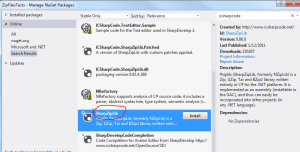
You’ll need to import the following NuGet package to use BZip2 in the pipe server in client console applications:
sharpziplib nuget

Here’s the pipe client code to send a BZip2 compressed message to the pipe server:

private static void SendCompressedMessageToServer()
{
	using (NamedPipeClientStream namedPipeClient = new NamedPipeClientStream("test"))
	{
		string longMessage = "This is a large piece of text";
		string compressed = string.Empty;
		using (MemoryStream source = new MemoryStream(Encoding.UTF8.GetBytes(longMessage)))
		{
			using (MemoryStream target = new MemoryStream())
			{
				BZip2.Compress(source, target, true, 4096);
				byte[] targetByteArray = target.ToArray();
				compressed = Convert.ToBase64String(targetByteArray);
			}
		}
		namedPipeClient.Connect();
		byte[] messageBytes = Encoding.UTF8.GetBytes(compressed);
		namedPipeClient.Write(messageBytes, 0, messageBytes.Length);
	}
}

…and here’s how the server can handle the message:

private static void ReceiveCompressedMessageFromClient()
{
	using (NamedPipeServerStream namedPipeServer = new NamedPipeServerStream("test", PipeDirection.InOut,
		1, PipeTransmissionMode.Message))
	{
		namedPipeServer.WaitForConnection();
		StringBuilder messageBuilder = new StringBuilder();
		string messageChunk = string.Empty;
		byte[] messageBuffer = new byte[5];
		do
		{
			namedPipeServer.Read(messageBuffer, 0, messageBuffer.Length);
			messageChunk = Encoding.UTF8.GetString(messageBuffer);
			messageBuilder.Append(messageChunk);
			messageBuffer = new byte[messageBuffer.Length];
		}
		while (!namedPipeServer.IsMessageComplete);
		string fullMessage = messageBuilder.ToString().Trim('\0');
		byte[] largeCompressedTextAsBytes = Convert.FromBase64String(fullMessage);
		using (MemoryStream source = new MemoryStream(largeCompressedTextAsBytes))
		{
			using (MemoryStream target = new MemoryStream())
			{
				BZip2.Decompress(source, target, true);
				string uncompressedString = Encoding.UTF8.GetString(target.ToArray());
				Console.WriteLine(uncompressedString);
			}
		}
	}
}

We compress the string using the BZip2 algorithm and then convert that to a base 64 string in the client. The server performs the exact opposite. You may be wondering about this bit:

string fullMessage = messageBuilder.ToString().Trim('\0');

The character described in the Trim argument is the string termination or null-termination character that marks the end of the message. That’s how the pipe server and client can determine whether there’s anything remaining of an incoming message.

View the list of posts on Messaging here.

Basics of working with pipes in C# .NET part 5: transmitting objects

In the previous part we saw a very basic chat application between a client and a server through a pipe. In this post we’ll see a way of how to transmit objects from the client to the server.

You’ll see that it really is not much different from transmitting a message. We cannot simply transmit an object using e.g. a WriteObject method. Instead the object must be serialised at the client side and deserialised at the server side. We’ll serialise our object using JSON and transmit the object properties using the message transmission technique we’ve seen earlier. The server will then deserialise the JSON string into the object.

We’ll pretend that the client wants to transmit an order:

public class Order
{
	public string ProductName { get; set; }
	public int Quantity { get; set; }
	public string CustomerName { get; set; }
	public string Address { get; set; }
}

Read more of this post

Elliot Balynn's Blog

A directory of wonderful thoughts

Software Engineering

Web development

Disparate Opinions

Various tidbits

chsakell's Blog

WEB APPLICATION DEVELOPMENT TUTORIALS WITH OPEN-SOURCE PROJECTS

Once Upon a Camayoc

ARCHIVED: Bite-size insight on Cyber Security for the not too technical.