Using Amazon S3 with the AWS.NET API Part 1: introduction

Introduction

Cloud-based blob storage solutions are abound and Amazon Web Services (AWS) is the leader – or one of the leaders – in that area. Amazon S3 (Simple Storage Service) provides a “secure, durable, highly-scalable object storage” solution, as it is stated on the homepage. You can use S3 to store just about any type of file: images, text files, videos, JAR files, HTML pages etc. All files are stored in a key-value map, i.e. each file has a key where the file itself is the value.

Purpose of S3

S3 is often used to store static components of web pages such as images or videos. S3 can be integrated with other Amazon components such as RedShift and Elastic MapReduce. It can also be used to transfer large amounts of data from one component to another.

However, in this series we’ll be concentrating on a slightly different but very specific usage: saving, deleting and checking for the existence of text based storage files. S3 can function as an important building block in a Big Data analysis system where a data mining application can pull the raw data from an S3 bucket, i.e. a container of files.

In S3 you can organise your files into pseudo-folders. I wrote “pseudo” as they are not real folders like the ones we create on Windows. The are rather used as visual containers so that you can organise your files in a meaningful way instead of putting all of them under the same bucket. Examples:

s3:\\sales\january-2015\monthly-sales.txt
s3:\\sales\february-2015\monthly-sales.txt

“sales” is the top bucket, “january-2015” is folder and then we have the file itself. You are free to create subfolders within each folder and subfolders within the subfolders etc.

Keep in mind that S3 is not used for updates though. Once you’ve uploaded a file to S3 then it cannot be updated in a one-step operation. Even if you want to edit a text file there’s no editor for it. You’ll need to delete the old file and upload a new one instead.

Amazon have also done a great job at providing SDKs for a range of platforms, like .NET, Java, Python etc. Programmatic access to S3’s services is equally available.

As with many other Amazon components don’t assume that S3 can only be used with other Amazon components. Any software capable of executing HTTP calls can use to access S3: Web API, .NET MVC, iOS, Java desktop apps, Windows services, you name it. Mixed architecture is quickly becoming the norm nowadays and S3 can be used both as part of a mixed solution or as an Amazon-only architecture.

Goals of this series

The goals of this series are two-fold:

  • Provide basic UI and programmatic knowledge to anyone looking for a fast, cheap, reliable and scalable cloud-based blob storage solution
  • Tie in with the previous series about another Amazon service called Kinesis which provides a reliable message queue service as entry point to a Big Data data mining system. We’ll take up S3 as an alternative for raw data storage towards the end of the series. The series on Kinesis ended where we stored the raw data on a local text file – we’ll replace it with S3 based storage

I’ll try to keep the two goals as separate as possible so that all readers with different motivations can follow through – those of you who are only interested in S3 as well as those that will see the greater picture.

I’ll assume that you have at least a test account of Amazon Web Services including the necessary access keys: an Amazon Access Key and a Secret Access Key. You’ll need to sign up with Amazon and then sign up for S3 within Amazon. You can create a free account on the S3 home page using the Create Free Account link button:

S3 create free account link button

Amazon has a lot of great documentation online. Should you get stuck you’ll almost always find an answer there. Don’t be afraid to ask in the comments section below.

In this post we’ll take an easy start and go through some of the visual aspects of S3.

S3 GUI

Log onto AWS and locate the S3 service link:
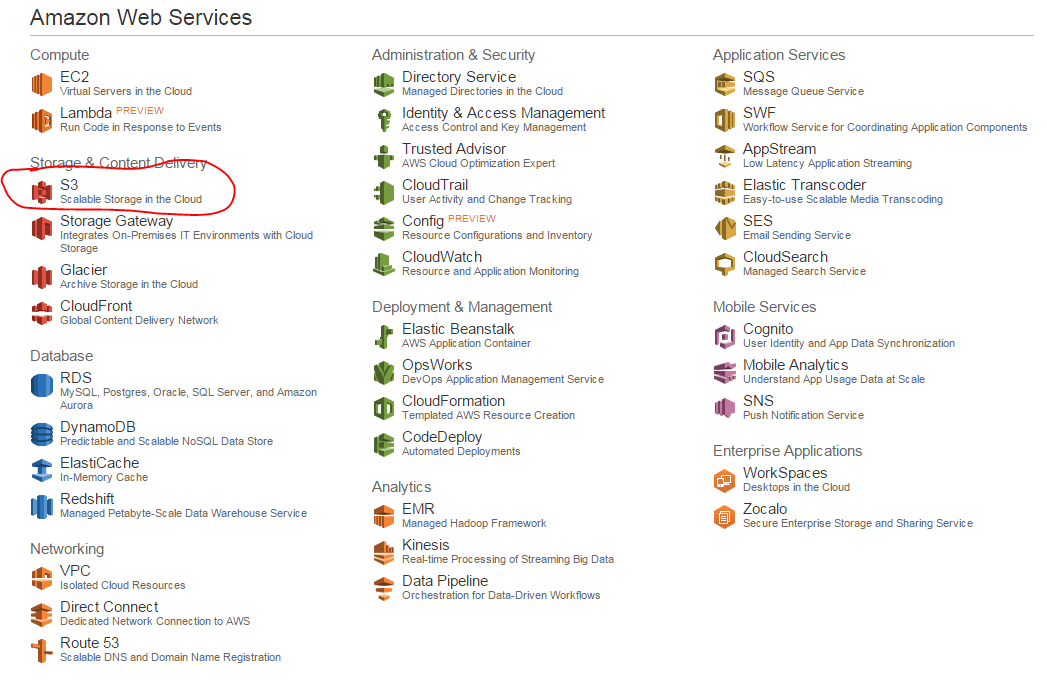
S3 link on Amazon UI

Before we go anywhere it’s important to mention regions in Amazon. A region in Amazon Web Services is the geographical location of the data centre where your selected service will be located. E.g. if you create a cloud-based server with Amazon EC2 in the region called US East then the server will be set up North Virginia. It doesn’t mean that your home page deployed on that server won’t be reachable anywhere else, it only means the physical location of the service. So if you’re expecting the bulk of your customers to come from Japan then it’s wise to set up the first web server in the region called Asia Pacific (Tokyo). Also, if you set up a service in e.g. EU (Ireland) on the AWS UI, then log out and log in again, your service may not be visible at first. A good guess is that you need to select the correct region. The region is indicated in the URL, e.g.:

https://console.aws.amazon.com/s3/home?region=eu-west-1#

…where “eu-west-1” stands for EU (Ireland). You can normally select the region in the top right hand corner of the Amazon UI where you’ll see the user-friendly names of the regions.

Regions are important for virtually all the components in AWS. Take a wild guess, which component is an exception. Check out the top right hand corner of the S3 screen:

No regions for Amazon S3

So regions don’t play the same role here as in other components in the AWS product offering. However, the selected region can still be used to “optimize for latency, minimize costs, or address regulatory requirements” as it says in the Create a Bucket windows we’ll soon see.

You’ll see that by default the screen will show all the top buckets:

S3 All buckets screen

Let’s try a couple of things to get our hands dirty. Click on the Create Bucket button. Give the bucket a name, select the nearest region to your location and press Create. We’ll skip logging right now:

Creating first bucket Amazon S3

The bucket is quickly created:

Created first bucket in Amazon S3

On the right hand side of the screen you can set various properties of the bucket such as logging and security:
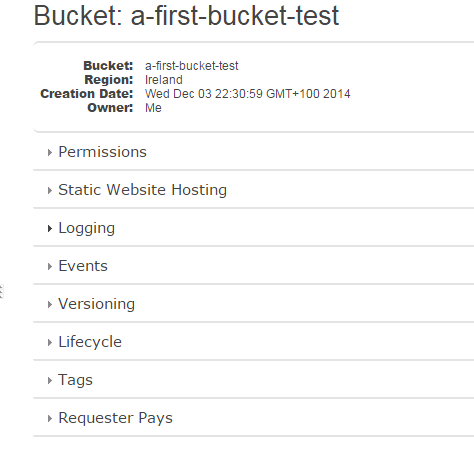
Set properties of bucket in Amazon S3

We won’t go into them at all otherwise this series will lose its scope. The default values are usually fine for most purposes. If you ever need to modify the settings, especially those that have to do with permissions, then consult the AWS documentation of S3.

Click on the name of the bucket and you’ll see that it’s empty:

First bucket is empty in Amazon S3

Click the Upload button and click Add Files:

Upload a file in Amazon S3

Select some file on your hard drive, preferably a text file as they are easier to open. Click “Start Upload” and the file upload progress should appear on the right hand side:
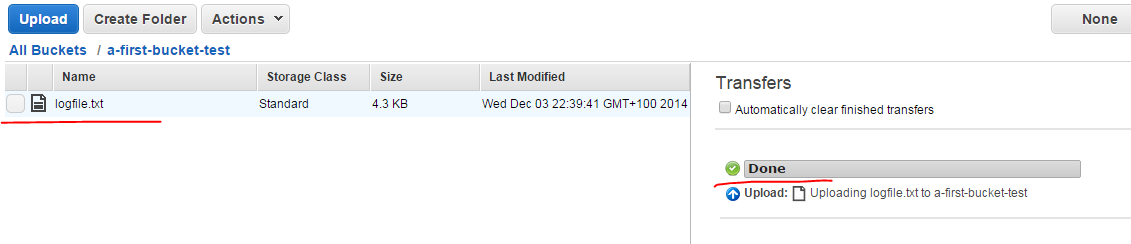
Text file uploaded to bucket in Amazon S3

Click the file name to select it. The Actions drop-down will list several options available for a file such as Open, Download or Delete which are self-explanatory.

Now click the “Create Folder” button and give the folder a name:
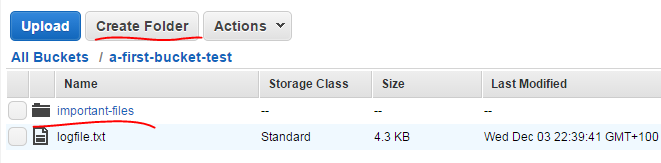
Created folder in Amazon S3 bucket

You can click the folder name to open its contents – much like you do it with a double-click on the Windows file system. You can then upload different files in that folder and create subfolders.

This is enough for starters. We’ll start looking into some basic operations in code in the next post.

View all posts related to Amazon Web Services and Big Data here.
Using Amazon Kinesis with the AWS.NET API Part 6: storage

Introduction

In the previous post we added some validation to our demo message handling application. Validation adds some sanity checks to our logic so that bogus inputs are discarded.

In this post, which will be the last in the series on Amazon Kinesis, we’ll be looking at storage. We’ll save the data on disk, which in itself is not too interesting, but we’ll also discuss some formats that are suitable for further processing.

Formats

It is seldom that we’re saving data just to fill up a data store. This is true in our case as well. We’re getting the messages from the Kinesis stream and we’ll be soon saving them. However, we’ll certainly want to perform some actions on the data, such as data aggregations:

  • Calculate the average response time for http://www.bbc.co.uk/africa between 12:15 to 12:30 on 13 January 2015 for users with Firefox 11
  • Calculate max response time in week 45 2014 for the domain cnn.com for users located in Seattle
  • Calculate the 99th percentile of the response time for http://www.twitter.com for February 2014

…etc. Regardless of where you’re planning to save the data, such as a traditional relational DB like MS SQL or a NoSql DB such as MongoDb, you’ll need to plan on the storage format i.e. what tables, collections, columns and datatypes you’ll need. As the next Amazon component we’ll take up on this blog is the blob storage S3 we’ll be concentrating on storing the raw data points in a text file. At first this may seem like a very bad idea but S3 is a very efficient, durable and scalable storage. However, don’t assume that this is a must for your Big Data system to work, you can save your data the way you want. Here we’re just paving the way for the next step.

As mentioned before in this series I have another, higher-level set of posts dedicated to Amazon architecture available here. I took up a similar topic there about message formats, I’ll re-use some of those explanations below.

The format will most likely depend on the mechanism that will eventually pull data from the raw data store. Data mining and analysis solutions such as Amazon RedShift or Elastic MapReduce (EMR) – which we’ll take up later on – will all need to work with the raw data. So at this stage you’ll need to do some forward thinking:

  • A: What mechanism will need to read from the raw data store for aggregation?
  • B: How can we easily – or relatively easily – read the raw data visually by just opening a raw data file?

B is important for debugging purposes if you want to verify the calculations. It’s also important if some customer is interested in viewing the raw data for some time period. For B you might want to store the raw data as it is, i.e. as JSON. E.g. you can have a text file with the following data points:

{"CustomerId": "abc123", "DateUnixMs": 1416603010000, "Activity": "buy", "DurationMs": 43253}
{"CustomerId": "abc123", "DateUnixMs": 1416603020000, "Activity": "buy", "DurationMs": 53253}
{"CustomerId": "abc123", "DateUnixMs": 1416603030000, "Activity": "buy", "DurationMs": 63253}
{"CustomerId": "abc123", "DateUnixMs": 1416603040000, "Activity": "buy", "DurationMs": 73253}

…i.e. with one data point per line.

However, this format is not really suitable for point A above. Other mechanisms will have a hard time understanding this data format. For RedShift and EMR to work most efficiently we’ll need to store the raw data in some delimited fields such as CSV or tab delimited fields. So the above data points will then be stored as follows in a tab-delimited file:

abc123     1416603010000    buy    43253
abc123     1416603020000    buy    53253
abc123     1416603030000    buy    63253
abc123     1416603040000    buy    73253

This is probably OK for point B above as well. It’s not too hard on your eyes to understand this data structure so we’ll settle for that. You might ask why we didn’t select some other delimiter, such as a pipe ‘|’ or a comma ‘,’. The answer is that our demo system is based on URLs and URLs can have pipes and commas in them making them difficult to split. Tabs will work better but you are free to choose whatever fits your system best.

Implementation

This time we’ll hide the implementation of the storage mechanism behind an interface. It will be a forward-looking solution where we’ll be able to easily switch between the concrete implementations. Open the demo C# application we’ve been working on so far and locate the WebTransaction object in the AmazonKinesisConsumer application. We’ll add a method to create a tab-delimited string out of its properties:

public string ToTabDelimitedString()
{
	StringBuilder sb = new StringBuilder();
	sb.Append(CustomerName)
		.Append("\t")
		.Append(Url)
		.Append("\t")
		.Append(WebMethod)
		.Append("\t")
		.Append(ResponseTimeMs)
		.Append("\t")
		.Append(UtcDateUnixMs);
	return sb.ToString();
}

Create a text file on your hard drive, like c:\raw-data\storage.txt. Add the following interface to AmazonKinesisConsumer:

public interface IRawDataStorage
{
	void Save(IEnumerable<WebTransaction> webTransactions);
}

…and also the following file based implementation:

public class FileBasedDataStorage : IRawDataStorage
{
	private readonly FileInfo _fileName;

	public FileBasedDataStorage(string fileFullPath)
	{
		if (string.IsNullOrEmpty(fileFullPath)) throw new ArgumentNullException("File full path");
		_fileName = new FileInfo(fileFullPath);
		if (!_fileName.Exists)
		{
			throw new ArgumentException(string.Concat("Provided file path ", fileFullPath, " does not exist."));
		}			
	}
		
	public void Save(IEnumerable<WebTransaction> webTransactions)
	{
		StringBuilder stringBuilder = new StringBuilder();
		foreach (WebTransaction wt in webTransactions)
		{
			stringBuilder.Append(wt.ToTabDelimitedString()).Append(Environment.NewLine);
		}

		using (StreamWriter sw = File.AppendText(_fileName.FullName))
		{
			sw.Write(stringBuilder.ToString());
		}
	}
}

The implementation of the Save method should be quite straightforward. We build a string with the tab delimited representation of the WebTransaction object which is then appended to the source file.

Here comes the updated ReadFromStream() method:

private static void ReadFromStream()
{
	IRawDataStorage rawDataStorage = new FileBasedDataStorage(@"c:\raw-data\storage.txt");
	AmazonKinesisConfig config = new AmazonKinesisConfig();
	config.RegionEndpoint = Amazon.RegionEndpoint.EUWest1;
	AmazonKinesisClient kinesisClient = new AmazonKinesisClient(config);
	String kinesisStreamName = ConfigurationManager.AppSettings["KinesisStreamName"];

	DescribeStreamRequest describeRequest = new DescribeStreamRequest();
	describeRequest.StreamName = kinesisStreamName;

	DescribeStreamResponse describeResponse = kinesisClient.DescribeStream(describeRequest);
	List<Shard> shards = describeResponse.StreamDescription.Shards;

	foreach (Shard shard in shards)
	{
		GetShardIteratorRequest iteratorRequest = new GetShardIteratorRequest();
		iteratorRequest.StreamName = kinesisStreamName;
		iteratorRequest.ShardId = shard.ShardId;
		iteratorRequest.ShardIteratorType = ShardIteratorType.TRIM_HORIZON;

		GetShardIteratorResponse iteratorResponse = kinesisClient.GetShardIterator(iteratorRequest);
		string iteratorId = iteratorResponse.ShardIterator;

		while (!string.IsNullOrEmpty(iteratorId))
		{
			GetRecordsRequest getRequest = new GetRecordsRequest();
			getRequest.Limit = 1000;
			getRequest.ShardIterator = iteratorId;

			GetRecordsResponse getResponse = kinesisClient.GetRecords(getRequest);
			string nextIterator = getResponse.NextShardIterator;
			List<Record> records = getResponse.Records;

			if (records.Count > 0)
			{
				Console.WriteLine("Received {0} records. ", records.Count);
				List<WebTransaction> newWebTransactions = new List<WebTransaction>();
				foreach (Record record in records)
				{
					string json = Encoding.UTF8.GetString(record.Data.ToArray());
					try
					{
						JToken token = JContainer.Parse(json);
						try
						{									
							WebTransaction wt = JsonConvert.DeserializeObject<WebTransaction>(json);
							List<string> validationErrors = wt.Validate();
							if (!validationErrors.Any())
							{
								Console.WriteLine("Valid entity: {0}", json);
								newWebTransactions.Add(wt);
							}
							else
							{
								StringBuilder exceptionBuilder = new StringBuilder();
								exceptionBuilder.Append("Invalid WebTransaction object from JSON: ")
									.Append(Environment.NewLine).Append(json)
									.Append(Environment.NewLine).Append("Validation errors: ")
									.Append(Environment.NewLine);
								foreach (string error in validationErrors)
								{
									exceptionBuilder.Append(error).Append(Environment.NewLine);																										
								}
								Console.WriteLine(exceptionBuilder.ToString());
							}									
						}
						catch (Exception ex)
						{
							//simulate logging
							Console.WriteLine("Could not parse the following message to a WebTransaction object: {0}", json);
						}
					}
					catch (Exception ex)
					{
						//simulate logging
						Console.WriteLine("Could not parse the following message, invalid json: {0}", json);
					}
				}

				if (newWebTransactions.Any())
				{
					try
					{
						rawDataStorage.Save(newWebTransactions);
						Console.WriteLine("Saved all new web transactions to the data store.");
					}
					catch (Exception ex)
					{
						Console.WriteLine("Failed to save the web transactions to file: {0}", ex.Message);
					}
				}
			}

			iteratorId = nextIterator;
		}
	}
}

Run both the consumer and producer applications and send a couple of web transactions to Kinesis. You should end up with the tab delimited observations in the storage file. In my case I have the following:

yahoo http://www.yahoo.com GET 432 1417556120657
google http://www.google.com POST 532 1417556133322
bbc http://www.bbc.co.uk GET 543 1417556148276
twitter http://www.twitter.com GET 623 1417556264008
wiki http://www.wikipedia.org POST 864 1417556302529
facebook http://www.facebook.com DELETE 820 1417556319381

This concludes our discussion of Amazon Kinesis. We’ve also set the path for the next series where we’ll be looking into Amazon S3. If you’re interested in a full Big Data chain using cloud-based Amazon components then you’re more than welcome to read on.

View all posts related to Amazon Web Services and Big Data here.
Using Amazon Kinesis with the AWS.NET API Part 5: validation

Introduction

In the previous post we got as far as having a simple but functioning messaging system. The producer and client apps are both console based and the message handler is the ready-to-use Amazon Kinesis. We have a system that we can built upon and scale up as the message load increases. Kinesis streams can be scaled to handle virtually unlimited amounts of messages.

This post on Kinesis will discuss message validation.

You’ll need to handle the incoming messages from the stream. Normally they should follow the specified format, such as JSON or XML with the predefined property names and casing. However, this is not always guaranteed as Kinesis does not itself validate any incoming message. Also, your system might be subject to fake data. So you’ll almost always need to have some message validation in place and log messages that cannot be processed or are somehow invalid.

Open the demo application we’ve been working on so far and let’s get to it.

Validation

We ended up with the following bit of code in AmazonKinesisConsumer:

if (records.Count > 0)
{
	Console.WriteLine("Received {0} records. ", records.Count);
	foreach (Record record in records)
	{
		string json = Encoding.UTF8.GetString(record.Data.ToArray());
		Console.WriteLine("Json string: " + json);
	}
}

We’ll build up the new code step by step and present the new version of the ReadFromStream() method at the end.

Our first task is to check if “json” is in fact valid JSON. There’s no dedicated method for that in JSON.NET so we’ll just see if the string can be parsed into a generic JToken:

string json = Encoding.UTF8.GetString(record.Data.ToArray());
try
{
        JToken token = JContainer.Parse(json);
}
catch (Exception ex)
{
        //simulate logging
	Console.WriteLine("Could not parse the following message, invalid json: {0}", json);
}

Normally every message that cannot be parsed should be logged and analysed. Here we just print the unparseable message to the console. If you’re interested in logging you can check out the posts on this blog here and here.

Next we want to parse the JSON into a WebTransaction object:

try
{
	JToken token = JContainer.Parse(json);
        try
	{
		WebTransaction wt = JsonConvert.DeserializeObject<WebTransaction>(json);
	}
	catch (Exception ex)
	{
		//simulate logging
		Console.WriteLine("Could not parse the following message to a WebTransaction object: {0}", json);
	}
}
catch (Exception ex)
{
	//simulate logging
	Console.WriteLine("Could not parse the following message, invalid json: {0}", json);
}

Next we can perform some validation on the object itself. We’ll make up some arbitrary rules:

  • The web method can only be one of the following: GET, POST, PUT, HEAD, DELETE, OPTIONS, TRACE, CONNECT
  • Acceptable range for response times: 0-30000 ms, probably not wide enough, but it’s OK for now
  • We only accept valid URLs using a validator function I’ve found here. It might not be perfect but at least we can filter out useless inputs like “this is spam” or “you’ve been hacked”

We’ll add the validation rules to WebTransaction.cs of the AmazonKinesisConsumer app:

public class WebTransaction
{
	private string[] _validMethods = { "get", "post", "put", "delete", "head", "options", "trace", "connect" };
	private int _minResponseTimeMs = 0;
	private int _maxResponseTimeMs = 30000;

        public long UtcDateUnixMs { get; set; }
	public string CustomerName { get; set; }
	public string Url { get; set; }
	public string WebMethod { get; set; }
	public int ResponseTimeMs { get; set; }

	public List<string> Validate()
	{
		List<string> brokenRules = new List<string>();
		if (!IsWebMethodValid())
		{
			brokenRules.Add(string.Format("Invalid web method: {0}", WebMethod));
		}
		if (!IsResponseTimeValid())
		{
			brokenRules.Add(string.Format("Response time outside acceptable limits: {0}", ResponseTimeMs));
		}
		if (!IsValidUrl())
		{
			brokenRules.Add(string.Format("Invalid URL: {0}", Url));
		}
		return brokenRules;
	}

	private bool IsWebMethodValid()
	{
		return _validMethods.Contains(WebMethod.ToLower());
	}

	private bool IsResponseTimeValid()
	{
		if (ResponseTimeMs < _minResponseTimeMs
			|| ResponseTimeMs > _maxResponseTimeMs)
		{
			return false;
		}
        	return true;
	}

	private bool IsValidUrl()
	{
		Uri uri;
		string urlToValidate = Url;
		if (!urlToValidate.Contains(Uri.SchemeDelimiter)) urlToValidate = string.Concat(Uri.UriSchemeHttp, Uri.SchemeDelimiter, urlToValidate);
		if (Uri.TryCreate(urlToValidate, UriKind.RelativeOrAbsolute, out uri))
		{
			try
			{
				if (Dns.GetHostAddresses(uri.DnsSafeHost).Length > 0)
				{
					return true;
				}
			}
			catch
			{
				return false;
			}
		}

		return false; 
	}

}

The Validate method will collect all validation errors. IsWebMethodValid() and IsResponseTimeValid() should be quite straightforward. If you don’t understand the IsValidUrl function check out the StackOverflow link referred to above.

We can use the Validate method from within the ReadFromStream() method as follows:

List<WebTransaction> newWebTransactions = new List<WebTransaction>();
foreach (Record record in records)
{
	string json = Encoding.UTF8.GetString(record.Data.ToArray());
	try
	{
        	JToken token = JContainer.Parse(json);
		try
		{									
			WebTransaction wt = JsonConvert.DeserializeObject<WebTransaction>(json);
          		List<string> validationErrors = wt.Validate();
			if (!validationErrors.Any())
			{
				Console.WriteLine("Valid entity: {0}", json);
				newWebTransactions.Add(wt);
			}
			else
			{
				StringBuilder exceptionBuilder = new StringBuilder();
				exceptionBuilder.Append("Invalid WebTransaction object from JSON: ")
				.Append(Environment.NewLine).Append(json)
				.Append(Environment.NewLine).Append("Validation errors: ")
				.Append(Environment.NewLine);
				foreach (string error in validationErrors)
				{
					exceptionBuilder.Append(error).Append(Environment.NewLine);																										
				}
				Console.WriteLine(exceptionBuilder.ToString());
			}									
		}
        	catch (Exception ex)
		{
			//simulate logging
			Console.WriteLine("Could not parse the following message to a WebTransaction object: {0}", json);
		}
	}
	catch (Exception ex)
	{
		//simulate logging
		Console.WriteLine("Could not parse the following message, invalid json: {0}", json);
	}
}

As you can see we’re also collecting all valid WebTransaction objects into a list. That’s a preparation for the next post where we’ll store the valid objects on disk.

Here’s the current version of the ReadFromStream method:

private static void ReadFromStream()
{
	AmazonKinesisConfig config = new AmazonKinesisConfig();
	config.RegionEndpoint = Amazon.RegionEndpoint.EUWest1;
	AmazonKinesisClient kinesisClient = new AmazonKinesisClient(config);
	String kinesisStreamName = ConfigurationManager.AppSettings["KinesisStreamName"];

	DescribeStreamRequest describeRequest = new DescribeStreamRequest();
	describeRequest.StreamName = kinesisStreamName;

	DescribeStreamResponse describeResponse = kinesisClient.DescribeStream(describeRequest);
	List<Shard> shards = describeResponse.StreamDescription.Shards;

	foreach (Shard shard in shards)
	{
		GetShardIteratorRequest iteratorRequest = new GetShardIteratorRequest();
		iteratorRequest.StreamName = kinesisStreamName;
		iteratorRequest.ShardId = shard.ShardId;
		iteratorRequest.ShardIteratorType = ShardIteratorType.TRIM_HORIZON;

		GetShardIteratorResponse iteratorResponse = kinesisClient.GetShardIterator(iteratorRequest);
		string iteratorId = iteratorResponse.ShardIterator;

		while (!string.IsNullOrEmpty(iteratorId))
		{
			GetRecordsRequest getRequest = new GetRecordsRequest();
			getRequest.Limit = 1000;
			getRequest.ShardIterator = iteratorId;

			GetRecordsResponse getResponse = kinesisClient.GetRecords(getRequest);
			string nextIterator = getResponse.NextShardIterator;
			List<Record> records = getResponse.Records;

			if (records.Count > 0)
			{
				Console.WriteLine("Received {0} records. ", records.Count);
				List<WebTransaction> newWebTransactions = new List<WebTransaction>();
				foreach (Record record in records)
				{
					string json = Encoding.UTF8.GetString(record.Data.ToArray());
					try
					{
						JToken token = JContainer.Parse(json);
						try
						{									
							WebTransaction wt = JsonConvert.DeserializeObject<WebTransaction>(json);
							List<string> validationErrors = wt.Validate();
							if (!validationErrors.Any())
							{
								Console.WriteLine("Valid entity: {0}", json);
								newWebTransactions.Add(wt);
							}
							else
							{
								StringBuilder exceptionBuilder = new StringBuilder();
								exceptionBuilder.Append("Invalid WebTransaction object from JSON: ")
									.Append(Environment.NewLine).Append(json)
									.Append(Environment.NewLine).Append("Validation errors: ")
									.Append(Environment.NewLine);
								foreach (string error in validationErrors)
								{
									exceptionBuilder.Append(error).Append(Environment.NewLine);																										
								}
								Console.WriteLine(exceptionBuilder.ToString());
							}									
						}
						catch (Exception ex)
						{
							//simulate logging
							Console.WriteLine("Could not parse the following message to a WebTransaction object: {0}", json);
						}
					}
					catch (Exception ex)
					{
						//simulate logging
						Console.WriteLine("Could not parse the following message, invalid json: {0}", json);
					}
				}
			}

			iteratorId = nextIterator;
		}
	}
}

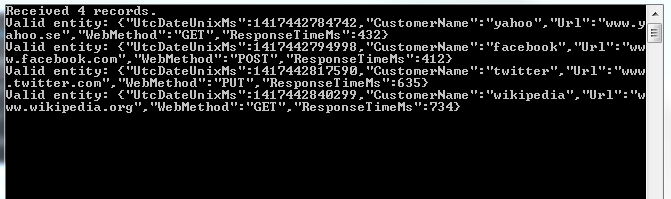
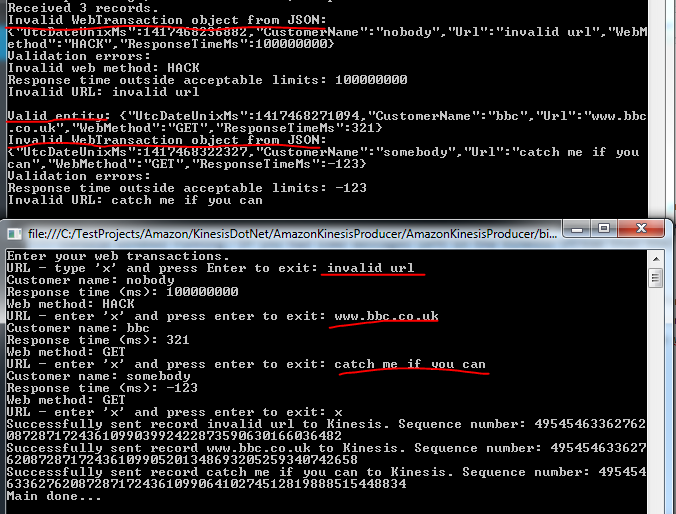
Run the application with F5. This will start the project that is set as the start-up project. You can start the other one using the technique we saw in the previous post: right-click, Debug, Start new instance. You’ll have two console windows running. If you had some messages left in the Kinesis stream then they should be validated now. I can see the following output:

Initial validation messages for Kinesis

Let’s now send some new messages to Kinesis:

Validation errors from messages to Kinesis

Great, we have some basic validation logic in place.

We’ll discuss storing the messages in the next post which will finish the series on Amazon Kinesis.

View all posts related to Amazon Web Services and Big Data here.

Big Data: using Amazon Kinesis with the AWS.NET API Part 4: reading from the stream

Introduction

In the previous post of this series on Amazon Kinesis we looked at how to publish messages to a Kinesis stream. In this post we’ll see how to extract them. We’ll create a Kinesis Client application.

It’s necessary to extract the messages from the stream as it only stores them for 24 hours. Also, a client application can filter, sort and validate the incoming messages according to some pre-defined rules.

Our demo client will be a completely separate application. We’ll see some duplication of code but that has a good reason. We’ll want to simulate a scenario where the producers are completely different applications, such as a bit of JavaScript on a web page, a Java web service, an iOS app or some other smart device. Our Kinesis producer is good for demo purposes but in reality the producer can be any software that can send HTTP requests. However, if both your producer and client apps are of the same platform then of course go ahead and introduce a common layer in the project.

Open the demo app we’ve been working on and let’s get to it.

The Kinesis client

Add a new C# console application called AmazonKinesisConsumer. Add the same NuGet packages as before:

AWS SDK NuGet package

Json.NET NuGet package

Add a reference to the System.Configuration library already now. Also, add the same configurations to app.config:

<appSettings>
        <add key="AWSProfileName" value="demo-aws-profile"/>
	<add key="KinesisStreamName" value="test-stream"/>
</appSettings>

Insert the same WebTransaction object again:

public class WebTransaction
{
	public long UtcDateUnixMs { get; set; }
	public string CustomerName { get; set; }
	public string Url { get; set; }
	public string WebMethod { get; set; }
	public int ResponseTimeMs { get; set; }
}

We’ll make it easy for us here and re-use the same WebTransaction object as we know that we’ll be able to parse the incoming JSON string. However, as mentioned in the first post of this series, be prepared for different message formats and property names. If you can, always aim for some well accepted standard such as JSON or XML, they are easy to handle in code. E.g. if the incoming JSON has different names – including variations in casing – then you can use the JSON library to match the property names:

public class WebTransaction
{
	[JsonProperty(PropertyName="dateUtc")]
	public long UtcDateUnixMs { get; set; }
	[JsonProperty(PropertyName = "cust")]
	public string CustomerName { get; set; }
	[JsonProperty(PropertyName = "url")]
	public string Url { get; set; }
	[JsonProperty(PropertyName = "method")]
	public string WebMethod { get; set; }
	[JsonProperty(PropertyName = "responseTime")]
	public int ResponseTimeMs { get; set; }
}

In any case you can assume that the messages will come in as strings – or bytes that can be converted to strings to be exact.

Do not assume anything about the ordering of the messages. Messages in Kinesis are handled in parallel and they will be extracted in batches by a Kinesis client. So for best performance and consistency aim for short, independent and self-contained messages. If ordering matters or if the total message is too large for Kinesis then you can send extra properties with the messages such as “Index” and “Total” to indicate the order like “1 of 10”, “2 of 10” etc. so that the client can collect and sort them.

The shard iterator

Insert the following private method to Program.cs:

private static void ReadFromStream()
{
	AmazonKinesisConfig config = new AmazonKinesisConfig();
	config.RegionEndpoint = Amazon.RegionEndpoint.EUWest1;
	AmazonKinesisClient kinesisClient = new AmazonKinesisClient(config);
	String kinesisStreamName = ConfigurationManager.AppSettings["KinesisStreamName"];

	DescribeStreamRequest describeRequest = new DescribeStreamRequest();
	describeRequest.StreamName = kinesisStreamName;

	DescribeStreamResponse describeResponse = kinesisClient.DescribeStream(describeRequest);
	List<Shard> shards = describeResponse.StreamDescription.Shards;

	foreach (Shard shard in shards)
	{
		GetShardIteratorRequest iteratorRequest = new GetShardIteratorRequest();
		iteratorRequest.StreamName = kinesisStreamName;
		iteratorRequest.ShardId = shard.ShardId;
		iteratorRequest.ShardIteratorType = ShardIteratorType.TRIM_HORIZON;

		GetShardIteratorResponse iteratorResponse = kinesisClient.GetShardIterator(iteratorRequest);
		string iteratorId = iteratorResponse.ShardIterator;

		while (!string.IsNullOrEmpty(iteratorId))
		{
			GetRecordsRequest getRequest = new GetRecordsRequest();
			getRequest.Limit = 1000;
			getRequest.ShardIterator = iteratorId;

			GetRecordsResponse getResponse = kinesisClient.GetRecords(getRequest);
			string nextIterator = getResponse.NextShardIterator;
			List<Record> records = getResponse.Records;

			if (records.Count > 0)
			{
				Console.WriteLine("Received {0} records. ", records.Count);
				foreach (Record record in records)
				{
					string json = Encoding.UTF8.GetString(record.Data.ToArray());
					Console.WriteLine("Json string: " + json);
				}
			}
			iteratorId = nextIterator;
		}
	}
}

Let’s see what’s going on here. The first 4 lines are identical to what we had in the Kinesis producer: we simply configure the access to Kinesis. We use the Kinesis client object to describe the Kinesis stream referred to by its name in the DescribeStreamRequest object. We then extract the available shards in the stream.

We then iterate through the shards. For each shard – we have only one – we need to request a shard iterator. A shard iterator will help us iterate through the messages in the shard. We specify where we want to start using the ShardIteratorType enumeration. TRIM_HORIZON means that we want to start with the oldest message first and work our way up from there. This is like a first-in-first-out collection and is probably the most common way to extract the messages. Other enumeration values are the following:

  • AT_SEQUENCE_NUMBER: read from the position indicated by a sequence number
  • AFTER_SEQUENCE_NUMBER: start right after the sequence number
  • LATEST: always read the most recent data in the shard

If you recall from the previous post a sequence number is an ID attached to each message.

Once we get the iterator we extract its ID which is used in the GetRecordsRequest object. Note that we enter a while loop and check if the iterator ID is null or empty. The GetRecordsResponse will also include an iterator ID which is a handle to read any subsequent messages. This will normally be an endless loop allowing us to always listen to messages from the stream. If there are any records returned by the iterator we print the number of records and the pure string data of each record. We expect to see some JSON messages. We don’t yet parse them to our WebTransaction messages, we’ll continue with processing the raw data in the next post.

Call this method from Main:

static void Main(string[] args)
{
	ReadFromStream();

	Console.WriteLine("Main done...");
	Console.ReadKey();
}

Test

Let’s see this in action. Make AmazonKinesisCustomer the start-up project of the solution and start the application. If you followed the previous post of this series within 24 hours of completing this post then you should see the messages you sent to the Kinesis stream before – recall that Kinesis keeps the messages for 24 hours. I can see the following JSON messages:

Messages extracted from Kinesis

Keep the application running. You’ll see that the loop just continues to run and the application doesn’t stop – we’re effectively waiting for new messages from the sream. Back in VS right-click AmazonKinesisProducer, select Debug, Start new instance. You’ll have two console windows up and running:

Kinesis producer and client running in parallel

Enter a couple of new web transactions into the producer and send it to Kinesis. The client should fetch them in a couple of seconds:

New records extracted from Kinesis

Great, we have now a highly efficient cloud-based message handler in form of Amazon Kinesis, a Kinesis client and a Kinesis producer. We’ve also seen that although the stream is located in the cloud, the producers and clients can be virtually any platforms that are able to handle HTTP messages. Therefore don’t get bogged down by the thought that you have to use Amazon components with Kinesis.

In the next post we’ll add some validation to the incoming messages.

View all posts related to Amazon Web Services and Big Data here.

Architecture of a Big Data messaging and aggregation system using Amazon Web Services part 5

Introduction

In the previous post we extended our Amazon Big Data design with Amazon RedShift. In this post we’ll look at some data storage options for the aggregated data. Also, we’ll look at an option on how to keep this flow running, i.e. how to make sure that aggregation happens at regular intervals automatically.

Storing aggregated data

Say that the aggregation mechanism has finished the aggregations that are interesting to your business. The aggregated data must also be stored somewhere that’s accessible to other systems. By “other systems” I mean applications where the end users can view the aggregations and run other queries, like a web site with lots of nice graphs. The input data for those graphs should be easily accessible from a data store.

For Elastic MapReduce you have 2 options at the time of writing this post. You can either export the aggregated data back to S3 or to DynamoDb. We’ve seen S3 before in this series but DynamoDb is new.

DynamoDb is Amazon’s cloud-based NoSql database. If you worked with databases like MongoDb or RavenDb before then you’ll see that DynamoDb is similar. There are no schemas, you can store any type of unstructured data in DynamoDb documents. I’d say that DynamoDb provides better structuring and the usual CRUD mechanisms are better supported than in S3. If you’d like to save your aggregated data from EMR somewhere else, like RedShift or Amazon Relational Database Service (RDS) then you’ll have to do it indirectly: save the data in S3 first and then export it to RedShift or RDS from S3 via some automation service like Amazon Import/Export or Amazon Data Pipeline – more on Data Pipeline below.

If you use RedShift as the aggregation mechanism then RedShift provides excellent PostgreSQL-based tabular storage as well so there’s probably no need to look any further. You can probably export the aggregation results to DynamoDb or S3 but I don’t really see the point. RedShift tables are easily accessible for a wide range of technologies: .NET, Java, Python etc.

Let’s extend our architecture diagram with the storage mechanisms:

Amazon Big Data Diagram with aggregation result storage

Automation

By automation I mean the automation of the aggregation jobs. You’ll probably want the aggregation job to run at defined intervals, say every 15 minutes. At the same time you might want to start an ad-hoc aggregation job outside the automation interval. One Amazon-based option is the following setup:

  • Build a “normal” Java application that goes through the application process by way of calling he aggregation mechanism – EMR or RedShift – to run one or more aggregation scripts
  • Compile the Java app into a JAR file
  • Save the JAR file in S3
  • Let the JAR file be executed by another Amazon service called Data Pipeline using a shell script (.sh) which is also stored in S3

AWS Data Pipeline (DP) is an automation tool that can run a variety of job types – or activities as they are called in DP. DP can execute jobs at intervals or just once, log the result, re-try failed jobs and much more. If you decide to try this solution then ShellCommandActivity is the activity type you’re looking for. I won’t provide any details here how to set up ShellCommandActivity here as this blog post is entirely dedicated to that.

Let’s add DP to our diagram:

Amazon Big Data Diagram with Amazon Data Pipeline

Extensions

We’re actually done with the core of our Big Data system. However, it can be extended in numerous ways, here are some examples:

  • Accessing Kinesis requires that you provide your security credentials in the Kinesis producer, i.e. the application that sends the raw data messages to Kinesis. E.g. if you’re collecting the response times from a HTML page then the underlying JS file will need to include your credentials which makes your Amazon account very vulnerable. An option to alleviate the problem is to set up a public web page in front of Kinesis, like a web service. This service can then itself forward the message to Kinesis. Another option is to set up temporary credentials for the producers. This page describes how to do that with the AWS Security Token Service.
  • Amazon has an efficient in-memory caching solution called ElastiCache. The aggregation mechanism could potentially save the aggregated data in the data store and also push it to the cache. The consuming application will then first consult the cache instead of the database to ease the load

I have another blog series dedicated to Big Data with .NET where I go through some of these components in greater detail and a lot of code examples.

This post concludes this series. I hope you’ve learnt a lot of good stuff.

View all posts related to Amazon Web Services here.

Big Data: using Amazon Kinesis with the AWS.NET API Part 3: sending to the stream

Introduction

In the previous post of this series we set up the Kinesis stream, installed the .NET SDK and inserted a very simple domain object into a Kinesis producer console application.

In this post we’ll start posting to our Kinesis stream.

Open the AmazonKinesisProducer demo application and let’s get to it.

Preparations

We cannot just call the services within the AWS SDK without proper authentication. This is an important reference page to handle your credentials in a safe way. We’ll the take the recommended approach and create a profile in the SDK Store and reference it from app.config.

This series is not about AWS authentication so we won’t go into temporary credentials but later on you may be interested in that option too. Since we’re programmers and it takes a single line of code to set up a profile we’ll go with the programmatic options. Add the following line to Main:

Amazon.Util.ProfileManager.RegisterProfile("demo-aws-profile", "your access key id", "your secret access key");

I suggest you remove the code from the application later on in case you want to distribute it. Run the application and it should execute without exceptions. Next open app.config and add the appSettings section with the following elements:

<appSettings>
        <add key="AWSProfileName" value="demo-aws-profile"/>
	<add key="KinesisStreamName" value="test-stream"/>
</appSettings>

Generating web transactions

We’ll create web transaction objects using the console. Add the following private methods to Program.cs:

private static List<WebTransaction> GetTransactions()
{
	List<WebTransaction> webTransactions = new List<WebTransaction>();
	Console.WriteLine("Enter your web transactions. ");
	Console.Write("URL - type 'x' and press Enter to exit: ");
	string url = Console.ReadLine();
	while (url != "x")
	{
		WebTransaction wt = new WebTransaction();
		wt.Url = url;
		wt.UtcDateUnixMs = ConvertToUnixMillis(DateTime.UtcNow);

		Console.Write("Customer name: ");
		string customerName = Console.ReadLine();
		wt.CustomerName = customerName;

		Console.Write("Response time (ms): ");
		int responseTime = Convert.ToInt32(Console.ReadLine());
		wt.ResponseTimeMs = responseTime;

		Console.Write("Web method: ");
		string method = Console.ReadLine();
		wt.WebMethod = method;

		webTransactions.Add(wt);

		Console.Write("URL - enter 'x' and press enter to exit: ");
		url = Console.ReadLine();
	}
	return webTransactions;
}

private static long ConvertToUnixMillis(DateTime dateToConvert)
{
	return Convert.ToInt64(dateToConvert.Subtract(new DateTime(1970,1,1,0,0,0,0)).TotalMilliseconds);
}

GetTransactions() is a simple loop you must have done in your C# course #2 or 3. Note that I haven’t added any validation, such as the feasibility of the web method or the response time. So be gentle and enter “correct” values later on during the tests. ConvertToUnixMillis simply converts a date to a UNIX timestamp in milliseconds. .NET4.5 doesn’t natively support UNIX dates but it’s coming in C# 6.

Sending the transactions to the stream

We’ll send each message one by one in the following method which you can add to Program.cs:

private static void SendWebTransactionsToQueue(List<WebTransaction> transactions)
{
	AmazonKinesisConfig config = new AmazonKinesisConfig();
	config.RegionEndpoint = Amazon.RegionEndpoint.EUWest1;
	AmazonKinesisClient kinesisClient = new AmazonKinesisClient(config);
	String kinesisStreamName = ConfigurationManager.AppSettings["KinesisStreamName"];

	foreach (WebTransaction wt in transactions)
	{
		string dataAsJson = JsonConvert.SerializeObject(wt);
		byte[] dataAsBytes = Encoding.UTF8.GetBytes(dataAsJson);
		using (MemoryStream memoryStream = new MemoryStream(dataAsBytes))
		{
			try
			{						
				PutRecordRequest requestRecord = new PutRecordRequest();
				requestRecord.StreamName = kinesisStreamName;
				requestRecord.PartitionKey = "url-response-times";
				requestRecord.Data = memoryStream;

				PutRecordResponse responseRecord = kinesisClient.PutRecord(requestRecord);
				Console.WriteLine("Successfully sent record {0} to Kinesis. Sequence number: {1}", wt.Url, responseRecord.SequenceNumber);
			}
			catch (Exception ex)
			{
				Console.WriteLine("Failed to send record {0} to Kinesis. Exception: {1}", wt.Url, ex.Message);
			}
		}
	}
}

You’ll need to reference the System.Configuration library to make this work.

We first configure our access to Kinesis using the AmazonKinesisConfig object. We set the region to the one where we set up the stream. In my case it’s eu-west-1, but you may need to provide something else. We also read the stream name from app.config.

Then for each of the WebTransaction objects we go through the following process:

  • Get the JSON representation of the object
  • Convert the JSON to a byte array
  • Put byte array into a MemoryStream
  • We set up the PutRecordRequest object with the stream name, the partition key and the data we want to publish
  • The record is sent to Kinesis using the PutRecord method
  • If it’s successful then we print the sequence number of the message
  • Otherwise we print an exception message

What is a partition key? It is a key to group the data within a stream into shards. And a sequence number? It is a unique ID that each message gets upon insertion into the stream. This page with the key concepts will be a good friend of yours while working with Kinesis.

Test

We can call these functions from Main as follows:

List<WebTransaction> webTransactions = GetTransactions();
SendWebTransactionsToQueue(webTransactions);

Console.WriteLine("Main done...");
Console.ReadKey();

Start the application and create a couple of WebTransaction objects using the console. Then if all goes well you should see a printout similar to the following in the console window:

Messages sent to Kinesis stream console output

Let’s see what the Kinesis dashboard is telling us:

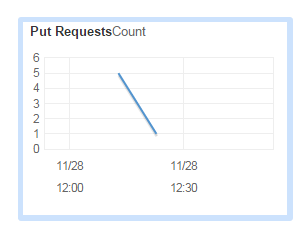
PutRequest count on AWS Kinesis dashboard

The PutRequest graph increased to 5 – and since I then put one more message to the stream the number decreased to 1:

PutRequest count on AWS Kinesis dashboard

In the next post we’ll see how to read the messages from the stream.

View all posts related to Amazon Web Services and Big Data here.

Using Amazon Kinesis with the AWS.NET API Part 2: stream, NET SDK and domain setup

Introduction

In the previous post we went through an introduction of Amazon Kinesis. We established that Kinesis is an ideal out-of-the-box starting point for your Big Data analysis needs. It takes a lot of burden off your shoulders regarding scaling, maintenance and redundancy. We also said that Kinesis only provided a 24-hour storage of the messages so we’ll need to build an application, a Kinesis Client, that will ultimately process the messages in some way: filtering, sorting, saving etc.

In this post we’ll create our Kinesis stream and install the AWS SDK.

Creating the stream

Log onto the AWS console and locate the Kinesis service:

Kinesis icon on AWS console

Probably every service you use with AWS has a region that you can select in the top right section of the UI:

Amazon region selector

These regions are significant for the services with a couple of exceptions. E.g. S3, which we’ll discuss in the next series, is global and has less regional significance. In the case of Kinesis when you create a new stream then that stream will be available in the selected region. It doesn’t, however, mean that users cannot send messages to a stream in Ireland from Australia. However, it will take Australian users a bit more time to send messages to this stream than it does for a user in the UK. Also, we’ll see later that the region must be specified in code when configuring the access to AWS otherwise you may be wondering why your stream cannot be located.

You can create a new stream with the Create Stream button:

Create stream button on Amazon Kinesis

Note that Kinesis has at the time of writing this post no free-tier pricing. According to the current pricing table example it costs about $4.22 a day to process 1000 messages per second where each message is 5KB in size. We will only test with some individual messages in this series so the total cost should be minimal.

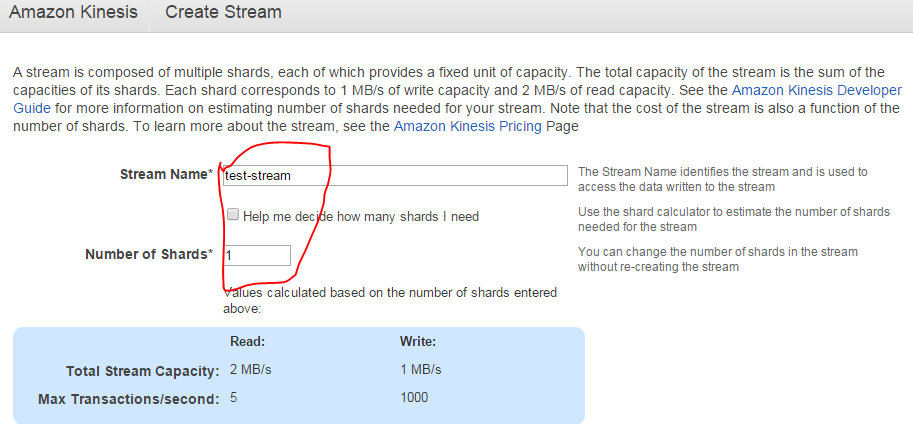
Enter a stream name and set the number of shards to 1, that will be enough for testing:

Creating a test stream in Kinesis

Press “Create” and you’ll be redirected to the original screen with the list of streams. Your new stream should be in “CREATING” status:

Kinesis stream in creating status

…which will shortly switch to “ACTIVE”.

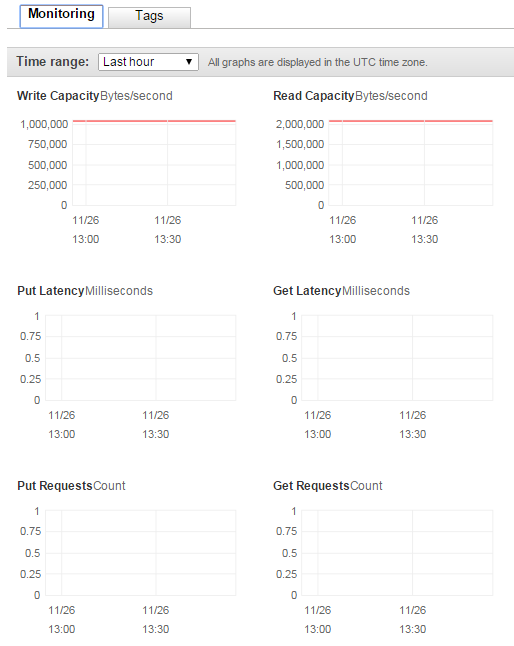
You can click the name of the stream which will open a screen with a number of performance indicators:

Kinesis stream performance indicators

We haven’t processed any messages yet so there are no put or get requests yet.

That’s it, we have a functioning Kinesis stream up and running. Let’s move on.

Installing the SDK

The Amazon .NET SDK is available through NuGet. Open Visual Studio 2012/2013 and create a new C# console application called AmazonKinesisProducer. The purpose of this application will be to send messages to the stream. In reality the message producer could by any type of application:

  • A website
  • A Windows/Android/iOS app
  • A Windows service
  • A traditional desktop app

…i.e. any application that’s capable of sending HTTP/S PUT requests to a service endpoint. We’ll keep it simple and not waste time with view-related tasks.

Install the following NuGet package:

AWS SDK NuGet package

We’ll also be working with JSON data so let’s also install the popular NewtonSoft Json package as well:

Json.NET NuGet package

Domain

In this section we’ll set up the data structure of the messages we’ll be processing. I’ll reuse a simplified version of the messages we had in a real-life project similar to what we’re going through. We’ll pretend that we’re measuring the total response time of web pages that our customers visit.

A real-life solution would involve a JavaScript solution embedded into the HTML of certain pages. That JavaScript will collect data like “transaction start” and “transaction finish” which make it possible to measure the response time of a web page as it’s experienced by a real end user. The JavaScript will then send the transaction data to a web service as JSON.

In our case of course we’ll not go through all that. We’ll pre-produce our data points using a C# object and JSON.

Insert the following class into the Kinesis producer app:

public class WebTransaction
{
	public long UtcDateUnixMs { get; set; }
	public string CustomerName { get; set; }
	public string Url { get; set; }
	public string WebMethod { get; set; }
	public int ResponseTimeMs { get; set; }
}

Dates are easiest to handle as UNIX timestamps in milliseconds as most systems will be able to handle it. DateTime in .NET4.5 doesn’t have any built-in support for UNIX timestamps but that’s easy to solve. Formatted date strings are more difficult to parse so we won’t go with that. You’ll probably understand the purpose of the other properties.

We’ll start sending message to our stream in the next post.

View all posts related to Amazon Web Services and Big Data here.

Architecture of a Big Data messaging and aggregation system using Amazon Web Services part 4

Introduction

In the previous post we looked at two components in our architecture:

  • Elastic Beanstalk to host the Java Kinesis Client Application
  • Elastic MapReduce, a Hadoop-based Amazon component as an alternative data aggregation platform

In this post we’ll look at another AWS component that very well suits data aggregation jobs: RedShift.

Amazon RedShift

Amazon RedShift is Amazon’s data warehousing solution. It follows a columnar DBMS architecture and it was designed especially for heavy data mining requests.

RedShift is based on PostgreSQL with some Amazon specific additions e.g. for importing raw data values from and S3 bucket. PostgreSQL syntax is very similar to other SQL languages you may be familiar with such as MS SQL. Therefore learning the basics of the language doesn’t require a lot of time and effort and you can become productive quite fast.

Having said all that, here comes a warning – a serious warning. The version of PostgreSQL employed on RedShift has some serious limitations compared to the full blown PostgreSQL. E.g. stored procedures, triggers, functions, auto-incrementing primary keys, enforced secondary keys etc. are NOT SUPPORTED. RedShift is still optimised for aggregation functions but it’s a good idea to be aware of the limits. This page has links to the lists of all missing or limited features.

RedShift vs. Elastic MapReduce

You may be asking which of the two aggregation mechanism is faster, EMR with Hive or RedShift with PostgreSQL. According to the tests we’ve performed in our project RedShift aggregation jobs run faster. A lot faster. RedShift can also be used as the storage device for the aggregated data. Other platforms like web services or desktop apps can easily pull the data from a RedShift table. You can also store the aggregated data on EMR on the Hadoop file system but those are not as readily available to other external platforms. We’ll look at some more storage options in the next part of this series so I won’t give any more details here.

This doesn’t mean that EMR is completely out of game but if you’re facing a scenario such as the one described in this series then you’re probably better off using RedShift for the aggregation purposes.

DB schema for RedShift

Data warehousing requires a different mindset to what you might be accustomed to from your DB-driven development experience. In a “normal” database of a web app you’ll probably have tables according to your domain like “Customer”, “Product”, “Order” etc. Then you’ll have secondary keys and intermediate tables to represent 1-to-M and M-to-M relationships. Also, you’ll probably keep your tables normalised.

That’s often simply not good enough for analytic and data mining applications. In data analysis apps your customers will be after some complex aggregation queries:

  • What was the maximum response time of /Products.aspx on my web page for users in Seattle using IE 10 on January 12 2015?
  • What was the average sales of product ‘ABC’ in our physical shops in the North-America region between 01 and 20 December 2014?
  • What is the total value of product XYZ sold on our web shop from iOS mobile apps in France in February 2015 after running a campaign?

You can replace “average” and “maximum” with any other aggregation type such as the 95th-percentile and median. With so many aggregation combinations your aggregation scripts would need to go through a very long list of aggregations. Also, trying to save every thinkable aggregation combination in different tables would cause the number of tables to explode. Such a setup will require a lot of lookups and joins which greatly reduce the performance. We haven’t even mentioned the difficulty with adding new aggregation types and storing historical data.

Data mining applications have adopted two schema types specially designed to solve this problem:

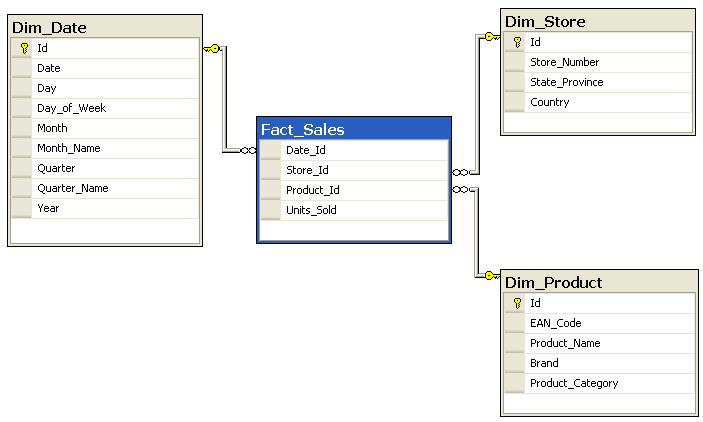
  • Star schema: a design with a Fact table in the middle and one or more Dimension tables around. The dimension tables are often denormalised
  • Snowflake schema: very similar to a star schema but the dimension tables are normalised. Therefore the fact table is surrounded by the dimension tables and their own broken-out sub-tables

I will not even attempt to describe these schema types here as the post – and the series – would explode with stuff that’s out of scope. I just wanted to make you aware of these ideas. Here’s an example for each type from Wikipedia to give you a taste.

Star:

Star schema example

Snowflake:

Snowflake schema example

They are often used by analytic applications such as SQL Server Analysis Services. If you’re planning to take on data mining at a serious level then it’s inevitable to get accustomed with them.

Of course, if you’re only planning to support some basic aggregation types then such schema designs may be overkill. It all depends on your goals.

RedShift is very well suited for both Star and Snowflake schema types. There’s long article that goes through Star and Snowflake in RedShift available here.

Let’s add RedShift to our diagram as another alternative:

Amazon Big Data Diagram with RedShift

In the next post – which will finish up this series – we’ll look into potential storage mechanisms for both RedShift and EMR.

View all posts related to Amazon Web Services here.

Architecture of a Big Data messaging and aggregation system using Amazon Web Services part 3

Introduction

In the previous post of this series we went through a possible data storage solution for our raw data points. We said that Amazon S3 was a likely candidate for our needs. We also discussed a little bit how the raw data points should be formatted in the storage files and how the S3 buckets should be organised.

In this post we’ll see how to deploy our Java Kinesis Client app and we’ll also look into a possible mechanism for data aggregation.

Deploying the Kinesis client application: Beanstalk for Java

We’ll need to see how the Kinesis client application can be deployed. It doesn’t make any difference which technology you use: Java, .NET, Python etc., the client app will be a worker process that must be deployed within a host.

Currently I’m only familiar with hosting Java-based Kinesis client applications but the proposed solution might work for other platforms. Amazon’s Elastic Beanstalk offers a highly scalable deployment platform for a variety of application types: .NET, Java, Ruby etc. For a .NET KCL app you may be looking into Microsoft Azure if you’d like to deploy the solution in the cloud.

Beanstalk is a wrapper around a full-blown EC2 machine with lots of details managed for you. If you start a new EC2 instance then you can use your Amazon credentials to log onto it, customise its settings, deploy various software on it etc., in other words use as a “normal” virtual machine. With Beanstalk a lot of settings will be managed for you and you won’t be able to log onto the underlying EC2 instance. Beanstalk also lets you manage deployment packages and you can easily add new environments and applications and deploy different versions of your product on them. It is an ideal platform to house a worker application like our Kinesis client. You can also add autoscaling rules that describe when a new instance should be added to a cluster. So you’ll get a lot of extras in exchange for not having the full control over the EC2 instance.

I’ve written an article on how to deploy a Kinesis client application on Beanstalk available here.

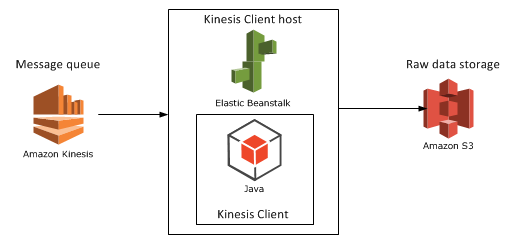
Let’s add Beanstalk as the Kinesis client host to our diagram:

Step 4 with Beanstalk as host

Aggregation mechanism option 1: Elastic MapReduce

Elastic MapReduce (EMR) is Amazon’s web service with the Hadoop framework installed. What’s MapReduce? I’ve introduced MapReduce in an unrelated post elsewhere on this blog. I’ll copy the relevant section for a short introduction:

Short summary of MapReduce

MapReduce – or Map/Filter/Reduce – is eagerly used in data mining and big data applications to find information from a large, potentially unstructured data set. E.g. finding the average age of all Employees who have been employed for more than 5 years is a good candidate for this algorithm.

The individual parts of Map/Filter/Reduce, i.e. the Map, the Filter and the Reduce are steps or operations in a chain to compute something from a collection. Not all 3 steps are required in all data mining cases. Examples:

  • Finding the average age of employees who have been working at a company for more than 5 years: you map the age property of each employee to a list of integers but filter out those who have been working for less than 5 years. Then you calculate the average of the elements in the integer list, i.e. reduce the list to a single outcome.
  • Finding the ids of every employee: if the IDs are strings then you can map the ID fields into a list of strings, there’s no need for any filtering or reducing.
  • Finding the average age of all employees: you map the age of each employee into an integer list and then calculate the average of those integers in the reduce phase, there’s no need for filtering
  • Find all employees over 50 years of age: we filter out the employees who are younger than 50, there’s no need for mapping or reducing the employees collection.

MapReduce implementations in reality can become quite complex depending on the query and structure of the source data.

You can read more about MapReduce in general here.

EMR continued

Hadoop is eagerly used in the distributed computing world where large amounts of potentially unstructured input files are stored across several servers. The final goal is of course to process these raw data files in some way, like what we’re trying to do in this series. If you’re planning to work with Big Data and data-mining then you’ll definitely come across Hadoop at some point. Hadoop is a large system with a steep learning curve.

Also, there’s a whole ecosystem built on top of Hadoop to simplify writing MapReduce functions and queries. There are even companies out there, like Hortonworks, who specialise in GUI tools around Hadoop so that you don’t have to write plain queries in a command line tool.

Some of the technologies around Hadoop are the following:

  • Java MapReduce: you can write MapReduce applications with Java. These are quite low-level operations and probably not too many Big Data developers go with this option in practice but I might be wrong here
  • Hive: an SQL-like language that creates Java MapReduce functions under the hood and runs them. This is a lot less complex solution than writing a Java MapReduce function
  • Pig: Pig – or Pig Latin – is another language/technology to handle large amounts of data in a fast, parallel and efficient way

…and a whole lot more but Hive and Pig seem to be the most popular ones at the time of writing this post.

Hadoop is normally installed on Linux machines although it can be deployed on Windows with some tricks – and luck :-). However, on production systems you’ll probably not want to have Hadoop on Windows. Therefore if you start a new instance of EMR in Amazon then you’ll be given a Linux EC2 machine with Hadoop and a couple of other tools installed, e.g. Hive and Pig will follow along although you can opt out of those when you start a new Hadoop instance. It’s good to have them installed so that you can test your Hive/Pig scripts on them.

Connecting EMR with S3

Now the big question is how we can import the S3 data and analyse them on a Hadoop EMR instance. Amazon extended the Hive language so that it can easily interact with S3. The following Hive statement imports all files from a given S3 bucket. Note that every record within the S3 bucket/folder will be imported, you don’t need to provide the file names.

CREATE EXTERNAL TABLE IF NOT EXISTS raw_data_points (customerId string, url string,date string,response_time int,http_verb string,http_response_code int)
PARTITIONED BY (customerId string)
ROW FORMAT DELIMITED
FIELDS TERMINATED BY ','
LOCATION 's3://raw-data-points/00-15-11-10-2014';

I won’t go into every detail of these statements, you’ll need to explore Hive yourself, but here’s the gist of it:

  • We create a temporary table with the columns listed in brackets
  • We indicate that the fields in the raw data source are delimited by ‘,’
  • Finally we show where the raw data files are located

You can then run the Hive aggregation functions on that temporary table and export the result into another data source – which we’ll explore later. You can probably achieve the same with Pig, which is claimed to run faster than Hive, but I’m not familiar with it at all.

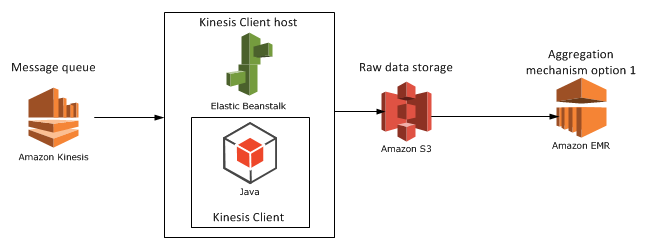
We’ll look at another candidate for the aggregation mechanism, RedShift in the next post. For the time being let’s add EMR to our diagram:

Step 5 with EMR

View all posts related to Amazon Web Services here.

Big Data: using Amazon Kinesis with the AWS.NET API Part 1: introduction

Introduction

Big Data is definitely an important buzzword nowadays. Organisations have to process large amounts of information real time in form of messages in order to make decisions about the future of the company. Companies can also use these messages as data points of something they monitor constantly: sales, response times, stock prices, etc. Their goal is presumably to process the data and extract information from it that their customers find useful and are willing to pay for.

Whatever the purpose there must be a system that is able to handle the influx of messages. You don’t want to lose a single message or let a faulty one stop the chain. You’ll want to have the message queue up and running all the time and make it flexible and scalable so that it can scale up and down depending on the current load. Also, ideally you’ll want to start with the “real” work as soon as possible and not spend too much time on infrastructure management: new servers, load balancers, installing message queue systems etc. Depending on your preferences, it may be better to invest in a ready-made service at least for the initial life of your application. If you then decide that the product is not worth the effort then you can simply terminate the service and then probably haven’t lost as much money as if you had to manage the infrastructure yourself from the beginning.

This is the first installment of a series dedicated to out-of-the-box components built and powered by Amazon Web Services (AWS) enabling Big Data handling. In fact it will be a series of series as I’ll divide the different parts of the chain into their own “compartments”:

  • Message queue
  • Message persistence
  • Analysis
  • Storing the extracted data

Almost all code will be C# with the exception of SQL-like languages in the “Analysis” section. You’ll need to have an account in Amazon Web Services if you want to try the code examples yourself. Amazon has a free-tier of some of their services which is usually enough for testing purposes before your product turns into something serious. Even if there’s no free tier available, like in the case of Kinesis, the costs you incur with minimal tests are far from prohibiting. Amazon is bringing down its prices on AWS components quite often as their volumes grow larger. By signing up with Amazon and creating a user you’ll also get a pair of security keys: an Amazon Access Key and a Secret Access Key.

Note that we’ll be concentrating on showing how to work with the .NET AWS SDK. We won’t organise our code according to guidelines like SOLID and layered architecture – it’s your responsibility to split your code into manageable bits and pieces.

Here we’re starting with the entry point of the system, i.e. the message handler.

Amazon Kinesis

Amazon Kinesis is a highly scalable cloud-based messaging system which can handle extremely large amounts of messages. There’s another series dedicated to a high-level view of a possible Big Data handling architecture. It takes up the same topics as this series but without going down to the code level. If you’re interested in getting the larger picture I really encourage you to check it out. The first post of that series takes up Kinesis so I’ll copy the relevant sections here.

The raw data

What kind of raw data are we talking about? Any type of textual data you can think of. It’s of course an advantage if you can give some structure to the raw data in the form of JSON, XML, CSV or other delimited data.

On the one hand you can have well-formatted JSON data that hits the entry point of your system:

{
    "CustomerId": "abc123",
    "DateUnixMs": 1416603010000,
    "Activity": "buy",
    "DurationMs": 43253
}

Alternatively the same data can arrive in other forms, such as CSV:

abc123,1416603010000,buy,43253

…or as some arbitrary textual input:

Customer id: abc123
Unix date (ms): 1416603010000
Activity: buy
Duration (ms): 43253

It is perfectly feasible that the raw data messages won’t all follow the same input format. Message 1 may be JSON, message 2 may be XML, message 3 may be formatted like this last example above.

The message handler: Kinesis

Amazon Kinesis is a highly scalable message handler that can easily “swallow” large amounts of raw messages. The home page contains a lot of marketing stuff but there’s a load of documentation available for developers, starting here. Most of it is in Java though.

In a nutshell:

  • A Kinesis “channel” is called a stream. A stream has a name that clients can send their messages to and that consumers of the stream can read from
  • Each stream is divided into shards. You can specify the read and write throughput of your Kinesis stream when you set it up in the AWS console
  • A single message can not exceed 50 KB
  • A message is stored in the stream for 24 hours before it’s deleted

You can read more about the limits, such as max number of shards and max throughput here. Kinesis is relatively cheap and it’s an ideal out-of-the-box entry point for big data analysis.

Kinesis will take a lot of responsibility from your shoulders: scaling, stream and shard management, infrastructure management etc. It’s possible to create a new stream in 5 minutes and you’ll be able to post – actually PUT – messages to that stream immediately after it was created. On the other hand the level of configuration is quite limited which may be both good and bad, it depends on your goals. Examples:

  • There’s no way to add any logic to the stream in the GUI
  • You cannot easily limit the messages to the stream, e.g. by defining a message schema so that malformed messages are discarded automatically
  • You cannot define what should happen to the messages in the stream, e.g. in case you want to do some pre-aggregation

However, I don’t think these are real limitations as other message queue solutions will probably be similar.

In the next post we’ll create a Kinesis stream, install the .NET AWS SDK and define our thin domain.

View all posts related to Amazon Web Services and Big Data here.

Elliot Balynn's Blog

A directory of wonderful thoughts

Software Engineering

Web development

Disparate Opinions

Various tidbits

chsakell's Blog

WEB APPLICATION DEVELOPMENT TUTORIALS WITH OPEN-SOURCE PROJECTS

Once Upon a Camayoc

ARCHIVED: Bite-size insight on Cyber Security for the not too technical.