Setting the file access rule of a file with C# .NET

When creating a new file you can set the access control rule for it in code. There are a couple of objects to build the puzzle.

The FileInfo class, which describes a file in a directory, has a SetAccessControl method which accepts a FileSecurity object. The FileSecurity object has an AddAccessRule method where you can pass in a FileSystemAccessRule object. The FileSystemAccessRule object has 4 overloads, 2 of which accept an IdentityReference abstract class. One of the implementations of IdentityReference is SecurityIdentifier. SecurityIdentifier in turn has 4 overloads where the last one is probably the most straightforward to use.

  • WellKnownSidType: an enumeration listing the commonly used security identifiers
  • A domainSid of type SecurityIdentifier: this can most often be ignored. Check out the MSDN link above to see which WellKnownSidType enumeration values require this

The following method will set the access control to “Everyone”, which is represented by WellKnownSidType.WorldSid. “Everyone” will have full control over the file indicated by FileSystemRights.FullControl and AccessControlType.Allow in the FileSystemAccessRule constructor:

FileInfo fi = new FileInfo(@"C:\myfile.txt");
if (!fi.Exists)
{
	File.Create(fi.FullName);
}
SecurityIdentifier userAccount = new SecurityIdentifier(WellKnownSidType.WorldSid, null);
FileSecurity fileAcl = new FileSecurity();
fileAcl.AddAccessRule(new FileSystemAccessRule(userAccount, FileSystemRights.FullControl, AccessControlType.Allow));
fi.SetAccessControl(fileAcl);

You can easily check the result by viewing the properties of the file:

File access control set to Everyone full control

Read all posts dedicated to file I/O here.

Reading a text file using a specific encoding in C# .NET

In this post we saw how to save a text file specifying an encoding in the StreamWriter constructor. You can indicate the encoding type when you read a file with StreamWriter’s sibling StreamReader. Normally you don’t need to worry about specifying the code page when reading files. .NET will automatically understand most encoding types when reading files.

Here’s an example how you can read a file with a specific encoding type:

string filename = string.Concat(@"c:\file-utf-seven.txt");
StreamWriter streamWriter = new StreamWriter(filename, false, Encoding.UTF7);
streamWriter.WriteLine("I am feeling great.");
streamWriter.Close();

using (StreamReader reader = new StreamReader(filename, Encoding.UTF7))
{
	Console.WriteLine(reader.ReadToEnd());
}

Read all posts dedicated to file I/O here.

Using Amazon Kinesis with the AWS.NET API Part 6: storage

Introduction

In the previous post we added some validation to our demo message handling application. Validation adds some sanity checks to our logic so that bogus inputs are discarded.

In this post, which will be the last in the series on Amazon Kinesis, we’ll be looking at storage. We’ll save the data on disk, which in itself is not too interesting, but we’ll also discuss some formats that are suitable for further processing.

Formats

It is seldom that we’re saving data just to fill up a data store. This is true in our case as well. We’re getting the messages from the Kinesis stream and we’ll be soon saving them. However, we’ll certainly want to perform some actions on the data, such as data aggregations:

  • Calculate the average response time for http://www.bbc.co.uk/africa between 12:15 to 12:30 on 13 January 2015 for users with Firefox 11
  • Calculate max response time in week 45 2014 for the domain cnn.com for users located in Seattle
  • Calculate the 99th percentile of the response time for http://www.twitter.com for February 2014

…etc. Regardless of where you’re planning to save the data, such as a traditional relational DB like MS SQL or a NoSql DB such as MongoDb, you’ll need to plan on the storage format i.e. what tables, collections, columns and datatypes you’ll need. As the next Amazon component we’ll take up on this blog is the blob storage S3 we’ll be concentrating on storing the raw data points in a text file. At first this may seem like a very bad idea but S3 is a very efficient, durable and scalable storage. However, don’t assume that this is a must for your Big Data system to work, you can save your data the way you want. Here we’re just paving the way for the next step.

As mentioned before in this series I have another, higher-level set of posts dedicated to Amazon architecture available here. I took up a similar topic there about message formats, I’ll re-use some of those explanations below.

The format will most likely depend on the mechanism that will eventually pull data from the raw data store. Data mining and analysis solutions such as Amazon RedShift or Elastic MapReduce (EMR) – which we’ll take up later on – will all need to work with the raw data. So at this stage you’ll need to do some forward thinking:

  • A: What mechanism will need to read from the raw data store for aggregation?
  • B: How can we easily – or relatively easily – read the raw data visually by just opening a raw data file?

B is important for debugging purposes if you want to verify the calculations. It’s also important if some customer is interested in viewing the raw data for some time period. For B you might want to store the raw data as it is, i.e. as JSON. E.g. you can have a text file with the following data points:

{"CustomerId": "abc123", "DateUnixMs": 1416603010000, "Activity": "buy", "DurationMs": 43253}
{"CustomerId": "abc123", "DateUnixMs": 1416603020000, "Activity": "buy", "DurationMs": 53253}
{"CustomerId": "abc123", "DateUnixMs": 1416603030000, "Activity": "buy", "DurationMs": 63253}
{"CustomerId": "abc123", "DateUnixMs": 1416603040000, "Activity": "buy", "DurationMs": 73253}

…i.e. with one data point per line.

However, this format is not really suitable for point A above. Other mechanisms will have a hard time understanding this data format. For RedShift and EMR to work most efficiently we’ll need to store the raw data in some delimited fields such as CSV or tab delimited fields. So the above data points will then be stored as follows in a tab-delimited file:

abc123     1416603010000    buy    43253
abc123     1416603020000    buy    53253
abc123     1416603030000    buy    63253
abc123     1416603040000    buy    73253

This is probably OK for point B above as well. It’s not too hard on your eyes to understand this data structure so we’ll settle for that. You might ask why we didn’t select some other delimiter, such as a pipe ‘|’ or a comma ‘,’. The answer is that our demo system is based on URLs and URLs can have pipes and commas in them making them difficult to split. Tabs will work better but you are free to choose whatever fits your system best.

Implementation

This time we’ll hide the implementation of the storage mechanism behind an interface. It will be a forward-looking solution where we’ll be able to easily switch between the concrete implementations. Open the demo C# application we’ve been working on so far and locate the WebTransaction object in the AmazonKinesisConsumer application. We’ll add a method to create a tab-delimited string out of its properties:

public string ToTabDelimitedString()
{
	StringBuilder sb = new StringBuilder();
	sb.Append(CustomerName)
		.Append("\t")
		.Append(Url)
		.Append("\t")
		.Append(WebMethod)
		.Append("\t")
		.Append(ResponseTimeMs)
		.Append("\t")
		.Append(UtcDateUnixMs);
	return sb.ToString();
}

Create a text file on your hard drive, like c:\raw-data\storage.txt. Add the following interface to AmazonKinesisConsumer:

public interface IRawDataStorage
{
	void Save(IEnumerable<WebTransaction> webTransactions);
}

…and also the following file based implementation:

public class FileBasedDataStorage : IRawDataStorage
{
	private readonly FileInfo _fileName;

	public FileBasedDataStorage(string fileFullPath)
	{
		if (string.IsNullOrEmpty(fileFullPath)) throw new ArgumentNullException("File full path");
		_fileName = new FileInfo(fileFullPath);
		if (!_fileName.Exists)
		{
			throw new ArgumentException(string.Concat("Provided file path ", fileFullPath, " does not exist."));
		}			
	}
		
	public void Save(IEnumerable<WebTransaction> webTransactions)
	{
		StringBuilder stringBuilder = new StringBuilder();
		foreach (WebTransaction wt in webTransactions)
		{
			stringBuilder.Append(wt.ToTabDelimitedString()).Append(Environment.NewLine);
		}

		using (StreamWriter sw = File.AppendText(_fileName.FullName))
		{
			sw.Write(stringBuilder.ToString());
		}
	}
}

The implementation of the Save method should be quite straightforward. We build a string with the tab delimited representation of the WebTransaction object which is then appended to the source file.

Here comes the updated ReadFromStream() method:

private static void ReadFromStream()
{
	IRawDataStorage rawDataStorage = new FileBasedDataStorage(@"c:\raw-data\storage.txt");
	AmazonKinesisConfig config = new AmazonKinesisConfig();
	config.RegionEndpoint = Amazon.RegionEndpoint.EUWest1;
	AmazonKinesisClient kinesisClient = new AmazonKinesisClient(config);
	String kinesisStreamName = ConfigurationManager.AppSettings["KinesisStreamName"];

	DescribeStreamRequest describeRequest = new DescribeStreamRequest();
	describeRequest.StreamName = kinesisStreamName;

	DescribeStreamResponse describeResponse = kinesisClient.DescribeStream(describeRequest);
	List<Shard> shards = describeResponse.StreamDescription.Shards;

	foreach (Shard shard in shards)
	{
		GetShardIteratorRequest iteratorRequest = new GetShardIteratorRequest();
		iteratorRequest.StreamName = kinesisStreamName;
		iteratorRequest.ShardId = shard.ShardId;
		iteratorRequest.ShardIteratorType = ShardIteratorType.TRIM_HORIZON;

		GetShardIteratorResponse iteratorResponse = kinesisClient.GetShardIterator(iteratorRequest);
		string iteratorId = iteratorResponse.ShardIterator;

		while (!string.IsNullOrEmpty(iteratorId))
		{
			GetRecordsRequest getRequest = new GetRecordsRequest();
			getRequest.Limit = 1000;
			getRequest.ShardIterator = iteratorId;

			GetRecordsResponse getResponse = kinesisClient.GetRecords(getRequest);
			string nextIterator = getResponse.NextShardIterator;
			List<Record> records = getResponse.Records;

			if (records.Count > 0)
			{
				Console.WriteLine("Received {0} records. ", records.Count);
				List<WebTransaction> newWebTransactions = new List<WebTransaction>();
				foreach (Record record in records)
				{
					string json = Encoding.UTF8.GetString(record.Data.ToArray());
					try
					{
						JToken token = JContainer.Parse(json);
						try
						{									
							WebTransaction wt = JsonConvert.DeserializeObject<WebTransaction>(json);
							List<string> validationErrors = wt.Validate();
							if (!validationErrors.Any())
							{
								Console.WriteLine("Valid entity: {0}", json);
								newWebTransactions.Add(wt);
							}
							else
							{
								StringBuilder exceptionBuilder = new StringBuilder();
								exceptionBuilder.Append("Invalid WebTransaction object from JSON: ")
									.Append(Environment.NewLine).Append(json)
									.Append(Environment.NewLine).Append("Validation errors: ")
									.Append(Environment.NewLine);
								foreach (string error in validationErrors)
								{
									exceptionBuilder.Append(error).Append(Environment.NewLine);																										
								}
								Console.WriteLine(exceptionBuilder.ToString());
							}									
						}
						catch (Exception ex)
						{
							//simulate logging
							Console.WriteLine("Could not parse the following message to a WebTransaction object: {0}", json);
						}
					}
					catch (Exception ex)
					{
						//simulate logging
						Console.WriteLine("Could not parse the following message, invalid json: {0}", json);
					}
				}

				if (newWebTransactions.Any())
				{
					try
					{
						rawDataStorage.Save(newWebTransactions);
						Console.WriteLine("Saved all new web transactions to the data store.");
					}
					catch (Exception ex)
					{
						Console.WriteLine("Failed to save the web transactions to file: {0}", ex.Message);
					}
				}
			}

			iteratorId = nextIterator;
		}
	}
}

Run both the consumer and producer applications and send a couple of web transactions to Kinesis. You should end up with the tab delimited observations in the storage file. In my case I have the following:

yahoo http://www.yahoo.com GET 432 1417556120657
google http://www.google.com POST 532 1417556133322
bbc http://www.bbc.co.uk GET 543 1417556148276
twitter http://www.twitter.com GET 623 1417556264008
wiki http://www.wikipedia.org POST 864 1417556302529
facebook http://www.facebook.com DELETE 820 1417556319381

This concludes our discussion of Amazon Kinesis. We’ve also set the path for the next series where we’ll be looking into Amazon S3. If you’re interested in a full Big Data chain using cloud-based Amazon components then you’re more than welcome to read on.

View all posts related to Amazon Web Services and Big Data here.

Saving a text file using a specific encoding in C# .NET

The StreamWriter object constructor lets you indicate the encoding type when writing to a text file. The following method shows how simple it is:

private static void SaveFile(Encoding encoding)
{
	Console.WriteLine("Encoding: {0}", encoding.EncodingName);
	string filename = string.Concat(@"c:\file-", encoding.EncodingName, ".txt");
	StreamWriter streamWriter = new StreamWriter(filename, false, encoding);
	streamWriter.WriteLine("I am feeling great.");
	streamWriter.Close();
}

We saw in this post how to get hold of a specific code page. We also saw that if you only use characters in the ASCII range, i.e. positions 0-127 then most encoding types will handle the string in a uniform way.

Call the above method like this:

SaveFile(Encoding.UTF7);
SaveFile(Encoding.UTF8);
SaveFile(Encoding.Unicode);
SaveFile(Encoding.UTF32);

So we’ll have 4 files at the end each named after the encoding type. Depending on the supported code pages on your PC Notepad may or may not be able to handle the encoding types. Notepad should not have any problem with UTF8 and UTF16. The UTF7 file will probably look OK, whereas UTF32 will most likely look strange. In my case the UTF32 file content looked like this:

I a m f e e l i n g g r e a t .

…i.e. with some bonus white-space in between the characters. Notepad was not able to correctly read UTF32.

The default encoding type is UTF-16 which will suffice in most situations. If you’re unsure then select this code page.

Providing an encoding type which cannot handle certain characters will result in replacement characters to be shown. If we change the string to be saved to “öåä I am feeling great.” and call the SaveFile method like

SaveFile(Encoding.ASCII);

…then you’ll see the following content in Notepad:

??? I am feeling great. ASCII could not handle the Swedish characters öåä and replaced them with question marks.

Read all posts dedicated to file I/O here.

Using Amazon Kinesis with the AWS.NET API Part 5: validation

Introduction

In the previous post we got as far as having a simple but functioning messaging system. The producer and client apps are both console based and the message handler is the ready-to-use Amazon Kinesis. We have a system that we can built upon and scale up as the message load increases. Kinesis streams can be scaled to handle virtually unlimited amounts of messages.

This post on Kinesis will discuss message validation.

You’ll need to handle the incoming messages from the stream. Normally they should follow the specified format, such as JSON or XML with the predefined property names and casing. However, this is not always guaranteed as Kinesis does not itself validate any incoming message. Also, your system might be subject to fake data. So you’ll almost always need to have some message validation in place and log messages that cannot be processed or are somehow invalid.

Open the demo application we’ve been working on so far and let’s get to it.

Validation

We ended up with the following bit of code in AmazonKinesisConsumer:

if (records.Count > 0)
{
	Console.WriteLine("Received {0} records. ", records.Count);
	foreach (Record record in records)
	{
		string json = Encoding.UTF8.GetString(record.Data.ToArray());
		Console.WriteLine("Json string: " + json);
	}
}

We’ll build up the new code step by step and present the new version of the ReadFromStream() method at the end.

Our first task is to check if “json” is in fact valid JSON. There’s no dedicated method for that in JSON.NET so we’ll just see if the string can be parsed into a generic JToken:

string json = Encoding.UTF8.GetString(record.Data.ToArray());
try
{
        JToken token = JContainer.Parse(json);
}
catch (Exception ex)
{
        //simulate logging
	Console.WriteLine("Could not parse the following message, invalid json: {0}", json);
}

Normally every message that cannot be parsed should be logged and analysed. Here we just print the unparseable message to the console. If you’re interested in logging you can check out the posts on this blog here and here.

Next we want to parse the JSON into a WebTransaction object:

try
{
	JToken token = JContainer.Parse(json);
        try
	{
		WebTransaction wt = JsonConvert.DeserializeObject<WebTransaction>(json);
	}
	catch (Exception ex)
	{
		//simulate logging
		Console.WriteLine("Could not parse the following message to a WebTransaction object: {0}", json);
	}
}
catch (Exception ex)
{
	//simulate logging
	Console.WriteLine("Could not parse the following message, invalid json: {0}", json);
}

Next we can perform some validation on the object itself. We’ll make up some arbitrary rules:

  • The web method can only be one of the following: GET, POST, PUT, HEAD, DELETE, OPTIONS, TRACE, CONNECT
  • Acceptable range for response times: 0-30000 ms, probably not wide enough, but it’s OK for now
  • We only accept valid URLs using a validator function I’ve found here. It might not be perfect but at least we can filter out useless inputs like “this is spam” or “you’ve been hacked”

We’ll add the validation rules to WebTransaction.cs of the AmazonKinesisConsumer app:

public class WebTransaction
{
	private string[] _validMethods = { "get", "post", "put", "delete", "head", "options", "trace", "connect" };
	private int _minResponseTimeMs = 0;
	private int _maxResponseTimeMs = 30000;

        public long UtcDateUnixMs { get; set; }
	public string CustomerName { get; set; }
	public string Url { get; set; }
	public string WebMethod { get; set; }
	public int ResponseTimeMs { get; set; }

	public List<string> Validate()
	{
		List<string> brokenRules = new List<string>();
		if (!IsWebMethodValid())
		{
			brokenRules.Add(string.Format("Invalid web method: {0}", WebMethod));
		}
		if (!IsResponseTimeValid())
		{
			brokenRules.Add(string.Format("Response time outside acceptable limits: {0}", ResponseTimeMs));
		}
		if (!IsValidUrl())
		{
			brokenRules.Add(string.Format("Invalid URL: {0}", Url));
		}
		return brokenRules;
	}

	private bool IsWebMethodValid()
	{
		return _validMethods.Contains(WebMethod.ToLower());
	}

	private bool IsResponseTimeValid()
	{
		if (ResponseTimeMs < _minResponseTimeMs
			|| ResponseTimeMs > _maxResponseTimeMs)
		{
			return false;
		}
        	return true;
	}

	private bool IsValidUrl()
	{
		Uri uri;
		string urlToValidate = Url;
		if (!urlToValidate.Contains(Uri.SchemeDelimiter)) urlToValidate = string.Concat(Uri.UriSchemeHttp, Uri.SchemeDelimiter, urlToValidate);
		if (Uri.TryCreate(urlToValidate, UriKind.RelativeOrAbsolute, out uri))
		{
			try
			{
				if (Dns.GetHostAddresses(uri.DnsSafeHost).Length > 0)
				{
					return true;
				}
			}
			catch
			{
				return false;
			}
		}

		return false; 
	}

}

The Validate method will collect all validation errors. IsWebMethodValid() and IsResponseTimeValid() should be quite straightforward. If you don’t understand the IsValidUrl function check out the StackOverflow link referred to above.

We can use the Validate method from within the ReadFromStream() method as follows:

List<WebTransaction> newWebTransactions = new List<WebTransaction>();
foreach (Record record in records)
{
	string json = Encoding.UTF8.GetString(record.Data.ToArray());
	try
	{
        	JToken token = JContainer.Parse(json);
		try
		{									
			WebTransaction wt = JsonConvert.DeserializeObject<WebTransaction>(json);
          		List<string> validationErrors = wt.Validate();
			if (!validationErrors.Any())
			{
				Console.WriteLine("Valid entity: {0}", json);
				newWebTransactions.Add(wt);
			}
			else
			{
				StringBuilder exceptionBuilder = new StringBuilder();
				exceptionBuilder.Append("Invalid WebTransaction object from JSON: ")
				.Append(Environment.NewLine).Append(json)
				.Append(Environment.NewLine).Append("Validation errors: ")
				.Append(Environment.NewLine);
				foreach (string error in validationErrors)
				{
					exceptionBuilder.Append(error).Append(Environment.NewLine);																										
				}
				Console.WriteLine(exceptionBuilder.ToString());
			}									
		}
        	catch (Exception ex)
		{
			//simulate logging
			Console.WriteLine("Could not parse the following message to a WebTransaction object: {0}", json);
		}
	}
	catch (Exception ex)
	{
		//simulate logging
		Console.WriteLine("Could not parse the following message, invalid json: {0}", json);
	}
}

As you can see we’re also collecting all valid WebTransaction objects into a list. That’s a preparation for the next post where we’ll store the valid objects on disk.

Here’s the current version of the ReadFromStream method:

private static void ReadFromStream()
{
	AmazonKinesisConfig config = new AmazonKinesisConfig();
	config.RegionEndpoint = Amazon.RegionEndpoint.EUWest1;
	AmazonKinesisClient kinesisClient = new AmazonKinesisClient(config);
	String kinesisStreamName = ConfigurationManager.AppSettings["KinesisStreamName"];

	DescribeStreamRequest describeRequest = new DescribeStreamRequest();
	describeRequest.StreamName = kinesisStreamName;

	DescribeStreamResponse describeResponse = kinesisClient.DescribeStream(describeRequest);
	List<Shard> shards = describeResponse.StreamDescription.Shards;

	foreach (Shard shard in shards)
	{
		GetShardIteratorRequest iteratorRequest = new GetShardIteratorRequest();
		iteratorRequest.StreamName = kinesisStreamName;
		iteratorRequest.ShardId = shard.ShardId;
		iteratorRequest.ShardIteratorType = ShardIteratorType.TRIM_HORIZON;

		GetShardIteratorResponse iteratorResponse = kinesisClient.GetShardIterator(iteratorRequest);
		string iteratorId = iteratorResponse.ShardIterator;

		while (!string.IsNullOrEmpty(iteratorId))
		{
			GetRecordsRequest getRequest = new GetRecordsRequest();
			getRequest.Limit = 1000;
			getRequest.ShardIterator = iteratorId;

			GetRecordsResponse getResponse = kinesisClient.GetRecords(getRequest);
			string nextIterator = getResponse.NextShardIterator;
			List<Record> records = getResponse.Records;

			if (records.Count > 0)
			{
				Console.WriteLine("Received {0} records. ", records.Count);
				List<WebTransaction> newWebTransactions = new List<WebTransaction>();
				foreach (Record record in records)
				{
					string json = Encoding.UTF8.GetString(record.Data.ToArray());
					try
					{
						JToken token = JContainer.Parse(json);
						try
						{									
							WebTransaction wt = JsonConvert.DeserializeObject<WebTransaction>(json);
							List<string> validationErrors = wt.Validate();
							if (!validationErrors.Any())
							{
								Console.WriteLine("Valid entity: {0}", json);
								newWebTransactions.Add(wt);
							}
							else
							{
								StringBuilder exceptionBuilder = new StringBuilder();
								exceptionBuilder.Append("Invalid WebTransaction object from JSON: ")
									.Append(Environment.NewLine).Append(json)
									.Append(Environment.NewLine).Append("Validation errors: ")
									.Append(Environment.NewLine);
								foreach (string error in validationErrors)
								{
									exceptionBuilder.Append(error).Append(Environment.NewLine);																										
								}
								Console.WriteLine(exceptionBuilder.ToString());
							}									
						}
						catch (Exception ex)
						{
							//simulate logging
							Console.WriteLine("Could not parse the following message to a WebTransaction object: {0}", json);
						}
					}
					catch (Exception ex)
					{
						//simulate logging
						Console.WriteLine("Could not parse the following message, invalid json: {0}", json);
					}
				}
			}

			iteratorId = nextIterator;
		}
	}
}

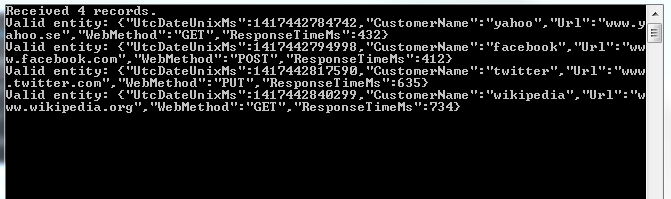
Run the application with F5. This will start the project that is set as the start-up project. You can start the other one using the technique we saw in the previous post: right-click, Debug, Start new instance. You’ll have two console windows running. If you had some messages left in the Kinesis stream then they should be validated now. I can see the following output:

Initial validation messages for Kinesis

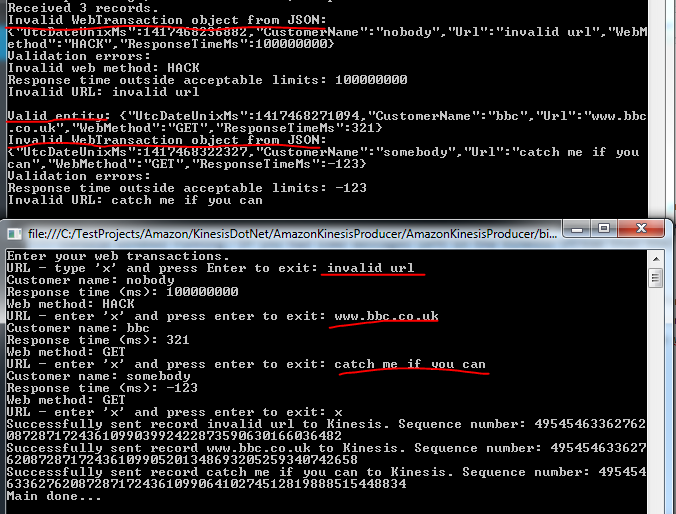
Let’s now send some new messages to Kinesis:

Validation errors from messages to Kinesis

Great, we have some basic validation logic in place.

We’ll discuss storing the messages in the next post which will finish the series on Amazon Kinesis.

View all posts related to Amazon Web Services and Big Data here.
Getting the byte array of a string depending on Encoding in C# .NET

You can take any string in C# and view its byte array data depending on the Encoding type. You can get hold of the encoding type using the Encoding.GetEncoding method. Some frequently used code pages have their short-cuts:

  • Encoding.ASCII
  • Encoding.BigEndianUnicode
  • Encoding.Unicode – this is UTF16
  • Encoding.UTF7
  • Encoding.UTF32
  • Encoding.UTF8

Once you’ve got hold of an encoding you can call its GetBytes method to return the byte array representation of a string. You can use this method whenever another method requires a byte array input instead of a string.

For backward compatibility the positions 0-127 are the same in most encoding types. These cover the standard English alphabet – both lower and upper case -, the numbers, punctuation plus some other characters. So if you only take characters from this range then the byte values in the array will be the same. You can view the ASCII characters here: ASCII character set.

The following function will print the same values for both the ASCII and Chinese encoding types:

string input = "I am feeling great";
byte[] asciiEncoded = Encoding.ASCII.GetBytes(input);
Console.WriteLine("Ascii");
foreach (byte b in asciiEncoded)
{
	Console.WriteLine(b);
}

Encoding chinese = Encoding.GetEncoding("Chinese");
byte[] chineseEncoded = chinese.GetBytes(input);
Console.WriteLine("Chinese");
foreach (byte b in chineseEncoded)
{
	Console.WriteLine(b);
}

If you’re trying to ASCII-encode a Unicode string which contains non-ASCII characters then you’ll get see the ASCII byte value of 63, i.e. ‘?’:

string input = "öåä I am feeling great";
byte[] asciiEncoded = Encoding.ASCII.GetBytes(input);
Console.WriteLine("Ascii");
foreach (byte b in asciiEncoded)
{
	Console.WriteLine(b);
}

The first 3 positions will print 63 as the Swedish ‘öåä’ characters cannot be handled by ASCII. E.g. whenever you visit a website and see question marks and other funny characters instead of proper text then you know that there’s an encoding problem: the page has been encoded with an encoding type that’s not available on the user’s computer when viewed.

View all posts related to Globalization here.

Getting the list of supported Encoding types in .NET

Every text file and string is encoded using one of many encoding standards. Normally .NET will handle encoding automatically but there are times when you need to dig into the internals for encoding and decoding. It’s very simple to retrieve the list of supported encoding types, a.k.a code pages in .NET:

EncodingInfo[] codePages = Encoding.GetEncodings();
foreach (EncodingInfo codePage in codePages)
{
	Console.WriteLine("Code page ID: {0}, IANA name: {1}, human-friendly display name: {2}", codePage.CodePage, codePage.Name, codePage.DisplayName);
}

Example output:

Code page ID: 37, IANA name: IBM037, human-friendly display name: IBM EBCDIC (US-Canada)
Code page ID: 852, IANA name: ibm852, human-friendly display name: Central European (DOS)

View all posts related to Globalization here.

Big Data: using Amazon Kinesis with the AWS.NET API Part 4: reading from the stream

Introduction

In the previous post of this series on Amazon Kinesis we looked at how to publish messages to a Kinesis stream. In this post we’ll see how to extract them. We’ll create a Kinesis Client application.

It’s necessary to extract the messages from the stream as it only stores them for 24 hours. Also, a client application can filter, sort and validate the incoming messages according to some pre-defined rules.

Our demo client will be a completely separate application. We’ll see some duplication of code but that has a good reason. We’ll want to simulate a scenario where the producers are completely different applications, such as a bit of JavaScript on a web page, a Java web service, an iOS app or some other smart device. Our Kinesis producer is good for demo purposes but in reality the producer can be any software that can send HTTP requests. However, if both your producer and client apps are of the same platform then of course go ahead and introduce a common layer in the project.

Open the demo app we’ve been working on and let’s get to it.

The Kinesis client

Add a new C# console application called AmazonKinesisConsumer. Add the same NuGet packages as before:

AWS SDK NuGet package

Json.NET NuGet package

Add a reference to the System.Configuration library already now. Also, add the same configurations to app.config:

<appSettings>
        <add key="AWSProfileName" value="demo-aws-profile"/>
	<add key="KinesisStreamName" value="test-stream"/>
</appSettings>

Insert the same WebTransaction object again:

public class WebTransaction
{
	public long UtcDateUnixMs { get; set; }
	public string CustomerName { get; set; }
	public string Url { get; set; }
	public string WebMethod { get; set; }
	public int ResponseTimeMs { get; set; }
}

We’ll make it easy for us here and re-use the same WebTransaction object as we know that we’ll be able to parse the incoming JSON string. However, as mentioned in the first post of this series, be prepared for different message formats and property names. If you can, always aim for some well accepted standard such as JSON or XML, they are easy to handle in code. E.g. if the incoming JSON has different names – including variations in casing – then you can use the JSON library to match the property names:

public class WebTransaction
{
	[JsonProperty(PropertyName="dateUtc")]
	public long UtcDateUnixMs { get; set; }
	[JsonProperty(PropertyName = "cust")]
	public string CustomerName { get; set; }
	[JsonProperty(PropertyName = "url")]
	public string Url { get; set; }
	[JsonProperty(PropertyName = "method")]
	public string WebMethod { get; set; }
	[JsonProperty(PropertyName = "responseTime")]
	public int ResponseTimeMs { get; set; }
}

In any case you can assume that the messages will come in as strings – or bytes that can be converted to strings to be exact.

Do not assume anything about the ordering of the messages. Messages in Kinesis are handled in parallel and they will be extracted in batches by a Kinesis client. So for best performance and consistency aim for short, independent and self-contained messages. If ordering matters or if the total message is too large for Kinesis then you can send extra properties with the messages such as “Index” and “Total” to indicate the order like “1 of 10”, “2 of 10” etc. so that the client can collect and sort them.

The shard iterator

Insert the following private method to Program.cs:

private static void ReadFromStream()
{
	AmazonKinesisConfig config = new AmazonKinesisConfig();
	config.RegionEndpoint = Amazon.RegionEndpoint.EUWest1;
	AmazonKinesisClient kinesisClient = new AmazonKinesisClient(config);
	String kinesisStreamName = ConfigurationManager.AppSettings["KinesisStreamName"];

	DescribeStreamRequest describeRequest = new DescribeStreamRequest();
	describeRequest.StreamName = kinesisStreamName;

	DescribeStreamResponse describeResponse = kinesisClient.DescribeStream(describeRequest);
	List<Shard> shards = describeResponse.StreamDescription.Shards;

	foreach (Shard shard in shards)
	{
		GetShardIteratorRequest iteratorRequest = new GetShardIteratorRequest();
		iteratorRequest.StreamName = kinesisStreamName;
		iteratorRequest.ShardId = shard.ShardId;
		iteratorRequest.ShardIteratorType = ShardIteratorType.TRIM_HORIZON;

		GetShardIteratorResponse iteratorResponse = kinesisClient.GetShardIterator(iteratorRequest);
		string iteratorId = iteratorResponse.ShardIterator;

		while (!string.IsNullOrEmpty(iteratorId))
		{
			GetRecordsRequest getRequest = new GetRecordsRequest();
			getRequest.Limit = 1000;
			getRequest.ShardIterator = iteratorId;

			GetRecordsResponse getResponse = kinesisClient.GetRecords(getRequest);
			string nextIterator = getResponse.NextShardIterator;
			List<Record> records = getResponse.Records;

			if (records.Count > 0)
			{
				Console.WriteLine("Received {0} records. ", records.Count);
				foreach (Record record in records)
				{
					string json = Encoding.UTF8.GetString(record.Data.ToArray());
					Console.WriteLine("Json string: " + json);
				}
			}
			iteratorId = nextIterator;
		}
	}
}

Let’s see what’s going on here. The first 4 lines are identical to what we had in the Kinesis producer: we simply configure the access to Kinesis. We use the Kinesis client object to describe the Kinesis stream referred to by its name in the DescribeStreamRequest object. We then extract the available shards in the stream.

We then iterate through the shards. For each shard – we have only one – we need to request a shard iterator. A shard iterator will help us iterate through the messages in the shard. We specify where we want to start using the ShardIteratorType enumeration. TRIM_HORIZON means that we want to start with the oldest message first and work our way up from there. This is like a first-in-first-out collection and is probably the most common way to extract the messages. Other enumeration values are the following:

  • AT_SEQUENCE_NUMBER: read from the position indicated by a sequence number
  • AFTER_SEQUENCE_NUMBER: start right after the sequence number
  • LATEST: always read the most recent data in the shard

If you recall from the previous post a sequence number is an ID attached to each message.

Once we get the iterator we extract its ID which is used in the GetRecordsRequest object. Note that we enter a while loop and check if the iterator ID is null or empty. The GetRecordsResponse will also include an iterator ID which is a handle to read any subsequent messages. This will normally be an endless loop allowing us to always listen to messages from the stream. If there are any records returned by the iterator we print the number of records and the pure string data of each record. We expect to see some JSON messages. We don’t yet parse them to our WebTransaction messages, we’ll continue with processing the raw data in the next post.

Call this method from Main:

static void Main(string[] args)
{
	ReadFromStream();

	Console.WriteLine("Main done...");
	Console.ReadKey();
}

Test

Let’s see this in action. Make AmazonKinesisCustomer the start-up project of the solution and start the application. If you followed the previous post of this series within 24 hours of completing this post then you should see the messages you sent to the Kinesis stream before – recall that Kinesis keeps the messages for 24 hours. I can see the following JSON messages:

Messages extracted from Kinesis

Keep the application running. You’ll see that the loop just continues to run and the application doesn’t stop – we’re effectively waiting for new messages from the sream. Back in VS right-click AmazonKinesisProducer, select Debug, Start new instance. You’ll have two console windows up and running:

Kinesis producer and client running in parallel

Enter a couple of new web transactions into the producer and send it to Kinesis. The client should fetch them in a couple of seconds:

New records extracted from Kinesis

Great, we have now a highly efficient cloud-based message handler in form of Amazon Kinesis, a Kinesis client and a Kinesis producer. We’ve also seen that although the stream is located in the cloud, the producers and clients can be virtually any platforms that are able to handle HTTP messages. Therefore don’t get bogged down by the thought that you have to use Amazon components with Kinesis.

In the next post we’ll add some validation to the incoming messages.

View all posts related to Amazon Web Services and Big Data here.
Architecture of a Big Data messaging and aggregation system using Amazon Web Services part 5

Introduction

In the previous post we extended our Amazon Big Data design with Amazon RedShift. In this post we’ll look at some data storage options for the aggregated data. Also, we’ll look at an option on how to keep this flow running, i.e. how to make sure that aggregation happens at regular intervals automatically.

Storing aggregated data

Say that the aggregation mechanism has finished the aggregations that are interesting to your business. The aggregated data must also be stored somewhere that’s accessible to other systems. By “other systems” I mean applications where the end users can view the aggregations and run other queries, like a web site with lots of nice graphs. The input data for those graphs should be easily accessible from a data store.

For Elastic MapReduce you have 2 options at the time of writing this post. You can either export the aggregated data back to S3 or to DynamoDb. We’ve seen S3 before in this series but DynamoDb is new.

DynamoDb is Amazon’s cloud-based NoSql database. If you worked with databases like MongoDb or RavenDb before then you’ll see that DynamoDb is similar. There are no schemas, you can store any type of unstructured data in DynamoDb documents. I’d say that DynamoDb provides better structuring and the usual CRUD mechanisms are better supported than in S3. If you’d like to save your aggregated data from EMR somewhere else, like RedShift or Amazon Relational Database Service (RDS) then you’ll have to do it indirectly: save the data in S3 first and then export it to RedShift or RDS from S3 via some automation service like Amazon Import/Export or Amazon Data Pipeline – more on Data Pipeline below.

If you use RedShift as the aggregation mechanism then RedShift provides excellent PostgreSQL-based tabular storage as well so there’s probably no need to look any further. You can probably export the aggregation results to DynamoDb or S3 but I don’t really see the point. RedShift tables are easily accessible for a wide range of technologies: .NET, Java, Python etc.

Let’s extend our architecture diagram with the storage mechanisms:

Amazon Big Data Diagram with aggregation result storage

Automation

By automation I mean the automation of the aggregation jobs. You’ll probably want the aggregation job to run at defined intervals, say every 15 minutes. At the same time you might want to start an ad-hoc aggregation job outside the automation interval. One Amazon-based option is the following setup:

  • Build a “normal” Java application that goes through the application process by way of calling he aggregation mechanism – EMR or RedShift – to run one or more aggregation scripts
  • Compile the Java app into a JAR file
  • Save the JAR file in S3
  • Let the JAR file be executed by another Amazon service called Data Pipeline using a shell script (.sh) which is also stored in S3

AWS Data Pipeline (DP) is an automation tool that can run a variety of job types – or activities as they are called in DP. DP can execute jobs at intervals or just once, log the result, re-try failed jobs and much more. If you decide to try this solution then ShellCommandActivity is the activity type you’re looking for. I won’t provide any details here how to set up ShellCommandActivity here as this blog post is entirely dedicated to that.

Let’s add DP to our diagram:

Amazon Big Data Diagram with Amazon Data Pipeline

Extensions

We’re actually done with the core of our Big Data system. However, it can be extended in numerous ways, here are some examples:

  • Accessing Kinesis requires that you provide your security credentials in the Kinesis producer, i.e. the application that sends the raw data messages to Kinesis. E.g. if you’re collecting the response times from a HTML page then the underlying JS file will need to include your credentials which makes your Amazon account very vulnerable. An option to alleviate the problem is to set up a public web page in front of Kinesis, like a web service. This service can then itself forward the message to Kinesis. Another option is to set up temporary credentials for the producers. This page describes how to do that with the AWS Security Token Service.
  • Amazon has an efficient in-memory caching solution called ElastiCache. The aggregation mechanism could potentially save the aggregated data in the data store and also push it to the cache. The consuming application will then first consult the cache instead of the database to ease the load

I have another blog series dedicated to Big Data with .NET where I go through some of these components in greater detail and a lot of code examples.

This post concludes this series. I hope you’ve learnt a lot of good stuff.

View all posts related to Amazon Web Services here.

Extracting information from a text using Regex and Match in C# .NET

Occasionally you need to extract some information from a free-text form. Consider the following text:

First name: Elvis
Last name: Presley
Address: 1 Heaven Street
City: Memphis
State: TN
Zip: 12345

Say you need to extract the full name, the address, the city, the state and the zip code into a pipe-delimited string. The following function is one option:

private static string ExtractJist(string freeText)
{
	StringBuilder patternBuilder = new StringBuilder();
	patternBuilder.Append(@"First name: (?<fn>.*$)\n")
		.Append("Last name: (?<ln>.*$)\n")
		.Append("Address: (?<address>.*$)\n")
		.Append("City: (?<city>.*$)\n")
		.Append("State: (?<state>.*$)\n")
		.Append("Zip: (?<zip>.*$)");
	Match match = Regex.Match(freeText, patternBuilder.ToString(), RegexOptions.Multiline | RegexOptions.IgnoreCase);
	string fullname = string.Concat(match.Groups["fn"], " ", match.Groups["ln"]);
	string address = match.Groups["address"].ToString();
	string city = match.Groups["city"].ToString();
	string state = match.Groups["state"].ToString();
	string zip = match.Groups["zip"].ToString();
	return string.Concat(fullname, "|", address, "|", city, "|", state, "|", zip);
}

Call the function as follows:

string source = @"First name: Elvis
Last name: Presley
Address: 1 Heaven Street
City: Memphis
State: TN
Zip: 12345
";
string extracted = ExtractJist(source);

View all posts related to string and text operations here.

Elliot Balynn's Blog

A directory of wonderful thoughts

Software Engineering

Web development

Disparate Opinions

Various tidbits

chsakell's Blog

WEB APPLICATION DEVELOPMENT TUTORIALS WITH OPEN-SOURCE PROJECTS

Once Upon a Camayoc

ARCHIVED: Bite-size insight on Cyber Security for the not too technical.

