Domain Driven Design with Web API extensions part 9: setting up MongoDb

Introduction

In the previous post we set out the main topic of this new extension to the DDD model project. We said that we would add another repository mechanism, namely MongoDb. We went through the basic idea and some terminology behind MongoDb, e.g. what a document, a collection or an object ID means.

In this post we’ll set up MongoDb locally and try to connect to it from .NET using the MongoDb .NET driver.

Read more of this post

Domain Driven Design with Web API extensions part 8: domain repository with MongoDb

Introduction

Some months ago we went through an updated series on Domain Driven Design starting with this post. We built a functioning skeleton project with EntityFramework as the backing store, a Web API layer as the top consumer, a loosely coupled service layer and a central domain layer with some logic.

In this extension series we’ll investigate how to implement the domain repository in a data store that’s markedly different from SQL Server. In particular we’ll take a look at the NoSql document-based MongoDb.

Read more of this post

Building a web service with Node.js in Visual Studio Part 11: PUT and DELETE operations

Introduction

In the previous post we tested the GET operations in our demo web service through the C# console tester application. In this post we’ll look at two other HTTP verbs in action. We’ll insert and test a PUT endpoint to update a customer. In particular we’ll add new orders to an existing customer. In addition we’ll remove a customer through a DELETE endpoint. This post will also finish up the series on Node.js.

We’ll extend the CustomerOrdersApi demo application so have it ready in Visual Studio.

Updating a customer

Let’s start with the repository and work our way up to the controller. Add the following method to customerRepository.js:

module.exports.addOrders = function (customerId, newOrders, next) {
    databaseAccess.getDbHandle(function (err, db) {
        if (err) {
            next(err, null);
        }
        else {
            var collection = db.collection("customers");
            var mongoDb = require('mongodb');
            var BSON = mongoDb.BSONPure;
            var objectId = new BSON.ObjectID(customerId);
            collection.find({ '_id': objectId }).count(function (err, count) {
                if (count == 0) {
                    err = "No matching customer";
                    next(err, null);
                }
                else {
                    collection.update({ '_id': objectId }, { $addToSet: { orders: { $each: newOrders } } }, function (err, result) {
                        if (err) {
                            next(err, null);
                        }
                        else {
                            next(null, result);
                        }
                    });
                }
            });
        }
    });
};

Most of this code should look familiar from the previous posts on this topic. We check whether a customer with the incoming customer ID exists. If not then we return an exception in the “next” callback. Otherwise we update the customer. The newOrders parameter will hold the orders to be added in an array. The update statement may look strange at first but the MongoDb addToSet operator coupled with the “each” operator enables us to push all elements in an array into an existing one. If we simply use the push operator then it will add the newOrders array into the orders array of the customer, i.e. we’ll end up with an array within an array which is not what we want. The each operator will go through the elements in newOrders and add them into the orders array. If the update function goes well then MongoDb will return the number of elements updated which will be assigned to the “result” parameter. We’re expecting it to be 1 as there’s only one customer with a given ID.

Let’s extend customerService.js:

module.exports.addOrders = function (customerId, orderItems, next) {
    if (!customerId) {
        var err = "Missing customer id property";
        next(err, null);
    }
    else {
        customerRepository.addOrders(customerId, orderItems, function (err, res) {
            if (err) {
                next(err, null);
            }
            else {
                next(null, res);
            }
        });
    }
};

Here comes the new function in index.js within the services folder:

module.exports.addOrders = function (customerId, orderItems, next) {
    customerService.addOrders(customerId, orderItems, function (err, res) {
        if (err) {
            next(err, null);
        }
        else {
            next(null, res);
        }
    });
};

…and finally we can build the PUT endpoint in customersController.js:

app.put("/customers", function (req, res) {
        var orders = req.body.orders;
        var customerId = req.body.customerId;
        customerService.addOrders(customerId, orders, function (err, itemCount) {
            if (err) {
                res.status(400).send(err);
            }
            else {
                res.set('Content-Type', 'text/plain');
                res.status(200).send(itemCount.toString());
            }
        });
    });

We read the “orders” and “customerId” parameters from the request body like when we inserted a new customer. We return HTTP 200, i.e. “OK” in case the operation was successful. We also respond with the number of updated items in a plain text format.

Let’s test this from our little tester console application. Add the following method to ApiTesterService.cs:

public int TestUpdateFunction(String customerId, List<Order> newOrders)
{
	HttpRequestMessage putRequest = new HttpRequestMessage(HttpMethod.Put, new Uri("http://localhost:1337/customers/"));
	putRequest.Headers.ExpectContinue = false;
	AddOrdersToCustomerRequest req = new AddOrdersToCustomerRequest() { CustomerId = customerId, NewOrders = newOrders };
	string jsonBody = JsonConvert.SerializeObject(req);
	putRequest.Content = new StringContent(jsonBody, Encoding.UTF8, "application/json");
	HttpClient httpClient = new HttpClient();
	httpClient.Timeout = new TimeSpan(0, 10, 0);
	Task<HttpResponseMessage> httpRequest = httpClient.SendAsync(putRequest,
			HttpCompletionOption.ResponseContentRead, CancellationToken.None);
	HttpResponseMessage httpResponse = httpRequest.Result;
	HttpStatusCode statusCode = httpResponse.StatusCode;

	HttpContent responseContent = httpResponse.Content;
	if (responseContent != null)
	{
		Task<String> stringContentsTask = responseContent.ReadAsStringAsync();
		String stringContents = stringContentsTask.Result;
		if (statusCode == HttpStatusCode.OK)
		{
			return Convert.ToInt32(stringContents);
		}
		else
		{
			throw new Exception(string.Format("No customer updated: {0}", stringContents));
		}
	}
	throw new Exception("No customer updated");
}

…where AddOrdersToCustomerRequest looks as follows:

public class AddOrdersToCustomerRequest
{
	[JsonProperty(PropertyName="customerId")]
	public String CustomerId { get; set; }
	[JsonProperty(PropertyName="orders")]
	public List<Order> NewOrders { get; set; }
}

We set the JSON property names according to the expected values we set in the controller. We send the JSON payload to the PUT endpoint and convert the response into an integer. We can call this method from Program.cs as follows:

private static void TestCustomerUpdate()
{
	Console.WriteLine("Testing item update.");
	Console.WriteLine("=================================");
	try
	{
		ApiTesterService service = new ApiTesterService();
		List<Customer> allCustomers = service.GetAllCustomers();
		Customer customer = SelectRandom(allCustomers);
		List<Order> newOrders = new List<Order>()
		{
			new Order(){Item = "Food", Price = 2, Quantity = 3}
			, new Order(){Item = "Drink", Price = 3, Quantity = 4}
			, new Order(){Item = "Taxi", Price = 10, Quantity = 1}
		};
		int updatedItemsCount = service.TestUpdateFunction(customer.Id, newOrders);
		Console.WriteLine("Updated customer {0} ", customer.Name);
		Console.WriteLine("Updated items count: {0}", updatedItemsCount);
	}
	catch (Exception ex)
	{
		Console.WriteLine("Exception caught while testing PUT: {0}", ex.Message);
	}
	Console.WriteLine("=================================");
	Console.WriteLine("End of PUT operation test.");
}

We first extract all customers, then select one at random using the SelectRandom method we saw in the previous post. We then build an arbitrary orders list and call the TestUpdateFunction of the service. If all goes well then we print the name of the updated customer and the number of updated items which we expect to be 1. Otherwise we print the exception message. Call this method from Main:

static void Main(string[] args)
{
	TestCustomerUpdate();

	Console.WriteLine("Main done...");
	Console.ReadKey();
}

Start the application with F5. As the Node.js project is set as the startup project you’ll see it start in a browser as before. Do the following to start the tester console app:

  • Right-click it in Solution Explorer
  • Select Debug
  • Select Start new instance

You should see output similar to the following:
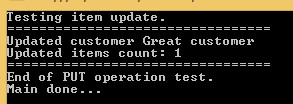
Testing PUT operation through tester application

If you then navigate to /customers in the appropriate browser window then you should see the new order items. In my case the JSON output looks as follows:

[{"_id":"544cb61fda8014d9145c85e6","name":"Great customer","orders":[{"item":"Food","quantity":3,"itemPrice":2},{"item":"Drink","quantity":4,"itemPrice":3},{"item":"Taxi","quantity":1,"itemPrice":10}]},{"_id":"546b56f1b8fd6abc122cc8ff","name":"hello","orders":[]}]

This was one application of PUT. You can use the same endpoint to update other parts of your domain, e.g. the customer name.

Deleting a customer

We’ll create a DELETE endpoint to remove a customer. We cannot attach a request body to a DELETE request so we’ll instead send the ID of the customer to be deleted in the URL. We saw an example of that when we retrieved a single customer based on the ID.

Here’s the remove function in customerRepository.js:

module.exports.remove = function (customerId, next) {
    databaseAccess.getDbHandle(function (err, db) {
        if (err) {
            next(err, null);
        }
        else {
            var collection = db.collection("customers");
            var mongoDb = require('mongodb');
            var BSON = mongoDb.BSONPure;
            var objectId = new BSON.ObjectID(customerId);
            collection.remove({ '_id': objectId }, function (err, result) {
                if (err) {
                    next(err, null);
                }
                else {
                    next(null, result);
                }
            });
        }
    });
};

Like in the case of UPDATE, MongoDb will return the number of deleted elements in the “result” parameter. Let’s extend customerService.js:

module.exports.deleteCustomer = function (customerId, next) {
    if (!customerId) {
        var err = "Missing customer id property";
        next(err, null);
    }
    else {
        customerRepository.remove(customerId, function (err, res) {
            if (err) {
                next(err, null);
            }
            else {
                next(null, res);
            }
        });
    }
};

…and index.js in the services folder:

module.exports.deleteCustomer = function (customerId, next) {
    customerService.deleteCustomer(customerId, function (err, res) {
        if (err) {
            next(err, null);
        }
        else {
            next(null, res);
        }
    });
};

Finally let’s add the DELETE endpoint to customersController:

app.delete("/customers/:id", function (req, res) {
        var customerId = req.params.id;
        customerService.deleteCustomer(customerId, function (err, itemCount) {
            if (err) {
                res.status(400).send(err);
            }
            else {
                res.set('Content-Type', 'text/plain');
                res.status(200).send(itemCount.toString());
            }
        });
    });

Like above, we return HTTP 200 and the number of deleted items if the operation has gone well.

Back in the tester app let’s add the following test method to ApiTesterService:

public int TestDeleteFunction(string customerId)
{
	HttpRequestMessage getRequest = new HttpRequestMessage(HttpMethod.Delete, new Uri("http://localhost:1337/customers/" + customerId));
	getRequest.Headers.ExpectContinue = false;
	HttpClient httpClient = new HttpClient();
	httpClient.Timeout = new TimeSpan(0, 10, 0);
	Task<HttpResponseMessage> httpRequest = httpClient.SendAsync(getRequest,
			HttpCompletionOption.ResponseContentRead, CancellationToken.None);
	HttpResponseMessage httpResponse = httpRequest.Result;
	HttpStatusCode statusCode = httpResponse.StatusCode;
	HttpContent responseContent = httpResponse.Content;
	if (responseContent != null)
	{
		Task<String> stringContentsTask = responseContent.ReadAsStringAsync();
		String stringContents = stringContentsTask.Result;
		if (statusCode == HttpStatusCode.OK)
		{
			return Convert.ToInt32(stringContents);
		}
		else
		{
			throw new Exception(string.Format("No customer deleted: {0}", stringContents));
		}
	}
	throw new Exception("No customer deleted");
}

This method is very similar to its update counterpart. We send our request to the DELETE endpoint and wait for the response. If all goes well then we return the number of deleted items to the caller. The caller can look like this in Program.cs:

private static void TestCustomerDeletion()
{
	Console.WriteLine("Testing item deletion.");
	Console.WriteLine("=================================");
	try
	{
		ApiTesterService service = new ApiTesterService();
		List<Customer> allCustomers = service.GetAllCustomers();
		Customer customer = SelectRandom(allCustomers);

		int deletedItemsCount = service.TestDeleteFunction(customer.Id);
		Console.WriteLine("Deleted customer {0} ", customer.Name);
		Console.WriteLine("Deleted items count: {0}", deletedItemsCount);
	}
	catch (Exception ex)
	{
		Console.WriteLine("Exception caught while testing DELETE: {0}", ex.Message);
	}

	Console.WriteLine("=================================");
	Console.WriteLine("End of DELETE operation test.");
}

Like above, we retrieve all existing customers and select one at random for deletion.

Call the above method from Main:

static void Main(string[] args)
{			
	TestCustomerDeletion();

	Console.WriteLine("Main done...");
	Console.ReadKey();
}

Start both the web and the console application like we did above. You should see output similar to the following:
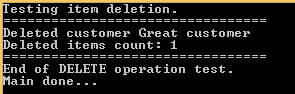
Testing DELETE through tester application

There you have it. We’ve built a starter Node.js application with the 4 basic web operations: GET, POST, PUT and DELETE. Hopefully this will be enough for you to start building your own Node.js project.

View all posts related to Node here.
Building a web service with Node.js in Visual Studio Part 10: testing GET actions

Introduction

In the previous post of this series we tested the insertion of new customers through a simple C# console application.

In this post we’ll extend our demo C# tester application to test GET actions.

We’ll be working on our demo application CustomerOrdersApi so have it ready in Visual Studio and let’s get to it.

Testing GET

We created our domain objects in the previous post with JSON-related attributes: Customer and Order. We’ll now use these objects to test the GET operations of the web service. We created a class called ApiTesterService to run the tests for us. Open that file and add the following two methods:

public List<Customer> GetAllCustomers()
{
	HttpRequestMessage getRequest = new HttpRequestMessage(HttpMethod.Get, new Uri("http://localhost:1337/customers"));
	getRequest.Headers.ExpectContinue = false;
	HttpClient httpClient = new HttpClient();
	httpClient.Timeout = new TimeSpan(0, 10, 0);
	Task<HttpResponseMessage> httpRequest = httpClient.SendAsync(getRequest,
			HttpCompletionOption.ResponseContentRead, CancellationToken.None);
	HttpResponseMessage httpResponse = httpRequest.Result;
	HttpStatusCode statusCode = httpResponse.StatusCode;
	HttpContent responseContent = httpResponse.Content;
	if (responseContent != null)
	{
		Task<String> stringContentsTask = responseContent.ReadAsStringAsync();
		String stringContents = stringContentsTask.Result;
		List<Customer> allCustomers = JsonConvert.DeserializeObject<List<Customer>>(stringContents);
		return allCustomers;
	}

	throw new IOException("Exception when retrieving all customers");
}

public Customer GetSpecificCustomer(String id)
{
	HttpRequestMessage getRequest = new HttpRequestMessage(HttpMethod.Get, new Uri("http://localhost:1337/customers/" + id));
	getRequest.Headers.ExpectContinue = false;
	HttpClient httpClient = new HttpClient();
	httpClient.Timeout = new TimeSpan(0, 10, 0);
	Task<HttpResponseMessage> httpRequest = httpClient.SendAsync(getRequest,
			HttpCompletionOption.ResponseContentRead, CancellationToken.None);
	HttpResponseMessage httpResponse = httpRequest.Result;
	HttpStatusCode statusCode = httpResponse.StatusCode;
	HttpContent responseContent = httpResponse.Content;
	if (responseContent != null)
	{
		Task<String> stringContentsTask = responseContent.ReadAsStringAsync();
		String stringContents = stringContentsTask.Result;
		List<Customer> customers = JsonConvert.DeserializeObject<List<Customer>>(stringContents);
		return customers[0];
	}
	throw new IOException("Exception when retrieving single customer.");
}

I know this is a lot of duplication but this will suffice for demo purposes. GetAllCustomers(), like the name implies will retrieve all customers from the Node.js web service. GetSpecificCustomer(string id) will retrieve a single customer by its ID. You may be wondering why we get a list of customers in GetSpecificCustomer. MongoDb will return all matching documents in an array. So if there’s only one matching document then it will be put into an array as well. Therefore we extract the first and only element from that list and return it from the function. We saw something similar in the previous post where we tested the POST operation: MongoDb responded with an array which included a single element, i.e. the one that was inserted.

So we’re testing the two GET endpoints of our Node.js service:

app.get("/customers" ...
app.get("/customers/:id" ...

We can call these methods from Program.cs through the following helper method:

private static void TestCustomerRetrieval()
{
	Console.WriteLine("Testing item retrieval.");
	Console.WriteLine("Retrieving all customers:");
	Console.WriteLine("=================================");
	ApiTesterService service = new ApiTesterService();
	try
	{
		List<Customer> allCustomers = service.GetAllCustomers();
		Console.WriteLine("Found {0} customers: ", allCustomers.Count);
		foreach (Customer c in allCustomers)
		{
			Console.WriteLine("Id: {0}, name: {1}, has {2} order(s).", c.Id, c.Name, c.Orders.Count);
			foreach (Order o in c.Orders)
			{
				Console.WriteLine("Item: {0}, price: {1}, quantity: {2}", o.Item, o.Price, o.Quantity);
			}
		}

		Console.WriteLine();
		Customer customer = SelectRandom(allCustomers);
		Console.WriteLine("Retrieving single customer with ID {0}.", customer.Id);
		Customer getById = service.GetSpecificCustomer(customer.Id);

		Console.WriteLine("Id: {0}, name: {1}, has {2} order(s).", getById.Id, getById.Name, getById.Orders.Count);
		foreach (Order o in getById.Orders)
		{
			Console.WriteLine("Item: {0}, prigetByIde: {1}, quantity: {2}", o.Item, o.Price, o.Quantity);
		}
	}
	catch (Exception ex)
	{
		Console.WriteLine("Exception caught while testing GET: {0}", ex.Message);
	}

	Console.WriteLine("=================================");
	Console.WriteLine("End of item retrieval tests.");
}

The above method first retrieves all customers from the service and prints some information about them: their IDs and orders. Then a customer is selected at random and we test the “get by id” functionality. Here’s the SelectRandom method:

private static Customer SelectRandom(List<Customer> allCustomers)
{
	Random random = new Random();
	int i = random.Next(0, allCustomers.Count);
	return allCustomers[i];
}

Call TestCustomerRetrieval from Main:

static void Main(string[] args)
{			
	TestCustomerUp();

	Console.WriteLine("Main done...");
	Console.ReadKey();
}

Start the application with F5. As the Node.js project is set as the startup project you’ll see it start in a browser as before. Do the following to start the tester console app:

  • Right-click it in Solution Explorer
  • Select Debug
  • Select Start new instance

If all goes well then you’ll see some customer information in the command window depending on what you’ve entered into the customers collection before:

testing GET through tester application

The web service responds with JSON similar to the following in the case of “get all customers”:

[{"_id":"544cbaf1da8014d9145c85e7","name":"Donald Duck","orders":[]},{"_id":"544cb61fda8014d9145c85e6","name":"Great customer","orders":[{"item":"Book","quantity":2,"itemPrice":10},{"item":"Car","quantity":1,"itemPrice":2000}]},{"_id":"546b56f1b8fd6abc122cc8ff","name":"hello","orders":[]}]

…and here’s the raw response body of “get by id”:

[{"_id":"544cbaf1da8014d9145c85e7","name":"Donald Duck","orders":[]}]

Note that this JSON is also an array even so we’ll need to read the first element from the customers list in the GetSpecificCustomer function as noted above.

In the next post, which will finish this series, we’ll take a look at updates and deletions, i.e. the PUT and DELETE operations.

View all posts related to Node here.
Building a web service with Node.js in Visual Studio Part 9: testing POST actions

Introduction

In the previous post we extended the service and repository to handle GET requests. We also managed to connect to the local MongoDb database. We can read all customers from the customers collection and we can also search by ID.

In this post we’ll set up a little test application that will call the Node.js service. We’ll also see how to insert a new customer in the database.

POST operations

Inserting a new resource is generally performed either via PUT or POST operations. Here we’ll adapt the following convention:

  • POST: insert a new resource
  • PUT: update an existing resource

We’ll build up the insertion logic from the bottom up, i.e. we’ll start with the repository. Open the CustomerOrdersApi demo application and locate customerRepository.js. Add the following module.exports statement to expose the insertion function:

module.exports.insertBrandNew = function (customerName, next) {
    databaseAccess.getDbHandle(function (err, db) {
        if (err) {
            next(err, null);
        }
        else {
            //check for existence of customer name
            var collection = db.collection("customers");
            collection.find({ 'name': customerName }).count(function (err, count) {
                if (err) {
                    next(err, null);
                }
                else {
                    if (count > 0) {
                        err = "Customer with this name already exists";
                        next(err, null);
                    }
                    else {
                        //insert new customer with empty orders array
                        var newCustomer = {
                            name : customerName
                            , orders : []
                        };
                        collection.insert(newCustomer, function (err, result) {
                            if (err) {
                                next(err, null);
                            }
                            else {
                                next(null, result);
                            }
                        });                        
                    }
                }
            });
        }
    });

Let’s go through this function step by step. The function accepts the “next” callback which we’re familiar with by now. It also accepts a parameter to hold the name of the new customer. The idea is that we’ll enter a new customer with an empty orders array so there’s no parameter for the orders.

You’ll recognise the top section of the function body, i.e. where we get hold of the database. If that process generates an error then we return it. Otherwise we continue with checking if there’s a customer with that name. We don’t want to enter duplicates so we check for the existence of the customer name first. The “count” function which also accepts a callback will populate the “count” parameter with the number of customers found by customerName. If “count” is larger than 0 then we return an error. Otherwise we construct a new customer object and insert it into the customers collection. The “insert” function accepts the customer object in JSON format and of course a callback with any error and result parameters. The “result” parameter in this case will hold the new customer we inserted into the database in case there were no exceptions. We return that object to the caller using the “next” callback.

customerService.js will also be extended accordingly. Add the following function to that file:

module.exports.insertNewCustomer = function (customerName, next) {
    if (!customerName) {
        var err = "Missing customer name property";
        next(err, null);
    }
    else {
        customerRepository.insertBrandNew(customerName, function (err, res) {
            if (err) {
                next(err, null);
            }
            else {
                next(null, res);
            }
        });
    }
};

We check if customerName is null. If not then we call upon the repository. index.js in the services folder will be extended as well with a new function:

module.exports.insertNewCustomer = function (customerName, next) {
    customerService.insertNewCustomer(customerName, function (err, res) {
        if (err) {
            next(err, null);
        }
        else {
            next(null, res);
        }
    });
};

Finally, we need to add a new route to the customersController.js:

app.post("/customers", function(req, res) {
        var customerName = req.body.customerName;
        customerService.insertNewCustomer(customerName, function (err, newCustomer) {
            if (err) {
                res.status(400).send(err);
            }
            else {
                res.set('Content-Type', 'application/json');
                res.status(201).send(newCustomer);
            }
        });

    });

POST actions are handled through the “post” method, just like GET actions are handled by “get”. We’ll need to POST to the “/customers” endpoint and send in the customer name in the request body. The request body can be retrieved using the “body” property of the request object. If the request body is JSON formatted then the individual JSON properties can be extracted like shown in the example. We then call upon the appropriate function in customerService. In case the customer was inserted we respond with HTTP 201, i.e. “Created” and return the new object in the response.

There’s one more thing we need to do. If we tested this code like it is now then req.body would be void or “undefined”. We need to add another middleware from npm to make the request body readable. Right-click “npm” and insert the following node.js middleware called “body-parser”:

body-parser middleware in NPM

We’ll need to reference this package in server.js as follows:

var http = require('http');
var express = require('express');
var controllers = require('./controllers');
var bodyParser = require('body-parser')

var app = express();
app.use(bodyParser.urlencoded({ extended: false }))
app.use(bodyParser.json())

controllers.start(app);

var port = process.env.port || 1337;
http.createServer(app).listen(port);

Testing with code

Let’s test what we have so far from a simple .NET application. Add a new C# Console application to the solution and call it ApiTester. Add references to the following libraries:

  • System.Net
  • System.Net.Http

These are necessary to make HTTP calls to the Node.js web service. We’ll be communicating a lot using JSON strings so add the following JSON package through NuGet:

json.net nuget

Next we’ll insert two C# classes that represent our thin domain layer, Customer and Order:

public class Customer
{
	[JsonProperty(PropertyName = "_id")]
	public String Id { get; set; }
	[JsonProperty(PropertyName="name")]
	public String Name { get; set; }
	[JsonProperty(PropertyName="orders")]
	public List<Order> Orders { get; set; }
}
public class Order
{
	[JsonProperty(PropertyName = "item")]
	public string Item { get; set; }
	[JsonProperty(PropertyName = "quantity")]
	public int Quantity { get; set; }
	[JsonProperty(PropertyName = "itemPrice")]
	public decimal Price { get; set; }
}

The JsonProperty attributes indicate the name of the JSON property that will be mapped against the C# object property. This mapping is necessary otherwise when we read the Customer objects from the service then properties in the JSON response must be translated into the properties of our domain objects.

Next add a new class called ApiTestService to the console app. Insert the following method to it that will call the Node.js web service to insert a new customer:

public Customer TestCustomerCreation(String customerName)
{
	HttpRequestMessage postRequest = new HttpRequestMessage(HttpMethod.Post, new Uri("http://localhost:1337/customers/"));
	postRequest.Headers.ExpectContinue = false;
	InsertCustomerRequest req = new InsertCustomerRequest() { CustomerName = customerName };
        string jsonBody = JsonConvert.SerializeObject(req);
	postRequest.Content = new StringContent(jsonBody, Encoding.UTF8, "application/json");
	HttpClient httpClient = new HttpClient();
	httpClient.Timeout = new TimeSpan(0, 10, 0);
	Task<HttpResponseMessage> httpRequest = httpClient.SendAsync(postRequest,
			HttpCompletionOption.ResponseContentRead, CancellationToken.None);
	HttpResponseMessage httpResponse = httpRequest.Result;
	HttpStatusCode statusCode = httpResponse.StatusCode;

	HttpContent responseContent = httpResponse.Content;
	if (responseContent != null)
	{
		Task<String> stringContentsTask = responseContent.ReadAsStringAsync();
		String stringContents = stringContentsTask.Result;
		if (statusCode == HttpStatusCode.Created)
		{
			List<Customer> customers = JsonConvert.DeserializeObject<List<Customer>>(stringContents);
			return customers[0];
		}
		else
		{
			throw new Exception(string.Format("No customer created: {0}", stringContents));
		}
	}
	throw new Exception("No customer created");
}

Note that you may need to change the port number in the URI if you have something different. We call the web service and send in our customer creation request as JSON in the request body. We then check the response message. If the response code is 201, i.e. Created then we translate the JSON string into a list of customers – MongoDb will respond with an array and it will include a single element. We extract the first and only element from the list and return it from the function. Otherwise we throw an exception. InsertCustomerRequest is just a data transfer object to convey our message:

public class InsertCustomerRequest
{
	[JsonProperty(PropertyName="customerName")]
	public String CustomerName { get; set; }
}

We set the JSON property name to “customerName” so that the web service will find it through req.body.customerService as we saw above.

Insert the following method to Program.cs:

private static void TestCustomerInsertion()
{
	Console.Write("Customer name: ");
	string customerName = Console.ReadLine();
	ApiTesterService service = new ApiTesterService();
	try
	{
		Customer customer = service.TestCustomerCreation(customerName);
		if (customer != null)
		{
			Console.WriteLine("New customer id: {0}", customer.Id);
		}
	}
	catch (Exception ex)
	{
		Console.WriteLine(ex.Message);
	}
}

This is very basic: we enter a customer name and print out the ID of the new customer or the exception that was thrown. Call this method from Main:

static void Main(string[] args)
{			
	TestCustomerInsertion();
	Console.WriteLine("Main done...");
	Console.ReadKey();
}

Start the application with F5. As the Node.js project is set as the startup project you’ll see it start in a browser as before. Do the following to start the tester console app:

  • Right-click it in Solution Explorer
  • Select Debug
  • Select Start new instance

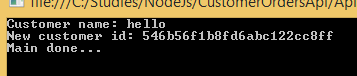
Enter a customer name when prompted. If all goes well then you’ll get the ID of the new customer in MongoDb:

New customer added Id output from MongoDb

Test again with the same name, it should fail:

No customer created error message from nodejs

In the next post we’ll extend our test application to call the GET endpoints of the web service.

View all posts related to Node here.

Building a web service with Node.js in Visual Studio Part 8: connecting to MongoDb

Introduction

In the previous post we gave some structure to our Node.js project by way of a service and a repository. We also discussed the role of callbacks in asynchronous code execution, i.e. the “next” parameter. However, we still return some hard-coded JSON to all queries. It’s time to connect to the MongDb database we set up in part 2. The goal of this post is to replace the following code…

module.exports.getAll = function () {
    return { name: "Great Customer", orders: "none yet" };
};

module.exports.getById = function (customerId) {
    return { name: "Great Customer with id " + customerId, orders: "none yet" }
};

…with real DB access code.

In addition, we’ll operate with callbacks all the way from the controller to the repository. It might be overkill for this small demo project but I wanted to demonstrate something that’s similar to the await-async paradigm in .NET. If you’ve worked with the await-async keywords in .NET then you’ll know that once you decorate a method with “async” then the caller of that method will be “async” as well, and so on all the way up on the call stack.

MongoDb driver

There’s no built-in library in Node to access data in a database. There’s however a number of drivers available for download through the Node Package Manager. Keep in mind that we’re still dealing with JSON objects so forget the mapping convenience you’ve got used to while working with Entity Framework in a .NET project. Some would on the other hand say that this is actually a benefit because we can work with data in a raw format without the level of abstraction imposed by an object relational mapper. So whether or not this is a (dis)advantage depends on your preferences.

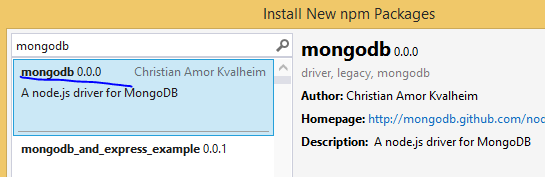
We’ll go for a simplistic driver for MongoDb which allows us to interact with the database at a low level, much like we did through the command line interface in parts 2 and 3 of this series. Open the project we’ve been working on and right-click npm. Select the driver called “mongodb”:

MongoDb driver for NodeJs

The central access

Add a new file called “access.js” to the repositories folder. Insert the following code in the file:

var mongoDb = require('mongodb');
var connectionString = "mongodb://localhost:27017/customers";
var database = null;

module.exports.getDbHandle = function (next) {
    if (!database) {
        mongoDb.MongoClient.connect(connectionString, function (err, db) {
            if (err) {
                next(err, null);
            }
            else {
                database = db;
                next(null, database);
            }
        });
    }
    else {
        next(null, database);
    }
};

The purpose of this file is to provide universal access to our MongoDb database to all our repositories. We first declare the following:

  • We import the mongodb library
  • We declare the connection string which includes the name of our database, i.e. “customers”
  • We set up a field that will be a reference to the database

The getDbHandle function accepts a callback function called “next” which we’re familiar with by now. We then check if the “database” field is null – we don’t want to re-open the database every time we need something, MongoDb handles connection pooling automatically. If “database” has been set then we simply return it using the “next” callback and pass in null for the exception.

Otherwise we use the “connect” function of the mongodb library to connect to the database using the connection string and a callback. The connect function will populate the “err” parameter with any error during the operation and the “db” parameter with a handle to the database. As we saw before we call the “next” callback with the error if there’s one otherwise we set our “database” field and pass it back to the “next” callback.

The new customer repository

The updated customer repository – customerRepository.js – looks as follows:

var databaseAccess = require('./access');

module.exports.getAll = function (next) {
    databaseAccess.getDbHandle(function (err, db) {
        if (err) {
            next(err, null);
        }
        else {
            db.collection("customers").find().toArray(function (err, res) {
                if (err) {
                    next(err, null);
                }
                else {
                    next(null, res);
                }
            });
        }
    });
};

module.exports.getById = function (customerId, next) {
    databaseAccess.getDbHandle(function (err, db) {
        if (err) {
            next(err, null);
        }
        else {
            var mongoDb = require('mongodb');
            var BSON = mongoDb.BSONPure;
            var objectId = new BSON.ObjectID(customerId);
            db.collection("customers").find({ '_id': objectId }).toArray(function (err, res) {
                if (err) {
                    next(err, null);
                }
                else {
                    next(null, res);
                }
            });
        }
    });
};

We import access.js to get access to the DB handle. The getAll function accepts a “next” callback and calls upon getDbHandle we’ve seen above. If there’s an error while opening the database we populate the error field of “next” and pass “null” as the result. Otherwise we can go on and query the database. We need to reference the “customers” collection within the database. Our goal is to find all customers and from part 2 of this series we know that the “find()” function with no parameters will do just that. So we call find(). We’re not done as we need to turn it into an array which also accepts a callback with the usual signature: error and result. As usual, if there’s an error, we call next with error and null otherwise we set null as the error and pass the result. If all went well then “res” will include all customers as JSON.

The getById function follows the same setup. Part 2, referred to above, showed how to pass a query to the find() method so this should be familiar. The only somewhat complex thing is that we need to turn the incoming “customerId” string parameter into an ObjectId object which MongoDb understands. We then pass the converted object id as the search parameter of the “_id” field.

Calling the repository from the service

The updated customerService code follows the same callback passing paradigm as we saw above:

var customerRepository = require('../repositories/customerRepository');

module.exports.getAllCustomers = function (next) {
    customerRepository.getAll(function (err, res) {
        if (err) {
            next(err, null);
        }
        else {
            next(null, res);
        }
    });
};

module.exports.getCustomerById = function (customerId, next) {
    customerRepository.getById(customerId, function (err, res) {
        if (err) {
            next(err, null);
        }
        else {
            next(null, res);
        }
    });
};

This doesn’t add much functionality to the service apart from calling the repository. Later on when we have the POST/PUT/DELETE functions in place we’ll be able to add validation rules.

index.js in the services folder will be updated accordingly:

var customerService = require('./customerService');

module.exports.getAllCustomers = function (next) {
    customerService.getAllCustomers(function (err, res) {
        if (err) {
            next(err, null);
        }
        else {
            next(null, res);
        }
    });
};

module.exports.getCustomerById = function (id, next) {
    customerService.getCustomerById(id, function (err, res) {
        if (err) {
            next(err, null);
        }
        else {
            next(null, res);
        }
    });
};

Updating the controller

Finally, we’ll extend the controller function to respond with a 400 in case of an error:

var customerService = require('../services');

module.exports.start = function (app) {
    app.get("/customers", function (req, res) {
        
        customerService.getAllCustomers(function (err, customers) {
            if (err) {
                res.status(400).send(err);
            }
            else {
                res.set('Content-Type', 'application/json');
                res.status(200).send(customers);
            }
        });
    });
    
    app.get("/customers/:id", function (req, res) {
        
        var customerId = req.params.id;        
        customerService.getCustomerById(customerId, function (err, customer) {
            if (err) {
                res.status(400).send(err);
            }
            else {
                res.set('Content-Type', 'application/json');
                res.status(200).send(customer);
            }
        });
        
    });
};

Note that we set the status code using the “status” function and the response body using the “send” function. In a real project you’d probably refine the response codes further but this will be fine for demo purposes.

Test

Run the application and navigate to /customers. Depending on how closely you followed part 2 and 3 of this series you can have different responses from the database. In my case I got the following:

[  
   {  
      "_id":"544cbaf1da8014d9145c85e7",
      "name":"Donald Duck",
      "orders":[  

      ]
   },
   {  
      "_id":"544cb61fda8014d9145c85e6",
      "name":"Great customer",
      "orders":[  
         {  
            "item":"Book",
            "quantity":2,
            "itemPrice":10
         },
         {  
            "item":"Car",
            "quantity":1,
            "itemPrice":2000
         }
      ]
   }
]

Copy the _id field and enter it as /customers/[id] in the browser, e.g. /customers/544cb61fda8014d9145c85e6 in the above case. The browser shows the following output:

[  
   {  
      "_id":"544cb61fda8014d9145c85e6",
      "name":"Great customer",
      "orders":[  
         {  
            "item":"Book",
            "quantity":2,
            "itemPrice":10
         },
         {  
            "item":"Car",
            "quantity":1,
            "itemPrice":2000
         }
      ]
   }
]

Great, we have the findAll and findById functionality in place.

We’ll continue with insertions in the next post.

View all posts related to Node here.

Building a web service with Node.js in Visual Studio Part 3: MongoDb basics cont’d

Introduction

In the previous post we set up MongoDb and looked at the basics of querying against a MongoDb database. We also inserted a couple of customer objects with empty order arrays. Therefore we are familiar with the basics of insertions and querying in MongoDb.

In this post we’ll look at how to perform updates and deletions. Connect to the MongoDb through a command line like we saw in the previous post and get ready for some JavaScript.

Updates

Reference: modifying documents.

In case we’d like to update the name of a customer we can do it as follows using the $set operator:

db.customers.update({name: "Mickey Mouse"}, {$set: {name: "Pluto"}})

This will change the customer name “Mickey Mouse” to “Pluto”. If everything went fine then you’ll get a WriteResult statement in the command prompt with fields like nMatched: 1, nUpserted: 0, nModified: 1. You can probably guess that nMatched means the update operation found one matching documents. nModified means the number of documents modified. nUpserted is a mix of “updated” and “inserted”. An upsert is an update operation where a new document is inserted if there are no matching ones.

Read through the reference material above – it’s not long – and note the following:

  • An update operation will by default only update the first matching document – you can override this with the multi flag
  • By default no upsert will be performed in case the search doesn’t result in any document – you can override this with the upsert flag

Updating the orders array of a customer is very similar:

db.customers.update({name: "Great customer"}, {$set: {orders: [{"item": "Book",	"quantity": 2,	"itemPrice": 10  }, {"item": "Car",	"quantity": 1,	"itemPrice": 2000  }]}})

This will update the “orders” property of the customer whose name is “Great customer”. Note that this statement will update the customer’s orders and overwrite any existing orders array, much like the the UPDATE statement in SQL. How can we then insert a new item to an existing orders array? The $push operator comes to the rescue:

db.customers.update({name: "Great customer"}, {$push: {orders: {"item": "Pen",	"quantity": 5,	"itemPrice": 2  }}})

Deletions

Reference: removing documents.

To remove all customers with the name Pluto execute the following command:

db.customers.remove({name: "Pluto"})

The console output will show in a property called nRemoved how many matching documents were removed.

If you only want to remove the first matching document then indicate it in an index parameter:

db.customers.remove({name: "Mickey Mouse"}, 1)

What if you’d like to remove an item from the orders array? You cannot do that with the remove statement. After all it’s not really a deletion of a customer element but an update of a nested array. The $pull operator will perform what we’re after:

db.customers.update({name: "Great customer"}, {$pull: {orders: {item: "Pen"} } })

This will remove the first element in the orders array of “Great customer” whose item name is “Pen”. If you’d like to remove all array elements with item name “Pen” then use the multi flag:

db.customers.update({name: "Great customer"}, {$pull: {orders: {item: "Pen"} } }, {multi: true})

This should suffice for now. It’s good practice to test some queries based on the MongoDb reference manual. Most of it can be directly used in Node.js as we’ll see later.

In the next post we’ll discuss the basics of a Node.js application.

View all posts related to Node here.
Building a web service with Node.js in Visual Studio Part 2: MongoDb basics

Introduction

In the previous post we outlined the goals of this series and discussed the basics of Node.js. In this post we’ll start from the very back of our service and set up the storage, namely the document-based MongoDb. There’s another series on this blog devoted to MongoDb in .NET. If you’ve never worked with MongoDb then I encourage you to read at least the first 2 parts in that series to get the overall idea. Make sure you understand the basic terminology of MongoDb, such as documents, BSON, collections and how objects are stored in documents.

For the sake of this demo we’ll look at JS and Json in MongoDb in some more detail. The series referred to above doesn’t look at interacting with the MongoDb database directly, only through the MongoDb C# driver which hides those details from us. E.g. it is possible to interact with an SQL Server database from a .NET application without writing a single line of SQL if you go through e.g. LINQ to Entities or LINQ to SQL. The details of opening and querying the database are abstracted away behind the database object context and LINQ statements.

This is, however, not the case with Node.js. There’s no LINQ to Node, or a Node.js driver for MongoDb or anything similar – not that I know of at least. We’ll later see a Node.js package which enables us to open the connection to MongoDb and send CRUD instructions to it but much of the syntax, especially in the case of filtering queries, will be the same as the bare-bones queries you send directly to MongoDb from the MongoDb console. So it is in fact some kind of Node.js driver for MongoDb but it doesn’t provide the same services as the C# driver in a .NET project. Therefore if you’re a staunch believer of relational databases and love using tools such as MS SQL management studio then you’ll need to take a deep breath and dive into the unknown 🙂 You’ll need to be familiar with a new query language designed for MongoDb. Don’t worry, the basics are not complex at all and there’s a lot of help on the MongoDb homepage and the language reference pages:

…and a whole lot more. These pages, especially the Reference manual will be good sources as you try to construct your queries.

This and the next post will be dedicated to MongoDb JavaScript and JSON syntax. This lays the foundations for the “real” stuff, i.e. when we interact with MongoDb through the web service interface. We’ll revisit many of these statements there.

Why MongoDb?

It is certainly possible to establish a connection to relational databases, like MS SQL or Oracle from Node.js but that’s not the norm. If a project already uses one of those and you need to build a Node.js module on top of it then you’ll need to work with it anyway. It’s, however, seldom the case that a brand new Node.js project will pick a relational database as its backup store. You’ll see that Node.js and document databases go hand in hand in practice. That is a more straightforward choice due to the extensive usage of JavaScript and JSON in Node.js and MongoDb. Also, it’s trivial to set up MongoDb on a database machine, you’re literally done in a couple of minutes. It is not the same hassle as setting up the more complex relational database applications like MS SQL. Also, Node.js is free and open-source, hence it’s more natural to pick a free and open-source database to accompany it.

Setup

Go through the first two pages in the MongoDb series referred to above. Make sure that you have MongoDb running as a service at the end of the process:

MongoDb running as a service

MongoDb CRUD operations

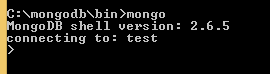
Connect to the MongoDb database by running mongo.exe in a command prompt. Make sure you navigate to the bin folder of the MongoDb installation folder. In my case this is c:\mongodb\bin:

MongoDb connecting to database

You’ll connect to the default “test” database upon the first connect. Note that connecting to a database doesn’t necessarily mean that the database exists – it won’t exist until you insert the first collection into it.

Type “show dbs” to list the databases. You’ll probably not see “test” among them. You can switch to another database with “use [database name]”, but again, the database won’t be created at first.

In the demo we’ll be working with customers and orders. In a relational database you’d probably create 2 or more tables to store customers and orders and order items and link them with secondary keys. Although you could solve it in a similar manner in a document database it’s better to think of collections as hierarchical representations of your objects. You store the customer and the orders in the same document, adhering to OOP principles.

Let’s look at an example. A customer and its orders can be represented in a JSON string as follows:

{
  "name": "Great customer",
  "orders": [{
	"item": "Book",
	"quantity": 2,
	"itemPrice": 10
  }, {
	"item": "Car",
	"quantity": 1,
	"itemPrice": 2000
  }]
}

Let’s first add “Great customer” to MongoDb. Switch to the customers context by running “use customers” in the MongoDb command prompt and then enter the following command:

db.customers.insert({name: "Great customer", orders: []})

If everything went OK then you’ll see something like “WriteResult…” and nInserted: 1 as a response.

Note that we inserted a new customer with an empty orders array. We will see this pattern later in the demo where we insert new customers through the web service. Another interesting detail is that you don’t need to put quotation marks around the property names: name vs. “name”, orders vs “orders” in the MongoDb JSON.

Let’s see if the object has really been inserted. Enter the following “find” command without parameters:

db.customers.find()

The “find” command with no parameters will select all elements from a collection. The output will be similar to the following:

{ "_id" : ObjectId("544cb61fda8014d9145c85e6"), "name" : "Great customer", "orders" : [ ] }

You’ll recognise “name” and “orders” but “_id” is new. If you haven’t specified an ID field then MongoDb will assign its own ID of type ObjectId to each new object with the property name “_id”. ObjectId is an internal type within MongoDb. You can specify an ID yourself but it’s your responsibility to make it unique, e.g.:

db.customers.insert({_id: 10, name: "Great customer", orders: []})

If there’s already an entry with id 10 then you’ll get an exception.

Let’s insert 2 more new customers:

db.customers.insert({name: "Donald Duck", orders: []})
db.customers.insert({name: "Mickey Mouse", orders: []})

Run the “find” command to make sure we have 3 customers in the customers collection.

You can search by customer name by adding a JSON-like query to the find method:

db.customers.find({name: "Donald Duck"})

Here’s the equivalent of the SQL “IN” clause to provide a range of values to the SELECT WHERE clause:

db.customers.find({name: { $in: ["Donald Duck", "Mickey Mouse"]}})

There’s a whole range of operators in MongoDb prefixed with the “$” character.

You can negate the statements using the $not operator:

db.customers.find({name: {$not: { $in: ["Donald Duck", "Mickey Mouse"]}}})

The above statement will return Great Customer, i.e. all customers whose name is not listed in the provided string array.

You can limit the returned fields by switching them on and off in a second JSON parameter. E.g. if you only wish to look at the ID of a customer then you can switch off “name” and “orders”:

db.customers.find({name: "Donald Duck"}, {name: 0, orders: 0})

We switch off “name” and “orders” by assigning 0 to them in the second JSON parameter. The _id field will be returned by default. If you’d like to view the orders only then enter the following command:

db.customers.find({name: "Donald Duck"}, {name: 0, _id: 0})

All fields that were NOT switched off by “0” in the selection parameter will be returned, in this case an empty array: “orders” : [].

The below query returns all customers who have not ordered anything yet, i.e. whose “orders” array is of size 0:

db.customers.find({orders: {$size: 0}})

If, however, you’d like to return all customers who have ordered at least 1 product, i.e. whose order array exceeds size 0 then you may test with the $gt, i.e. greater-than operator:

db.customers.find({orders: {$size: {$gt : 0}}})

…except that you’ll get an exception that $size is expecting a number. I’m not sure why this is the case and why it was implemented like this but the following statement with the $where operator will do the job:

db.customers.find({$where:"this.orders.length > 0"})

$where accepts a JavaScript command and we want to return items whose “orders.length” property is greater than 0. In fact the $size: 0 can be rewritten as follows:

db.customers.find({$where:"this.orders.length == 0"})

Note that this solution assumes that every element in the collection has an “orders” field. However, as you can store unstructured objects in a collection it’s not guaranteed that every customer will have an “orders” field. Say that in the beginning of the project you initialised each new customer like this:

db.customers.insert({name: "Donald Duck"})

In this case the above solution will throw an exception as “Donald Duck” has no “orders” field. To make sure this is not the case you can combine $where with $exists:

db.customers.find( {orders : {$exists:true}, $where:'this.orders.length>3'} )

We cannot go through all possible query examples here but this should be enough for starters. You can always consult the reference material mentioned in the introduction as you’re refining your queries. You can test your queries in the MongoDb command prompt like we did above to make sure they work as expected and to see how the result set is structured.

In the next post we’ll look at updates and deletions.

View all posts related to Node here.
MongoDB in .NET part 10: other file operations

Introduction

In the previous post on MongoDb we talked about inserting files to GridFS and linking them to a Car object. In this post we’ll look at how to read, delete and update a file.

We’ll build on the CarRental demo project we’ve been working on, so have it ready in Visual Studio.

Reading a file

The primary way of reading a file with the C# driver of MongoDb is the Download method of MongoGridFS and its numerous overloads. With Download you can extract the contents of a file to a stream or to the local file system. With the MongoGridFS.Open method you can put the contents of a file to a Stream but you can only locate the file by file name. There are also the MongoGridFS.Find methods – Find, FindOne, FindAll, FindOneById which allows you to find metadata on a file and indirectly open the contents of the file through the MongoGridFSFileInfo object that the Find methods return. MongoGridFSFileInfo has methods to open a file: Open, OpenRead and OpenText. The Find method lets you search for a specific file using an IMongoQuery object. These Find methods are very much the same as what we saw in the post on querying documents.

Deleting and updating a file

Deletes and updates are handled under the same section as there’s no separate update method. An update means first removing a file and then inserting a new one instead.

Demo

Let’s show the image associated with the Car object on Image.cshtml if one exists. We’ll need a helper method on the CarViewModel object to determine whether it has an image. Add the following property to CarViewModel.cs:

public bool HasImage
{
	get
	{
		return !string.IsNullOrEmpty(ImageId);
	}
}

We’ll retrieve the Image from a controller action. Add a new Controller to the Controllers folder called ImagesController. Select the Empty MVC Controller template type. Make it derive from BaseController and insert an Image action method:

public class ImagesController : BaseController
{        
        public ActionResult Image(string imageId)
        {
		MongoGridFSFileInfo imageFileInfo = CarRentalContext.CarRentalDatabase.GridFS.FindOneById(new ObjectId(imageId));
		return File(imageFileInfo.OpenRead(), imageFileInfo.ContentType);
        }
}

The last missing piece is to extend Image.cshtml to show the image. Add the following markup just below the closing brace of the Html.BeginForm statement:

@if (Model.HasImage)
{
	<img src="@Url.Action("Image", "Images", new { imageId = @Model.ImageId})" />
}

Run the application, navigate to /cars and click on the Image link of a Car which has a valid image file. If everything’s gone fine then you should see the associated image:

Show car image from GridFS

In case you’re wondering: that’s right, I uploaded the Windows logo from the background of my computer as the car image. It doesn’t make any difference what image you’ve associated with the Car, the main thing is that it’s shown correctly.

Deleting and updating a file

As hinted above, there’s no separate update function for files. Therefore files are updated in two steps: delete the existing one and insert a new one instead. We’ve already seen how to insert a file and link it to an object, so we only need to consider deletions in this section.

Deletions are performed with the Delete function and its overloads: delete by a query, delete by file name and delete by id. You can also delete a file by its MongoGridFSFileInfo wrapper, an instance of which we’ve seen above.

If you use the Delete(IMongoQuery) overload then all files will be deleted one by one that match the search criteria, i.e. the matching files are not deleted in an atomic operation.

We’ll extend our demo app as follows: when an image is uploaded then we check if the Car already has one. If so, then the image is replaced. Otherwise we’ll upload the file like we saw in the previous post.

Insert the following method to CarsController:

private void DeleteCarImage(Car car)
{
	CarRentalContext.CarRentalDatabase.GridFS.DeleteById(car.ImageId);
	car.ImageId = string.Empty;
	CarRentalContext.Cars.Save(car);
}

We first delete the image by its ID. Then we need to set the ImageID property of the car to an empty string as there’s no automatic mechanism that can determine that the image of a Car has been deleted and update the ImageId property. Lastly we save the Car object.

We can call this function in an extended version of POST Image:

[HttpPost]
public ActionResult Image(string id, HttpPostedFileBase file)
{
	Car car = CarRentalContext.Cars.FindOneById(new ObjectId(id));
	if (!string.IsNullOrEmpty(car.ImageId))
	{
		DeleteCarImage(car);
	}
	AttachImageToCar(file, car);
	return RedirectToAction("Index");
}

That’s it. Run the app as usual and try to replace an image attached to a Car, it should go fine.

Other interesting operations

The MongoGridFS and MongoGridFSFileInfo objects have a MoveTo function. They don’t actually move anything, they set the file name metadata field to a different value. If you want to duplicate a file, then call the CopyTo method that’s available on each object.

You can also modify the metadata of a file through the SetMetada method of MongoGridFS.

The end

This was the last post in the series on MongoDb in .NET. There’s of course loads more to look at but we’d need a book to cover all aspects. However, this should be enough for you to start coding and explore MongoDb in further detail on your own.

View the posts related to data storage here.

MongoDB in .NET part 9: storing files

Introduction

In the previous post we looked at a couple of query techniques in the MongoDb C# driver. Before that in this series we saw how to store, update, delete and query “usual” objects like Car. Storing files, such as a PDF or Word file, on the other hand is a different matter. They take up a lot of space in the data store and require special data types to store the bytes.

In this post we’ll look at how files can be stored in MongoDb using its GridFS technology. GridFS stores files in MongoDb documents just like normal objects. However, it stores the file contents in chunks of 256KB. Each chunk is stored in a MongoDb document. Recall that a single MongoDocument can store 16MB of data. Below 16MB you can still opt for storing the byte array contents of a file in a single MongoDb document but for consistency you probably should store all your files in GridFS. GridFS also stores the file metadata in a separate MongoDocument with appropriate links to the constituent chunks.

GridFS is similar to a file system such as the Windows file directory. However, it is independent of the platform it’s running on, i.e. GridFS is not constrained by any limitations of the file system of the OS.

Also, as each chunk is stored in a MongoDb document, GridFS prepares the way for content replication in a Replica Set scenario.

Atomic operations are not available for files in GridFS. You cannot locate and update a file in a single step. Also, the only way to update a file is by replacing an existing one. You cannot send an Update document to the Mongo server to update a small part of a file. So GridFS is probably a good option for files that don’t change too often.

GridFS in the C# driver

GridFS is represented by the GridFS property of MongoDatabase. The GridFS instance with the default settings can be reached in our demo CarRental demo as follows:

MongoGridFS gridFsDefault = CarRentalContext.CarRentalDatabase.GridFS;

You can use the GetGridFS method of MongoDatabase to override the default settings:

MongoGridFSSettings gridFsSettings = new MongoGridFSSettings();
gridFsSettings.ChunkSize = 1024;
MongoGridFS gridFsCustom = CarRentalContext.CarRentalDatabase.GetGridFS(gridFsSettings);

The files can be retrieved using the Files property of MongoGridFS. By default it returns a collection of BsonDocuments but it can be serialised into MongoGridFSFileInfo objects. They allow us to easily extract the metadata about a file in an object oriented way: file name, size in bytes, date uploaded, content type etc. As the files stored in GridFS are independent of the local file system many of these properties can be provided by the user, such as the file name or a list of aliases.

If you ever wish to view individual chunks of a file then you can retrieve them using the Chunks property:

MongoCollection<BsonDocument> chunks = gridFsDefault.Chunks;

These cannot be serialised into any strongly types object yet. Each BsonDocument has a files_id field by which you can identify the chunks belonging to a single file. You can get the file id from the MongoGridFSFileInfo object. You can put the chunks into the right order using the numeric ‘n’ field which denotes the place of a chunk in the sequence. The binary data can be extracted using the ‘data’ field.

We can upload files using one of the overloaded Upload functions of MongoGridFS. One such overload allows us to specify a Stream, a remote file name – to change the file name representation in the metadata – and a MongoGridFSCreateOptions object. This last parameter will let us further define the options for uploading a single file: a list of aliases, chunk size, content type, custom metadata, upload date and an id. The Upload function returns a MongoGridFSFileInfo object.

Another way to upload files is to use the Create and CreateText methods of MongoDatabase.

Demo

We’ll extend our CarRental demo. The first goal is to be able to upload an image linked to a Car. Locate Index.cshtml in the Views/Cars folder. It contains a set of links for each Car entry: Edit, Details and Delete. Add the Image action link to that list:

<td>
        @Html.ActionLink("Edit", "Edit", new { id=item.Id }) |
        @Html.ActionLink("Details", "Details", new { id=item.Id }) |
        @Html.ActionLink("Delete", "Delete", new { id=item.Id }) |
       	@Html.ActionLink("Image", "Image", new { id=item.Id })
</td>

Add the following method to CarsController.cs:

public ActionResult Image(string id)
{
	Car car = CarRentalContext.Cars.FindOneById(new ObjectId(id));
	return View(car.ConvertToViewModel());
}

Right-click “Image” and select Add View…:

Add car rental image view

You’ll get an empty cshtml file. We’ll fill it out in a little bit. We’ll certainly need a POST action in CarsController that accepts the posted file and the Car id. Also, we’ll need a property on the Car object to store the image id. OK, let’s start from the bottom. Add the following property to Car:

public string ImageId { get; set; }

Add it to CarViewModel.cs as well:

[Display(Name = "Image ID")]
public string ImageId { get; set; }

We won’t yet see the image itself until the next post so we’ll only show the image id first. Locate ConvertToViewModel in DomainExtensions.cs and add the new property to the conversion:

CarViewModel carViewModel = new CarViewModel()
{
	Id = carDomain.Id
	, DailyRentalFee = carDomain.DailyRentalFee
	, Make = carDomain.Make
	, NumberOfDoors = carDomain.NumberOfDoors
	, ImageId = carDomain.ImageId
};

In Views/Cars/Index.cshtml we’ll extend the table to view the image IDs:

...
<th>
	@Html.DisplayNameFor(model => model.ImageId)
</th>
...

<td>
	@Html.DisplayFor(modelItem => item.ImageId)
</td>

...

Run the application to test if it’s still working. The image IDs will be empty of course in the Cars table. Click the Image link to see if it leads us to the empty Image view.

In CarsController add the following private method:

private void AttachImageToCar(HttpPostedFileBase file, Car car)
{
	ObjectId imageId = ObjectId.GenerateNewId();
	car.ImageId = imageId.ToString();
	CarRentalContext.Cars.Save(car);
	MongoGridFSCreateOptions createOptions = new MongoGridFSCreateOptions()
	{
		Id = imageId
		, ContentType = file.ContentType
	};
	CarRentalContext.CarRentalDatabase.GridFS.Upload(file.InputStream, file.FileName, createOptions);
}

We construct a new object id and set it as the ImageId property of the Car object. We then call the Save function to update the Car in the database. Then we use an overload of the Upload function to upload the file to GridFS. Note how we got hold of the default GridFS instance through the GridFS property. As we specify the ID and the content type ourselves we can use the MongoGridFSCreateOptions to convey the values. Call this function from the following POST method in CarsController:

[HttpPost]
public ActionResult Image(string id, HttpPostedFileBase file)
{
	Car car = CarRentalContext.Cars.FindOneById(new ObjectId(id));
	AttachImageToCar(file, car);
	return RedirectToAction("Index");
}

We can now fill in Image.cshtml:

@model CarRentalWeb.ViewModels.CarViewModel

@{
    ViewBag.Title = "Image";
}

<h2>Car image</h2>

@using (Html.BeginForm(null, null, FormMethod.Post, new { enctype = "multipart/form-data" }))
{
	@Html.AntiForgeryToken()

	<div>
        
		<div>
			<label>Make: </label>
			<div>
				@Model.Make
			</div>
		</div>
		
		<div>
			<label>Image: </label>
			<div>
				<input type="file" id="file" name="file"/>
			</div>
		</div>

		<div>
			<div>
				<input type="submit" value="Save"/>
			</div>
		</div>
	</div>
}

<div>
	@Html.ActionLink("Back to Cars", "Index")
</div>

Specifying multipart form data in “enctype = multipart/form-data” will enable us to post the entire form data along with the posted file. Run the application, navigate to /cars, link on the Image link on one of the cars and post an image file. We haven’t included any user input checks but in a real application we would validate the user input. For now just make sure that you post an image file: jpg, jpeg, png, gif etc. We’ll show the file in the next post. Don’t worry if you don’t have images showing cars, that’s not the point.

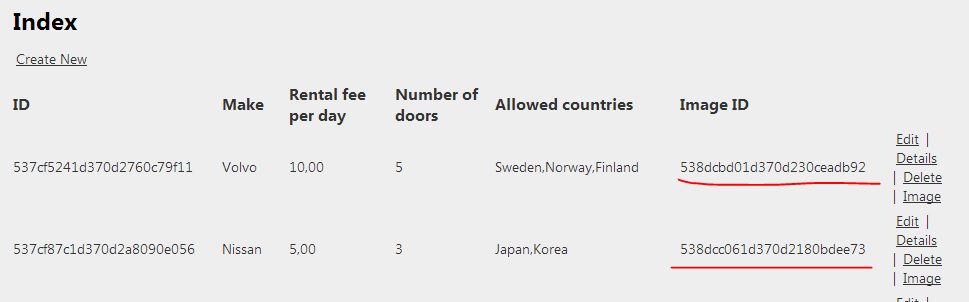
If everything goes well then the Cars table should show the image IDs:

Image IDs shown in the Cars table

In the next post, which will be the last in this series on MongoDb, we’ll show and update the image.

View the posts related to data storage here.

Elliot Balynn's Blog

A directory of wonderful thoughts

Software Engineering

Web development

Disparate Opinions

Various tidbits

chsakell's Blog

WEB APPLICATION DEVELOPMENT TUTORIALS WITH OPEN-SOURCE PROJECTS

Once Upon a Camayoc

ARCHIVED: Bite-size insight on Cyber Security for the not too technical.