How to cancel parallel loops in .NET C#

Cancelling parallel loops in C# is similar to cancelling “normal” tasks. You will need to supply a ParallelOptions object to the parallel loop assigning a cancellation token to its CancellationToken property. If you don’t know these objects then make sure to check out the following posts:

When you cancel the cancellation token then no new iterations will be started in a parallel loop. However, those already running will finish. Parallel.For and Parallel.ForEach will then throw an OperationCanceledException.

Declare the cancellation token:

CancellationTokenSource cancellationTokenSource = new CancellationTokenSource();

Create a Task that will cancel the token after 5 seconds:

Task.Factory.StartNew(() =>
{
	Thread.Sleep(5000);
	cancellationTokenSource.Cancel();
	Console.WriteLine("Token cancelled");
});

Define the parallel loop options and assign the cancellation token:

ParallelOptions parallelLoopOptions =
	new ParallelOptions()
	{
		CancellationToken = cancellationTokenSource.Token
	};

Perform some loop that is guaranteed to take more than 5 seconds:

try
{				
	Parallel.For(0, Int64.MaxValue, parallelLoopOptions, index =>
	{
		double result = Math.Pow(index, 3);
		Console.WriteLine("Index {0}, result {1}", index, result);
		Thread.Sleep(100);
	});
}
catch (OperationCanceledException)
{
	Console.WriteLine("Cancellation exception caught!");
}

Run the code and you’ll see that the parallel loop will likely run for slightly more than 5 seconds which is because loops running when the cancellation token is cancelled will be allowed to complete.

View the list of posts on the Task Parallel Library here.

Breaking parallel loops in .NET C# using the Break method

It’s not uncommon to break the execution of a for/foreach loop using the ‘break’ keyword. A for loop can look through a list of integers and if the loop body finds some matching value then the loop can be exited. It’s another discussion that ‘while’ and ‘do until’ loops might be a better alternative, but there you go.

You cannot simply break out from a parallel loop using the break keyword. However, we can achieve the effect with the ParallelLoopState class. In this post we looked at using the Stop method of the ParallelLoopState class. Here we’ll look at a slightly different method of the same class: Break(). Let’s say we have the following integer array…:

List<int> integers = new List<int>();

for (int i = 0; i <= 100; i++)
{
	integers.Add(i);
}

…and we want to break the loop as soon as we’ve found a number higher than 50. Both Parallel.For() and Parallel.ForEach() accepts an Action of T parameter as we saw before. This Action object has an overloaded version: Action of T and ParallelLoopState. The loop state is created automatically by the Parallel class. The loop state object has a Break method which stops the loop execution. To be more precise: if Break is called in the 5th iteration, then only those iterations will be started afterwards that are required to process items 1-4. Other iterations may have been started by the scheduler of course and they will run complete. So it is guaranteed that at least the first five items will be processed. Break() can even be called multiple times if the processing of multiple items results in breaking the code. In the below example if n separate threads are started with an integer higher than 50 then Break will be called n times:

Parallel.ForEach(integers, (int item, ParallelLoopState state) =>
{
	if (item > 50)
	{
		Console.WriteLine("Higher than 50: {0}, exiting loop.", item);
		state.Break();
	}
	else
	{
		Console.WriteLine("Less than 50: {0}", item);
	}
});

If Break is called more than once then the lowest item will be taken as a boundary by the Parallel class. If Break is called at items 5, 10 and 15 then all iterations required to process items 1-5 will be completed.

View the list of posts on the Task Parallel Library here.

How to cancel parallel LINQ queries in .NET C#

We saw in several posts on TPL on this blog how the CancellationToken object can be used to cancel Tasks. They can be used to cancel parallel queries as well. An instance of the token must be supplied to the WithCancellation extension method.

Define the cancellation token and the data source:

CancellationTokenSource cancellationTokenSource
	= new CancellationTokenSource();

int[] integerArray = new int[10000000];
for (int i = 0; i < integerArray.Length; i++)
{
	integerArray[i] = i;
}

Define the query. Notice how the token is provided to the query:

IEnumerable<double> query = integerArray
	.AsParallel()
	.WithCancellation(cancellationTokenSource.Token)
	.Select(item =>
	{
		return Math.Sqrt(item);
	});

Start a separate task that will cancel the token after 5 seconds:

Task.Factory.StartNew(() =>
{
	Thread.Sleep(5000);
	cancellationTokenSource.Cancel();
	Console.WriteLine("Token source cancelled");
});

Loop through the query results and catch the OperationCancelledException:

try
{
	foreach (double d in query)
	{
		Console.WriteLine("Result: {0}", d);
	}
}
catch (OperationCanceledException)
{
	Console.WriteLine("Caught cancellation exception");
}

Do not assume that cancelling the token will cause the item processing to stop immediately. Items that were already being processed when the token was cancelled will be completed.

View the list of posts on the Task Parallel Library here.

OWIN and Katana part 4: Web API on top of OWIN

Introduction

In the previous post in this series we wrote a couple of OWIN middleware components and chained them together. We actually achieved quite a lot in a low level console application: it hosts a simple web server which receives HTTP requests, it processes the requests with Katana components and performs some elementary logging.

It’s now time to build an application on top of this environment. We’ll build upon the demo console app we’ve been working on so have it ready in Visual Studio. If you’ve read some other topics on this blog then you’ll note that I have a preference for the Web API as the server platform. So let’s see how we can build a Web API application on top of our little server.

Web API demo

Open the Console demo server in Visual Studio. We’ll need to install the following NuGet package:

Web API Owin Selfhost

As the package name implies this package will help us host a Web API 2.1 app using OWIN components. The package installs a number of other components such as WebApi.Core WebApi.Client, JSON.NET, etc. Open the References section in the Solution Explorer. If you’ve worked with the Web API before then some of those new libraries will be familiar to you: System.Net.Http, System.Web.Http and the like.

Add the following class to the project:

public class LatestNews
{
	public string Summary { get; set; }
}

We want our web service to show the latest news.

Let’s also add another class called LatestNewsController. It will be our first Web API controller. If you haven’t worked with the Web API before then a Web API controller has the same role as a “normal” controller in an MVC web app. It derives from the “ApiController” base class rather than the “Controller” class in MVC. The LatestNewsController class looks as follows:

public class LatestNewsController : ApiController
{
	public HttpResponseMessage Get()
	{
		LatestNews news = new LatestNews() { Summary = "The world is falling apart." };
		return Request.CreateResponse<LatestNews>(HttpStatusCode.OK, news);
	}
}

In Startup.Configuration comment out the Use method which dumps out the values in the Environment dictionary. The starting point for this exercise is the following “active” code, the rest should be commented out or removed:

public void Configuration(IAppBuilder appBuilder)
{
        appBuilder.Use(async (env, next) =>
	{
		Console.WriteLine(string.Concat("Http method: ", env.Request.Method, ", path: ", env.Request.Path));
		await next();
		Console.WriteLine(string.Concat("Response code: ", env.Response.StatusCode));
	});

	appBuilder.UseWelcomeComponent();			
}

Insert a new method stub in Startup.cs that will configure Web API:

private void RunWebApiConfiguration(IAppBuilder appBuilder)
{	
}

The key object to configuring the Web API is the HttpConfiguration object located in the System.Web.Http namespace. It opens, among a lot of other things, the gateway to the routing rules. Insert the following body to the above function:

HttpConfiguration httpConfiguration = new HttpConfiguration();
httpConfiguration.Routes.MapHttpRoute(
	name: "WebApi"
	, routeTemplate: "{controller}/{id}"
	, defaults: new { id = RouteParameter.Optional }
	);
appBuilder.UseWebApi(httpConfiguration);

This will look very familiar to you if you’ve done any MVC and/or Web API programming – which you probably have otherwise you wouldn’t be reading this post. So we set up out first routing rule using the MapHttpRoute method like in the standard Web API app template of Visual Studio. Finally we call upon the built-in extension of the IAppBuilder interface to declare that we want to use the Web API.

We should be ready to go. Add a call to this method from Configuration():

appBuilder.Use(async (env, next) =>
	{
		Console.WriteLine(string.Concat("Http method: ", env.Request.Method, ", path: ", env.Request.Path));
		await next();
		Console.WriteLine(string.Concat("Response code: ", env.Response.StatusCode));
	});

RunWebApiConfiguration(appBuilder);

appBuilder.UseWelcomeComponent();

Run the demo app and navigate to localhost:7990/latestnews in a web browser. You should see that our Web API component is indeed responding to the request:

Web Api output in web browser

We got the latest news in an XML serialised format. Also, you’ll notice that the middleware that prints the incoming request data in the console window still works:
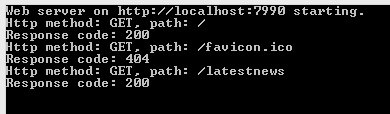
Logging middleware still running

Now navigate to localhost:7990, i.e. without any controller name. You’ll see that our WelcomeComponent responds with “Hello from the welcome component”. The reason is that the web api component couldn’t route the request to any controller so it let the next component take over. The next component in the pipeline is the WelcomeComponent which happily responds to any request with the same message.

We have just built the basics of a self hosted Web API application which is very light weight, easy to extend and responds to incoming HTTP requests with meaningful data.

Deployment

Let’s try to deploy this application on IIS. Install the following NuGet package:

Owin host system web NuGet package

This package ensures that we can plug in our application into the ASP.NET pipeline.

We’ll also need to change a couple of other things in the application. IIS cannot directly load executables so our setup code in Program.Main is not relevant. Comment out the following chunk of code, all of it, including the Program class declaration:

class Program
    {
        static void Main(string[] args)
        {
			string uri = "http://localhost:7990";

			using (WebApp.Start<Startup>(uri))
			{
				Console.WriteLine("Web server on {0} starting.", uri);
				Console.ReadKey();
				Console.WriteLine("Web server on {0} stopping.", uri);
			}
        }
    }

All the startup infrastructure will be handled by IIS. However, we still want to run the Configuration code in Startup.cs. Open the project properties and turn the project type into a class library:
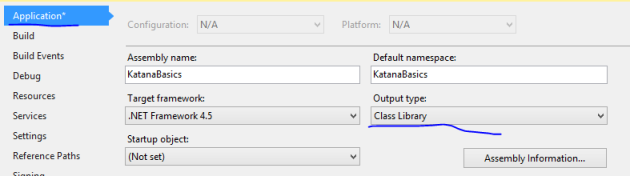
Turn console app into class library

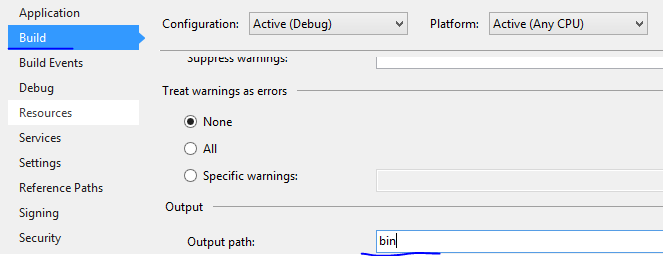
Also, change the output path to simply ‘bin’ as is expected by IIS:
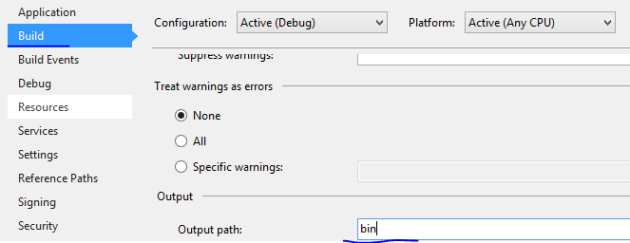
Change output path to bin

Build the solution to make sure it still compiles without errors. Check in the bin folder of the project that the [projectname].dll file was created by the build process. I called my project KatanaBasics so I have a KatanaBasics.dll in the bin folder. You’ll need the path to the bin folder in the next step.

We’ll use the iisexpress.exe file to load our this dll. The iisexpress.exe file is usually found here:

IISexpress.exe location

Open a command prompt and enter the following command. Make sure you enter the correct path as it appears on your system:

IIS express command prompt startup

…where the “path” parameter is the path to the bin folder on my computer. Press Enter and if everything goes well then you’ll see the following response:

IIS running in command prompt

You’ll notice in the output that IIS will be listening on port 8080 for this application. Navigate to localhost:8080 in a web browser and you should see that… …we get an exception, or at least I got it:

Missing owin assembly

Owin assemblies are updated quite often so it’s almost expected to run into this classic “Could not load file or assembly” error, although it’s really irritating.

Stop the IIS application by pressing “Q” in the command prompt. The solution is quite easy actually. The solution contains an app.config file with the following bit of XML:

<assemblyIdentity name="Microsoft.Owin" publicKeyToken="31bf3856ad364e35" culture="neutral" />
<bindingRedirect oldVersion="0.0.0.0-2.1.0.0" newVersion="2.1.0.0" />

This should do the trick of redirecting old references to an updated one. However, IIS won’t read this file as it is looking for a web.config file instead of app.config. Rename app.config to web.config. Then rebuild the solution, issue the same IIS command as before in the command prompt and navigate to localhost:8080. The WelcomeComponent should respond with “Hello from the welcome component”. Also, you should see the logging output in the command prompt along with some output from IIS itself:
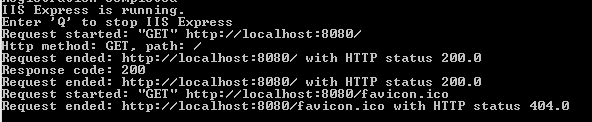
Logging output with IIS running

The output of our OWIN middleware has been successfully plugged into the IIS infrastructure. Now check if the web api controller is still responding on localhost:8080/latestnews. You should see that it does indeed.

The OWIN project we’ve built produces a dll which can be referenced from any type of application: console, WPF, WCF, etc., it will always produce valid XML.

How was our application configured correctly now that the Program class has been commented out? How was our Configuration method called now that there’s no code calling it directly? The Host.SystemWeb dll has a bit of code that will look for a class called Startup and run its Configuration method for you automatically.

You can specify the location of the Startup in the appSettings section of web/app.config:

<appSettings>
	<add key="owin.appStartup" value="KatanaBasics.Startup"/>
</appSettings>

…where the value is the fully qualified name of the Startup class.

You can also specify it in the AssemblyInfo file:

[assembly: OwinStartup(typeof(KatanaBasics.Startup))]

If you don’t specify these values then it will try to find the Startup class through Reflection in the namespace matching the project name, in this case KatanaBasics. Since there’s one such class in that namespace, the web hosting process found it and executed it.

OWIN, Katana and MVC

Let’s see how OWIN and Katana are incorporated into ASP.NET MVC. In Visual Studio 2013 create a new MVC5 web application. Open the references list and you’ll see that there are several Owin related packages included by default:
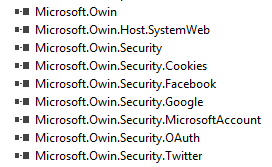
Owin references in MVC5

You’ll also notice that there’s a Startup.cs in the root of the application:
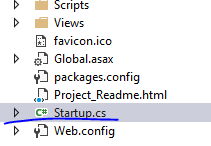
Startup.cs in MVC5

Open the file and you’ll see the Configuration method which accepts an IAppBuilder object, so it follows the same pattern as we saw in our console based server app. The Configure method calls upon a method called ConfigureAuth. You’ll also notice the assembly metadata above the namespace that tells Katana where to look for the Startup class.

Note that this is a partial class so there’s one more Startup class. You’ll find it in the App_Start folder in a file called Startup.Auth.cs. This is where the ConfigureAuth method is implemented. As the method name suggests ConfigureAuth defines some OWIN middleware that have to do with authentication.

Most of the code is commented out. The two middleware functions that are not commented out are:

  • UseCookieAuthentication: to implement cookie authentication, checks if there’s a valid authentication cookie
  • UseExternalSignInCookie: for external cookies for third party auth providers

You can uncomment the rest of the code to activate either of the 4 available authentication providers: Microsoft, Twitter, Facebook and/or Google for OAuth2. We will look at these in a later series dedicated to security in MVC5.

Katana sourcecode

If you’re interested in how the Katana components are built then you can check out the sourcecode on the Katana Codeplex page. You’ll see the code for all existing Katana components there:

Katana codeplex page

You can even load the entire code from Git. You’ll find the git clone command on the Codeplex page.

View the list of MVC and Web API related posts here.

Parallel LINQ in .NET C#: keeping the order

In this post we saw a simple example of PLINQ. We saw that the items are processed in an arbitrary order.

Consider the following:

int[] sourceData = new int[10];
for (int i = 0; i < sourceData.Length; i++)
{
	sourceData[i] = i;
}

IEnumerable<int> parallelResults =
	from item in sourceData.AsParallel()
	where item % 2 == 0
	select item;

foreach (int item in parallelResults)
{
	Console.WriteLine("Item {0}", item);
}

When I ran the code on my machine I got the following output:

0, 4, 6, 8, 2

What if you want the items to be processed in an ascending order? Just append the AsOrdered() extension method:

IEnumerable<int> parallelResults =
	from item in sourceData.AsParallel().AsOrdered()
	where item % 2 == 0
	select item;

This produces the same order as a sequential query execution but with the benefits of parallel execution. However, there’s a small cost to this. Without ordering PLINQ could freely decide how to start and optimise the threads. Now there’s a performance cost to restore the order with the AsOrdered extension method. Keep this in mind and only use ordering if it really matters. Otherwise you can order the resulting list with “normal” LINQ afterwards.

View the list of posts on the Task Parallel Library here.

Handling exceptions in parallel loops in .NET C#

If a thread in a parallel loop throws an exception then no new iterations will be started. However, iterations already in progress are allowed to run to completion.

You can check if some other iteration has thrown an exception using the the ParallelLoopState class. This class has an IsExceptional property:

Parallel.For(0, 10, (int index, ParallelLoopState state) =>
{
	if (state.IsExceptional)
	{
		//do something
	}
});

All exceptions throw within the parallel loop are collected within an AggregateException object:

List<int> integers = new List<int>();

for (int i = 0; i <= 100; i++)
{
	integers.Add(i);
}

try
{
	Parallel.ForEach(integers, (int item, ParallelLoopState state) =>
	{
		if (item > 50)
		{
			throw new ArgumentNullException("Something has happened");
		}
		else
		{
			Console.WriteLine("Less than 50: {0}", item);
		}

		if (state.IsExceptional)
		{
			Console.WriteLine("Exception!");
		}

	});
}
catch (AggregateException ae)
{
	ae.Handle((inner) =>
	{
		Console.WriteLine(inner.Message);
		return true;
	});
}

You can read more about handling exceptions throw by tasks here, here and here.

Please view the comment section for a link with another example.

View the list of posts on the Task Parallel Library here.

OWIN and Katana part 3: more complex middleware

Introduction

We wrote our first OWIN component, a.k.a. middleware in the previous part of this series. We said that it’s called middleware because it sits somewhere in the invocation chain of elements. There may be other elements before and after the actual component.

We’ll write a somewhat more complex component this time. We’ll build upon the simple Console based server application we’ve been working on in this series.

Demo

Open the Console based web server demo in Visual Studio 2013. In Startup.Configuration we currently have a call to appBuilder.UseWelcomeComponent. We’ll now insert another component that will execute before the WelcomeComponent.

Keep in mind that not all OWIN components must be separate classes. We saw an example of an inline component when we looked at the Run extension method. Recall that we could reference the Response property of the OWIN context directly instead of how we pulled it from the environment dictionary in WelcomeComponent which is at a lower level. The Run extension method does actually the same thing behind the scenes, i.e. it checks the environment variable and pulls the Response property out of it so that it is readily available from the OWIN context. That’s an example of how Katana can build upon OWIN to simplify things.

This time we’ll look at the Use extension method of IAppBuilder. It comes in two versions: one that takes a Func delegate, i.e. we can write an inline lambda expression, and another one which takes an object and and array of objects. This latter version allows us to pass in low-level components such as WelcomeComponent. The Func delegate has the following definition:

Func<IOwinContext, Func<Task>, Task> handler;

So it’s a delegate that returns a Task and accepts two parameters: an IOwinContext and another delegate which returns a Task. The IOwinContext will be the Environment, and Func of Task corresponds to the next component in the invocation chain. Insert the following stub into Configuration before appBuilder.UseWelcomeComponent:

appBuilder.Use((env, next) =>
{

});

In case you’re not familiar with lambdas start here. ‘env’ and ‘next’ correspond to the two input parameters of the delegate. You’ll see that the compiler is complaining as there’s no return statement in the body of the delegate. We’ll simulate some kind of logging in the body: loop through the values in the Environment dictionary and show them in the console. The Use method implementation looks as follows:

appBuilder.Use(async (env, next) =>
	{
		foreach (KeyValuePair<string, object> kvp in env.Environment)
		{
			Console.WriteLine(string.Concat("Key: ", kvp.Key, ", value: ", kvp.Value));
		}

		await next();
	});

The call to ‘next’ returns a Task and can be awaited, hence the ‘await’ keyword. We can write ‘next()’ because it represents the application function of the next component in the pipeline. And since the application function is a delegate, it can be invoked like a normal method. In order for that to work properly we had to add the ‘async’ keyword in front of the delegate declaration. Also, the Func delegate has to return a Task, which next() does, so it fulfils the delegate signature.

That was an example of middleware. Run the web server demo app and navigate to localhost:7990 in a web browser. Watch the values in the console. Some dictionary values are objects so their string representation will simply be the type name. Still, most values will probably look familiar to you as a web developer who’s done some work with HTTP requests and responses.

Let’s add another piece of middleware using the same technique. Insert the following code after the one we’ve just written:

appBuilder.Use(async (env, next) =>
	{
		Console.WriteLine(string.Concat("Http method: ", env.Request.Method, ", path: ", env.Request.Path));
		await next();
		Console.WriteLine(string.Concat("Response code: ", env.Response.StatusCode));
	});

First we report the HTTP method and the request path using the Request property of the Environment variable. Then we let the next component run and be awaited upon. Finally we print out the response status code. You could also overwrite the status code of course in another component. E.g. if a new resource is created with a POST method then you might want to return 201 Created instead of the default 200 OK.

Run the application again and refresh the browser with localhost:7990. You’ll see the new piece of information printed in the console: the method (GET), the request path (favicon) and the response code (200). You’ll notice that the request path in the dictionary dump is simply “/”, i.e. the application root and the response code to that is 200. Then we see another request in the second Katana component for the favicon. Refresh the web page a couple of times and you’ll see that the browser will try to fetch the favicon every time and respond with status code 200. You can also test with a different URL such as localhost:7990/donaldduck. You’ll see that the first request comes in for /donaldduck and then a second request for the favicon again.

Let’s see what happens if we reorder the invocation list. Recall that WelcomeComponent.Invoke doesn’t call upon the next component in the pipeline. In Startup.Configuration put appBuilder.UseWelcomeComponent to the top of the middleware list, i.e. ahead of the first Use method. Run the application and refresh the browser. You should see that the WelcomeComponent component is invoked but not the other two. So you see how the modular setup allows you to control and finegrain what’s happening in a web server when it receives a HTTP call.

Read the last post in this series here.

View the list of MVC and Web API related posts here.

Supply loop options to parallel loops in .NET C#

It’s possible to supply additional options to parallel for and foreach loops. The ParallelOptions class has the following properties:

  • CancellationToken: sets the cancellation to break a parallel loop
  • MaxDegreeOfParallelism: sets the max concurrency for a parallel loop. A value of -1 means no limit
  • TaskScheduler: this is normally null as the default task scheduler is very efficient. However, if you have a custom task scheduler then you can supply it here

We won’t go into building a custom task scheduler as it is a heavy topic and probably 98% of all .NET programmers are unlikely to ever need one.

So let’s see what MaxDegreeOfParallelism can do for us. It cannot do much directly other than setting a limit to the number of tasks created during a parallel loop. Note the word ‘limit’: setting a high number won’t guarantee that this many Tasks will be started. It is only an upper limit that the task scheduler will take into account. A value of 0, i.e. no concurrency at all, will cause an exception to be thrown in Parallel.For and Parallel.ForEach. A value of 1 is practically equal to sequential execution.

Declare the options object as follows:

ParallelOptions parallelOptions	= new ParallelOptions() { MaxDegreeOfParallelism = 1 };

You can supply the options to the Parallel.For and ForEach methods as input parameters:

Parallel.For(0, 10, parallelOptions, index =>
{
	Console.WriteLine("For Index {0} started", index);
	Thread.Sleep(100);
	Console.WriteLine("For Index {0} finished", index);
});

int[] integers = new int[] { 0, 2, 4, 6, 8 };

Parallel.ForEach(integers, parallelOptions, index =>
{
	Console.WriteLine("ForEach Index {0} started", index);
	Thread.Sleep(100);
	Console.WriteLine("ForEach Index {0} finished", index);
});

Run the code an you should see that the index values are processed in a sequential manner. Then set MaxDegreeOfParallelism to e.g. 5 and you should see something different.

View the list of posts on the Task Parallel Library here.

OWIN and Katana part 2: the Application Function

Introduction

In the previous post of this series we started looking into OWIN and Katana. We also looked at a small, very basic Console based web server to see them in action.

We’ll continue digging into how these technologies work. We’ll build upon the demo application we started working on in the previous post so have it ready in Visual Studio.

The Application Function

The application function, or AppFunc is a tool that defines how elements process incoming HTTP requests to the server. It provides a delegate which returns a Task and accepts an IDictionary of string and object. We saw an example of such a Func in the first post of this series. The dictionary represents the request environment. Recall the Environment property of the IAppBuilder interface which is also of the same dictionary type. We also said that this structure is characteristic of OWIN as it lacks any higher level abstraction. It is not a dictionary of, say, RequestParameter and RequestKey with built-in properties which we could expect in a built-in object oriented .NET class. This particular dictionary includes all types of data about the request from and the response to the client: headers, cookies, server variables etc.

The application function delegate always returns a Task to adhere to the asynchronous programming model of modern .NET applications. At this point you should be familiar with the await-async keywords in C#. If not, then start here.

You’ll probably notice that this is quite low-level programming compared to writing a “normal” ASP.NET web application where you get all HTTP related tasks for free from the System.Web library and IIS as the default server. In OWIN you are free to build all components required to fulfil a request. The components will be independent from each other but still able to work together in a decoupled fashion. One component may check the request headers, another one the authentication cookies etc. Every component will have an application function that can be invoked externally. The components form a chain of actions where each component calls upon the next component’s application function in the pipeline using the data in the Environment dictionary mentioned above. As the dictionary object only contains strings and objects the chain remains very loosely coupled.

Demo

Open the console web server we started working on previously in Visual Studio. If you recall then we tested two methods of IAppBuilder: UseWelcomePage and Run. We’ll try something different this time. Add a new class to the solution called WelcomeComponent. Our goal is to write some greeting to every request at a lower level than we did previously. The class will need to come in contact with the IAppBuilder somehow. We’ll need to add a method that matches the Func delegate signature of AppFunc. Insert the following method stub into WelcomeComponent:

public Task Invoke(IDictionary<string, object> environment)
{
    throw new NotImplementedException();
}

Locate Startup.Configuration, comment out the call to appBuilder.UseWelcomePage and insert the following call instead:

appBuilder.Use<WelcomeComponent>();

The Use method will insert a component into the OWIN pipeline. Run the application and you should get an exception: MissingMethodException. The compiler is testing the OWIN components that you wired up using Reflection. If it finds any missing element it will tell you about it. In this case the error message says that “WelcomeComponent does not have a constructor taking 1 argument”. That argument is the AppFunc for the next component in the invocation chain. By now we know what an AppFunc delegate looks like so insert the following constructor stub:

public WelcomeComponent(Func<IDictionary<string, object>, Task> appFunc)
{
}

As an aside: there’s a little trick to make this constructor more concise. Add the following using statement underneath the others:

using ApplicationFunction = System.Func<System.Collections.Generic.IDictionary<string, object>, System.Threading.Tasks.Task>;

…the constructor becomes…:

public WelcomeComponent(ApplicationFunction appFunc)
{
}

The incoming appFunc variable represents the next component in the component chain. Add the following private field to the class:

private readonly ApplicationFunction _nextComponent;

…and so the constructor will look like the following:

public WelcomeComponent(ApplicationFunction appFunc)
{
	if (appFunc == null) throw new ArgumentNullException("AppFunc of next component");
	_nextComponent = appFunc;
}

We’ll also implement the Invoke method in a simplistic way:

public async Task Invoke(IDictionary<string, object> environment)
{
	await _nextComponent(environment);
}

So we await the next component and pass along the incoming environment variable to its constructor, just like the way how WelcomeComponent would be called in the pipeline.

A short aside: the Invoke method must be called Invoke, so I didn’t just pick this name. Change the method to something else, like MickeyMouse and then run the application. You should get a System.ArgumentException complaining about a conversion error.

Rename the method to ‘Invoke’. Add a breakpoint within the Invoke method and run the application. You should see a console window with the message that the web server has started. Navigate to localhost:7990 in a web browser and code execution should stop at the break point. Hover over the incoming ‘environment’ variable with the mouse to inspect its contents. In particular take a look at what’s available in the dictionary:

AppFunc dictionary contents

So there are 29 keys and 29 values – this number may change in future updates to the OWIN-related assemblies. Looking through the key names it will be clear immediately that it’s possible to extract just about any information related to the HTTP request: path, headers, request method, request body etc. This environment variable will make sure that the HTTP request properties will be available to every component in the chain. Some of them are actually specified as compulsory elements by the OWIN specification.

You can in fact stop the invocation chain right here and return a response to the caller already now. In that case you’ll need to access the “owin.ResponseBody” dictionary element. Stop the application and comment out the await statement in the Invoke method. The response body will be a Stream so we’ll extract it from the environment dictionary as follows:

Stream responseBody = environment["owin.ResponseBody"] as Stream;

We then construct a StreamWriter out of this and write to the response stream:

using (StreamWriter responseWriter = new StreamWriter(responseBody))
{
	return responseWriter.WriteAsync("Hello from the welcome component");
}

Remove the ‘async’ from the method declaration as the WriteAsync method already returns a Task. Run the application and navigate to localhost:7990 in a browser. You should see the plain message we provided above to the WriteAsync method. This was in fact a very low level Katana component, probably the lowest level possible.

The methods we tested with IAppBuilder, i.e. Run and UseWelcomePage, use the same technique behind the scenes. They are simply wrappers around a much more elaborate Invoke method.

We can make it so that our glorious implementation of the Invoke method becomes available to other programmers using an extension method. Add a new class to the project called AppBuilderExtensions:

public static class AppBuilderExtensions
{
	public static void UseWelcomeComponent(this IAppBuilder appBuilder)
	{
		appBuilder.Use<WelcomeComponent>();
	}
}

We can call this extension method in Startup.Configuration as follows:

appBuilder.UseWelcomeComponent();

This produces the same behaviour as before, just with a little nicer syntax. You’ll notice that the UseWelcomeComponent method call looks very much like UseWelcomePage – the implementation of the latter is probably slightly more involved however.

Components in OWIN are also called middleware as they sit in the middle of the processing pipeline. We’ll keep looking at OWIN middleware in the next post.

View the list of MVC and Web API related posts here.
Breaking parallel loops in .NET C# using the Stop method

It’s not uncommon to break the execution of a for/foreach loop using the ‘break’ keyword. A for loop can look through a list of integers and if the loop body finds some matching value then the loop can be exited. It’s another discussion that ‘while’ and ‘do until’ loops might be a better alternative, but there you go.

You cannot simply break out from a parallel loop using the break keyword. However, we can achieve this effect with the ParallelLoopState class. Let’s say we have the following integer array…:

List<int> integers = new List<int>() { 0, 1, 2, 3, 4, 5, 6, 7, 8, 9 };

…and we want to break the loop as soon as we’ve found a number higher than 5. Both Parallel.For() and Parallel.ForEach() accepts an Action of T parameter as we saw before. This Action object has an overloaded version: Action of T and ParallelLoopState. The loop state is created automatically by the Parallel class. The loop state object has a Stop() method which stops the loop execution. Or more specifically it requests the loop to be stopped and the task scheduler will go about doing that. Keep in mind that some iterations may be continued even after the call to Stop was made:

Parallel.ForEach(integers, (int item, ParallelLoopState state) =>
{
	if (item > 5)
	{
		Console.WriteLine("Higher than 5: {0}, exiting loop.", item);
		state.Stop();
	}
	else
	{
		Console.WriteLine("Less than 5: {0}", item);
	}
});

So parallel loops can be exited but not with the same precision as in the case of synchronous loops.

View the list of posts on the Task Parallel Library here.

Elliot Balynn's Blog

A directory of wonderful thoughts

Software Engineering

Web development

Disparate Opinions

Various tidbits

chsakell's Blog

WEB APPLICATION DEVELOPMENT TUTORIALS WITH OPEN-SOURCE PROJECTS

Once Upon a Camayoc

ARCHIVED: Bite-size insight on Cyber Security for the not too technical.