Replacing substrings using Regex in C# .NET: string cleaning example

We often need to sanitize string inputs where the input value is out of our control. Some of those inputs can come with unwanted characters. The following method using Regex removes all non-alphanumeric characters except for ‘@’, ‘-‘ and ‘.’:

private static string RemoveNonAlphaNumericCharacters(String input)
{
	return Regex.Replace(input, @"[^\w\.@-]", string.Empty);
}

Calling this method like…

string cleanString = RemoveNonAlphaNumericCharacters("()h{e??l#'l>>o<<");

…returns “hello”.

View all posts related to string and text operations here.

Big Data: using Amazon Kinesis with the AWS.NET API Part 1: introduction

Introduction

Big Data is definitely an important buzzword nowadays. Organisations have to process large amounts of information real time in form of messages in order to make decisions about the future of the company. Companies can also use these messages as data points of something they monitor constantly: sales, response times, stock prices, etc. Their goal is presumably to process the data and extract information from it that their customers find useful and are willing to pay for.

Whatever the purpose there must be a system that is able to handle the influx of messages. You don’t want to lose a single message or let a faulty one stop the chain. You’ll want to have the message queue up and running all the time and make it flexible and scalable so that it can scale up and down depending on the current load. Also, ideally you’ll want to start with the “real” work as soon as possible and not spend too much time on infrastructure management: new servers, load balancers, installing message queue systems etc. Depending on your preferences, it may be better to invest in a ready-made service at least for the initial life of your application. If you then decide that the product is not worth the effort then you can simply terminate the service and then probably haven’t lost as much money as if you had to manage the infrastructure yourself from the beginning.

This is the first installment of a series dedicated to out-of-the-box components built and powered by Amazon Web Services (AWS) enabling Big Data handling. In fact it will be a series of series as I’ll divide the different parts of the chain into their own “compartments”:

  • Message queue
  • Message persistence
  • Analysis
  • Storing the extracted data

Almost all code will be C# with the exception of SQL-like languages in the “Analysis” section. You’ll need to have an account in Amazon Web Services if you want to try the code examples yourself. Amazon has a free-tier of some of their services which is usually enough for testing purposes before your product turns into something serious. Even if there’s no free tier available, like in the case of Kinesis, the costs you incur with minimal tests are far from prohibiting. Amazon is bringing down its prices on AWS components quite often as their volumes grow larger. By signing up with Amazon and creating a user you’ll also get a pair of security keys: an Amazon Access Key and a Secret Access Key.

Note that we’ll be concentrating on showing how to work with the .NET AWS SDK. We won’t organise our code according to guidelines like SOLID and layered architecture – it’s your responsibility to split your code into manageable bits and pieces.

Here we’re starting with the entry point of the system, i.e. the message handler.

Amazon Kinesis

Amazon Kinesis is a highly scalable cloud-based messaging system which can handle extremely large amounts of messages. There’s another series dedicated to a high-level view of a possible Big Data handling architecture. It takes up the same topics as this series but without going down to the code level. If you’re interested in getting the larger picture I really encourage you to check it out. The first post of that series takes up Kinesis so I’ll copy the relevant sections here.

The raw data

What kind of raw data are we talking about? Any type of textual data you can think of. It’s of course an advantage if you can give some structure to the raw data in the form of JSON, XML, CSV or other delimited data.

On the one hand you can have well-formatted JSON data that hits the entry point of your system:

{
    "CustomerId": "abc123",
    "DateUnixMs": 1416603010000,
    "Activity": "buy",
    "DurationMs": 43253
}

Alternatively the same data can arrive in other forms, such as CSV:

abc123,1416603010000,buy,43253

…or as some arbitrary textual input:

Customer id: abc123
Unix date (ms): 1416603010000
Activity: buy
Duration (ms): 43253

It is perfectly feasible that the raw data messages won’t all follow the same input format. Message 1 may be JSON, message 2 may be XML, message 3 may be formatted like this last example above.

The message handler: Kinesis

Amazon Kinesis is a highly scalable message handler that can easily “swallow” large amounts of raw messages. The home page contains a lot of marketing stuff but there’s a load of documentation available for developers, starting here. Most of it is in Java though.

In a nutshell:

  • A Kinesis “channel” is called a stream. A stream has a name that clients can send their messages to and that consumers of the stream can read from
  • Each stream is divided into shards. You can specify the read and write throughput of your Kinesis stream when you set it up in the AWS console
  • A single message can not exceed 50 KB
  • A message is stored in the stream for 24 hours before it’s deleted

You can read more about the limits, such as max number of shards and max throughput here. Kinesis is relatively cheap and it’s an ideal out-of-the-box entry point for big data analysis.

Kinesis will take a lot of responsibility from your shoulders: scaling, stream and shard management, infrastructure management etc. It’s possible to create a new stream in 5 minutes and you’ll be able to post – actually PUT – messages to that stream immediately after it was created. On the other hand the level of configuration is quite limited which may be both good and bad, it depends on your goals. Examples:

  • There’s no way to add any logic to the stream in the GUI
  • You cannot easily limit the messages to the stream, e.g. by defining a message schema so that malformed messages are discarded automatically
  • You cannot define what should happen to the messages in the stream, e.g. in case you want to do some pre-aggregation

However, I don’t think these are real limitations as other message queue solutions will probably be similar.

In the next post we’ll create a Kinesis stream, install the .NET AWS SDK and define our thin domain.

View all posts related to Amazon Web Services and Big Data here.

Replacing substrings using Regex in C# .NET: date format example

Say your application receives the dates in the following format:

mm/dd/yy

…but what you actually need is this:

dd-mm-yy

You can try and achieve that with string operations such as IndexOf and Replace. You can however perform more sophisticated substring operations using regular expressions. The following method will perform the required change:

private static string ReformatDate(String dateInput)
{
	return Regex.Replace(dateInput, "\\b(?<month>\\d{1,2})/(?<day>\\d{1,2})/(?<year>\\d{2,4})\\b"
		, "${day}-${month}-${year}");
}

Calling this method with “10/28/14” returns “28-10-14”.

View all posts related to string and text operations here.

Reformatting extracted substrings using Match.Result in C# .NET

Say you have the following Uri:

http://localhost:8080/webapps/bestapp

…and you’d like to extract the protocol and the port number and concatenate them. One option is a combination of a regular expression and matching groups within the regex:

private static void ReformatSubStringsFromUri(string uri)
{
	Regex regex = new Regex(@"^(?<protocol>\w+)://[^/]+?(?<port>:\d+)?/");
	Match match = regex.Match(uri);
	if (match.Success)
	{
		Console.WriteLine(match.Result("${protocol}${port}"));
	}
}

The groups are defined by “protocol” and “port” and are referred to in the Result method. The result method is used to reformat the extracted groups, i.e the substrings. In this case we just concatenate them. Calling this method with the URL in above yields “http:8080”.

However you can a more descriptive string format, e.g.:

Console.WriteLine(match.Result("Protocol: ${protocol}, port: ${port}"));

…which prints “Protocol: http, port: :8080”.

View all posts related to string and text operations here.

Finding all href values in a HTML string with C# .NET

Say you’d like to collect all link URLs in a HTML text. E.g.:

<html>
   <p>
     <a href=\"http://www.fantasticsite.com\">Visit fantasticsite!</a>
   </p>
   <div>
     <a href=\"http://www.cnn.com\">Read the news</a>
   </div>
</html>

The goal is to find “http://www.fantasticsite.com&#8221; and “http://www.cnn.com&#8221;. Using an XML parser could be a solution if the HTML code is well formatted XML. This is of course not always the case so the dreaded regular expressions provide a viable alternative.

The following code uses a Regex to find those sections in the input text that match a regular expression:

static void Main(string[] args)
{
	string input = "<html><p><a href=\"http://www.fantasticsite.com\">Visit fantasticsite!</a></p><div><a href=\"http://www.cnn.com\">Read the news</a></div></html>";
	FindHrefs(input);
	Console.WriteLine("Main done...");
	Console.ReadKey();
}

private static void FindHrefs(string input)
{
	Regex regex = new Regex("href\\s*=\\s*(?:\"(?<1>[^\"]*)\"|(?<1>\\S+))", RegexOptions.IgnoreCase);
	Match match;
	for (match = regex.Match(input); match.Success; match = match.NextMatch())
	{
		Console.WriteLine("Found a href. Groups: ");
		foreach (Group group in match.Groups)
		{
			Console.WriteLine("Group value: {0}", group);
		}				
	}

}

This gives the following output:

FindHrefs Regexp in action

View all posts related to string and text operations here.

Getting notified by a Windows process change in C# .NET

In this post we saw an example of using the ManagementEventWatcher object and and EventQuery query. The SQL-like query was used to subscribe to a WMI – Windows Management Instrumentation – level event, namely a change in the status of a Windows service. I won’t repeat the explanation here again concerning the techniques used. So if this is new to you then consult that post, the code is very similar.

In this post we’ll see how to get notified by the creation of a new Windows process. This can be as simple as starting up Notepad. A Windows process is represented by the Win32_Process WMI class which will be used in the query. We’ll take a slightly different approach and use the WqlEventQuery object which derives from EventQuery.

Consider the following code:

private static void RunManagementEventWatcherForWindowsProcess()
{
	WqlEventQuery processQuery = new WqlEventQuery("__InstanceCreationEvent", new TimeSpan(0, 0, 2), "targetinstance isa 'Win32_Process'");
	ManagementEventWatcher processWatcher = new ManagementEventWatcher(processQuery);
	processWatcher.Options.Timeout = new TimeSpan(0, 1, 0);
	Console.WriteLine("Open an application to trigger the event watcher.");
	ManagementBaseObject nextEvent = processWatcher.WaitForNextEvent();
	ManagementBaseObject targetInstance = ((ManagementBaseObject)nextEvent["targetinstance"]);
	PropertyDataCollection props = targetInstance.Properties;
	foreach (PropertyData prop in props)
	{
		Console.WriteLine("Property name: {0}, property value: {1}", prop.Name, prop.Value);
	}
	processWatcher.Stop();
}

In the Windows service example we used the following query:

SELECT * FROM __InstanceModificationEvent within 2 WHERE targetinstance isa ‘Win32_Service’

The WqlEventQuery constructor builds up a very similar statement. The TimeSpan refers to “within 2”, i.e. we want to be notified 2 seconds after the creation event. “targetinstance isa ‘Win32_Process'” corresponds to “WHERE targetinstance isa ‘Win32_Service'” of EventQuery.

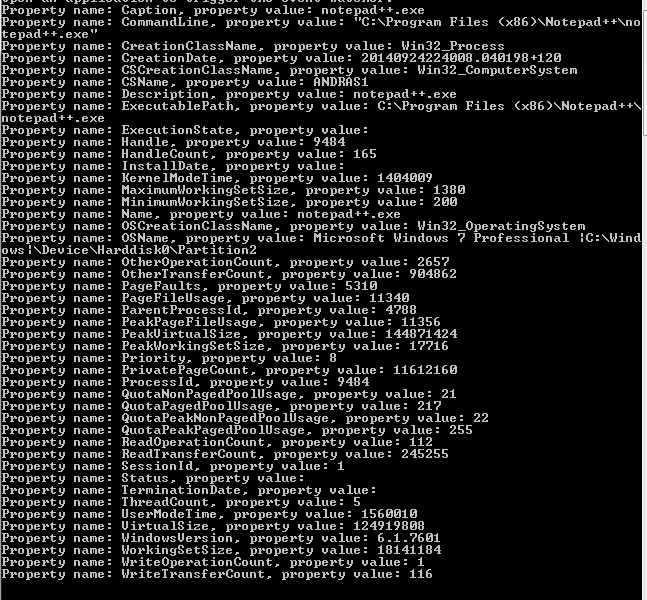
Run this code and open an application. I got the following output for Notepad++:

NotepadPlusPlus process created

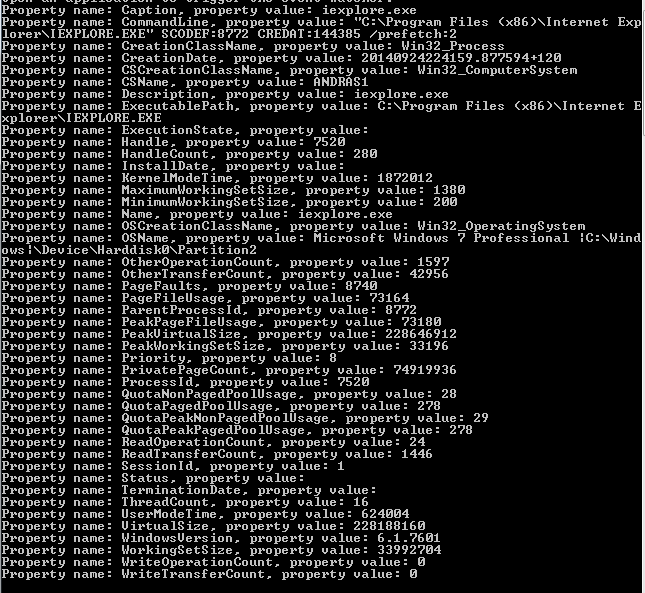
…and this for IE:

IE process created

You can view all posts related to Diagnostics here.

Getting notified by a Windows Service status change in C# .NET

The ManagementEventWatcher object in the System.Management namespace makes it possible to subscribe to events within the WMI – Windows Management Instrumentation – context. A change in the status of a Windows service is such an event and it’s possible to get notified when that happens.

We saw examples of WMI queries on this blog before – check the link below – and the ManagementEventWatcher object also requires an SQL-like query string. Consider the following function:

private static void RunManagementEventWatcherForWindowsServices()
{
	EventQuery eventQuery = new EventQuery();
	eventQuery.QueryString = "SELECT * FROM __InstanceModificationEvent within 2 WHERE targetinstance isa 'Win32_Service'";	
	ManagementEventWatcher demoWatcher = new ManagementEventWatcher(eventQuery);
	demoWatcher.Options.Timeout = new TimeSpan(1, 0, 0);
	Console.WriteLine("Perform the appropriate change in a Windows service according to your query");
	ManagementBaseObject nextEvent = demoWatcher.WaitForNextEvent();			
	ManagementBaseObject targetInstance = ((ManagementBaseObject)nextEvent["targetinstance"]);
	PropertyDataCollection props = targetInstance.Properties;
	foreach (PropertyData prop in props)
	{
		Console.WriteLine("Property name: {0}, property value: {1}", prop.Name, prop.Value);
	}

	demoWatcher.Stop();
}

We declare the query within an EventQuery object. Windows services are of type “Win32_Service” hence the “where targetinstance isa ‘Win32_Service'” clause. “within 2” means that we want to be notified 2 seconds after the status change has been detected. A change event is represented by the __InstanceModificationEvent class. There are many similar WMI system classes. A creation event corresponds to the __InstanceCreationEvent class. So the query is simply saying that we want to know of any status change in any Windows service 2 seconds after the change.

The timeout option means that the ManagementEventWatcher object will wait for the specified amount of time for the event to occur. After this a timeout exception will be thrown so you’ll need to handle that.

In order to read the properties of the Windows service we need to go a level down to “targetinstance” and read the properties of that ManagementBaseObject. Otherwise the “nextEvent” object properties are not too informative.

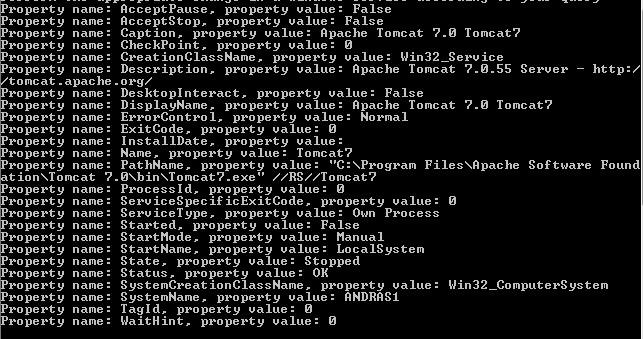
Run this code, open the Windows services window and stop or pause any Windows service. I stopped the Tomcat7 service running on my PC and got the following Console output:

Stopping any service caught by event watcher

You can of course refine your query using the property names of the target instance. You can always check the property names on MSDN. E.g. if you open the above link to the Win32_Service object then you’ll see that it has a “state” and a “name” property. So in case you’ll want to know that a service name “Tomcat7” was stopped then you can have the following query:

eventQuery.QueryString = "SELECT * FROM __InstanceModificationEvent within 2 WHERE targetinstance isa 'Win32_Service' and targetinstance.state = 'Stopped' and targetinstance.name = 'Tomcat7'";

In this case starting Tomcat7 won’t trigger the watcher. Neither will stopping any other Windows service. The event watcher will only react if a service names “Tomcat7” was stopped, i.e. the “Status” property of the target instance was set to “Stopped”.

You can view all posts related to Diagnostics here.

Finding all Windows Services using WMI in C# .NET

In this post we saw how to retrieve all logical drives using Windows Management Instrumentation – WMI -, and here how to find all network adapters.

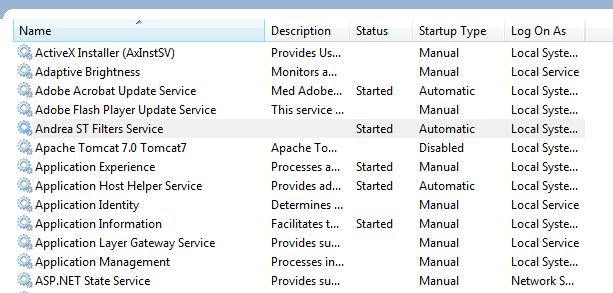
Say you’d like to get a list of all Windows Services and their properties running on the local – “root” – machine, i.e. read the services listed here:

Services window

The following code will find all non-null properties of all Windows services found:

private static void ListAllWindowsServices()
{
	ManagementObjectSearcher windowsServicesSearcher = new ManagementObjectSearcher("root\\cimv2", "select * from Win32_Service");
	ManagementObjectCollection objectCollection = windowsServicesSearcher.Get();

	Console.WriteLine("There are {0} Windows services: ", objectCollection.Count);

	foreach (ManagementObject windowsService in objectCollection)
	{
		PropertyDataCollection serviceProperties = windowsService.Properties;
		foreach (PropertyData serviceProperty in serviceProperties)
		{
			if (serviceProperty.Value != null)
			{
				Console.WriteLine("Windows service property name: {0}", serviceProperty.Name);
				Console.WriteLine("Windows service property value: {0}", serviceProperty.Value);
			}
		}
		Console.WriteLine("---------------------------------------");
	}
}

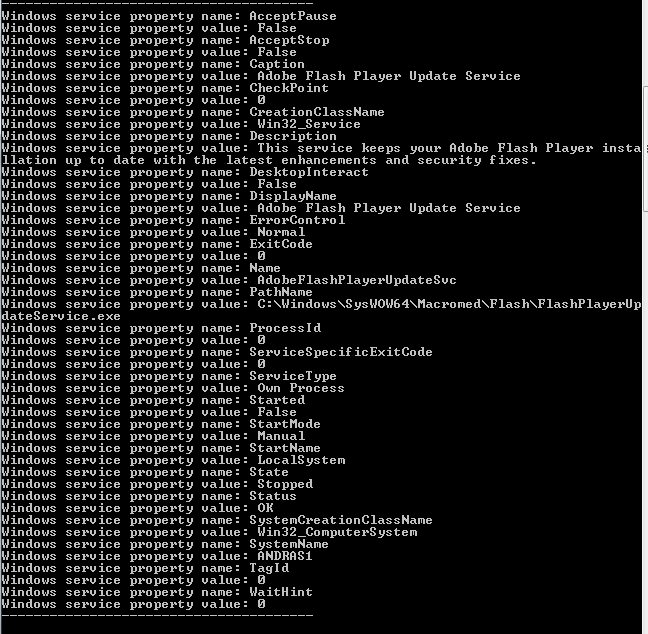
At the time of writing this post I had 196 services running on my PC. Here’s an example of the output for the Adobe Flash Player Update service:

Adobe Flash Player service properties

Once you know the property names of the WMI class then you can extend the SQL query. E.g. here’s how to find all non-running services:

ManagementObjectSearcher windowsServicesSearcher = new ManagementObjectSearcher("root\\cimv2", "select * from Win32_Service where Started = FALSE");

You can view all posts related to Diagnostics here.

Finding all network adapters using WMI in C# .NET

In this post we saw how to retrieve all logical drives using Windows Management Intrumentation (WMI). We’ll follow a very similar technique to enumerate all network adapters.

The following code prints all non-null properties of all network drives found on the local – “root” – computer:

private static void ListAllNetworkAdapters()
{
	ManagementObjectSearcher networkAdapterSearcher = new ManagementObjectSearcher("root\\cimv2", "select * from Win32_NetworkAdapterConfiguration");
	ManagementObjectCollection objectCollection = networkAdapterSearcher.Get();

	Console.WriteLine("There are {0} network adapaters: ", objectCollection.Count);

	foreach (ManagementObject networkAdapter in objectCollection)
	{
		PropertyDataCollection networkAdapterProperties = networkAdapter.Properties;
		foreach (PropertyData networkAdapterProperty in networkAdapterProperties)
		{
			if (networkAdapterProperty.Value != null)
			{
				Console.WriteLine("Network adapter property name: {0}", networkAdapterProperty.Name);
				Console.WriteLine("Network adapter property value: {0}", networkAdapterProperty.Value);
			}
		}
		Console.WriteLine("---------------------------------------");
	}
}

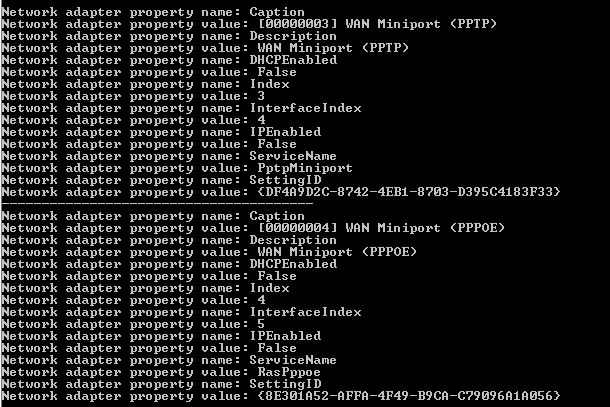
Here’s an extract of the printout from my PC:

Network adapters extract console view

You can view all posts related to Diagnostics here.

Finding all WMI class properties with .NET C#

In this post we saw how to enumerate all WMI – Windows Management Intrumentation – namespaces and classes. Then in this post we saw an example of querying the system to retrieve all local drives:

ObjectQuery objectQuery = new ObjectQuery("SELECT Size, Name FROM Win32_LogicalDisk where DriveType=3");

The properties that we’re after are like “Size” and “Name” of Win32_LogicalDisk. There’s a straightforward solution as we can select all properties in the object query. The following method will print all properties available in the WMI class, their types and values:

private static void PrintPropertiesOfWmiClass(string namespaceName, string wmiClassName)
{
	ManagementPath managementPath = new ManagementPath();
	managementPath.Path = namespaceName;
	ManagementScope managementScope = new ManagementScope(managementPath);
	ObjectQuery objectQuery = new ObjectQuery("SELECT * FROM " + wmiClassName);
	ManagementObjectSearcher objectSearcher = new ManagementObjectSearcher(managementScope, objectQuery);
	ManagementObjectCollection objectCollection = objectSearcher.Get();
	foreach (ManagementObject managementObject in objectCollection)
	{
		PropertyDataCollection props = managementObject.Properties;
		foreach (PropertyData prop in props)
		{
			Console.WriteLine("Property name: {0}", prop.Name);
			Console.WriteLine("Property type: {0}", prop.Type);
			Console.WriteLine("Property value: {0}", prop.Value);
		}
	}
}

You’ll need to run this with VS as an administrator. Also, there’s no authentication so we’ll use this code to investigate the class properties on the local machine. Otherwise see the posts referred to above for an example to read WMI objects from another machine on your network.

Let’s see what’s there for us in the cimv2/Win32_LocalTime class:

PrintPropertiesOfWmiClass("root\\cimv2", "Win32_LocalTime");

I got the following output:

WMI class property name reader

Let’s see another one:

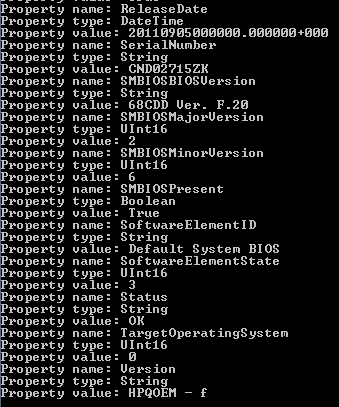
PrintPropertiesOfWmiClass("root\\cimv2", "Win32_BIOS");

Some interesting property values from the BIOS properties of my PC:

BIOS WMI properties

You can view all posts related to Diagnostics here.

Elliot Balynn's Blog

A directory of wonderful thoughts

Software Engineering

Web development

Disparate Opinions

Various tidbits

chsakell's Blog

WEB APPLICATION DEVELOPMENT TUTORIALS WITH OPEN-SOURCE PROJECTS

Once Upon a Camayoc

ARCHIVED: Bite-size insight on Cyber Security for the not too technical.