Monitor the file system with FileSystemWatcher in C# .NET Part 2: updates

In this post we saw how to set up a FileSystemWatcher to monitor a directory for file insertions and creations.

The FileSystemWatcher object also lets you monitor a given directory for file updates. The following code is very similar to the one referred to in the above link. The difference is that we subscribe to the Renamed event:

static void Main(string[] args)
{
	RunUpdateExample();
	Console.ReadKey();
}

private static void RunUpdateExample()
{
	FileSystemWatcher watcher = new FileSystemWatcher();
	watcher.Path = @"c:\mydirectory";
	watcher.Renamed += watcher_Renamed;
	watcher.EnableRaisingEvents = true;
}

static void watcher_Renamed(object sender, RenamedEventArgs e)
{
	Console.WriteLine("File updated. Old name: {0}, new name: {1}", e.OldName, e.Name);
}

Again, we have the Console.ReadKey(); in Main to make sure that the console app doesn’t just quit, otherwise the file system watcher process dies.

If you run this code and rename a file in the monitored directory you may see an output similar to the following:

File name change monitored by filesystemwatcher

Read the next installment here.

Read all posts dedicated to file I/O here.

Using Amazon S3 with the AWS.NET API Part 3: code basics cont’d

Introduction

In the previous post we looked at some basic code examples for Amazon S3: list all buckets, create a new bucket and upload a file to a bucket.

In this post we’ll continue with some more code examples: downloading a resource, deleting it and listing the available objects.

We’ll extend the AmazonS3Demo C# console application with reading, listing and deleting objects.

Listing files in a bucket

The following method in S3DemoService.sc will list all objects within a bucket:

public void RunObjectListingDemo()
{
	using (IAmazonS3 s3Client = GetAmazonS3Client())
	{
		try
		{
			ListObjectsRequest listObjectsRequest = new ListObjectsRequest();
			listObjectsRequest.BucketName = "a-second-bucket-test";
			ListObjectsResponse listObjectsResponse = s3Client.ListObjects(listObjectsRequest);
			foreach (S3Object entry in listObjectsResponse.S3Objects)
			{
				Console.WriteLine("Found object with key {0}, size {1}, last modification date {2}", entry.Key, entry.Size, entry.LastModified);
			}
		}
		catch (AmazonS3Exception e)
		{
			Console.WriteLine("Object listing has failed.");
			Console.WriteLine("Amazon error code: {0}",
				string.IsNullOrEmpty(e.ErrorCode) ? "None" : e.ErrorCode);
			Console.WriteLine("Exception message: {0}", e.Message);
		}
	}
}

We use a ListObjectsRequest object to retrieve all objects from a bucket by providing the bucket name. For each object we print the key name, the object size and the last modification date, simple as that. In the previous post I uploaded a file called logfile.txt to the bucket called “a-second-bucket-test”. Accordingly, calling this method from Main…

static void Main(string[] args)
{
	S3DemoService demoService = new S3DemoService();
	demoService.RunObjectListingDemo();

	Console.WriteLine("Main done...");
	Console.ReadKey();
}

…yields the following output:

Found object with key logfile.txt, size 4490, last modification date 2014-12-06 13:25:45.

The ListObjectsRequest function provides some basic search functionality. The “Prefix” property will limit the search results to those objects whose names start with that prefix, e.g.:

listObjectsRequest.Prefix = "log";

That will find all objects whose key names start with “log”, i.e. logfile.txt is still listed.

You can list a limited number of elements, say 5:

listObjectsRequest.MaxKeys = 5;

You can also set a marker, meaning that the request will only list the files whose keys come after the marker value alphabetically:

listObjectsRequest.Marker = "leg";

This will find “logfile.txt”. However a marker value of “lug” won’t.

Download a file

Downloading a file from S3 involves reading from a Stream, a standard operation in the world of I/O. The following function will load the stream from logfile.txt, print its metadata and convert the downloaded byte array into a string:

public void RunDownloadFileDemo()
{
	using (IAmazonS3 s3Client = GetAmazonS3Client())
	{
		try
		{
			GetObjectRequest getObjectRequest = new GetObjectRequest();
			getObjectRequest.BucketName = "a-second-bucket-test";
			getObjectRequest.Key = "logfile.txt";
			GetObjectResponse getObjectResponse = s3Client.GetObject(getObjectRequest);
			MetadataCollection metadataCollection = getObjectResponse.Metadata;

			ICollection<string> keys = metadataCollection.Keys;
			foreach (string key in keys)
			{
				Console.WriteLine("Metadata key: {0}, value: {1}", key, metadataCollection[key]);
			}

			using (Stream stream = getObjectResponse.ResponseStream)
			{
				long length = stream.Length;
				byte[] bytes = new byte[length];
				int bytesToRead = (int)length;
				int numBytesRead = 0;
				do
				{
					int chunkSize = 1000;
					if (chunkSize > bytesToRead)
					{
						chunkSize = bytesToRead;
					}
					int n = stream.Read(bytes, numBytesRead, chunkSize);
					numBytesRead += n;
					bytesToRead -= n;
				}
				while (bytesToRead > 0);
				String contents = Encoding.UTF8.GetString(bytes);
				Console.WriteLine(contents);
			}
		}
		catch (AmazonS3Exception e)
		{
			Console.WriteLine("Object download has failed.");
			Console.WriteLine("Amazon error code: {0}",
				string.IsNullOrEmpty(e.ErrorCode) ? "None" : e.ErrorCode);
			Console.WriteLine("Exception message: {0}", e.Message);
		}
	}
}

Run it from Main:

demoService.RunDownloadFileDemo();

In my case there was only one metadata entry:

Metadata key: x-amz-meta-type, value: log

…which is the one I attached to the file in the previous post.

In the above case we know beforehand that we’re reading text so the bytes could be converted into a string. However, this is of course not necessarily the case as you can store any file type on S3. The GetObjectResponse has a method which allows you to save the stream into a file:

getObjectResponse.WriteResponseStreamToFile("full file path");

…which has an overload to append the stream contents to an existing file:

getObjectResponse.WriteResponseStreamToFile("full file path", true);

Deleting a file

Deleting an object from S3 is just as straightforward as uploading it:

public void RunFileDeletionDemo()
{
	using (IAmazonS3 s3Client = GetAmazonS3Client())
	{
		try
		{
			DeleteObjectRequest deleteObjectRequest = new DeleteObjectRequest();
			deleteObjectRequest.BucketName = "a-second-bucket-test";
			deleteObjectRequest.Key = "logfile.txt";
			DeleteObjectResponse deleteObjectResponse = s3Client.DeleteObject(deleteObjectRequest);
		}
		catch (AmazonS3Exception e)
		{
			Console.WriteLine("Object deletion has failed.");
			Console.WriteLine("Amazon error code: {0}",
				string.IsNullOrEmpty(e.ErrorCode) ? "None" : e.ErrorCode);
			Console.WriteLine("Exception message: {0}", e.Message);
		}
	}
}

Calling this from Main…

demoService.RunFileDeletionDemo();

…removes the previously uploaded logfile.txt from the bucket:

File removed from Amazon S3 bucket

In the next post we’ll see how to work with folders in code.

View all posts related to Amazon Web Services and Big Data here.

Monitor the file system with FileSystemWatcher in C# .NET Part 1

In this mini-series we’ll look at how you can use the FileSystemWatcher object to monitor the Windows file system for various changes.

A FileSystemWatcher object enables you to be notified when some change occurs in the selected part of the file system. This can be any directory, such as “c:\” or any subdirectory under the C: drive. So if you’d like to make sure you know if a change occurs on e.g. “c:\myfolder” – especially if it’s editable by your colleagues – then FileSystemWatcher is a good candidate.

Consider the following Console application:

class Program
{
	static void Main(string[] args)
	{
		RunFirstExample();
		Console.ReadKey();
	}

	private static void RunFirstExample()
	{
		FileSystemWatcher watcher = new FileSystemWatcher();
		watcher.Path = @"c:\mydirectory";
		watcher.Created += watcher_Created;
		watcher.Deleted += watcher_Deleted;
		watcher.EnableRaisingEvents = true;			
	}

	static void watcher_Deleted(object sender, FileSystemEventArgs e)
	{
		Console.WriteLine("File deleted. Name: {0}", e.Name);
	}

	static void watcher_Created(object sender, FileSystemEventArgs e)
	{
		Console.WriteLine("File created. Name: {0}", e.Name);
	}
}

In RunFirstExample we specify that we’re interested in monitoring the c:\mydirectory directory. Then we subscribe to the Created and Deleted events which represent the insertion of a new file and the deletion of an existing file in the directory. The FileSystemEventArgs has a couple of properties to show the event type, such as “Created” or “Deleted” in a WatcherChangeTypes enumeration, the file name and the file full path. We then start running the monitoring process by setting EnableRaisingEvents to true.

Note the call to Console.ReadKey(); in Main. The process won’t magically run in the background once Main is done. The FileSystemWatcher must sit within a continuous process, such as a Windows service.

Run the above code and insert a new file into the monitored directory. Then delete the file and watch the console output. Insertion example:

File creation monitored by filesystemwatcher

File deleted:

File deletion monitored by filesystemwatcher

Read the next part here.

Read all posts dedicated to file I/O here.

Inspecting the directories on the local PC using C# .NET

In this post we saw how to enumerate all the drives on your Windows machine. Once you have the drive name, such as C:\ you can start digging into it to see what files and folders it contains.

The DirectoryInfo object is the entry point to the exercise:

DirectoryInfo directoryInfo = new DirectoryInfo(@"c:\");

The empty GetDirectories() method will find all subfolders directly under “c:\” i.e. exclude the subfolders within the folders on c:\

DirectoryInfo[] allSubFolders = directoryInfo.GetDirectories();
foreach (DirectoryInfo subFolder in allSubFolders)
{
	Console.WriteLine("Sub directory name: {0}", subFolder.Name);
        Console.WriteLine("Sub directory creation time: {0}", subFolder.CreationTimeUtc);
}

DirectoryInfo has several other properties such as last access time that can be interesting for you.

GetDirectories has two overloads which let you search for a folder. The following will list all subdirectories whose name starts with an “a”:

DirectoryInfo[] searchedFolders = directoryInfo.GetDirectories("a*");

…and this is how you extend the search to all directories under c:\

DirectoryInfo[] searchedFolders = directoryInfo.GetDirectories("a*", SearchOption.AllDirectories);

The search is case-insensitive so this returns all folders starting with “a” and “A”.

You can search for files in much the same way. The file-equivalent class of DirectoryInfo is FileInfo. This is how to list all files available directly within a directory:

FileInfo[] filesInDir = directoryInfo.GetFiles();

GetFiles() also has overloads similar to GetDirectories that enable you to search for files.

Read all posts dedicated to file I/O here.

Using Amazon S3 with the AWS.NET API Part 2: code basics

Introduction

In the previous post we looked at an overview of Amazon S3 and we also tried a couple of simple operations on the GUI. In this post we’ll start coding. If you followed along the previous series on Amazon Kinesis then the setup section will be familiar to you. Otherwise I’ll assume that you are starting this series without having read anything else on this blog.

Note that we’ll be concentrating on showing and explaining the technical code examples related to AWS. We’ll ignore software principles like SOLID and layering so that we can stay focused. It’s your responsibility to organise your code properly. There are numerous posts on this blog that take up topics related to software architecture.

Installing the SDK

The Amazon .NET SDK is available through NuGet. Open Visual Studio 2012/2013 and create a new C# console application called AmazonS3Demo. The purpose of this application will be to demonstrate the different parts of the SDK around S3. In reality the S3 handler could be any type of application:

  • A website
  • A Windows/Android/iOS app
  • A Windows service
  • etc.

…i.e. any application that’s capable of sending HTTP/S requests to a web service endpoint. We’ll keep it simple and not waste time with view-related tasks.

Install the following NuGet package:

AWS SDK NuGet package

Preparations

We cannot just call the services within the AWS SDK without proper authentication. This is an important reference page to handle your credentials in a safe way. We’ll the take the recommended approach and create a profile in the SDK Store and reference it from app.config.

This series is not about AWS authentication so we won’t go into temporary credentials but later on you may be interested in that option too. Since we’re programmers and it takes a single line of code to set up a profile we’ll go with the programmatic options. Add the following line to Main:

Amazon.Util.ProfileManager.RegisterProfile("demo-aws-profile", "your access key id", "your secret access key");

I suggest you remove the code from the application later on in case you want to distribute it. Run the application and it should execute without exceptions. Next open app.config and add the appSettings section with the following elements:

<appSettings>
        <add key="AWSProfileName" value="demo-aws-profile"/>
</appSettings>

First demo: listing the available buckets

We’ll put all our test code into a separate class. Insert a cs file called S3DemoService. We’ll need a method to build a handle to the service which is of type IAmazonS3:

private IAmazonS3 GetAmazonS3Client()
{
	return Amazon.AWSClientFactory.CreateAmazonS3Client(RegionEndpoint.EUWest1);
}

Note that we didn’t need to provide our credentials here. They will be extracted automatically using the profile name in the config file.

Let’s first find out what buckets we have in S3. This is almost a trivial task:

public void RunBucketListingDemo()
{
	using (IAmazonS3 s3Client = GetAmazonS3Client())
	{
		try
		{
			ListBucketsResponse response = s3Client.ListBuckets();
			List<S3Bucket> buckets = response.Buckets;
			foreach (S3Bucket bucket in buckets)
			{
				Console.WriteLine("Found bucket name {0} created at {1}", bucket.BucketName, bucket.CreationDate);
			}
		}
		catch (AmazonS3Exception e)
		{
			Console.WriteLine("Bucket listing has failed.");
			Console.WriteLine("Amazon error code: {0}",
				string.IsNullOrEmpty(e.ErrorCode) ? "None" : e.ErrorCode );
			Console.WriteLine("Exception message: {0}", e.Message);
		}
	}
}

We use the client to list all the available buckets. The method returns a ListBucketsResponse object which will hold the buckets.

You’ll see a lot of these Request and Response objects throughout the AWS SDK. Amazon are fond of wrapping the request parameters and response properties into Request and Response objects adhering to the RequestResponse pattern.

We then list the name and creation date of our buckets. Call this method from Main:

static void Main(string[] args)
{
	S3DemoService demoService = new S3DemoService();
	demoService.RunBucketListingDemo();

	Console.WriteLine("Main done...");
	Console.ReadKey();
}

Example output:

Found bucket name a-first-bucket-test created at 2014-12-03 22:30:59

Second demo: creating a new bucket

Creating a new bucket is equally easy. Add the following method to S3DemoService:

public void RunBucketCreationDemo()
{
	using (IAmazonS3 s3Client = GetAmazonS3Client())
	{
		try
		{
			PutBucketRequest putBucketRequest = new PutBucketRequest();
			String newBucketName = "a-second-bucket-test";
			putBucketRequest.BucketName = newBucketName;
			PutBucketResponse putBucketResponse = s3Client.PutBucket(putBucketRequest);					
		}
		catch (AmazonS3Exception e)
		{
			Console.WriteLine("Bucket creation has failed.");
			Console.WriteLine("Amazon error code: {0}",
				string.IsNullOrEmpty(e.ErrorCode) ? "None" : e.ErrorCode);
			Console.WriteLine("Exception message: {0}", e.Message);
		}
	}
}

Again, we can see a Request and a corresponding Response object to create a bucket. We only specify a name which means that we go with the default values for e.g. permissions, they are usually fine. PutBucketRequest provides some properties to indicate values not adhering to the default ones. E.g. here’s how to give Everyone the permission to view the bucket:

S3Grant grant = new S3Grant();
S3Permission permission = new S3Permission("List");
S3Grantee grantee = new S3Grantee();
grantee.CanonicalUser = "Everyone";
grant.Grantee = grantee;
grant.Permission = permission;
List<S3Grant> grants = new List<S3Grant>() { grant };
putBucketRequest.Grants = grants;

Call RunBucketCreationDemo from Main as follows:

demoService.RunBucketCreationDemo();

Run the application and the bucket should be created:

Second bucket created from code Amazon S3

It’s not allowed to have two buckets with the same name. Run the application again and you should get an exception:

Bucket creation has failed.
Amazon error code: BucketAlreadyOwnedByYou
Exception message: Your previous request to create the named bucket succeeded and you already own it.

Third demo: file creation

Let’s upload a text file to the bucket we’ve just created. To be exact, we’ll upload its contents. Create some text file on your hard drive such as c:\logfile.txt and add some text to it. This example shows how to set the contents of the request. We also set an arbitrary metadata key-value pair of key “type” and value “log”. You can set any type of metadata you want:

public void RunFileUploadDemo()
{
	FileInfo filename = new FileInfo( @"c:\logfile.txt");
	string contents = File.ReadAllText(filename.FullName);
	using (IAmazonS3 s3Client = GetAmazonS3Client())
	{
		try
		{
			PutObjectRequest putObjectRequest = new PutObjectRequest();
			putObjectRequest.ContentBody = contents;
			putObjectRequest.BucketName = "a-second-bucket-test";
			putObjectRequest.Metadata.Add("type", "log");
			putObjectRequest.Key = filename.Name;
			PutObjectResponse putObjectResponse = s3Client.PutObject(putObjectRequest);
		}
		catch (AmazonS3Exception e)
		{
			Console.WriteLine("File creation has failed.");
			Console.WriteLine("Amazon error code: {0}",
				string.IsNullOrEmpty(e.ErrorCode) ? "None" : e.ErrorCode);
			Console.WriteLine("Exception message: {0}", e.Message);
		}
	}
}

Call this method from Main:

demoService.RunFileUploadDemo();

Run the application and the file with its custom metadata should be visible in S3:

File uploaded to Amazon S3 with metadata

We’ll continue with more examples in the next post.

View all posts related to Amazon Web Services and Big Data here.

Inspecting the drives on the local PC using C# .NET

It’s very simple to enumerate the drives on a Windows computer. The DriveInfo object has a GetDrives static method which returns an array of DriveInfo objects. A DriveInfo describes a drive through its properties. It is similar to the FileInfo class which in turn describes a file.

There are some properties that can only be extracted if the drive is ready, e.g. a CD-Rom drive. The following method prints the available drives:

DriveInfo[] drives = DriveInfo.GetDrives();
foreach (DriveInfo drive in drives)
{
	Console.WriteLine("Drive name: {0}", drive.Name);
	if (drive.IsReady)
	{
		Console.WriteLine("Total size: {0}", drive.TotalSize);
		Console.WriteLine("Total free space: {0}", drive.TotalFreeSpace);
		Console.WriteLine("Available free space: {0}", drive.AvailableFreeSpace);
		Console.WriteLine("Drive format: {0}", drive.DriveFormat);
	}
	else
	{
		Console.WriteLine("Device {0} is not ready.", drive.Name);									
	}
	Console.WriteLine("Drive type: {0}", drive.DriveType);	
}

I got the following output:

Drives enumerated

DriveType can have the following values:

  • CDRom: an optical drive such as a CD-ROM, DVD etc.
  • Fixed: a fixed disk, quite often labelled as “C:\”
  • Network: a mapped drive
  • NoRootDirectory: a drive with no root directory
  • Ram: a RAM drive
  • Removable: a removable drive such as a pen-drive
  • Unknown: a drive whose type could not be determined

Read all posts dedicated to file I/O here.

Using Amazon S3 with the AWS.NET API Part 1: introduction

Introduction

Cloud-based blob storage solutions are abound and Amazon Web Services (AWS) is the leader – or one of the leaders – in that area. Amazon S3 (Simple Storage Service) provides a “secure, durable, highly-scalable object storage” solution, as it is stated on the homepage. You can use S3 to store just about any type of file: images, text files, videos, JAR files, HTML pages etc. All files are stored in a key-value map, i.e. each file has a key where the file itself is the value.

Purpose of S3

S3 is often used to store static components of web pages such as images or videos. S3 can be integrated with other Amazon components such as RedShift and Elastic MapReduce. It can also be used to transfer large amounts of data from one component to another.

However, in this series we’ll be concentrating on a slightly different but very specific usage: saving, deleting and checking for the existence of text based storage files. S3 can function as an important building block in a Big Data analysis system where a data mining application can pull the raw data from an S3 bucket, i.e. a container of files.

In S3 you can organise your files into pseudo-folders. I wrote “pseudo” as they are not real folders like the ones we create on Windows. The are rather used as visual containers so that you can organise your files in a meaningful way instead of putting all of them under the same bucket. Examples:

s3:\\sales\january-2015\monthly-sales.txt
s3:\\sales\february-2015\monthly-sales.txt

“sales” is the top bucket, “january-2015” is folder and then we have the file itself. You are free to create subfolders within each folder and subfolders within the subfolders etc.

Keep in mind that S3 is not used for updates though. Once you’ve uploaded a file to S3 then it cannot be updated in a one-step operation. Even if you want to edit a text file there’s no editor for it. You’ll need to delete the old file and upload a new one instead.

Amazon have also done a great job at providing SDKs for a range of platforms, like .NET, Java, Python etc. Programmatic access to S3’s services is equally available.

As with many other Amazon components don’t assume that S3 can only be used with other Amazon components. Any software capable of executing HTTP calls can use to access S3: Web API, .NET MVC, iOS, Java desktop apps, Windows services, you name it. Mixed architecture is quickly becoming the norm nowadays and S3 can be used both as part of a mixed solution or as an Amazon-only architecture.

Goals of this series

The goals of this series are two-fold:

  • Provide basic UI and programmatic knowledge to anyone looking for a fast, cheap, reliable and scalable cloud-based blob storage solution
  • Tie in with the previous series about another Amazon service called Kinesis which provides a reliable message queue service as entry point to a Big Data data mining system. We’ll take up S3 as an alternative for raw data storage towards the end of the series. The series on Kinesis ended where we stored the raw data on a local text file – we’ll replace it with S3 based storage

I’ll try to keep the two goals as separate as possible so that all readers with different motivations can follow through – those of you who are only interested in S3 as well as those that will see the greater picture.

I’ll assume that you have at least a test account of Amazon Web Services including the necessary access keys: an Amazon Access Key and a Secret Access Key. You’ll need to sign up with Amazon and then sign up for S3 within Amazon. You can create a free account on the S3 home page using the Create Free Account link button:

S3 create free account link button

Amazon has a lot of great documentation online. Should you get stuck you’ll almost always find an answer there. Don’t be afraid to ask in the comments section below.

In this post we’ll take an easy start and go through some of the visual aspects of S3.

S3 GUI

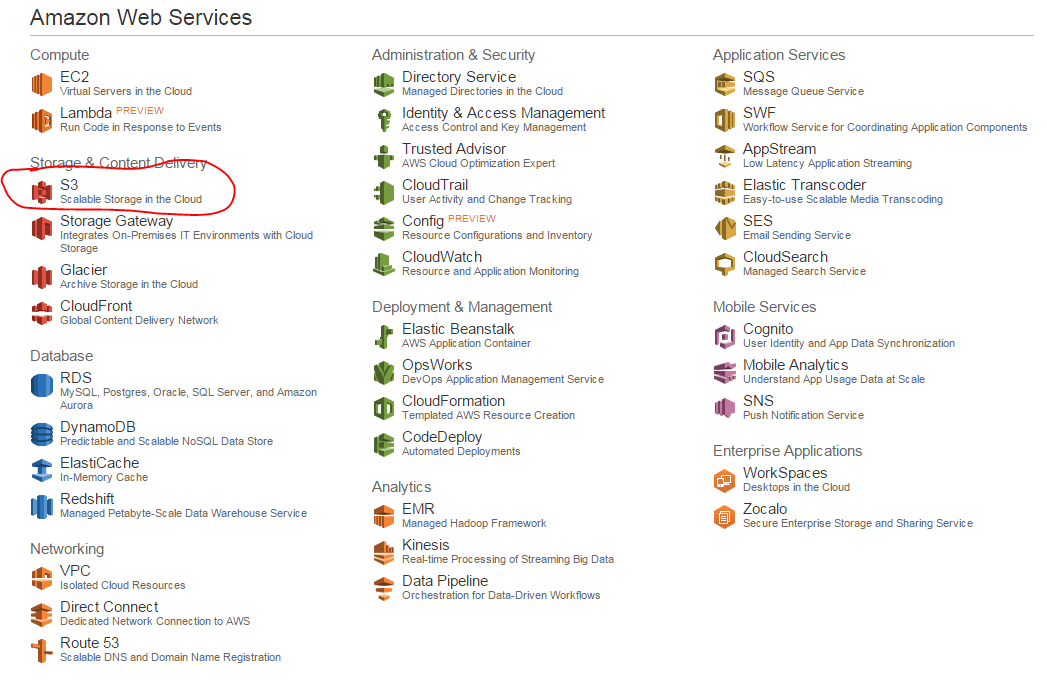
Log onto AWS and locate the S3 service link:
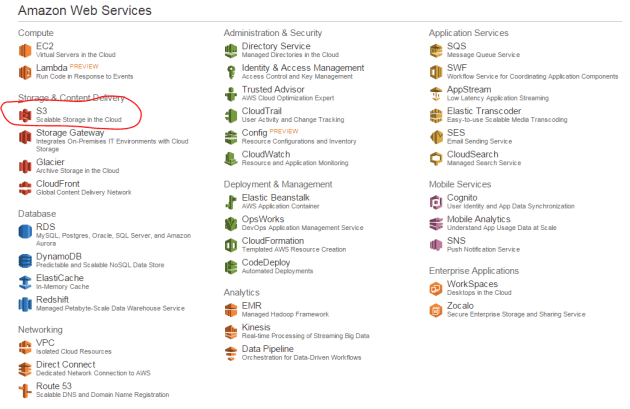
S3 link on Amazon UI

Before we go anywhere it’s important to mention regions in Amazon. A region in Amazon Web Services is the geographical location of the data centre where your selected service will be located. E.g. if you create a cloud-based server with Amazon EC2 in the region called US East then the server will be set up North Virginia. It doesn’t mean that your home page deployed on that server won’t be reachable anywhere else, it only means the physical location of the service. So if you’re expecting the bulk of your customers to come from Japan then it’s wise to set up the first web server in the region called Asia Pacific (Tokyo). Also, if you set up a service in e.g. EU (Ireland) on the AWS UI, then log out and log in again, your service may not be visible at first. A good guess is that you need to select the correct region. The region is indicated in the URL, e.g.:

https://console.aws.amazon.com/s3/home?region=eu-west-1#

…where “eu-west-1” stands for EU (Ireland). You can normally select the region in the top right hand corner of the Amazon UI where you’ll see the user-friendly names of the regions.

Regions are important for virtually all the components in AWS. Take a wild guess, which component is an exception. Check out the top right hand corner of the S3 screen:

No regions for Amazon S3

So regions don’t play the same role here as in other components in the AWS product offering. However, the selected region can still be used to “optimize for latency, minimize costs, or address regulatory requirements” as it says in the Create a Bucket windows we’ll soon see.

You’ll see that by default the screen will show all the top buckets:

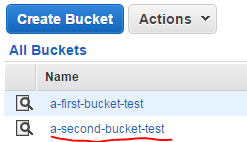
S3 All buckets screen

Let’s try a couple of things to get our hands dirty. Click on the Create Bucket button. Give the bucket a name, select the nearest region to your location and press Create. We’ll skip logging right now:
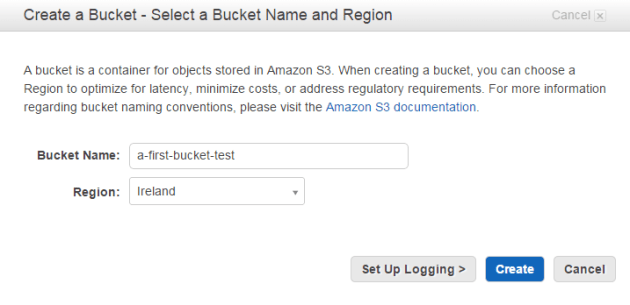
Creating first bucket Amazon S3

The bucket is quickly created:

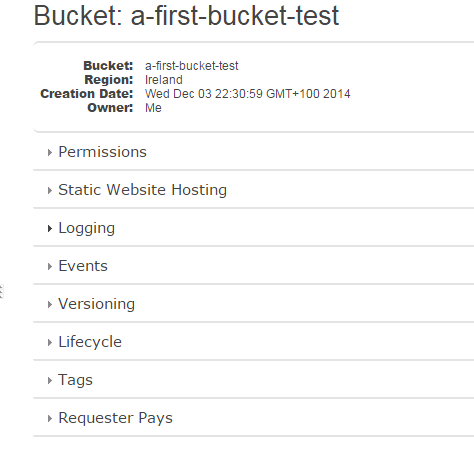
Created first bucket in Amazon S3

On the right hand side of the screen you can set various properties of the bucket such as logging and security:

Set properties of bucket in Amazon S3

We won’t go into them at all otherwise this series will lose its scope. The default values are usually fine for most purposes. If you ever need to modify the settings, especially those that have to do with permissions, then consult the AWS documentation of S3.

Click on the name of the bucket and you’ll see that it’s empty:
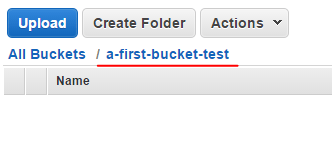
First bucket is empty in Amazon S3

Click the Upload button and click Add Files:
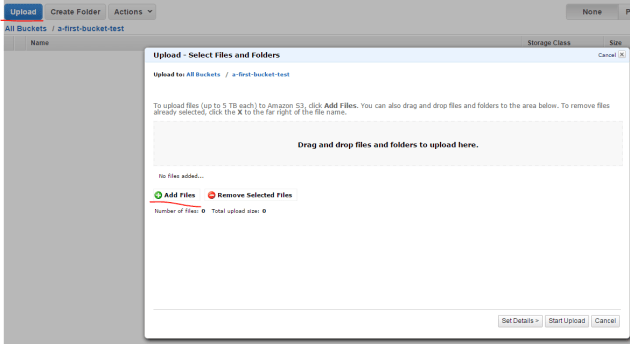
Upload a file in Amazon S3

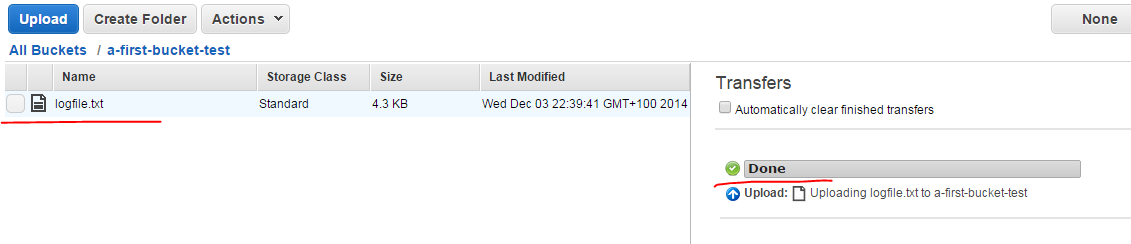
Select some file on your hard drive, preferably a text file as they are easier to open. Click “Start Upload” and the file upload progress should appear on the right hand side:

Text file uploaded to bucket in Amazon S3

Click the file name to select it. The Actions drop-down will list several options available for a file such as Open, Download or Delete which are self-explanatory.

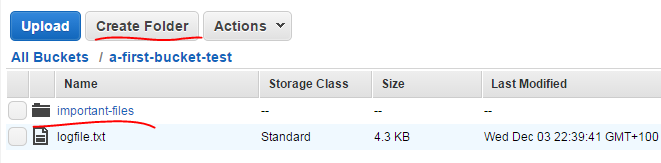
Now click the “Create Folder” button and give the folder a name:

Created folder in Amazon S3 bucket

You can click the folder name to open its contents – much like you do it with a double-click on the Windows file system. You can then upload different files in that folder and create subfolders.

This is enough for starters. We’ll start looking into some basic operations in code in the next post.

View all posts related to Amazon Web Services and Big Data here.

Setting the file access rule of a file with C# .NET

When creating a new file you can set the access control rule for it in code. There are a couple of objects to build the puzzle.

The FileInfo class, which describes a file in a directory, has a SetAccessControl method which accepts a FileSecurity object. The FileSecurity object has an AddAccessRule method where you can pass in a FileSystemAccessRule object. The FileSystemAccessRule object has 4 overloads, 2 of which accept an IdentityReference abstract class. One of the implementations of IdentityReference is SecurityIdentifier. SecurityIdentifier in turn has 4 overloads where the last one is probably the most straightforward to use.

  • WellKnownSidType: an enumeration listing the commonly used security identifiers
  • A domainSid of type SecurityIdentifier: this can most often be ignored. Check out the MSDN link above to see which WellKnownSidType enumeration values require this

The following method will set the access control to “Everyone”, which is represented by WellKnownSidType.WorldSid. “Everyone” will have full control over the file indicated by FileSystemRights.FullControl and AccessControlType.Allow in the FileSystemAccessRule constructor:

FileInfo fi = new FileInfo(@"C:\myfile.txt");
if (!fi.Exists)
{
	File.Create(fi.FullName);
}
SecurityIdentifier userAccount = new SecurityIdentifier(WellKnownSidType.WorldSid, null);
FileSecurity fileAcl = new FileSecurity();
fileAcl.AddAccessRule(new FileSystemAccessRule(userAccount, FileSystemRights.FullControl, AccessControlType.Allow));
fi.SetAccessControl(fileAcl);

You can easily check the result by viewing the properties of the file:

File access control set to Everyone full control

Read all posts dedicated to file I/O here.

Reading a text file using a specific encoding in C# .NET

In this post we saw how to save a text file specifying an encoding in the StreamWriter constructor. You can indicate the encoding type when you read a file with StreamWriter’s sibling StreamReader. Normally you don’t need to worry about specifying the code page when reading files. .NET will automatically understand most encoding types when reading files.

Here’s an example how you can read a file with a specific encoding type:

string filename = string.Concat(@"c:\file-utf-seven.txt");
StreamWriter streamWriter = new StreamWriter(filename, false, Encoding.UTF7);
streamWriter.WriteLine("I am feeling great.");
streamWriter.Close();

using (StreamReader reader = new StreamReader(filename, Encoding.UTF7))
{
	Console.WriteLine(reader.ReadToEnd());
}

Read all posts dedicated to file I/O here.

Using Amazon Kinesis with the AWS.NET API Part 6: storage

Introduction

In the previous post we added some validation to our demo message handling application. Validation adds some sanity checks to our logic so that bogus inputs are discarded.

In this post, which will be the last in the series on Amazon Kinesis, we’ll be looking at storage. We’ll save the data on disk, which in itself is not too interesting, but we’ll also discuss some formats that are suitable for further processing.

Formats

It is seldom that we’re saving data just to fill up a data store. This is true in our case as well. We’re getting the messages from the Kinesis stream and we’ll be soon saving them. However, we’ll certainly want to perform some actions on the data, such as data aggregations:

  • Calculate the average response time for http://www.bbc.co.uk/africa between 12:15 to 12:30 on 13 January 2015 for users with Firefox 11
  • Calculate max response time in week 45 2014 for the domain cnn.com for users located in Seattle
  • Calculate the 99th percentile of the response time for http://www.twitter.com for February 2014

…etc. Regardless of where you’re planning to save the data, such as a traditional relational DB like MS SQL or a NoSql DB such as MongoDb, you’ll need to plan on the storage format i.e. what tables, collections, columns and datatypes you’ll need. As the next Amazon component we’ll take up on this blog is the blob storage S3 we’ll be concentrating on storing the raw data points in a text file. At first this may seem like a very bad idea but S3 is a very efficient, durable and scalable storage. However, don’t assume that this is a must for your Big Data system to work, you can save your data the way you want. Here we’re just paving the way for the next step.

As mentioned before in this series I have another, higher-level set of posts dedicated to Amazon architecture available here. I took up a similar topic there about message formats, I’ll re-use some of those explanations below.

The format will most likely depend on the mechanism that will eventually pull data from the raw data store. Data mining and analysis solutions such as Amazon RedShift or Elastic MapReduce (EMR) – which we’ll take up later on – will all need to work with the raw data. So at this stage you’ll need to do some forward thinking:

  • A: What mechanism will need to read from the raw data store for aggregation?
  • B: How can we easily – or relatively easily – read the raw data visually by just opening a raw data file?

B is important for debugging purposes if you want to verify the calculations. It’s also important if some customer is interested in viewing the raw data for some time period. For B you might want to store the raw data as it is, i.e. as JSON. E.g. you can have a text file with the following data points:

{"CustomerId": "abc123", "DateUnixMs": 1416603010000, "Activity": "buy", "DurationMs": 43253}
{"CustomerId": "abc123", "DateUnixMs": 1416603020000, "Activity": "buy", "DurationMs": 53253}
{"CustomerId": "abc123", "DateUnixMs": 1416603030000, "Activity": "buy", "DurationMs": 63253}
{"CustomerId": "abc123", "DateUnixMs": 1416603040000, "Activity": "buy", "DurationMs": 73253}

…i.e. with one data point per line.

However, this format is not really suitable for point A above. Other mechanisms will have a hard time understanding this data format. For RedShift and EMR to work most efficiently we’ll need to store the raw data in some delimited fields such as CSV or tab delimited fields. So the above data points will then be stored as follows in a tab-delimited file:

abc123     1416603010000    buy    43253
abc123     1416603020000    buy    53253
abc123     1416603030000    buy    63253
abc123     1416603040000    buy    73253

This is probably OK for point B above as well. It’s not too hard on your eyes to understand this data structure so we’ll settle for that. You might ask why we didn’t select some other delimiter, such as a pipe ‘|’ or a comma ‘,’. The answer is that our demo system is based on URLs and URLs can have pipes and commas in them making them difficult to split. Tabs will work better but you are free to choose whatever fits your system best.

Implementation

This time we’ll hide the implementation of the storage mechanism behind an interface. It will be a forward-looking solution where we’ll be able to easily switch between the concrete implementations. Open the demo C# application we’ve been working on so far and locate the WebTransaction object in the AmazonKinesisConsumer application. We’ll add a method to create a tab-delimited string out of its properties:

public string ToTabDelimitedString()
{
	StringBuilder sb = new StringBuilder();
	sb.Append(CustomerName)
		.Append("\t")
		.Append(Url)
		.Append("\t")
		.Append(WebMethod)
		.Append("\t")
		.Append(ResponseTimeMs)
		.Append("\t")
		.Append(UtcDateUnixMs);
	return sb.ToString();
}

Create a text file on your hard drive, like c:\raw-data\storage.txt. Add the following interface to AmazonKinesisConsumer:

public interface IRawDataStorage
{
	void Save(IEnumerable<WebTransaction> webTransactions);
}

…and also the following file based implementation:

public class FileBasedDataStorage : IRawDataStorage
{
	private readonly FileInfo _fileName;

	public FileBasedDataStorage(string fileFullPath)
	{
		if (string.IsNullOrEmpty(fileFullPath)) throw new ArgumentNullException("File full path");
		_fileName = new FileInfo(fileFullPath);
		if (!_fileName.Exists)
		{
			throw new ArgumentException(string.Concat("Provided file path ", fileFullPath, " does not exist."));
		}			
	}
		
	public void Save(IEnumerable<WebTransaction> webTransactions)
	{
		StringBuilder stringBuilder = new StringBuilder();
		foreach (WebTransaction wt in webTransactions)
		{
			stringBuilder.Append(wt.ToTabDelimitedString()).Append(Environment.NewLine);
		}

		using (StreamWriter sw = File.AppendText(_fileName.FullName))
		{
			sw.Write(stringBuilder.ToString());
		}
	}
}

The implementation of the Save method should be quite straightforward. We build a string with the tab delimited representation of the WebTransaction object which is then appended to the source file.

Here comes the updated ReadFromStream() method:

private static void ReadFromStream()
{
	IRawDataStorage rawDataStorage = new FileBasedDataStorage(@"c:\raw-data\storage.txt");
	AmazonKinesisConfig config = new AmazonKinesisConfig();
	config.RegionEndpoint = Amazon.RegionEndpoint.EUWest1;
	AmazonKinesisClient kinesisClient = new AmazonKinesisClient(config);
	String kinesisStreamName = ConfigurationManager.AppSettings["KinesisStreamName"];

	DescribeStreamRequest describeRequest = new DescribeStreamRequest();
	describeRequest.StreamName = kinesisStreamName;

	DescribeStreamResponse describeResponse = kinesisClient.DescribeStream(describeRequest);
	List<Shard> shards = describeResponse.StreamDescription.Shards;

	foreach (Shard shard in shards)
	{
		GetShardIteratorRequest iteratorRequest = new GetShardIteratorRequest();
		iteratorRequest.StreamName = kinesisStreamName;
		iteratorRequest.ShardId = shard.ShardId;
		iteratorRequest.ShardIteratorType = ShardIteratorType.TRIM_HORIZON;

		GetShardIteratorResponse iteratorResponse = kinesisClient.GetShardIterator(iteratorRequest);
		string iteratorId = iteratorResponse.ShardIterator;

		while (!string.IsNullOrEmpty(iteratorId))
		{
			GetRecordsRequest getRequest = new GetRecordsRequest();
			getRequest.Limit = 1000;
			getRequest.ShardIterator = iteratorId;

			GetRecordsResponse getResponse = kinesisClient.GetRecords(getRequest);
			string nextIterator = getResponse.NextShardIterator;
			List<Record> records = getResponse.Records;

			if (records.Count > 0)
			{
				Console.WriteLine("Received {0} records. ", records.Count);
				List<WebTransaction> newWebTransactions = new List<WebTransaction>();
				foreach (Record record in records)
				{
					string json = Encoding.UTF8.GetString(record.Data.ToArray());
					try
					{
						JToken token = JContainer.Parse(json);
						try
						{									
							WebTransaction wt = JsonConvert.DeserializeObject<WebTransaction>(json);
							List<string> validationErrors = wt.Validate();
							if (!validationErrors.Any())
							{
								Console.WriteLine("Valid entity: {0}", json);
								newWebTransactions.Add(wt);
							}
							else
							{
								StringBuilder exceptionBuilder = new StringBuilder();
								exceptionBuilder.Append("Invalid WebTransaction object from JSON: ")
									.Append(Environment.NewLine).Append(json)
									.Append(Environment.NewLine).Append("Validation errors: ")
									.Append(Environment.NewLine);
								foreach (string error in validationErrors)
								{
									exceptionBuilder.Append(error).Append(Environment.NewLine);																										
								}
								Console.WriteLine(exceptionBuilder.ToString());
							}									
						}
						catch (Exception ex)
						{
							//simulate logging
							Console.WriteLine("Could not parse the following message to a WebTransaction object: {0}", json);
						}
					}
					catch (Exception ex)
					{
						//simulate logging
						Console.WriteLine("Could not parse the following message, invalid json: {0}", json);
					}
				}

				if (newWebTransactions.Any())
				{
					try
					{
						rawDataStorage.Save(newWebTransactions);
						Console.WriteLine("Saved all new web transactions to the data store.");
					}
					catch (Exception ex)
					{
						Console.WriteLine("Failed to save the web transactions to file: {0}", ex.Message);
					}
				}
			}

			iteratorId = nextIterator;
		}
	}
}

Run both the consumer and producer applications and send a couple of web transactions to Kinesis. You should end up with the tab delimited observations in the storage file. In my case I have the following:

yahoo http://www.yahoo.com GET 432 1417556120657
google http://www.google.com POST 532 1417556133322
bbc http://www.bbc.co.uk GET 543 1417556148276
twitter http://www.twitter.com GET 623 1417556264008
wiki http://www.wikipedia.org POST 864 1417556302529
facebook http://www.facebook.com DELETE 820 1417556319381

This concludes our discussion of Amazon Kinesis. We’ve also set the path for the next series where we’ll be looking into Amazon S3. If you’re interested in a full Big Data chain using cloud-based Amazon components then you’re more than welcome to read on.

View all posts related to Amazon Web Services and Big Data here.

Elliot Balynn's Blog

A directory of wonderful thoughts

Software Engineering

Web development

Disparate Opinions

Various tidbits

chsakell's Blog

WEB APPLICATION DEVELOPMENT TUTORIALS WITH OPEN-SOURCE PROJECTS

Once Upon a Camayoc

ARCHIVED: Bite-size insight on Cyber Security for the not too technical.