5 ways to compress/uncompress files in .NET

There are numerous compression algorithm out there for file compression. Here come 5 examples with how-to-do links from this blog.

Compressing individual files

The following algorithms can be used to compress a single file. E.g. source.txt will be compressed to source.txt.gz.

Compressing a group of files

The following algorithms can be used to group files and then compress the file group.

Read all posts dedicated to file I/O here.

Using Amazon DynamoDb with the AWS .NET API Part 5: updating and deleting records

Introduction

In the previous post we saw how to insert records into an Amazon DynamoDb table. We looked at two distinct programmatic ways to build our objects to be inserted: the loosely typed Document model and the strongly typed, more object oriented Data model.

In this post we’ll see how to update and delete records using the two models.

As a reminder we inserted the following records into our DynamoDb People table in the previous post:

Read more of this post

Packing and unpacking files using Tar archives in .NET

You must have come across files that were archives using the tar file format. Tar files are most often used on Unix systems like Linux but it happens that you need to deal with them in a .NET project.

You can find examples of .tar files throughout the Apache download pages, such this one. You’ll notice that .tar files are often also compressed using the GZip compression algorithm which together give the “.tar.gz” extension: they are files that were packed into a tar archive and then zipped using GZip. You can find an example of using GZip in .NET on this blog here. I have only little experience with Linux but I haven’t seen standalone “.tar” files yet, only ones that were compressed in some way. This is also the approach we’ll take in the example: pack and compress a group of files.

Tar files, as far as I know, do not compress the packaged files as opposed to zip files. So we can probably say that the Unix equivalent of .zip files are .tar.gz files. Feel free to correct these statements in the comments section if you are experienced with .tar and .tar.gz files.

Tar files are not supported in .NET out of the box but there’s a NuGet package that comes to the rescue:

sharpziplib nuget

Add this package to your .NET project. Suppose you’d like to compress the files in the c:\tar\start folder. Here’s a compact code example:

DirectoryInfo directoryOfFilesToBeTarred = new DirectoryInfo(@"c:\tar\start");
FileInfo[] filesInDirectory = directoryOfFilesToBeTarred.GetFiles();
String tarArchiveName = @"c:\tar\mytararchive.tar.gz";
using (Stream targetStream = new GZipOutputStream(File.Create(tarArchiveName)))
{
	using (TarArchive tarArchive = TarArchive.CreateOutputTarArchive(targetStream, TarBuffer.DefaultBlockFactor))
	{
		foreach (FileInfo fileToBeTarred in filesInDirectory)
		{
			TarEntry entry = TarEntry.CreateEntryFromFile(fileToBeTarred.FullName);
			tarArchive.WriteEntry(entry, true);
		}
	}
}

Note that other compression types such as Bzip2 and DEFLATE are available in the SharpZipLib library:

using (Stream targetStream = new BZip2OutputStream(File.Create(tarArchiveName), 9)) 
.
.
.
using (Stream targetStream = new DeflaterOutputStream(File.Create(tarArchiveName)))

We can then unpack the tar archive as follows:

FileInfo tarFileInfo = new FileInfo(@"c:\tar\mytararchive.tar.gz");
DirectoryInfo targetDirectory = new DirectoryInfo(@"c:\tar\finish");
if (!targetDirectory.Exists)
{
	targetDirectory.Create();
}
using (Stream sourceStream = new GZipInputStream(tarFileInfo.OpenRead()))
{
	using (TarArchive tarArchive = TarArchive.CreateInputTarArchive(sourceStream, TarBuffer.DefaultBlockFactor))
	{
		tarArchive.ExtractContents(targetDirectory.FullName);
	}				
}

Read all posts dedicated to file I/O here.

Packing and unpacking files using Zip archives in .NET

We’ve looked at a couple of (de)compression techniques available in .NET in previous posts, see link below. Here we’ll look at how to compress multiple files into well-known ZIP files using .NET.

.NET4.5 has added native support for ZIP files, though you need to add the following library to reach the new functions:

New system compression dll

Say you’d like to compress all files within a folder:

DirectoryInfo filesToBeZipped = new DirectoryInfo(@"c:\zip\start");
FileInfo zipFileName = new FileInfo(@"c:\zip\zipped.zip");
ZipFile.CreateFromDirectory(filesToBeZipped.FullName, zipFileName.FullName);

…and this how you can unzip it:

DirectoryInfo extractTo = new DirectoryInfo(@"c:\zip\unzip");
ZipFile.ExtractToDirectory(zipFileName.FullName, extractTo.FullName);

The above code examples will zip and unzip all files in the directory. However, there are times when you’d like to access the individual files in the ZIP archive or add new files to an existing zip file. For this you’ll need to add one more library reference:

New system compression dll for zip archive

The following code will create the zip file and then look at each archived file one by one. If a file is larger than a certain limit then it’s extracted to a special folder:

DirectoryInfo filesToBeZipped = new DirectoryInfo(@"c:\zip\start");
FileInfo zipFileName = new FileInfo(@"c:\zip\zipped.zip");
ZipFile.CreateFromDirectory(filesToBeZipped.FullName, zipFileName.FullName);
DirectoryInfo extractTo = new DirectoryInfo(@"c:\zip\unzip_individual");
if (!extractTo.Exists)
{
	extractTo.Create();
}
using (ZipArchive zipArchive = ZipFile.OpenRead(zipFileName.FullName))
{
	foreach (ZipArchiveEntry zipArchiveEntry in zipArchive.Entries)
	{
		Console.WriteLine(zipArchiveEntry.FullName);
		if (zipArchiveEntry.Length > 100)
		{
			zipArchiveEntry.ExtractToFile(Path.Combine(extractTo.FullName, zipArchiveEntry.FullName));
		}
	}
}

Here’s how you can add a existing file to an existing ZIP archive:

FileInfo zipFileName = new FileInfo(@"c:\zip\zipped.zip");
FileInfo newFileToBeAdded = new FileInfo(@"c:\temp\result.txt");
using (FileStream zipToBeExtended = new FileStream(zipFileName.FullName, FileMode.Open))
{
	using (ZipArchive zipArchive = new ZipArchive(zipToBeExtended, ZipArchiveMode.Update))
	{
		ZipArchiveEntry newEntry = zipArchive.CreateEntryFromFile(newFileToBeAdded.FullName, "result-zipped.txt");
	}
}

This code will add “newFileToBeAdded” to the existing zip archive and name it “result-zipped.txt”.

You can also create a new zip archive entry and add content to it on the fly:

FileInfo zipFileName = new FileInfo(@"c:\zip\zipped.zip");
using (FileStream zipToBeExtended = new FileStream(zipFileName.FullName, FileMode.Open))
{
	using (ZipArchive zipArchive = new ZipArchive(zipToBeExtended, ZipArchiveMode.Update))
	{
		ZipArchiveEntry newZipEntryOnTheFly = zipArchive.CreateEntry("new-result.txt");
		using (StreamWriter streamWriter = new StreamWriter(newZipEntryOnTheFly.Open()))
		{
			streamWriter.WriteLine("Hello from the brand new zip archive entry!");
		}
	}
}

Read all posts dedicated to file I/O here.

Using Amazon DynamoDb with the AWS .NET API Part 4: record insertion

Introduction

In the previous post we looked at table-related operations in Amazon DynamoDb: table creation, deletion and update. In this post we’ll continue our discussion of DynamoDb by insertions. We’ll see that there are two ways to build up the records and insert them into DynamoDb.

Open the demo application we’ve been working on in Visual Studio and let’s start.

Preparation

For this post we’ll need to recreate the test table we deleted at the end of the previous post. Make the following call through Main to create it anew under a different name:

DynamoDbDemoService service = new DynamoDbDemoService();
service.CreateNewTableDemo("People");

Wait until the table becomes active.

Inserting records into a DynamoDb table

There are two distinct ways to represent a record that should be inserted into DynamoDb through the AWS .NET API: the Document model and the Data model.

The Document model follows the traditional NoSql approach of loose coupling and loose typing. The properties of the object – which will be the record in the table – are described using strings. This is the model to follow in case you’d like to have the freedom to enter any record type into the table. Well, almost any record type, as you’ll need to provide values for the key(s) at a minimum.

The Data model follows OOP and strong typing. The properties of the record are described in proper classes and using DynamoDb specific attributes. This is the model to follow in case you want to apply a strict and predicable schema to your records.

Document model insertion

Let’s look at the document model first. Insert the following code into DynamoDbDemoService:

public void InsertPeopleByDocumentModel(string tableName)
{
	try
	{
		using (IAmazonDynamoDB client = GetDynamoDbClient())
		{
			Table peopleTable = Table.LoadTable(client, tableName);
			Document firstPerson = new Document();
			firstPerson["Name"] = "John";
			firstPerson["Birthdate"] = new DateTime(1980, 06, 24);
			firstPerson["Address"] = "34 Wide Street, London, UK";
			firstPerson["Age"] = 34;
			firstPerson["Neighbours"] = new List<String>() { "Jane", "Samantha", "Richard" };
			peopleTable.PutItem(firstPerson);

			Document secondPerson = new Document();
			secondPerson["Name"] = "Jill";
			secondPerson["Birthdate"] = new DateTime(1981, 02, 26);
			secondPerson["Address"] = "52 Broad Street, Dublin, Ireland";
			secondPerson["Age"] = 33;
			secondPerson["Neighbours"] = new List<String>() { "Alex", "Greg", "Michael" };
			peopleTable.PutItem(secondPerson);

			Document thirdPerson = new Document();
			thirdPerson["Name"] = "George";
			thirdPerson["Birthdate"] = new DateTime(1979, 11, 4);
			thirdPerson["Address"] = "118 Main Street, Washington";
			thirdPerson["Age"] = 35;
			thirdPerson["Neighbours"] = new List<String>() { "Kathrine", "Kate", "Christine" };
			peopleTable.PutItem(thirdPerson);

			Document fourthPerson = new Document();
			fourthPerson["Name"] = "Carole";
			fourthPerson["Birthdate"] = new DateTime(1984, 4, 10);
			fourthPerson["Address"] = "5 Short Street, Sydney, Australia";
			fourthPerson["Age"] = 30;
			fourthPerson["Neighbours"] = new List<String>() { "Nadia", "Katya", "Malcolm" };
			peopleTable.PutItem(fourthPerson);
		}
	}
	catch (AmazonDynamoDBException exception)
	{
		Debug.WriteLine(string.Concat("Exception while inserting records into DynamoDb table: {0}", exception.Message));
		Debug.WriteLine(String.Concat("Error code: {0}, error type: {1}", exception.ErrorCode, exception.ErrorType));
	}
}

We load the table and then build up 4 objects using a dictionary in the Document object. The objects describe 4 people that have some properties like Age and Address in common. You see that we use the general Document object and not some specialised Person object to do this. For each new record we call the PutItem method of the Table object.

Call the method from Main as follows:

DynamoDbDemoService service = new DynamoDbDemoService();
service.InsertPeopleByDocumentModel("People");

Highlight table in DynamoDb and click Explore table:

Explore table button in DynamoDb GUI

The records should be visible in our DynamoDb People table:

Records saved in DynamoDb through document model

You’ll see that the birth dates look a bit funny as even the hour-minute-seconds sections were filled in, but it’s OK for now. The lists of neighbours were automatically converted into Json-like strings.

Delete all items from DynamoDb before we look at the Data model:
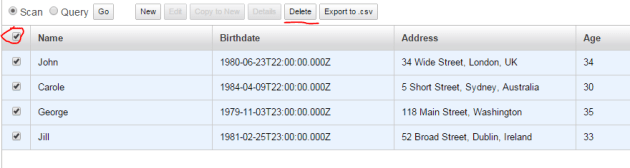
Delete all items in People table in Amazon DynamoDb

Data model

Here we’ll represent the loosely typed objects above as “proper” classes. Each Person object will have an Address object as well which will be formatted using Json.

Add a NuGet referencet to a JSON framework as Address object will be serialised and deserialised using the popular JSON.NET library:

Json.NET NuGet package

Let’s insert the Address class first:

public class Address
{
	public Address()
	{
		Street = "N/A";
		City = "N/A";
		Country = "N/A";
	}

	public string Street { get; set; }
	public string City { get; set; }
	public string Country { get; set; }
}

Each Person object will have an Address but the address must be represented in DynamoDb in one of the accepted data types: number, string or binary. The most straightforward solution is to convert an Address object into a Json string. The AWS .NET library has a special interface for that called IPropertyConverter which requires you to implement to methods: FromEntry and ToEntry. They help you describe how an object should be serialised and deserialised.

Insert the following address converter into the solution:

public class AddressConverter : IPropertyConverter
{
	public object FromEntry(DynamoDBEntry entry)
	{
		Primitive primitive = entry as Primitive;
		if (primitive == null) return new Address();

		if (primitive.Type != DynamoDBEntryType.String)
		{
			throw new InvalidCastException(string.Format("Address cannot be converted as its type is {0} with a value of {1}"
				, primitive.Type, primitive.Value));
		}

		string json = primitive.AsString();
		return JsonConvert.DeserializeObject<Address>(json);
	}

	public DynamoDBEntry ToEntry(object value)
	{
		Address address = value as Address;
		if (address == null) return null;

		string json = JsonConvert.SerializeObject(address);
		return new Primitive(json);
	}
}

In FromEntry we check if the incoming DynamoDb entry is null and if it’s of type string. We can only convert strings into Address objects. We finally deserialise the JSON string into an Address object and return it. In ToEntry we do the opposite and and convert the incoming object first into an Address and then serialise it to its JSON representation.

We can now build the Person object:

[DynamoDBTable("People")]
public class Person
{
	[DynamoDBHashKey]
	public string Name { get; set; }
	[DynamoDBRangeKey(AttributeName="Birthdate")]
	public DateTime BirthDate { get; set; }
	[DynamoDBProperty(Converter = typeof(AddressConverter))]
	public Address Address { get; set; }

	public int Age { get; set; }
	public List<string> Neighbours { get; set; }
}

You can see how we use DynamoDb attributes to describe our hash and range keys. We also provide the converter for Address. You can use the DynamoDBProperty attribute to indicate in case the property name in DynamoDb is different from the property name in your class. This can be useful in case you follow a different naming structure in DynamoDb. Here’s an example:

[DynamoDBProperty(AttributeName="helloThisIsTheAge")]
public int Age { get; set; }

We can now insert the equivalent of the InsertPeopleByDocumentModel method using the Data model. Add the following InsertPeopleByDataModel method to DynamoDbDemoService:

[DynamoDBTable("People")]
public void InsertPeopleByDataModel(string tableName)
{
	try
	{
		using (IAmazonDynamoDB client = GetDynamoDbClient())
		{
			DynamoDBContext context = new DynamoDBContext(client);
			Person firstPerson = new Person()
			{
				Name = "John"
				, BirthDate = new DateTime(1980, 06, 24)
				, Address = new Address() { Street = "34 Wide Street", City = "London", Country = "UK" }
				, Age = 34
				, Neighbours = new List<String>() { "Jane", "Samantha", "Richard" }
			};

			Person secondPerson = new Person()
			{
				Name = "Jill"
				, BirthDate = new DateTime(1981, 02, 26)
				, Address = new Address() { Street = "52 Broad Street", City = "Dublin", Country = "Ireland" }
				, Age = 33
				, Neighbours = new List<String>() { "Alex", "Greg", "Michael" }
			};

			Person thirdPerson = new Person()
			{
				Name = "George"
				, BirthDate = new DateTime(1979, 11, 4)
				, Address = new Address() { Street = "118 Main Street", City = "Washington", Country = "USA" }
				, Age = 35
				, Neighbours = new List<String>() { "Kathrine", "Kate", "Christine" }
			};

			Person fourthPerson = new Person()
			{
				Name = "Carole"
				, BirthDate = new DateTime(1984, 4, 10)
				, Address = new Address() { Street = "5 Short Street", City = "Sydney", Country = "Australia" }
				, Age = 30
				, Neighbours = new List<String>() { "Nadia", "Katya", "Malcolm" }
			};

			context.Save<Person>(firstPerson);
			context.Save<Person>(secondPerson);
			context.Save<Person>(thirdPerson);
			context.Save<Person>(fourthPerson);
		}
	}
	catch (AmazonDynamoDBException exception)
	{
		Debug.WriteLine(string.Concat("Exception while inserting records into DynamoDb table: {0}", exception.Message));
		Debug.WriteLine(String.Concat("Error code: {0}, error type: {1}", exception.ErrorCode, exception.ErrorType));
	}
}

We build up the same 4 objects as before but now as proper Person objects. We finally use the DynamoDBContext object to save each new Person.

Call the method from Main:

service.InsertPeopleByDataModel("People");

You’ll find the records in our DynamoDb table:

Records saved in DynamoDb through data model

Note how the Address is shown as Json.

In the next post we’ll see how to update and delete records using both models.

View all posts related to Amazon Web Services and Big Data here.

Compressing and decompressing strings with BZip2 in .NET C#

There are times when you need to return a large text from a web service. The large text will then need to be handled by the recipient. In order to reduce the size of the message you can combine two simple techniques:

  • Compress the string value with a compression algorithm, such as BZip2
  • Base64 encode the resulting byte array

You will be able to send the base 64 encoded compressed string over the wire.

You’ll need to import the following NuGet package to use BZip2:

sharpziplib nuget

This is how you can compress a string and base 64 encode it:

string largeUncompressedText = "<root><value size=\"xxl\">This is a large text</value></root>";
string largeCompressedText = string.Empty;
using (MemoryStream source = new MemoryStream(Encoding.UTF8.GetBytes(largeUncompressedText)))
{
	using (MemoryStream target = new MemoryStream())
	{
		BZip2.Compress(source, target, true, 4096);
		byte[] targetByteArray = target.ToArray();
		largeCompressedText = Convert.ToBase64String(targetByteArray);
	}
}

The variable “largeCompressedText” can be sent to a listener who will be able to read it as follows:

byte[] largeCompressedTextAsBytes = Convert.FromBase64String(largeCompressedText);
using (MemoryStream source = new MemoryStream(largeCompressedTextAsBytes))
{
	using (MemoryStream target = new MemoryStream())
	{
		BZip2.Decompress(source, target, true);
		string uncompressedString = Encoding.UTF8.GetString(target.ToArray());
		Console.WriteLine(uncompressedString);
	}
}

The example is not perfect in a sense that largeCompressedText will be bigger than the actual source string but you’ll see the benefits with much larger texts.

View all posts related to string and text operations here.

Using Amazon DynamoDb with the AWS.NET API Part 3: table operations

Introduction

In the previous post we started coding our DynamoDb demo application. In particular we saw how to extract information about tables in DynamoDb.

In this post we’ll look at various table operations, more specifically how to create, delete and update tables in DynamoDb.

Open the demo application we started working on previously and let’s get to it!

Creating tables

We can set the properties of our table through the CreateTableRequest object. This is where we set the table name, the provisioned read and write throughput, the key schema and their attribute definitions, and the secondary indexes. The following code sets all of these except the secondary keys.

Insert the following method into DynamoDbDemoService.cs:

public void CreateNewTableDemo(string tableName)
{
	try
	{
		using (IAmazonDynamoDB client = GetDynamoDbClient())
		{				
			CreateTableRequest createTableRequest = new CreateTableRequest();
			createTableRequest.TableName = tableName;
			createTableRequest.ProvisionedThroughput = new ProvisionedThroughput() { ReadCapacityUnits = 1, WriteCapacityUnits = 1 };
			createTableRequest.KeySchema = new List<KeySchemaElement>()
			{
				new KeySchemaElement()
				{
					AttributeName = "Name"
					, KeyType = KeyType.HASH
				},
				new KeySchemaElement()
				{
					AttributeName = "Birthdate"
					, KeyType = KeyType.RANGE
				}
			};
			createTableRequest.AttributeDefinitions = new List<AttributeDefinition>()
			{
				new AttributeDefinition(){AttributeName = "Name", AttributeType = ScalarAttributeType.S}
				, new AttributeDefinition(){AttributeName = "Birthdate", AttributeType = ScalarAttributeType.S}
			};
			CreateTableResponse createTableResponse = client.CreateTable(createTableRequest);

			TableDescription tableDescription = createTableResponse.TableDescription;
			Debug.WriteLine(string.Format("Table {0} creation command sent to Amazon. Current table status: {1}", tableName, tableDescription.TableStatus));

			String tableStatus = tableDescription.TableStatus.Value.ToLower();
			while (tableStatus != "active")
			{
				Debug.WriteLine(string.Format("Table {0} not yet active, waiting...", tableName));
				Thread.Sleep(2000);
				DescribeTableRequest describeTableRequest = new DescribeTableRequest(tableName);
				DescribeTableResponse describeTableResponse = client.DescribeTable(describeTableRequest);
				tableDescription = describeTableResponse.Table;
				tableStatus = tableDescription.TableStatus.Value.ToLower();
				Debug.WriteLine(string.Format("Latest status of table {0}: {1}", tableName, tableStatus));
			}

			Debug.WriteLine(string.Format("Table creation loop exited for table {0}, final status: {1}", tableName, tableStatus));
		}
	}
	catch (AmazonDynamoDBException exception)
	{
		Debug.WriteLine(string.Concat("Exception while creating new DynamoDb table: {0}", exception.Message));
		Debug.WriteLine(String.Concat("Error code: {0}, error type: {1}", exception.ErrorCode, exception.ErrorType));
	}
}

You’ll recognise the Hash and Range key types from the first post of this series. The KeySchemaElement object lets you define the name and type of the key. The AttributeDefinition will further let you define the schema of the keys.

We set up a compound key that consists of “Name” and “Birthdate”. We’ll insert some people-related objects in the next post where each record will have a compound key of Name and Birthdate, i.e. the name and birthday properties will uniquely identify each record. You’ll note the attribute type of S in the AttributeDefinition object. S stands for String. We saw earlier that DynamoDb supports 3 data types: strings, numbers and binary data. Numbers are represented by ScalarAttributeType.N and binary types by ScalarAttributeType.B. As dates are not supported by DynamoDb we’ll go with strings instead.

After constructing the CreateTableRequest object we call the CreateTable method of the DynamoDb client. The CreateTableResponse includes a TableDescription object which helps us read the initial status of the table. It should be “creating” at first. We then enter a loop where we continuously check the status of the new table until it reaches status “active”.

Let’s call the method from Main as follows:

DynamoDbDemoService service = new DynamoDbDemoService();
service.CreateNewTableDemo("a-demo-table");

If all goes well then you should see output similar to the following:

Table a-demo-table creation command sent to Amazon. Current table status: CREATING
Table a-demo-table not yet active, waiting…
Latest status of table a-demo-table: creating
Table a-demo-table not yet active, waiting…
Latest status of table a-demo-table: creating
Table a-demo-table not yet active, waiting…
Latest status of table a-demo-table: active
Table creation loop exited for table a-demo-table, final status: active

The table is up and running in the DynamoDB GUI as well:

Demo table created visible in Amazon DynamoDb UI

It’s obviously not allowed to have two tables with the same name. Try running the same code again and you should get an exception message:

Exception while creating new DynamoDb table: {0}Table already exists: a-demo-table
Error code: {0}, error type: {1}ResourceInUseExceptionUnknown

Updating a table

You can update a table through the UpdateTableRequest object. You can update the read and write throughput values and the global secondary indexes, nothing else. The following method demonstrates the usage of the object:

public void UpdateTableDemo(string tableName)
{
	try
	{
		using (IAmazonDynamoDB client = GetDynamoDbClient())
		{
			UpdateTableRequest updateTableRequest = new UpdateTableRequest();
			updateTableRequest.TableName = tableName;
			updateTableRequest.ProvisionedThroughput = new ProvisionedThroughput() { ReadCapacityUnits = 2, WriteCapacityUnits = 2 };					
			UpdateTableResponse updateTableResponse = client.UpdateTable(updateTableRequest);
			TableDescription tableDescription = updateTableResponse.TableDescription;
			Debug.WriteLine(string.Format("Update table command sent to Amazon for table {0}, status after update: {1}", tableName
				, tableDescription.TableStatus));
		}			
	}
	catch (AmazonDynamoDBException exception)
	{
		Debug.WriteLine(string.Concat("Exception while updating DynamoDb table: {0}", exception.Message));
		Debug.WriteLine(String.Concat("Error code: {0}, error type: {1}", exception.ErrorCode, exception.ErrorType));
	}
}

Run the method like this:

DynamoDbDemoService service = new DynamoDbDemoService();
//service.UpdateTableDemo("a-demo-table");

Here’s the Debug output:

Update table command sent to Amazon for table a-demo-table, status after update: UPDATING

…and the table has been updated with the new throughput values:

Demo table update visible in Amazon DynamoDb UI

Deleting a table

Deleting a table is as trivial as providing the name of the table to the DeleteTableRequest object and sending it to AWS by way of the DynamoDb client:

public void DeleteTableDemo(string tableName)
{
	try
	{
		using (IAmazonDynamoDB client = GetDynamoDbClient())
		{
			DeleteTableRequest deleteTableRequest = new DeleteTableRequest(tableName);
			DeleteTableResponse deleteTableResponse = client.DeleteTable(deleteTableRequest);
			TableDescription tableDescription = deleteTableResponse.TableDescription;
			TableStatus tableStatus = tableDescription.TableStatus;
			Debug.WriteLine(string.Format("Delete table command sent to Amazon for table {0}, status after deletion: {1}", tableName
				, tableDescription.TableStatus));
		}
	}
	catch (AmazonDynamoDBException exception)
	{
		Debug.WriteLine(string.Concat("Exception while deleting DynamoDb table: {0}", exception.Message));
		Debug.WriteLine(String.Concat("Error code: {0}, error type: {1}", exception.ErrorCode, exception.ErrorType));
	}
}

Run the method as follows:

DynamoDbDemoService service = new DynamoDbDemoService();
service.DeleteTableDemo("a-demo-table");

The table won’t be deleted immediately but have the status “deleting” at first before the table is finally deleted:

Delete table command sent to Amazon for table a-demo-table, status after deletion: DELETING

Here’s what it looks like in the DynamoDb GUI:

Demo table deleting status in Amazon DynamoDb UI

We’ll explore how to insert records into a DynamoDb table in the next post.

View all posts related to Amazon Web Services and Big Data here.

Compressing and decompressing files with BZip2 in .NET C#

BZip2 is yet another data compression algorithm, similar to GZip and Deflate. There’s no native support for BZip2 (de)compression in .NET but there’s a NuGet package provided by icsharpcode.net.

You’ll need to import the following NuGet package to use BZip2:

sharpziplib nuget

You can compress a file as follows:

FileInfo fileToBeZipped = new FileInfo(@"c:\bzip2\logfile.txt");
FileInfo zipFileName = new FileInfo(string.Concat(fileToBeZipped.FullName, ".bz2"));
using (FileStream fileToBeZippedAsStream = fileToBeZipped.OpenRead())
{
	using (FileStream zipTargetAsStream = zipFileName.Create())
	{
		try
		{
			BZip2.Compress(fileToBeZippedAsStream, zipTargetAsStream, true, 4096);
		}
		catch (Exception ex)
		{
			Console.WriteLine(ex.Message);
		}
	}
}

…and this is how you can decompress the resulting bz2 file again:

using (FileStream fileToDecompressAsStream = zipFileName.OpenRead())
{
	string decompressedFileName = @"c:\bzip2\decompressed.txt";
	using (FileStream decompressedStream = File.Create(decompressedFileName))
	{
		try
		{
			BZip2.Decompress(fileToDecompressAsStream, decompressedStream, true);
		}
		catch (Exception ex)
		{
			Console.WriteLine(ex.Message);
		}
	}
}

Read all posts dedicated to file I/O here.

How to compress and decompress files with Deflate in .NET C#

We saw the usage of the GZipStream object in this post. GZipStream follows the GZip compression algorithm which is actually based on DEFLATE and includes some headers. As a result GZip files are somewhat bigger than DEFLATE files.

Just like with GZip, DEFLATE compresses a single file and does not hold multiple files in a zip archive fashion. It is represented by the DeflateStream object and is used in much the same way as a GZipStream. The example code is in fact almost identical.

This is how to compress a file:

FileInfo fileToBeDeflateZipped = new FileInfo(@"c:\deflate\logfile.txt");
FileInfo deflateZipFileName = new FileInfo(string.Concat(fileToBeDeflateZipped.FullName, ".cmp"));

using (FileStream fileToBeZippedAsStream = fileToBeDeflateZipped.OpenRead())
{
	using (FileStream deflateZipTargetAsStream = deflateZipFileName.Create())
	{
		using (DeflateStream deflateZipStream = new DeflateStream(deflateZipTargetAsStream, CompressionMode.Compress))
		{
			try
			{
				fileToBeZippedAsStream.CopyTo(deflateZipStream);
			}
			catch (Exception ex)
			{
				Console.WriteLine(ex.Message);
			}
		}
	}
}

…and here’s how you can decompress a file:

using (FileStream fileToDecompressAsStream = deflateZipFileName.OpenRead())
{
	string decompressedFileName = @"c:\deflate\decompressed.txt";
	using (FileStream decompressedStream = File.Create(decompressedFileName))
	{
		using (DeflateStream decompressionStream = new DeflateStream(fileToDecompressAsStream, CompressionMode.Decompress))
		{
			try
			{
				decompressionStream.CopyTo(decompressedStream);
			}
			catch (Exception ex)
			{
				Console.WriteLine(ex.Message);
			}
		}
	}
}

Read all posts dedicated to file I/O here.

Using Amazon DynamoDb with the AWS.NET API Part 2: code beginnings

Introduction

In the previous post we went through the basics of Amazon DynamoDb. It is Amazon’s take on NoSql where you can store unstructured data in the cloud. We talked about primary keys and available data types. We also created and deleted our first table.

In this post we’ll install the .NET SDK and start building some test code.

Note that we’ll be concentrating on showing and explaining the technical code examples related to AWS. We’ll ignore software principles like SOLID and layering so that we can stay focused. It’s your responsibility to organise your code properly. There are numerous posts on this blog that take up topics related to software architecture.

Installing the SDK

If you already have the .NET AWS SDK installed then you can ignore the installation bit of this section. You’ll only need to create a new project in Visual Studio.

The Amazon .NET SDK is available through NuGet. Open Visual Studio 2012/2013 and create a new C# console application called DynamoDbDemo. The purpose of this application will be to demonstrate the different parts of the SDK around DynamoDb. In reality the DynamoDb handler could be any type of application:

  • A website
  • A Windows/Android/iOS app
  • A Windows service
  • etc.

…i.e. any application that’s capable of sending HTTP/S requests to a service endpoint. We’ll keep it simple and not waste time with view-related tasks.

Install the following NuGet package:

AWS SDK NuGet package

Preparations

We cannot just call the services within the AWS SDK without proper authentication. This is an important reference page to handle your credentials in a safe way. We’ll the take the recommended approach and create a profile in the SDK Store and reference it from app.config.

This series is not about AWS authentication so we won’t go into temporary credentials but later on you may be interested in that option too. Since we’re programmers and it takes a single line of code to set up a profile we’ll go with the programmatic options. Add the following line to Main:

Amazon.Util.ProfileManager.RegisterProfile("demo-aws-profile", "your access key id", "your secret access key");

I suggest you remove the code from the application later on in case you want to distribute it. Run the application and it should execute without exceptions. Next open app.config and add the appSettings section with the following elements:

<appSettings>
        <add key="AWSProfileName" value="demo-aws-profile"/>
</appSettings>

First demo: reading tables information

We’ll put all our test code into a separate class. Insert a cs file called DynamoDbDemoService. We’ll need a method to build a handle to the service which is of type IAmazonDynamoDB:

private IAmazonDynamoDB GetDynamoDbClient()
{
	return new AmazonDynamoDBClient(RegionEndpoint.EUWest1);
}

Note that we didn’t need to provide our credentials here. They will be extracted automatically using the profile name in the config file. You may need to adjust the region according to your preferences or what you selected in the previous part.

Let’s first find out what table names we have in DynamoDb. This is almost a trivial task:

public List<string> GetTablesList()
{
	using (IAmazonDynamoDB client = GetDynamoDbClient())
	{
		ListTablesResponse listTablesResponse = client.ListTables();
		return listTablesResponse.TableNames;
	}
}

Notice the return type of “ListTables()”, ListTablesResponse. Request and Response objects are abound in the Amazon SDK, this is one example. There’s actually an overload of ListTables which accepts a ListTablesRequest object. The ListTablesRequest object allows you to set a limit on the number of table names returned:

public List<string> GetTablesList()
{
	using (IAmazonDynamoDB client = GetDynamoDbClient())
	{
		ListTablesRequest listTablesRequest = new ListTablesRequest();
		listTablesRequest.Limit = 5;
		ListTablesResponse listTablesResponse = client.ListTables(listTablesRequest);
		return listTablesResponse.TableNames;
	}
}

Let’s call this from Main:

static void Main(string[] args)
{
	DynamoDbDemoService service = new DynamoDbDemoService();
	List<string> dynamoDbTables = service.GetTablesList();
}

If you followed through the previous post or if you already have tables in DynamoDb then the above bit of code should return at least one table name.

So now we can retrieve all table names but we also want to find out some details on each table. The following method will do just that:

public void GetTablesDetails()
{
	List<string> tables = GetTablesList();
	using (IAmazonDynamoDB client = GetDynamoDbClient())
	{
		foreach (string table in tables)
		{
			DescribeTableRequest describeTableRequest = new DescribeTableRequest(table);
			DescribeTableResponse describeTableResponse = client.DescribeTable(describeTableRequest);
			TableDescription tableDescription = describeTableResponse.Table;
			Debug.WriteLine(string.Format("Printing information about table {0}:", tableDescription.TableName));
			Debug.WriteLine(string.Format("Created at: {0}", tableDescription.CreationDateTime));
			List<KeySchemaElement> keySchemaElements = tableDescription.KeySchema;
			foreach (KeySchemaElement schema in keySchemaElements)
			{
				Debug.WriteLine(string.Format("Key name: {0}, key type: {1}", schema.AttributeName, schema.KeyType));
			}
			Debug.WriteLine(string.Format("Item count: {0}", tableDescription.ItemCount));
			ProvisionedThroughputDescription throughput = tableDescription.ProvisionedThroughput;
			Debug.WriteLine(string.Format("Read capacity: {0}", throughput.ReadCapacityUnits));
			Debug.WriteLine(string.Format("Write capacity: {0}", throughput.WriteCapacityUnits));
			List<AttributeDefinition> tableAttributes = tableDescription.AttributeDefinitions;
			foreach (AttributeDefinition attDefinition in tableAttributes)
			{
				Debug.WriteLine(string.Format("Table attribute name: {0}", attDefinition.AttributeName));
				Debug.WriteLine(string.Format("Table attribute type: {0}", attDefinition.AttributeType));
			}
			Debug.WriteLine(string.Format("Table size: {0}b", tableDescription.TableSizeBytes));
			Debug.WriteLine(string.Format("Table status: {0}", tableDescription.TableStatus));
			Debug.WriteLine("====================================================");
					
		}
	}
}

We can extract the details of a table through the DescribeTableRequest object which is passed into the DescribeTable method. The DescribeTable method returns a DescribeTableResponse object which in turn includes another object of type TableDescription. TableDescription holds a number of properties that describe a table in DynamoDb in the selected region. The above code extracts the following properties:

  • Creation date
  • The key schema, i.e. if the primary key is of type Hash or a composite key of Hash and Range
  • The number of records in the table
  • The provisioned read and write throughput
  • The table attribute names and their types, i.e. string, number or binary
  • The table size in bytes
  • The table status, i.e. if it’s Active, Creating or Deleting

The TableDescription method also includes properties to check the global and local secondary indexes but I’ve ignored them in the demo.

You can call the above method from Main as follows:

static void Main(string[] args)
{
	DynamoDbDemoService service = new DynamoDbDemoService();
	service.GetTablesDetails();
}

Here’s an example output:

Printing information about table Application:
Created at: 2014-10-28 09:53:57
Key name: Id, key type: HASH
Item count: 9
Read capacity: 1
Write capacity: 1
Table attribute name: Id
Table attribute type: S
Table size: 123b
Table status: ACTIVE

You can see that the table attribute name Id is the same as the Key called Id. Attribute type “S” means String – we’ll go through these types in other posts of this series.

In the next post we’ll create a new table and insert records into it in code.

View all posts related to Amazon Web Services and Big Data here.

Elliot Balynn's Blog

A directory of wonderful thoughts

Software Engineering

Web development

Disparate Opinions

Various tidbits

chsakell's Blog

WEB APPLICATION DEVELOPMENT TUTORIALS WITH OPEN-SOURCE PROJECTS

Once Upon a Camayoc

ARCHIVED: Bite-size insight on Cyber Security for the not too technical.

