Using Amazon S3 with the AWS.NET API Part 4: working with folders in code

Introduction

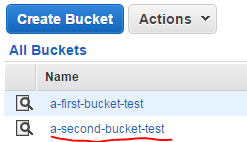
In the previous post we looked at some more basic code examples to work with Amazon S3. In the first part we saw how to create folders within a bucket in the S3 GUI. We haven’t yet seen how to create and delete folders in code and that’s the goal of this post.

We’ll extend our demo application AmazonS3Demo so have it open in Visual Studio 2012/2013.

Creating folders

So far we’ve seen that it’s fairly simple and self-explanatory to work with objects in S3: PutObjectRequest, ListObjectsRequest etc. were easy to handle. However, there’s no special C# object for folders in the SDK, like PutFolderRequest. The PutObjectRequest is used to create folders but they need to be used in a special way.

Locate S3DemoService.cs in the demo app and add the following method:

public void RunFolderCreationDemo()
{
	using (IAmazonS3 s3Client = GetAmazonS3Client())
	{
		try
		{					
			PutObjectRequest folderRequest = new PutObjectRequest();					
			String delimiter = "/";
			folderRequest.BucketName = "a-second-bucket-test";
			String folderKey = string.Concat("this-is-a-subfolder", delimiter);
			folderRequest.Key = folderKey;
			folderRequest.InputStream = new MemoryStream(new byte[0]);
			PutObjectResponse folderResponse = s3Client.PutObject(folderRequest);
                }
		catch (AmazonS3Exception e)
		{
			Console.WriteLine("Folder creation has failed.");
			Console.WriteLine("Amazon error code: {0}",
				string.IsNullOrEmpty(e.ErrorCode) ? "None" : e.ErrorCode);
			Console.WriteLine("Exception message: {0}", e.Message);
		}
	}
}

Most of the code looks probably familiar from the RunFileUploadDemo() method. The way to indicate that we’re intending to create a demo is to attach a “/” delimiter to the key name and set the content input stream to an empty byte array. Run this code from Main…:

static void Main(string[] args)
{
	S3DemoService demoService = new S3DemoService();
	demoService.RunFolderCreationDemo();

	Console.WriteLine("Main done...");
	Console.ReadKey();
}

…and the folder should be visible in S3:

Folder created in Amazon S3 bucket

What if you’d like to add another folder within this folder? It’s the same code as above, you just need to attach the name of the subfolder and the delimiter to the object key:

String folderKey = string.Concat("this-is-a-subfolder", delimiter, "another-subfolder",delimiter);
					folderRequest.Key = folderKey;

…and there it is:

Folder within a folder in Amazon S3 bucket

Checking if a folder exists

Say you’d like to find out whether the “this-is-a-subfolder/another-subfolder/” folder path exists. The following code snippet will first check if “this-is-a-subfolder” exists:

public void RunFolderExistenceCheckDemo()
{
	using (IAmazonS3 s3Client = GetAmazonS3Client())
	{
		try
		{
			ListObjectsRequest findFolderRequest = new ListObjectsRequest();
			findFolderRequest.BucketName = "a-second-bucket-test";
			findFolderRequest.Delimiter = "/";
			findFolderRequest.Prefix = "this-is-a-subfolder";
			ListObjectsResponse findFolderResponse = s3Client.ListObjects(findFolderRequest);
			List<String> commonPrefixes = findFolderResponse.CommonPrefixes;
			Boolean folderExists = commonPrefixes.Any();
		}
		catch (AmazonS3Exception e)
		{
			Console.WriteLine("Folder existence check has failed.");
			Console.WriteLine("Amazon error code: {0}",
				string.IsNullOrEmpty(e.ErrorCode) ? "None" : e.ErrorCode);
			Console.WriteLine("Exception message: {0}", e.Message);
		}
	}
}

This is similar to what we had in RunObjectListingDemo. However, we don’t check for the existence of file objects but so-called prefixes. Folder names will be part of the full path to the object and the folder names will be the prefixes in that full path. If the CommonPrefixes string list is empty then the folder doesn’t exist.

Running this code will result in “true” for the folderExists variable.

Checking whether the subfolder within the folder exists requires just a minor change:

findFolderRequest.Prefix = "this-is-a-subfolder/another-subfolder";

Again, folderExists will be true.

Adding files to folders

Let’s add a file to the folders. The following code will insert c:\logfile.txt to “this-is-a-subfolder”:

public void RunObjectInsertionToFolderDemo()
{
	FileInfo filename = new FileInfo(@"c:\logfile.txt");
	string contents = File.ReadAllText(filename.FullName);
	using (IAmazonS3 s3Client = GetAmazonS3Client())
	{
		try
		{
			PutObjectRequest putObjectRequest = new PutObjectRequest();
			putObjectRequest.ContentBody = contents;
			String delimiter = "/";
			putObjectRequest.BucketName = string.Concat("a-second-bucket-test", delimiter, "this-is-a-subfolder"); 					
			putObjectRequest.Key = filename.Name;
			PutObjectResponse putObjectResponse = s3Client.PutObject(putObjectRequest);
		}
		catch (AmazonS3Exception e)
		{
			Console.WriteLine("File creation within folder has failed.");
			Console.WriteLine("Amazon error code: {0}",
				string.IsNullOrEmpty(e.ErrorCode) ? "None" : e.ErrorCode);
			Console.WriteLine("Exception message: {0}", e.Message);
		}
	}
}

The only difference to the RunFileUploadDemo() method we saw before is that we need to extend the bucket name with the delimiter and the folder name, i.e. the prefix. Here’s the file in S3:

File within a folder in Amazon S3 bucket

You can probably guess how to upload the file to “this-is-a-subfolder/another-subfolder/”:

putObjectRequest.BucketName = string.Concat("a-second-bucket-test", delimiter, "this-is-a-subfolder", delimiter, "another-subfolder"); 					

…and here it is:

File within a folder within a folder in Amazon S3 bucket

List objects in a folder

Listing file objects within a folder is a bit tricky as even the folders themselves are objects so they will be returned by the following query:

ListObjectsRequest listObjectsRequest = new ListObjectsRequest();
String delimiter = "/";
listObjectsRequest.BucketName = "a-second-bucket-test";
listObjectsRequest.Prefix = string.Concat("this-is-a-subfolder", delimiter, "another-subfolder");				    
ListObjectsResponse listObjectsResponse = s3Client.ListObjects(listObjectsRequest);
foreach (S3Object entry in listObjectsResponse.S3Objects)
{
	if (entry.Size > 0)
	{
		Console.WriteLine("Found object with key {0}, size {1}, last modification date {2}", entry.Key, entry.Size, entry.LastModified);
	}
}					

The S3Objects list will hold 2 objects:

this-is-a-subfolder/another-subfolder/ of size 0
this-is-a-subfolder/another-subfolder/logfile.txt of size greater than 0

Hence we test for the size being greater than 0 to find “real” files. The output will be similar to the following:

Found object with key this-is-a-subfolder/another-subfolder/logfile.txt, size 44
90, last modification date 2014-12-09 22:26:39

Deleting folders

The following method will attempt to delete the this-is-a-subfolder/another-subfolder/ folder:

public void RunFolderDeletionDemo()
{
	using (IAmazonS3 s3Client = GetAmazonS3Client())
	{
		try
		{
			DeleteObjectRequest deleteFolderRequest = new DeleteObjectRequest();
			deleteFolderRequest.BucketName = "a-second-bucket-test";
			String delimiter = "/";
			deleteFolderRequest.Key = string.Concat("this-is-a-subfolder", delimiter, "another-subfolder", delimiter);
			DeleteObjectResponse deleteObjectResponse = s3Client.DeleteObject(deleteFolderRequest);					
		}
		catch (AmazonS3Exception e)
		{
			Console.WriteLine("Folder deletion has failed.");
			Console.WriteLine("Amazon error code: {0}",
				string.IsNullOrEmpty(e.ErrorCode) ? "None" : e.ErrorCode);
			Console.WriteLine("Exception message: {0}", e.Message);
		}
	}
}							

If you run this code then seemingly everything’s gone fine, there are no exceptions thrown. However, the folder is still visible in the UI. The reason is that at present there’s a file within the folder and folders must not be deleted if they are not empty. So in order for the above code to succeed we need to first check it has any objects in it using ListObjectsRequest code snippet above. Then all those elements must be deleted. Only then can the folder itself be deleted.

In the next post we’ll connect all this to our previous demo on Amazon Kinesis where we want to save the incoming URL response time observations in S3 in an organised manner.

View all posts related to Amazon Web Services and Big Data here.

Formatting dates in Java 8 using DateTimeFormatter

Introduction

Formatting dates – and numbers for that matter – can be a complex matter. The DateTimeFormatter class provides pre-defined formats that adhere to ISO and RCF specifications.

DateTimeFormatter

The following date related classes we’ve seen on this blog, i.e.

…have a method called “format” which accepts a DateTimeFormatter class. This class has a number of pre-defined formats that you can readily use in your application. Note that not all such formats will be available. The availability depends on the exact object type of the date class. E.g. ISO_ZONED_DATE_TIME won’t work with LocalDateTime as it is meant to format zoned dates. Also, ISO_DATE_TIME won’t be available for the LocalDate class as it has no concept of time units below the level of days.

Let’s test all the predefined values with the above date types.

LocalDate

We run the following code and check the output:

System.out.println("Running example with LocalDate class.");
LocalDate now = LocalDate.now();
        try
        {
            System.out.println("ISO_DATE: " + now.format(DateTimeFormatter.ISO_DATE));
        } catch (UnsupportedTemporalTypeException e)
        {
            System.out.println("ISO_DATE is not supported: " + e.getMessage());
        }
        try
        {
            System.out.println("BASIC_ISO_DATE: " + now.format(DateTimeFormatter.BASIC_ISO_DATE));
        } catch (UnsupportedTemporalTypeException e)
        {
            System.out.println("BASIC_ISO_DATE is not supported: " + e.getMessage());
        }
        try
        {
            System.out.println("ISO_DATE_TIME: " + now.format(DateTimeFormatter.ISO_DATE_TIME));
        } catch (UnsupportedTemporalTypeException e)
        {
            System.out.println("ISO_DATE_TIME is not supported: " + e.getMessage());
        }
        try
        {
            System.out.println("ISO_INSTANT: " + now.format(DateTimeFormatter.ISO_INSTANT));
        } catch (UnsupportedTemporalTypeException e)
        {
            System.out.println("ISO_INSTANT is not supported: " + e.getMessage());
        }
        try
        {
            System.out.println("ISO_LOCAL_DATE: " + now.format(DateTimeFormatter.ISO_LOCAL_DATE));
        } catch (UnsupportedTemporalTypeException e)
        {
            System.out.println("ISO_LOCAL_DATE is not supported: " + e.getMessage());
        }
        try
        {
            System.out.println("ISO_LOCAL_DATE_TIME: " + now.format(DateTimeFormatter.ISO_LOCAL_DATE_TIME));
        } catch (UnsupportedTemporalTypeException e)
        {
            System.out.println("ISO_LOCAL_DATE_TIME is not supported: " + e.getMessage());
        }
        try
        {
            System.out.println("ISO_LOCAL_TIME: " + now.format(DateTimeFormatter.ISO_LOCAL_TIME));
        } catch (UnsupportedTemporalTypeException e)
        {
            System.out.println("ISO_LOCAL_TIME is not supported: " + e.getMessage());
        }
        try
        {
            System.out.println("ISO_OFFSET_DATE: " + now.format(DateTimeFormatter.ISO_OFFSET_DATE));
        } catch (UnsupportedTemporalTypeException e)
        {
            System.out.println("ISO_OFFSET_DATE is not supported: " + e.getMessage());
        }
        try
        {
            System.out.println("ISO_OFFSET_DATE_TIME: " + now.format(DateTimeFormatter.ISO_OFFSET_DATE_TIME));
        } catch (UnsupportedTemporalTypeException e)
        {
            System.out.println("ISO_OFFSET_DATE_TIME is not supported: " + e.getMessage());
        }
        try
        {
            System.out.println("ISO_OFFSET_TIME: " + now.format(DateTimeFormatter.ISO_OFFSET_TIME));
        } catch (UnsupportedTemporalTypeException e)
        {
            System.out.println("ISO_OFFSET_TIME is not supported: " + e.getMessage());
        }
        try
        {
            System.out.println("ISO_ORDINAL_DATE: " + now.format(DateTimeFormatter.ISO_ORDINAL_DATE));
        } catch (UnsupportedTemporalTypeException e)
        {
            System.out.println("ISO_ORDINAL_DATE is not supported: " + e.getMessage());
        }
        try
        {
            System.out.println("ISO_TIME: " + now.format(DateTimeFormatter.ISO_TIME));
        } catch (UnsupportedTemporalTypeException e)
        {
            System.out.println("ISO_TIME is not supported: " + e.getMessage());
        }
        try
        {
            System.out.println("ISO_WEEK_DATE: " + now.format(DateTimeFormatter.ISO_WEEK_DATE));
        } catch (UnsupportedTemporalTypeException e)
        {
            System.out.println("ISO_WEEK_DATE is not supported: " + e.getMessage());
        }
        try
        {
            System.out.println("ISO_ZONED_DATE_TIME: " + now.format(DateTimeFormatter.ISO_ZONED_DATE_TIME));
        } catch (UnsupportedTemporalTypeException e)
        {
            System.out.println("ISO_ZONED_DATE_TIME is not supported: " + e.getMessage());
        }
        try
        {
            System.out.println("RFC_1123_DATE_TIME: " + now.format(DateTimeFormatter.RFC_1123_DATE_TIME));
        } catch (UnsupportedTemporalTypeException e)
        {
            System.out.println("RFC_1123_DATE_TIME is not supported: " + e.getMessage());
        }

We get the following output:

Running example with LocalDate class.
ISO_DATE: 2014-11-01
BASIC_ISO_DATE: 20141101
ISO_DATE_TIME is not supported: Unsupported field: HourOfDay
ISO_INSTANT is not supported: Unsupported field: InstantSeconds
ISO_LOCAL_DATE: 2014-11-01
ISO_LOCAL_DATE_TIME is not supported: Unsupported field: HourOfDay
ISO_LOCAL_TIME is not supported: Unsupported field: HourOfDay
ISO_OFFSET_DATE is not supported: Unsupported field: OffsetSeconds
ISO_OFFSET_DATE_TIME is not supported: Unsupported field: HourOfDay
ISO_OFFSET_TIME is not supported: Unsupported field: HourOfDay
ISO_ORDINAL_DATE: 2014-305
ISO_TIME is not supported: Unsupported field: HourOfDay
ISO_WEEK_DATE: 2014-W44-6
ISO_ZONED_DATE_TIME is not supported: Unsupported field: HourOfDay
RFC_1123_DATE_TIME is not supported: Unsupported field: HourOfDay

LocalTime

We run the same code as above but change the class type:

System.out.println("Running example with LocalTime class.");
LocalTime now = LocalTime.now();

…and here’s the output, again with Locale set to Sweden:

Running example with LocalTime class.
ISO_DATE is not supported: Unsupported field: Year
BASIC_ISO_DATE is not supported: Unsupported field: Year
ISO_DATE_TIME is not supported: Unsupported field: Year
ISO_INSTANT is not supported: Unsupported field: InstantSeconds
ISO_LOCAL_DATE is not supported: Unsupported field: Year
ISO_LOCAL_DATE_TIME is not supported: Unsupported field: Year
ISO_LOCAL_TIME: 22:02:52.932
ISO_OFFSET_DATE is not supported: Unsupported field: Year
ISO_OFFSET_DATE_TIME is not supported: Unsupported field: Year
ISO_OFFSET_TIME is not supported: Unsupported field: OffsetSeconds
ISO_ORDINAL_DATE is not supported: Unsupported field: Year
ISO_TIME: 22:02:52.932
ISO_WEEK_DATE is not supported: Unsupported field: WeekBasedYear
ISO_ZONED_DATE_TIME is not supported: Unsupported field: Year
RFC_1123_DATE_TIME is not supported: Unsupported field: DayOfMonth

Most formats are not supported by LocalTime as there’s no notion of days, months etc. in that object.

LocalDateTime

Run the same code with “now” set as follows:

System.out.println("Running example with LocalDateTime class.");
LocalDateTime now = LocalDateTime.now();

…and I got the following output:

Running example with LocalTime class.
ISO_DATE: 2014-11-01
BASIC_ISO_DATE: 20141101
ISO_DATE_TIME: 2014-11-01T22:07:24.329
ISO_INSTANT is not supported: Unsupported field: InstantSeconds
ISO_LOCAL_DATE: 2014-11-01
ISO_LOCAL_DATE_TIME: 2014-11-01T22:07:24.329
ISO_LOCAL_TIME: 22:07:24.329
ISO_OFFSET_DATE is not supported: Unsupported field: OffsetSeconds
ISO_OFFSET_DATE_TIME is not supported: Unsupported field: OffsetSeconds
ISO_OFFSET_TIME is not supported: Unsupported field: OffsetSeconds
ISO_ORDINAL_DATE: 2014-305
ISO_TIME: 22:07:24.329
ISO_WEEK_DATE: 2014-W44-6
ISO_ZONED_DATE_TIME is not supported: Unsupported field: OffsetSeconds
RFC_1123_DATE_TIME is not supported: Unsupported field: OffsetSeconds

ZonedDateTime

This is probably the most interesting case as it supports all the predefined formats in DateTimeFormatter. Let’s look at an example with Australia/Adelaide:

System.out.println("Running example with ZonedDateTime class.");
ZoneId brisbane = ZoneId.of("Australia/Adelaide");
ZonedDateTime now = ZonedDateTime.of(LocalDateTime.now(), brisbane);

Running example with ZonedDateTime class.
ISO_DATE: 2014-11-01+10:30
BASIC_ISO_DATE: 20141101+1030
ISO_DATE_TIME: 2014-11-01T22:13:48.87+10:30[Australia/Adelaide]
ISO_INSTANT: 2014-11-01T11:43:48.870Z
ISO_LOCAL_DATE: 2014-11-01
ISO_LOCAL_DATE_TIME: 2014-11-01T22:13:48.87
ISO_LOCAL_TIME: 22:13:48.87
ISO_OFFSET_DATE: 2014-11-01+10:30
ISO_OFFSET_DATE_TIME: 2014-11-01T22:13:48.87+10:30
ISO_OFFSET_TIME: 22:13:48.87+10:30
ISO_ORDINAL_DATE: 2014-305+10:30
ISO_TIME: 22:13:48.87+10:30
ISO_WEEK_DATE: 2014-W44-6+10:30
ISO_ZONED_DATE_TIME: 2014-11-01T22:13:48.87+10:30[Australia/Adelaide]
RFC_1123_DATE_TIME: Sat, 1 Nov 2014 22:13:48 +1030

So you see that these predefined formatters follow the accepted ISO and RFC specifications and won’t actually show the localised date format the way dates are formatted in e.g. Japan or the US.

We’ll take a look at date localisation using the DateTimeFormatter in the next post in this series.

View all posts related to Java here.

Time zones in Java 8 Date and Time API

Introduction

I know for a fact that all programmers love working with time zones. Chances are high that you, as a reader of this blog, are also a programmer so I bet you also just love time zones. Let’s see what Java 8 offers as far as time zones are concerned.

Time zones

So far in this series on the date and time in Java 8 we always worked with the local time zone found on your computer. All date-related classes, such as LocalTime or LocalDateTime allow you to easily set the time zone. Here’s an example with the LocalDateTime class:

ZoneId zoneId = ZoneId.of("Europe/Budapest");
LocalDateTime now = LocalDateTime.now(zoneId);

Where are these string values coming from? They follow what Internet Assigned Numbers Authority (IANA) has in its database. That page doesn’t offer a readable list of time zones, they are only available in compressed .tar.gz files. In case you don’t want to deal with those you can find the time zones on Wikipedia.

You can get the full list of time zones in Java 8 as follows:

Set<String> availableZoneIds = ZoneId.getAvailableZoneIds();

There’s support for 586 time zones which should be enough for all cases.

You can view the default time zone of your environment like this:

ZoneId systemDefault = ZoneId.systemDefault();

…which in my case returned “Europe/Berlin”.

Setting the time zone will also take care of the summer and winter time adjustments automatically.

ZonedDateTime

What if you want to set the parts of the date individually and set the time zone at the same time? We need to turn to the ZonedDateTime class. The static “of” method has many overloads for granular access. Here’s an example that takes a LocalDateTime instance and a ZoneId, we convert the Budapest time to the Brisbane time zone:

ZoneId zoneId = ZoneId.of("Europe/Budapest");
LocalDateTime now = LocalDateTime.now(zoneId);
ZoneId brisbane = ZoneId.of("Australia/Adelaide");
ZonedDateTime zonedDate = ZonedDateTime.of(now, brisbane);

Here’s another example that builds a zoned time out of LocalDate and LocalTime:

ZoneId canadaTz = ZoneId.of("Canada/Central");
LocalDate canadaDate = LocalDate.of(2014, Month.MARCH, 15);
LocalTime canadaTime = LocalTime.of(13, 24, 12);
ZonedDateTime canadaZonedTime = ZonedDateTime.of(canadaDate, canadaTime, canadaTz);

The ZonedDateTime class behaves in much the same way as LocalDateTime and has very similar methods, like “plus”, “minus”, “get” etc. I won’t repeat them here, you can check out the following posts to see how they behave:

You can find the difference in minutes between two zoned times as follows:

ZoneId canadaTz = ZoneId.of("Canada/Central");
LocalDate canadaDate = LocalDate.of(2014, Month.MARCH, 15);
LocalTime canadaTime = LocalTime.of(13, 24, 12);
ZonedDateTime canadaZonedTime = ZonedDateTime.of(canadaDate, canadaTime, canadaTz);
        
ZoneId santoDomingoTz = ZoneId.of("America/Santo_Domingo");
LocalDate santoDomingoDate = LocalDate.of(2014, Month.MARCH, 15);
LocalTime santoDomingoTime = LocalTime.of(13, 24, 12);
ZonedDateTime santoDomingoZonedTime = ZonedDateTime.of(santoDomingoDate, santoDomingoTime, santoDomingoTz);
        
long until = santoDomingoZonedTime.until(canadaZonedTime, ChronoUnit.MINUTES);

“until” will be 60 minutes at the time of writing this post as Canada observes Daylight Saving Time whereas Dominica in the Caribbean region does not. “until” will be 120 minutes as soon as DST is over.

You can easily switch the time zone of a ZonedDateTime instance:

ZonedDateTime converted = santoDomingoZonedTime.withZoneSameInstant(ZoneId.systemDefault());

View the next post here which takes up formatting zoned date times.

View all posts related to Java here.

Monitor the file system with FileSystemWatcher in C# .NET Part 2: updates

In this post we saw how to set up a FileSystemWatcher to monitor a directory for file insertions and creations.

The FileSystemWatcher object also lets you monitor a given directory for file updates. The following code is very similar to the one referred to in the above link. The difference is that we subscribe to the Renamed event:

static void Main(string[] args)
{
	RunUpdateExample();
	Console.ReadKey();
}

private static void RunUpdateExample()
{
	FileSystemWatcher watcher = new FileSystemWatcher();
	watcher.Path = @"c:\mydirectory";
	watcher.Renamed += watcher_Renamed;
	watcher.EnableRaisingEvents = true;
}

static void watcher_Renamed(object sender, RenamedEventArgs e)
{
	Console.WriteLine("File updated. Old name: {0}, new name: {1}", e.OldName, e.Name);
}

Again, we have the Console.ReadKey(); in Main to make sure that the console app doesn’t just quit, otherwise the file system watcher process dies.

If you run this code and rename a file in the monitored directory you may see an output similar to the following:

File name change monitored by filesystemwatcher

Read the next installment here.

Read all posts dedicated to file I/O here.

Using Amazon S3 with the AWS.NET API Part 3: code basics cont’d

Introduction

In the previous post we looked at some basic code examples for Amazon S3: list all buckets, create a new bucket and upload a file to a bucket.

In this post we’ll continue with some more code examples: downloading a resource, deleting it and listing the available objects.

We’ll extend the AmazonS3Demo C# console application with reading, listing and deleting objects.

Listing files in a bucket

The following method in S3DemoService.sc will list all objects within a bucket:

public void RunObjectListingDemo()
{
	using (IAmazonS3 s3Client = GetAmazonS3Client())
	{
		try
		{
			ListObjectsRequest listObjectsRequest = new ListObjectsRequest();
			listObjectsRequest.BucketName = "a-second-bucket-test";
			ListObjectsResponse listObjectsResponse = s3Client.ListObjects(listObjectsRequest);
			foreach (S3Object entry in listObjectsResponse.S3Objects)
			{
				Console.WriteLine("Found object with key {0}, size {1}, last modification date {2}", entry.Key, entry.Size, entry.LastModified);
			}
		}
		catch (AmazonS3Exception e)
		{
			Console.WriteLine("Object listing has failed.");
			Console.WriteLine("Amazon error code: {0}",
				string.IsNullOrEmpty(e.ErrorCode) ? "None" : e.ErrorCode);
			Console.WriteLine("Exception message: {0}", e.Message);
		}
	}
}

We use a ListObjectsRequest object to retrieve all objects from a bucket by providing the bucket name. For each object we print the key name, the object size and the last modification date, simple as that. In the previous post I uploaded a file called logfile.txt to the bucket called “a-second-bucket-test”. Accordingly, calling this method from Main…

static void Main(string[] args)
{
	S3DemoService demoService = new S3DemoService();
	demoService.RunObjectListingDemo();

	Console.WriteLine("Main done...");
	Console.ReadKey();
}

…yields the following output:

Found object with key logfile.txt, size 4490, last modification date 2014-12-06 13:25:45.

The ListObjectsRequest function provides some basic search functionality. The “Prefix” property will limit the search results to those objects whose names start with that prefix, e.g.:

listObjectsRequest.Prefix = "log";

That will find all objects whose key names start with “log”, i.e. logfile.txt is still listed.

You can list a limited number of elements, say 5:

listObjectsRequest.MaxKeys = 5;

You can also set a marker, meaning that the request will only list the files whose keys come after the marker value alphabetically:

listObjectsRequest.Marker = "leg";

This will find “logfile.txt”. However a marker value of “lug” won’t.

Download a file

Downloading a file from S3 involves reading from a Stream, a standard operation in the world of I/O. The following function will load the stream from logfile.txt, print its metadata and convert the downloaded byte array into a string:

public void RunDownloadFileDemo()
{
	using (IAmazonS3 s3Client = GetAmazonS3Client())
	{
		try
		{
			GetObjectRequest getObjectRequest = new GetObjectRequest();
			getObjectRequest.BucketName = "a-second-bucket-test";
			getObjectRequest.Key = "logfile.txt";
			GetObjectResponse getObjectResponse = s3Client.GetObject(getObjectRequest);
			MetadataCollection metadataCollection = getObjectResponse.Metadata;

			ICollection<string> keys = metadataCollection.Keys;
			foreach (string key in keys)
			{
				Console.WriteLine("Metadata key: {0}, value: {1}", key, metadataCollection[key]);
			}

			using (Stream stream = getObjectResponse.ResponseStream)
			{
				long length = stream.Length;
				byte[] bytes = new byte[length];
				int bytesToRead = (int)length;
				int numBytesRead = 0;
				do
				{
					int chunkSize = 1000;
					if (chunkSize > bytesToRead)
					{
						chunkSize = bytesToRead;
					}
					int n = stream.Read(bytes, numBytesRead, chunkSize);
					numBytesRead += n;
					bytesToRead -= n;
				}
				while (bytesToRead > 0);
				String contents = Encoding.UTF8.GetString(bytes);
				Console.WriteLine(contents);
			}
		}
		catch (AmazonS3Exception e)
		{
			Console.WriteLine("Object download has failed.");
			Console.WriteLine("Amazon error code: {0}",
				string.IsNullOrEmpty(e.ErrorCode) ? "None" : e.ErrorCode);
			Console.WriteLine("Exception message: {0}", e.Message);
		}
	}
}

Run it from Main:

demoService.RunDownloadFileDemo();

In my case there was only one metadata entry:

Metadata key: x-amz-meta-type, value: log

…which is the one I attached to the file in the previous post.

In the above case we know beforehand that we’re reading text so the bytes could be converted into a string. However, this is of course not necessarily the case as you can store any file type on S3. The GetObjectResponse has a method which allows you to save the stream into a file:

getObjectResponse.WriteResponseStreamToFile("full file path");

…which has an overload to append the stream contents to an existing file:

getObjectResponse.WriteResponseStreamToFile("full file path", true);

Deleting a file

Deleting an object from S3 is just as straightforward as uploading it:

public void RunFileDeletionDemo()
{
	using (IAmazonS3 s3Client = GetAmazonS3Client())
	{
		try
		{
			DeleteObjectRequest deleteObjectRequest = new DeleteObjectRequest();
			deleteObjectRequest.BucketName = "a-second-bucket-test";
			deleteObjectRequest.Key = "logfile.txt";
			DeleteObjectResponse deleteObjectResponse = s3Client.DeleteObject(deleteObjectRequest);
		}
		catch (AmazonS3Exception e)
		{
			Console.WriteLine("Object deletion has failed.");
			Console.WriteLine("Amazon error code: {0}",
				string.IsNullOrEmpty(e.ErrorCode) ? "None" : e.ErrorCode);
			Console.WriteLine("Exception message: {0}", e.Message);
		}
	}
}

Calling this from Main…

demoService.RunFileDeletionDemo();

…removes the previously uploaded logfile.txt from the bucket:

File removed from Amazon S3 bucket

In the next post we’ll see how to work with folders in code.

View all posts related to Amazon Web Services and Big Data here.

Monitor the file system with FileSystemWatcher in C# .NET Part 1

In this mini-series we’ll look at how you can use the FileSystemWatcher object to monitor the Windows file system for various changes.

A FileSystemWatcher object enables you to be notified when some change occurs in the selected part of the file system. This can be any directory, such as “c:\” or any subdirectory under the C: drive. So if you’d like to make sure you know if a change occurs on e.g. “c:\myfolder” – especially if it’s editable by your colleagues – then FileSystemWatcher is a good candidate.

Consider the following Console application:

class Program
{
	static void Main(string[] args)
	{
		RunFirstExample();
		Console.ReadKey();
	}

	private static void RunFirstExample()
	{
		FileSystemWatcher watcher = new FileSystemWatcher();
		watcher.Path = @"c:\mydirectory";
		watcher.Created += watcher_Created;
		watcher.Deleted += watcher_Deleted;
		watcher.EnableRaisingEvents = true;			
	}

	static void watcher_Deleted(object sender, FileSystemEventArgs e)
	{
		Console.WriteLine("File deleted. Name: {0}", e.Name);
	}

	static void watcher_Created(object sender, FileSystemEventArgs e)
	{
		Console.WriteLine("File created. Name: {0}", e.Name);
	}
}

In RunFirstExample we specify that we’re interested in monitoring the c:\mydirectory directory. Then we subscribe to the Created and Deleted events which represent the insertion of a new file and the deletion of an existing file in the directory. The FileSystemEventArgs has a couple of properties to show the event type, such as “Created” or “Deleted” in a WatcherChangeTypes enumeration, the file name and the file full path. We then start running the monitoring process by setting EnableRaisingEvents to true.

Note the call to Console.ReadKey(); in Main. The process won’t magically run in the background once Main is done. The FileSystemWatcher must sit within a continuous process, such as a Windows service.

Run the above code and insert a new file into the monitored directory. Then delete the file and watch the console output. Insertion example:

File creation monitored by filesystemwatcher

File deleted:

File deletion monitored by filesystemwatcher

Read the next part here.

Read all posts dedicated to file I/O here.

Inspecting the directories on the local PC using C# .NET

In this post we saw how to enumerate all the drives on your Windows machine. Once you have the drive name, such as C:\ you can start digging into it to see what files and folders it contains.

The DirectoryInfo object is the entry point to the exercise:

DirectoryInfo directoryInfo = new DirectoryInfo(@"c:\");

The empty GetDirectories() method will find all subfolders directly under “c:\” i.e. exclude the subfolders within the folders on c:\

DirectoryInfo[] allSubFolders = directoryInfo.GetDirectories();
foreach (DirectoryInfo subFolder in allSubFolders)
{
	Console.WriteLine("Sub directory name: {0}", subFolder.Name);
        Console.WriteLine("Sub directory creation time: {0}", subFolder.CreationTimeUtc);
}

DirectoryInfo has several other properties such as last access time that can be interesting for you.

GetDirectories has two overloads which let you search for a folder. The following will list all subdirectories whose name starts with an “a”:

DirectoryInfo[] searchedFolders = directoryInfo.GetDirectories("a*");

…and this is how you extend the search to all directories under c:\

DirectoryInfo[] searchedFolders = directoryInfo.GetDirectories("a*", SearchOption.AllDirectories);

The search is case-insensitive so this returns all folders starting with “a” and “A”.

You can search for files in much the same way. The file-equivalent class of DirectoryInfo is FileInfo. This is how to list all files available directly within a directory:

FileInfo[] filesInDir = directoryInfo.GetFiles();

GetFiles() also has overloads similar to GetDirectories that enable you to search for files.

Read all posts dedicated to file I/O here.

Using Amazon S3 with the AWS.NET API Part 2: code basics

Introduction

In the previous post we looked at an overview of Amazon S3 and we also tried a couple of simple operations on the GUI. In this post we’ll start coding. If you followed along the previous series on Amazon Kinesis then the setup section will be familiar to you. Otherwise I’ll assume that you are starting this series without having read anything else on this blog.

Note that we’ll be concentrating on showing and explaining the technical code examples related to AWS. We’ll ignore software principles like SOLID and layering so that we can stay focused. It’s your responsibility to organise your code properly. There are numerous posts on this blog that take up topics related to software architecture.

Installing the SDK

The Amazon .NET SDK is available through NuGet. Open Visual Studio 2012/2013 and create a new C# console application called AmazonS3Demo. The purpose of this application will be to demonstrate the different parts of the SDK around S3. In reality the S3 handler could be any type of application:

  • A website
  • A Windows/Android/iOS app
  • A Windows service
  • etc.

…i.e. any application that’s capable of sending HTTP/S requests to a web service endpoint. We’ll keep it simple and not waste time with view-related tasks.

Install the following NuGet package:

AWS SDK NuGet package

Preparations

We cannot just call the services within the AWS SDK without proper authentication. This is an important reference page to handle your credentials in a safe way. We’ll the take the recommended approach and create a profile in the SDK Store and reference it from app.config.

This series is not about AWS authentication so we won’t go into temporary credentials but later on you may be interested in that option too. Since we’re programmers and it takes a single line of code to set up a profile we’ll go with the programmatic options. Add the following line to Main:

Amazon.Util.ProfileManager.RegisterProfile("demo-aws-profile", "your access key id", "your secret access key");

I suggest you remove the code from the application later on in case you want to distribute it. Run the application and it should execute without exceptions. Next open app.config and add the appSettings section with the following elements:

<appSettings>
        <add key="AWSProfileName" value="demo-aws-profile"/>
</appSettings>

First demo: listing the available buckets

We’ll put all our test code into a separate class. Insert a cs file called S3DemoService. We’ll need a method to build a handle to the service which is of type IAmazonS3:

private IAmazonS3 GetAmazonS3Client()
{
	return Amazon.AWSClientFactory.CreateAmazonS3Client(RegionEndpoint.EUWest1);
}

Note that we didn’t need to provide our credentials here. They will be extracted automatically using the profile name in the config file.

Let’s first find out what buckets we have in S3. This is almost a trivial task:

public void RunBucketListingDemo()
{
	using (IAmazonS3 s3Client = GetAmazonS3Client())
	{
		try
		{
			ListBucketsResponse response = s3Client.ListBuckets();
			List<S3Bucket> buckets = response.Buckets;
			foreach (S3Bucket bucket in buckets)
			{
				Console.WriteLine("Found bucket name {0} created at {1}", bucket.BucketName, bucket.CreationDate);
			}
		}
		catch (AmazonS3Exception e)
		{
			Console.WriteLine("Bucket listing has failed.");
			Console.WriteLine("Amazon error code: {0}",
				string.IsNullOrEmpty(e.ErrorCode) ? "None" : e.ErrorCode );
			Console.WriteLine("Exception message: {0}", e.Message);
		}
	}
}

We use the client to list all the available buckets. The method returns a ListBucketsResponse object which will hold the buckets.

You’ll see a lot of these Request and Response objects throughout the AWS SDK. Amazon are fond of wrapping the request parameters and response properties into Request and Response objects adhering to the RequestResponse pattern.

We then list the name and creation date of our buckets. Call this method from Main:

static void Main(string[] args)
{
	S3DemoService demoService = new S3DemoService();
	demoService.RunBucketListingDemo();

	Console.WriteLine("Main done...");
	Console.ReadKey();
}

Example output:

Found bucket name a-first-bucket-test created at 2014-12-03 22:30:59

Second demo: creating a new bucket

Creating a new bucket is equally easy. Add the following method to S3DemoService:

public void RunBucketCreationDemo()
{
	using (IAmazonS3 s3Client = GetAmazonS3Client())
	{
		try
		{
			PutBucketRequest putBucketRequest = new PutBucketRequest();
			String newBucketName = "a-second-bucket-test";
			putBucketRequest.BucketName = newBucketName;
			PutBucketResponse putBucketResponse = s3Client.PutBucket(putBucketRequest);					
		}
		catch (AmazonS3Exception e)
		{
			Console.WriteLine("Bucket creation has failed.");
			Console.WriteLine("Amazon error code: {0}",
				string.IsNullOrEmpty(e.ErrorCode) ? "None" : e.ErrorCode);
			Console.WriteLine("Exception message: {0}", e.Message);
		}
	}
}

Again, we can see a Request and a corresponding Response object to create a bucket. We only specify a name which means that we go with the default values for e.g. permissions, they are usually fine. PutBucketRequest provides some properties to indicate values not adhering to the default ones. E.g. here’s how to give Everyone the permission to view the bucket:

S3Grant grant = new S3Grant();
S3Permission permission = new S3Permission("List");
S3Grantee grantee = new S3Grantee();
grantee.CanonicalUser = "Everyone";
grant.Grantee = grantee;
grant.Permission = permission;
List<S3Grant> grants = new List<S3Grant>() { grant };
putBucketRequest.Grants = grants;

Call RunBucketCreationDemo from Main as follows:

demoService.RunBucketCreationDemo();

Run the application and the bucket should be created:

Second bucket created from code Amazon S3

It’s not allowed to have two buckets with the same name. Run the application again and you should get an exception:

Bucket creation has failed.
Amazon error code: BucketAlreadyOwnedByYou
Exception message: Your previous request to create the named bucket succeeded and you already own it.

Third demo: file creation

Let’s upload a text file to the bucket we’ve just created. To be exact, we’ll upload its contents. Create some text file on your hard drive such as c:\logfile.txt and add some text to it. This example shows how to set the contents of the request. We also set an arbitrary metadata key-value pair of key “type” and value “log”. You can set any type of metadata you want:

public void RunFileUploadDemo()
{
	FileInfo filename = new FileInfo( @"c:\logfile.txt");
	string contents = File.ReadAllText(filename.FullName);
	using (IAmazonS3 s3Client = GetAmazonS3Client())
	{
		try
		{
			PutObjectRequest putObjectRequest = new PutObjectRequest();
			putObjectRequest.ContentBody = contents;
			putObjectRequest.BucketName = "a-second-bucket-test";
			putObjectRequest.Metadata.Add("type", "log");
			putObjectRequest.Key = filename.Name;
			PutObjectResponse putObjectResponse = s3Client.PutObject(putObjectRequest);
		}
		catch (AmazonS3Exception e)
		{
			Console.WriteLine("File creation has failed.");
			Console.WriteLine("Amazon error code: {0}",
				string.IsNullOrEmpty(e.ErrorCode) ? "None" : e.ErrorCode);
			Console.WriteLine("Exception message: {0}", e.Message);
		}
	}
}

Call this method from Main:

demoService.RunFileUploadDemo();

Run the application and the file with its custom metadata should be visible in S3:

File uploaded to Amazon S3 with metadata

We’ll continue with more examples in the next post.

View all posts related to Amazon Web Services and Big Data here.

Adjusting the date in Java 8 Date and Time API

Introduction

We saw a couple of new concepts in the Java 8 Date and Time API on this blog:

All the above classes expose methods called “with” with a couple of overloads. LocalDate, LocalTime and LocalDateTime come with other methods whose names start with “with”, such as withSeconds or withMonth depending on the supported level of time unit. The “with” methods adjust some value of the date-related instances and return a new instance.

Examples

Here’s how you can adjust the day within the month of the LocalDate instance:

LocalDate currentLocalDate = LocalDate.now();
LocalDate dayOfMonthAdjusted = currentLocalDate.withDayOfMonth(12);

The above code will set the day to the 12th of the month of “currentLocalDate” and return the new LocalDate instance “dayOfMonthAdjusted”. Here come some similar adjusters:

LocalDate currentLocalDate = LocalDate.now();
LocalDate dayOfYearAdjusted = currentLocalDate.withDayOfYear(234);

I wrote this post in the year of 2014 so the year value of currentLocalDate was 2014. withDayOfYear will set the day within the year starting from Jan 01. The value of 234 will set the “dayOfYearAdjusted” to 2014-08-22.

The withMonth and withYear modify the month and year values respectively.

LocalTime has similar methods: withHour, withMinute, withSecond and withNano that behave the same way as e.g. withMonth in the case of the LocalDate class.

LocalDateTime has all those methods available: from withYear down to withNano as that class supports these levels of granularity.

TemporalAdjuster

The “with” methods of the previous section are not available for the Instant class. There’s however an interesting overload of “with” for both LocalDate and Instant, the one which accepts a TemporalAdjuster object. The following example will set find the most recent Monday relative to the current day:

LocalDate previousMonday = currentLocalDate.with(TemporalAdjusters.previous(DayOfWeek.MONDAY));

Similarly, you can find the following Monday:

LocalDate nextMonday = currentLocalDate.with(TemporalAdjusters.next(DayOfWeek.MONDAY));

The following code will find the 3rd Monday of the current month:

LocalDate thirdMonday = currentLocalDate.with(TemporalAdjusters.dayOfWeekInMonth(3, DayOfWeek.MONDAY));

TemporalAdjusters has some more interesting constants, the method names are pretty descriptive:

  • firstDayOfMonth
  • firstDayOfNextMonth
  • lastInMonth and firstInMonth which accepts a DayOfWeek enumeration, i.e. you can find the first/last Monday, Tuesday etc. of a given month
  • lastDayOfMonth

Read the next part on Java 8 Dates here.

View all posts related to Java here.

Java 8 Date and time API: the Instant class

The Date and time API in Java 8 has been completely revamped. Handling dates, time zones, calendars etc. had been cumbersome and fragmented in Java 7 with a lot of deprecated methods. Developers often had to turn to 3rd party date handlers for Java such as Joda time.

One of many new key concepts in the java.time package of Java 8 is the Instant class. It represents a point of time in a continuous timeline where this time point is accurate to the level of nanoseconds.

The immutable Instant class comes with some default built-in values:

Instant now = Instant.now();
Instant unixEpoch = Instant.EPOCH;
Instant minimumInstant = Instant.MIN;
Instant maximumInstant = Instant.MAX;
  • “now”, as the name suggests, represent the current date, or current instance of time in the UTC time zone.
  • “unixEpoch” will be the traditional UNIX epoch date from 1970 January 1 midnight. This is also an important point of reference of the timeline of the Instant class. E.g. the date 2014-01-01 will have a positive number as the “seconds since EPOCH” whereas 1960-01-01 will get a negative value for the same property.
  • The minimum value of the Instant class is exactly 1 billion years ago, denoted as ‘-1000000000-01-01T00:00Z’ in the documentation. This is the starting point of the timeline of the Instant class
  • The maximum value is consequently the last moment of the year of 1 billion. This is the end point of the timeline of the Instant class

Example

Suppose you’d like to measure the time it takes to run a method:

Instant start = Instant.now();
Thread.sleep(10000);
Instant end = Instant.now();
Duration duration = Duration.between(start, end);
long seconds = duration.getSeconds();

There we see yet another new object from the java.time package, namely Duration. The Duration object allows to easily retrieve the time span between two dates and retrieve the days, hours, seconds etc. of that time span. In this case “seconds” will be equal to 10 as expected.

Note, however, that the Instant class cannot be used for date purposes such as February 23 2013. There’s no concept of years, months and days in the Instant class like we have in Date and Calendar in Java 7. If you’re looking to handle dates then LocalDate, LocalDateTime and LocalTime classes will be more useful. Check out the the link at the end of this post to find the posts on these and various other date-related classes in Java 8.

Duration

The Duration class has a number of useful methods. Duration is very similar to the Period class we saw in the post referenced in the previous paragraph. Here come some examples.

Duration.between

Suppose you have two Duration classes and you’d like to see which one was longer. The “compareTo” method will help you:

Instant startOne = Instant.now();
Thread.sleep(1000);
Instant endOne = Instant.now();
Duration durationOne = Duration.between(startOne, endOne);

Instant startTwo = Instant.now();
Thread.sleep(100);
Instant endTwo = Instant.now();
Duration durationTwo = Duration.between(startTwo, endTwo);
    
int compareTo = durationOne.compareTo(durationTwo);

compareTo will be 1 in the above example as the first part of the comparison, i.e. durationOne is longer. It will be -1 if comparisonTwo is longer and 0 if they are of equal length.

divideBy

You can also divide a duration by a value to see how many sections of that value fit into a duration:

Duration dividedBy = durationOne.dividedBy(10);
long toMillis = dividedBy.toMillis();

Here we want to divide durationOne, i.e. 100 millis by 10 millis. The variable “dividedBy” will almost always get the value 10 as 100 / 10 = 10 but the exact timing can depend on the code execution when “startOne” and “startTwo” are created, so you might see 11 sometimes.

isZero

This is to check if two instances happened at the same time, i.e. there’s no duration between them:

Duration zeroDuration = Duration.between(startOne, startOne);
boolean zero = zeroDuration.isZero();

“zero” will be true in this case.

isNegative

isNegative will occur if the end date occurred before the start date. I’m not sure how that scenario can occur but let’s deliberately supply the wrong values to the between method:

Duration negativeDuration = Duration.between(endOne, startOne);
boolean negative = negativeDuration.isNegative();

“negative” will be true.

Plus and minus methods

You’ll find a range of methods whose names start with “plus” and “minus”. They are meant to add and subtract time units to and from a Duration instance. Examples:

Duration minusMinutes = durationOne.minusMinutes(10);
Duration plusDays = durationOne.plusDays(2);
Duration plus = durationOne.plus(durationTwo);

Read the next post on Java 8 Dates here.

View all posts related to Java here.

Elliot Balynn's Blog

A directory of wonderful thoughts

Software Engineering

Web development

Disparate Opinions

Various tidbits

chsakell's Blog

WEB APPLICATION DEVELOPMENT TUTORIALS WITH OPEN-SOURCE PROJECTS

Once Upon a Camayoc

ARCHIVED: Bite-size insight on Cyber Security for the not too technical.