Selecting the only element from a single element sequence in .NET C#

Say you have the following Singer object and sequence of Singers:

public class Singer
{
	public int Id { get; set; }
	public string FirstName { get; set; }
	public string LastName { get; set; }
	public int BirthYear { get; set; }
}

IEnumerable<Singer> singers = new List<Singer>() 
		{
			new Singer(){Id = 1, FirstName = "Freddie", LastName = "Mercury", BirthYear=1964}
			, new Singer(){Id = 2, FirstName = "Elvis", LastName = "Presley", BirthYear = 1954}
			, new Singer(){Id = 3, FirstName = "Chuck", LastName = "Berry", BirthYear = 1954}
			, new Singer(){Id = 4, FirstName = "Ray", LastName = "Charles", BirthYear = 1950}
			, new Singer(){Id = 5, FirstName = "David", LastName = "Bowie", BirthYear = 1964}
		};

You can use the Single operator to get the only result of an element selector. You can write in two different ways which are functionally the same:

Singer singer = singers.Where(s => s.Id == 2).Single();
Console.WriteLine(singer.LastName);

…or…

Singer singer = singers.Single(s => s.Id == 2);
Console.WriteLine(singer.LastName);

Both will select Elvis Presley. The query was successful because the element selector lambda expression resulted in a sequence with a single element. The Single operator extracted that one element from the – very short – sequence. If it finds more than one element matching the filter or if it finds nothing then it will throw an exception:

Singer singer = singers.Single(s => s.Id == 200);
Singer singer = singers.Single(s => s.Id < 4);

The first line throws an invalid operation exception as the resulting sequence contained 0 elements. The second line again throws the same type of exception because the element selector yielded more than one element.

You can use the operator SingleOrDefault to avoid the problem encountered with 0 elements:

Singer singer = singers.SingleOrDefault(s => s.Id == 200);
Console.WriteLine(singer == null ? "No such singer" : singer.LastName);

View the list of posts on LINQ here.

Introduction to EntityFramework 6 Part 3: CRUD operations

Introduction

In the previous post we’ve got as far as generating our database and the Cars and user management tables. It’s time to add, delete and edit Car objects using the built-in capabilities of MVC 5.

Open the project we’ve been working on so far and let’s get to it!

Demo

We’ll create our Cars controller first. Right-click the Controllers folder of the Web layer, select Add, Controller… The Add Scaffold window will open. Select the following option:

MVC 5 Controller with views, using Entity Framework

Click Add and fill in the Add Controller dialog as follows:

Create scaffolding for Cars with Entity Framework

We want to base our controller and views on the Car object. The correct DB context to use is the CarsDbContext we created previously. Leave all other options untouched so that even the views will be created. The scaffolding engine will produce some boilerplate code as a starting point. It creates a lot of stuff for us actually: all the controller actions and views necessary to add, edit and delete Car objects. Check the Views folder. There’s a new folder in there called Cars with 5 cshtml files following the default view names: create, delete etc.

In reality you’ll almost always modify the controller code such as putting the following instantiation in a Repository and letting the controller reference it through an abstraction:

private CarsDbContext db = new CarsDbContext();

If you don’t know what’s wrong with putting this piece of code directly in a controller then check out the series on SOLID and loosely coupled layered design with DDD. However, this series is – almost – purely technical so it’s up to you to organise your code as you wish.

Now that we have the user management tables in place we can take advantage of them. We want to restrict access to the Car views to authorised users. Add the Authorize attribute to the controller:

[Authorize]
public class CarsController : Controller

If you’d like to know more about authentication and access control in MVC 5 checkout the series on Identity here.

For easy access open _Layout.cshtml in the Views/Shared folder and locate the following code which generates the code:

<ul class="nav navbar-nav">
         <li>@Html.ActionLink("Home", "Index", "Home")</li>
         <li>@Html.ActionLink("About", "About", "Home")</li>
         <li>@Html.ActionLink("Contact", "Contact", "Home")</li>
</ul>

Add another ActionLink to open the Cars Index view:

<li>@Html.ActionLink("Cars", "Index", "Cars")</li>

Run the application, click the Cars link and you’ll be directed to the login page. There’s a link to register new users. Click on it a register yourself with the application. If all goes well then your registration will succeed and you’ll see “Hello ” + your username in the upper right-hand corner of the view. Click the Cars link again and you’ll get to an empty page:

Empty Cars list after initial run of application

Click the Create New link. You’ll directed to a simple page to add new Cars:

Default create car view generated by MVC 5

The text field for the Make property is OK for demo purposes. In reality we might need to pick the Make from a drop-down list so that we don’t end up with values like Ford, ford, FORD in the database. However, the text field for the category is completely off. We’d like to use the enumeration values in here. We don’t want to allow the users to type in just any category. The reason is that the scaffolding engine created the following code to render a field for the category in Create.cshtml:

@Html.EditorFor(model => model.Category)

It didn’t know how to render an editor for an enum so the best approximation was a text field. You probably agree that this is not OK. So we’ll need to digress a little from our main discussion on Entity Framework and do some other work before we resume: we’ll create a new template.

Add a folder called EditorTemplates within the Views/Shared folder so that the new template will be available for all views. Right-click this new folder and select Add, View… as editors are simply partial views. We need to be careful with the naming of the custom editor for the car category. We need to set it to the type of the Category property which is CarCategory. This is how the Razor engine will find the correct partial template. In case the property type is ‘int’ it will go look for a partial editor view called ‘int’. So in the View name field type in “CarCategory” and select the “Create as a partial view” option. You’ll get an empty file called CarCategory.cshtml.

We’ll need to get hold of the values in the CarCategory enumeration. Also, we want to make sure that if someone extends the enumeration then the drop down list Category editor will automatically pick up the new value. We’ll build an extension method that returns a sequence of SelectListItems based on the enumeration values.

Add a new folder called Extensions to the Web layer. Insert a class called EnumExtensions into that folder:

using System;
using System.Collections.Generic;
using System.Linq;
using System.Web;
using System.Web.Mvc;

namespace Cars.Web
{
    public static class EnumExtensions
    {
        public static IEnumerable<SelectListItem> GetItemsAsSelectListItems(this Type type
            , int? selectedItem)
        {
            if (!typeof(Enum).IsAssignableFrom(type))
            {
                throw new ArgumentException("You must pass in an enum type.");
            }

            string[] names = Enum.GetNames(type);
            IEnumerable<int> values = Enum.GetValues(type).Cast<int>();

            return names.Zip(values, (n, v) =>
                new SelectListItem() {Text = n, Value = v.ToString(), Selected = v == selectedItem });
        }
    }
}

Make sure you modify the namespace to Cars.Web so that the extension method becomes available throughout the Web project without having to import a namespace.

In short we do the following in this code:

  • We check if the type is an enum. If it’s not, then an exception is thrown
  • We extract the names and integer values from the enum, such as Family=1,Sports=2 etc
  • We use the Zip LINQ operator to join the names and values into one sequence and build a list of SelectListItems
  • The selectedItem parameter will be used to set the originally saved category as the selected item. Without this check the saved category won’t be selected when updating a Car

If you’re not sure of the usage of the Zip operator, check its documentation here.

CarCategory.cshtml will have the following code:

@using Cars.Domain

@{
    var selectListItems = typeof(CarCategory).GetItemsAsSelectListItems((int?)Model);
}

@Html.DropDownList("", selectListItems)

You are probably wondering what this Model is. These templates also have Model properties like normal views. The Model in this case will be the object that the template is operating on, i.e. CarCategory which can be converted into a nullable int. The CarCategory will be set when editing a Car, hence the need for a nullable value.

Run the application, navigate to Cars, log in and click the Create New link. The car types should show up correctly in the drop down list. Add a couple of new cars. Each time you’ll be redirected to the Cars Index page with the updated list of cars:

New car objects inserted into database

Test the Edit link. You should see that the category is correctly selected in the drop down list.

Then play around with the other links, i.e. Details and Delete. They should work just fine. You can even check the database to see how the cars are stored:

Car objects shown in database

In the next part of this series we’ll look at the new asynchronous language features and logging in EF.

You can view all posts related to data storage on this blog here.

Building an integer sequence using the Range operator in LINQ C#

Say you need a list of integers from 1 to 10. The traditional way is the following:

List<int> traditional = new List<int>();
for (int i = 1; i <= 10; i++)
{
	traditional.Add(i);
}

There’s a more concise way to achieve this with the static Range method which accepts two parameters. The first integer in the sequence and a count variable which defines the number of elements in the list. The step parameter is 1 by default and cannot be overridden:

IEnumerable<int> intRange = Enumerable.Range(1, 10);
foreach (int i in intRange)
{
	Console.WriteLine(i);
}

This will print the integers from 1 to 10.

Say you need an integer list from 100 to 110 inclusive:

IEnumerable<int> intRange = Enumerable.Range(100, 11);

View the list of posts on LINQ here.

Selecting a subset of elements in LINQ C# with the TakeWhile operator

The TakeWhile extension method in LINQ is similar to Take. With Take you can specify the number of elements to select from a sequence. In the case of TakeWhile we can specify a condition – a boolean function – instead. The operator will take elements from the sequence while the condition is true and then stop.

Data collection:

string[] bands = { "ACDC", "Queen", "Aerosmith", "Iron Maiden", "Megadeth", "Metallica", "Cream", "Oasis", "Abba", "Blur", "Chic", "Eurythmics", "Genesis", "INXS", "Midnight Oil", "Kent", "Madness", "Manic Street Preachers"
, "Noir Desir", "The Offspring", "Pink Floyd", "Rammstein", "Red Hot Chili Peppers", "Tears for Fears"
, "Deep Purple", "KISS"};

We’ll keep selecting the items until we find one that starts with an ‘E’:

IEnumerable<string> res = bands.TakeWhile(b => b[0] != 'E');
foreach (string s in res)
{
	Console.WriteLine(s);
}

This will print all bands from “ACDC” to and including “Chic”. The last item to be selected will be “Chic”, as the one after that, i.e. Eurythmics starts with an ‘E’.

There’s an overload of TakeWhile where you can pass in the index variable of the loop. The following query will keep selecting the bands until we find one that starts with an ‘E’ OR the loop index exceeds 8:

IEnumerable<string> res2 = bands.TakeWhile((b, i) => b[0] != 'E' && i < 8);
foreach (string s in res2)
{
	Console.WriteLine(s);
}

This time Oasis is the last item to be selected as that is the 8th item, so the “i less than 8” condition was reached first.

View the list of posts on LINQ here.

Introduction to EntityFramework 6 Part 2: migrations

Introduction

In the previous post we’ve created our first DbSet of Cars. We’ve also looked at the absolute basics of EntityFramework in an MVC5 project.

It’s now time to let EF create a database and a table for us where we can store the car objects. The current version of EF at the time of writing this post allows us to have multiple migration folders and DB contexts. Previous releases only allowed for one of each.

Demo

Open the Cars web project we started working on before. Open the Package manager console – View, Other windows, Package manager console – and issue the following command to enable migrations:

enable-migrations

If all went well then you should get an exception:

More than one context type was found in the assembly ‘Cars.Web’.
To enable migrations for ‘Cars.Web.Database.CarsDbContext’, use Enable-Migrations -ContextTypeName Cars.Web.Database.CarsDbContext.
To enable migrations for ‘Cars.Web.Database.UserManagementDbContext’, use Enable-Migrations -ContextTypeName Cars.Web.Database.UserManagementDbContext.

This is expected as we have 2 Db context types in the project as the message says: CarsDbContext and UserManagementDbContext. The compiler has found them both. The error message tells us quite clearly that we have to use the ContextTypeName flag to specify the correct context. Run the following command:

enable-migrations -ContextTypeName UserManagementDbContext -MigrationsDirectory Database\UserManagementMigrations

The simple class name was enough as there’s no other class with the same name, i.e. it’s unique. The MigrationsDirectory specifies where the migrations folder will be created for the user management context. Without this argument the migrations folder would be created at the root of the project and a directory can only have a single migrations folder. As we have 2 DB contexts, we want to have 2 migrations folders as well: one for users and another one for our domains.

If all went well then you should get the following message in the console:

Checking if the context targets an existing database…
Code First Migrations enabled for project Cars.Web.

You’ll see that the UserManagementMigrations folder was created within the Database folder with a file called Configuration.cs which specifies a migrations directory:

MigrationsDirectory = @"Database\UserManagementMigrations";

Let’s create the Cars migrations folder as well with the following command:

enable-migrations -ContextTypeName CarsDbContext -MigrationsDirectory Database\DomainMigrations

Check if the folder and the new Configuration.cs file have been created correctly.

Note that at this point there’s no database yet. The enable-migrations command checks if there’s an existing database under the connection string given in the constructor of the context object: DefaultConnection. As there’s none it just continues without creating a database.

Note that both Configuration files have a property called AutomaticMigrationsEnabled and it’s set to false. This means that if we change the structure of our context classes, such as adding a new property to Car, then we’ll need to specifically declare the change in the package manager console. This is a good idea in a production environment where you probably don’t want to change the database structure without advance planning.

As we have no database yet at all let’s create it using the add-migration command as the first step. It accepts a parameter called ConfigurationTypeName which specifies the Configuration class for the migration you want to run. This is the fully qualified name of the Configuration class. We’ll set up the user related tables first in code by executing the following command in the package manager console:

add-migration -ConfigurationTypeName Cars.Web.Database.UserManagementMigrations.Configuration “FirstInitialisation”

That’s the fully qualified name of Configuration in the Database\UserManagementMigrations folder. FirstInitialisation is the name of the migration. If all went well then you’ll be presented a class called FirstInitialisation in a file called [some date value]_FirstInitialisation.cs. It derives from DbMigration which is a base class for code-based migrations. It’s normal C# code and quite straightforward to follow. You’ll see field declarations with their types, lengths, primary keys, foreign keys, indexes etc., e.g.:

CreateTable(
                "dbo.AspNetUserRoles",
                c => new
                    {
                        UserId = c.String(nullable: false, maxLength: 128),
                        RoleId = c.String(nullable: false, maxLength: 128),
                    })
                .PrimaryKey(t => new { t.UserId, t.RoleId })
                .ForeignKey("dbo.AspNetRoles", t => t.RoleId, cascadeDelete: true)
                .ForeignKey("dbo.AspNetUsers", t => t.UserId, cascadeDelete: true)
                .Index(t => t.RoleId)
                .Index(t => t.UserId);

Note that there’s a series on Identity on this blog starting here which goes through the user management tables and how to use them.

These CreateTable and other API calls, like CreateIndex and CreateStoredProcedure are wrappers around SQL statements.

Let’s also initialise the Cars DB:

add-migration -ConfigurationTypeName Cars.Web.Database.DomainMigrations.Configuration “FirstInitialisation”

This will create a FirstInitialisation class for our domains. There’s only the Car domain at preset so the single CreateTable statement is quite simple. The Id will be set as the primary key. Note that maxlength of Make is set to 50 which was extracted from the StringLength attribute we set on the Make property. The category enumeration is stored as a non-nullable integer. So there’s no separate mapping table for the enumeration values. The Cars table will simply include a column called Category with numeric codes for the enumerations. This can be both good and bad: you don’t need to get the string information from another table, but you cannot readily update the descriptions in the database either.

Notice that there’s still no database that reflects our user and car objects. The update-database package console command can do that. It will first check if there’s any existing database and apply all migration scripts that had not been processed up to that point. Otherwise it will create a new database and run all available migration scripts. The ConfigurationTypeName parameter can again be set to show which migration to run. Run the following command to create the user tables:

update-database -ConfigurationTypeName Cars.Web.Database.UserManagementMigrations.Configuration

Refresh the solution and click the Show All Files option in the solution explorer. You should see that there’s a new MDF file within the App_Data folder called aspnet-Cars.Web-somedatestamp.mdf.

Let’s also create the Cars table:

update-database -ConfigurationTypeName Cars.Web.Database.DomainMigrations.Configuration

In case you want to see the actual SQL commands sent to the database you’d need to add the -verbose flag to the update-database command:

update-database -ConfigurationTypeName Cars.Web.Database.DomainMigrations.Configuration -verbose

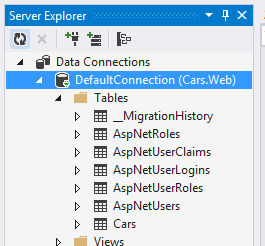
Double-click the mdf file in Solution Explorer to view the contents. This will open the Server Explorer window where you can see the tables created:

Update-database command executed

The user manager tables will look familiar from the series on Identity referred to above. Also, we have the Cars table with the Id, Make and Category fields.

You are of course not limited to creating the database in the built-in local SQL server. Update the connection string in web.config as you wish and the changes will be reflected in the next update-database command.

In the next post we’ll start adding Car objects to the Cars table.

View the posts related to data storage here.

Finding the minimum value in a sequence with LINQ C#

Finding the minimum value in a sequence can be performed using the Min LINQ operator. In it simplest, parameterless form it works on numeric sequences like this:

List<int> integers = new List<int>() { 54, 23, 76, 123, 93, 7, 3489 };
int intMin = integers.Min();

…which gives 7.

Applying the operator on a list of strings gives the alphabetically minimum value in the list:

string[] bands = { "ACDC", "Queen", "Aerosmith", "Iron Maiden", "Megadeth", "Metallica", "Cream", "Oasis", "Abba", "Blur", "Chic", "Eurythmics", "Genesis", "INXS", "Midnight Oil", "Kent", "Madness", "Manic Street Preachers"			 , "Noir Desir", "The Offspring", "Pink Floyd", "Rammstein", "Red Hot Chili Peppers", "Tears for Fears"						 , "Deep Purple", "KISS"};
string stringMin = bands.Min();

…which yields Abba.

The operator can be applied to sequences of custom objects:

public class Singer
{
	public int Id { get; set; }
	public string FirstName { get; set; }
	public string LastName { get; set; }
	public int BirthYear { get; set; }
}

IEnumerable<Singer> singers = new List<Singer>() 
{
	new Singer(){Id = 1, FirstName = "Freddie", LastName = "Mercury", BirthYear=1964}
	, new Singer(){Id = 2, FirstName = "Elvis", LastName = "Presley", BirthYear = 1954}
	, new Singer(){Id = 3, FirstName = "Chuck", LastName = "Berry", BirthYear = 1954}
	, new Singer(){Id = 4, FirstName = "Ray", LastName = "Charles", BirthYear = 1950}
	, new Singer(){Id = 5, FirstName = "David", LastName = "Bowie", BirthYear = 1964}
};

int minSingerBirthYear = singers.Min(s => s.BirthYear);

We applied a selector function to find the minimum birth year, i.e. 1950. We can find the minimum first name alphabetically speaking:

String minSingerName = singers.Min(s => s.FirstName);

…which gives “Chuck”.

View the list of posts on LINQ here.

Introduction to EntityFramework 6 Part 1: the basics of code-first

Introduction

EntityFramework is probably the #1 ORM choice in a database-driven .NET application. EntityFramework 6 comes with a couple of new exciting features that are worth checking out for all MVC 5 developers.

There are 3 approaches to working with EF in your project:

  • Database-first: you can point EF to a database and it will create a model for you using T4 templates. You can fine-tune the model in a design surface
  • Model-first: you have no database and use a design surface to draw your model. You can instruct the designer to create the database for you with all the tables
  • Code-first: write your model in code as classes and instruct EF to generate the necessary database and tables

In the series we’ll look at the code-first approach among other features of EF6.

Demo

I’ll use Visual Studio 2013 Express for Web to build the demo. Select New Project and then insert a new Blank Solution:

Insert new blank solution in Visual Studio

Call the solution Cars and press OK. The blank solution will be created in Visual Studio. Right-click the solution in the Solution Explorer, choose Add… New Project…, select the ASP.NET Web Application template. Call it Cars.Web. In the New ASP.NET Project window select MVC and click OK. The template will automatically include the EntityFramework-related libraries for you. You can see them if you expand the References section of the web project.

In a layered application design it’s customary to put the domain layer in a separate project. Right-click the solution and add a new Class library and call it Cars.Domain. Delete Class1. Add a reference to the Domain project from the Web project. Let’s add our first domain object. Add a new class to the Domain layer called Car. We’ll need to add MVC-related attributes to the class so add the following reference to Cars.Domain:

Add data annotations library to Domain layer

The Car object will look like the following:

public class Car
{
	public int Id { get; set; }
	[Required]
	[StringLength(50)]
	public string Make { get; set; }

	public CarCategory Category { get; set; }
}

…where CarCategory is an enum:

public enum CarCategory
{
	Family
	, Sports
	, Van
	, Estate
}

Is this POCO?

Let’s just stop for a second and ask ourselves this question. Is this Car class a true POCO, i.e. a true domain object as it’s used in the sense of Domain Driven Design? Probably not. We’re letting MVC related attributes enter our classes to add validation which destroys the plain and independent nature of the Car domain. Proper domain objects should be void of technology-related traits. If you’re not sure what I mean then you can skim through the DDD series referenced above. These annotations should be placed in view-models in the Web project so that client-side validation can take place first. However, this solution will be OK for this demo. The point is not to bloat the project and get bogged down by issues not related to EntityFramework.

We’ll commit a lot of these “sins” throughout the demo. You’ll see examples of SOLID being totally disrespected. We’ll concentrate on the technology but it’s up to you to organise your code as you see fit.

Data context

Let’s create our database context from scratch. As the Web layer already references the EntityFramework libraries we can keep it there. Again, this is a big no-no in a real life “serious” application, but it’ll do for now. Add a new folder called Database to the Web project. This folder will contain our database-related objects including the DB representation of our Car domain. You can keep your domain objects clean and store the DB representations separate. Add the following EF context class:

public class CarsDbContext : DbContext
{
}

…where DbContext lies in the System.Data.Entity library.

A collection of entities in the context is represented by the DbSet object. Add the following property to the context class:

public DbSet<Car> Cars { get; set; }

A DbSet is almost always mapped to a table in the database. So when you have an instance of a CarsDbContext object you can use to get hold of all Car objects in the data store and query the data with LINQ.

When you start a new MVC 5 project the template will actually provide you with a DbContext. Check the IdentityModels.cs file in the Models folder:

public class ApplicationDbContext : IdentityDbContext<ApplicationUser>
{
        public ApplicationDbContext()
            : base("DefaultConnection")
        {
        }
}

We discussed the purpose of the ApplicationDbContext in the series on Identity in MVC5 here. It derives from IdentityDbContext which in turn derives from DbContext. It is set up to work with User related data with EntityFramework: create new users, update users, add claims, store external OAuth metadata, store roles, logins etc. It’s meant to give you an EF implementation of every aspect around user management which is often considered a real pain by many programmers who want to concentrate on the real business domain instead. Make sure you at least skim through the series on Identity to learn more about this particular data context.

A little contemplation

We should pause for a minute and ponder what to do now.

We have two different contexts: the Cars context and the ApplicationDbContext. It is certainly possible to build on the ApplicationDbContext class and put all DbSet objects in there. On the other hand it seems like a good choice to keep the annoying user-related logic separate from the “real” business objects in the database.

Also, you may wonder how the ApplicationUser object could be ported to the Domain layer. After all, it is also an object that should reside in the Domain layer, right? The challenge here is that ApplicationUser derives from IdentityUser which lies in the Microsoft.AspNet.Identity.EntityFramework namespace. This means that if you want to keep the EF implementation of user management in the Domain layer then you’ll need to import the EF libraries into the Domain layer as well. That’s a serious step towards “contaminating” your business layer which should be clear of technological concerns. Like it happens in many projects, we are sort of trapped by technological issues: we want to keep our Domain layer clean but we may want to keep the EF user management provided by the MVC 5 template out-of-the-box because it’s convenient. If we want to provide our own User logic in the Domain layer then we’ll need to provide our own implementation of IUserStore, IUserLoginStore, IUserPasswordStore etc. which we saw in the series on Identity. This can be a long and tedious process which will take a long time to complete, time that could be spent on more business-related features. However, in that case we’re guaranteed to freely customise and optimise all aspects of our user-related logic.

If we decide to go with the EF implementation of user management then we have to accept the fact that we’ll use SQL Server as the user store mechanism and EF as the ORM framework of choice. This is again an example where we let technology take over some part of the domain.

On the other hand we can argue that user-related logic is not part of our code business domain. It’s only a necessary evil in order to let people log on and off, drive authentication and authorisation, create users etc. It’s possible that user management will not be part of the core domain of a typical business web application. That most likely belongs to some internal admin site. In that case you can leave the user management to EF as it is and concentrate on the core domain in the separate Domain layer. You can still choose a different data store to keep your domain objects in and have an SQL Server instance just for user-related data. We can even say that this is a good separation of concerns as the user management database might be used by other applications in a single sign-on scenario.

This all really depends on the philosophy you follow in your project. Whichever path you take you’ll have good arguments to back it up if anyone asks.

What do we do now?

We’ll certainly not go down the difficult and time-consuming path of providing our own implementation of user management in this demo. Also, user management is not part of our core domain. However, we still want to organise our code so that the user data context is located in the same place as the cars DB context. Add the following class called UserManagementDbContext to the Database folder:

public class UserManagementDbContext : IdentityDbContext<ApplicationUser>
{
	public UserManagementDbContext()
		: base("DefaultConnection")
	{

	}
}

Import the necessary libraries: Microsoft.AspNet.Identity.EntityFramework and Cars.Web.Models. In IdentityModel.cs erase the ApplicationDbContext class:

public class ApplicationDbContext : IdentityDbContext<ApplicationUser>
    {
        public ApplicationDbContext()
            : base("DefaultConnection")
        {
        }
    }

The compiler will complain that ApplicationDbContext is not found in AccountController.cs. Update the constructor as follows:

public AccountController()
	: this(new UserManager<ApplicationUser>(new UserStore<ApplicationUser>(new UserManagementDbContext())))
{
}

UserManagementDbContext will use a connection string defined in web.config as “DefaultConnection”. We want to make sure that the Cars DB context uses the same connection. Insert the following constructor to CarsDbContext:

public CarsDbContext() : base("DefaultConnection")
{
}

We’ll continue in the next post by creating the Cars database.

View the posts related to data storage here.

Getting the first element from a sequence in LINQ C#

Say you have the following object sequence:

public class Singer
{
	public int Id { get; set; }
	public string FirstName { get; set; }
	public string LastName { get; set; }
	public int BirthYear { get; set; }
}

IEnumerable<Singer> singers = new List<Singer>() 
			{
				new Singer(){Id = 1, FirstName = "Freddie", LastName = "Mercury", BirthYear=1964}
				, new Singer(){Id = 2, FirstName = "Elvis", LastName = "Presley", BirthYear = 1954}
				, new Singer(){Id = 3, FirstName = "Chuck", LastName = "Berry", BirthYear = 1954}
				, new Singer(){Id = 4, FirstName = "Ray", LastName = "Charles", BirthYear = 1950}
				, new Singer(){Id = 5, FirstName = "David", LastName = "Bowie", BirthYear = 1964}
			};

If you just want to get the very first element from this sequence with no query then you can use the First operator:

Singer singer = singers.First();
Console.WriteLine(singer.LastName);

This will select Freddie Mercury from the list. You can also send an item selector to get the first element which matches the query:

Singer singer = singers.First(s => s.Id == 2);
Console.WriteLine(singer.LastName);

…which returns Elvis Presley.

A caveat is that the First operator throws an InvalidOperationException if there’s no single matching record:

Singer singer = singers.First(s => s.Id == 100);

To avoid this scenario you can use the FirstOrDefault operator which returns the default value of the required object if there’s no matching one. Therefore “singer” in the above example will be null:

Singer singer = singers.FirstOrDefault(s => s.Id == 100);
Console.WriteLine(singer == null ? "No such singer" : singer.LastName);

…which prints “No such singer”.

View the list of posts on LINQ here.

Retrieving an element from a sequence with an index in LINQ C#

Say you have the following Singer object and sequence of Singers:

public class Singer
{
	public int Id { get; set; }
	public string FirstName { get; set; }
	public string LastName { get; set; }
	public int BirthYear { get; set; }
}

IEnumerable<Singer> singers = new List<Singer>() 
		{
			new Singer(){Id = 1, FirstName = "Freddie", LastName = "Mercury", BirthYear=1964}
			, new Singer(){Id = 2, FirstName = "Elvis", LastName = "Presley", BirthYear = 1954}
			, new Singer(){Id = 3, FirstName = "Chuck", LastName = "Berry", BirthYear = 1954}
			, new Singer(){Id = 4, FirstName = "Ray", LastName = "Charles", BirthYear = 1950}
			, new Singer(){Id = 5, FirstName = "David", LastName = "Bowie", BirthYear = 1964}
		};

Say you want to get to the second element of the singers sequence. You can use the ElementAt operator to achieve that. As all arrays and lists are 0 based, then the second element has index = 1:

Singer singer = singers.ElementAt(1);
Console.WriteLine(singer.LastName);

The operator has found Elvis Presley. If there’s no element at the specified index then an ArgumentOutOfRangeException is thrown. To avoid that you can use the ElementAtOrDefault operator instead:

Singer singer = singers.ElementAtOrDefault(100);
Console.WriteLine(singer == null ? "No such singer" : singer.LastName);

…which prints “No such singer”.

View the list of posts on LINQ here.

Introduction to forms based authentication in ASP.NET MVC5 Part 5: Claims

Introduction

Claims in authorisation have received a lot of attention recently. Claims are simply key-value pairs where the key describes the type of claim, such as “first name” and the value provides the value of that claim, e.g. “Elvis”. Think of a passport which usually has a page with the photo and lots of claims: first name, last name, maiden name, expiry date etc. Those are all key-value pairs that describe the owner of the passport and provide reliable evidence that the person is really the one they are claiming to be.

I have a long series on claims on this blog. If you don’t anything about them then I recommend you at least go through the basics starting here. That series takes up claims in MVC 4. MVC 5 brings a couple of new features as far as claims are concerned.

Demo

We’ll be using the same demo application as before in this series so have it open in Visual Studio 2013.

As we said before authentication in MVC 5 is built using Katana components which are activated with extension methods on the incoming IAppBuilder object. These Katana components work independently of each other: e.g. you can turn on Google authentication at will as we saw in the previous part. At the same time you can even turn off the traditional cookie authentication, it won’t affect the call to app.UseGoogleAuthentication().

When we turned on Google authentication the consent screen stated that the application, i.e. the demo web app, will have access to the user’s email. That’s in fact a type of claim where the key is “email” or most probably some more complete namespace. Where’s that email? How can we read it?

Locate the method called ExternalLoginCallback in the AccountController. That method is fired when the user has successfully logged in using an external auth provider like Google or Facebook. The method will first need to extract the login information using…

var loginInfo = await AuthenticationManager.GetExternalLoginInfoAsync();	

This login information contains the tokens, expiry dates, claims etc. As the login is taken care of by OWIN, MVC will need to tap into the corresponding Katana component to read those values. This is an example of a piece of logic outside OWIN that needs to find out something from it. The AccountController will need this information to handle other scenarios such as signing out. The key object here is the AuthenticationManager.

The AuthenticationManager which is of type IAuthenticationManager is extracted using the following private property accessor in AccountController:

private IAuthenticationManager AuthenticationManager
{
            get
            {
                return HttpContext.GetOwinContext().Authentication;
            }
}

The interface lies in the Microsoft.Owin.Security namespace. The AuthenticationManager is retrieved from the current OWIN context. The GetOwinContext extension method provides a gateway into OWIN from ASP.NET. It allows you to retrieve the request environment dictionary we saw in the series on OWIN:

HttpContext.GetOwinContext().Request.Environment;

I encourage you to type ‘HttpContext.GetOwinContext().’ in the editor and look through the available choices with IntelliSense. The Authentication property exists so that ASP.NET can read authentication related information from the OWIN context as all that is now handled by Katana components.

If you look further down in the code you’ll see the SignInAsync method. The method body shows how to sign users in and out using an external cookie-based login:

AuthenticationManager.SignOut(DefaultAuthenticationTypes.ExternalCookie);
AuthenticationManager.SignIn(new AuthenticationProperties() { IsPersistent = isPersistent }, identity);

Now that we know a little bit about the authentication manager we can return to the ExternalLoginCallback method. Let’s see what the GetExternalLoginInfoAsync method returns in terms of login information. Add a breakpoint within the method and start the application. Click the Log in link and sign in with Google. Code execution stops within the method. Inspect the contents of the “loginInfo” variable. It doesn’t contain too much information: the user name, the provider name – Google – and a provider key. So there’s nothing about any provider specific related claims such as the user’s email address.

Note that the GetExternalLoginInfoAsync method only provides an object which includes properties common to all providers. The list is not too long as we’ve seen. However, the method cannot know in advance what the Google auth provider will provide in terms of claims. The list of available data will be different across providers. Some providers may provide a more generous list of claims than just an email: a URL to the user’s image, the user’s contacts, first and last names etc. Insert the following line of code above the call to GetExternalLoginInfoAsync:

AuthenticateResult authenticateResult = await AuthenticationManager.AuthenticateAsync(DefaultAuthenticationTypes.ExternalCookie);

Leave the breakpoint as it is and restart the application. Sign in with Google and inspect the authenticateResult variable. You’ll see that it provides a lot more information than the login info above. The claims are found
within the Identity property:

Claims from Google authentication

You can see that the claim types are identified in the standard URI way we saw in the series on claims. You can query the Claims collection to see if it includes the email claim. If your application explicitly requires the email address of the user then make sure to indicate it when you set it up with Google or any other auth provider.

You can save the email of the user in at least two ways:

  • Temporarily in the session using the ExternalLoginConfirmationViewModel object further down in the ExternalLoginCallback method. That view model doesn’t by default include any property for emails, you’ll need to extend it
  • In the database using the UserManager object we saw before in this series

Let’s see how we can achieve these. Locate the ExternalLoginConfirmationViewModel object in AccountViewModels.cs and extend it as follows:

public class ExternalLoginConfirmationViewModel
{
        [Required]
        [Display(Name = "User name")]
        public string UserName { get; set; }

	public string EmailFromProvider { get; set; }
}

Add the following method to AccountController.cs to read the email claim from the claims list:

private string ExtractEmailFromClaims(AuthenticateResult authenticateResult)
{
	string email = string.Empty;
	IEnumerable<Claim> claims = authenticateResult.Identity.Claims;
	Claim emailClaim = (from c in claims where c.Type == ClaimTypes.Email select c).FirstOrDefault();
	if (emailClaim != null)
	{
		email = emailClaim.Value;
	}
	return email;
}

You can read this value in the body of ExternalLoginCallback and store it in a ExternalLoginConfirmationViewModel like this:

public async Task<ActionResult> ExternalLoginCallback(string returnUrl)
{
	AuthenticateResult authenticateResult = await AuthenticationManager.AuthenticateAsync(DefaultAuthenticationTypes.ExternalCookie);

        var loginInfo = await AuthenticationManager.GetExternalLoginInfoAsync();			
         if (loginInfo == null)
            {
                return RedirectToAction("Login");
            }

            // Sign in the user with this external login provider if the user already has a login
            var user = await UserManager.FindAsync(loginInfo.Login);

			string emailClaimFromAuthResult = ExtractEmailFromClaims(authenticateResult);

            if (user != null)
            {
                await SignInAsync(user, isPersistent: false);
                return RedirectToLocal(returnUrl);
            }
            else
            {
                // If the user does not have an account, then prompt the user to create an account
                ViewBag.ReturnUrl = returnUrl;
                ViewBag.LoginProvider = loginInfo.Login.LoginProvider;
                return View("ExternalLoginConfirmation", new ExternalLoginConfirmationViewModel 
					{ UserName = loginInfo.DefaultUserName, EmailFromProvider = emailClaimFromAuthResult });
     }
}

This page redirects to a View called ExternalLoginConfirmation when the user first signs up in the “else” clause. Locate ExternalLoginConfirmation.cshtml in the Views/Account folder. You can use the incoming model to view the extracted email claim:

<p>
    We've found the following email from the login provider: @Model.EmailFromProvider
</p>

I’ve deleted all rows in the AspNetUsers table so that I can view this extra information. Also, clear the cookies in your browser otherwise Google will remember you. You can also run the application from a brand new browser window. The email was successfully retrieved:

Found Google email claim

We can store the email claim in the database within ExternalLoginCallback as follows:

if (user != null)
{
        await SignInAsync(user, isPersistent: false);
        IList<Claim> userClaimsInDatabase = UserManager.GetClaims<ApplicationUser>(user.Id);
	Claim emailClaim = (from c in userClaimsInDatabase where c.Type == ClaimTypes.Email select c).FirstOrDefault();
	if (emailClaim == null)
	{
        	IdentityResult identityResult = UserManager.AddClaim<ApplicationUser>(user.Id, new Claim(ClaimTypes.Email, emailClaimFromAuthResult));
	}
				
        return RedirectToLocal(returnUrl);
}

First we check the claims stored in the database using the UserManager.GetClaims method. Then we check if the email Claim is present. If not then we add it to the database. The identityResult helps you check the result of the operation through the Errors and Succeeded properties.

The claims by default end up in the AspNetUserClaims table:

Email claim saved in the aspnetuserclaims table

You can of course use the AspNetUserClaims table to store any kind of claim you can think of: standard claims found in the ClaimTypes list or your own custom ones, such as http://mycompany.com/claims/customer-type.

You can view the list of posts on Security and Cryptography here.

Elliot Balynn's Blog

A directory of wonderful thoughts

Software Engineering

Web development

Disparate Opinions

Various tidbits

chsakell's Blog

WEB APPLICATION DEVELOPMENT TUTORIALS WITH OPEN-SOURCE PROJECTS

Once Upon a Camayoc

ARCHIVED: Bite-size insight on Cyber Security for the not too technical.