Comparing strings using the CompareInfo class in .NET C#

It’s important to be aware of the cultural settings in a globalised application when comparing strings. The CompareInfo class and the CompareOptions enumeration provide a useful way to compare strings based on specific cultures.

One way to get hold of the CompareInfo class belonging to a specific culture is through the CultureInfo class:

CultureInfo swedishCulture = new CultureInfo("sv-SE");
CompareInfo swedishCompareInfo = swedishCulture.CompareInfo;

CultureInfo hungarianCulture = new CultureInfo("hu-HU");
CompareInfo hungarianCompareInfo = hungarianCulture.CompareInfo;

CultureInfo germanCulture = new CultureInfo("de-DE");
CompareInfo germanCompareInfo = germanCulture.CompareInfo;

The CompareInfo object has a Compare method which returns 0 if the strings are equal, -1 if the first string is less than the second and 1 if the opposite is the case. The following comparison of two German strings returns -1 as by default the comparison is case-sensitive:

int comparison = germanCompareInfo.Compare("mädchen", "Mädchen");

This is where the CompareOptions enumeration proves useful. Here are the possible values:

  • IgnoreCase: make the comparison case-insensitive
  • IgnoreNonSpace: ignore diacritics, or officially non-spacing combining characters in Unicode. Example: “Madchen” will be equal to “Mädchen” with this flag
  • IgnoreSymbols: ignore symbols, like white-space, #, $, % etc. “Mädch$en” and “M#ädchen” will be considered equal with this flag
  • IgnoreKana and IgnoreWidth: concern mostly the Japanese language
  • None: the default value if the basic overload of Compare is called
  • Ordinal: quick but culture-insensitive comparison based on the Unicode value of each character
  • OrdinalIgnoreCase: same as Ordinal but the comparison is also case-insensitive
  • StringSort: use a sort algorithm where non-alphanumeric symbols, such as ‘-‘ come before the alphanumeric characters

Read all posts related to Globalisation in .NET here.

MongoDB in .NET part 5: WriteConcerns and replacing documents

Introduction

In the previous part of this series we successfully inserted a new Car object in our database. We also managed to read all items from the database and show them in a table. We’ll continue looking at MongoDb operations.

We’ll keep working on the same demo as before so have it ready in Visual Studio.

WriteConcern

Recall that we inserted a new Car object via the MongoDb Insert method of the MongoCollection object. It returns a WriteConcernResult object that we haven’t bothered with. In the Create action method of the CarsController controller modify…

CarRentalContext.Cars.Insert(car);

…to…

WriteConcernResult writeResult = CarRentalContext.Cars.Insert(car);
bool ok = writeResult.Ok;

Insert a breakpoint within the action method, start the app, navigate to /cars/create and insert a new Car object. When the code execution stops inspect the “ok” boolean value in Visual Studio. It should be true, meaning that the write operation has succeeded. We could read this result because by default the driver will wait for an acknowledgement if some CRUD operation is carried out through the MongoClient object. There’s one more level to enhance durability – you can wait for a journal commit acknowledgement from the database. You can achieve this by either extending the connection string to…

mongodb://localhost/?journal=true

…or in code as follows:

String mongoHost = ConfigurationManager.ConnectionStrings["CarRentalConnectionString"].ConnectionString;
MongoClientSettings settings =
	MongoClientSettings.FromUrl(new MongoUrl(mongoHost));	
settings.WriteConcern.Journal = true;
_mongoClient = new MongoClient(settings);

The WriteConcern property has at least one more important property you should know about: W. That’s right, a property called W. It is of type WValue and is represented by an integer. Say you have a cluster of MongoDb databases – a replica set – with one primary server for writes and 1 or more secondary servers for reads. The write operation will be propagated to all secondary servers in a matter of milliseconds. This is what you often see in real life database environments to enhance durability and data availability – if one server dies then you still have at least one more for reads and writes. The property W indicates the number of nodes in the cluster that must acknowledge the write – or update – operation. A similar mechanism from SQL Server is AlwaysOn. WriteConcern currently has 4 predefined values:

settings.WriteConcern = WriteConcern.W1;
settings.WriteConcern = WriteConcern.W2;
settings.WriteConcern = WriteConcern.W3;
settings.WriteConcern = WriteConcern.W4;

W1 means at least 1 node has to acknowledge the modification. You understand the rest. There is a special property where the majority of the nodes must acknowledge the operation:

settings.WriteConcern = WriteConcern.WMajority;

There’s another special value if you want to skip write acknowledgements altogether:

settings.WriteConcern = WriteConcern.Unacknowledged;

Update the CarRentalContext constructor to the following:

String mongoHost = ConfigurationManager.ConnectionStrings["CarRentalConnectionString"].ConnectionString;
MongoClientSettings settings =
MongoClientSettings.FromUrl(new MongoUrl(mongoHost));
settings.WriteConcern = WriteConcern.Unacknowledged;
_mongoClient = new MongoClient(settings);			
_mongoServer = _mongoClient.GetServer();			
_mongoDatabase = _mongoServer.GetDatabase(ConfigurationManager.AppSettings["CarRentalDatabaseName"]);

Run the app and try to enter a new car. Press Create and then you should get a null pointer exception here:

bool ok = writeResult.Ok;

The writeResult object will be null as we didn’t want any acknowledgement. This is called fire-and-forget.

Why would you want to relax the acknowledgment mechanism? I can give you an example from my work. In one of our projects we monitor some real-time performance statistics during load testing of a web site and show it in various graphs. The process is very “insert” intensive with lots of inserts during the test. We don’t really care if a couple of data points are lost here and there as there are always new ones coming in. So to save time and get better performance we relax all types of write acknowledgment. Also, the stats are only interesting during the live testing so we’re not much concerned with durability either. You can even set the acknowledgement policy on the level of the operation, e.g.:

CarRentalContext.Cars.Insert(car, WriteConcern.Unacknowledged);

…or on the collection level:

public MongoCollection<Car> Cars
{
	get
	{
		return CarRentalDatabase.GetCollection<Car>("cars", WriteConcern.W1);
	}
}

However, for most types of data in a database you’ll want to turn on write acknowledgments. Change the CarRentalContext to the default write concern:

public CarRentalContext()
{
	String mongoHost = ConfigurationManager.ConnectionStrings["CarRentalConnectionString"].ConnectionString;
	MongoClientSettings settings =
		MongoClientSettings.FromUrl(new MongoUrl(mongoHost));			
	_mongoClient = new MongoClient(settings);			
	_mongoServer = _mongoClient.GetServer();			
	_mongoDatabase = _mongoServer.GetDatabase(ConfigurationManager.AppSettings["CarRentalDatabaseName"]);
}

Updates

Updates can be performed in 2 ways:

  • Replace an existing document with a new one
  • Modify an existing document without removing it

The Save() method will replace an existing document. Save() can also act as an Insert method: if there’s no document with the specified ID or no ID is provided at all then Save will create a new document. This is known as an upsert, i.e. update or insert. Save() returns a WriteConcernResult like Insert. There’s also another method called Update which Save calls upon internally. However, Save is more concise and saves you some typing.

The View for /cars created a table for us to show the cars. It has also prepared some links to update a record – check the Edit link. Don’t click on it yet as have no action method or controller for it.

In CarsController add the following Edit stub:

[HttpGet]
public ActionResult Edit(string id)
{

}

We’ll need to find the car with the selected ID and retrieve it from the database. To find an object by id you can use the FindOneById method on the collection like this:

[HttpGet]
public ActionResult Edit(string id)
{
      Car car = CarRentalContext.Cars.FindOneById(new ObjectId(id));
}

You can build very sophisticated search criteria using the IMongoQuery builder. We can write the above query as follows:

IMongoQuery findByIdQuery = Query.EQ("_id", new ObjectId(id));
Car car = CarRentalContext.Cars.FindOne(findByIdQuery);

Query is used to build IMongoQuery objects. Just type “Query.” in VS and you’ll see lots of familiar properties such as “EQ” for equal, GT – greater than, LT – less than – and lots more. Whenever you need build a query to the Find or FindOne methods you’ll use the Query object. In case you need to specify a range of criteria you can combine them with And or Or:

Query.And(Query.EQ("someProperty", propertyValue), Query.EQ("otherProperty", otherValue));

Let’s continue. We’ll need a View for the Edit action and a corresponding view-model. Add a class called UpdateCarViewModel to the ViewModels folder:

public class UpdateCarViewModel
{
	[Editable(false)]
	public string Id { get; set; }
	[Required]
	[Display(Name = "Type of car")]
	public string Make { get; set; }
	[Required]
	[Display(Name = "Number of doors")]
	[Range(2, 6)]
	public int NumberOfDoors { get; set; }
	[Required]
	[Display(Name = "Daily rental fee")]
	public decimal DailyRentalFee { get; set; }
	[Required]
	[Display(Name = "List of allowed countries delimited with ';'")]
	public string DelimitedListOfCountries { get; set; }
}

It’s almost the same as the InsertCarViewModel, we could probably do with some subclassing, but it’s fine as it is for the demo. We’ll need the ID so that the Save method can locate the correct document. Next we’ll need to convert a Car object into an UpdateCarViewModel object. Insert the following extension method to DomainExtensions.cs:

public static UpdateCarViewModel ConvertToUpdateViewModel(this Car carDomain)
{
	UpdateCarViewModel updateVm = new UpdateCarViewModel()
	{
		Id = carDomain.Id
		, DailyRentalFee = carDomain.DailyRentalFee
		, Make = carDomain.Make
		, NumberOfDoors = carDomain.NumberOfDoors
	};

	if (carDomain.CountriesAllowedIn != null && carDomain.CountriesAllowedIn.Count() > 0)
	{
		StringBuilder sb = new StringBuilder();
		for (int i = 0; i < carDomain.CountriesAllowedIn.Count(); i++)
		{
			sb.Append(carDomain.CountriesAllowedIn.ElementAt(i));
			if (i < carDomain.CountriesAllowedIn.Count() - 1)
			{
				sb.Append(";");
			}
		}
		updateVm.DelimitedListOfCountries = sb.ToString();
	}

	return updateVm;
}

Back in CarsController modify the Edit GET method as follows:

[HttpGet]
public ActionResult Edit(string id)
{
	Car car = CarRentalContext.Cars.FindOneById(new ObjectId(id));
	return View(car.ConvertToUpdateViewModel());
}

Right-click “Edit”, select Add View:

Adding Edit template to Car object

Again, VS will create a basic Edit template for the selected item. Let’s check if it works so far. Run the application, navigate to /cars and click on the Edit link for one of the Car objects. This should open the following Edit form:

Edit Car template populated

Now we need to write the POST Edit action to complete the loop. Add the following stub to the CarsController:

[HttpPost]
public ActionResult Edit(UpdateCarViewModel updateCarViewModel)
{

}

We’ll need another extension method to convert an UpdateCarViewModel back to a Car. Add the following to DomainExtensions:

public static Car ConvertToDomain(this UpdateCarViewModel updateCarViewModel)
{
	Car car = new Car()
	{
		Id = updateCarViewModel.Id
		, DailyRentalFee = updateCarViewModel.DailyRentalFee
		, Make = updateCarViewModel.Make
		, NumberOfDoors = updateCarViewModel.NumberOfDoors
	};
	string[] countries = updateCarViewModel.DelimitedListOfCountries.Split(new char[] { ';' }, StringSplitOptions.RemoveEmptyEntries);
	car.CountriesAllowedIn = countries.ToList();
	return car;
}

Again, we’ll need the Id so that the Save function can find the document to be modified. Here’s the final version of the POST Edit method:

[HttpPost]
public ActionResult Edit(UpdateCarViewModel updateCarViewModel)
{
	if (ModelState.IsValid)
	{
		Car modifiedCar = updateCarViewModel.ConvertToDomain();
		CarRentalContext.Cars.Save(modifiedCar);
		return RedirectToAction("Index");
	}
	return View(updateCarViewModel);
}

We didn’t have to look up the Car object in the database – the Save method will check the ID for us. Run the application, update an existing Car and save it. If all works fine then you’ll be redirected to the Index page with the updated value in the list of Cars.

In the next post we’ll look at updates a bit closer.

View the posts related to data storage here.

Finding the current culture settings using the CultureInfo class in .NET C#

Finding the the culture settings – the locale – of a thread is straightforward in .NET:

CultureInfo cultureInfo = Thread.CurrentThread.CurrentCulture;

We extract the current culture from the current thread. The CultureInfo class holds a number of properties to extract information from it. Examples:

string cultureName = cultureInfo.Name;
string cultureDisplayName = cultureInfo.DisplayName;
string nativeName = cultureInfo.NativeName;
string englishName = cultureInfo.EnglishName;
string cultureAbbreviation = cultureInfo.TwoLetterISOLanguageName;

As my computer is set to run with Swedish settings I got the following values from top to bottom:

  • sv-SE
  • Swedish (Sweden)
  • svenska (Sverige)
  • Swedish (Sweden)
  • sv

Cultures are represented by the following format:

  • Neutral culture, “sv” in the above case, is the ISO language name which is tied to the language
  • Specific culture, “SE” in the above case, denotes the geographical location of the culture
  • The two elements are connected with a hyphen “-“, i.e. “sv-SE” in the above example

Specific culture is the most precise description of the user’s locale. It not only designates the language but the region as well. E.g. Swedish is spoken in Finland as well so the neutral culture “sv” is not enough to locate the user. There’s a specific “sv-FI” format for that. This aspect becomes a lot more important with broadly used languages such as French or English. French spoken in France is different from French spoken in Canada. Therefore we need to use fr-FR and fr-CA for the purpose of formatting and proper localisation.

Besides neutral and specific cultures there’s a third type of culture called invariant culture. This is not tied to any specific culture but is closest to English. It may be tempting to use this culture for other purposes such as date and time comparisons but you’ll most likely get false results in a globalised, culture aware application.

The current culture is used for formatting purposes behind the scenes:

decimal price = 10.43M;
string formattedDecimalDefault = price.ToString("C");

I got “10,43 kr” where ‘kr’ denotes the currency in Sweden, i.e. Swedish krona.

You can also set the current culture of the thread:

CultureInfo usCulture = new CultureInfo("en-US");
Thread.CurrentThread.CurrentCulture = usCulture;
string formattedPriceUs = price.ToString("C");

This immediately yields “$10.43”.

The invariant culture is denoted by an empty string:

CultureInfo invariantCulture = new CultureInfo("");
Thread.CurrentThread.CurrentCulture = invariantCulture;
string formattedPriceUs = price.ToString("C");

Neutral cultures are denoted by the ISO language names, e.g.:

CultureInfo englishCulture = new CultureInfo("en");
Thread.CurrentThread.CurrentCulture = englishCulture;
string formattedPriceUs = price.ToString("C");

Which will format the price according to the en-US specific culture.

As you typed “Thread.CurrentThread.” in the editor you may have noticed the CurrentUICulture property. That also returns a CultureInfo object. As the name suggests, it denotes the culture used to show prices, dates, time etc. in the application UI. CurrentCulture and CurrentUICulture will most often be the same, but be aware that they can be different. You might perform calculations in a culture but show the results in another one. Also, you can always manipulate the CurrentCulture of the thread during an application’s lifetime. However, you can only set the current UI culture at the application’s start up.

Read all posts related to Globalisation in .NET here.

MongoDB in .NET part 4: the POCO model, insertions, indexes and capped collections

Introduction

We saw the basics of POCO documents in the previous post of this series. In this part we’ll build up our model with POCOs.

Open the demo application CarRentalWeb we started out with and let’s get to work!

Our model

Add a new folder to the solution called Domain. In that folder insert a class called Car:

public class Car
{
        [BsonRepresentation(MongoDB.Bson.BsonType.ObjectId)]
	public string Id { get; set; }
	public string Make { get; set; }
	[BsonRepresentation(MongoDB.Bson.BsonType.Double)]
	public decimal DailyRentalFee { get; set; }
	public int NumberOfDoors { get; set; }
	public List<string> CountriesAllowedIn { get; set; }
}

You’ll recognise the BsonRepresentationAttribute from the previous post. You may be wondering why we have public string Id with the BsonRepresentation attribute. We saw in the previous post that Mongo stores the id field – called “_id” – in its own ObjectId format. We could simply write…

public ObjectId Id { get; set; }

…but ObjectId might cause problems with data binding elsewhere in the application as it is not a native .NET object. So we choose its nearest .NET approximation which is a string.

While we’re on this topic the above object definition may not even be considered strictly POCO anymore. It contains attributes that belong to a technology that a true domain object should not care about. These attributes have to do with data persistence and domain objects should have no knowledge of how they are represented in the data store. If you’re not sure what I mean I recommend that you go through the series on Domain Driven Design to learn how to separate domain and persistence models to keep the domain models strictly POCO. At the same time you may be fine with decorating your domain objects like that but it’s your decision.

However, this series is about MongoDb, not DDD, so we’ll allow for such deviations. You can then organise your objects the way you want in your project.

Inserting cars

As we said before a Mongo collection is a group of related documents. It is similar to a table in a relational database. Mongo collections are represented by the MongoCollection object in the C# driver and can be accessed via the MongoDatabase object. In our CarRentalContext context class we built such an object in the class constructor.

Add a new folder to the solution called ViewModels. ViewModels here are not the same as the behaviour-rich objects in MVVM. Instead they are simple DTOs – data transfer objects – to represent the “View” part of our models in MVC. Essentially they will be bound to the elements of the form where we insert new cars. Add the following class to the ViewModels folder:

public class InsertCarViewModel
{
	[Required]
	[Display(Name = "Type of car")]
	public string Make { get; set; }
	[Required]
	[Display(Name = "Number of doors")]
	[Range(2,6)]
	public int NumberOfDoors { get; set; }
	[Required]
	[Display(Name = "Daily rental fee")]
	public decimal DailyRentalFee { get; set; }
	[Required]
	[Display(Name = "List of allowed countries delimited with ';'")]
	public string DelimitedListOfCountries { get; set; }
}

This prepares some basic validation and display values using standard MVC annotations. Let’s prepare the Cars controller. Add a new empty MVC controller like this…:

Add cars controller in Visual Studio

Insert a Create action method like this:

[HttpGet]
public ActionResult Create()
{
	return View();
}

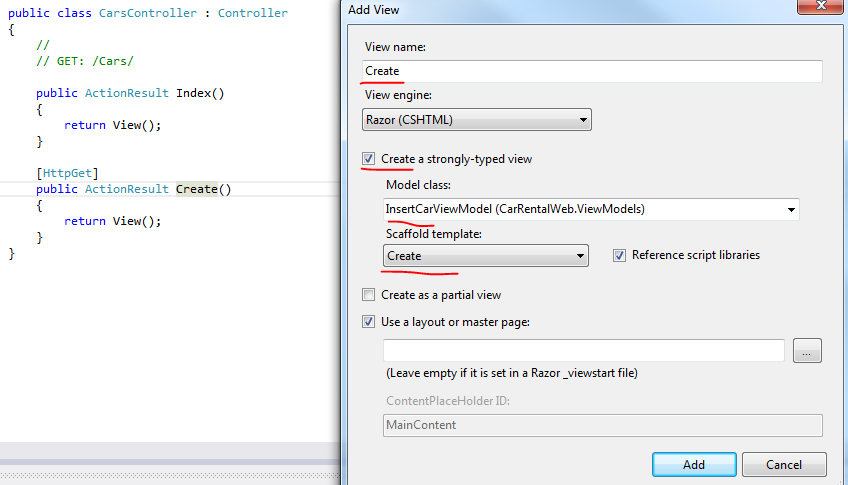
Right-click “Create” and select “Add View”. Fill in the form like this:

Create GET Create template for Car view model

In case the Model class list doesn’t show the InsertCarViewModel then close the window and build the project. Click OK and you’ll be presented an out-of-the box Create view. Start the application and navigate to /cars/create. You should see a simple form:

GET Create form to insert new cars

The VS 2013 equivalent will have a different style but that’s not important. When we press the Edit button the POST Create action will be called. Let’s insert it into the CarsController:

[HttpPost]
public ActionResult Create(InsertCarViewModel insertCarViewModel)
{
	if (ModelState.IsValid)
	{
	}
	return View(insertCarViewModel);
}

It’s not doing anything yet. We want to test if the incoming InsertCarViewModel object is correctly populated. Insert a breakpoint at the if statement. Start the application, navigate to /cars/create, fill in some valid values and press create. Code execution will stop at the breakpoint. Inspect the insertCarViewModel in VS – you’ll see that all properties have been populated correctly. We’ll stay on the same page after the Create method returns. The next step is to actually insert this record into MongoDb.

We’ll need to convert the viewmodel to its proper domain representation. We’ll use an extension method to do that. Insert a class called DomainExtensions in the Domain folder. Change the namespace to CarRentalWeb. Declare the class as static and insert the following static method in it:

namespace CarRentalWeb
{
	public static class DomainExtensions
	{
		public static Car ConvertToDomain(this InsertCarViewModel insertCarViewModel)
		{
			Car car = new Car()
			{
				DailyRentalFee = insertCarViewModel.DailyRentalFee
				, Make = insertCarViewModel.Make
				, NumberOfDoors = insertCarViewModel.NumberOfDoors
			};
			string[] countries = insertCarViewModel.DelimitedListOfCountries.Split(new char[] { ';' }, StringSplitOptions.RemoveEmptyEntries);
			car.CountriesAllowedIn = countries.ToList();
			return car;
		}
	}
}

Back in Create(InsertCarViewModel insertCarViewModel) call this extension method as follows:

if (ModelState.IsValid)
{
	Car car = insertCarViewModel.ConvertToDomain();
}

We’ll need access to the database context in this controller – and most likely in all our controllers. Add a new class called BaseController to the Controllers folder. Select the “class” template, not the New Controller options.

public class BaseController : Controller
{
	private CarRentalContext _carRentalContext;

	public BaseController()
	{
		_carRentalContext = new CarRentalContext();
	}

	public CarRentalContext CarRentalContext
	{
		get
		{
			return _carRentalContext;
		}
	}
}

Change the declaration of CarsController to inherit from the BaseController:

public class CarsController : BaseController

Next we’ll extend the CarRentalContext class to return a mongo collection that holds the Cars objects. Open CarRentalContext.cs and add the following getter:

public MongoCollection<Car> Cars
{
	get
	{
		return CarRentalDatabase.GetCollection<Car>("cars");
	}
}

The MongoCollection class has an overloaded version where you can specify the type of objects stored in the collection. The MongoDatabase object is used to get hold of a collection of a specific type. We need to specify the name of the collection – “cars” – which is an arbitrary string that you can specify, it could as well be “MickeyMouse”, but you probably prefer something descriptive. The type specification will help the serialisation mechanism to convert to and from Car and its BSON representation.

Back in CarsController.Create we’ll use the simplest approach to insert a new document. Add the following line after the conversion from the view model:

CarRentalContext.Cars.Insert(car);
return RedirectToAction("Index");

That’s as simple as it gets. We’ll come back to the Insert method in the next post as it returns a WriteConcern object which deserves more attention. We can ignore it for the time being.

After an insertion we’d like to return to the Index page which lists all the Car objects in a table, which is why we have the RedirectToAction call. The CarsController already has an Index method which returns a View(). Let’s tie the View to an IEnumerable of Car view-model objects. We don’t have those yet so add a new class called CarViewModel to the ViewModels folder:

public class CarViewModel
{	
        [Display(Name = "ID")]
	public string Id { get; set; }
	public string Make { get; set; }
	[Display(Name = "Rental fee per day")]
	public decimal DailyRentalFee { get; set; }
	[Display(Name = "Number of doors")]
	public int NumberOfDoors { get; set; }
	[Display(Name = "Allowed countries")]
	public string CountriesAllowedIn { get; set; }
}

We’ll need to convert the Car objects from the database into the CarViewModel representations. Add the following extension methods to DomainExtensions.cs.:

public static IEnumerable<CarViewModel> ConvertAllToViewModels(this IEnumerable<Car> carDomains)
{
	foreach (Car car in carDomains)
	{
		yield return car.ConvertToViewModel();
	}
}

public static CarViewModel ConvertToViewModel(this Car carDomain)
{
	CarViewModel carViewModel = new CarViewModel()
	{
		Id = carDomain.Id
		, DailyRentalFee = carDomain.DailyRentalFee
		, Make = carDomain.Make
		, NumberOfDoors = carDomain.NumberOfDoors
	};

	if (carDomain.CountriesAllowedIn != null && carDomain.CountriesAllowedIn.Count() > 0)
	{
		StringBuilder sb = new StringBuilder();
		for (int i = 0; i < carDomain.CountriesAllowedIn.Count(); i++)
		{
			sb.Append(carDomain.CountriesAllowedIn.ElementAt(i));
			if (i < carDomain.CountriesAllowedIn.Count() - 1)
			{
				sb.Append(",");
			}
		}
		carViewModel.CountriesAllowedIn = sb.ToString();
	}
        return carViewModel;
}

The CarsController Index action will need to fetch all the car objects, convert them to view models and show them to the viewer. Compile the solution and right-click “Index”. Select Add View…:

Add view to list all car objects

This will give you a basic template to show all items in the sequence in a table.

We can use the FindAll method of MongoCollection to retrieve all items without any search parameters:

public ActionResult Index()
{
	List<Car> carsInDb = CarRentalContext.Cars.FindAll().ToList();
        return View(carsInDb.ConvertAllToViewModels());
}

We should be good to go. Start the application, navigate to /cars/create. Fill in the form with valid data, e.g.:

Create car form values example

If everything’s OK then you’ll see the new Car object listed in its CarViewModel representation on the Index page:

Car created and index page shown

That wasn’t too difficult, right? We didn’t even need to create a database or collection. They were both created for us upon the first insert.

Indexes

You’ll probably know that it’s important to set an index on fields that often figure in searches. Here’s how you can set a composite index on the Car object on the Make and NumberOfDoors properties – which probably doesn’t make sense, this is only example code:

IndexKeysBuilder<Car> carIndexBuilder = IndexKeys<Car>.Ascending(c => c.Make, c => c.NumberOfDoors);
IndexOptionsBuilder<Car> carIndexOptions = IndexOptions<Car>.SetName("Car_CompositeIndex").SetTimeToLive(new TimeSpan(2, 0, 0, 0));
CarRentalContext.Cars.EnsureIndex(carIndexBuilder, carIndexOptions);

With SetTimeToLive you can set an expiry date on a collection.

You can drop an Index by its name as follows:

CarRentalContext.Cars.DropIndexByName("Car_CompositeIndex");

Capped collections

A capped collection is a collection which is not allowed to grow beyond a specific size in bytes. If the maximum size is reached then the elements will be dropped starting from the first element in a FIFO fashion. Here’s how you can set the cap to 50MB:

CollectionOptionsBuilder optionsBuilder = new CollectionOptionsBuilder();
optionsBuilder.SetCapped(true);
optionsBuilder.SetMaxSize(52428800);
CarRentalContext.CarRentalDatabase.CreateCollection("NewCollection", optionsBuilder);

Read the next part of the series here.

View the posts related to data storage here.

Finding the maximum value in a sequence with LINQ C#

Finding the maximum value in a sequence can be performed using the Max LINQ operator. In it simplest, parameterless form it works on numeric sequences like this:

List<int> integers = new List<int>() { 54, 23, 76, 123, 93, 7, 3489 };
int intMax = integers.Max();

…which gives 3489.

Applying the operator on a list of strings gives the alphabetically maximum value in the list:

string[] bands = { "ACDC", "Queen", "Aerosmith", "Iron Maiden", "Megadeth", "Metallica", "Cream", "Oasis", "Abba", "Blur", "Chic", "Eurythmics", "Genesis", "INXS", "Midnight Oil", "Kent", "Madness", "Manic Street Preachers"			 , "Noir Desir", "The Offspring", "Pink Floyd", "Rammstein", "Red Hot Chili Peppers", "Tears for Fears"						 , "Deep Purple", "KISS"};
string stringMax = bands.Max();

…which yields “The Offspring”.

The operator can be applied to sequences of custom objects:

public class Singer
{
	public int Id { get; set; }
	public string FirstName { get; set; }
	public string LastName { get; set; }
	public int BirthYear { get; set; }
}

IEnumerable<Singer> singers = new List<Singer>() 
{
	new Singer(){Id = 1, FirstName = "Freddie", LastName = "Mercury", BirthYear=1964}
	, new Singer(){Id = 2, FirstName = "Elvis", LastName = "Presley", BirthYear = 1954}
	, new Singer(){Id = 3, FirstName = "Chuck", LastName = "Berry", BirthYear = 1954}
	, new Singer(){Id = 4, FirstName = "Ray", LastName = "Charles", BirthYear = 1950}
	, new Singer(){Id = 5, FirstName = "David", LastName = "Bowie", BirthYear = 1964}
};

int maxSingerBirthYear = singers.Max(s => s.BirthYear);

We applied a selector function to find the highest birth year, i.e. 1964. We can find the maximum first name alphabetically speaking:

String maxSingerName = singers.Max(s => s.FirstName);

…which gives “Ray”.

View the list of posts on LINQ here.

Finding the factorial for a number using Aggregate in LINQ C#

The Aggregate LINQ operator allows you to define your own aggregation function to be performed on a sequence. The function is performed on each element and the result of the function is passed into the next iteration. The final result of the operation is returned at the end.

To calculate the factorial of 5, i.e. 5!, we’d calculate 5x4x3x2x1 or 1x2x3x4x5, doesn’t matter. The first overload of the operator accepts a Function of int, int, int, i.e. it takes two integers and returns an integer.

Here’s how we can calculate 5!:

IEnumerable<int> ints = Enumerable.Range(1, 5);
int factorial = ints.Aggregate((f, s) => f * s);

…which correctly gives 120. ‘f’ is the aggregate value and ‘s’ is the current element in the lambda expression.

The following is performed step by step:

  1. The first iteration passes in f = 1 and s = 2, which yields 1×2 = 2
  2. In the second iteration f is the result of the first iteration, i.e. 2 and s will be the second element, i.e. 3, yielding 2×3 = 6
  3. Then it continues with f = 6 from the second operation and taking 4 from the integer sequence, giving 6×4 = 24
  4. Finally we get 24×5 = 120

View the list of posts on LINQ here.

MongoDB in .NET part 3: starting with POCO documents

Introduction

In the previous post we set up our MongoDb server and saw how to establish a connection to it. We’ll now start inserting objects into the database. In other words we’ll create MongoDb documents.

Note that there are basically two ways to create documents: either via low-level BSON objects or your “proper” custom POCO ones that you create in your domain layer. In this tutorial we’ll not cover BSON documents. I think most developers prefer the more strongly typed POCO way of working with documents. With BSON you have to declare your object structure through strings.

Here’s a code example of creating a BSON document in C# from the C# driver tutorial:

BsonDocument document = new BsonDocument 
{
    { "name", name },
    { "city", city }, // not added if city is null
    { "dob", dob, dobAvailable } // not added if dobAvailable is false
};

Another example:

BsonDocument nested = new BsonDocument {
{ "name", "John Doe" },
    { "address", new BsonDocument {
        { "street", "123 Main St." },
        { "city", "Centerville" },
        { "state", "PA" },
        { "zip", 12345}
    }}
};

We’ll only look at POCOs here. I think you’ll agree that it’s easier to work with “real” objects for all CRUD operations and queries.

Data serialisation

The C# driver will translate to and from BSON and POCO automatically through data (de)serialisation. The default serialisation is very simple. Say we have the following POCO:

public class Customer
{
	public string Name { get; set; }
	public string Address { get; set; }
}

The default JSON representation of this POCO will be:

{
    "Name" : "Elvis"
    , "Address" : "Graceland"
}

The POCO will be saved in the BSON format but the above JSON helps visualise the binary source. If the POCO has some sequence of objects, e.g.:

public class Customer
{
	public string Name { get; set; }
	public string Address { get; set; }
        IEnumerable<string> Telephones { get; set; }
}

The it’s translated into a JSON array:

{
    "Name" : "Elvis"
    , "Address" : "Neverland"
    , "Telephones" : ["123", "456"]
}

Nested objects such as…

public class Customer
{
	public string Name { get; set; }
	public string Address { get; set; }
	IEnumerable<string> Telephones { get; set; }
	public WebPage PublicPage { get; set; }
}

public class WebPage
{
	public bool IsSsl { get; set; }
	public string Domain { get; set; }
}

…are represented as nested documents like here:

{
    "Name" : "Elvis"
    , "Address" : "Neverland"
    , "Telephones" : ["123", "456"]
    , "PublicPage" : { "IsSsl": true, "Domain" : "company.com" }
}

I think you’re beginning to see the modelling advantage of MongoDb compared to RMDBS databases. You can have any kind of object structure, the resulting document will immediately store it in the appropriate JSON/BSON format without any extra mapping, schema changes, data migrations etc. Feel free to describe your business model in POCOs with no constraints laid by the database. Have nested objects, lists, arrays etc. inside your domain objects – MongoDb documents will be able to handle them with no extra effort.

Changing the default serialisation

Occasionally you may want to deviate from the standard serialisation mechanism: you can ignore certain properties or define a different property name. Serialisation attributes in MongoDb will help you a great deal here. They are similar to the DataMember, IgnoreMember etc. attributes in .NET serialisation. Examples:

To ignore a property use BsonIgnore:

public class Customer
{
	public string Name { get; set; }
	public string Address { get; set; }
	IEnumerable<string> Telephones { get; set; }
	[BsonIgnore]
	public WebPage PublicPage { get; set; }
}

The PublicPage property will not be serialised in the BSON document.

To store a property under a different name use the BsonElement attribute:

public class Customer
{		
	public string Name { get; set; }
	public string Address { get; set; }
	IEnumerable<string> Telephones { get; set; }
	[BsonElement("PublicWebPage")]
	public WebPage PublicPage { get; set; }
}

You might want to do this if the Customer object had a property called PublicWebPage before but was renamed to PublicPage. You still want all the old records to be deserialised so you can declare the name of the property like that.

Ignore NULL values:

public class Customer
{		
	public string Name { get; set; }
	[BsonIgnoreIfNull]
	public string Address { get; set; }
}

By default private fields are not serialised. You can use the empty BsonElement to include it in the serialisation:

public class Customer
{		
	public string Name { get; set; }
	public string Address { get; set; }
	IEnumerable<string> Telephones { get; set; }
	[BsonElement]
	private WebPage PublicPage { get; set; }
}

Declare how the property will be represented in BSON, i.e. under which type, using the BsonRepresentation attribute:

public class Customer
{
	[BsonRepresentation(MongoDB.Bson.BsonType.Double)]
	public decimal TotalOrders { get; set; }
}

The .NET decimal type has no equivalent in BSON, it’s treated as a string which makes sorting and comparing inefficient. It’s better to cast it to a BSON double which is close enough.

We saw that the unique ID field is called “_id” by default and is of type ObjectId. You can declare the ID field using the BsonId attribute:

public class Customer
{
	[BsonId]
	public int CustomerId { get; set; }
}

The ID will still be serialised as “_id” in the document but you can refer to it as “CustomerId” in the POCO. Keep in mind, that it’s your responsibility to create unique integer IDs – there’s no equivalent of SQL Server’s auto-increment (1,1) in MongoDb. In case you stick to the ObjectId type then MongoDb will create unique values for you.

Dates are always a different beast with all the time zones and formats. MongoDb translates all local dates to UTC automatically when a date field is serialised. However, it can create problems when the date is deserialised. You’ll by default get the UTC date whereas you may expect the local one. I think it’s always wise to work only with UTC in your domains and convert dates for views only, but you can use the BsonDateTimeOptions attribute to override the default behaviour:

public class Customer
{
	[BsonDateTimeOptions(Kind = DateTimeKind.Local)]
	public DateTime CustomerSince { get; set; }
}

This way the UTC date stored in the document will be converted to the local time zone of the computer.

In case you only want to store the “date” part of a date, i.e. without the hours:minutes:seconds bit then use the DateOnly parameter of BsonDateTimeOptions:

public class Customer
{
	[BsonDateTimeOptions(Kind = DateTimeKind.Local, DateOnly = true)]		
	public DateTime CustomerSince { get; set; }
}

If you remove a property from your POCO then the document will adjust automatically during serialisation as we said before. However, the C# driver won’t like it when deserialising the BSON representation. It will throw a FileFormatException in case a property in the BSON document doesn’t match any of the properties in the POCO. You can make the driver ignore unmapped properties using the BsonIgnoreExtraElements class-level attribute:

[BsonIgnoreExtraElements]
public class Customer
{
	[BsonDateTimeOptions(Kind = DateTimeKind.Local, DateOnly = true)]		
	public DateTime CustomerSince { get; set; }
}

In the next post we’ll start building the POCOs for our demo car rental application.

View the posts related to data storage here.

Finding the average value in a sequence with LINQ C#

The LINQ Average operator can be applied to sequences of numeric types. In its simplest form it returns an average value of type double:

List<int> integers = new List<int>() { 54, 23, 76, 123, 93, 7, 3489 };
double average = integers.Average();

…which gives about 552.14.

The operator can be applied to sequences of custom objects using a selector function:

public class Singer
{
	public int Id { get; set; }
	public string FirstName { get; set; }
	public string LastName { get; set; }
	public int BirthYear { get; set; }
}

IEnumerable<Singer> singers = new List<Singer>() 
{
	new Singer(){Id = 1, FirstName = "Freddie", LastName = "Mercury", BirthYear=1964}
	, new Singer(){Id = 2, FirstName = "Elvis", LastName = "Presley", BirthYear = 1954}
	, new Singer(){Id = 3, FirstName = "Chuck", LastName = "Berry", BirthYear = 1954}
	, new Singer(){Id = 4, FirstName = "Ray", LastName = "Charles", BirthYear = 1950}
	, new Singer(){Id = 5, FirstName = "David", LastName = "Bowie", BirthYear = 1964}
};

double averageBirthYear = singers.Average(s => s.BirthYear);

…which is of course not too meaningful, but you get the idea.

View the list of posts on LINQ here.

MongoDB in .NET part 2: setup

Introduction

In the previous post we covered the basics of MongoDb. In this post we’ll look at how to set it up in Windows and how to connect to it through the C# driver.

Note that the C# driver is actually a .NET driver which can be called from Visual Basic as well.

Setup on Windows

Let’s set up MongoDb on the localhost. Navigate to the MongoDb downloads page and click the Windows download link:
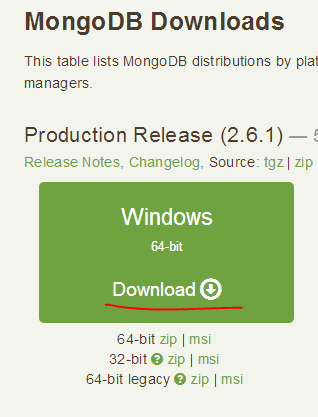
MongoDb Windows install package

This will download an msi installer. Step through the installer. Choose the “typical” installation mode when the question comes. The installer will put the MongoDb files in the Program Files/MongoDB x.x Standard folder:

MongDb default installation folder

The installation package is self-contained, i.e. there’s no dependency on other elements. We’ll put it somewhere where it’s easier to find. Create a folder called mongodb on your C drive and cut/paste the contents of the Program Files/MongoDB x.x Standard into it. MongoDb will by default use a folder called “data” on your C drive to store the documents. So insert a folder called “data” on c:\. Within the “data” folder create another folder called “db”.

Let’s first connect to MongoDb manually. Open a command prompt, navigate to c:\mongodb\bin and issue the following command:

mongod.exe

This will start the MongoDb database engine. You’ll see that it’s waiting for connections:

Start MondoDb database

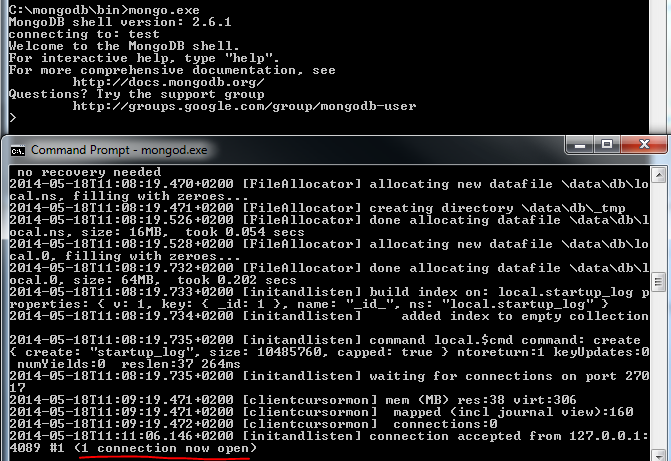
Open up another command prompt, navigate to c:\mongodb\bin and start the client:

mongo.exe
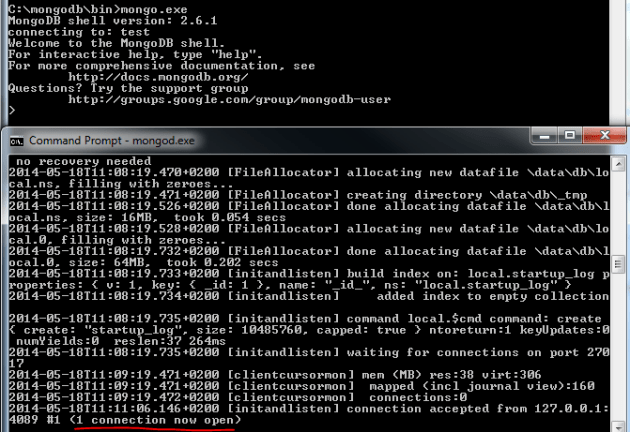
Start MongoDb client in console window

So we managed to connect to the MongoDb engine from a client. You can write direct JavaScript commands in the client to create databases, collections, insert documents etc. I will not go through these low level operations here – I’m only familiar with the basics myself anyway. We’ll do all that in C#. However, if you’re interested in those direct commands then you can check out the official manual.

Close both command prompts to start afresh and open a new one. Make sure it has administrator rights. It’s not convenient having to start the DB engine all the time we want to talk to it. Fortunately MongoDb can be set up as a Windows service. We’ll need a folder for the log files so add a folder called “log” to c:\mongodb. Create a configuration file for the logpath option for MongoDb in the command prompt by issuing this command:

echo logpath=C:\mongodb\log\mongo.log> C:\mongodb\mongod.cfg

This will create a mongod.cfg file in c:\mongodb.

Next run the following command:

C:\mongodb\bin\mongod.exe –config C:\mongodb\mongod.cfg –install

This will create the MongoDB Windows service. Note that it is a double-dash in front of “config” and “install”, this is not easily visible due to the rendering of this post on your screen. Let’s start the service:

net start mongodb

The command prompt should say that the service was started successfully. If you get an error message that the service doesn’t exist then re-run the installation command from an Administrator command prompt.

Let’s connect to MongoDb again from the client:

c:\mongodb\bin\mongo.exe

It should say “connecting to: test” so we’ve connected to the MongoDb engine that is now up and running thanks to the Windows service. “Test” is the default database that the mongo client connects to first.

Connecting to MongoDb in code

We’ll build up a simple MVC web application where people can rent cars.

Warning: I’ll be concentrating on Mongo-related functionality and ignore software practices like SOLID or layered architecture. If you are familiar with those concepts then you’ll see a lot of “big no-no” code here. However, I want to concentrate on MongoDb. It’s your responsibility to organise your code to fit good software engineering design.

Open Visual Studio 2012/2013 and create a new ASP.NET MVC web application called CarRentalWeb. It doesn’t matter if it’s MVC4 or 5 really, we’ll be concentrating on MongoDb. I’ll build this demo using MVC 4 in VS 2012 but MVC 5 in VS 2013 should be equally fine. If you have VS 2013 then when you create the project make sure to select the “No authentication” auth type. We don’t want to be sidetracked by security issues. Add the following NuGet package to the references list:

MongoDb C# driver from NuGet

A general note: the MongoDb C# driver evolves quite quickly with lots of additions and deprecated code. At the time of writing this post the most recent version was 1.9.1. By the time you’re reading this there may well be a new version. It’s happened before to me that an updated release included code that immediately broke the existing code I wrote. It is possible that the code I’m going to write in this demo gets outdated quickly but hopefully it’ll be enough for you to follow along.

The NuGet package will install the following libraries:

MongoDb libraries added by NuGet

Just like an SQL Server driver such as EntityFramework the MongoDb driver will also need a connection string. There’s a whole list of examples on how to construct MongoDb connection strings here. Open web.config and add the following connection string to the connectionStrings section:

<add name="CarRentalConnectionString" connectionString="mongodb://localhost"/>

This is probably as easy as it gets.

Open HomeController.cs in the Controllers folder and add the following private fields and a constructor to it:

private MongoClient _mongoClient;
private MongoServer _mongoServer;
private MongoDatabase _mongoDatabase;

public HomeController()
{
	_mongoClient = new MongoClient(ConfigurationManager.ConnectionStrings["CarRentalConnectionString"].ConnectionString);
	_mongoServer = _mongoClient.GetServer();
	_mongoDatabase = _mongoServer.GetDatabase(ConfigurationManager.AppSettings["CarRentalDatabaseName"]);
}

The MongoServer object will be used to connect to a database. MongoClient serves for sending commands to the server. We’ll store the name of the database in web.config. Add the following setting to the appSettings section:

<add key="CarRentalDatabaseName" value="CarRentalDatabase"/>

We haven’t created that database anywhere but we don’t need to worry. It will be created for us automatically when we insert the first document. Let’s verify that the connection can be made through reading the server build info. Erase the contents of Index() and add the following instead:

_mongoDatabase.GetCollectionNames();
return Json(_mongoDatabase.Server.BuildInfo, JsonRequestBehavior.AllowGet);

The first row is only needed to trigger a connection in the driver, it doesn’t have any other purpose. OK, let’s now run the application. If everything went well then you’ll get some long JSON on your screen:

MongoDb build info in JSON format

Note the MongoDb server version: 2.6.1. Also, the C# driver we installed above was of version 1.9. All demos and code examples will be built on this configuration. If you have an older version of whichever then you might not get the same behaviour, e.g. you may see that an older version of the driver doesn’t have certain methods. Therefore make sure you have those versions are higher.

A short aside: MongoDb settings

We saw above the simplest way to declare our connection to the MongoDb server. There’s however a rich imperative way of declaring your MongoDb settings through the MongoClientSettings object. Examples:

MongoClientSettings settings = new MongoClientSettings();
String mongoHost = ConfigurationManager.ConnectionStrings["CarRentalConnectionString"].ConnectionString);
MongoServerAddress address = new MongoServerAddress(mongoHost);
settings.ConnectTimeout = new TimeSpan(0, 1, 5);
settings.SocketTimeout = new TimeSpan(0, 1, 5);
settings.Server = address;

The above code sets the connection string and the connection timeouts. You can also set the connection pool and wait queue size with a wait queue timeout:

settings.MaxConnectionPoolSize = 1500;
settings.WaitQueueSize = 1500;
settings.WaitQueueTimeout = new TimeSpan(0, 1, 0);

It’s very likely that our database will require authentication. The following method can help you set up the MongoDb credentials list:

private static List<MongoCredential> GetMongoCredentials()
{
	string username = ConfigurationManager.AppSettings["MongoDbUserName"];
	string password = ConfigurationManager.AppSettings["MongoDbPassword"];
	string mongoDbAuthMechanism = ConfigurationManager.AppSettings["MongoDbAuthMechanism"];
	MongoInternalIdentity internalIdentity = new MongoInternalIdentity(LtpMongoDbDefaultDatabase, username);
	PasswordEvidence passwordEvidence = new PasswordEvidence(password);
	MongoCredential mongoCredential = new MongoCredential(mongoDbAuthMechanism, internalIdentity, passwordEvidence);
	List<MongoCredential> credentials = new List<MongoCredential>() { mongoCredential };
	return credentials;
}

…where “MongoDbAuthMechanism” has the following value: “MONGODB-CR”, more about that here. You can then set the credentials as follows:

settings.Credentials = GetMongoCredentials();

In case you have a replica set in place, i.e. a primary server with one ore more secondary servers then you can set the read preference and connection mode as follows:

settings.ReadPreference = new ReadPreference(ReadPreferenceMode.SecondaryPreferred);
settings.ConnectionMode = ConnectionMode.ReplicaSet;

And finally we construct the MongoServer object as follows:

MongoClient client = new MongoClient(settings);
MongoServer mongoServer = client.GetServer();
_mongoServer = mongoServer;	

The MongoClientSettings object has more properties than shown here. If you need to set some specific property to connect to your database then check out this object, it will probably have something for you.

The MongoDb context class

If you’ve used Linq to SQL or EntityFramework then you’ll know that they each have their DB context classes. There’s no equivalent in MongoDb but it can be emulated to a certain extent. We’ll wrap the code which constructs the MongoDatabase class in its own container class. Insert a new folder called MongoDb to the project. Add a class called CarRentalContext to it:

private MongoClient _mongoClient;
private MongoServer _mongoServer;
private MongoDatabase _mongoDatabase;

public CarRentalContext()
{
	_mongoClient = new MongoClient(ConfigurationManager.ConnectionStrings["CarRentalConnectionString"].ConnectionString);
	_mongoServer = _mongoClient.GetServer();
	_mongoDatabase = _mongoServer.GetDatabase(ConfigurationManager.AppSettings["CarRentalDatabaseName"]);
}

public MongoDatabase CarRentalDatabase
{
	get
	{
		return _mongoDatabase;
	}
}

This way the context class can be accessed from other controllers as well. Keep in mind that this context class is not nearly as sophisticated as the DB context classes of Linq to SQL or EntityFramework. There’s no SubmitChanges/SaveChanges method to carry out the changes stored in the context. There’s no InsertOnSubmit, DeleteOnSubmit etc. methods either. The changes will be immediate unless you write your own Unit of Work wrapper around this simple context class. Back in HomeController erase the private fields and delete the contents of the constructor. Update the code as follows:

private CarRentalContext _carRentalContext;

public HomeController()
{
	_carRentalContext = new CarRentalContext();
}

public ActionResult Index()
{
	_carRentalContext.CarRentalDatabase.GetCollectionNames();
	return Json(_carRentalContext.CarRentalDatabase.Server.BuildInfo, JsonRequestBehavior.AllowGet);
}

I can’t stress this enough: you should never build real-life controllers like that. Make sure you understand SOLID which tells you how to inject such dependencies correctly. Re-run the application to make sure it’s still working. It should.

You’ll notice that there’s no code to connect to and disconnect from the database. The driver will handle all that for you through the connection pool. Also, MongoServer instances are cached for a given set of settings so don’t worry about using this context class multiple times. The driver will provide the cached version. Also, the 3 key objects we saw above, i.e. MongoClient, MongoServer and MongoDatabase are all threadsafe, so don’t worry about locks and data races.

In the next post we’ll be looking into (de)serialisation of POCO objects in MongoDb.

You can view all posts related to data storage on this blog here.

Counting the number of elements in a sequence with LINQ C#

Say you have the following sequence of strings:

string[] bands = { "ACDC", "Queen", "Aerosmith", "Iron Maiden", "Megadeth", "Metallica", "Cream", "Oasis", "Abba", "Blur", "Chic", "Eurythmics", "Genesis", "INXS", "Midnight Oil", "Kent", "Madness", "Manic Street Preachers"
, "Noir Desir", "The Offspring", "Pink Floyd", "Rammstein", "Red Hot Chili Peppers", "Tears for Fears"
, "Deep Purple", "KISS"};

You can use the Count() extension method of IEnumerable to get the number of elements in the array:

Console.WriteLine(bands.Count());

…which returns 26. Count has an overload where you can specify a lambda filter. The following function returns the number of string elements which consist of at least 5 characters:

Console.WriteLine(bands.Count(s => s.Length >= 5));

…which returns 19.

IEnumerable has a LongCount method which has the same function and overloads as Count. It is used for collections whose size doesn’t fit into int.MaxValue and returns a long instead of an int. You can of course use it with small sequences as well but the returned value will be a long.

View the list of posts on LINQ here.

Elliot Balynn's Blog

A directory of wonderful thoughts

Software Engineering

Web development

Disparate Opinions

Various tidbits

chsakell's Blog

WEB APPLICATION DEVELOPMENT TUTORIALS WITH OPEN-SOURCE PROJECTS

Once Upon a Camayoc

ARCHIVED: Bite-size insight on Cyber Security for the not too technical.