Introduction to WebSockets with SignalR in .NET Part 6: the basics of publishing to groups

Introduction

So far in this series on SignalR we’ve published all messages to all connected users. The goal of this post is to show how you can direct messages to groups of people. It is based on a request of a commenter on part 5. You can think of groups as chat rooms in a chat application. Only members of the chat room should see messages directed at that room. All other rooms should remain oblivious of those messages.

We’ll build upon the SignalR demo app we’ve been working on in this series. So have it open in Visual Studio. We’ll simulate the following scenario:

  • When a client connects for the first time they are assigned a random age between 6 and 100 inclusive
  • The client joins a “chat room” based on this age by calling a function in ResultsHub
  • When the client sends a message then only those already in the chat room will be notified

The real-life version would of course involve some sign-up page where the user can define which room to join or what their age is. You can also store those users if the chat application is closed to unanonymous users. However, all that would involve too much extra infrastructure irrelevant to the main goals.

Joining a group

We first need to assign an age to the client when they navigate to the Home page. Locate HomeController.cs. The Index action currently only returns a View. Extend it as follows:

public ActionResult Index()
{
	Random random = new Random();
	int next = random.Next(6, 101);
	ViewBag.Age = next;
        return View();
}

Normally you’d pass the age into the View in a view-model object but ViewBag will do just fine. In Index.cshtml add the following markup just below the Register message header:

<div>
    Your randomised age is <span id="ageSpan">@ViewBag.Age</span>
</div>

Now we want to call a specific Hub function as soon as the connection with the hub has been set up. The server side function will put the user in the appropriate chat room based on their age. Insert the following code into results.js just below the call to hub.start():

$.connection.hub.start().done(function ()
{        
        var age = $("#ageSpan").html();
        resultsHub.server.joinAppropriateRoom(age);
});  

When the start() function has successfully returned we’ll read the age from the span element and run a method called joinAppropriateRoom in ResultsHub. Open ResultsHub.cs and define the function and some private helpers as follows:

public void JoinAppropriateRoom(int age)
{
	string roomName = FindRoomName(age);
	string connectionId = Context.ConnectionId;
	JoinRoom(connectionId, roomName);
	string completeMessage = string.Concat("Connection ", connectionId, " has joined the room called ", roomName);
	Clients.All.registerMessage(completeMessage);
}

private Task JoinRoom(string connectionId, string roomName)
{			
	return Groups.Add(connectionId, roomName);
}	

private string FindRoomName(int age)
{
	string roomName = "Default";
	if (age < 18)
	{
		roomName = "The young ones";
	}
	else if (age < 65)
	{
		roomName = "Still working";
	}
	else
	{
		roomName = "Old age pensioners";
	}
	return roomName;
}

We’ll first find the appropriate room for the user based on the age. We’ve defined 3 broad groups: youngsters, employed and old age pensioners. We extract the connection ID and put it into the correct room. Note that we didn’t need to define a group beforehand. It will be set up automatically as soon as the first member is added to it. We then also notify every client that there’s a new member.

While we’re at it let’s define the function that will be called by the client to register the message together with their age. The age is again needed to locate the correct group. Add the following method to ResultsHub.cs:

public void DispatchMessage(string message, int age)
{			
	string roomName = FindRoomName(age);			
	string completeMessage = string.Concat(Context.ConnectionId
		, " has registered the following message: ", message, ". Their age is ", age, ". ");
	Clients.Group(roomName).registerMessage(completeMessage);
}

We again find the correct group, construct a message and send out the message to everyone in that group.

There’s one last change before we can test this. Locate the newMessage function definition of the messageModel prototype in results.js. It currently calls the simpler sendMessage function of ResultsHub. Comment out that call. Update the function definition as follows:

newMessage: function () {
            var age = $("#ageSpan").html();
            //resultsHub.server.sendMessage(this.registeredMessage());
            resultsHub.server.dispatchMessage(this.registeredMessage(), age);
            this.registeredMessage("");
        },
.
.
.

Run the application. The first client should see that they have joined some room based on their age. In my case it looks as follows:

First client joining a group

Open some more browser windows with the same URL and all of them should be assigned an age and a group. The very first client should see them all. In my test I got the following participants:

First client sees all subsequent chat participants

I started up 6 clients: 3 old age pensioners, 2 youngsters and 1 still working. It’s not easy to copy all windows so that we can see everything but here are the 6 windows:

All clients joining some group and conversing

The top left window was the very first client, a 77-year-old who joined the pensioners’ room. The one below that is a 65-year-old pensioner. Under that we have a 24-year-old worker. Then on the right hand side from top to bottom we have a 15-year-old, a 90-year-old and finally a 6-year-old client. Then the 65-year-old client sent a message which only the other pensioners have receiver. Check the last message in each window: the clients of 24, 6 and 15 years of age cannot see the message. Then the 6-year-old kid sent a message. This time only the 2 youngsters were sent the message. You’ll see that the 24-year old worker has not received any of the messages.

We’ve seen a way how you can direct messages based on group membership. You can define the names of the rooms in advance, e.g. in a database, so that your users can pick one upon joining your chat application. Then instead of sending in their age they can send the name of the room which to join. However, if you’re targeting specific users without them being aware of these groups you’ll need to collect the criteria from them based on which you can decide where to put them. In the above example the only criteria was their age. In other case it can be a more elaborate list of conditions.

View the list of posts on Messaging here.

Introduction to WebSockets with SignalR in .NET Part 5: dependency injection in Hub

Introduction

We’ve now gone through the basics of SignalR. We’ve looked at a messaging project and a primitive, but working stock ticker. Actually most of the work is put on the client in form of JavaScript code. The WebSockets specific server side code is not too complex and follows standard C# coding syntax.

However, the relative server side simplicity doesn’t mean that our code shouldn’t follow good software engineering principles. I mean principles such as SOLID, with special subjective weight given to my favourite, the letter ‘D‘.

You’ll recall from the previous post that the stock prices were retrieved from a concrete StockService class, an instance of which was created within the body of StartStockMonitoring(). The goal now is to clean up that code so that the stock prices are retrieved from an interface instead of a concrete class. The interface should then be a parameter of the ResultsHub constructor.

We’ll use StructureMap to inject the dependency into ResultsHub.cs.

Demo

I’ll use two sources from StackOverflow to solve the problem:

Let’s start by creating the abstraction. Add the following interface to the Stocks folder:

public interface IStockService
{
	dynamic GetStockPrices();
}

Then modify the StockService declaration so that it implements the abstraction:

public class StockService : IStockService

Change the ResultsHub constructor to accept the interface dependency:

private readonly IStockService _stockService;

public ResultsHub(IStockService stockService)
{
	if (stockService == null) throw new ArgumentNullException("StockService");
	_stockService = stockService;
	StartStockMonitoring();
}

Make sure you refer to the private field in the Task body of StartStockMonitoring:

Task stockMonitoringTask = Task.Factory.StartNew(async () =>
				{					
					while(true)
					{
						dynamic stockPriceCollection = _stockService.GetStockPrices();
						Clients.All.newStockPrices(stockPriceCollection);
						await Task.Delay(5000);
					}
				}, TaskCreationOptions.LongRunning);

Next, create an interface for ResultsHub in the Stocks folder:

public interface IResultsHub
{
	void Hello();
	void SendMessage(String message);
}

…and have ResultsHub implement it:

public class ResultsHub : Hub, IResultsHub

Next import the StructureMap NuGet package:

StructureMap NuGet package

We’ll need a custom HubActivator to find the implementation of IResultsHub through StructureMap. Add the following class to the solution:

public class HubActivator : IHubActivator
{
	private readonly IContainer container;

	public HubActivator(IContainer container)
	{
		this.container = container;
	}

	public IHub Create(HubDescriptor descriptor)
	{
		return (IHub)container.GetInstance(descriptor.HubType);
	}
}

IContainer is located in the StructureMap namespace.

Next insert the following class that will initialise the StructureMap container:

public static class IoC
{
	public static IContainer Initialise()
	{
		ObjectFactory.Initialize(x =>
			{
				x.Scan(scan =>
					{
						scan.AssemblyContainingType<IResultsHub>();
						scan.WithDefaultConventions();
					});
			});
		return ObjectFactory.Container;
	}
}

The last step is to register our hub activator when the application starts. Add the following code to Application_Start() in Global.asax.cs:

IContainer container = IoC.Initialise();
GlobalHost.DependencyResolver.Register(typeof(IHubActivator), () => new HubActivator(container));

That’s it actually. Set a breakpoint within the ResultsHub constructor and start the application. If all goes well then code execution should stop at the breakpoint. Inspect the incoming stockService parameter. If it’s null then something’s gone wrong but it shouldn’t be. Let the code execution continue and you’ll see that it works as before except that we’ve come a good step closer to loosely coupled code.

Read the finishing post in this series here.

View the list of posts on Messaging here.

Introduction to WebSockets with SignalR in .NET Part 4: stock price ticker

Introduction

In the last post we saw the first basic, yet complete example of SignalR in action. We demonstrated the core functionality of a messaging application where messages are shown on screen in real time.

We’re now ready to implement the demo that I promised before: update a stock price in real time and propagate the changes to all listening browsers.

We’ll build on the sample project we’ve been working on so far in this series, so have it open and let’s get into it!

Demo: server side

Add a folder to the solution called Stocks. Add a new class called Stock:

public class Stock
{
	public Stock(String name)
	{
		Name = name;
	}

	public string Name { get; set; }
	public double CurrentPrice 
	{
		get
		{
			Random random = new Random();
			return random.NextDouble() * 10.0;
		}
	}
}

We need a stock name in the constructor. We’ll simply randomize the stock price using Random.NextDouble(). In reality it will be some proper repository that does this but again, we’ll keep the example simple.

Next add a new class called StockService which will wrap stock-related methods.

Note that such service classes should be hidden behind an interface and injected into the consuming class to avoid tight coupling. However, for this sample we’ll ignore all such “noise” and concentrate on the subject matter. If you’re not sure what I’m on about then read about dependency inversion here. The next post on SignalR will explore dependency injection.

StockService takes the following form:

public class StockService
{
	private List<Stock> _stocks;

	public StockService()
	{
		_stocks = new List<Stock>();
		_stocks.Add(new Stock("GreatCompany"));
		_stocks.Add(new Stock("NiceCompany"));
		_stocks.Add(new Stock("EvilCompany"));
	}

	public dynamic GetStockPrices()
	{
		return _stocks.Select(s => new { name = s.Name, price = s.CurrentPrice });
	}
}

We maintain a list of companies whose stocks are monitored. We return an anonymous class for each Stock in the list, hence the dynamic keyword.

We’ll read these values from our ResultsHub hub. We’ll need to constantly monitor the stock prices in a loop on a separate thread so that it doesn’t block all other code. This calls for a Task from the Task Parallel Library. If you don’t know what Tasks are then check out the first couple of posts on TPL here, a basic knowledge will suffice. We’ll need to start monitoring the prices as soon as someone opens the page in a browser. We can start the process directly from the hub constructor:

public ResultsHub()
{
	StartStockMonitoring();
}

private void StartStockMonitoring()
{
	
}

Here’s the complete StartStockMonitoring method:

private void StartStockMonitoring()
{
	Task stockMonitoringTask = Task.Factory.StartNew(async () =>
		{
			StockService stockService = new StockService();
			while(true)
			{
				dynamic stockPriceCollection = stockService.GetStockPrices();
				Clients.All.newStockPrices(stockPriceCollection);
				await Task.Delay(5000);
			}
		}, TaskCreationOptions.LongRunning);
}

We start a task that instantiates a stock service and starts an infinite loop. We retrieve the stock prices and inform all clients through a newStockPrices JavaScript method and pass in the stock prices dynamic object. Then we pause the loop for 5 seconds using Task.Delay. Task.Delay returns an awaitable task so we need the await keyword. In order for that to take effect through we’ll need to decorate the lambda expression with async. You’ve never heard of await and async? Start here. Finally, we notify the task scheduler in the task constructor that this will be a long running process.

Demo: client side

Let’s extend our GUI and results.js to show the stock prices in real time. We’ll use a similar approach as we had in case of the messaging demo: knockout.js with a view-model. Add the following code to results.js:

resultsHub.client.newStockPrices = function (stockPrices) {
     viewModel.addStockPrices(stockPrices);
}

…which will be the JS function that’s called from ResultsHub.StartStockMonitoring. We’ll complete the addStockPrices later, we need some building blocks first. We’ll need a new custom JS object to store a single stock. Add the following constructor function to results.js:

var stock = function (stockName, price) {
        this.stockName = stockName;
        this.price = price;
};

Also, we need a new property in the messageModel constructor function to store the stock prices in an array:

var messageModel = function () {
        this.registeredMessage = ko.observable(""),
        this.registeredMessageList = ko.observableArray(),
        this.stockPrices = ko.observableArray()
    };

Add the following function property to messageModel.prototype:

addStockPrices: function (updatedStockPrices) {
            var self = this;     

            $.each(updatedStockPrices, function (index, updatedStockPrice) {
                var stockEntry = new stock(updatedStockPrice.name, updatedStockPrice.price);
                self.stockPrices.push(stockEntry);                
            });
}

We simply add each update to the observable stockPrices array. updatedStockPrice.name and updatedStockPrice.price come from our dynamic function in StockService:

public dynamic GetStockPrices()
{
	return _stocks.Select(s => new { name = s.Name, price = s.CurrentPrice });
}

We just need some extra HTML in Index.cshtml:

<div data-bind="foreach:stockPrices">
    <p><span data-bind="text:stockName"></span>: <span data-bind="text:price"></span></p>
</div>

The stockName and price properties in the text bindings come from the stock object in results.js.

This should be it. Start the application and you’ll see the list of stocks and their most recent prices coming in from the server in a textual form.

View the next part of this series here.

View the list of posts on Messaging here.

Introduction to WebSockets with SignalR in .NET Part 3

Introduction

We’ll continue our discussion of SignalR where we left off in the previous post. So open the SignalRWeb demo project and let’s get to it!

Demo continued

We left off having the following “scripts” section in Index.cshtml:

@section scripts
{
    <script src="~/Scripts/jquery.signalR-2.0.3.js"></script>
    <script src="~/Scripts/knockout-3.1.0.js"></script>
    <script src="~/Scripts/results.js"></script>
}

We’ll build on this example to see how a client can interact with the server through WebSockets. At present we have an empty Hello() method in our ResultsHub class. Insert another method which will allow the clients to send a message to the server:

public void SendMessage(String message)
{

}

There’s a property called Context that comes with SignalR. It is similar to HttpContext in ASP.NET: it contains a lot of information about the current connection: headers, query string, authentication etc. Just type “Context.” in the method body and inspect the available properties, they should be self-explanatory. We have no authentication so we’ll use the connection ID property of Context to give the sender some identifier:

public void SendMessage(String message)
{
	string completeMessage = string.Concat(Context.ConnectionId
		, " has registered the following message: ", message);

	Clients.All.registerMessage(completeMessage);
}

You’ll recall from the previous post that we need to deal with JavaScript in SignalR. The above piece of code will result in a JavaScript method called “registerMessage” to be invoked from the server. Where is that method? We need to write it of course. We inserted a JavaScript file called “results.js” previously. Open that file and enter the following stub:

(function () {
    var resultsHub = $.connection.resultsHub;
}());

resultsHub is a reference to the hub we’ve been working on. The “connection” property comes from the SignalR jQuery library and creates a SignalR connection. Through the connection property you’ll be able to reference your hubs. There’s no IntelliSense for the hub names, so be careful with the spelling.

We need to stop for a second and go back to Index.cshtml. There’s one more JavaScript source we need to reference, but it’s not available in the Scripts folder. Recall that we used the MapSignalR OWIN extension in Startup.cs. That extension will map the SignalR hubs to the /signalr endpoint. Add the following script declaration to the scripts section below the jquery.signalR-2.x.x.js script reference:

<script src="~/SignalR/hubs"></script>

Start the application and navigate to http://localhost:xxxxx/SignalR/hubs. You should see some JavaScript related to SignalR in the browser, so the script reference is valid. Basically this code generates proxies for the hubs. If you scroll down you’ll see that it has found the ResultsHub and its two dynamic methods:

proxies.resultsHub = this.createHubProxy('resultsHub'); 
proxies.resultsHub.client = { };
proxies.resultsHub.server = {
   hello: function () {
    return proxies.resultsHub.invoke.apply(proxies.resultsHub, $.merge(["Hello"], $.makeArray(arguments)));
   },

   sendMessage: function (message) {
      return proxies.resultsHub.invoke.apply(proxies.resultsHub, $.merge(["SendMessage"], $.makeArray(arguments)));
             }
};

As you add other hubs and other dynamic methods they will be registered here in this script generated by SignalR using Reflection. Note that the hello and sendMessage functions have been registered on the server – proxies.resultsHub.server – which is expected.

Add the following code to results.js just below the resultsHub reference:

$.connection.hub.logging = true;
$.connection.hub.start();

We turn on logging so that we can see what SignalR is doing behind the scenes. Then we tell SignalR to start the communication. This method will go through the 4 ways of establishing a connection with the client and determine which one works best.

Next we need the JavaScript methods that will be invoked: hello and registerMessage. Add the following stubs just below the call to hub.start():

resultsHub.client.hello = function(){

}

resultsHub.client.registerMessage = function (message) {

};

We’ll concentrate on the registerMessage function, hello can remain empty. Next we need to show the responses on the screen. As mentioned before we’ll use knockout.js as it provides for a very responsive GUI. I in fact only know the basics of knockout.js, as client side programming is not really my cup of tea. If you don’t know anything about knockout.js then you might want to go through the first couple of tutorials here. It is very much based on view-models which are bound to HTML elements. As the properties change so do the values of those elements in a seamless fashion. We won’t go into any detail about the knockout specific details here. Add the following code below the resultsHub.client.registerMessage stub:

var messageModel = function () {
      this.registeredMessage = ko.observable(""),
      this.registeredMessageList = ko.observableArray()
};

The registeredMessage property will show a message sent by the client. registeredMessageList will hold all messages that have been sent from the server. Next add a model prototype:

messageModel.prototype = {

        newMessage: function () {
            resultsHub.server.sendMessage(this.registeredMessage());
            this.registeredMessage("");
        },
        addMessageToList: function (message) {
            this.registeredMessageList.push(message);
        }

    };

newMessage is meant to be a function that can be invoked upon a button click. It sends the message to the server and then clears it. Recall that we called our function in ResultsHub “SendMessage”. You can call it using the “server” property followed by the name of the function you’d like to invoke. addMessageToList does exactly what the function name implies. Then we create an instance of the view-model and instruct knockout to start binding it to our GUI elements:

var viewModel = new messageModel();
$(function () {
        ko.applyBindings(viewModel);
    });

We can now fill in the resultsHub.client.registerMessage stub:

resultsHub.client.registerMessage = function (message) {
        viewModel.addMessageToList(message);
};

It simply calls upon the view-model instance to add the new message to the message list.

Now we can create the corresponding HTML code on index.cshtml. Add the following right above the scripts section.

<div>
    <input type="text" placeholder="Your message..." data-bind="value:registeredMessage" />
    <button data-bind="click:newMessage">Register message</button>
</div>

This bit of markup will serve as the “register” section where the user enters a message in the text box and sends it to the server using the button. Note the knockout-related data-bind attributes. The text box is bound to the registeredMessage property and the click event of the button is bound to the newMessage function of the model, both defined in our results.js file.

Add the following HTML below the “register” section:

<div>
    <div data-bind="foreach:registeredMessageList">
        <div data-bind="text: $data"></div>
    </div>
</div>

This is a knockout foreach expression: for each message in the registeredMessageList array we print the message in a separate div. We bind the text property of the div to the message. The current value in the foreach loop can be accessed using “$data” in knockout.

Let’s go through the expected process step by step:

  1. The user enters a message in the text box and presses the register message button
  2. The button invokes the newMessage function of the knockout view-model ‘messageModel’
  3. The newMessage function will invoke the SendMessage(string input) method of the ResultsHub.cs Hub
  4. The SendMessage function constructs some return message and calls the registerMessage JavaScript function on each client, in our case defined in results.js
  5. The regiesterMessage function receives the string returned by the SendMessage function of ResultsHub
  6. regiesterMessage adds the message to the messages array of the view-model
  7. The view-model is updated and knockout magically updates the screen with the new list of messages

Set a breakpoint within SendMessage of ResultsHub.cs. Start the application in Chrome and press F12 to open the developer tools. You should see some SignalR related messages in the log:

Connecting to WebSockets in Devtools

It has found the ResultsHub and managed to open the web socket endpoint. Note the protocol of ‘ws’. Now insert a message in the text box and press register. Code execution should stop at the breakpoint in Visual Studio meaning that we’ve managed to wire up the components correctly. I encourage you to inspect the Context property and see what’s available in it. You should then see your message under the textbox as returned by the SendMessage:

Message collection by SignalR

In the meantime the DevTools log should fill up with interesting messages such as:

  • SignalR: Invoking resultshub.SendMessage
  • SignalR: Triggering client hub event ‘registerMessage’ on hub ‘ResultsHub’.
  • SignalR: webSockets reconnecting.

You’ll see this third message if you stop at the breakpoint to check out the available properties. As this artificially slows down the response time the web sockets connection is lost and then re-opened.

If you want to talk to yourself on two different screens then open up another browser window, Firefox or IE, and navigate to the same localhost address as in Chrome. Then start sending messages. You should see them in both windows:

Messages in two browser windows

So a message sent from one browser is immediately propagated to all listeners by SignalR with minimal code from the developer.

Read the next post in this series here.

View the list of posts on Messaging here.

Introduction to WebSockets with SignalR in .NET Part 2: code basics

Introduction

In the previous post of this series we looked at the foundations of WebSockets and SignalR. We’re now ready to look at some action.

Demo

I’ll build this demo on Visual Studio 2013 Express for Web. If you have the full suite of VS 2013 Pro then you’ll be fine too. The goal is to build two model applications with SignalR: a rudimentary chat site and an equally rudimentary stock ticker site where the current stock price is updated real-time based on what the server is reporting to it. Hopefully we’ll learn enough so that you can build your own scenario: show real-time data on performance data, sport scores, the number of people on Earth etc.

Open VS 2013 and select the ASP.NET Web Application template in the New Project window with .NET 4.5 as the underlying framework. Call it SignalRWeb, click OK and then pick the MVC template. On the same window click “Change Authentication” and select the No Authentication option:

Create Web Project

We don’t want to deal with authentication issues as it would only divert us from the main topic. Click OK to create the MVC app. SignalR is not added automatically to the project. Add the Microsoft.AspNet.SignalR NuGet package to the solution:

SignalR Nuget package

This will install a number of other NuGet packages and dependencies. You will be greeted with a readme.txt file in Visual Studio giving you hints about the initial steps. If you followed along the introductory posts on Owin then you’ll recognise the short sample code:

public class Startup
{
     public void Configuration(IAppBuilder app)
     {
         app.MapSignalR();
     }
}

We have the Startup class with the Configuration method that accepts an IAppBuilder object. We call an extension method on this app builder. If you don’t understand what this means then it’s best if you at least skim through the posts on OWIN first.

Normally if you create an MVC app with the default “Individual user Accounts” authentication option then the project starting point will already have Katana components in it that are related to authentication: OAuth – Facebook, Google, etc., or authentication using some other user store. However, we have no authentication at all in our project and there’s no OWIN Startup entry point class either. In fact, the Owin libraries were only added when we downloaded the SignalR NuGet package and its dependencies. This means we’ll need to create it ourselves, but that’s OK. Add a new class to the project called Startup.cs. Be sure to call it “Startup” and not “startup” or “StartUp” so that we follow the naming conventions. Let’s do exactly as it says in readme.txt and add the following code to Startup.cs:

public void Configuration(IAppBuilder app)
{
     app.MapSignalR();
}

You’ll need to import the Owin namespace. This extension will make sure that our app starts listening to requests. You’ll recall from the previous post that we’ll need to create at least one Hub that clients can connect to. Add a new folder called Hubs. In that folder add a new class. In the Add New Item window you’ll notice that there are some new template types under the Web/SignalR category:

SignalR hub class template

Select the Hub Class template. The Persistent Connection template is similar but you’ll need to deal with connections at a lower level whereas the Hub Class represents a higher level of abstraction. I’ve never used the Persistent Connection template but I believe it’s rather for experienced programmers who may want to control connections at a lower level for customisation purposes.

Call the class “ResultsHub.cs”. You’ll be provided a very short class implementation that derives from Hub:

public class ResultsHub : Hub
{
     public void Hello()
     {
         Clients.All.hello();
     }
}

Let’s explore this a little before we continue with our main goal. Clients.All represents all clients that have connected to this hub which has a simple hello() method. “All” is a dynamic property so you can attach any method name to it: elvisPresley(), mickeyMouse() etc., so don’t expect any IntelliSense there. hello() is therefore a dynamic method, you won’t find it through IntelliSense either. This bit of code means that each client should be contacted and a JavaScript function called “hello” should be invoked on each of them. Keep in mind that we’re programming a lot against JavaScript in SignalR hence the need for dynamic methods. IntelliSense cannot expect the exact JavaScript method names, right?

You don’t have to contact every caller. Start typing “Clients.” within the Hello function and you’ll see other options, e.g.:

  • Contact certain groups
  • Contact every client except some with certain connection IDs
  • One specific user

So you have some control over who will receive updates from this hub. We can send a greeting to the method if there’s a matching JavaScript method on the client side:

public class ResultsHub : Hub
{
     public void Hello()
     {
         Clients.All.hello("Welcome from SignalR!");
     }
}

Let’s see how this can be used in a view. Locate the Views/Index.cshtml view. Erase all code from it except:

@{
    ViewBag.Title = "Home Page";
}

We’ll need some JavaScript on this page. The SignalR NuGet package has installed a couple of jQuery libraries specific to SignalR. Insert the following script section stub to Index.cshtml:

@section scripts
{
<script src="~/Scripts/jquery.signalR-2.0.3.js"></script>
}

The easiest way to achieve this is to locate the jquery.signalR-2.x.x file in the Scripts folder which you can drag and drop within the curly braces of the scripts section. That will create the script tag for you automatically. This library has a dependency on jQuery but that’s already imported in Shared/_Layout.cshtml in a bundle. You’ll also find the scripts section declared in that common layout file which is why we can extend it in Index.cshtml.

We’ll also need some custom javascript. Add a new JS file into the Scripts folder called results.js. Reference it already now on the Index page:

@section scripts
{
    <script src="~/Scripts/jquery.signalR-2.0.3.js"></script>
    <script src="~/Scripts/results.js"></script>
}

We’ll also need knockout.js to make the updates on the page very responsive and fluent. It’s not currently available in our project so let’s add the following NuGet package:

knockout js NuGet package

Add it to the scripts section:

@section scripts
{
    <script src="~/Scripts/jquery.signalR-2.0.3.js"></script>
    <script src="~/Scripts/knockout-3.1.0.js"></script>
    <script src="~/Scripts/results.js"></script>
}

We’ve laid the foundations for our SignalR app. We’ll continue in the next post.

View the list of posts on Messaging here.

Introduction to WebSockets with SignalR in .NET Part 1: the basics

Introduction

The normal communication flow between a browser and a web app on a server is quite limited: the client sends a HTTP request to the server and receives a HTTP response back. If the client needs some new information then it will need to send another request to the server. Normally a web server will not just send out HTTP responses to a client without a HTTP request first to act upon.

This is true even for pages where you view the same type of data which is updated periodically. A typical example is a sports site where you can view the current standing of a game. You as the viewer would probably like to have real time updates so that you can be happy when your team scores – or smash your smart phone against the wall if it’s losing.

There are various ways to solve this problem on a web site:

  • Put a big “Refresh” button on the page which requests and updated set of objects from the server – very straightforward, but not too convenient for the client
  • Put some kind of JavaScript timer function on the web page which periodically requests an update from the server and refreshes the page
  • Same as above but use an Ajax call to only refresh the page partially

…and possibly others.

The underlying method with all three solutions is that the browser will need to keep sending the same request to the server over and over again. Imagine that this site is very popular so their server receives tens of thousands of essentially the same request. The company will need to invest in extra infrastructure, such as a web farm, a load balancer, CDN etc. Wouldn’t it be easier if the browser could tell the server: “hey, server, I need updates from you on the same set of data periodically, thanks.” And then the communication channel is magically kept open between the client and the server. The server will be able to send updates over that channel automatically without waiting for new requests. This can potentially result in an alleviated server load, a very responsive web UI and significant savings for the company in terms of reduced infrastructure.

Web Sockets

These communication channels through Web Sockets have been available for some years now, so it’s not some kind of a dream. A web socket is a TCP socket connection between the client and the server. This socket is maintained between two parties. It is a two-way full duplex communication channel: the client can send data to the server and the server can send data back to the client over the same channel at any time.

The protocol for a web socket is “ws”, such as “ws://mysite.com”. Similarly a secure web socket follows the “wss” scheme. Note that not all browsers support web sockets. Check out the table on this web site to see which browsers support it.

SignalR is a technology that alleviates the burden of setting up a web app which uses web sockets. There are many things you need to take care of with web sockets communication: serialising data, deserialising data, maintaining the connection, processing messages that arrive in no particular order. SignalR simplifies the construction of sockets-aware web apps by hiding a lot of the underlying complexity. You as a developer can then concentrate on the fun parts instead of worrying too much about low level details. SignalR can even help older browsers “understand” web sockets by emulating its behaviour.

So what’s SignalR?

As hinted on above SignalR is a Microsoft framework that makes working with web sockets easier for the programmer. You can make it available in your web project by downloading the Microsoft.AspNet.SignalR NuGet package. The most recent version at the time of writing this post is 2.0.3:

SignalR Nuget package

By the time you read this post there might be an updated package. If you see that some functionality described in this blog series is not compatible with a newer version then please comment about it and then I’ll update the posts.

As we said before Web Sockets can be quite challenging to work with if you try to do so using some low-level JavaScript package. WebSockets is not the only type of connection that enables real-time two-way communication between the client and the server. Here come some more:

SignalR will test all 4 of these until it finds one that’s available. It always tries WebSockets first as it is the the most efficient one of the 4 as far as overhead is concerned. Normally if the browser supports WebSockets then it can be used for communication. However, this is not always the case. In that case it will test the other three one after the other.

For WebSockets to succeed then even the web server will need to support this technology. You are presumably a .NET web developer so chances are high that you’ll deploy your web app on IIS. Only IIS8 and above will support WebSockets. I have Window8.1 on the PC I’m building the demo on but IIS8 should be available on Windows8 as well. The built-in IIS Express server of Visual Studio 2013 supports WebSockets. If you’d like to deploy and test your web app locally on your PC then search for IIS on your PC. If you don’t find it then you’ll need to enable it first:

Turn windows features on and off

Enable IIS

Also enable the WebSocket feature:

Enable WebSockets

Start IIS and check its version:

Check IIS version

If you’re deploying your app an Windows Server then you’ll need Windows Server 2012 and you’ll need to enable the WebSocket feature as shown above.

The SignalR NuGet package will enable us to work with both the client side and server side part of the communication. On the server side the most important component we’ll work with is called a Hub which is a class that hides the implementation details of the communication on the server side. On the client side we’ll need some JavaScript code that can be called by SignalR to connect to this Hub.

In the next post we’ll start our demo.

View the list of posts on Messaging here.

Messaging with RabbitMQ and .NET C# part 5: headers and scatter/gather

Introduction

In the previous post on RabbitMQ .NET we looked at the Routing and Topics exchange patterns. In this post we’ll continue looking at RabbitMQ in .NET. In particular we’ll talk about routing messages using the following two patterns:

  • Headers
  • Scatter/gather

We’ll use the demo application we’ve been working on in this series so have it ready in Visual Studio. Also, log onto the RabbitMQ management console on http://localhost:15672/

Most of the posts on RabbitMQ on this blog are based on the work of RabbitMQ guru Michael Stephenson.

Headers

The Headers exchange pattern is very similar to Topics we saw in the previous part of this series. The sender sends a message of type Headers to RabbitMQ. The message is routed based on the header value. All queues with a matching key will receive the message. We’ll dedicate an exchange to deliver the messages but the routing key will be ignored as it is the headers that will be the basis for the match. We can specify more than one header and a rule that says if all headers must match or just one using the “x-match” property which can have 2 values: “any” or “all”. The default value of this property is “all” so all headers must match for a queue to receive a message.

We’ll create one dedicated exchange and three queues. Add a new Console app to the solution called HeadersSender. Like before, add references to the RabbitMQ NuGet package and the RabbitMqService library in the solution. Insert the following code to Main:

AmqpMessagingService messagingService = new AmqpMessagingService();
IConnection connection = messagingService.GetRabbitMqConnection();
IModel model = connection.CreateModel();
messagingService.SetUpExchangeAndQueuesForHeadersDemo(model);

…where SetUpExchangeAndQueuesForHeadersDemo in AmqpMessagingService looks like this:

public void SetUpExchangeAndQueuesForHeadersDemo(IModel model)
{
	model.ExchangeDeclare(_headersExchange, ExchangeType.Headers, true);
	model.QueueDeclare(_headersQueueOne, true, false, false, null);
	model.QueueDeclare(_headersQueueTwo, true, false, false, null);
	model.QueueDeclare(_headersQueueThree, true, false, false, null);
			
	Dictionary<string,object> bindingOneHeaders = new Dictionary<string,object>();
	bindingOneHeaders.Add("x-match", "all");
	bindingOneHeaders.Add("category", "animal");
	bindingOneHeaders.Add("type", "mammal");
	model.QueueBind(_headersQueueOne, _headersExchange, "", bindingOneHeaders);

	Dictionary<string, object> bindingTwoHeaders = new Dictionary<string, object>();
	bindingTwoHeaders.Add("x-match", "any");
	bindingTwoHeaders.Add("category", "animal");
	bindingTwoHeaders.Add("type", "insect");
	model.QueueBind(_headersQueueTwo, _headersExchange, "", bindingTwoHeaders);

	Dictionary<string, object> bindingThreeHeaders = new Dictionary<string, object>();
	bindingThreeHeaders.Add("x-match", "any");
	bindingThreeHeaders.Add("category", "plant");
	bindingThreeHeaders.Add("type", "flower");
	model.QueueBind(_headersQueueThree, _headersExchange, "", bindingThreeHeaders);
}

The following private fields will be necessary as well:

private string _headersExchange = "HeadersExchange";
private string _headersQueueOne = "HeadersQueueOne";
private string _headersQueueTwo = "HeadersQueueTwo";
private string _headersQueueThree = "HeadersQueueThree";

We specify the headers in a dictionary. The first dictionary means that the queue will be interested in messages with headers of category = animal and type = mammal. The x-match property of “all” indicates that the queue wants to see both headers. You can probably understand the other two header bindings. As the default value of the x-match header is “all”, we could ignore adding that header but I prefer to be explicit in a demo like this.

Set HeadersSender as the start up project and start the application. Check in the RabbitMQ management UI whether the exchange and the queues have been set up correctly. Check the bindings on the exchange as well, you should see the correct header values.

Comment out the call to messagingService.SetUpExchangeAndQueuesForHeadersDemo. Back in AmqpMessageService.cs add the following method to send a message with headers:

public void SendHeadersMessage(string message, Dictionary<string,object> headers, IModel model)
{
	IBasicProperties basicProperties = model.CreateBasicProperties();
	basicProperties.SetPersistent(_durable);
	basicProperties.Headers = headers;
	byte[] messageBytes = Encoding.UTF8.GetBytes(message);
	model.BasicPublish(_headersExchange, "", basicProperties, messageBytes);
}

In HeadersSender.cs insert the following private method which reads the header values using delimiters and calls upon the SendHeadersMessage method:

private static void RunHeadersDemo(IModel model, AmqpMessagingService messagingService)
{
	Console.WriteLine("Enter your message as follows: the header values for 'category' and 'type separated by a colon. Then put a semicolon, and then the message. Quit with 'q'.");
	while (true)
	{
		string fullEntry = Console.ReadLine();
		string[] parts = fullEntry.Split(new char[] { ';' }, StringSplitOptions.RemoveEmptyEntries);
		string headers = parts[0];
		string[] headerValues = headers.Split(new char[] { ',' }, StringSplitOptions.RemoveEmptyEntries);
		Dictionary<string, object> headersDictionary = new Dictionary<string, object>();
		headersDictionary.Add("category", headerValues[0]);
		headersDictionary.Add("type", headerValues[1]);
		string message = parts[1];
		if (message.ToLower() == "q") break;
		messagingService.SendHeadersMessage(message, headersDictionary, model);
	}
}

Add a call to this private method from Main:

RunHeadersDemo(model, messagingService);

It’s time to set up the receivers. They will be very similar to what we have seen before. In preparation for the receiver projects insert the following three methods into AmqpMessagingService.cs:

public void ReceiveHeadersMessageReceiverOne(IModel model)
{
	model.BasicQos(0, 1, false);
	Subscription subscription = new Subscription(model, _headersQueueOne, false);
	while (true)
	{
		BasicDeliverEventArgs deliveryArguments = subscription.Next();
		StringBuilder messageBuilder = new StringBuilder();
		String message = Encoding.UTF8.GetString(deliveryArguments.Body);
		messageBuilder.Append("Message from queue: ").Append(message).Append(". ");
		foreach (string headerKey in deliveryArguments.BasicProperties.Headers.Keys)
		{
			byte[] value = deliveryArguments.BasicProperties.Headers[headerKey] as byte[];
			messageBuilder.Append("Header key: ").Append(headerKey).Append(", value: ").Append(Encoding.UTF8.GetString(value)).Append("; ");
		}
		
		Console.WriteLine(messageBuilder.ToString());
		subscription.Ack(deliveryArguments);
	}
}

public void ReceiveHeadersMessageReceiverTwo(IModel model)
{
	model.BasicQos(0, 1, false);
	Subscription subscription = new Subscription(model, _headersQueueTwo, false);
	while (true)
	{
		BasicDeliverEventArgs deliveryArguments = subscription.Next();
		StringBuilder messageBuilder = new StringBuilder();
		String message = Encoding.UTF8.GetString(deliveryArguments.Body);
		messageBuilder.Append("Message from queue: ").Append(message).Append(". ");
		foreach (string headerKey in deliveryArguments.BasicProperties.Headers.Keys)
		{
			byte[] value = deliveryArguments.BasicProperties.Headers[headerKey] as byte[];
			messageBuilder.Append("Header key: ").Append(headerKey).Append(", value: ").Append(Encoding.UTF8.GetString(value)).Append("; ");
		}

		Console.WriteLine(messageBuilder.ToString());
		subscription.Ack(deliveryArguments);
	}
}

public void ReceiveHeadersMessageReceiverThree(IModel model)
{
	model.BasicQos(0, 1, false);
	Subscription subscription = new Subscription(model, _headersQueueThree, false);
	while (true)
	{
		BasicDeliverEventArgs deliveryArguments = subscription.Next();
		StringBuilder messageBuilder = new StringBuilder();
		String message = Encoding.UTF8.GetString(deliveryArguments.Body);
		messageBuilder.Append("Message from queue: ").Append(message).Append(". ");
		foreach (string headerKey in deliveryArguments.BasicProperties.Headers.Keys)
		{
			byte[] value = deliveryArguments.BasicProperties.Headers[headerKey] as byte[];
			messageBuilder.Append("Header key: ").Append(headerKey).Append(", value: ").Append(Encoding.UTF8.GetString(value)).Append("; ");
		}
        	Console.WriteLine(messageBuilder.ToString());
		subscription.Ack(deliveryArguments);
	}
}

The only new bit of code is that we’re extracting the header values from the incoming payload. Otherwise the code should be very familiar by now.

Add three new console applications to the solution: HeadersReceiverOne, HeadersReceiverTwo, HeadersReceiverThree. Add references to the RabbitMQ NuGet package and the RabbitMqService library in all three. Insert the following bits of code…:

…to HeadersReceiverOne.Main:

AmqpMessagingService messagingService = new AmqpMessagingService();
IConnection connection = messagingService.GetRabbitMqConnection();
IModel model = connection.CreateModel();
messagingService.ReceiveHeadersMessageReceiverOne(model);

…to HeadersReceiverTwo.Main:

AmqpMessagingService messagingService = new AmqpMessagingService();
IConnection connection = messagingService.GetRabbitMqConnection();
IModel model = connection.CreateModel();
messagingService.ReceiveHeadersMessageReceiverTwo(model);

…and to HeadersReceiverThree.Main:

AmqpMessagingService messagingService = new AmqpMessagingService();
IConnection connection = messagingService.GetRabbitMqConnection();
IModel model = connection.CreateModel();
messagingService.ReceiveHeadersMessageReceiverThree(model);

Perform these steps to run all relevant console apps:

  1. Make sure that HeadersSender is set as the start up project and start the application
  2. Start the receivers by right-clicking them on Visual Studio and selecting Debug, Start new instance
  3. You should have 4 console windows up and running on your screen

Start sending messages from the HeadersSender. Be careful with the delimiters: ‘,’ for the headers and ‘;’ for the message. The message should be routed according to the specified routing rules:

Headers MEP console

Scatter/gather

This pattern is similar to the RPC message exchange pattern we saw in a previous post of this series in that the sender will be expecting a response from the receiver. The main difference is that in this scenario the sender can collect a range of responses from various receivers. The sender will set up a temporary response queue where the receivers can send their responses. It’s possible to implement this pattern using any exchange type: fanout, direct, headers and topic depending on how you’ve set up the exchange/queue binding. You can also specify a routing key in the binding as we saw before.

I think this is definitely a message exchange pattern which can be widely used in real applications out there that require 2 way communication with more than 2 parties. Consider that you send out a request to construction companies asking for a price offer. The companies then can respond using the message broker and the temporary response queue.

We’ll re-use several ideas and bits of code from the RPC pattern so make sure you understand the basics of that MEP as well. I won’t explain the same ideas again.

Let’s set up the exchange and the queue first as usual. Insert the following private fields to AmqpMessagingService.cs:

private string _scatterGatherExchange = "ScatterGatherExchange";
private string _scatterGatherReceiverQueueOne = "ScatterGatherReceiverQueueOne";
private string _scatterGatherReceiverQueueTwo = "ScatterGatherReceiverQueueTwo";
private string _scatterGatherReceiverQueueThree = "ScatterGatherReceiverQueueThree";

The following method in AmqpMessagingService.cs will set up the necessary pieces:

public void SetUpExchangeAndQueuesForScatterGatherDemo(IModel model)
{
	model.ExchangeDeclare(_scatterGatherExchange, ExchangeType.Topic, true);
	model.QueueDeclare(_scatterGatherReceiverQueueOne, true, false, false, null);
	model.QueueDeclare(_scatterGatherReceiverQueueTwo, true, false, false, null);
	model.QueueDeclare(_scatterGatherReceiverQueueThree, true, false, false, null);

	model.QueueBind(_scatterGatherReceiverQueueOne, _scatterGatherExchange, "cars");
	model.QueueBind(_scatterGatherReceiverQueueOne, _scatterGatherExchange, "trucks");

	model.QueueBind(_scatterGatherReceiverQueueTwo, _scatterGatherExchange, "cars");
	model.QueueBind(_scatterGatherReceiverQueueTwo, _scatterGatherExchange, "aeroplanes");
	model.QueueBind(_scatterGatherReceiverQueueTwo, _scatterGatherExchange, "buses");

	model.QueueBind(_scatterGatherReceiverQueueThree, _scatterGatherExchange, "cars");
	model.QueueBind(_scatterGatherReceiverQueueThree, _scatterGatherExchange, "buses");
	model.QueueBind(_scatterGatherReceiverQueueThree, _scatterGatherExchange, "tractors");
}

You’ll notice that we are going to go for the Topic exchange type and that we’ll bind 3 queues to the exchange. The routing keys will tell you what each receiver is interested in. E.g. all queues will receive a message with a routing key of “cars”.

Add a new Console application called ScatterGatherSender to the solution. Add a reference to the RabbitMQ NuGet package and the RabbitMqService library. Insert the following code to Main:

AmqpMessagingService messagingService = new AmqpMessagingService();
IConnection connection = messagingService.GetRabbitMqConnection();
IModel model = connection.CreateModel();
messagingService.SetUpExchangeAndQueuesForScatterGatherDemo(model);

Set ScatterGatherSender as the start up project and run the application. Check in the RabbitMQ console that all elements have been set up correctly. Comment out the call to messagingService.SetUpExchangeAndQueuesForScatterGatherDemo.

Next we’ll set up the message sending logic in AmqpMessagingService.cs. Like in RPC we’ll need a queue that the Sender will dynamically set up. Insert the following private fields in AmqpMessagingService:

private QueueingBasicConsumer _scatterGatherConsumer;
private string _scatterGatherResponseQueue;

The following method will take care of sending the message to the exchange and collect the responses from the receivers:

public List<string> SendScatterGatherMessageToQueues(string message, IModel model, TimeSpan timeout, string routingKey, int minResponses)
{
	List<string> responses = new List<string>();
	if (string.IsNullOrEmpty(_scatterGatherResponseQueue))
	{
		_scatterGatherResponseQueue = model.QueueDeclare().QueueName;
	}

	if (_scatterGatherConsumer == null)
	{
		_scatterGatherConsumer = new QueueingBasicConsumer(model);
		model.BasicConsume(_scatterGatherResponseQueue, true, _scatterGatherConsumer);
	}

	string correlationId = Guid.NewGuid().ToString();
	IBasicProperties basicProperties = model.CreateBasicProperties();
	basicProperties.ReplyTo = _scatterGatherResponseQueue;
	basicProperties.CorrelationId = correlationId;

	byte[] messageBytes = Encoding.UTF8.GetBytes(message);
	model.BasicPublish(_scatterGatherExchange, routingKey, basicProperties, messageBytes);
			
	DateTime timeoutDate = DateTime.UtcNow + timeout;
	while (DateTime.UtcNow <= timeoutDate)
	{
		BasicDeliverEventArgs deliveryArguments;
		_scatterGatherConsumer.Queue.Dequeue(500, out deliveryArguments);
		if (deliveryArguments != null && deliveryArguments.BasicProperties != null
			&& deliveryArguments.BasicProperties.CorrelationId == correlationId)
		{
			string response = Encoding.UTF8.GetString(deliveryArguments.Body);
			responses.Add(response);
			if (responses.Count >= minResponses)
			{
				break;
			}
		}
	}

	return responses;
}

This piece of code looks very much like what we saw with the RPC pattern. The first key difference is that we need to wait for a range of responses, not just a single one, hence the return type of List of string. The purpose of the minResponse input parameter is that in practice the sender will probably not know how many responses it could receive so it specifies a minimum. The Dequeue() method has an interesting overload for a scenario where the sender doesn’t know how long it can take for each receiver to respond:

Dequeue(int millisecondsTimeout, out BasicDeliverEventArgs eventArgs);

If the timeout is passed then the BasicDeliverEventArgs eventArgs out parameter will be null, so we effectively ignore all responses that came in after the timeout. In the RPC example code we didn’t specify any such timeout so the Dequeue() code will block the code execution until there’s a message. In reality the sender could wait for a long time or even for ever to get a response so a timeout parameter can be very useful. Imagine that the sender specifies a min response count of 5 and only 3 responses are received. Then without a timeout parameter in Dequeue the sender would have to wait for ever which is not optimal. Instead we periodically check the queue, wait for 500 milliseconds and then try again until the timeOut date parameter is up. If the response count reaches the minimum before that then the response list is returned. Otherwise a shorter list will be returned. The sender can of course omit a minimum response count and simply wait until the timeout has been passed. This simulates the scenario where applicants are allowed to participate in an open tender until some specified deadline and the number of applications can be anything from 0 to int.MaxValue.

This method can be called from ScatterGatherSender as follows:

private static void RunScatterGatherDemo(IModel model, AmqpMessagingService messagingService)
{
	Console.WriteLine("Enter your message as follows: the routing key, followed by a semicolon, and then the message. Quit with 'q'.");
	while (true)
	{
		string fullEntry = Console.ReadLine();
		string[] parts = fullEntry.Split(new char[] { ';' }, StringSplitOptions.RemoveEmptyEntries);
		string key = parts[0];
		string message = parts[1];
		if (message.ToLower() == "q") break;
		List<string> responses = messagingService.SendScatterGatherMessageToQueues(message, model, TimeSpan.FromSeconds(20), key, 3);
		Console.WriteLine("Received the following messages: ");
		foreach (string response in responses)
		{
			Console.WriteLine(response);
		}
	}
}

So the receivers will have 20 seconds to respond.

Call this private method from Main:

RunScatterGatherDemo(model, messagingService);

Back in AmqpMessagingService.cs we’ll prepare the code which will receive the scatter/gather messages and send the responses from the receivers. The code is actually identical to ReceiveRpcMessage(IModel model) we saw earlier so I won’t explain it again:

public void ReceiveScatterGatherMessageOne(IModel model)
{
	ReceiveScatterGatherMessage(model, _scatterGatherReceiverQueueOne);
}

public void ReceiveScatterGatherMessageTwo(IModel model)
{
	ReceiveScatterGatherMessage(model, _scatterGatherReceiverQueueTwo);
}

public void ReceiveScatterGatherMessageThree(IModel model)
{
	ReceiveScatterGatherMessage(model, _scatterGatherReceiverQueueThree);
}

private void ReceiveScatterGatherMessage(IModel model, string queueName)
{
	model.BasicQos(0, 1, false);
	QueueingBasicConsumer consumer = new QueueingBasicConsumer(model);
	model.BasicConsume(queueName, false, consumer);
	while (true)
	{
		BasicDeliverEventArgs deliveryArguments = consumer.Queue.Dequeue() as BasicDeliverEventArgs;
		string message = Encoding.UTF8.GetString(deliveryArguments.Body);
		Console.WriteLine("Message: {0} ; {1}", message, " Enter your response: ");
		string response = Console.ReadLine();
		IBasicProperties replyBasicProperties = model.CreateBasicProperties();
		replyBasicProperties.CorrelationId = deliveryArguments.BasicProperties.CorrelationId;
		byte[] responseBytes = Encoding.UTF8.GetBytes(response);
		model.BasicPublish("", deliveryArguments.BasicProperties.ReplyTo, replyBasicProperties, responseBytes);
		model.BasicAck(deliveryArguments.DeliveryTag, false);
	}
}

Insert threw new Console applications: ScatterGatherReceiverOne, ScatterGatherReceiverTwo, ScatterGatherReceiverThree. Add references to the RabbitMQ NuGet package and the RabbitMqService library to all 3. Insert the following bits of code.

To ScatterGatherReceiverOne.Main:

AmqpMessagingService messagingService = new AmqpMessagingService();
IConnection connection = messagingService.GetRabbitMqConnection();
IModel model = connection.CreateModel();
messagingService.ReceiveScatterGatherMessageOne(model);

…to ScatterGatherReceiverTwo.Main:

AmqpMessagingService messagingService = new AmqpMessagingService();
IConnection connection = messagingService.GetRabbitMqConnection();
IModel model = connection.CreateModel();
messagingService.ReceiveScatterGatherMessageTwo(model);

…and to ScatterGatherReceiverThree.Main:

AmqpMessagingService messagingService = new AmqpMessagingService();
IConnection connection = messagingService.GetRabbitMqConnection();
IModel model = connection.CreateModel();
messagingService.ReceiveScatterGatherMessageThree(model);

Follow these steps to start the demo:

  1. Make sure that ScatterGatherSender is set as the start up project and start the application
  2. Start all 3 receivers by the usual technique: right-click in VS, Debug, Start new instance
  3. You’ll have 4 console windows up and running on your screen

Start sending messages from the Sender. Take care when entering the message so you delimit the routing key and the message:

scatter gather console

Read the next part of this series here.

View the list of posts on Messaging here.

Messaging with RabbitMQ and .NET C# part 4: routing and topics

Introduction

In this post we’ll continue our discussion of the message exchange via RabbitMQ. In particular we’ll investigate the following topics:

  • Routing
  • Topics

We’ll continue building on the demo solution we’ve been working on, so open it already now in Visual Studio. Also, log onto the RabbitMQ management UI on http://localhost:15672/

Most of the posts on RabbitMQ on this blog are based on the work of RabbitMQ guru Michael Stephenson.

Routing

Here the client sends a message to an exchange and attaches a routing key to it. The message is sent to all queues with the matching routing key. Each queue has a receiver attached which will process the message. We’ll initiate a dedicated message exchange and not use the default one. Note that a queue can be dedicated to one or more routing keys.

As usual we’ll set up the queues and exchanges first. Add the following code to AmqpMessagingService.cs:

public void SetUpExchangeAndQueuesForRoutingDemo(IModel model)
{
	model.ExchangeDeclare(_routingKeyExchange, ExchangeType.Direct, true);
	model.QueueDeclare(_routingKeyQueueOne, true, false, false, null);
	model.QueueDeclare(_routingKeyQueueTwo, true, false, false, null);
	model.QueueBind(_routingKeyQueueOne, _routingKeyExchange, "cars");
	model.QueueBind(_routingKeyQueueTwo, _routingKeyExchange, "trucks");
}

…with the following private variables:

private string _routingKeyExchange = "RoutingKeyExchange";
private string _routingKeyQueueOne = "RoutingKeyQueueOne";
private string _routingKeyQueueTwo = "RoutingKeyQueueTwo";

If you’d like to bind queue 1 and the routing exchange with multiple routing keys then you can call the QueueBind multiple times:

model.QueueBind(_routingKeyQueueTwo, _routingKeyExchange, "trucks");
model.QueueBind(_routingKeyQueueTwo, _routingKeyExchange, "donkeys");
model.QueueBind(_routingKeyQueueTwo, _routingKeyExchange, "mules");

You’ll recognise this code from earlier posts on RabbitMQ: we set up an exchange of type Direct, two queues and bind them using the routing keys of cars and trucks.

Insert a new Console app, call it RoutingSender. Add the usual references: RabbitMQ NuGet, RabbitMqService. Insert the following code to Main:

AmqpMessagingService messagingService = new AmqpMessagingService();
IConnection connection = messagingService.GetRabbitMqConnection();
IModel model = connection.CreateModel();
messagingService.SetUpExchangeAndQueuesForRoutingDemo(model);

Set RoutingSender as the start up project and run the application. Check in the RabbitMQ console that the exchange and queues have been set up correctly. Comment out the call to messagingService.SetUpExchangeAndQueuesForRoutingDemo.

Insert the following method to Program.cs which will extract the routing key and the message from the console entry:

private static void RunRoutingDemo(IModel model, AmqpMessagingService messagingService)
{
	Console.WriteLine("Enter your message as follows: the routing key, followed by a semicolon, and then the message. Quit with 'q'.");
	while (true)
	{
		string fullEntry = Console.ReadLine();
		string[] parts = fullEntry.Split(new char[] { ';' }, StringSplitOptions.RemoveEmptyEntries);
		string key = parts[0];
		string message = parts[1];
		if (message.ToLower() == "q") break;
		messagingService.SendRoutingMessage(message, key, model);
	}
}

Add a call to this method from Main:

RunRoutingDemo(model, messagingService);

…where SendRoutingMessage in AmqpMessagingService looks as follows:

public void SendRoutingMessage(string message, string routingKey, IModel model)
{
	IBasicProperties basicProperties = model.CreateBasicProperties();
	basicProperties.SetPersistent(_durable);
	byte[] messageBytes = Encoding.UTF8.GetBytes(message);
	model.BasicPublish(_routingKeyExchange, routingKey, basicProperties, messageBytes);
}

As you see we follow the same pattern as before: we publish to an exchange and provide the routing key, the basic properties and the message body as the arguments.

In preparation for the two receivers add the following methods to AmqpMessagingService:

public void ReceiveRoutingMessageReceiverOne(IModel model)
{
	model.BasicQos(0, 1, false);
	Subscription subscription = new Subscription(model, _routingKeyQueueOne, false);
	while (true)
	{
		BasicDeliverEventArgs deliveryArguments = subscription.Next();
		String message = Encoding.UTF8.GetString(deliveryArguments.Body);
		Console.WriteLine("Message from queue: {0}", message);
		subscription.Ack(deliveryArguments);
	}
}

public void ReceiveRoutingMessageReceiverTwo(IModel model)
{
	model.BasicQos(0, 1, false);
	Subscription subscription = new Subscription(model, _routingKeyQueueTwo, false);
	while (true)
	{
		BasicDeliverEventArgs deliveryArguments = subscription.Next();
		String message = Encoding.UTF8.GetString(deliveryArguments.Body);
		Console.WriteLine("Message from queue: {0}", message);
		subscription.Ack(deliveryArguments);
	}
}

Look through the Publish/Subscribe MEP in the third part of this series if you’re not sure what this code means.

Next add two new Console applications to the solution: RoutingReceiverOne and RoutingReceiverTwo. Add the usual references to both: RabbitMQ NuGet, RabbitMqService. Add the following code to RoutingReceiverOne.Main:

AmqpMessagingService messagingService = new AmqpMessagingService();
IConnection connection = messagingService.GetRabbitMqConnection();
IModel model = connection.CreateModel();
messagingService.ReceiveRoutingMessageReceiverOne(model);

…and the following to RoutingReceiverTwo.Main:

AmqpMessagingService messagingService = new AmqpMessagingService();
IConnection connection = messagingService.GetRabbitMqConnection();
IModel model = connection.CreateModel();
messagingService.ReceiveRoutingMessageReceiverTwo(model);

Follow these steps to run the demo:

  1. Make sure RoutingSender is the start up project and then start the application
  2. Start RoutingReceiverOne by right-clicking it in VS, Debug, Start new instance
  3. Start RoutingReceiverTwo the same way
  4. Now you should have 3 console screens up and running

Start sending messages from the sender. Make sure you use the ‘;’ delimiter to indicate the routing key and the message. The messages should be routed correctly:

Routing MEP with RabbitMQ

This wasn’t too difficult, right? Messages with no matching routing key will be discarded by RabbitMQ.

Topics

The Topic MEP is similar to Routing. The sender sends a message to an exchange with a routing key attached. The message will be forwarded to queues with a matching expression. The routing key can include special characters:

  • ‘*’ to replace one word
  • ‘#’ to replace 0 or more words

The purpose of this pattern is that the receiver can specify a pattern, sort of like a regular expression, as the routing key it is interested in: #world#, cars* etc. Then the sender sends a message with a routing key “world news” and then another one with a routing key “the end of the world” and the queue will receive both messages. If there are no queues with a matching routing key pattern then the message is discarded.

Let’s set up the exchange and the queues. In this demo we’ll have three queues listening on 3 different routing key patterns. Add the following 4 private fields to AmqpMessagingService.cs:

private string _topicsExchange = "TopicsExchange";
private string _topicsQueueOne = "TopicsQueueOne";
private string _topicsQueueTwo = "TopicsQueueTwo";
private string _topicsQueueThree = "TopicsQueueThree";

Insert the following method that will set up the exchange and the queues:

public void SetUpExchangeAndQueuesForTopicsDemo(IModel model)
{
	model.ExchangeDeclare(_topicsExchange, ExchangeType.Topic, true);
	model.QueueDeclare(_topicsQueueOne, true, false, false, null);
	model.QueueDeclare(_topicsQueueTwo, true, false, false, null);
	model.QueueDeclare(_topicsQueueThree, true, false, false, null);
	model.QueueBind(_topicsQueueOne, _topicsExchange, "*.world.*");
	model.QueueBind(_topicsQueueTwo, _topicsExchange, "#.world.#");
	model.QueueBind(_topicsQueueThree, _topicsExchange, "#.world");
}

You can set up multiple bindings with different keywords as I showed above. This technique allows for some very refined searches among the routing keys.

We’ll investigate how those different wildcard characters behave differently.

Insert a new Console application called TopicsSender. Add references to RabbitMQ NuGet and RabbitMqService. The following code in Main will call SetUpExchangeAndQueuesForTopicsDemo:

AmqpMessagingService messagingService = new AmqpMessagingService();
IConnection connection = messagingService.GetRabbitMqConnection();
IModel model = connection.CreateModel();
messagingService.SetUpExchangeAndQueuesForTopicsDemo(model);

Set TopicsSender as the start up project and run the application. Check in the RabbitMQ management UI that all queues, the exchange and the bindings have been set up properly. Comment out the call to messagingService.SetUpExchangeAndQueuesForTopicsDemo. Instead add a call to the following private method:

private static void RunTopicsDemo(IModel model, AmqpMessagingService messagingService)
{
	Console.WriteLine("Enter your message as follows: the routing key, followed by a semicolon, and then the message. Quit with 'q'.");
	while (true)
	{
		string fullEntry = Console.ReadLine();
		string[] parts = fullEntry.Split(new char[] { ';' }, StringSplitOptions.RemoveEmptyEntries);
		string key = parts[0];
		string message = parts[1];
		if (message.ToLower() == "q") break;
		messagingService.SendTopicsMessage(message, key, model);
	}
}

…where SendTopicsMessage looks like this in AmqpMessagingService.cs:

public void SendTopicsMessage(string message, string routingKey, IModel model)
{
	IBasicProperties basicProperties = model.CreateBasicProperties();
	basicProperties.SetPersistent(_durable);
	byte[] messageBytes = Encoding.UTF8.GetBytes(message);
	model.BasicPublish(_topicsExchange, routingKey, basicProperties, messageBytes);
}

Let’s set up the missing pieces. We’re now so knowledgeable on RabbitMQ in .NET that this part almost feels boring, right? Insert 3 new Console apps: TopicsReceiverOne, TopicsReceiverTwo, TopicsReceiverThree. Add references to the RabbitMQ NuGet package and the RabbitMqService library to all three. Add the following methods to AmqpMessagingService.cs which will handle the reception of the messages for each receiver:

public void ReceiveTopicMessageReceiverOne(IModel model)
{
	model.BasicQos(0, 1, false);
	Subscription subscription = new Subscription(model, _topicsQueueOne, false);
	while (true)
	{
		BasicDeliverEventArgs deliveryArguments = subscription.Next();
		String message = Encoding.UTF8.GetString(deliveryArguments.Body);
		Console.WriteLine("Message from queue: {0}", message);
		subscription.Ack(deliveryArguments);
	}
}

public void ReceiveTopicMessageReceiverTwo(IModel model)
{
	model.BasicQos(0, 1, false);
	Subscription subscription = new Subscription(model, _topicsQueueTwo, false);
	while (true)
	{
		BasicDeliverEventArgs deliveryArguments = subscription.Next();
		String message = Encoding.UTF8.GetString(deliveryArguments.Body);
		Console.WriteLine("Message from queue: {0}", message);
		subscription.Ack(deliveryArguments);
	}
}

public void ReceiveTopicMessageReceiverThree(IModel model)
{
	model.BasicQos(0, 1, false);
	Subscription subscription = new Subscription(model, _topicsQueueThree, false);
	while (true)
	{
		BasicDeliverEventArgs deliveryArguments = subscription.Next();
		String message = Encoding.UTF8.GetString(deliveryArguments.Body);
		Console.WriteLine("Message from queue: {0}", message);
		subscription.Ack(deliveryArguments);
	}
}

All that should look familiar by now, so I won’t go into any details. In TopicsReceiverOne.Main add the following:

AmqpMessagingService messagingService = new AmqpMessagingService();
IConnection connection = messagingService.GetRabbitMqConnection();
IModel model = connection.CreateModel();
messagingService.ReceiveTopicMessageReceiverOne(model);

…in TopicsReceiverTwo.Main…:

AmqpMessagingService messagingService = new AmqpMessagingService();
IConnection connection = messagingService.GetRabbitMqConnection();
IModel model = connection.CreateModel();
messagingService.ReceiveTopicMessageReceiverTwo(model);

…and in TopicsReceiverThree.Main…:

AmqpMessagingService messagingService = new AmqpMessagingService();
IConnection connection = messagingService.GetRabbitMqConnection();
IModel model = connection.CreateModel();
messagingService.ReceiveTopicMessageReceiverThree(model);

To run the demo:

  1. Make sure that TopicsSender is the start up project and start the application
  2. Run the 3 topic receivers following the same technique as above (Debug, Run new instance)
  3. You should have 4 console windows up and running on your screen

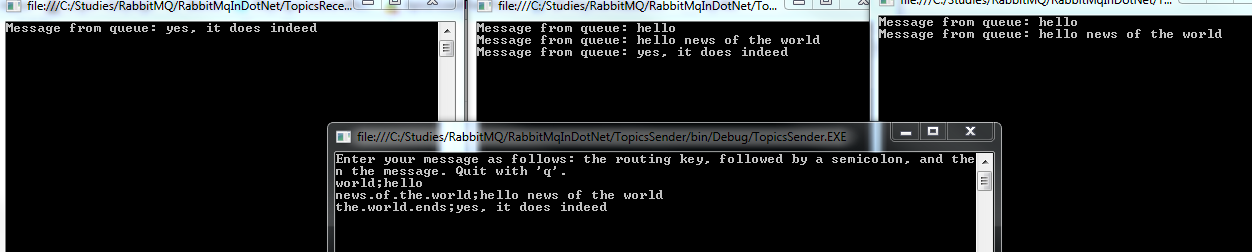
Start sending messages to RabbitMQ. Take care when typing the routing key and the message. Delimit the routing key sections with a ‘.’:

Topics MEP console

Explanation:

  • ‘world’: received by receiver 2 and 3 as the topic routing keys #.world and #.world.# match it. Topic key *.world.* is no match as the ‘*’ replaces one word
  • ‘news.of.the.world’: same as above
  • ‘the.world.ends’: matches receiver 1 and 2, but not 3 as there’s a word after ‘world.’ in the routing key

It can be a bit confusing with the topic keys and matches at first but the Topics pattern is not much different from the routing one.

Read the next part of this series here.

View the list of posts on Messaging here.

Messaging with RabbitMQ and .NET C# part 3: message exchange patterns

Introduction

In this part of the series we’ll look at 4 basic message exchange patterns (MEP):

  • One way
  • Worker queues
  • Publish/Subscribe
  • Remote Procedure Call (RPC)

Most of the posts on RabbitMQ on this blog are based on the work of RabbitMQ guru Michael Stephenson.

For the demos you can start a new Visual Studio solution or re-use the one we’ve been working on so that you have all code references in one place.

A general note: we’ll write a lot of example code in this post. We’ll be concentrating on writing code that works and will not follow any software design principles such as SOLID or DRY. That would only slow us down in a large topic like this. Use the link provided to improve the library as you wish.

One way messaging

This is the simplest MEP: a message is sent to the broker which is then processed by the receiver.

Open the RabbitMQ management UI at http://localhost:15672/ and have it ready throughout the demo. Fire up Visual Studio and either open the same solution as before or create a new blank one. Add a C# class library called RabbitMqService. Add the NuGet RabbitMQ package to it as we did in the first part of this series. Add new class called AmqpMessagingService. Add the following private fields:

private string _hostName = "localhost";
private string _userName = "guest";
private string _password = "guest";
private string _exchangeName = "";
private string _oneWayMessageQueueName = "OneWayMessageQueue";
private bool _durable = true;

Add the following method to create a connection to the RabbitMQ server:

public IConnection GetRabbitMqConnection()
{
	ConnectionFactory connectionFactory = new ConnectionFactory();
	connectionFactory.HostName = _hostName;
	connectionFactory.UserName = _userName;
	connectionFactory.Password = _password;

	return connectionFactory.CreateConnection();
}

This method will set up the queue we’ll use for the one way message demo:

public void SetUpQueueForOneWayMessageDemo(IModel model)
{
	model.QueueDeclare(_oneWayMessageQueueName, _durable, false, false, null);
}

Next add a new Console application to the solution called OneWayMessageSender. Add the RabbitMQ NuGet package there as well and also add a reference to the RabbitMqService library. Insert the following code to Main and run the Sender app:

AmqpMessagingService messagingService = new AmqpMessagingService();
IConnection connection = messagingService.GetRabbitMqConnection();
IModel model = connection.CreateModel();
messagingService.SetUpQueueForOneWayMessageDemo(model);

Check in the RabbitMQ console that the queue called “OneWayMessageQueue” has been set up. Comment out the call to…

messagingService.SetUpQueueForOneWayMessageDemo(model);

Add the following code to send a single message to the queue in AmqpMessagingService.cs:

public void SendOneWayMessage(string message, IModel model)
{
	IBasicProperties basicProperties = model.CreateBasicProperties();
	basicProperties.SetPersistent(_durable);
	byte[] messageBytes = Encoding.UTF8.GetBytes(message);
	model.BasicPublish(_exchangeName, _oneWayMessageQueueName, basicProperties, messageBytes);
}

This code should be familiar from the previous part. Add the following method to Program.cs in the Sender application:

private static void RunOneWayMessageDemo(IModel model, AmqpMessagingService messagingService)
{
	Console.WriteLine("Enter your message and press Enter. Quit with 'q'.");
	while (true)
	{
		string message = Console.ReadLine();
		if (message.ToLower() == "q") break;

		messagingService.SendOneWayMessage(message, model);
	}
}

We send the message entered by the Sender to the appropriate queue.

Add a call to this method in Main:

RunOneWayMessageDemo(model, messagingService);

Console.ReadKey();

Create another Console application called OneWayMessageReceiver to the solution. Add the NuGet RabbitMQ package to it. Add a project reference to RabbitMqService. Insert the following code to Main:

AmqpMessagingService messagingService = new AmqpMessagingService();
IConnection connection = messagingService.GetRabbitMqConnection();
IModel model = connection.CreateModel();
messagingService.ReceiveOneWayMessages(model);

The first three lines of code should be familiar. ReceiveOneWayMessages has the following implementation in AmqpMessagingService:

public void ReceiveOneWayMessages(IModel model)
{
	model.BasicQos(0, 1, false); //basic quality of service
	QueueingBasicConsumer consumer = new QueueingBasicConsumer(model);
	model.BasicConsume(_oneWayMessageQueueName, false, consumer);
	while (true)
	{
		BasicDeliverEventArgs deliveryArguments = consumer.Queue.Dequeue() as BasicDeliverEventArgs;
		String message = Encoding.UTF8.GetString(deliveryArguments.Body);
		Console.WriteLine("Message received: {0}", message);
		model.BasicAck(deliveryArguments.DeliveryTag, false);
	}
}

BasicQos means basic quality of service. The parameters mean that we require one message at a time and we don’t want to process any additional messages until this one has been processed. You can use these parameters to receive messages in batches.

QueueingBasicConsumer is built into RabbitMQ and is used to consume messages from a specified queue. We use the IModel’s BasicConsume method to consume messages and specify the queue name and the consumer. With ‘false’ we also indicate that we don’t want to auto-acknowledge the messages. Then in the loop we constantly pull message from the queue and acknowledge them with BasicAck. The Queue.Dequeue() method will block the thread until a message has been delivered into the queue. We extract the message byte array from the BasicDeliverEventArgs object. The acknowledgement will release the message from the queue and will allow us to receive the next message.

Let’s see if this works. Set the Receiver as the start up project and start the application. The Receiver app will start. Then in VS right-click the Sender application, click Debug, Start new instance. Enter a message in the Sender windows and press Enter. If everything works fine then the message should show up in the Receiver window:

One way message in console

Send a couple more messages to confirm that the setup works. Set a breakpoint within the while-loop of ReceiveOneWayMessages. You’ll see that execution will stop at…

BasicDeliverEventArgs deliveryArguments = consumer.Queue.Dequeue() as BasicDeliverEventArgs;

…and will only continue if there’s a message in the queue. In other words the loop won’t just continue asking for new data all the time.

Worker queues

In this MEP a message is sent by the sender. There will be many listeners waiting for messages from the same queue. However, those listeners compete to receive the message and only one of them will receive it. The purpose is that if an application is expecting to receive a large load of messages then it can create different threads/processes to process those messages. The benefit is better scalability. For the demo we’ll set up a sender and two receivers.

Add the following private field to AmqpMessagingService:

private string _workerQueueDemoQueueName = "WorkerQueueDemoQueue";

…and the following method to create the queue for this sample:

public void SetUpQueueForWorkerQueueDemo(IModel model)
{
	model.QueueDeclare(_workerQueueDemoQueueName, _durable, false, false, null);
}

Add a new console application to the solution called WorkerQueueSender. Add the RabbitMQ NuGet package and a reference to the RabbitMqService library. Insert the following code in Main to set up the queue:

AmqpMessagingService messagingService = new AmqpMessagingService();
IConnection connection = messagingService.GetRabbitMqConnection();
IModel model = connection.CreateModel();
messagingService.SetUpQueueForWorkerQueueDemo(model);

Set WorkerQueueSender as the startup project and run the application. Check the RabbitMQ UI that the queue has been set up. Comment out the call to SetUpQueueForWorkerQueueDemo in Main.

Add the following method in AmqpMessagingService:

public void SendMessageToWorkerQueue(string message, IModel model)
{
	IBasicProperties basicProperties = model.CreateBasicProperties();
	basicProperties.SetPersistent(_durable);
	byte[] messageBytes = Encoding.UTF8.GetBytes(message);
	model.BasicPublish(_exchangeName, _workerQueueDemoQueueName, basicProperties, messageBytes);
}

…and the one below to receive messages from the worker queue:

public void ReceiveWorkerQueueMessages(IModel model)
{
	model.BasicQos(0, 1, false); //basic quality of service
	QueueingBasicConsumer consumer = new QueueingBasicConsumer(model);
	model.BasicConsume(_workerQueueDemoQueueName, false, consumer);
	while (true)
	{
		BasicDeliverEventArgs deliveryArguments = consumer.Queue.Dequeue() as BasicDeliverEventArgs;
		String message = Encoding.UTF8.GetString(deliveryArguments.Body);
		Console.WriteLine("Message received: {0}", message);
		model.BasicAck(deliveryArguments.DeliveryTag, false);
	}
}

It is identical to ReceiveOneWayMessages except for the queue name.

Back in WorkerQueueSender.Program.cs add the following method and add a call to it from Main:

private static void RunWorkerQueueMessageDemo(IModel model, AmqpMessagingService messagingService)
{
	Console.WriteLine("Enter your message and press Enter. Quit with 'q'.");
	while (true)
	{
		string message = Console.ReadLine();
		if (message.ToLower() == "q") break;
		messagingService.SendMessageToWorkerQueue(message, model);
	}
}

As you see it is identical to what we had in the previous demo. We’ll create two Receivers and they will be identical to the receiver we had in the previous demo. Add two new Console apps: WorkerQueueReceiverOne and WorkerQueueReceiverTwo. In both projects do the following:

  • Add RabbitMQ package through NuGet
  • Add a library reference to RabbitMqService
  • Add the following code to Program.cs.Main:
AmqpMessagingService messagingService = new AmqpMessagingService();
IConnection connection = messagingService.GetRabbitMqConnection();
IModel model = connection.CreateModel();
messagingService.ReceiveWorkerQueueMessages(model);

Follow these steps to start the demo:

  1. Set WorkerQueueSender as the startup project
  2. Start the application
  3. Right-click WorkerQueueReceiverOne, Debug, Start new instance
  4. Do the same for WorkerQueueReceiverTwo

You should have 3 console windows up and running on your screen. Start sending messages in the Sender window. You should see that messages will alternate between receiver one and two:
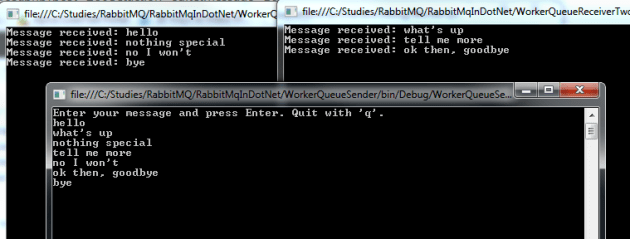
Worker queue console

You should never see that the same message is delivered to both receivers.

The Worker Queue MEP can be implemented with very little extra effort compared to the One Way Message MEP. This MEP helps you create a horizontally scalable server where multiple receivers are set up to collect the incoming messages.

Publish/Subscribe

In this MEP a message is sent to an exchange and the exchange distributes the message to all queues bound to it. Each queue will have its listener to process the message. If you recall the different exchange types then this sounds like the Fan-out type. We’ll set up a dedicated exchange for this, i.e. not use the default one in RabbitMQ.

Enter the following private fields in AmqpMessagingService.cs:

private string _publishSubscribeExchangeName = "PublishSubscribeExchange";
private string _publishSubscribeQueueOne = "PublishSubscribeQueueOne";
private string _publishSubscribeQueueTwo = "PublishSubscribeQueueTwo";

…and the following method where we set up the exchange, 2 queues and bind both queues to the exchange:

public void SetUpExchangeAndQueuesForDemo(IModel model)
{
	model.ExchangeDeclare(_publishSubscribeExchangeName, ExchangeType.Fanout, true);
	model.QueueDeclare(_publishSubscribeQueueOne, true, false, false, null);
	model.QueueDeclare(_publishSubscribeQueueTwo, true, false, false, null);
	model.QueueBind(_publishSubscribeQueueOne, _publishSubscribeExchangeName, "");
	model.QueueBind(_publishSubscribeQueueTwo, _publishSubscribeExchangeName, "");
}

Consult the first part in this series if don’t recall what these methods do.

Add a new Console project to the solution called PublishSubscribeSender. Perform the usual actions:

  • Add RabbitMQ via NuGet
  • Add a reference to RabbitMqService

In Main insert the following code to set up the necessary infrastructure:

static void Main(string[] args)
{
	AmqpMessagingService messagingService = new AmqpMessagingService();
	IConnection connection = messagingService.GetRabbitMqConnection();
	IModel model = connection.CreateModel();
	messagingService.SetUpExchangeAndQueuesForDemo(model);
}

Set PublishSubscribeSender as the startup application and then run it. Check in the RabbitMQ UI whether the exchange and the two queues have been created and if the bindings are OK. Then comment out the call to messagingService.SetUpExchangeAndQueuesForDemo. Add the following method to start sending messages:

private static void RunPublishSubscribeMessageDemo(IModel model, AmqpMessagingService messagingService)
{
	Console.WriteLine("Enter your message and press Enter. Quit with 'q'.");
	while (true)
	{
		string message = Console.ReadLine();
		if (message.ToLower() == "q") break;

		messagingService.SendMessageToPublishSubscribeQueues(message, model);
	}
}

As you see it’s not much different from what we had in the previous demos. SendMessageToPublishSubscribeQueues looks like this in AmqpMessagingService:

public void SendMessageToPublishSubscribeQueue(string message, IModel model)
{
	IBasicProperties basicProperties = model.CreateBasicProperties();
	basicProperties.SetPersistent(_durable);
	byte[] messageBytes = Encoding.UTF8.GetBytes(message);
	model.BasicPublish(_publishSubscribeExchangeName, "", basicProperties, messageBytes);
}

We’re sending the message to the designated exchange with no routing key specified.

Add two new Console applications: PublishSubscribeReceiverOne and PublishSubscribeReceiverTwo. Apply the following to both:

  • Add RabbitMQ via NuGet
  • Add a reference to RabbitMqService

In PublishSubscribeReceiverOne.Program.cs.Main add the following code:

AmqpMessagingService messagingService = new AmqpMessagingService();
IConnection connection = messagingService.GetRabbitMqConnection();
IModel model = connection.CreateModel();
messagingService.ReceivePublishSubscribeMessageReceiverOne(model);

In PublishSubscribeReceiverTwo.Program.cs.Main add the following code:

AmqpMessagingService messagingService = new AmqpMessagingService();
IConnection connection = messagingService.GetRabbitMqConnection();
IModel model = connection.CreateModel();
messagingService.ReceivePublishSubscribeMessageReceiverTwo(model);

…where ReceivePublishSubscribeMessageReceiverOne and ReceivePublishSubscribeMessageReceiverTwo look like this in AmqpMessagingService:

public void ReceivePublishSubscribeMessageReceiverOne(IModel model)
{
	model.BasicQos(0, 1, false);
	Subscription subscription = new Subscription(model, _publishSubscribeQueueOne, false);
	while (true)
	{
		BasicDeliverEventArgs deliveryArguments = subscription.Next();
		String message = Encoding.UTF8.GetString(deliveryArguments.Body);
		Console.WriteLine("Message from queue: {0}", message);
		subscription.Ack(deliveryArguments);
	}
}

public void ReceivePublishSubscribeMessageReceiverTwo(IModel model)
{
	model.BasicQos(0, 1, false);
	Subscription subscription = new Subscription(model, _publishSubscribeQueueTwo, false);
	while (true)
	{
		BasicDeliverEventArgs deliveryArguments = subscription.Next();
		String message = Encoding.UTF8.GetString(deliveryArguments.Body);
		Console.WriteLine("Message from queue: {0}", message);
		subscription.Ack(deliveryArguments);
	}
}

As you see there’s not much difference compared to how the Receiver extracted the messages before. The subscription model is represented by the Subscription object in RabbitMQ .NET. The BasicDeliverEventArgs object is returned by the Next() method of the subscription. We then show the message and acknowledge it.

To run this demo:

  1. Run PublishSubscribeSender
  2. Start a new instance of PublishSubscribeReceiverOne the way we did above with WorkerQueueReceiverOne
  3. Start a new instance of PublishSubscribeReceiverTwo the way we did above with WorkerQueueReceiverTwo
  4. You should have three black console screens up and running

Start sending messages on the Sender window. The message should appear on both receivers:

Publish/message MEP console

The receivers are listening on two different queues hence they are not competing with each other like in the Worker Queue MEP.

Remote Procedure Call (RPC)

RPC is slightly different from the above three MEPs in that there’s a response queue involved. The sender will first start listening on a response queue before sending any message. It then sends a message to a destination queue via the default exchange where the message includes a property indicating the response queue. The response queue will be dynamically created by the sender. The receiver processes the message and responds using the response queue extracted from the message. The sender then processes the response.

Add the following method to AmqpMessagingService.cs that sets up the queue for this demo:

public void SetUpQueueForRpcDemo(IModel model)
{
	model.QueueDeclare(_rpcQueueName, _durable, false, false, null);
}

…where _rpcQueueName is a new private field:

private string _rpcQueueName = "RpcQueue";

Add a new Console app called RpcSender. Add the usual references: RabbitMQ NuGet, RabbitMqService. Insert the following code to Main to set up the queue:

AmqpMessagingService messagingService = new AmqpMessagingService();
IConnection connection = messagingService.GetRabbitMqConnection();
IModel model = connection.CreateModel();
messagingService.SetUpQueueForRpcDemo(model);

Set RpcSender as the startup project and run the application. Check in the RabbitMQ management UI that the queue has been set up. Comment out the call to messagingService.SetUpQueueForRpcDemo(model). This queue will be used as the default queue by the sender to send messages. The response queue will be dynamically set up.

Insert the following method to RpcSender.Program.cs to start sending messages:

private static void RunRpcMessageDemo(IModel model, AmqpMessagingService messagingService)
{
	Console.WriteLine("Enter your message and press Enter. Quit with 'q'.");
	while (true)
	{
		string message = Console.ReadLine();
		if (message.ToLower() == "q") break;
		String response = messagingService.SendRpcMessageToQueue(message, model, TimeSpan.FromMinutes(1));
		Console.WriteLine("Response: {0}", response);
	}
}

This setup is very similar to what we’ve seen up to this point. Note, however, that the SendRpcMessageToQueue method returns a string, which will be the response from the Receiver. We also specify a timeout parameter for the response to arrive.

Declare a new method in AmqpMessagingService:

public string SendRpcMessageToQueue(string message, IModel model, TimeSpan timeout)
{

}

The sender in this case will also need to listen to messages so it will need a QueueingBasicConsumer object we saw before. Also, the response queue will be set up dynamically. The QueueDeclare() method without any parameter will create a temporary response queue. The name of the temporary queue will be randomly generated, e.g. “amq.gen-3tj4jtzMauwolYqc7CUj9g”. While you’re running the demo in a bit you can check the list of queues in the RabbitMQ management UI. The temporary queue will be available as long as the Sender is running. After that it will be removed automatically. Insert the following code to SendRpcMessageToQueue:

if (string.IsNullOrEmpty(_responseQueue))
{
	_responseQueue = model.QueueDeclare().QueueName;
}

if (_rpcConsumer == null)
{
	_rpcConsumer = new QueueingBasicConsumer(model);
	model.BasicConsume(_responseQueue, true, _rpcConsumer);
}

…where _rpcConsumer and _responseQueue are private variables:

private QueueingBasicConsumer _rpcConsumer;
private string _responseQueue;

The sender will listen on that temporary response queue. Append the following code to SendRpcMessageToQueue:

string correlationId = Guid.NewGuid().ToString();

IBasicProperties basicProperties = model.CreateBasicProperties();
basicProperties.ReplyTo = _responseQueue;
basicProperties.CorrelationId = correlationId;

byte[] messageBytes = Encoding.UTF8.GetBytes(message);
model.BasicPublish("", _rpcQueueName, basicProperties, messageBytes);

DateTime timeoutDate = DateTime.UtcNow + timeout;
while (DateTime.UtcNow <= timeoutDate)
{
	BasicDeliverEventArgs deliveryArguments = (BasicDeliverEventArgs)_rpcConsumer.Queue.Dequeue();
	if (deliveryArguments.BasicProperties != null
	&& deliveryArguments.BasicProperties.CorrelationId == correlationId)
	{
		string response = Encoding.UTF8.GetString(deliveryArguments.Body);
        	return response;
	}
}
throw new TimeoutException("No response before the timeout period.");

We create a message correlation ID to be able to match the sender’s message to the response from the receiver. If the receiver is responding to another message then it will be ignored. We then set up the IBasicProperties object and specify the temporary queue name to reply to and the correlation ID. Next we publish the message using BasicPublish like before.

Then we enter something that only receivers have done up to now: listen. The sender will listen for the duration of the timeout date. When a response comes then the correlation IDs must be compared. If there’s a match then the response is returned. Otherwise it’s ignored. If there’s no response before the timeout then an exception is thrown.

Let’s look at the receiver now. Add a new Console application called RpcReceiver, add RabbitMQ and RabbitMqService to the reference list. Insert the following code to Main:

AmqpMessagingService messagingService = new AmqpMessagingService();
IConnection connection = messagingService.GetRabbitMqConnection();
IModel model = connection.CreateModel();
messagingService.ReceiveRpcMessage(model);

…where ReceiveRpcMessage in AmqpMessagingService looks like this in AmqpMessagingService:

public void ReceiveRpcMessage(IModel model)
{
	model.BasicQos(0, 1, false);
	QueueingBasicConsumer consumer = new QueueingBasicConsumer(model);
	model.BasicConsume(_rpcQueueName, false, consumer);

	while (true)
	{
		BasicDeliverEventArgs deliveryArguments = consumer.Queue.Dequeue() as BasicDeliverEventArgs;
		string message = Encoding.UTF8.GetString(deliveryArguments.Body);
		Console.WriteLine("Message: {0} ; {1}", message, " Enter your response: ");
		string response = Console.ReadLine();
		IBasicProperties replyBasicProperties = model.CreateBasicProperties();
		replyBasicProperties.CorrelationId = deliveryArguments.BasicProperties.CorrelationId;
		byte[] responseBytes = Encoding.UTF8.GetBytes(response);
		model.BasicPublish("", deliveryArguments.BasicProperties.ReplyTo, replyBasicProperties, responseBytes);
                model.BasicAck(deliveryArguments.DeliveryTag, false);
	}
}

Most of this code looks familiar by now I hope. We extend the “normal” receiving logic with the ability to send a response. We extract the correlation ID from the sender’s message so that our response will have the same ID. We send the response to the ReplyTo queue which was also extracted from the sender’s message. We finally acknowledge the reception of the message from the sender.

Let’s run this:

  1. Make sure that RpcSender is the startup project and run the application
  2. Start RpcReceiver the same way as before (Run new instance)
  3. You should have 2 console screens up and running

Send a message from the sender to the receiver. Then send a response. It looks like a very primitive chat application:

RPC console

I hope you agree that it wasn’t too difficult to implement these 4 basic message exchange patterns.

Read the next part in this series here.

View the list of posts on Messaging here.

Messaging with RabbitMQ and .NET C# part 2: persistence

Introduction

In the previous part of this tutorial we looked at the basics of messaging. We also set up RabbitMQ on Windows and looked at a couple of C# code examples.

We’ll continue where we left off so have the RabbitMQ manager UI and the sample .NET console app ready.

Most of the posts on RabbitMQ on this blog are based on the work of RabbitMQ guru Michael Stephenson.

Sending a message in code

Let’s first put the code that creates the IConnection into another class. Add a new class called RabbitMqService:

public class RabbitMqService
{
	public IConnection GetRabbitMqConnection()
	{
		ConnectionFactory connectionFactory = new ConnectionFactory();
		connectionFactory.HostName = "localhost";
		connectionFactory.UserName = "guest";
		connectionFactory.Password = "guest";

		return connectionFactory.CreateConnection();
	}
}

Put the following lines of code…

model.QueueDeclare("queueFromVisualStudio", true, false, false, null);
model.ExchangeDeclare("exchangeFromVisualStudio", ExchangeType.Topic);
model.QueueBind("queueFromVisualStudio", "exchangeFromVisualStudio", "superstars");

…into a private method for later reference…:

private static void SetupInitialTopicQueue(IModel model)
{
	model.QueueDeclare("queueFromVisualStudio", true, false, false, null);
	model.ExchangeDeclare("exchangeFromVisualStudio", ExchangeType.Topic);
	model.QueueBind("queueFromVisualStudio", "exchangeFromVisualStudio", "superstars");
}

…so now we have the following code in Program.cs:

static void Main(string[] args)
{
	RabbitMqService rabbitMqService = new RabbitMqService();
	IConnection connection = rabbitMqService.GetRabbitMqConnection();
	IModel model = connection.CreateModel();
}

private static void SetupInitialTopicQueue(IModel model)
{
	model.QueueDeclare("queueFromVisualStudio", true, false, false, null);
	model.ExchangeDeclare("exchangeFromVisualStudio", ExchangeType.Topic);
	model.QueueBind("queueFromVisualStudio", "exchangeFromVisualStudio", "superstars");
}

In Main we’ll create some properties and we’ll set the message persistence to non-persistent – see below for details:

IBasicProperties basicProperties = model.CreateBasicProperties();
basicProperties.SetPersistent(false);

We need to send our message in byte array format:

byte[] payload = Encoding.UTF8.GetBytes("This is a message from Visual Studio");

We then construct the address for the exchange we created in the previous part:

PublicationAddress address = new PublicationAddress(ExchangeType.Topic, "exchangeFromVisualStudio", "superstars");

Finally we send the message:

model.BasicPublish(address, basicProperties, payload);

Run the application. Go to the RabbitMQ management UI, navigate to queueFromVisualStudio and you should be able to extract the message:

Message from Visual Studio to queue

Queue and exchange persistence

There are two types of queues and exchanges from a persistence point of view:

  • Durable: messages are saved to disk so they are available even after a server restart. There’s some overhead incurred while reading and saving messages
  • Non-durable: messages are persisted in memory. They disappear after a server restart but offer a faster service

Keep these advantages and disadvantages in mind when you’re deciding which persistence strategy to go for. Recall that we set persistence to non-durable for the message in the previous section. For a quick server restart open the Services console and restart the Windows service called RabbitMQ:

RabbitMQ restart

Go back to the RabbitMQ managenment UI on http://localhost:15672/ If you were logged on before then you have probably been logged out. Navigate to queueFromVisualStudio, check the available messages and you’ll see that there’s none. The queue is still available as we set it to durable in code:

model.QueueDeclare("queueFromVisualStudio", true, false, false, null);

The second parameter ‘true’ means that the queue itself is durable. Had we set this to false, we would have lost the queue as well in the server restart. The exchange “exchangeFromVisualStudio” itself was non-durable so it was lost. Remember the following exchange creation code:

model.ExchangeDeclare("exchangeFromVisualStudio", ExchangeType.Topic);

We haven’t specified the durable property so it was set to false by default. The ExchangeDeclare method has an overload which allows us to declare a durable exchange:

model.ExchangeDeclare("exchangeFromVisualStudio", ExchangeType.Topic, true);

Also, recall that we created an exchange called newexchange through the UI in the previous post and it was set to durable in the available options. That’s the reason why it is still available in the list of exchanges but exchangeFromVisualStudio isn’t:

Durable exchange available

Add a private method to set up durable components:

private static void SetupDurableElements(IModel model)
{
	model.QueueDeclare("DurableQueue", true, false, false, null);
	model.ExchangeDeclare("DurableExchange", ExchangeType.Topic, true);
	model.QueueBind("DurableQueue", "DurableExchange", "durable");
}

Call this method from Main after…

IModel model = connection.CreateModel();

Comment out the rest of the code in Main or put it in another method for later reference. Now we have a durable exchange and a durable queue. Let’s send a message to it:

private static void SendDurableMessageToDurableQueue(IModel model)
{
        IBasicProperties basicProperties = model.CreateBasicProperties();
	basicProperties.SetPersistent(true);
	byte[] payload = Encoding.UTF8.GetBytes("This is a persistent message from Visual Studio");
	PublicationAddress address = new PublicationAddress(ExchangeType.Topic, "DurableExchange", "durable");

	model.BasicPublish(address, basicProperties, payload);
}

Call this method from Main and then check in the management UI that the message has been delivered. Restart the RabbitMQ server and the message should still be available:

Durable message still available

Therefore we can set the persistence property on three levels:

  • Queue
  • Exchange
  • Message

Before I forget: you can specify an empty string as the exchange name as follows.

model.BasicPublish("", "key", basicProperties, payload);

The empty string will be translated into the default exchange:

Default exchange

In the next part of the series we’ll be looking at messaging patterns.

View the list of posts on Messaging here.

Elliot Balynn's Blog

A directory of wonderful thoughts

Software Engineering

Web development

Disparate Opinions

Various tidbits

chsakell's Blog

WEB APPLICATION DEVELOPMENT TUTORIALS WITH OPEN-SOURCE PROJECTS

Once Upon a Camayoc

ARCHIVED: Bite-size insight on Cyber Security for the not too technical.