Using Amazon Kinesis with the AWS.NET API Part 2: stream, NET SDK and domain setup
December 15, 2014 1 Comment
Introduction
In the previous post we went through an introduction of Amazon Kinesis. We established that Kinesis is an ideal out-of-the-box starting point for your Big Data analysis needs. It takes a lot of burden off your shoulders regarding scaling, maintenance and redundancy. We also said that Kinesis only provided a 24-hour storage of the messages so we’ll need to build an application, a Kinesis Client, that will ultimately process the messages in some way: filtering, sorting, saving etc.
In this post we’ll create our Kinesis stream and install the AWS SDK.
Creating the stream
Log onto the AWS console and locate the Kinesis service:

Probably every service you use with AWS has a region that you can select in the top right section of the UI:

These regions are significant for the services with a couple of exceptions. E.g. S3, which we’ll discuss in the next series, is global and has less regional significance. In the case of Kinesis when you create a new stream then that stream will be available in the selected region. It doesn’t, however, mean that users cannot send messages to a stream in Ireland from Australia. However, it will take Australian users a bit more time to send messages to this stream than it does for a user in the UK. Also, we’ll see later that the region must be specified in code when configuring the access to AWS otherwise you may be wondering why your stream cannot be located.
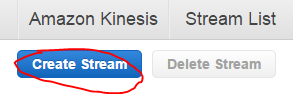
You can create a new stream with the Create Stream button:
Note that Kinesis has at the time of writing this post no free-tier pricing. According to the current pricing table example it costs about $4.22 a day to process 1000 messages per second where each message is 5KB in size. We will only test with some individual messages in this series so the total cost should be minimal.
Enter a stream name and set the number of shards to 1, that will be enough for testing:
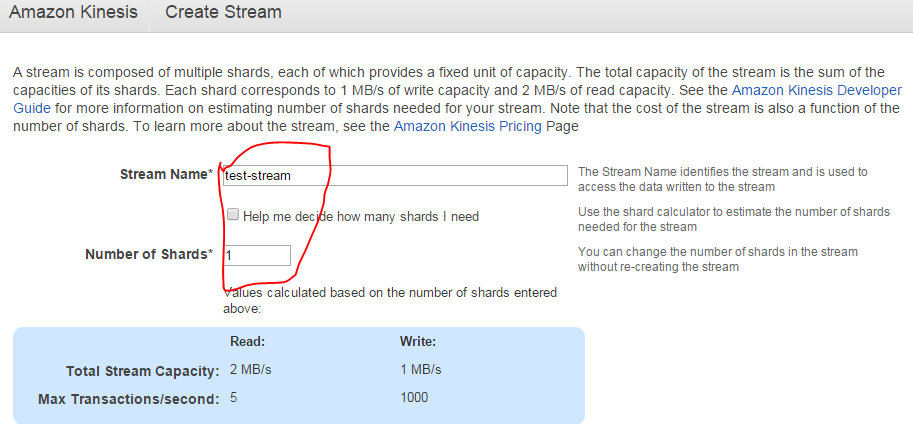
Press “Create” and you’ll be redirected to the original screen with the list of streams. Your new stream should be in “CREATING” status:

…which will shortly switch to “ACTIVE”.
You can click the name of the stream which will open a screen with a number of performance indicators:
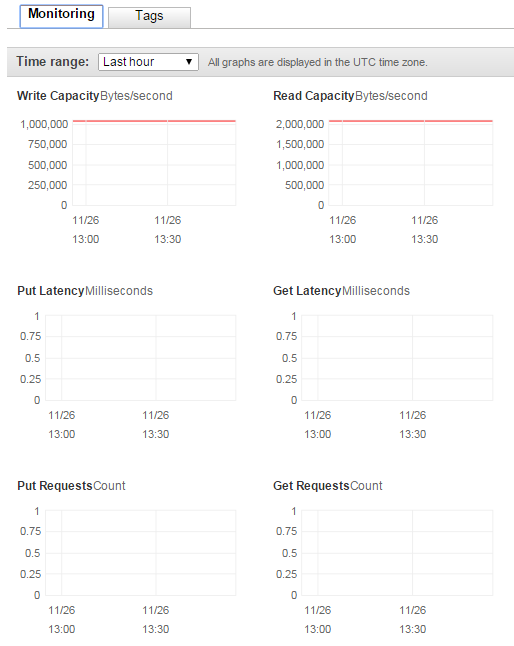
We haven’t processed any messages yet so there are no put or get requests yet.
That’s it, we have a functioning Kinesis stream up and running. Let’s move on.
Installing the SDK
The Amazon .NET SDK is available through NuGet. Open Visual Studio 2012/2013 and create a new C# console application called AmazonKinesisProducer. The purpose of this application will be to send messages to the stream. In reality the message producer could by any type of application:
- A website
- A Windows/Android/iOS app
- A Windows service
- A traditional desktop app
…i.e. any application that’s capable of sending HTTP/S PUT requests to a service endpoint. We’ll keep it simple and not waste time with view-related tasks.
Install the following NuGet package:

We’ll also be working with JSON data so let’s also install the popular NewtonSoft Json package as well:

Domain
In this section we’ll set up the data structure of the messages we’ll be processing. I’ll reuse a simplified version of the messages we had in a real-life project similar to what we’re going through. We’ll pretend that we’re measuring the total response time of web pages that our customers visit.
A real-life solution would involve a JavaScript solution embedded into the HTML of certain pages. That JavaScript will collect data like “transaction start” and “transaction finish” which make it possible to measure the response time of a web page as it’s experienced by a real end user. The JavaScript will then send the transaction data to a web service as JSON.
In our case of course we’ll not go through all that. We’ll pre-produce our data points using a C# object and JSON.
Insert the following class into the Kinesis producer app:
public class WebTransaction
{
	public long UtcDateUnixMs { get; set; }
	public string CustomerName { get; set; }
	public string Url { get; set; }
	public string WebMethod { get; set; }
	public int ResponseTimeMs { get; set; }
}
Dates are easiest to handle as UNIX timestamps in milliseconds as most systems will be able to handle it. DateTime in .NET4.5 doesn’t have any built-in support for UNIX timestamps but that’s easy to solve. Formatted date strings are more difficult to parse so we won’t go with that. You’ll probably understand the purpose of the other properties.
We’ll start sending message to our stream in the next post.
View all posts related to Amazon Web Services and Big Data here.
 About Andras Nemes
 Exercises in .NET with Andras Nemes
How to implement for wpf desktop application?