Thread safe collections in .NET: ConcurrentStack

Concurrent collections in .NET work very much like their single-thread counterparts with the difference that they are thread safe. These collections can be used in scenarios where you need to share a collection between Tasks. They are typed and use a lightweight synchronisation mechanism to ensure that they are safe and fast to use in parallel programming.

Concurrent stacks

If you don’t know what Stacks are then you can read about them here. The Stack of T generic collection has a thread-safe counterpart called ConcurrentStack. Important methods:

  • Push(T element): adds an item of type T to the collection
  • PushRange(T[] elements) and PushRange(T[] elements, int, int): same as Push but is used for adding an array of items to the collection
  • TryPeek(out T): tries to retrieve the next element from the collection without removing it. The value is set to the out parameter if the method succeeds. Otherwise it returns false.
  • TryPop(out T): tries to get the first element. It removes the item from the collection and sets the out parameter to the retrieved element. Otherwise the method returns false
  • TryPopRange(out T[] elements) and TryPopRange(out T[], int, int): same as TryPop but is used for arrays

The ‘try’ bit in the method names imply that your code needs to prepare for the event where the element could not be retrieved. If multiple threads retrieve elements from the same stack you cannot be sure what’s in there when a specific thread tries to read from it.

Example

Declare and fill a concurrent stack:

ConcurrentStack<int> concurrentStack = new ConcurrentStack<int>();

for (int i = 0; i < 5000; i++)
{
	concurrentStack.Push(i);
}

Next we’ll try to pop every item from the stack. The stack will be accessed by several tasks at the same time. The counter variable – which is also shared – will be used to check if all items have been retrieved.

int counter = 0;

Task[] stackTasks = new Task[10];
for (int i = 0; i < stackTasks.Length; i++)
{
	stackTasks[i] = Task.Factory.StartNew(() =>
	{
		while (concurrentStack.Count > 0)
		{
			int currentElement;
			bool success = concurrentStack.TryPop(out currentElement);
			if (success)
			{
				Interlocked.Increment(ref counter);
			}
		}
	});
}

The while loop will ensure that we’ll try to pop the items as long as there’s something left in the collection.

Wait for the tasks and print the number of items processed – the counter should have the same value as the number of items in the stack:

Task.WaitAll(stackTasks);
Console.WriteLine("Counter: {0}", counter);

View the list of posts on the Task Parallel Library here.

Timeout exceptions with async/await in .NET4.5 MVC4 with C#

This post will discuss timeouts that occur with await and async in .NET4.5. For clarity on async and await in MVC4 check out my previous two blog posts: Await and async in .NET4.5 and Async controllers and actions in .NET4.5 MVC4

As await operations may involve some seriously long running actions, such as calling a slow web service, it can be a good idea to specify a timeout. We may not want to make the visitor wait 60 seconds just to see an error message afterwards. If your experience tells you that a web service normally responds within 5 seconds at most then it may be pointless waiting 50-60 seconds as you can be sure something has gone wrong. ASP.NET has a default request timeout of 90 seconds – correct me here if I’m wrong – but we can specify other values directly in code with an attribute: AsyncTimeout that takes the timeout value in milliseconds as parameter.

In addition to the AsyncTimeout attribute you’ll also need to supply an additional parameter of type CancellationToken to the async action. This parameter can be used by the long running services to check if the user has requested a cancellation. The CancellationToken has an IsCancellationRequested property which provides exactly this type of information. In our example we’ll pass this token to the service calls and use it to throw an exception if the request has been cancelled. As our services are not real service calls, there is no clean-up work to do but imagine that if an IO operation is interrupted by a user then the cancellation token can throw an exception and you can clean up all open resources or roll back the database operations in a catch clause.

You can read more about cancellation tokens on MSDN: Cancellation token on MSDN

Update service methods:

public async Task<String> GetDataAsync(CancellationToken ctk)
        {
            StringBuilder dataBuilder = new StringBuilder();
            dataBuilder.Append("Starting GetData on thread id ").Append(Thread.CurrentThread.ManagedThreadId)
                .Append(". ");
            ctk.ThrowIfCancellationRequested();
            await Task.Delay(2000);
            dataBuilder.Append("Results from the database. ").Append(Environment.NewLine);
            dataBuilder.Append("Finishing GetData on thread id ").Append(Thread.CurrentThread.ManagedThreadId)
                .Append(".");
            return dataBuilder.ToString();
        }
public async Task<String> GetResultAsync(CancellationToken ctk)
        {
            StringBuilder resultBuilder = new StringBuilder();
            resultBuilder.Append("Starting GetResult on thread id ").Append(Thread.CurrentThread.ManagedThreadId)
                .Append(". ");
            ctk.ThrowIfCancellationRequested();
            await Task.Delay(2000);
            resultBuilder.Append("This is the result of a long running calculation. ");
            resultBuilder.Append("Finishing GetResult on thread id ").Append(Thread.CurrentThread.ManagedThreadId)
                .Append(".");
            return resultBuilder.ToString();
        }

We know that the Index() action needs about 2 seconds to complete so let’s try something more aggressive to see what happens:

[AsyncTimeout(1000)]
        public async Task<ActionResult> Index(CancellationToken ctk)
        {
            DateTime startDate = DateTime.UtcNow;

            HomePageViewModel viewModel = new HomePageViewModel();
            viewModel.AddMessage(string.Concat("Starting Action on thread id ", Thread.CurrentThread.ManagedThreadId));
            CalculationService calcService = new CalculationService();
            DatabaseService dataService = new DatabaseService();

            Task<String> calculationResultTask = calcService.GetResultAsync(ctk);
            Task<String> databaseResultTask = dataService.GetDataAsync(ctk);

            await Task.WhenAll(calculationResultTask, databaseResultTask);

            viewModel.AddMessage(calculationResultTask.Result);
            viewModel.AddMessage(databaseResultTask.Result);

            DateTime endDate = DateTime.UtcNow;
            TimeSpan diff = endDate - startDate;

            viewModel.AddMessage(string.Concat("Finishing Action on thread id ", Thread.CurrentThread.ManagedThreadId));
            viewModel.AddMessage(string.Concat("Action processing time: ", diff.TotalSeconds));
            return View(viewModel);
        }

It is no surprise that we get a timout exception upon running the application:

Timeout YSOD

The yellow screen of death is great for debugging but not so nice in a production environment. To turn on custom error messages you must change web.config: locate the customErrors tag under system.web and change the mode attribute to “On” for the production environment. If your web.config does not have this tag then add it:

<system.web>
    <customErrors mode="On"></customErrors>

There is a default view in the Shared folder within Views called Error.cshtml. After modifying the web.config file the user will be redirected to that view upon an unhandled exception:

Error.cshtml screen

You can of course create custom views for errors and then specify which error view to show using attributes. Example:

[AsyncTimeout(1000)]
        [HandleError(ExceptionType = typeof(TimeoutException), View = "Timeout")]
        public async Task<ActionResult> Index(CancellationToken ctk)

This way you can specify error views for specific types of unhandled exceptions.

The next post will look at exception handling in async methods.

View the list of MVC and Web API related posts here.

Await and async in .NET 4.5 with C#

A goal for any dynamic application that is meant to handle lots of traffic is the optimal usage of server resources, including the processor. The application may need to perform processes that can be carried out on different threads. In this case it’s a waste of resources to let the actions be run one after the other on the same thread and have all other available threads lying idle. Typical examples include I/O operations and complex calculations that take long to complete that block the main thread which also handles the incoming requests and thereby reduce the scalability of the application.

There are two new keywords in .NET 4.5 that help increase the scalability of your application: async and await. Be aware that these techniques introduce threading on the server, i.e. they have nothing to do with AJAX. In this case our goal is to keep the server threads busy. Also, using these keywords alone will not automatically make your code run parallel: you’ll need to extend your solution with the Task Parallel Library (TPL).

Let’s first demonstrate the usage of TPL and async/await in a Console project. So fire up Visual Studio 2012 and create a Console app.

In the console app create a class called Operation. It is initially populated with two methods:


public class Operation
{
 public string RunSlowOperation()
 {
     Console.WriteLine("Slow operation running on thread id {0}", Thread.CurrentThread.ManagedThreadId);
     Thread.Sleep(2000);
     Console.WriteLine("Slow operation about to finish on thread id {0}", Thread.CurrentThread.ManagedThreadId);
     return "This is very slow...";
 }

 public void RunTrivialOperation()
 {
     string[] words = new string[] { "i", "love", "dot", "net", "four", "dot", "five" };
     foreach (string word in words)
     {
        Console.WriteLine(word);
     }
 }
}

We’ll print the starting and ending thread IDs of the slow operation.

Call both methods from Program.cs as follows:

public static void Main(string[] args)
        {
            Operation operation = new Operation();

            string result = operation.RunSlowOperation();
            operation.RunTrivialOperation();

            Console.WriteLine("Return value of slow operation: {0}", result);
            Console.WriteLine("The main thread has run complete on thread number {0}", Thread.CurrentThread.ManagedThreadId);
            Console.ReadLine();
            
        }

…we let both operations run one after the other and also print the ID of the main thread. The result may look similar to this:
Console output

It is not surprising that we first have to wait for the slow operation to finish before the trivial task can continue. The thread ID may differ when you run this example in your VS instance. However, note that the same thread handled Main and RunSlowOperation as well.

Now we’ll let TPL enter the picture. Extend the Operation class to include the following method:

public Task<string> RunSlowOperationTask()
        {
            return Task.Factory.StartNew<string>(RunSlowOperation);
        }

…so instead of directly returning the string result we’ll only return a Task representing a method that returns a string. Edit Program.cs to call this task and get its result by using the Task.Result property as follows:

public static void Main(string[] args)
        {
            Operation operation = new Operation();

            Task<string> result = operation.RunSlowOperationTask();
            operation.RunTrivialOperation();

            Console.WriteLine("Return value of slow operation: {0}", result.Result);
            Console.WriteLine("The main thread has run complete on thread number {0}", Thread.CurrentThread.ManagedThreadId);
            Console.ReadLine();
            
        }

When you run this then you will see that the slow operation did not block the main thread and the trivial operation could continue:
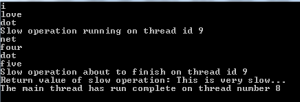
Console output

You’ll notice that the programme was carried out on two threads: one for the main thread and one for RunSlowOperation().

We’ll now include async and await to increase the efficient usage of our resources.

We can include the keyword async to method to make it asynchronous. An async method must have ‘await’ somewhere in its body otherwise the VS will complain. The await keyword indicates that the task it denotes can be suspended until some other task is complete. While the async method is suspended the caller is free to continue with what it is doing. This means that the thread that starts an async method may jump out of it at the await keyword and a different thread will jump in again and continue where the previous thread left off.

Async methods should always return a Task or a Task of T. The name of the async method should end with ‘Async’ to indicate to the caller that it is in fact an asynchronous method. The await keyword can occur more than once within the method body.

Extend Operation.cs to include the following method:

public async Task<string> RunSlowOperationTaskAsync()
        {
            Console.WriteLine("Slow operation running on thread id {0}", Thread.CurrentThread.ManagedThreadId);
            await Task.Delay(2000);
            Console.WriteLine("Slow operation about to finish on thread id {0}", Thread.CurrentThread.ManagedThreadId);
            return "This is very slow...";
        }

Note that Thread.Sleep was replaced by Task.Delay(2000). Thread.Sleep blocks the thread whereas Task.Delay represents a work that will block the thread for two seconds. At that point the thread that started the method may jump out of the method and let a different thread complete it to completion when the Task has finished.

Modify Program.cs as follows:

public static void Main(string[] args)
        {
            Operation operation = new Operation();

            Task<string> result = operation.RunSlowOperationTaskAsync();
            operation.RunTrivialOperation();

            Console.WriteLine("Return value of slow operation: {0}", result.Result);
            Console.WriteLine("The main thread has run complete on thread number {0}", Thread.CurrentThread.ManagedThreadId);
            Console.ReadLine();
            
        }

The output may look as follows:
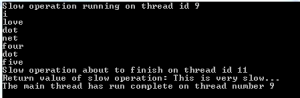
Console output

We have some differences compared to the previous case:

  • The slow operation starts on the same thread as Main whereas it started on its own thread before
  • The slow operation completed on a different thread from the one that started it
  • The main thread jumped out of the long running method and continued with the trivial method of printing the string array elements

When the main thread encountered the await keyword it ‘knew’ that it could leave the long running method and let a different thread take over and finish it. The beauty of this is that the new thread that took over from the main thread will have the necessary context data available: HTTP context, identities, culture settings. The thread synchronisation job is taken care of by .NET behind the scenes.

Note that this behaviour is not guaranteed to occur: in some cases, such as Silverlight, the UI thread must stay constant. However, the benefit is that the UI will not freeze when it encounters a long running method: it can still stay active and react to user inputs.

To summarise:

  • Async and await help make the usage of processing threads more efficient
  • They will not make your code run parallel without the TPL
  • The thread that started an async method may not be the same as the one that finished the method
  • The available threads will not just lie idle and block incoming requests while waiting for a task to finish

In the next blog we’ll look at async/await in MVC4.

View the list of MVC and Web API related posts here.

Elliot Balynn's Blog

A directory of wonderful thoughts

Software Engineering

Web development

Disparate Opinions

Various tidbits

chsakell's Blog

WEB APPLICATION DEVELOPMENT TUTORIALS WITH OPEN-SOURCE PROJECTS

Once Upon a Camayoc

ARCHIVED: Bite-size insight on Cyber Security for the not too technical.