Projection in LINQ C# with the Select operator

You can use the Select() extension method in LINQ to create an output of type T from an input sequence of type other than T. Let’s see some examples:

Source data:

string[] bands = { "ACDC", "Queen", "Aerosmith", "Iron Maiden", "Megadeth", "Metallica", "Cream", "Oasis", "Abba", "Blur" , "Chic", "Eurythmics", "Genesis", "INXS", "Midnight Oil", "Kent", "Madness", "Manic Street Preachers", "Noir Desir", "The Offspring", "Pink Floyd", "Rammstein", "Red Hot Chili Peppers", "Tears for Fears", "Deep Purple", "KISS"};

Say you want to collect the lengths of each string in the array:

IEnumerable<int> lengths = bands.Select(b => b.Length);
foreach (int l in lengths)
{
	Console.WriteLine(l);
}

Select operator simple output

You can also project to a sequence of anonymous objects…:

var customObjects = bands.Select(b => new { Name = b, Length = b.Length });
foreach (var item in customObjects)
{
	Console.WriteLine("Band name: {0}, length: {1}", item.Name, item.Length);
}

Select operator extended output

…or to different concrete objects:

public class Band
{
	public string Name { get; set; }
	public int NameLength { get; set; }
	public string AllCapitals { get; set; }
}

IEnumerable<Band> bandList = bands.Select(b => new Band() { AllCapitals = b.ToUpper(), Name = b, NameLength = b.Length });
foreach (Band band in bandList)
{
	Console.WriteLine(string.Concat(band.Name, ", ", band.NameLength, ", ", band.AllCapitals));
}

Select operator custom object output

An overload of Select() allows us to read an index value:

public class Band
{
	public string Name { get; set; }
	public int NameLength { get; set; }
	public string AllCapitals { get; set; }
	public int BandIndex { get; set; }
}

IEnumerable<Band> bandList = bands.Select((b, i) => new Band() { AllCapitals = b.ToUpper(), BandIndex = i + 1, Name = b, NameLength = b.Length });
foreach (Band band in bandList)
{
	Console.WriteLine(string.Concat(band.BandIndex, ": ", band.Name, ", ", band.NameLength, ", ", band.AllCapitals));
}

Select operator indexed object output

You can view all LINQ-related posts on this blog here.

Convert array of strings to integers with C# LINQ

Consider the following array of strings:

string[] numbersAsString = new string[] { "3", "1", "2", "4" };

You can easily convert each member and store them in an integer array with just one line of code:

int[] numbersAsInt = numbersAsString.Select(s => int.Parse(s)).ToArray();

You can sort the integers too:

int[] numbersAsInt = numbersAsString.Select(s => int.Parse(s)).OrderBy(s => s).ToArray();

You can view all LINQ-related posts on this blog here.

Messaging with RabbitMQ and .NET C# part 5: headers and scatter/gather

Introduction

In the previous post on RabbitMQ .NET we looked at the Routing and Topics exchange patterns. In this post we’ll continue looking at RabbitMQ in .NET. In particular we’ll talk about routing messages using the following two patterns:

  • Headers
  • Scatter/gather

We’ll use the demo application we’ve been working on in this series so have it ready in Visual Studio. Also, log onto the RabbitMQ management console on http://localhost:15672/

Most of the posts on RabbitMQ on this blog are based on the work of RabbitMQ guru Michael Stephenson.

Headers

The Headers exchange pattern is very similar to Topics we saw in the previous part of this series. The sender sends a message of type Headers to RabbitMQ. The message is routed based on the header value. All queues with a matching key will receive the message. We’ll dedicate an exchange to deliver the messages but the routing key will be ignored as it is the headers that will be the basis for the match. We can specify more than one header and a rule that says if all headers must match or just one using the “x-match” property which can have 2 values: “any” or “all”. The default value of this property is “all” so all headers must match for a queue to receive a message.

We’ll create one dedicated exchange and three queues. Add a new Console app to the solution called HeadersSender. Like before, add references to the RabbitMQ NuGet package and the RabbitMqService library in the solution. Insert the following code to Main:

AmqpMessagingService messagingService = new AmqpMessagingService();
IConnection connection = messagingService.GetRabbitMqConnection();
IModel model = connection.CreateModel();
messagingService.SetUpExchangeAndQueuesForHeadersDemo(model);

…where SetUpExchangeAndQueuesForHeadersDemo in AmqpMessagingService looks like this:

public void SetUpExchangeAndQueuesForHeadersDemo(IModel model)
{
	model.ExchangeDeclare(_headersExchange, ExchangeType.Headers, true);
	model.QueueDeclare(_headersQueueOne, true, false, false, null);
	model.QueueDeclare(_headersQueueTwo, true, false, false, null);
	model.QueueDeclare(_headersQueueThree, true, false, false, null);
			
	Dictionary<string,object> bindingOneHeaders = new Dictionary<string,object>();
	bindingOneHeaders.Add("x-match", "all");
	bindingOneHeaders.Add("category", "animal");
	bindingOneHeaders.Add("type", "mammal");
	model.QueueBind(_headersQueueOne, _headersExchange, "", bindingOneHeaders);

	Dictionary<string, object> bindingTwoHeaders = new Dictionary<string, object>();
	bindingTwoHeaders.Add("x-match", "any");
	bindingTwoHeaders.Add("category", "animal");
	bindingTwoHeaders.Add("type", "insect");
	model.QueueBind(_headersQueueTwo, _headersExchange, "", bindingTwoHeaders);

	Dictionary<string, object> bindingThreeHeaders = new Dictionary<string, object>();
	bindingThreeHeaders.Add("x-match", "any");
	bindingThreeHeaders.Add("category", "plant");
	bindingThreeHeaders.Add("type", "flower");
	model.QueueBind(_headersQueueThree, _headersExchange, "", bindingThreeHeaders);
}

The following private fields will be necessary as well:

private string _headersExchange = "HeadersExchange";
private string _headersQueueOne = "HeadersQueueOne";
private string _headersQueueTwo = "HeadersQueueTwo";
private string _headersQueueThree = "HeadersQueueThree";

We specify the headers in a dictionary. The first dictionary means that the queue will be interested in messages with headers of category = animal and type = mammal. The x-match property of “all” indicates that the queue wants to see both headers. You can probably understand the other two header bindings. As the default value of the x-match header is “all”, we could ignore adding that header but I prefer to be explicit in a demo like this.

Set HeadersSender as the start up project and start the application. Check in the RabbitMQ management UI whether the exchange and the queues have been set up correctly. Check the bindings on the exchange as well, you should see the correct header values.

Comment out the call to messagingService.SetUpExchangeAndQueuesForHeadersDemo. Back in AmqpMessageService.cs add the following method to send a message with headers:

public void SendHeadersMessage(string message, Dictionary<string,object> headers, IModel model)
{
	IBasicProperties basicProperties = model.CreateBasicProperties();
	basicProperties.SetPersistent(_durable);
	basicProperties.Headers = headers;
	byte[] messageBytes = Encoding.UTF8.GetBytes(message);
	model.BasicPublish(_headersExchange, "", basicProperties, messageBytes);
}

In HeadersSender.cs insert the following private method which reads the header values using delimiters and calls upon the SendHeadersMessage method:

private static void RunHeadersDemo(IModel model, AmqpMessagingService messagingService)
{
	Console.WriteLine("Enter your message as follows: the header values for 'category' and 'type separated by a colon. Then put a semicolon, and then the message. Quit with 'q'.");
	while (true)
	{
		string fullEntry = Console.ReadLine();
		string[] parts = fullEntry.Split(new char[] { ';' }, StringSplitOptions.RemoveEmptyEntries);
		string headers = parts[0];
		string[] headerValues = headers.Split(new char[] { ',' }, StringSplitOptions.RemoveEmptyEntries);
		Dictionary<string, object> headersDictionary = new Dictionary<string, object>();
		headersDictionary.Add("category", headerValues[0]);
		headersDictionary.Add("type", headerValues[1]);
		string message = parts[1];
		if (message.ToLower() == "q") break;
		messagingService.SendHeadersMessage(message, headersDictionary, model);
	}
}

Add a call to this private method from Main:

RunHeadersDemo(model, messagingService);

It’s time to set up the receivers. They will be very similar to what we have seen before. In preparation for the receiver projects insert the following three methods into AmqpMessagingService.cs:

public void ReceiveHeadersMessageReceiverOne(IModel model)
{
	model.BasicQos(0, 1, false);
	Subscription subscription = new Subscription(model, _headersQueueOne, false);
	while (true)
	{
		BasicDeliverEventArgs deliveryArguments = subscription.Next();
		StringBuilder messageBuilder = new StringBuilder();
		String message = Encoding.UTF8.GetString(deliveryArguments.Body);
		messageBuilder.Append("Message from queue: ").Append(message).Append(". ");
		foreach (string headerKey in deliveryArguments.BasicProperties.Headers.Keys)
		{
			byte[] value = deliveryArguments.BasicProperties.Headers[headerKey] as byte[];
			messageBuilder.Append("Header key: ").Append(headerKey).Append(", value: ").Append(Encoding.UTF8.GetString(value)).Append("; ");
		}
		
		Console.WriteLine(messageBuilder.ToString());
		subscription.Ack(deliveryArguments);
	}
}

public void ReceiveHeadersMessageReceiverTwo(IModel model)
{
	model.BasicQos(0, 1, false);
	Subscription subscription = new Subscription(model, _headersQueueTwo, false);
	while (true)
	{
		BasicDeliverEventArgs deliveryArguments = subscription.Next();
		StringBuilder messageBuilder = new StringBuilder();
		String message = Encoding.UTF8.GetString(deliveryArguments.Body);
		messageBuilder.Append("Message from queue: ").Append(message).Append(". ");
		foreach (string headerKey in deliveryArguments.BasicProperties.Headers.Keys)
		{
			byte[] value = deliveryArguments.BasicProperties.Headers[headerKey] as byte[];
			messageBuilder.Append("Header key: ").Append(headerKey).Append(", value: ").Append(Encoding.UTF8.GetString(value)).Append("; ");
		}

		Console.WriteLine(messageBuilder.ToString());
		subscription.Ack(deliveryArguments);
	}
}

public void ReceiveHeadersMessageReceiverThree(IModel model)
{
	model.BasicQos(0, 1, false);
	Subscription subscription = new Subscription(model, _headersQueueThree, false);
	while (true)
	{
		BasicDeliverEventArgs deliveryArguments = subscription.Next();
		StringBuilder messageBuilder = new StringBuilder();
		String message = Encoding.UTF8.GetString(deliveryArguments.Body);
		messageBuilder.Append("Message from queue: ").Append(message).Append(". ");
		foreach (string headerKey in deliveryArguments.BasicProperties.Headers.Keys)
		{
			byte[] value = deliveryArguments.BasicProperties.Headers[headerKey] as byte[];
			messageBuilder.Append("Header key: ").Append(headerKey).Append(", value: ").Append(Encoding.UTF8.GetString(value)).Append("; ");
		}
        	Console.WriteLine(messageBuilder.ToString());
		subscription.Ack(deliveryArguments);
	}
}

The only new bit of code is that we’re extracting the header values from the incoming payload. Otherwise the code should be very familiar by now.

Add three new console applications to the solution: HeadersReceiverOne, HeadersReceiverTwo, HeadersReceiverThree. Add references to the RabbitMQ NuGet package and the RabbitMqService library in all three. Insert the following bits of code…:

…to HeadersReceiverOne.Main:

AmqpMessagingService messagingService = new AmqpMessagingService();
IConnection connection = messagingService.GetRabbitMqConnection();
IModel model = connection.CreateModel();
messagingService.ReceiveHeadersMessageReceiverOne(model);

…to HeadersReceiverTwo.Main:

AmqpMessagingService messagingService = new AmqpMessagingService();
IConnection connection = messagingService.GetRabbitMqConnection();
IModel model = connection.CreateModel();
messagingService.ReceiveHeadersMessageReceiverTwo(model);

…and to HeadersReceiverThree.Main:

AmqpMessagingService messagingService = new AmqpMessagingService();
IConnection connection = messagingService.GetRabbitMqConnection();
IModel model = connection.CreateModel();
messagingService.ReceiveHeadersMessageReceiverThree(model);

Perform these steps to run all relevant console apps:

  1. Make sure that HeadersSender is set as the start up project and start the application
  2. Start the receivers by right-clicking them on Visual Studio and selecting Debug, Start new instance
  3. You should have 4 console windows up and running on your screen

Start sending messages from the HeadersSender. Be careful with the delimiters: ‘,’ for the headers and ‘;’ for the message. The message should be routed according to the specified routing rules:

Headers MEP console

Scatter/gather

This pattern is similar to the RPC message exchange pattern we saw in a previous post of this series in that the sender will be expecting a response from the receiver. The main difference is that in this scenario the sender can collect a range of responses from various receivers. The sender will set up a temporary response queue where the receivers can send their responses. It’s possible to implement this pattern using any exchange type: fanout, direct, headers and topic depending on how you’ve set up the exchange/queue binding. You can also specify a routing key in the binding as we saw before.

I think this is definitely a message exchange pattern which can be widely used in real applications out there that require 2 way communication with more than 2 parties. Consider that you send out a request to construction companies asking for a price offer. The companies then can respond using the message broker and the temporary response queue.

We’ll re-use several ideas and bits of code from the RPC pattern so make sure you understand the basics of that MEP as well. I won’t explain the same ideas again.

Let’s set up the exchange and the queue first as usual. Insert the following private fields to AmqpMessagingService.cs:

private string _scatterGatherExchange = "ScatterGatherExchange";
private string _scatterGatherReceiverQueueOne = "ScatterGatherReceiverQueueOne";
private string _scatterGatherReceiverQueueTwo = "ScatterGatherReceiverQueueTwo";
private string _scatterGatherReceiverQueueThree = "ScatterGatherReceiverQueueThree";

The following method in AmqpMessagingService.cs will set up the necessary pieces:

public void SetUpExchangeAndQueuesForScatterGatherDemo(IModel model)
{
	model.ExchangeDeclare(_scatterGatherExchange, ExchangeType.Topic, true);
	model.QueueDeclare(_scatterGatherReceiverQueueOne, true, false, false, null);
	model.QueueDeclare(_scatterGatherReceiverQueueTwo, true, false, false, null);
	model.QueueDeclare(_scatterGatherReceiverQueueThree, true, false, false, null);

	model.QueueBind(_scatterGatherReceiverQueueOne, _scatterGatherExchange, "cars");
	model.QueueBind(_scatterGatherReceiverQueueOne, _scatterGatherExchange, "trucks");

	model.QueueBind(_scatterGatherReceiverQueueTwo, _scatterGatherExchange, "cars");
	model.QueueBind(_scatterGatherReceiverQueueTwo, _scatterGatherExchange, "aeroplanes");
	model.QueueBind(_scatterGatherReceiverQueueTwo, _scatterGatherExchange, "buses");

	model.QueueBind(_scatterGatherReceiverQueueThree, _scatterGatherExchange, "cars");
	model.QueueBind(_scatterGatherReceiverQueueThree, _scatterGatherExchange, "buses");
	model.QueueBind(_scatterGatherReceiverQueueThree, _scatterGatherExchange, "tractors");
}

You’ll notice that we are going to go for the Topic exchange type and that we’ll bind 3 queues to the exchange. The routing keys will tell you what each receiver is interested in. E.g. all queues will receive a message with a routing key of “cars”.

Add a new Console application called ScatterGatherSender to the solution. Add a reference to the RabbitMQ NuGet package and the RabbitMqService library. Insert the following code to Main:

AmqpMessagingService messagingService = new AmqpMessagingService();
IConnection connection = messagingService.GetRabbitMqConnection();
IModel model = connection.CreateModel();
messagingService.SetUpExchangeAndQueuesForScatterGatherDemo(model);

Set ScatterGatherSender as the start up project and run the application. Check in the RabbitMQ console that all elements have been set up correctly. Comment out the call to messagingService.SetUpExchangeAndQueuesForScatterGatherDemo.

Next we’ll set up the message sending logic in AmqpMessagingService.cs. Like in RPC we’ll need a queue that the Sender will dynamically set up. Insert the following private fields in AmqpMessagingService:

private QueueingBasicConsumer _scatterGatherConsumer;
private string _scatterGatherResponseQueue;

The following method will take care of sending the message to the exchange and collect the responses from the receivers:

public List<string> SendScatterGatherMessageToQueues(string message, IModel model, TimeSpan timeout, string routingKey, int minResponses)
{
	List<string> responses = new List<string>();
	if (string.IsNullOrEmpty(_scatterGatherResponseQueue))
	{
		_scatterGatherResponseQueue = model.QueueDeclare().QueueName;
	}

	if (_scatterGatherConsumer == null)
	{
		_scatterGatherConsumer = new QueueingBasicConsumer(model);
		model.BasicConsume(_scatterGatherResponseQueue, true, _scatterGatherConsumer);
	}

	string correlationId = Guid.NewGuid().ToString();
	IBasicProperties basicProperties = model.CreateBasicProperties();
	basicProperties.ReplyTo = _scatterGatherResponseQueue;
	basicProperties.CorrelationId = correlationId;

	byte[] messageBytes = Encoding.UTF8.GetBytes(message);
	model.BasicPublish(_scatterGatherExchange, routingKey, basicProperties, messageBytes);
			
	DateTime timeoutDate = DateTime.UtcNow + timeout;
	while (DateTime.UtcNow <= timeoutDate)
	{
		BasicDeliverEventArgs deliveryArguments;
		_scatterGatherConsumer.Queue.Dequeue(500, out deliveryArguments);
		if (deliveryArguments != null && deliveryArguments.BasicProperties != null
			&& deliveryArguments.BasicProperties.CorrelationId == correlationId)
		{
			string response = Encoding.UTF8.GetString(deliveryArguments.Body);
			responses.Add(response);
			if (responses.Count >= minResponses)
			{
				break;
			}
		}
	}

	return responses;
}

This piece of code looks very much like what we saw with the RPC pattern. The first key difference is that we need to wait for a range of responses, not just a single one, hence the return type of List of string. The purpose of the minResponse input parameter is that in practice the sender will probably not know how many responses it could receive so it specifies a minimum. The Dequeue() method has an interesting overload for a scenario where the sender doesn’t know how long it can take for each receiver to respond:

Dequeue(int millisecondsTimeout, out BasicDeliverEventArgs eventArgs);

If the timeout is passed then the BasicDeliverEventArgs eventArgs out parameter will be null, so we effectively ignore all responses that came in after the timeout. In the RPC example code we didn’t specify any such timeout so the Dequeue() code will block the code execution until there’s a message. In reality the sender could wait for a long time or even for ever to get a response so a timeout parameter can be very useful. Imagine that the sender specifies a min response count of 5 and only 3 responses are received. Then without a timeout parameter in Dequeue the sender would have to wait for ever which is not optimal. Instead we periodically check the queue, wait for 500 milliseconds and then try again until the timeOut date parameter is up. If the response count reaches the minimum before that then the response list is returned. Otherwise a shorter list will be returned. The sender can of course omit a minimum response count and simply wait until the timeout has been passed. This simulates the scenario where applicants are allowed to participate in an open tender until some specified deadline and the number of applications can be anything from 0 to int.MaxValue.

This method can be called from ScatterGatherSender as follows:

private static void RunScatterGatherDemo(IModel model, AmqpMessagingService messagingService)
{
	Console.WriteLine("Enter your message as follows: the routing key, followed by a semicolon, and then the message. Quit with 'q'.");
	while (true)
	{
		string fullEntry = Console.ReadLine();
		string[] parts = fullEntry.Split(new char[] { ';' }, StringSplitOptions.RemoveEmptyEntries);
		string key = parts[0];
		string message = parts[1];
		if (message.ToLower() == "q") break;
		List<string> responses = messagingService.SendScatterGatherMessageToQueues(message, model, TimeSpan.FromSeconds(20), key, 3);
		Console.WriteLine("Received the following messages: ");
		foreach (string response in responses)
		{
			Console.WriteLine(response);
		}
	}
}

So the receivers will have 20 seconds to respond.

Call this private method from Main:

RunScatterGatherDemo(model, messagingService);

Back in AmqpMessagingService.cs we’ll prepare the code which will receive the scatter/gather messages and send the responses from the receivers. The code is actually identical to ReceiveRpcMessage(IModel model) we saw earlier so I won’t explain it again:

public void ReceiveScatterGatherMessageOne(IModel model)
{
	ReceiveScatterGatherMessage(model, _scatterGatherReceiverQueueOne);
}

public void ReceiveScatterGatherMessageTwo(IModel model)
{
	ReceiveScatterGatherMessage(model, _scatterGatherReceiverQueueTwo);
}

public void ReceiveScatterGatherMessageThree(IModel model)
{
	ReceiveScatterGatherMessage(model, _scatterGatherReceiverQueueThree);
}

private void ReceiveScatterGatherMessage(IModel model, string queueName)
{
	model.BasicQos(0, 1, false);
	QueueingBasicConsumer consumer = new QueueingBasicConsumer(model);
	model.BasicConsume(queueName, false, consumer);
	while (true)
	{
		BasicDeliverEventArgs deliveryArguments = consumer.Queue.Dequeue() as BasicDeliverEventArgs;
		string message = Encoding.UTF8.GetString(deliveryArguments.Body);
		Console.WriteLine("Message: {0} ; {1}", message, " Enter your response: ");
		string response = Console.ReadLine();
		IBasicProperties replyBasicProperties = model.CreateBasicProperties();
		replyBasicProperties.CorrelationId = deliveryArguments.BasicProperties.CorrelationId;
		byte[] responseBytes = Encoding.UTF8.GetBytes(response);
		model.BasicPublish("", deliveryArguments.BasicProperties.ReplyTo, replyBasicProperties, responseBytes);
		model.BasicAck(deliveryArguments.DeliveryTag, false);
	}
}

Insert threw new Console applications: ScatterGatherReceiverOne, ScatterGatherReceiverTwo, ScatterGatherReceiverThree. Add references to the RabbitMQ NuGet package and the RabbitMqService library to all 3. Insert the following bits of code.

To ScatterGatherReceiverOne.Main:

AmqpMessagingService messagingService = new AmqpMessagingService();
IConnection connection = messagingService.GetRabbitMqConnection();
IModel model = connection.CreateModel();
messagingService.ReceiveScatterGatherMessageOne(model);

…to ScatterGatherReceiverTwo.Main:

AmqpMessagingService messagingService = new AmqpMessagingService();
IConnection connection = messagingService.GetRabbitMqConnection();
IModel model = connection.CreateModel();
messagingService.ReceiveScatterGatherMessageTwo(model);

…and to ScatterGatherReceiverThree.Main:

AmqpMessagingService messagingService = new AmqpMessagingService();
IConnection connection = messagingService.GetRabbitMqConnection();
IModel model = connection.CreateModel();
messagingService.ReceiveScatterGatherMessageThree(model);

Follow these steps to start the demo:

  1. Make sure that ScatterGatherSender is set as the start up project and start the application
  2. Start all 3 receivers by the usual technique: right-click in VS, Debug, Start new instance
  3. You’ll have 4 console windows up and running on your screen

Start sending messages from the Sender. Take care when entering the message so you delimit the routing key and the message:

scatter gather console

Read the next part of this series here.

View the list of posts on Messaging here.

Parallel LINQ in .NET C#: using AsUnordered()

In this post we saw how to keep the order of item processing in a parallel query using the AsOrdered() extension method. We also mentioned that this comes at a slight performance cost.

The effect of using AsOrdered() in combined queries is that the order is restored at every step in the query. The performance cost of restoring the order occurs multiple times:

int[] integerList = new int[100];
for (int i = 0; i < integerList.Length; i++)
{
	integerList[i] = i;
}

var result =
	integerList.AsParallel().AsOrdered()
	.Take(10)
	.Select(item => new
	{
		SourceValue = item,
		ResultValue = Math.Pow(item, 2)
	});

foreach (var v in result)
{
	Console.WriteLine("Source {0}, Result {1}",
		v.SourceValue, v.ResultValue);
}

In this example the first 10 items are taken after AsOrdered() is called. AsOrdered() imposes the ordering on the Select subquery as well. Therefore ordering will be performed once again on a subquery that can be performed without ordering. This is not too efficient.

The solution comes with the AsUnordered() extension method:

int[] integerList = new int[100];
for (int i = 0; i < integerList.Length; i++)
{
	integerList[i] = i;
}

var result =
	integerList.AsParallel().AsOrdered()
	.Take(10).AsUnordered()
	.Select(item => new
	{
		SourceValue = item,
		ResultValue = Math.Pow(item, 2)
	});

foreach (var v in result)
{
	Console.WriteLine("Source {0}, Result {1}",
		v.SourceValue, v.ResultValue);
}

AsUnordered notifies PLINQ that ordering is not important. The first ten items are taken from the data source after the AsParallel() extension as before. The taken items will then be the basis for the Select subquery which can be performed without ordering.

Conclusion: the AsOrdered and AsUnordered extension methods are applied to all subqueries. In the above example if the Select query is followed by other queries then they will be unordered as well.

View the list of posts on the Task Parallel Library here.

Messaging with RabbitMQ and .NET C# part 4: routing and topics

Introduction

In this post we’ll continue our discussion of the message exchange via RabbitMQ. In particular we’ll investigate the following topics:

  • Routing
  • Topics

We’ll continue building on the demo solution we’ve been working on, so open it already now in Visual Studio. Also, log onto the RabbitMQ management UI on http://localhost:15672/

Most of the posts on RabbitMQ on this blog are based on the work of RabbitMQ guru Michael Stephenson.

Routing

Here the client sends a message to an exchange and attaches a routing key to it. The message is sent to all queues with the matching routing key. Each queue has a receiver attached which will process the message. We’ll initiate a dedicated message exchange and not use the default one. Note that a queue can be dedicated to one or more routing keys.

As usual we’ll set up the queues and exchanges first. Add the following code to AmqpMessagingService.cs:

public void SetUpExchangeAndQueuesForRoutingDemo(IModel model)
{
	model.ExchangeDeclare(_routingKeyExchange, ExchangeType.Direct, true);
	model.QueueDeclare(_routingKeyQueueOne, true, false, false, null);
	model.QueueDeclare(_routingKeyQueueTwo, true, false, false, null);
	model.QueueBind(_routingKeyQueueOne, _routingKeyExchange, "cars");
	model.QueueBind(_routingKeyQueueTwo, _routingKeyExchange, "trucks");
}

…with the following private variables:

private string _routingKeyExchange = "RoutingKeyExchange";
private string _routingKeyQueueOne = "RoutingKeyQueueOne";
private string _routingKeyQueueTwo = "RoutingKeyQueueTwo";

If you’d like to bind queue 1 and the routing exchange with multiple routing keys then you can call the QueueBind multiple times:

model.QueueBind(_routingKeyQueueTwo, _routingKeyExchange, "trucks");
model.QueueBind(_routingKeyQueueTwo, _routingKeyExchange, "donkeys");
model.QueueBind(_routingKeyQueueTwo, _routingKeyExchange, "mules");

You’ll recognise this code from earlier posts on RabbitMQ: we set up an exchange of type Direct, two queues and bind them using the routing keys of cars and trucks.

Insert a new Console app, call it RoutingSender. Add the usual references: RabbitMQ NuGet, RabbitMqService. Insert the following code to Main:

AmqpMessagingService messagingService = new AmqpMessagingService();
IConnection connection = messagingService.GetRabbitMqConnection();
IModel model = connection.CreateModel();
messagingService.SetUpExchangeAndQueuesForRoutingDemo(model);

Set RoutingSender as the start up project and run the application. Check in the RabbitMQ console that the exchange and queues have been set up correctly. Comment out the call to messagingService.SetUpExchangeAndQueuesForRoutingDemo.

Insert the following method to Program.cs which will extract the routing key and the message from the console entry:

private static void RunRoutingDemo(IModel model, AmqpMessagingService messagingService)
{
	Console.WriteLine("Enter your message as follows: the routing key, followed by a semicolon, and then the message. Quit with 'q'.");
	while (true)
	{
		string fullEntry = Console.ReadLine();
		string[] parts = fullEntry.Split(new char[] { ';' }, StringSplitOptions.RemoveEmptyEntries);
		string key = parts[0];
		string message = parts[1];
		if (message.ToLower() == "q") break;
		messagingService.SendRoutingMessage(message, key, model);
	}
}

Add a call to this method from Main:

RunRoutingDemo(model, messagingService);

…where SendRoutingMessage in AmqpMessagingService looks as follows:

public void SendRoutingMessage(string message, string routingKey, IModel model)
{
	IBasicProperties basicProperties = model.CreateBasicProperties();
	basicProperties.SetPersistent(_durable);
	byte[] messageBytes = Encoding.UTF8.GetBytes(message);
	model.BasicPublish(_routingKeyExchange, routingKey, basicProperties, messageBytes);
}

As you see we follow the same pattern as before: we publish to an exchange and provide the routing key, the basic properties and the message body as the arguments.

In preparation for the two receivers add the following methods to AmqpMessagingService:

public void ReceiveRoutingMessageReceiverOne(IModel model)
{
	model.BasicQos(0, 1, false);
	Subscription subscription = new Subscription(model, _routingKeyQueueOne, false);
	while (true)
	{
		BasicDeliverEventArgs deliveryArguments = subscription.Next();
		String message = Encoding.UTF8.GetString(deliveryArguments.Body);
		Console.WriteLine("Message from queue: {0}", message);
		subscription.Ack(deliveryArguments);
	}
}

public void ReceiveRoutingMessageReceiverTwo(IModel model)
{
	model.BasicQos(0, 1, false);
	Subscription subscription = new Subscription(model, _routingKeyQueueTwo, false);
	while (true)
	{
		BasicDeliverEventArgs deliveryArguments = subscription.Next();
		String message = Encoding.UTF8.GetString(deliveryArguments.Body);
		Console.WriteLine("Message from queue: {0}", message);
		subscription.Ack(deliveryArguments);
	}
}

Look through the Publish/Subscribe MEP in the third part of this series if you’re not sure what this code means.

Next add two new Console applications to the solution: RoutingReceiverOne and RoutingReceiverTwo. Add the usual references to both: RabbitMQ NuGet, RabbitMqService. Add the following code to RoutingReceiverOne.Main:

AmqpMessagingService messagingService = new AmqpMessagingService();
IConnection connection = messagingService.GetRabbitMqConnection();
IModel model = connection.CreateModel();
messagingService.ReceiveRoutingMessageReceiverOne(model);

…and the following to RoutingReceiverTwo.Main:

AmqpMessagingService messagingService = new AmqpMessagingService();
IConnection connection = messagingService.GetRabbitMqConnection();
IModel model = connection.CreateModel();
messagingService.ReceiveRoutingMessageReceiverTwo(model);

Follow these steps to run the demo:

  1. Make sure RoutingSender is the start up project and then start the application
  2. Start RoutingReceiverOne by right-clicking it in VS, Debug, Start new instance
  3. Start RoutingReceiverTwo the same way
  4. Now you should have 3 console screens up and running

Start sending messages from the sender. Make sure you use the ‘;’ delimiter to indicate the routing key and the message. The messages should be routed correctly:

Routing MEP with RabbitMQ

This wasn’t too difficult, right? Messages with no matching routing key will be discarded by RabbitMQ.

Topics

The Topic MEP is similar to Routing. The sender sends a message to an exchange with a routing key attached. The message will be forwarded to queues with a matching expression. The routing key can include special characters:

  • ‘*’ to replace one word
  • ‘#’ to replace 0 or more words

The purpose of this pattern is that the receiver can specify a pattern, sort of like a regular expression, as the routing key it is interested in: #world#, cars* etc. Then the sender sends a message with a routing key “world news” and then another one with a routing key “the end of the world” and the queue will receive both messages. If there are no queues with a matching routing key pattern then the message is discarded.

Let’s set up the exchange and the queues. In this demo we’ll have three queues listening on 3 different routing key patterns. Add the following 4 private fields to AmqpMessagingService.cs:

private string _topicsExchange = "TopicsExchange";
private string _topicsQueueOne = "TopicsQueueOne";
private string _topicsQueueTwo = "TopicsQueueTwo";
private string _topicsQueueThree = "TopicsQueueThree";

Insert the following method that will set up the exchange and the queues:

public void SetUpExchangeAndQueuesForTopicsDemo(IModel model)
{
	model.ExchangeDeclare(_topicsExchange, ExchangeType.Topic, true);
	model.QueueDeclare(_topicsQueueOne, true, false, false, null);
	model.QueueDeclare(_topicsQueueTwo, true, false, false, null);
	model.QueueDeclare(_topicsQueueThree, true, false, false, null);
	model.QueueBind(_topicsQueueOne, _topicsExchange, "*.world.*");
	model.QueueBind(_topicsQueueTwo, _topicsExchange, "#.world.#");
	model.QueueBind(_topicsQueueThree, _topicsExchange, "#.world");
}

You can set up multiple bindings with different keywords as I showed above. This technique allows for some very refined searches among the routing keys.

We’ll investigate how those different wildcard characters behave differently.

Insert a new Console application called TopicsSender. Add references to RabbitMQ NuGet and RabbitMqService. The following code in Main will call SetUpExchangeAndQueuesForTopicsDemo:

AmqpMessagingService messagingService = new AmqpMessagingService();
IConnection connection = messagingService.GetRabbitMqConnection();
IModel model = connection.CreateModel();
messagingService.SetUpExchangeAndQueuesForTopicsDemo(model);

Set TopicsSender as the start up project and run the application. Check in the RabbitMQ management UI that all queues, the exchange and the bindings have been set up properly. Comment out the call to messagingService.SetUpExchangeAndQueuesForTopicsDemo. Instead add a call to the following private method:

private static void RunTopicsDemo(IModel model, AmqpMessagingService messagingService)
{
	Console.WriteLine("Enter your message as follows: the routing key, followed by a semicolon, and then the message. Quit with 'q'.");
	while (true)
	{
		string fullEntry = Console.ReadLine();
		string[] parts = fullEntry.Split(new char[] { ';' }, StringSplitOptions.RemoveEmptyEntries);
		string key = parts[0];
		string message = parts[1];
		if (message.ToLower() == "q") break;
		messagingService.SendTopicsMessage(message, key, model);
	}
}

…where SendTopicsMessage looks like this in AmqpMessagingService.cs:

public void SendTopicsMessage(string message, string routingKey, IModel model)
{
	IBasicProperties basicProperties = model.CreateBasicProperties();
	basicProperties.SetPersistent(_durable);
	byte[] messageBytes = Encoding.UTF8.GetBytes(message);
	model.BasicPublish(_topicsExchange, routingKey, basicProperties, messageBytes);
}

Let’s set up the missing pieces. We’re now so knowledgeable on RabbitMQ in .NET that this part almost feels boring, right? Insert 3 new Console apps: TopicsReceiverOne, TopicsReceiverTwo, TopicsReceiverThree. Add references to the RabbitMQ NuGet package and the RabbitMqService library to all three. Add the following methods to AmqpMessagingService.cs which will handle the reception of the messages for each receiver:

public void ReceiveTopicMessageReceiverOne(IModel model)
{
	model.BasicQos(0, 1, false);
	Subscription subscription = new Subscription(model, _topicsQueueOne, false);
	while (true)
	{
		BasicDeliverEventArgs deliveryArguments = subscription.Next();
		String message = Encoding.UTF8.GetString(deliveryArguments.Body);
		Console.WriteLine("Message from queue: {0}", message);
		subscription.Ack(deliveryArguments);
	}
}

public void ReceiveTopicMessageReceiverTwo(IModel model)
{
	model.BasicQos(0, 1, false);
	Subscription subscription = new Subscription(model, _topicsQueueTwo, false);
	while (true)
	{
		BasicDeliverEventArgs deliveryArguments = subscription.Next();
		String message = Encoding.UTF8.GetString(deliveryArguments.Body);
		Console.WriteLine("Message from queue: {0}", message);
		subscription.Ack(deliveryArguments);
	}
}

public void ReceiveTopicMessageReceiverThree(IModel model)
{
	model.BasicQos(0, 1, false);
	Subscription subscription = new Subscription(model, _topicsQueueThree, false);
	while (true)
	{
		BasicDeliverEventArgs deliveryArguments = subscription.Next();
		String message = Encoding.UTF8.GetString(deliveryArguments.Body);
		Console.WriteLine("Message from queue: {0}", message);
		subscription.Ack(deliveryArguments);
	}
}

All that should look familiar by now, so I won’t go into any details. In TopicsReceiverOne.Main add the following:

AmqpMessagingService messagingService = new AmqpMessagingService();
IConnection connection = messagingService.GetRabbitMqConnection();
IModel model = connection.CreateModel();
messagingService.ReceiveTopicMessageReceiverOne(model);

…in TopicsReceiverTwo.Main…:

AmqpMessagingService messagingService = new AmqpMessagingService();
IConnection connection = messagingService.GetRabbitMqConnection();
IModel model = connection.CreateModel();
messagingService.ReceiveTopicMessageReceiverTwo(model);

…and in TopicsReceiverThree.Main…:

AmqpMessagingService messagingService = new AmqpMessagingService();
IConnection connection = messagingService.GetRabbitMqConnection();
IModel model = connection.CreateModel();
messagingService.ReceiveTopicMessageReceiverThree(model);

To run the demo:

  1. Make sure that TopicsSender is the start up project and start the application
  2. Run the 3 topic receivers following the same technique as above (Debug, Run new instance)
  3. You should have 4 console windows up and running on your screen

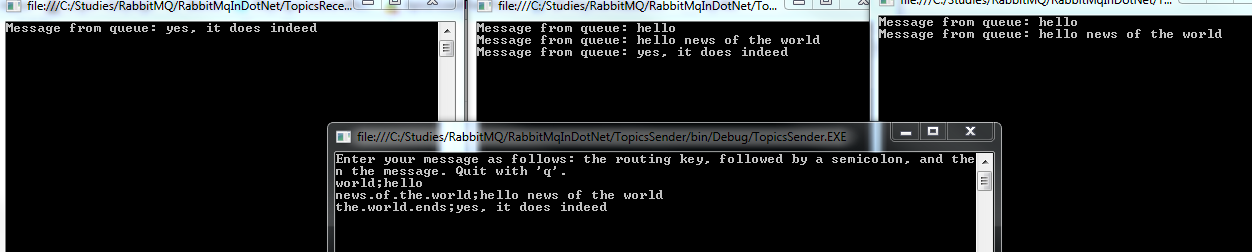
Start sending messages to RabbitMQ. Take care when typing the routing key and the message. Delimit the routing key sections with a ‘.’:

Topics MEP console

Explanation:

  • ‘world’: received by receiver 2 and 3 as the topic routing keys #.world and #.world.# match it. Topic key *.world.* is no match as the ‘*’ replaces one word
  • ‘news.of.the.world’: same as above
  • ‘the.world.ends’: matches receiver 1 and 2, but not 3 as there’s a word after ‘world.’ in the routing key

It can be a bit confusing with the topic keys and matches at first but the Topics pattern is not much different from the routing one.

Read the next part of this series here.

View the list of posts on Messaging here.

Deferred execution in parallel LINQ in .NET C#

If you are familiar with LINQ then you are probably aware of the notion of deferred execution: queries are not carried out until they are needed. This is not different in parallel LINQ either. Let’s see an example:

Set up a data source:

int[] integerArray = new int[100];
for (int i = 0; i < integerArray.Length; i++)
{
	integerArray[i] = i;
}

Define a parallel query:

IEnumerable<double> results =
	integerArray.AsParallel().Select(item =>
	{
		return Math.Sqrt(item);
	});

The query has not been carried out at this point. It is carried out when the following foreach loop starts:

double sum = 0;
foreach (double result in results)
{
	sum += result;
}
Console.WriteLine("Total {0}", sum);

You can force query execution with the same extension methods as in “normal” LINQ, such as ToList, ToArray etc.:

IEnumerable<double> results =
	integerArray.AsParallel().Select(item =>
	{
		return Math.Sqrt(item);
	}).ToList();

In this case the query is executed as soon as it has been defined.

View the list of posts on the Task Parallel Library here.

Handling exceptions in parallel LINQ in .NET C#

We saw in this and this post how to handle exceptions that Tasks throw. It is not much different in parallel LINQ: the exception will be wrapped in an AggregateException.

The exception will be throw when the query is executed. So defining a parallel query will not throw an exception even if you explicitly throw one within the query. If you force the execution of the query with extension methods such as ToList, ToArray, ForAll etc., then the exception will be thrown immediately. Let’s see an example.

Define the data source:

int[] integerArray = new int[100];
for (int i = 0; i < integerArray.Length; i++)
{
	integerArray[i] = i;
}

Define the query:

IEnumerable<double> query =
	integerArray.AsParallel()
	.Select(item =>
	{
		if (item == 50)
		{
			throw new Exception();
		}
		return Math.Sqrt(item);
	});

Go through the results and handle the exception:

try
{
	foreach (double item in query)
	{
		Console.WriteLine("Result {0}", item);
	}
}
catch (AggregateException aggregateException)
{
	aggregateException.Handle(exception =>
	{
		Console.WriteLine("Handled exception of type: {0}",
			exception.GetType());
		return true;
	});
}

Run the code with Crtl+F5. You’ll see that the exception is thrown when the items are processed and then it’s handled. Items that were processed when the exception was thrown will complete so don’t assume that the parallel loop is interrupted at that moment.

View the list of posts on the Task Parallel Library here.

Messaging with RabbitMQ and .NET C# part 3: message exchange patterns

Introduction

In this part of the series we’ll look at 4 basic message exchange patterns (MEP):

  • One way
  • Worker queues
  • Publish/Subscribe
  • Remote Procedure Call (RPC)

Most of the posts on RabbitMQ on this blog are based on the work of RabbitMQ guru Michael Stephenson.

For the demos you can start a new Visual Studio solution or re-use the one we’ve been working on so that you have all code references in one place.

A general note: we’ll write a lot of example code in this post. We’ll be concentrating on writing code that works and will not follow any software design principles such as SOLID or DRY. That would only slow us down in a large topic like this. Use the link provided to improve the library as you wish.

One way messaging

This is the simplest MEP: a message is sent to the broker which is then processed by the receiver.

Open the RabbitMQ management UI at http://localhost:15672/ and have it ready throughout the demo. Fire up Visual Studio and either open the same solution as before or create a new blank one. Add a C# class library called RabbitMqService. Add the NuGet RabbitMQ package to it as we did in the first part of this series. Add new class called AmqpMessagingService. Add the following private fields:

private string _hostName = "localhost";
private string _userName = "guest";
private string _password = "guest";
private string _exchangeName = "";
private string _oneWayMessageQueueName = "OneWayMessageQueue";
private bool _durable = true;

Add the following method to create a connection to the RabbitMQ server:

public IConnection GetRabbitMqConnection()
{
	ConnectionFactory connectionFactory = new ConnectionFactory();
	connectionFactory.HostName = _hostName;
	connectionFactory.UserName = _userName;
	connectionFactory.Password = _password;

	return connectionFactory.CreateConnection();
}

This method will set up the queue we’ll use for the one way message demo:

public void SetUpQueueForOneWayMessageDemo(IModel model)
{
	model.QueueDeclare(_oneWayMessageQueueName, _durable, false, false, null);
}

Next add a new Console application to the solution called OneWayMessageSender. Add the RabbitMQ NuGet package there as well and also add a reference to the RabbitMqService library. Insert the following code to Main and run the Sender app:

AmqpMessagingService messagingService = new AmqpMessagingService();
IConnection connection = messagingService.GetRabbitMqConnection();
IModel model = connection.CreateModel();
messagingService.SetUpQueueForOneWayMessageDemo(model);

Check in the RabbitMQ console that the queue called “OneWayMessageQueue” has been set up. Comment out the call to…

messagingService.SetUpQueueForOneWayMessageDemo(model);

Add the following code to send a single message to the queue in AmqpMessagingService.cs:

public void SendOneWayMessage(string message, IModel model)
{
	IBasicProperties basicProperties = model.CreateBasicProperties();
	basicProperties.SetPersistent(_durable);
	byte[] messageBytes = Encoding.UTF8.GetBytes(message);
	model.BasicPublish(_exchangeName, _oneWayMessageQueueName, basicProperties, messageBytes);
}

This code should be familiar from the previous part. Add the following method to Program.cs in the Sender application:

private static void RunOneWayMessageDemo(IModel model, AmqpMessagingService messagingService)
{
	Console.WriteLine("Enter your message and press Enter. Quit with 'q'.");
	while (true)
	{
		string message = Console.ReadLine();
		if (message.ToLower() == "q") break;

		messagingService.SendOneWayMessage(message, model);
	}
}

We send the message entered by the Sender to the appropriate queue.

Add a call to this method in Main:

RunOneWayMessageDemo(model, messagingService);

Console.ReadKey();

Create another Console application called OneWayMessageReceiver to the solution. Add the NuGet RabbitMQ package to it. Add a project reference to RabbitMqService. Insert the following code to Main:

AmqpMessagingService messagingService = new AmqpMessagingService();
IConnection connection = messagingService.GetRabbitMqConnection();
IModel model = connection.CreateModel();
messagingService.ReceiveOneWayMessages(model);

The first three lines of code should be familiar. ReceiveOneWayMessages has the following implementation in AmqpMessagingService:

public void ReceiveOneWayMessages(IModel model)
{
	model.BasicQos(0, 1, false); //basic quality of service
	QueueingBasicConsumer consumer = new QueueingBasicConsumer(model);
	model.BasicConsume(_oneWayMessageQueueName, false, consumer);
	while (true)
	{
		BasicDeliverEventArgs deliveryArguments = consumer.Queue.Dequeue() as BasicDeliverEventArgs;
		String message = Encoding.UTF8.GetString(deliveryArguments.Body);
		Console.WriteLine("Message received: {0}", message);
		model.BasicAck(deliveryArguments.DeliveryTag, false);
	}
}

BasicQos means basic quality of service. The parameters mean that we require one message at a time and we don’t want to process any additional messages until this one has been processed. You can use these parameters to receive messages in batches.

QueueingBasicConsumer is built into RabbitMQ and is used to consume messages from a specified queue. We use the IModel’s BasicConsume method to consume messages and specify the queue name and the consumer. With ‘false’ we also indicate that we don’t want to auto-acknowledge the messages. Then in the loop we constantly pull message from the queue and acknowledge them with BasicAck. The Queue.Dequeue() method will block the thread until a message has been delivered into the queue. We extract the message byte array from the BasicDeliverEventArgs object. The acknowledgement will release the message from the queue and will allow us to receive the next message.

Let’s see if this works. Set the Receiver as the start up project and start the application. The Receiver app will start. Then in VS right-click the Sender application, click Debug, Start new instance. Enter a message in the Sender windows and press Enter. If everything works fine then the message should show up in the Receiver window:

One way message in console

Send a couple more messages to confirm that the setup works. Set a breakpoint within the while-loop of ReceiveOneWayMessages. You’ll see that execution will stop at…

BasicDeliverEventArgs deliveryArguments = consumer.Queue.Dequeue() as BasicDeliverEventArgs;

…and will only continue if there’s a message in the queue. In other words the loop won’t just continue asking for new data all the time.

Worker queues

In this MEP a message is sent by the sender. There will be many listeners waiting for messages from the same queue. However, those listeners compete to receive the message and only one of them will receive it. The purpose is that if an application is expecting to receive a large load of messages then it can create different threads/processes to process those messages. The benefit is better scalability. For the demo we’ll set up a sender and two receivers.

Add the following private field to AmqpMessagingService:

private string _workerQueueDemoQueueName = "WorkerQueueDemoQueue";

…and the following method to create the queue for this sample:

public void SetUpQueueForWorkerQueueDemo(IModel model)
{
	model.QueueDeclare(_workerQueueDemoQueueName, _durable, false, false, null);
}

Add a new console application to the solution called WorkerQueueSender. Add the RabbitMQ NuGet package and a reference to the RabbitMqService library. Insert the following code in Main to set up the queue:

AmqpMessagingService messagingService = new AmqpMessagingService();
IConnection connection = messagingService.GetRabbitMqConnection();
IModel model = connection.CreateModel();
messagingService.SetUpQueueForWorkerQueueDemo(model);

Set WorkerQueueSender as the startup project and run the application. Check the RabbitMQ UI that the queue has been set up. Comment out the call to SetUpQueueForWorkerQueueDemo in Main.

Add the following method in AmqpMessagingService:

public void SendMessageToWorkerQueue(string message, IModel model)
{
	IBasicProperties basicProperties = model.CreateBasicProperties();
	basicProperties.SetPersistent(_durable);
	byte[] messageBytes = Encoding.UTF8.GetBytes(message);
	model.BasicPublish(_exchangeName, _workerQueueDemoQueueName, basicProperties, messageBytes);
}

…and the one below to receive messages from the worker queue:

public void ReceiveWorkerQueueMessages(IModel model)
{
	model.BasicQos(0, 1, false); //basic quality of service
	QueueingBasicConsumer consumer = new QueueingBasicConsumer(model);
	model.BasicConsume(_workerQueueDemoQueueName, false, consumer);
	while (true)
	{
		BasicDeliverEventArgs deliveryArguments = consumer.Queue.Dequeue() as BasicDeliverEventArgs;
		String message = Encoding.UTF8.GetString(deliveryArguments.Body);
		Console.WriteLine("Message received: {0}", message);
		model.BasicAck(deliveryArguments.DeliveryTag, false);
	}
}

It is identical to ReceiveOneWayMessages except for the queue name.

Back in WorkerQueueSender.Program.cs add the following method and add a call to it from Main:

private static void RunWorkerQueueMessageDemo(IModel model, AmqpMessagingService messagingService)
{
	Console.WriteLine("Enter your message and press Enter. Quit with 'q'.");
	while (true)
	{
		string message = Console.ReadLine();
		if (message.ToLower() == "q") break;
		messagingService.SendMessageToWorkerQueue(message, model);
	}
}

As you see it is identical to what we had in the previous demo. We’ll create two Receivers and they will be identical to the receiver we had in the previous demo. Add two new Console apps: WorkerQueueReceiverOne and WorkerQueueReceiverTwo. In both projects do the following:

  • Add RabbitMQ package through NuGet
  • Add a library reference to RabbitMqService
  • Add the following code to Program.cs.Main:
AmqpMessagingService messagingService = new AmqpMessagingService();
IConnection connection = messagingService.GetRabbitMqConnection();
IModel model = connection.CreateModel();
messagingService.ReceiveWorkerQueueMessages(model);

Follow these steps to start the demo:

  1. Set WorkerQueueSender as the startup project
  2. Start the application
  3. Right-click WorkerQueueReceiverOne, Debug, Start new instance
  4. Do the same for WorkerQueueReceiverTwo

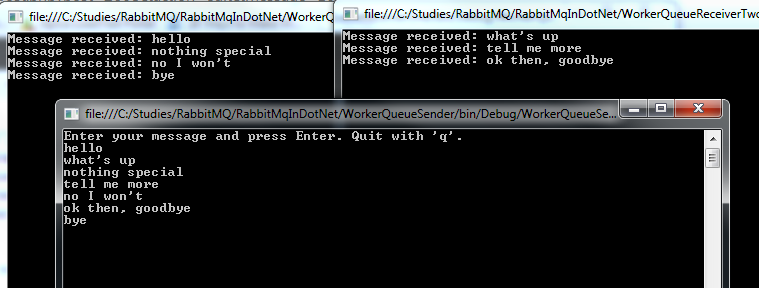
You should have 3 console windows up and running on your screen. Start sending messages in the Sender window. You should see that messages will alternate between receiver one and two:
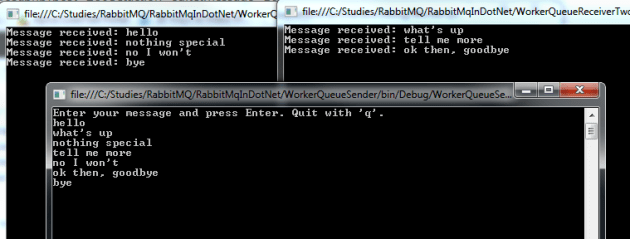
Worker queue console

You should never see that the same message is delivered to both receivers.

The Worker Queue MEP can be implemented with very little extra effort compared to the One Way Message MEP. This MEP helps you create a horizontally scalable server where multiple receivers are set up to collect the incoming messages.

Publish/Subscribe

In this MEP a message is sent to an exchange and the exchange distributes the message to all queues bound to it. Each queue will have its listener to process the message. If you recall the different exchange types then this sounds like the Fan-out type. We’ll set up a dedicated exchange for this, i.e. not use the default one in RabbitMQ.

Enter the following private fields in AmqpMessagingService.cs:

private string _publishSubscribeExchangeName = "PublishSubscribeExchange";
private string _publishSubscribeQueueOne = "PublishSubscribeQueueOne";
private string _publishSubscribeQueueTwo = "PublishSubscribeQueueTwo";

…and the following method where we set up the exchange, 2 queues and bind both queues to the exchange:

public void SetUpExchangeAndQueuesForDemo(IModel model)
{
	model.ExchangeDeclare(_publishSubscribeExchangeName, ExchangeType.Fanout, true);
	model.QueueDeclare(_publishSubscribeQueueOne, true, false, false, null);
	model.QueueDeclare(_publishSubscribeQueueTwo, true, false, false, null);
	model.QueueBind(_publishSubscribeQueueOne, _publishSubscribeExchangeName, "");
	model.QueueBind(_publishSubscribeQueueTwo, _publishSubscribeExchangeName, "");
}

Consult the first part in this series if don’t recall what these methods do.

Add a new Console project to the solution called PublishSubscribeSender. Perform the usual actions:

  • Add RabbitMQ via NuGet
  • Add a reference to RabbitMqService

In Main insert the following code to set up the necessary infrastructure:

static void Main(string[] args)
{
	AmqpMessagingService messagingService = new AmqpMessagingService();
	IConnection connection = messagingService.GetRabbitMqConnection();
	IModel model = connection.CreateModel();
	messagingService.SetUpExchangeAndQueuesForDemo(model);
}

Set PublishSubscribeSender as the startup application and then run it. Check in the RabbitMQ UI whether the exchange and the two queues have been created and if the bindings are OK. Then comment out the call to messagingService.SetUpExchangeAndQueuesForDemo. Add the following method to start sending messages:

private static void RunPublishSubscribeMessageDemo(IModel model, AmqpMessagingService messagingService)
{
	Console.WriteLine("Enter your message and press Enter. Quit with 'q'.");
	while (true)
	{
		string message = Console.ReadLine();
		if (message.ToLower() == "q") break;

		messagingService.SendMessageToPublishSubscribeQueues(message, model);
	}
}

As you see it’s not much different from what we had in the previous demos. SendMessageToPublishSubscribeQueues looks like this in AmqpMessagingService:

public void SendMessageToPublishSubscribeQueue(string message, IModel model)
{
	IBasicProperties basicProperties = model.CreateBasicProperties();
	basicProperties.SetPersistent(_durable);
	byte[] messageBytes = Encoding.UTF8.GetBytes(message);
	model.BasicPublish(_publishSubscribeExchangeName, "", basicProperties, messageBytes);
}

We’re sending the message to the designated exchange with no routing key specified.

Add two new Console applications: PublishSubscribeReceiverOne and PublishSubscribeReceiverTwo. Apply the following to both:

  • Add RabbitMQ via NuGet
  • Add a reference to RabbitMqService

In PublishSubscribeReceiverOne.Program.cs.Main add the following code:

AmqpMessagingService messagingService = new AmqpMessagingService();
IConnection connection = messagingService.GetRabbitMqConnection();
IModel model = connection.CreateModel();
messagingService.ReceivePublishSubscribeMessageReceiverOne(model);

In PublishSubscribeReceiverTwo.Program.cs.Main add the following code:

AmqpMessagingService messagingService = new AmqpMessagingService();
IConnection connection = messagingService.GetRabbitMqConnection();
IModel model = connection.CreateModel();
messagingService.ReceivePublishSubscribeMessageReceiverTwo(model);

…where ReceivePublishSubscribeMessageReceiverOne and ReceivePublishSubscribeMessageReceiverTwo look like this in AmqpMessagingService:

public void ReceivePublishSubscribeMessageReceiverOne(IModel model)
{
	model.BasicQos(0, 1, false);
	Subscription subscription = new Subscription(model, _publishSubscribeQueueOne, false);
	while (true)
	{
		BasicDeliverEventArgs deliveryArguments = subscription.Next();
		String message = Encoding.UTF8.GetString(deliveryArguments.Body);
		Console.WriteLine("Message from queue: {0}", message);
		subscription.Ack(deliveryArguments);
	}
}

public void ReceivePublishSubscribeMessageReceiverTwo(IModel model)
{
	model.BasicQos(0, 1, false);
	Subscription subscription = new Subscription(model, _publishSubscribeQueueTwo, false);
	while (true)
	{
		BasicDeliverEventArgs deliveryArguments = subscription.Next();
		String message = Encoding.UTF8.GetString(deliveryArguments.Body);
		Console.WriteLine("Message from queue: {0}", message);
		subscription.Ack(deliveryArguments);
	}
}

As you see there’s not much difference compared to how the Receiver extracted the messages before. The subscription model is represented by the Subscription object in RabbitMQ .NET. The BasicDeliverEventArgs object is returned by the Next() method of the subscription. We then show the message and acknowledge it.

To run this demo:

  1. Run PublishSubscribeSender
  2. Start a new instance of PublishSubscribeReceiverOne the way we did above with WorkerQueueReceiverOne
  3. Start a new instance of PublishSubscribeReceiverTwo the way we did above with WorkerQueueReceiverTwo
  4. You should have three black console screens up and running

Start sending messages on the Sender window. The message should appear on both receivers:

Publish/message MEP console

The receivers are listening on two different queues hence they are not competing with each other like in the Worker Queue MEP.

Remote Procedure Call (RPC)

RPC is slightly different from the above three MEPs in that there’s a response queue involved. The sender will first start listening on a response queue before sending any message. It then sends a message to a destination queue via the default exchange where the message includes a property indicating the response queue. The response queue will be dynamically created by the sender. The receiver processes the message and responds using the response queue extracted from the message. The sender then processes the response.

Add the following method to AmqpMessagingService.cs that sets up the queue for this demo:

public void SetUpQueueForRpcDemo(IModel model)
{
	model.QueueDeclare(_rpcQueueName, _durable, false, false, null);
}

…where _rpcQueueName is a new private field:

private string _rpcQueueName = "RpcQueue";

Add a new Console app called RpcSender. Add the usual references: RabbitMQ NuGet, RabbitMqService. Insert the following code to Main to set up the queue:

AmqpMessagingService messagingService = new AmqpMessagingService();
IConnection connection = messagingService.GetRabbitMqConnection();
IModel model = connection.CreateModel();
messagingService.SetUpQueueForRpcDemo(model);

Set RpcSender as the startup project and run the application. Check in the RabbitMQ management UI that the queue has been set up. Comment out the call to messagingService.SetUpQueueForRpcDemo(model). This queue will be used as the default queue by the sender to send messages. The response queue will be dynamically set up.

Insert the following method to RpcSender.Program.cs to start sending messages:

private static void RunRpcMessageDemo(IModel model, AmqpMessagingService messagingService)
{
	Console.WriteLine("Enter your message and press Enter. Quit with 'q'.");
	while (true)
	{
		string message = Console.ReadLine();
		if (message.ToLower() == "q") break;
		String response = messagingService.SendRpcMessageToQueue(message, model, TimeSpan.FromMinutes(1));
		Console.WriteLine("Response: {0}", response);
	}
}

This setup is very similar to what we’ve seen up to this point. Note, however, that the SendRpcMessageToQueue method returns a string, which will be the response from the Receiver. We also specify a timeout parameter for the response to arrive.

Declare a new method in AmqpMessagingService:

public string SendRpcMessageToQueue(string message, IModel model, TimeSpan timeout)
{

}

The sender in this case will also need to listen to messages so it will need a QueueingBasicConsumer object we saw before. Also, the response queue will be set up dynamically. The QueueDeclare() method without any parameter will create a temporary response queue. The name of the temporary queue will be randomly generated, e.g. “amq.gen-3tj4jtzMauwolYqc7CUj9g”. While you’re running the demo in a bit you can check the list of queues in the RabbitMQ management UI. The temporary queue will be available as long as the Sender is running. After that it will be removed automatically. Insert the following code to SendRpcMessageToQueue:

if (string.IsNullOrEmpty(_responseQueue))
{
	_responseQueue = model.QueueDeclare().QueueName;
}

if (_rpcConsumer == null)
{
	_rpcConsumer = new QueueingBasicConsumer(model);
	model.BasicConsume(_responseQueue, true, _rpcConsumer);
}

…where _rpcConsumer and _responseQueue are private variables:

private QueueingBasicConsumer _rpcConsumer;
private string _responseQueue;

The sender will listen on that temporary response queue. Append the following code to SendRpcMessageToQueue:

string correlationId = Guid.NewGuid().ToString();

IBasicProperties basicProperties = model.CreateBasicProperties();
basicProperties.ReplyTo = _responseQueue;
basicProperties.CorrelationId = correlationId;

byte[] messageBytes = Encoding.UTF8.GetBytes(message);
model.BasicPublish("", _rpcQueueName, basicProperties, messageBytes);

DateTime timeoutDate = DateTime.UtcNow + timeout;
while (DateTime.UtcNow <= timeoutDate)
{
	BasicDeliverEventArgs deliveryArguments = (BasicDeliverEventArgs)_rpcConsumer.Queue.Dequeue();
	if (deliveryArguments.BasicProperties != null
	&& deliveryArguments.BasicProperties.CorrelationId == correlationId)
	{
		string response = Encoding.UTF8.GetString(deliveryArguments.Body);
        	return response;
	}
}
throw new TimeoutException("No response before the timeout period.");

We create a message correlation ID to be able to match the sender’s message to the response from the receiver. If the receiver is responding to another message then it will be ignored. We then set up the IBasicProperties object and specify the temporary queue name to reply to and the correlation ID. Next we publish the message using BasicPublish like before.

Then we enter something that only receivers have done up to now: listen. The sender will listen for the duration of the timeout date. When a response comes then the correlation IDs must be compared. If there’s a match then the response is returned. Otherwise it’s ignored. If there’s no response before the timeout then an exception is thrown.

Let’s look at the receiver now. Add a new Console application called RpcReceiver, add RabbitMQ and RabbitMqService to the reference list. Insert the following code to Main:

AmqpMessagingService messagingService = new AmqpMessagingService();
IConnection connection = messagingService.GetRabbitMqConnection();
IModel model = connection.CreateModel();
messagingService.ReceiveRpcMessage(model);

…where ReceiveRpcMessage in AmqpMessagingService looks like this in AmqpMessagingService:

public void ReceiveRpcMessage(IModel model)
{
	model.BasicQos(0, 1, false);
	QueueingBasicConsumer consumer = new QueueingBasicConsumer(model);
	model.BasicConsume(_rpcQueueName, false, consumer);

	while (true)
	{
		BasicDeliverEventArgs deliveryArguments = consumer.Queue.Dequeue() as BasicDeliverEventArgs;
		string message = Encoding.UTF8.GetString(deliveryArguments.Body);
		Console.WriteLine("Message: {0} ; {1}", message, " Enter your response: ");
		string response = Console.ReadLine();
		IBasicProperties replyBasicProperties = model.CreateBasicProperties();
		replyBasicProperties.CorrelationId = deliveryArguments.BasicProperties.CorrelationId;
		byte[] responseBytes = Encoding.UTF8.GetBytes(response);
		model.BasicPublish("", deliveryArguments.BasicProperties.ReplyTo, replyBasicProperties, responseBytes);
                model.BasicAck(deliveryArguments.DeliveryTag, false);
	}
}

Most of this code looks familiar by now I hope. We extend the “normal” receiving logic with the ability to send a response. We extract the correlation ID from the sender’s message so that our response will have the same ID. We send the response to the ReplyTo queue which was also extracted from the sender’s message. We finally acknowledge the reception of the message from the sender.

Let’s run this:

  1. Make sure that RpcSender is the startup project and run the application
  2. Start RpcReceiver the same way as before (Run new instance)
  3. You should have 2 console screens up and running

Send a message from the sender to the receiver. Then send a response. It looks like a very primitive chat application:

RPC console

I hope you agree that it wasn’t too difficult to implement these 4 basic message exchange patterns.

Read the next part in this series here.

View the list of posts on Messaging here.

Cancelling a Task with a composite cancellation token in .NET C#

You cannot directly interrupt a Task in .NET while it’s running. You can do it indirectly through the CancellationTokenSource object. This object has a CancellationToken property which must be passed into the constructor of the Task:

CancellationTokenSource cancellationTokenSource	= new CancellationTokenSource();
CancellationToken cancellationToken = cancellationTokenSource.Token;

You can create a composite token that consists of several other tokens. The Task will then be cancelled if any of the underlying tokens has been cancelled. Here’s how you create a composite token:

CancellationTokenSource cancellationTokenSourceOne = new CancellationTokenSource();
CancellationTokenSource cancellationTokenSourceTwo = new CancellationTokenSource();
CancellationTokenSource cancellationTokenSourceThree = new CancellationTokenSource();
CancellationTokenSource compositeTokenSource = CancellationTokenSource.CreateLinkedTokenSource(cancellationTokenSourceOne.Token, cancellationTokenSourceTwo.Token, cancellationTokenSourceThree.Token);

Use this composite in the constructor of the Task:

Task task = Task.Factory.StartNew(() =>
{
	for (int i = 0; i < 100000; i++)
	{
		if (token.IsCancellationRequested)
	        {
		       Console.WriteLine("Task cancellation requested");
		       throw new OperationCanceledException(token);
	        }
        	else
        	{
         		Console.WriteLine(i);
        	}	 
	}
}, compositeTokenSource.Token);

You can cancel the task by calling the Cancel() method of any of the tokens in the composite:


cancellationTokenSourceTwo.Cancel();

Note that this method only signals the wish to cancel a task. .NET will not actively interrupt the task, you’ll have to monitor the status through the IsCancellationRequested property. It is your responsibility to stop the task. In this example we throw an OperationCanceledException which is a must in order to correctly acknowledge the cancellation. If you forget this step then the task status will not be set correctly. Once the task has been requested the stop it cannot be restarted.

If that’s all you want to do, i.e. throw an OperationCanceledException, then there’s a shorter version:

cancellationToken.ThrowIfCancellationRequested();

This will perform the cancellation check and throw the exception in one step. The loop can thus be simplified as follows:

Task task = Task.Factory.StartNew(() =>
{
	for (int i = 0; i < 100000; i++)
	{
		//shorthand
        	compositeTokenSource.ThrowIfCancellationRequested();
		Console.WriteLine(i);
	}
}, compositeTokenSource);

View the list of posts on the Task Parallel Library here.

Messaging with RabbitMQ and .NET C# part 2: persistence

Introduction

In the previous part of this tutorial we looked at the basics of messaging. We also set up RabbitMQ on Windows and looked at a couple of C# code examples.

We’ll continue where we left off so have the RabbitMQ manager UI and the sample .NET console app ready.

Most of the posts on RabbitMQ on this blog are based on the work of RabbitMQ guru Michael Stephenson.

Sending a message in code

Let’s first put the code that creates the IConnection into another class. Add a new class called RabbitMqService:

public class RabbitMqService
{
	public IConnection GetRabbitMqConnection()
	{
		ConnectionFactory connectionFactory = new ConnectionFactory();
		connectionFactory.HostName = "localhost";
		connectionFactory.UserName = "guest";
		connectionFactory.Password = "guest";

		return connectionFactory.CreateConnection();
	}
}

Put the following lines of code…

model.QueueDeclare("queueFromVisualStudio", true, false, false, null);
model.ExchangeDeclare("exchangeFromVisualStudio", ExchangeType.Topic);
model.QueueBind("queueFromVisualStudio", "exchangeFromVisualStudio", "superstars");

…into a private method for later reference…:

private static void SetupInitialTopicQueue(IModel model)
{
	model.QueueDeclare("queueFromVisualStudio", true, false, false, null);
	model.ExchangeDeclare("exchangeFromVisualStudio", ExchangeType.Topic);
	model.QueueBind("queueFromVisualStudio", "exchangeFromVisualStudio", "superstars");
}

…so now we have the following code in Program.cs:

static void Main(string[] args)
{
	RabbitMqService rabbitMqService = new RabbitMqService();
	IConnection connection = rabbitMqService.GetRabbitMqConnection();
	IModel model = connection.CreateModel();
}

private static void SetupInitialTopicQueue(IModel model)
{
	model.QueueDeclare("queueFromVisualStudio", true, false, false, null);
	model.ExchangeDeclare("exchangeFromVisualStudio", ExchangeType.Topic);
	model.QueueBind("queueFromVisualStudio", "exchangeFromVisualStudio", "superstars");
}

In Main we’ll create some properties and we’ll set the message persistence to non-persistent – see below for details:

IBasicProperties basicProperties = model.CreateBasicProperties();
basicProperties.SetPersistent(false);

We need to send our message in byte array format:

byte[] payload = Encoding.UTF8.GetBytes("This is a message from Visual Studio");

We then construct the address for the exchange we created in the previous part:

PublicationAddress address = new PublicationAddress(ExchangeType.Topic, "exchangeFromVisualStudio", "superstars");

Finally we send the message:

model.BasicPublish(address, basicProperties, payload);

Run the application. Go to the RabbitMQ management UI, navigate to queueFromVisualStudio and you should be able to extract the message:

Message from Visual Studio to queue

Queue and exchange persistence

There are two types of queues and exchanges from a persistence point of view:

  • Durable: messages are saved to disk so they are available even after a server restart. There’s some overhead incurred while reading and saving messages
  • Non-durable: messages are persisted in memory. They disappear after a server restart but offer a faster service

Keep these advantages and disadvantages in mind when you’re deciding which persistence strategy to go for. Recall that we set persistence to non-durable for the message in the previous section. For a quick server restart open the Services console and restart the Windows service called RabbitMQ:

RabbitMQ restart

Go back to the RabbitMQ managenment UI on http://localhost:15672/ If you were logged on before then you have probably been logged out. Navigate to queueFromVisualStudio, check the available messages and you’ll see that there’s none. The queue is still available as we set it to durable in code:

model.QueueDeclare("queueFromVisualStudio", true, false, false, null);

The second parameter ‘true’ means that the queue itself is durable. Had we set this to false, we would have lost the queue as well in the server restart. The exchange “exchangeFromVisualStudio” itself was non-durable so it was lost. Remember the following exchange creation code:

model.ExchangeDeclare("exchangeFromVisualStudio", ExchangeType.Topic);

We haven’t specified the durable property so it was set to false by default. The ExchangeDeclare method has an overload which allows us to declare a durable exchange:

model.ExchangeDeclare("exchangeFromVisualStudio", ExchangeType.Topic, true);

Also, recall that we created an exchange called newexchange through the UI in the previous post and it was set to durable in the available options. That’s the reason why it is still available in the list of exchanges but exchangeFromVisualStudio isn’t:

Durable exchange available

Add a private method to set up durable components:

private static void SetupDurableElements(IModel model)
{
	model.QueueDeclare("DurableQueue", true, false, false, null);
	model.ExchangeDeclare("DurableExchange", ExchangeType.Topic, true);
	model.QueueBind("DurableQueue", "DurableExchange", "durable");
}

Call this method from Main after…

IModel model = connection.CreateModel();

Comment out the rest of the code in Main or put it in another method for later reference. Now we have a durable exchange and a durable queue. Let’s send a message to it:

private static void SendDurableMessageToDurableQueue(IModel model)
{
        IBasicProperties basicProperties = model.CreateBasicProperties();
	basicProperties.SetPersistent(true);
	byte[] payload = Encoding.UTF8.GetBytes("This is a persistent message from Visual Studio");
	PublicationAddress address = new PublicationAddress(ExchangeType.Topic, "DurableExchange", "durable");

	model.BasicPublish(address, basicProperties, payload);
}

Call this method from Main and then check in the management UI that the message has been delivered. Restart the RabbitMQ server and the message should still be available:

Durable message still available

Therefore we can set the persistence property on three levels:

  • Queue
  • Exchange
  • Message

Before I forget: you can specify an empty string as the exchange name as follows.

model.BasicPublish("", "key", basicProperties, payload);

The empty string will be translated into the default exchange:

Default exchange

In the next part of the series we’ll be looking at messaging patterns.

View the list of posts on Messaging here.

Elliot Balynn's Blog

A directory of wonderful thoughts

Software Engineering

Web development

Disparate Opinions

Various tidbits

chsakell's Blog

WEB APPLICATION DEVELOPMENT TUTORIALS WITH OPEN-SOURCE PROJECTS

Once Upon a Camayoc

ARCHIVED: Bite-size insight on Cyber Security for the not too technical.