Converting a sequence to a dictionary using the ToDictionary LINQ operator

Say you have a sequence of objects that you’d like to convert into a Dictionary for efficient access by key. Ideally the objects have some kind of “natural” key for the dictionary such as an ID:

public class Singer
{
	public int Id { get; set; }
	public string FirstName { get; set; }
	public string LastName { get; set; }
}

IEnumerable<Singer> singers = new List<Singer>() 
		{
			new Singer(){Id = 1, FirstName = "Freddie", LastName = "Mercury"} 
			, new Singer(){Id = 2, FirstName = "Elvis", LastName = "Presley"}
			, new Singer(){Id = 3, FirstName = "Chuck", LastName = "Berry"}
			, new Singer(){Id = 4, FirstName = "Ray", LastName = "Charles"}
			, new Singer(){Id = 5, FirstName = "David", LastName = "Bowie"}
		};

It’s easy to create a singers dictionary from this sequence:

Dictionary<int, Singer> singersDictionary = singers.ToDictionary(s => s.Id);
Console.WriteLine(singersDictionary[2].FirstName);

Basic ToDictionarty operator

You supply the key selector as the argument to the operator, which will be the key of the dictionary. The operator will throw an ArgumentException if you’re trying to add two objects with the same key. Example:

return new List<Singer>() 
		{
			new Singer(){Id = 1, FirstName = "Freddie", LastName = "Mercury"} 
			, new Singer(){Id = 1, FirstName = "Elvis", LastName = "Presley"}
			, new Singer(){Id = 3, FirstName = "Chuck", LastName = "Berry"}
			, new Singer(){Id = 4, FirstName = "Ray", LastName = "Charles"}
			, new Singer(){Id = 5, FirstName = "David", LastName = "Bowie"}
		};

There are two singers with id = 1 which will cause an exception when it’s Elvis’ turn to be inserted into the dictionary.

The ToDictionary operator has an overload which allows you to change the elements inserted into the dictionary. Say you’d like to have the id as the key but only the last name as the value. You can do like this:

Dictionary<int, string> singersDictionaryNames = 
        singers.ToDictionary(s => s.Id, si => string.Format("Last name: {0}", si.LastName));
Console.WriteLine(singersDictionaryNames[2]);

Overloaded ToDictionary operator

You can view all LINQ-related posts on this blog here.

Finding unique values using the LINQ Distinct operator

Extracting unique values from a sequence of objects in LINQ is very easy using the Distinct operator. It comes in two versions: one with a default equality comparer and another which lets you provide a custom comparer.

We’ll use the following collection for the first demo:

string[] bands = { "ACDC", "Queen", "Aerosmith", "Iron Maiden", "Megadeth", "Metallica", "Cream", "Oasis", "Abba", "Blur", "Chic", "Eurythmics", "Genesis", "INXS", "Midnight Oil", "Kent", "Madness", "Manic Street Preachers"
, "Noir Desir", "The Offspring", "Pink Floyd", "Rammstein", "Red Hot Chili Peppers", "Tears for Fears"
, "Deep Purple", "KISS"};

These are all unique values so let’s create some duplicates:

IEnumerable<string> bandsDuplicated = bands.Concat(bands);

The first prototype of Distinct will compare the string values using the standard default string comparer as all elements in the array are strings. The following bit of code will find the unique values and print them on the console:

IEnumerable<string> uniqueBands = bandsDuplicated.Distinct();
foreach (String unique in uniqueBands)
{
	Console.WriteLine(unique);
}

Distinct operator with default comparer

In case you have a sequence of custom objects then it’s a good idea to let the Distinct operator know how to define if two objects are equal. Consider the following object:

public class Singer
{
	public int Id { get; set; }
	public string FirstName { get; set; }
	public string LastName { get; set; }
}

…and the following collection:

IEnumerable<Singer> singers = new List<Singer>() 
			{
				new Singer(){Id = 1, FirstName = "Freddie", LastName = "Mercury"} 
				, new Singer(){Id = 2, FirstName = "Elvis", LastName = "Presley"}
				, new Singer(){Id = 3, FirstName = "Chuck", LastName = "Berry"}
				, new Singer(){Id = 4, FirstName = "Ray", LastName = "Charles"}
				, new Singer(){Id = 5, FirstName = "David", LastName = "Bowie"}
			};

The following comparer will compare the Singer objects by their IDs:

public class DefaultSingerComparer : IEqualityComparer<Singer>
{
	public bool Equals(Singer x, Singer y)
	{
		return x.Id == y.Id;
	}

	public int GetHashCode(Singer obj)
	{
		return obj.Id.GetHashCode();
	}
}

We create some duplicates:

IEnumerable<Singer> singersDuplicates = singers.Concat(singers);

…and then select the unique values:

IEnumerable<Singer> uniqueSingers = singersDuplicates.Distinct(new DefaultSingerComparer());
foreach (Singer singer in uniqueSingers)
{
	Console.WriteLine(singer.Id);
}

Distinct operator with custom comparer

You can view all LINQ-related posts on this blog here.

Introduction to forms based authentication in ASP.NET MVC5 Part 1

Introduction

ASP.NET MVC5 comes with a number of new elements regarding user management and security. When you create a new MVC 5 web app you’ll be able to choose between 4 default authentication types:

  • No authentication, i.e. anonymous users can access your site
  • Individual user accounts: the traditional way to log onto the site using a login form. The user store is backed by SQL identity tables. You can also enable some well known auth providers: Twitter, Google, Facebook and Microsoft where you don’t need to worry about the password
  • Organisational accounts: Active Directory Federation Services (ADFS), used within organisations that manage their users in ADFS, typically coupled with Single SignOn for the applications within the organisation. You can enable Azure-based ADFS as well
  • Windows auth: Windows Active Directory authentication for intranet apps. Your Windows login credentials will be used to access the internal applications of your company. This is somewhat like a stripped down version of the organisational accounts option

In this blog series we’ll look at the new identity features of MVC5.

Forms based authentication

Fire up Visual Studio 2013 and select the ASP.NET Web Application template in the New Project window. Give the project some name and click OK. A new window will open where you can select additional templates. Pick MVC. Press the ‘Change authentication’ button and make sure that ‘Individual user accounts’ is selected:

Individual user accounts option

Visual Studio will set up a forms-enabled MVC app for you without any extra effort. Run the web app and you’ll be directed to the default home page. You’ll see that it comes with the Register and Log in links:

Register and log in links in MVC 5 web app

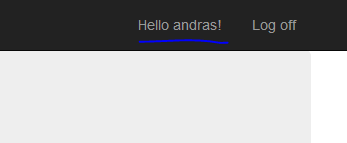
If you used Forms based auth in MVC 4 then this is of course no surprise to you. Click Register and create a user. If everything goes well you’ll be automatically logged in and you’ll see your username instead of “Register”:

User registered and logged in

You can click on “Hello (your name)” to manage save your password if you want. Click Log off and then log in again with your credentials to check if it works fine. It should.

The Layout view

The top menu of the MVC 5 template is controlled by _Layout.cshtml in the Views/Shared folder. Open that file. You’ll see the links for Home, About and Contact. Below those links you’ll have a partial view called _LoginPartial. _LoginPartial is located in the same folder. Open it and let’s see what it contains.

There’s an if-else statement which tweaks what the user sees based on the Request.IsAuthenticated property. This property is set by the framework depending on whether the current user has logged on or not.

The user name is extracted using the User.Identity.GetUserName() method. User is an IPrincipal object and represents the currently logged-on user. Identity is the IIdentity belonging to the user which contains a small set of information about the user such as the user name or the authentication type. User.Identity is also set by the framework just like with the IsAuthenticated property.

You can read the User object anywhere within the controllers and views, i.e. where a valid HTTP session is available. Open Controllers/HomeController.cs and add the following code to Index() just above the return statement:

string userName = User.Identity.Name;

Set a breakpoint within Index and run the application. You’ll see that the username can be easily extracted this way.

Restrict access

There’s little point in authenticating users if you don’t limit the access to certain parts of your website to authenticated users only.

Right-click the Controllers folder and select Add, Controller. In the Add Scaffold window select the topmost option, i.e. Empty. Call it CustomersController. Add the following two methods to the controller:

public string SecretName()
{
	return "This is the secret customer name.";
}

public string PublicName()
{
	return "This is the public customer name.";
}

The goal is to protect access to the SecretName action and only let anonymous users read the public name.

Run the application and log off if you’re still logged in. Then navigate to the above actions:

  • localhost:xxxx/Customers/publicname
  • localhost:xxxx/Customers/secretname

Not surprisingly you can access both methods without having to log in first.

If your only requirement is to restrict access to a controller action to authenticated users only then you can use the Authorize attribute like this:

[Authorize]
public string SecretName()
{
	return "This is the secret customer name.";
}

Re-run the app and navigate to the secretname action. You should see that you’re redirected to the login page. Log in and you’ll see the secret. Note the URL of the Login page: Account/Login. It is defined in a Katana component in Startup.Auth.cs in the App_Start folder:

app.UseCookieAuthentication(new CookieAuthenticationOptions
{
          AuthenticationType = DefaultAuthenticationTypes.ApplicationCookie,
          LoginPath = new PathString("/Account/Login")
});

If you don’t know what OWIN and Katana mean then you can start here.

The ReturnUrl query string in the URL will store which controller and action you’ve tried to access. It will be fed to the POST Login action of AccountController:

public async Task<ActionResult> Login(LoginViewModel model, string returnUrl)

Now log off and navigate to /Customers/publicname. It should still be available to anonymous users.

What if you want to restrict access to all actions within the controller? You can apply the Authorize attribute on the controller level:

[Authorize]
public class CustomersController : Controller

Run the app again and navigate to /Customers/publicname. It is now also a restricted site so you’ll be redirected to the login page.

You can override the controller level Authorize attribute by decorated the individual action(s) with the AllowAnonymous attribute:

[AllowAnonymous]
public string PublicName()
{
	return "This is the public customer name.";
}

Run the app and verify that /Customers/publicname is publicly available again.

The Authorize attribute accepts a couple of parameters to further refine the access filter. Examples:

[Authorize(Users="andras,admin")]
[Authorize(Roles="admin,poweruser")]

You can probably guess what they mean: allow users with specific user names – andras and admin – or only allow users who have either admin and power user role to access an action.

You can test this as follows. Add the following attribute to SecretName:

[Authorize(Users = "elvis,bob")]
public string SecretName()
{
	return "This is the secret customer name.";
}

Run the app and navigate to the secret name action. Log in with your user. You should see that you’re immediately redirected back to the Login page – unless you selected ‘elvis’ or ‘bob’ as the user name in the sign up process. In that case the great secret will be revealed to you.

We’ve now seen the basics of forms based authentication in MVC5. We’ll dig much deeper in the coming blog posts.

Read the next post in this series here.

You can view the list of posts on Security and Cryptography here.

Grouping elements in LINQ .NET using GroupBy and an EqualityComparer

The GroupBy operator has the same function as GROUP BY in SQL: group elements in a sequence by a common key. The GroupBy operator comes with 8 different signatures. Each returns a sequence consisting of objects that implement the IGrouping interface of type K – the key type – and T – the type of the objects in the sequence. IGrouping implements IEnumerable of T. So when we iterate through the result the we can first look at the outer sequence of keys and then the inner sequence of each object with that key.

The simplest version of GroupBy accepts a Func delegate of T and K, which acts as the key selector. It will compare the objects in the sequence using a default comparer. E.g. if you want to group the objects by their integer IDs then you can let the default comparer do its job. Another version of GroupBy lets you supply your own comparer to define a custom grouping or if the Key is an object where you want to define your own rules for equality.

We’ll need an example sequence which has an ID. In the posts on LINQ we often take the following collections for the demos:

IEnumerable<Singer> singers = new List<Singer>() 
	{
		new Singer(){Id = 1, FirstName = "Freddie", LastName = "Mercury"} 
		, new Singer(){Id = 2, FirstName = "Elvis", LastName = "Presley"}
		, new Singer(){Id = 3, FirstName = "Chuck", LastName = "Berry"}
		, new Singer(){Id = 4, FirstName = "Ray", LastName = "Charles"}
		, new Singer(){Id = 5, FirstName = "David", LastName = "Bowie"}
	};
IEnumerable<Concert> concerts = new List<Concert>()
	{
		new Concert(){SingerId = 1, ConcertCount = 53, Year = 1979}
		, new Concert(){SingerId = 1, ConcertCount = 74, Year = 1980}
		, new Concert(){SingerId = 1, ConcertCount = 38, Year = 1981}
		, new Concert(){SingerId = 2, ConcertCount = 43, Year = 1970}
		, new Concert(){SingerId = 2, ConcertCount = 64, Year = 1968}
		, new Concert(){SingerId = 3, ConcertCount = 32, Year = 1960}
		, new Concert(){SingerId = 3, ConcertCount = 51, Year = 1961}
		, new Concert(){SingerId = 3, ConcertCount = 95, Year = 1962}
		, new Concert(){SingerId = 4, ConcertCount = 42, Year = 1950}
		, new Concert(){SingerId = 4, ConcertCount = 12, Year = 1951}
		, new Concert(){SingerId = 5, ConcertCount = 53, Year = 1983}
	};

The singers collection won’t actually be needed for the code example, it simply shows the purpose of the concerts collection. Let’s imagine that our Singers collection includes both male and female singers and that ids below 3 are female singers and the others are all male singers. Our goal is to group the concerts based on gender using this information. We can have the following custom equality comparer:

public class SingerGenderComparer : IEqualityComparer<int>
{
	private int _femaleSingerIdLimit = 3;
		
	public bool Equals(int x, int y)
	{
		return IsPerformedByFemaleSinger(x) == IsPerformedByFemaleSinger(y);
	}

	public int GetHashCode(int obj)
	{
		return IsPerformedByFemaleSinger(obj) ? 1 : 2;
	}

	public bool IsPerformedByFemaleSinger(int singerId)
	{
		return singerId < _femaleSingerIdLimit;
	}
}

Here’s the grouping of the Concerts collection using the custom comparer:

SingerGenderComparer comparer = new SingerGenderComparer();

IEnumerable<IGrouping<int, Concert>> concertGroups = concerts.GroupBy(c => c.SingerId, comparer);
foreach (IGrouping<int, Concert> concertGroup in concertGroups)
{
	Console.WriteLine("Concerts of {0} singers: ", comparer.IsPerformedByFemaleSinger(concertGroup.Key) ? "female" : "male");
	foreach (Concert concert in concertGroup)
	{
		Console.WriteLine("Number of concerts: {0}, in the year of {1} by singer {2}.", concert.ConcertCount, concert.Year, concert.SingerId);
	}
}

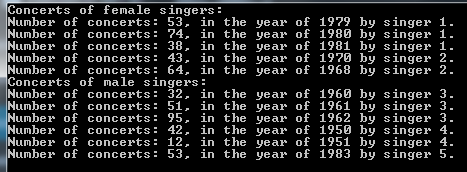
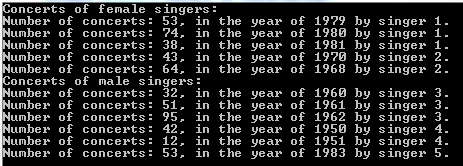
This yields the following output:

GroupBy output with custom comparer and default selector

You can define the type of object that will be selected from the base sequence using another version of GroupBy which allows you to provide a key selector:

IEnumerable<IGrouping<int, int>> concertGroupsFiltered = concerts.GroupBy(c => c.SingerId, c => c.ConcertCount, comparer);
foreach (IGrouping<int, int> concertGroup in concertGroupsFiltered)
{
	Console.WriteLine("Concerts of {0} singers: ", comparer.IsPerformedByFemaleSinger(concertGroup.Key) ? "female" : "male");
	foreach (int concertCount in concertGroup)
	{
		Console.WriteLine("Number of concerts: {0}.", concertCount);
	}
}

…which gives the following output:

GroupBy output with custom comparer and custom selector

You can view all LINQ-related posts on this blog here.

RabbitMQ in .NET C#: more complex error handling in the Receiver

Introduction

In the previous part on RabbitMQ .NET we looked at ways how to reject a message if there was an exception while handling the message on the Receiver’s side. The message could then be discarded or re-queued for a retry. However, the exception handling logic was very primitive in that the same message could potentially be thrown at the receiver infinitely causing a traffic jam in the messages.

This post builds upon the basics of RabbitMQ in .NET. If you are new to this topic you should check out all the previous posts listed on this page. I won’t provide any details on bits of code that we’ve gone through before.

Most of the posts on RabbitMQ on this blog are based on the work of RabbitMQ guru Michael Stephenson.

So we cannot just keep retrying forever. We can instead finally discard the message after a certain amount of retries or depending on what kind of exception was encountered.

The logic around retries must be implemented in the receiver as there’s no simple method in RabbitMQ .NET, like “BasicRetry”. Why should there be anyway? Retry strategies can be very diverse so it’s easier to let the receiver handle it.

The strategy here is to reject the message without re-queuing it. We’ll then create a new message based on the one that caused the exception and attach an integer value to it indicating the number of retries. Then depending on a maximum ceiling we either create yet another message for re-queuing or discard it altogether.

We’ll build on the demo we started on in the previous post referred to above so have it ready.

Demo

We’ll reuse the queue from the previous post which we called “BadMessageQueue”. We’ll also reuse the code in BadMessageSender as there’s no variation on the Sender side.

BadMessageReceiver will however handle the messages in a different way. Currently there’s a method called ReceiveBadMessages which is called upon from Main. Comment out that method call. Insert the following method in ReceiveBadMessages.Program.cs and call it from Main:

private static void ReceiveBadMessageExtended(IModel model)
{
	model.BasicQos(0, 1, false);
	QueueingBasicConsumer consumer = new QueueingBasicConsumer(model);
	model.BasicConsume(RabbitMqService.BadMessageBufferedQueue, false, consumer);
	string customRetryHeaderName = "number-of-retries";
	int maxNumberOfRetries = 3;
	while (true)
	{
		BasicDeliverEventArgs deliveryArguments = consumer.Queue.Dequeue() as BasicDeliverEventArgs;
		String message = Encoding.UTF8.GetString(deliveryArguments.Body);
		Console.WriteLine("Message from queue: {0}", message);
		Random random = new Random();
		int i = random.Next(0, 3);
		int retryCount = GetRetryCount(deliveryArguments.BasicProperties, customRetryHeaderName);
		if (i == 2) //no exception, accept message
		{
			Console.WriteLine("Message {0} accepted. Number of retries: {1}", message, retryCount);
			model.BasicAck(deliveryArguments.DeliveryTag, false);
		}
		else //simulate exception: accept message, but create copy and throw back
		{
			if (retryCount < maxNumberOfRetries)
			{
				Console.WriteLine("Message {0} has thrown an exception. Current number of retries: {1}", message, retryCount);
				IBasicProperties propertiesForCopy = model.CreateBasicProperties();
				IDictionary<string, object> headersCopy = CopyHeaders(deliveryArguments.BasicProperties);
				propertiesForCopy.Headers = headersCopy;
				propertiesForCopy.Headers[customRetryHeaderName] = ++retryCount;
				model.BasicPublish(deliveryArguments.Exchange, deliveryArguments.RoutingKey, propertiesForCopy, deliveryArguments.Body);
				model.BasicAck(deliveryArguments.DeliveryTag, false);
				Console.WriteLine("Message {0} thrown back at queue for retry. New retry count: {1}", message, retryCount);
			}
			else //must be rejected, cannot process
			{
				Console.WriteLine("Message {0} has reached the max number of retries. It will be rejected.", message);
				model.BasicReject(deliveryArguments.DeliveryTag, false);
			}
		}
	}
}

…where CopyHeaders and GetRetryCount look as follows:

private static IDictionary<string, object> CopyHeaders(IBasicProperties originalProperties)
{
	IDictionary<string, object> dict = new Dictionary<string, object>();
	IDictionary<string, object> headers = originalProperties.Headers;
	if (headers != null)
	{
		foreach (KeyValuePair<string, object> kvp in headers)
		{
			dict[kvp.Key] = kvp.Value;
		}
	}

	return dict;
}

private static int GetRetryCount(IBasicProperties messageProperties, string countHeader)
{
	IDictionary<string, object> headers = messageProperties.Headers;
	int count = 0;
	if (headers != null)
	{
		if (headers.ContainsKey(countHeader))
		{
			string countAsString = Convert.ToString( headers[countHeader]);
			count = Convert.ToInt32(countAsString);
		}
	}

	return count;
}

Let’s see what’s going on here. We define a custom header to store the number of retries for a message. We also set an upper limit of 3 on the number of retries. Then we accept the messages in the usual way. A random number between 0 and 3 is generated – where the upper limit is exclusive – to decide whether to simulate an exception or not. If this number is 2 then we accept and acknowledge the message, so there’s a higher probability of “throwing an exception” just to make this demo more interesting. We also extract the current number of retries using the GetRetryCount method. This helper method simply checks the headers of the message for the presence of the custom retry count header.

If we simulate an exception then we need to check if the current retry count has reached the max number of retries. If not then the exciting new stuff begins. We create a new message where we copy the elements of the original message. We also set the new value of the retry count header. We send the message copy back to where it came from and acknowledge the original message. Otherwise if the max number of retries has been reached we reject the message completely using the BasicReject method we saw in the previous part.

Run both the Sender and Receiver apps and start sending messages from the Sender. Depending on the random number generated in the Receiver you’ll see a differing number of retries but you may get something like this:

Advanced retry console output

We can see the following here:

  • Message hello was rejected at first and then accepted after 1 retry
  • Message hi was accepted immediately
  • Message bye was accepted after 2 retries
  • Message seeyou was rejected completely

So we’ve seen how to add some more logic into how to handle exceptions.

Other considerations and extensions:

  • You can specify different max retries depending on the exception type. In that case you can add the exception type to the headers as well
  • You might consider storing the retry count somewhere else than the message itself, e.g. within the Receiver – the advantage of storing the retry count in the message is that if you have multiple receivers waiting for messages from the same queue then they will all have access to the retry property
  • If there’s a dependency between messages then exception handling becomes a bigger challenge: if message B depends on message A and message A throws an exception, what do we do with message B? You can force related messages to be processed in an ordered fashion which will have a negative impact on the message throughput. On the other hand you may simply ignore this scenario if it’s not important enough for your case – “enough” depends on the cost of slower message throughput versus the cost of an exception in interdependent messages. Somewhere between these two extremes you can decide to keep the order of related messages only and let all others be delivered normally. In this case you can put the sequence number, such as “5/10” in the header so that the receiver can check if all messages have come in correctly. If you have multiple receivers then the sequence number must be stored externally so that all receivers will have access to the same information. Otherwise you can have a separate queue or even a separate RabbitMQ instance for related messages in case the proportion of related messages in total number of messages is small.

View the list of posts on Messaging here.

Converting a sequence of objects into a Lookup with LINQ C#

A Lookup in .NET is one of the lesser known data structures. It is similar to a Dictionary but the keys are not unique. You can insert multiple elements for the same key.

Say you have the following object and collection:

public class Singer
{
	public int Id { get; set; }
	public string FirstName { get; set; }
	public string LastName { get; set; }
	public int BirthYear { get; set; }
}
IEnumerable<Singer> singers = new List<Singer>() 
	{
		new Singer(){Id = 1, FirstName = "Freddie", LastName = "Mercury", BirthYear=1964}
		, new Singer(){Id = 2, FirstName = "Elvis", LastName = "Presley", BirthYear = 1954}
		, new Singer(){Id = 3, FirstName = "Chuck", LastName = "Berry", BirthYear = 1954}
		, new Singer(){Id = 4, FirstName = "Ray", LastName = "Charles", BirthYear = 1950}
		, new Singer(){Id = 5, FirstName = "David", LastName = "Bowie", BirthYear = 1964}
	};

You can group the singers into an ILookup as follows:

ILookup<int, Singer> singersByBirthYear = singers.ToLookup(s => s.BirthYear);
IEnumerable<Singer> filtered = singersByBirthYear[1964];
foreach (Singer s in filtered)
{
	Console.WriteLine(s.LastName);
}

…which outputs “Mercury” and “Bowie”.

You can also set the elements inserted into the ILookup using an overloaded variant where you specify the element selector:

ILookup<int, string> singerNamesByBirthYear = singers.ToLookup(s => s.BirthYear, si => string.Concat(si.LastName, ", ", si.FirstName));
IEnumerable<string> filtered2 = singerNamesByBirthYear[1964];
foreach (string s in filtered2)
{
	Console.WriteLine(s);
}

…which prints “Mercury, Freddie” and “Bowie, David”.

You can view all LINQ-related posts on this blog here.

Grouping elements in LINQ .NET using GroupBy

The GroupBy operator has the same function as GROUP BY in SQL: group elements in a sequence by a common key. The GroupBy operator comes with 8 different signatures. Each returns a sequence consisting of objects that implement the IGrouping interface of type K – the key – and T – the type of the objects in the sequence. IGrouping implements IEnumerable of T. So when we iterate through the result the we can first look at the outer sequence of keys and then the inner sequence of each object with that key.

The simplest version of GroupBy accepts a Func delegate of T and K, which acts as the key selector. We’ll need an example sequence which has an ID. In the posts on LINQ we often take the following collections for the demos:

IEnumerable<Singer> singers = new List<Singer>() 
	{
		new Singer(){Id = 1, FirstName = "Freddie", LastName = "Mercury"} 
		, new Singer(){Id = 2, FirstName = "Elvis", LastName = "Presley"}
		, new Singer(){Id = 3, FirstName = "Chuck", LastName = "Berry"}
		, new Singer(){Id = 4, FirstName = "Ray", LastName = "Charles"}
		, new Singer(){Id = 5, FirstName = "David", LastName = "Bowie"}
	};
IEnumerable<Concert> concerts = new List<Concert>()
	{
		new Concert(){SingerId = 1, ConcertCount = 53, Year = 1979}
		, new Concert(){SingerId = 1, ConcertCount = 74, Year = 1980}
		, new Concert(){SingerId = 1, ConcertCount = 38, Year = 1981}
		, new Concert(){SingerId = 2, ConcertCount = 43, Year = 1970}
		, new Concert(){SingerId = 2, ConcertCount = 64, Year = 1968}
		, new Concert(){SingerId = 3, ConcertCount = 32, Year = 1960}
		, new Concert(){SingerId = 3, ConcertCount = 51, Year = 1961}
		, new Concert(){SingerId = 3, ConcertCount = 95, Year = 1962}
		, new Concert(){SingerId = 4, ConcertCount = 42, Year = 1950}
		, new Concert(){SingerId = 4, ConcertCount = 12, Year = 1951}
		, new Concert(){SingerId = 5, ConcertCount = 53, Year = 1983}
	};

The singers collection won’t actually be needed for the code example, it simply shows the purpose of the concerts collection. Here’s the grouping of the Concerts collection by singer ID:

IEnumerable<IGrouping<int, Concert>> concertGroups = concerts.GroupBy(c => c.SingerId);
foreach (IGrouping<int, Concert> concertGroup in concertGroups)
{
	Console.WriteLine("Concerts for singer of ID {0}:", concertGroup.Key);
	foreach (Concert concert in concertGroup)
	{
		Console.WriteLine("Number of concerts: {0}, in the year of {1}.", concert.ConcertCount, concert.Year);
	}
}

GroupBy operator basic output

You can define the type of object that will be selected from the base sequence using another version of GroupBy which allows you to provide a key selector:

IEnumerable<IGrouping<int, int>> concertGroupsFiltered = concerts.GroupBy(c => c.SingerId, c => c.ConcertCount);
foreach (IGrouping<int, int> concertGroup in concertGroupsFiltered)
{
	Console.WriteLine("Concerts for singer of ID {0}:", concertGroup.Key);
	foreach (int concertCount in concertGroup)
	{
		Console.WriteLine("Number of concerts: {0}.", concertCount);
	}
}

GroupBy operator key selector output

View the list of posts on LINQ here.

RabbitMQ in .NET C#: basic error handling in Receiver

Introduction

This post builds upon the basics of RabbitMQ in .NET. If you are new to this topic you should check out all the previous posts listed on this page. I won’t provide any details on bits of code that we’ve gone through before.

Most of the posts on RabbitMQ on this blog are based on the work of RabbitMQ guru Michael Stephenson.

It can happen that the Receiver is unable to process a message it has received from the message queue.

In some cases the receiver may not be able to accept an otherwise well-formed message. That message needs to be put back into the queue for later re-processing.

There’s also a case where processing a message throws an exception every time the receiver tries to process it. It will keep putting the message back to the queue only to receive the same exception over and over again. This also blocks the other messages from being processed. We call such a message a Poison Message.

In a third scenario the Receiver simply might not understand the message. It is malformed, contains unexpected properties etc.

The receiver can follow 2 basic strategies: retry processing the message or discard it after the first exception. Both options are easy to implement with RabbitMQ .NET.

Demo

If you’ve gone through the other posts on RabbitMQ on this blog then you’ll have a Visual Studio solution ready to be extended. Otherwise just create a new blank solution in Visual Studio 2012 or 2013. Add a new solution folder called FailingMessages to the solution. In that solution add the following projects:

  • A console app called BadMessageReceiver
  • A console app called BadMessageSender
  • A C# library called MessageService

Add the following NuGet package to all three projects:

RabbitMQ new client package NuGet

Add a project reference to MessageService from BadMessageReceiverand BadMessageSender. Add a class called RabbitMqService to MessageService with the following code to set up the connection with the local RabbitMQ instance:

public class RabbitMqService
{
		private string _hostName = "localhost";
		private string _userName = "guest";
		private string _password = "guest";

		public static string BadMessageBufferedQueue = "BadMessageQueue";

		public IConnection GetRabbitMqConnection()
		{
			ConnectionFactory connectionFactory = new ConnectionFactory();
			connectionFactory.HostName = _hostName;
			connectionFactory.UserName = _userName;
			connectionFactory.Password = _password;

			return connectionFactory.CreateConnection();
		}
}

Let’s set up the queue. Add the following code to Main of BadMessageSender:

RabbitMqService rabbitMqService = new RabbitMqService();
IConnection connection = rabbitMqService.GetRabbitMqConnection();
IModel model = connection.CreateModel();
model.QueueDeclare(RabbitMqService.BadMessageBufferedQueue, true, false, false, null);

Run the Sender project. Check in the RabbitMq management console that the queue has been set up.

Comment out the call to model.QueueDeclare, we won’t need it.

Add the following code in Program.cs of the Sender:

private static void RunBadMessageDemo(IModel model)
{
	Console.WriteLine("Enter your message. Quit with 'q'.");
	while (true)
	{
		string message = Console.ReadLine();
		if (message.ToLower() == "q") break;
		IBasicProperties basicProperties = model.CreateBasicProperties();
		basicProperties.SetPersistent(true);
		byte[] messageBuffer = Encoding.UTF8.GetBytes(message);
		model.BasicPublish("", RabbitMqService.BadMessageBufferedQueue, basicProperties, messageBuffer);
	}
}

This is probably the most basic message sending logic available in RabbitMQ .NET. Insert a call to this method from Main.

Now let’s turn to the Receiver. Add the following code to Main in Program.cs of BadMessageReceiver:

RabbitMqService messageService = new RabbitMqService();
IConnection connection = messageService.GetRabbitMqConnection();
IModel model = connection.CreateModel();
ReceiveBadMessages(model);

…where ReceiveBadMessages looks as follows:

private static void ReceiveBadMessages(IModel model)
{
	model.BasicQos(0, 1, false);
	QueueingBasicConsumer consumer = new QueueingBasicConsumer(model);
	model.BasicConsume(RabbitMqService.BadMessageBufferedQueue, false, consumer);
	while (true)
	{
		BasicDeliverEventArgs deliveryArguments = consumer.Queue.Dequeue() as BasicDeliverEventArgs;
		String message = Encoding.UTF8.GetString(deliveryArguments.Body);
		Console.WriteLine("Message from queue: {0}", message);
		Random random = new Random();
		int i = random.Next(0, 2);

		//pretend that message cannot be processed and must be rejected
		if (i == 1) //reject the message and discard completely
		{
			Console.WriteLine("Rejecting and discarding message {0}", message);
			model.BasicReject(deliveryArguments.DeliveryTag, false);
		}
		else //reject the message but push back to queue for later re-try
		{
			Console.WriteLine("Rejecting message and putting it back to the queue: {0}", message);
			model.BasicReject(deliveryArguments.DeliveryTag, true);
		}
	}
}

The only new bit compared to the basics is the BasicReject method. It accepts the delivery tag and a boolean parameter. If that’s set to false then the message is sent back to RabbitMQ which in turn will discard it, i.e. the message is not re-entered into the queue. Else if it’s true then the message is put back into the queue for a retry.

Let’s run the demo. Start the Sender app first. Then right-click the Receiver app in VS, select Debug and Run new instance. You’ll have two console windows up and running. Start sending messages from the Sender. Depending on the outcome of the random integer on the Receiver side you should see an output similar to this one:

Basic retry console output 1

In the above case the following has happened:

  • Message “hello” was received and immediately discarded
  • Same happened to “hello again”
  • Message “bye” was put back into the queue several times before it was finally discarded – see the output below

Basic retry console output 2

Note that I didn’t type “bye” multiple times. The reject-requeue-retry cycle was handled automatically.

The message “bye” in this case was an example of a Poison Message. In the code it was eventually rejected because the random number generator produced a 0.

This strategy was OK for demo purposes but you should do something more sophisticated in a real project. You can’t just rely on random numbers. On the other hand if you don’t build in any mechanism to finally discard a message then it will just keep coming back to the receiver. That will cause a “traffic jam” in the message queue as all messages will keep waiting to be delivered.

We’ll look at some other strategies in the next post.

View the list of posts on Messaging here.

Joining common values from two sequences using the LINQ Intersect operator

Say you have the following two sequences:

string[] first = new string[] {"hello", "hi", "good evening", "good day", "good morning", "goodbye" };
string[] second = new string[] {"whatsup", "how are you", "hello", "bye", "hi"};

If you’d like to find the common elements in the two arrays and put them to another sequence then it’s very easy with the Intersect operator:

IEnumerable<string> intersect = first.Intersect(second);
foreach (string value in intersect)
{
	Console.WriteLine(value);
}

The ‘intersect’ variable will include “hello” and “hi” as they are common elements to both arrays.

The intersect operator uses a comparer to determine whether two elements are equal. In this case .NET has a built-in default comparer to compare strings so you didn’t have to implement any custom comparer. However, if you have custom objects in the two arrays then the default object reference comparer won’t be enough:

public class Singer
{
	public int Id { get; set; }
	public string FirstName { get; set; }
	public string LastName { get; set; }
}

IEnumerable<Singer> singersA = new List<Singer>() 
{
	new Singer(){Id = 1, FirstName = "Freddie", LastName = "Mercury"} 
	, new Singer(){Id = 2, FirstName = "Elvis", LastName = "Presley"}
	, new Singer(){Id = 3, FirstName = "Chuck", LastName = "Berry"}

};

IEnumerable<Singer> singersB = new List<Singer>() 
{
	new Singer(){Id = 1, FirstName = "Freddie", LastName = "Mercury"} 
	, new Singer(){Id = 2, FirstName = "Elvis", LastName = "Presley"}
	, new Singer(){Id = 4, FirstName = "Ray", LastName = "Charles"}
	, new Singer(){Id = 5, FirstName = "David", LastName = "Bowie"}
};

IEnumerable<Singer> singersIntersection = singersA.Intersect(singersB);
foreach (Singer s in singersIntersection)
{
	Console.WriteLine(s.Id);
}

The singersIntersection sequence will be empty of course as each object is different as far as their references are concerned. This is where another prototype of the operator enters the scene where you can define your own comparison function:

public class DefaultSingerComparer : IEqualityComparer<Singer>
{
	public bool Equals(Singer x, Singer y)
	{
		return x.Id == y.Id;
	}

	public int GetHashCode(Singer obj)
	{
		return obj.Id.GetHashCode();
	}
}

So we say that singerA == singerB if their IDs are equal. You can use this comparer as follows:

IEnumerable<Singer> singersIntersection = singersA.Intersect(singersB, new DefaultSingerComparer());
foreach (Singer s in singersIntersection)
{
	Console.WriteLine(s.Id);
}

singersIntersection will now include singers #1 and #2.

You can view all LINQ-related posts on this blog here.

RabbitMQ in .NET: handling large messages

Introduction

This post builds upon the basics of RabbitMQ in .NET. If you are new to this topic you should check out all the previous posts listed on this page. I won’t provide any details on bits of code that we’ve gone through before.

Most of the posts on RabbitMQ on this blog are based on the work of RabbitMQ guru Michael Stephenson.

Messaging systems that handle very large amounts of messages per second are normally designed to take care of small and concise messages. This is logical; it is a lot more efficient to process a small message than a large one.

RabbitMQ can handle large messages with 2 different techniques:

  • Chunking: the large message is chunked into smaller units by the Sender and reassembled by the Receiver
  • Buffering: the message is buffered and sent in one piece

However, note that handling large messages means a negative impact on performance depending on the storage mechanism of the message: in memory – not persistent – or on disk – persistent.

Despite the general recommendation for small messages there may be occasions where you simply have to deal with large ones. A typical example is when you need to send the contents of a file.

A strategy you may follow is to have a special dedicated server with a RabbitMQ instance installed which is designated to handle large messages. “Normal” short messages are then handled by the main RabbitMQ instances.

There’s no magic built-in method in the RabbitMq library to handle chunking and buffering, we’ll have to write some code to make them work. Don’t worry, it just simple standard .NET File I/O.

Buffered message demo

If you’ve gone through the other posts on RabbitMQ on this blog then you’ll have a Visual Studio solution ready to be extended. Otherwise just create a new blank solution in Visual Studio 2012 or 2013. Add a new solution folder called LargeMessages to the solution. In that solution add the following projects:

  • A console app called LargeMessageReceiver
  • A console app called LargeMessageSender
  • A C# library called MessagingService

Add the following NuGet package to all three projects:

RabbitMQ new client package NuGet

Add a project reference to MessagingService from LargeMessageReceiver and LargeMessageSender. Add a class called RabbitMqService to MessagingService with the following code:

public class RabbitMqService
{
	private string _hostName = "localhost";
	private string _userName = "guest";
	private string _password = "guest";

	public static string LargeMessageBufferedQueue = "LargeMessageBufferedQueue";

	public IConnection GetRabbitMqConnection()
	{
		ConnectionFactory connectionFactory = new ConnectionFactory();
		connectionFactory.HostName = _hostName;
		connectionFactory.UserName = _userName;
		connectionFactory.Password = _password;

		return connectionFactory.CreateConnection();
	}
}

Let’s set up the queue. Add the following code to Main of LargeMessageSender:

RabbitMqService rabbitMqService = new RabbitMqService();
IConnection connection = rabbitMqService.GetRabbitMqConnection();
IModel model = connection.CreateModel();
model.QueueDeclare(RabbitMqService.LargeMessageBufferedQueue, true, false, false, null);

Run the Sender project. Check in the RabbitMq management console that the queue has been set up.

Comment out the call to model.QueueDeclare, we won’t need it.

Next get a text file ready that is about 15-18 MB in size. Copy or download some large text from the internet and save it on your hard drive somewhere.

Add the following code in Program.cs of the Sender:

private static void RunBufferedMessageExample(IModel model)
{
	string filePath = @"c:\large_file.txt";
	ConsoleKeyInfo keyInfo = Console.ReadKey();
	while (true)
	{
		if (keyInfo.Key == ConsoleKey.Enter)
		{
			IBasicProperties basicProperties = model.CreateBasicProperties();
			basicProperties.SetPersistent(true);
			byte[] fileContents = File.ReadAllBytes(filePath);
			model.BasicPublish("", RabbitMqService.LargeMessageBufferedQueue, basicProperties, fileContents);
		}
                keyInfo = Console.ReadKey();
	}
}

So when we press Enter then the large file is read into a byte array. The byte array is then sent to the queue we’ve just set up. Insert a call to this method from Main.

Now let’s turn to the Receiver. Add the following code to Main in Program.cs of LargeMessageReceiver:

RabbitMqService commonService = new RabbitMqService();
IConnection connection = commonService.GetRabbitMqConnection();
IModel model = connection.CreateModel();
ReceiveBufferedMessages(model);

…where ReceiveBufferedMessages looks as follows:

private static void ReceiveBufferedMessages(IModel model)
{
	model.BasicQos(0, 1, false);
	QueueingBasicConsumer consumer = new QueueingBasicConsumer(model);
	model.BasicConsume(RabbitMqService.LargeMessageBufferedQueue, false, consumer);
	while (true)
	{
		BasicDeliverEventArgs deliveryArguments = consumer.Queue.Dequeue() as BasicDeliverEventArgs;
		byte[] messageContents = deliveryArguments.Body;
		string randomFileName = string.Concat(@"c:\large_file_from_rabbit_", Guid.NewGuid(), ".txt");
                Console.WriteLine("Received message, will save it to {0}", randomFileName);
		File.WriteAllBytes(randomFileName, messageContents);
		model.BasicAck(deliveryArguments.DeliveryTag, false);
	}
}

Run the Sender application. Next, start the Receiver as well: right-click on it in VS, select Debug, Start new instance. There should be 2 console windows up and running. Have the Sender as active and press Enter. The file should be read and sent over to the receiver and saved under the random file name:

Large file received by receiver

Chunked messages

Let’s set up a different queue for this demo. Add the following static string to RabbitMqService:

public static string ChunkedMessageBufferedQueue = "ChunkedMessageBufferedQueue";

We’ll reorganise the code a bit in Main of LargeMessageSender.Program.cs:

static void Main(string[] args)
{
	RabbitMqService rabbitMqService = new RabbitMqService();
	IConnection connection = rabbitMqService.GetRabbitMqConnection();
	IModel model = connection.CreateModel();
	//model.QueueDeclare(RabbitMqService.LargeMessageBufferedQueue, true, false, false, null);
	//RunBufferedMessageExample(model);
	model.QueueDeclare(RabbitMqService.ChunkedMessageBufferedQueue, true, false, false, null);
}

Run the Sender to create the queue. Check in the RabbitMq management console that it was in fact created. Comment out the call to model.QueueDeclare. Add the following private method to Program.cs of LargeMessageSender:

private static void RunChunkedMessageExample(IModel model)
{
	string filePath = @"c:\large_file.txt";
	int chunkSize = 4096;	
	while (true)
	{
                ConsoleKeyInfo keyInfo = Console.ReadKey();
		if (keyInfo.Key == ConsoleKey.Enter)
		{
			Console.WriteLine("Starting file read operation...");
			FileStream fileStream = File.OpenRead(filePath);
			StreamReader streamReader = new StreamReader(fileStream);
			int remainingFileSize = Convert.ToInt32(fileStream.Length);
			int totalFileSize = Convert.ToInt32(fileStream.Length);
			bool finished = false;
			string randomFileName = string.Concat("large_chunked_file_", Guid.NewGuid(), ".txt");
			byte[] buffer;
			while (true)
			{
				if (remainingFileSize <= 0) break;
				int read = 0;
				if (remainingFileSize > chunkSize)
				{
					buffer = new byte[chunkSize];
					read = fileStream.Read(buffer, 0, chunkSize);
				}
				else
				{
					buffer = new byte[remainingFileSize];
					read = fileStream.Read(buffer, 0, remainingFileSize);						
					finished = true;
				}

				IBasicProperties basicProperties = model.CreateBasicProperties();
				basicProperties.SetPersistent(true);
				basicProperties.Headers = new Dictionary<string, object>();
				basicProperties.Headers.Add("output-file", randomFileName);
				basicProperties.Headers.Add("finished", finished);

				model.BasicPublish("", RabbitMqService.ChunkedMessageBufferedQueue, basicProperties, buffer);
				remainingFileSize -= read;
			}
			Console.WriteLine("Chunks complete.");
		}
	}
}

That’s a bit longer than what we normally have. We define a chunk size of 4KB. Then upon pressing enter we start reading the file. We read chunks of 4kb into the variable called ‘buffer’. In the inner while loop we keep reading the file until all bytes have been processed. Upon each iteration we send some metadata about the message in the Headers section: the file name that the receiver can start saving the data into and whether there’s any more message to be expected. We then publish the partial message. Add a call to this method from Main.

Now let’s turn to the Receiver. Re-organise the current code in Main as follows:

static void Main(string[] args)
{
	RabbitMqService commonService = new RabbitMqService();
	IConnection connection = commonService.GetRabbitMqConnection();
	IModel model = connection.CreateModel();
	//ReceiveBufferedMessages(model);
	ReceiveChunkedMessages(model);
}

…where ReceiveChunkedMessages looks as follows:

private static void ReceiveChunkedMessages(IModel model)
{
	model.BasicQos(0, 1, false);
	QueueingBasicConsumer consumer = new QueueingBasicConsumer(model);
	model.BasicConsume(RabbitMqService.ChunkedMessageBufferedQueue, false, consumer);
	while (true)
	{
		BasicDeliverEventArgs deliveryArguments = consumer.Queue.Dequeue() as BasicDeliverEventArgs;
		Console.WriteLine("Received a chunk!");
		IDictionary<string, object> headers = deliveryArguments.BasicProperties.Headers;
		string randomFileName = Encoding.UTF8.GetString((headers["output-file"] as byte[]));
		bool isLastChunk = Convert.ToBoolean(headers["finished"]);
		string localFileName = string.Concat(@"c:\", randomFileName);
		using (FileStream fileStream = new FileStream(localFileName, FileMode.Append, FileAccess.Write))
		{
			fileStream.Write(deliveryArguments.Body, 0, deliveryArguments.Body.Length);
			fileStream.Flush();
		}
		Console.WriteLine("Chunk saved. Finished? {0}", isLastChunk);
		model.BasicAck(deliveryArguments.DeliveryTag, false);
	}
}

Most of this is standard RabbitMq code from previous posts. The new things are that the we read the headers and save the contents of the message body in a file on the C drive.

Run the Sender application. Then run the Receiver the same way as in the previous demo. You’ll have two console windows up and running. Make sure that the Sender is selected and press Enter. You’ll see that the chunks are sent over to the Receiver and are processed accordingly:

Chunks complete

Check the target file destination to see if the file has been saved.

With the chunking pattern it’s probably a good idea to keep your infrastructure as simple as possible:

  • Start with a single Receiver: you can have multiple receivers as we saw int the post on worker queues but then you’ll face the challenge of putting the chunks into the right order
  • Have a dedicated queue for chunked messages: multi-purpose queues are cumbersome as we saw [here], you shouldn’t add chunking to the complexity if you can avoid that

Read the next part in this series here.

View the list of posts on Messaging here.

Elliot Balynn's Blog

A directory of wonderful thoughts

Software Engineering

Web development

Disparate Opinions

Various tidbits

chsakell's Blog

WEB APPLICATION DEVELOPMENT TUTORIALS WITH OPEN-SOURCE PROJECTS

Once Upon a Camayoc

ARCHIVED: Bite-size insight on Cyber Security for the not too technical.