For-each loops in F#

For-each loops in F# are declared using the keywords for, in and do.

Here’s how to iterate through a list of integers:

let myList = [1..10]
let loopTester = 
    for i in myList do
        printfn "Current value: %i" i

Executing the function loopTester gives the following output:

Current value: 1
Current value: 2
Current value: 3
Current value: 4
Current value: 5
Current value: 6
Current value: 7
Current value: 8
Current value: 9
Current value: 10

Read more of this post

Records in F#

Records in F# are similar to objects in OOP languages. They can have named fields and other members. However, like many other elements in F#, they are immutable.

Here’s how to declare a record of type Book with a couple of fields and a function:

type Book = {
    title: string;
    numberOfPages:int;
    author: string
} 
with member this.takesLongTimeToRead = this.numberOfPages > 500

Here’s how we can declare a new Book:

Read more of this post

Introduction to ASP.NET Core part 20: partial views

Introduction

In the previous post we looked at dependency injection in cshtml views. The @inject directive can be used to inject abstract and concrete types into views. We saw an example of the Layout view using an injected IStringFormatter interface to present some message. This abstraction was wired up in Startup.cs so that it is correctly initialised when injected. Normally though views should not depend on these services. The controller which serves up a view should pass in all the necessary arguments into it so that it can build its HTML content. So it’s a useful enhancement to the framework but use it sparingly otherwise the view will be “too clever” and perform actions it is not supposed to do.

In this post we’ll look briefly at partial views.

Read more of this post

Getting notified by a Windows process change in C# .NET

In this post we saw an example of using the ManagementEventWatcher object and and EventQuery query. The SQL-like query was used to subscribe to a WMI – Windows Management Instrumentation – level event, namely a change in the status of a Windows service. I won’t repeat the explanation here again concerning the techniques used. So if this is new to you then consult that post, the code is very similar.

In this post we’ll see how to get notified by the creation of a new Windows process. This can be as simple as starting up Notepad. A Windows process is represented by the Win32_Process WMI class which will be used in the query. We’ll take a slightly different approach and use the WqlEventQuery object which derives from EventQuery.

Consider the following code:

Read more of this post

Introduction to ASP.NET Core part 19: dependency injection into views

Introduction

In the previous post we saw some other examples of creating custom views in .NET Core MVC. We first discussed how to set the HTML content before and after some text using the “spandec” custom attribute. It enclosed a piece of text within a span element and added a class attribute to the span element as well. We then saw how easy it was to provide the custom tag with an object from the HTML markup using an attribute. Therefore we’re not confined to supplying primitive types to custom tags as arguments. Lastly we saw how to create a conditional tag helper to filter out specific Book records based on an if-condition.

In this post we’ll briefly look at dependency injection into views.

Read more of this post

Getting notified by a Windows Service status change in C# .NET

The ManagementEventWatcher object in the System.Management namespace makes it possible to subscribe to events within the WMI – Windows Management Instrumentation – context. A change in the status of a Windows service is such an event and it’s possible to get notified when that happens.

We saw examples of WMI queries on this blog before – check the link below – and the ManagementEventWatcher object also requires an SQL-like query string. Consider the following function:

private static void RunManagementEventWatcherForWindowsServices()
{
	EventQuery eventQuery = new EventQuery();
	eventQuery.QueryString = "SELECT * FROM __InstanceModificationEvent within 2 WHERE targetinstance isa 'Win32_Service'";	
	ManagementEventWatcher demoWatcher = new ManagementEventWatcher(eventQuery);
	demoWatcher.Options.Timeout = new TimeSpan(1, 0, 0);
	Console.WriteLine("Perform the appropriate change in a Windows service according to your query");
	ManagementBaseObject nextEvent = demoWatcher.WaitForNextEvent();			
	ManagementBaseObject targetInstance = ((ManagementBaseObject)nextEvent["targetinstance"]);
	PropertyDataCollection props = targetInstance.Properties;
	foreach (PropertyData prop in props)
	{
		Console.WriteLine("Property name: {0}, property value: {1}", prop.Name, prop.Value);
	}

	demoWatcher.Stop();
}

We declare the query within an EventQuery object. Windows services are of type “Win32_Service” hence the “where targetinstance isa ‘Win32_Service'” clause. “within 2” means that we want to be notified 2 seconds after the status change has been detected. A change event is represented by the __InstanceModificationEvent class. There are many similar WMI system classes. A creation event corresponds to the __InstanceCreationEvent class. So the query is simply saying that we want to know of any status change in any Windows service 2 seconds after the change.

The timeout option means that the ManagementEventWatcher object will wait for the specified amount of time for the event to occur. After this a timeout exception will be thrown so you’ll need to handle that.

In order to read the properties of the Windows service we need to go a level down to “targetinstance” and read the properties of that ManagementBaseObject. Otherwise the “nextEvent” object properties are not too informative.

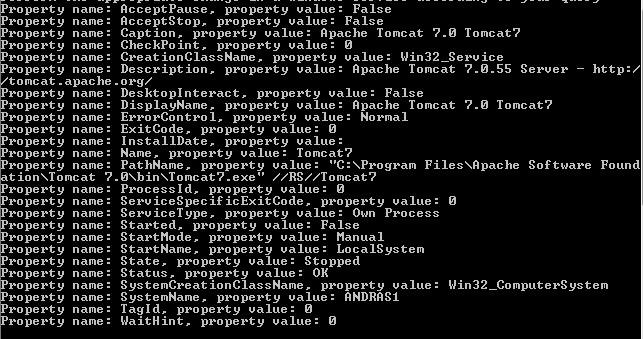
Run this code, open the Windows services window and stop or pause any Windows service. I stopped the Tomcat7 service running on my PC and got the following Console output:

Stopping any service caught by event watcher

You can of course refine your query using the property names of the target instance. You can always check the property names on MSDN. E.g. if you open the above link to the Win32_Service object then you’ll see that it has a “state” and a “name” property. So in case you’ll want to know that a service name “Tomcat7” was stopped then you can have the following query:

eventQuery.QueryString = "SELECT * FROM __InstanceModificationEvent within 2 WHERE targetinstance isa 'Win32_Service' and targetinstance.state = 'Stopped' and targetinstance.name = 'Tomcat7'";

In this case starting Tomcat7 won’t trigger the watcher. Neither will stopping any other Windows service. The event watcher will only react if a service names “Tomcat7” was stopped, i.e. the “Status” property of the target instance was set to “Stopped”.

You can view all posts related to Diagnostics here.
Introduction to ASP.NET Core part 18: custom tag helpers cont’d

Introduction

In the previous post we started looking into custom tags. The most straightforward way of creating custom HTML tags is to derive from the TagHelper class and override its Process or ProcessAsync function. Otherwise a custom tag helper is a normal C# class, i.e. there’s no special template involved. We discussed some examples of custom attributes and elements as well.

In this post we’ll look at some more examples of custom tags. We’ll also see how to pass in an object into a custom tag as an argument.

Read more of this post

Arrays in F#

In F# we declare an array using square brackets, pipes and semi-colons as follows. Here’s how to declare an integer array with some elements:

let myArray = [|1;3;5;7;9|]

int [] = [|1; 3; 5; 7; 9|]

Read more of this post

Relational operators in F#

The relational operators in F# don’t behave in exactly the same way as they do in popular OOP languages like C# or Java.

The greater-than and less-than operators are the same, here’s an example:

let value = 5
let trueOrFalseGt = value > 5
let trueOrFalseLt = value < 5

The boolean values will be false as expected:

val trueOrFalseGt : bool = false
val trueOrFalseLt : bool = false

Read more of this post

Introduction to ASP.NET Core part 17: custom tag helpers

Introduction

In the previous post we continued our exploration of the .NET Core tag library. In particular we looked at how to build a form using the library. We also saw some examples on mixing the tag library mark-up and Razor C# syntax. The tag library version of the POST form works in exactly the same way as its Razor equivalent.

The tag library is highly extensible. This implies that we can build our own custom tags. We’ll explore this with several examples in this post.

Read more of this post

Elliot Balynn's Blog

A directory of wonderful thoughts

Software Engineering

Web development

Disparate Opinions

Various tidbits

chsakell's Blog

WEB APPLICATION DEVELOPMENT TUTORIALS WITH OPEN-SOURCE PROJECTS

Once Upon a Camayoc

ARCHIVED: Bite-size insight on Cyber Security for the not too technical.