Basics of working with pipes in C# .NET part 4: basic conversation with messages

In this post we saw how a pipe stream client and server can send each other single bytes. In this post we managed to send a single message from the client to the server. It’s time to marry the two concepts. We’ll let the client and server start a conversation.

The server side code has nothing new compared to the posts referred to above:

Read more of this post

Basics of working with pipes in C# .NET part 3: message transmission

So far in the posts on pipe streams in .NET we’ve been considering the transmission of single bytes. That’s not really enough for a real-world messaging application. In this post we’ll extend our discussion to complete messages.

We have to explicitly indicate that we want to process messages in the NamedPipeServerStream constructor. Also, we’ll need to read the messages in chunks. A message is represented by a byte array and we don’t know in advance how long the message will be. Fortunately the NamedPipeServerStream object has an IsMessageComplete property which we’ll be able to use in the do-while loop:

Read more of this post

Basics of working with pipes in C# .NET part 2: continuous byte communication

In this post we briefly introduced how interprocess communication pipes are represented in .NET. The server sent a single byte to the client and the client sent a single byte in response. We’ll add some more flesh to the code but still keep it very simple. We’ll let the client and server send each other individual bytes as messages. Obviously that is still very childish but it will do for demo purposes. We’ll continue with proper messages in the next post.

Here’s the extended server code with a lot more output. We read a line of input from the console but only transmit the very first byte. We wait for the client’s response. The byte value of ‘x’, i.e. 120 will indicate that the client wants to end the communication:

Read more of this post

Basics of working with pipes in C# .NET part 1: send and receive a single byte

Pipes are used for interprocess communication. Typically there’s a single pipe server that one or more clients can connect to and exchange messages.

There are named and anonymous pipes. Anonymous pipes come with a couple of limitations compared to named pipes:

  • They are one-way only i.e. the server and client cannot exchange messages. Communication where both the server and client are allowed to send messages is called duplex
  • Anonymous pipes only allow communication with a single client. Named pipes provide a multi-client scenario
  • Anonymous pipes cannot function over the network. They are limited to the same machine. Named pipes have no such limitation

Read more of this post

How to send emails in .NET part 11: credentials

In the previous part in this mini-series we looked at how to handle exceptions. We’ll briefly look at authentication in this post.

Some SMTP servers require you to provide a username and password in order to send emails.

You can set the default network credentials as follows:

string smtpServer = "mail.blahblah.com";
SmtpClient client = new SmtpClient(smtpServer);
client.UseDefaultCredentials = true;

Another way to achieve the same is the following:

client.Credentials = CredentialCache.DefaultNetworkCredentials;

…where CredentialCache is found in the System.Net namespace.

You can also set the username and password manually as follows:

client.Credentials = new NetworkCredential("name", "password");

Read all posts related to emailing in .NET here.

How to send emails in .NET part 10: handling exceptions

In this mini series on emailing in .NET we saw how to compose and send emails.

There are many things that can go wrong when you send an email: the SMTP server is down, your credentials are invalid, the recipient is invalid etc. When sending an email in .NET you should always catch and handle any SmtpExceptions and SmtpFailedRecipientExceptions. Examples:

SmtpClient client = new SmtpClient(null);
try
{
	client.Send(mailMessage);
}
catch (InvalidOperationException invalid)
{
	Console.WriteLine("Server hostname is missing: " + invalid.Message);
}

InvalidOperationException is thrown in case the host is missing.

string smtpServer = "mail.blahblah.com";
SmtpClient client = new SmtpClient(smtpServer);
try
{
	client.Send(mailMessage);
}
catch (SmtpException smtpNotFound)
{
	Console.WriteLine("Server hostname is invalid: " + smtpNotFound.Message);
}

SmtpClient will try to contact mail.blahblah.com but fails of course. If you run this code then be patient as the default timeout of SmtpClient is 100 seconds, so you won’t see the exception message immediately.

In the above case SmtpException will have an inner exception of type WebException. smtpNotFound.Message like above will only show a generic message: “Failure sending mail”. If you want to dig deeper you’ll need to check if there’s any inner exception:

string smtpServer = "mail.blahblah.com";
SmtpClient client = new SmtpClient(smtpServer);
try
{
	client.Send(mailMessage);
}
catch (SmtpException smtpNotFound)
{
	Console.WriteLine("Server hostname is invalid: " + smtpNotFound.Message);
        if (smtpNotFound.InnerException != null)
	{
		Console.WriteLine(smtpNotFound.InnerException.Message);
	}
}

The inner exception message will be “Unable to connect to the remote server”.

SmtpException can also be thrown if the operation times out, but in that case there will be no inner exceptions:

SmtpClient client = new SmtpClient(smtpServer);
client.Timeout = 10;
try
{
	client.Send(mailMessage);
}
catch (SmtpException smtpNotFound)
{
	Console.WriteLine("Server hostname is invalid: " + smtpNotFound.Message);
}

We set the timeout to 10 seconds which is reached before SmtpClient determines that the SMTP server cannot be reached. Hence the exception message will say “The operation has timed out.”

SmtpException can also be thrown for a variety of other reasons like message transmission problems, so don’t forget to check the inner exception as well, it may contain a more detailed description of the problems.

There’s also an exception of type SmtpFailedRecipientException. If you work at GreatCompany Ltd. and your mail server is mail.greatcompany.com and you want to send an email to john@greatcompany.com then your mail server will be able to determine if the recipient exists and return an error if it doesn’t. If however, you’re sending an email to a recipient on another mail server then mail.greatcompany.com won’t of course see whether the recipient is valid or not. So you can only rely on this exception type if you’re sending an email within your network.

In this post we saw how to send an email asynchronously through SendAsync. The event arguments to the SendCompleted event handler includes a property called Error. If you send your email in this manner than the InvalidOperationException and SmtpException error caught will be set to this property so you can check the result.

Read all posts related to emailing in .NET here.

How to send emails in .NET part 9: sending emails

Up to now in this mini series we’ve looked at how to compose email messages. The next step is to actually send them to the recipient(s).

We saw that the easiest way to send a message is using the SmtpClient.Send method:

string from = "andras.nemes@company.com";
string to = "john.smith@company.com";
string subject = "This is the subject";
string plainTextBody = "This is a great message.";
MailMessage mailMessage = new MailMessage(from, to, subject, plainTextBody);
string smtpServer = "mail.company.com";
SmtpClient client = new SmtpClient(smtpServer);
client.Send(mailMessage);

The Send method is a “normal” synchronous method, i.e. it will block the code execution until the email has been sent.

In case you’d like to send the message asynchronously you have at least 2 options. If you have a .NET 4.5 project then you can use the awaitable version of Send, which is SendMailAsync. You don’t know what await-async means? Start here.

The updated code looks like this then:

public async Task SendMessageAsync()
{
	string from = "andras.nemes@company.com";
        string to = "john.smith@company.com";
        string subject = "This is the subject";
        string plainTextBody = "This is a great message.";
        MailMessage mailMessage = new MailMessage(from, to, subject, plainTextBody);
        string smtpServer = "mail.company.com";
        SmtpClient client = new SmtpClient(smtpServer);
	await client.SendMailAsync(mailMessage);
}

You’d then call the method as follows:

await SendMessageAsync();

Another option is to use the SendAsync method of SmtpClient and hook up to its SendCompleted event:

SmtpClient client = new SmtpClient(smtpServer);
client.SendCompleted += client_SendCompleted;
client.SendAsync(mailMessage, "Hello world");	

…where client_SendCompleted is an event handler:

void client_SendCompleted(object sender, AsyncCompletedEventArgs e)
{
	Console.WriteLine("Cancelled? " + e.Cancelled);
	Console.WriteLine("Error? " + (e.Error == null));
	Console.WriteLine("User specified arg " + (e.UserState == null ? "none" : e.UserState.ToString()));
}

…which is called when the sending operation has completed. You can then read if the sending operation has been cancelled, if there are any exceptions and if there are any custom arguments in the UserState object. You can supply your own object here, any object, through the SendAsync method. In the above example I simply put “Hello world” as the custom argument which can be retrieved as e.UserState.ToString().

The sending can be cancelled by the SmtpClient.SendAsyncCancel() method which can be triggered if e.g. the user clicks a button if it takes too long to send the email.

In case your SMTP server supports SSL then make sure you take advantage of it and send the email in an encrypted form:

client.EnableSsl = true;

Read all posts related to emailing in .NET here.
How to send emails in .NET part 8: adding images to HTML contents

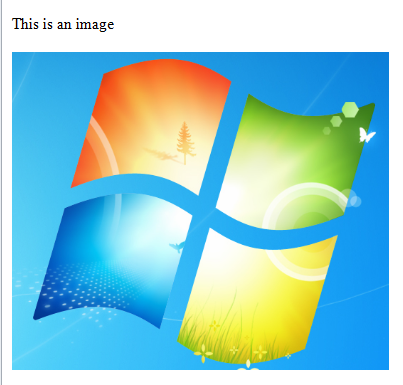
In this and this post we saw how to the build a HTML message and style it up. Let’s now see how to add images, such as a company logo or a photo.

The standard img tag is used to fulfil this need but in a special way. In standard HTML you can use the src attribute to refer to a file on the local drive or on another server, like http://mysite.com/images/hello.jpg. Pointing to a local file in an email is of course futile as you never know what’s on the recipient’s local machine. Referring to external files in HTML emails is problematic. They will be ignored by many email clients. At best the recipient will need to confirm that the images can be downloaded upon opening the email.

Instead the image will need to be added to the MailMessage object as a LinkedResource in an AlternateView. The LinkedResource must be assigned a unique content ID – unique among all linked resources in the message. You’ll need to refer to this content ID in the src attribute of the img tag in the HTML email body.

Consider the following example:

string from = "andras.nemes@company.com";
string to = "john.smith@company.com";
string subject = "Testing html body with image";
string htmlBody = @"
<html lang=""en"">	
	<body>
		<p>This is an image</p>
		<img src=""cid:WinLogo"" />
	</body>
</html>
";
AlternateView alternateViewHtml = AlternateView.CreateAlternateViewFromString(htmlBody, Encoding.UTF8, MediaTypeNames.Text.Html);
LinkedResource windowsLogo = new LinkedResource(@"c:\windows_logo.png", MediaTypeNames.Image.Jpeg);
windowsLogo.ContentId = "WinLogo";
alternateViewHtml.LinkedResources.Add(windowsLogo);
			
string plainTextVersionBody = "You should see a Windows logo here.";
AlternateView alternateViewText = AlternateView.CreateAlternateViewFromString(plainTextVersionBody, Encoding.UTF8, MediaTypeNames.Text.Plain);
			
MailMessage mailMessage = new MailMessage(from, to, subject, htmlBody);
mailMessage.AlternateViews.Add(alternateViewHtml);
mailMessage.AlternateViews.Add(alternateViewText);
string smtpServer = "mail.company.com";
SmtpClient client = new SmtpClient(smtpServer);
client.Send(mailMessage);

Note the following:

  • We create two alternate views: one HTML and one simple text. This is to ensure that the user will see at least a plain text version if the mail client cannot render HTML
  • The content ID of the LinkedResource is set to “WinLogo”
  • The same ID is referred to trough the src attribute om the image tag. Note the “cid:” bit within the contents of the src attribute.

The above code generates the following email in my Outlook client:

Simple HTML body in email with embedded picture

Read all posts related to emailing in .NET here.

How to send emails in .NET part 7: adding style to HTML contents

In this post we saw how to build a simple HTML email with no styling. It looked a bit bleak so we’ll “dress it up” a little.

You cannot simply add a reference to an external CSS file like you would on a normal HTML web page. External references are ignored in the email body as they can can contain malicious material and code.

You can place CSS code directly in the HTML code in the following ways:

  • Using the style tag within the head section
  • Using the style attribute on individual elements
  • Using old-style attributes, such as cellspacing, border, width etc. on individual elements

All of these should be familiar from general web UI programming. Here’s an example of an embedded style tag in the head section:

string from = "andras.nemes@company.com";
string to = "john.smith@company.com";
string subject = "Testing html body";
string htmlBody = @"
<html lang=""en"">
	<head>	
		<meta content=""text/html; charset=utf-8"" http-equiv=""Content-Type"">
		<title>
			Upcoming topics
		</title>
		<style type=""text/css"">
			HTML{background-color: #e8e8e8;}
			.courses-table{font-size: 12px; padding: 3px; border-collapse: collapse; border-spacing: 0;}
			.courses-table .description{color: #505050;}
			.courses-table td{border: 1px solid #D1D1D1; background-color: #F3F3F3; padding: 0 10px;}
			.courses-table th{border: 1px solid #424242; color: #FFFFFF;text-align: left; padding: 0 10px;}
			.green{background-color: #6B9852;}
		</style>
	</head>
	<body>
		<table class=""courses-table"">
			<thead>
				<tr>
					<th class=""green"">Topic</th>
					<th class=""green"">Est. # of posts</th>
				</tr>
			</thead>
			<tbody>
				<tr>
					<td class=""description"">Using a Windows service in your project</td>
					<td>5</td>
				</tr>
				<tr>
					<td class=""description"">More RabbitMQ in .NET</td>
					<td>5</td>
				</tr>
			</tbody>
		</table>
	</body>
</html>
";
MailMessage mailMessage = new MailMessage(from, to, subject, htmlBody);
mailMessage.IsBodyHtml = true;
string smtpServer = "mail.company.com";
SmtpClient client = new SmtpClient(smtpServer);
client.Send(mailMessage);

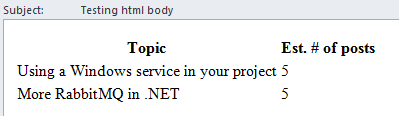
The above message is rendered as follows in my MS outlook client:

Styled HTML body in email

It’s still not very corporate looking but now you at least know how to add styles to a HTML message in .NET.

Keep in mind that email clients are not as up-to-date with CSS code as modern web browsers, so not everything will work in an email.

Read all posts related to emailing in .NET here.
How to send emails in .NET part 6: HTML contents basics

In previous posts regarding emails – see the link below – we looked at how to send plain text emails. However, professional company emails, such as user sign-up confirmations, have almost exclusively HTML body formats for styling and layout.

Let’s start with the basics and send out a HTML-based email with no styling. You can freely add HTML tags to the body of the email and set the IsBodyHtml property as true:

string from = "andras.nemes@company.com";
string to = "john.smith@company.com";
string subject = "Testing html body";
string htmlBody = @"
<html lang=""en"">
	<head>	
		<meta content=""text/html; charset=utf-8"" http-equiv=""Content-Type"">
		<title>
			Upcoming topics
		</title>
	</head>
	<body>
		<table>
			<thead>
				<tr>
					<th>Topic</th>
					<th>Est. # of posts</th>
				</tr>
			</thead>
			<tbody>
				<tr>
					  <td>Using a Windows service in your project</td>
					  <td>5</td>
				  </tr>
				  <tr>
					  <td>More RabbitMQ in .NET</td>
					  <td>5</td>
				  </tr>
			</tbody>
		</table>
	</body>
</html>
";
MailMessage mailMessage = new MailMessage(from, to, subject, htmlBody);
mailMessage.IsBodyHtml = true;
string smtpServer = "mail.company.com";
SmtpClient client = new SmtpClient(smtpServer);
client.Send(mailMessage);

The email client will then render the HTML as best as it can. You cannot however just send any HTML that you may be used to from web programming. Most email clients will ignore external files, like JS, images, CSS files etc. Also, inline JavaScript code won’t be executed.

The above message was rendered in my MS Outlook client as follows:

Simple HTML body in email

Read all posts related to emailing in .NET here.

Elliot Balynn's Blog

A directory of wonderful thoughts

Software Engineering

Web development

Disparate Opinions

Various tidbits

chsakell's Blog

WEB APPLICATION DEVELOPMENT TUTORIALS WITH OPEN-SOURCE PROJECTS

Once Upon a Camayoc

ARCHIVED: Bite-size insight on Cyber Security for the not too technical.